
JS之Math.sin与Math.cos介绍及应用-实现鼠标点击后的烟花效果
基本介绍
Math.sin(x) :x 的正玄值。返回值在 -1.0 到 1.0 之间;
Math.cos(x) :x 的余弦值。返回的是 -1.0 到 1.0 之间的数;
其中函数中是x是指“弧度”而非角度。
弧度定义:两条射线从圆心向圆周射出,形成一个夹角和夹角正对的一段弧。当这段弧长正好等于圆的半径时,两条射线的夹角大小为1弧度(单位:rad)。
角度定义:两条射线从圆心向圆周射出,形成一个夹角和夹角正对的一段弧。当弧长正好等于圆周长的360分之一时,两条射线的夹角的大小为1度。(单位: º)
如图所示:
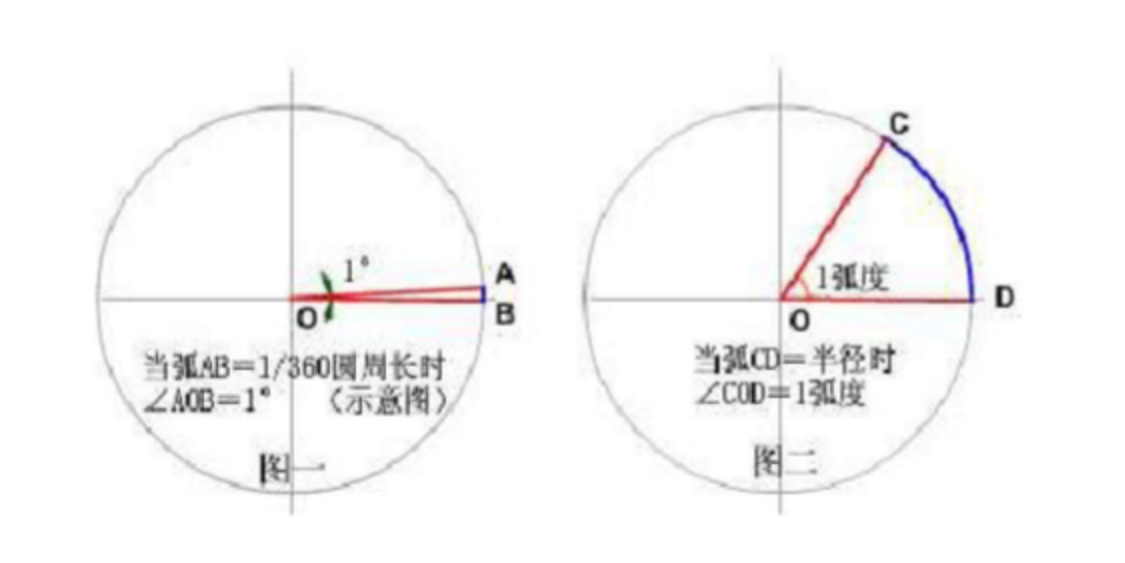
角度转弧度(弧度计算公式):2π / 360 = π / 180 ≈ 0.0174rad, 即: 度数 * (π / 180) = 弧度
弧度转角度(角度计算公式): 360 / 2π = 180 / π ≈ 57.3º, 即: 弧度 * (180 / π) = 度数
// 将30º转为弧度rad

 30º * (π / 180)= 0.523320 rad

 // 将0.523320rad转为度º

 0.523320rad * (180 / π) = 29.9992352688º
可参考:
特殊值:
|
度
|
0°
|
30°
|
45°
|
60°
|
90°
|
120°
|
135°
|
150°
|
180°
|
270°
|
360°
|
|
弧度
|
0
|
π/6
|
π/4
|
π/3
|
π/2
|
2π/3
|
3π/4
|
5π/6
|
π
|
3π/2
|
2π
|
正弦函数和余弦函数的图像如图所示:

实例
实例1:如何得到圆上每个点的坐标?
解决思路:根据三角形的正玄、余弦来得值;
假设一个圆的圆心坐标是(a,b),半径为r,
则圆上每个点的X坐标=a + Math.sin(2*Math.PI / 360) * r ;Y坐标=b + Math.cos(2*Math.PI / 360) * r ;
实例2:如何求时钟的秒针转动一圈的轨迹?
假设秒针的初始值(起点)为12点钟方向,圆心的坐标为(a,b)。
解决思路:一分钟为60秒,一个圆为360°,所以平均每秒的转动角度为 360°/60 = 6°;
for(var times=0; times<60; times++) {

       var hudu = (2*Math.PI / 360) * 6 * times;

       var X = a + Math.sin(hudu) * r;

       var Y = b - Math.cos(hudu) * r    //  注意此处是“-”号,因为我们要得到的Y是相对于(0,0)而言的。

}
注意:
1、本例是以“12点为起点, 角度增大时为顺时针方向“,求X坐标和Y坐标的方法是:
X坐标=a + Math.sin(角度 * (Math.PI / 180)) * r ;
Y坐标=b - Math.cos(角数 * (Math.PI / 180)) * r ;
2、一般“3点为起点, 角度增大时为逆时针方向“,求X坐标和Y坐标的方法是:
X坐标 = a + Math.cos(角度 * (Math.PI / 180)) * r;
Y坐标 = b - Math.sin(角度 * (Math.PI / 180)) * r;
实例3:使用Math.sin与Math.cos实现鼠标点击后的烟花效果
cursor-effects.js网上代码:
class Circle {

  constructor({ origin, speed, color, angle, context }) {

    this.origin = origin

    this.position = { ...this.origin }

    this.color = color

    this.speed = speed

    this.angle = angle

    this.context = context

    this.renderCount = 0

  }

  draw() {

    this.context.fillStyle = this.color

    this.context.beginPath()

    this.context.arc(this.position.x, this.position.y, 2, 0, Math.PI * 2)

    this.context.fill()

  }

  move() {

    this.position.x = (Math.sin(this.angle) * this.speed) + this.position.x

    this.position.y = (Math.cos(this.angle) * this.speed) + this.position.y + (this.renderCount * 0.3)

    this.renderCount++

  }

}

class Boom {

  constructor ({ origin, context, circleCount = 10, area }) {

    this.origin = origin

    this.context = context

    this.circleCount = circleCount

    this.area = area

    this.stop = false

    this.circles = []

  }

  randomArray(range) {

    const length = range.length

    const randomIndex = Math.floor(length * Math.random())

    return range[randomIndex]

  }

  randomColor() {

    const range = ['8', '9', 'A', 'B', 'C', 'D', 'E', 'F']

    return '#' + this.randomArray(range) + this.randomArray(range) + this.randomArray(range) + this.randomArray(range) + this.randomArray(range) + this.randomArray(range)

  }

  randomRange(start, end) {

    return (end - start) * Math.random() + start

  }

  init() {

    for(let i = 0; i < this.circleCount; i++) {

      const circle = new Circle({

        context: this.context,

        origin: this.origin,

        color: this.randomColor(),

        angle: this.randomRange(Math.PI - 1, Math.PI + 1),

        speed: this.randomRange(1, 6)

      })

      this.circles.push(circle)

    }

  }

  move() {

    this.circles.forEach((circle, index) => {

      if (circle.position.x > this.area.width || circle.position.y > this.area.height) {

        return this.circles.splice(index, 1)

      }

      circle.move()

    })

    if (this.circles.length == 0) {

      this.stop = true

    }

  }

  draw() {

    this.circles.forEach(circle => circle.draw())

  }

}

class CursorSpecialEffects {

  constructor() {

    this.computerCanvas = document.createElement('canvas')

    this.renderCanvas = document.createElement('canvas')

    this.computerContext = this.computerCanvas.getContext('2d')

    this.renderContext = this.renderCanvas.getContext('2d')

    this.globalWidth = window.innerWidth

    this.globalHeight = window.innerHeight

    this.booms = []

    this.running = false

  }

  handleMouseDown(e) {

    const boom = new Boom({

      origin: { x: e.clientX, y: e.clientY },

      context: this.computerContext,

      area: {

        width: this.globalWidth,

        height: this.globalHeight

      }

    })

    boom.init()

    this.booms.push(boom)

    this.running || this.run()

  }

  handlePageHide() {

    this.booms = []

    this.running = false

  }

  init() {

    const style = this.renderCanvas.style

    style.position = 'fixed'

    style.top = style.left = 0

    style.zIndex = '999999999999999999999999999999999999999999'

    style.pointerEvents = 'none'

    style.width = this.renderCanvas.width = this.computerCanvas.width = this.globalWidth

    style.height = this.renderCanvas.height = this.computerCanvas.height = this.globalHeight

    document.body.append(this.renderCanvas)

    window.addEventListener('mousedown', this.handleMouseDown.bind(this))

    window.addEventListener('pagehide', this.handlePageHide.bind(this))

  }

  run() {

    this.running = true

    if (this.booms.length == 0) {

      return this.running = false

    }

    requestAnimationFrame(this.run.bind(this))

    this.computerContext.clearRect(0, 0, this.globalWidth, this.globalHeight)

    this.renderContext.clearRect(0, 0, this.globalWidth, this.globalHeight)

    this.booms.forEach((boom, index) => {

      if (boom.stop) {

        return this.booms.splice(index, 1)

      }

      boom.move()

      boom.draw()

    })

    this.renderContext.drawImage(this.computerCanvas, 0, 0, this.globalWidth, this.globalHeight)

  }

}

const cursorSpecialEffects = new CursorSpecialEffects()

cursorSpecialEffects.init()
优化后的代码:
class Circle {

    constructor({origin,context,color,angle,speed}) {

        this.position = {...origin};

        this.context = context;

        this.color = color;

        this.angle = angle;

        this.speed = speed;

        this.renderCount = 0;

    }

    draw() {

        this.context.fillStyle = this.color;

        this.context.beginPath();

        this.context.arc(this.position.x, this.position.y, 2, 0, Math.PI * 2, false);

        this.context.fill();

    }

    move() {

        this.position.x += Math.sin(this.angle) * this.speed;

        this.position.y += Math.cos(this.angle) * this.speed + this.renderCount * 0.3;

        this.renderCount ++;

    }

}

class Boom {

    constructor({origin,context,area,circleNum = 10}) {

        this.origin = origin;

        this.context = context;

        this.area = area;

        this.circleNum = circleNum;

        this.circles = [];

        this.stop = false;

    }

    randomColor() {

        const rang = '89ABCDEF';

        const num = 6;

        let resultStr = '';

        for(let i = 0, num = 6; i < num; i++) {

            resultStr += rang.charAt(Math.floor(rang.length * Math.random()));

        }

        return '#' + resultStr;

    }

    randomRange(start,end) {

        return start + Math.random() * (end - start)

    }

    init() {

        for(let i = 0; i < this.circleNum; i++) {

            const circle = new Circle({

                origin: this.origin,

                context: this.context,

                color: this.randomColor(),

                angle: this.randomRange(Math.PI / 2, Math.PI * 3 / 2),

                speed: this.randomRange(1,6)

            })

            this.circles.push(circle);

        }

    }

    move() {

        for(let i = 0; i < this.circles.length; i++) {

            const curCircle = this.circles[i];

            if(curCircle.x >= this.area.width || curCircle.y >= this.area.height) {

                this.circles.splice(i,1);

                i--;

                continue;

            }

            curCircle.move();

        }

        if(this.circles.length === 0) {

            this.stop = true;

        }

    }

    draw() {

        this.circles.forEach((circle) => circle.draw());

    }

}

class MouseClickEffect {

    constructor() {

        this.drawCanvas = document.createElement('canvas');

        this.drawContext = this.drawCanvas.getContext('2d');

        const style = this.drawCanvas.style;

        style.left = style.top = 0;

        style.position = 'fixed';

        style.zIndex = '999999999';

        style.pointerEvents = 'none';

        this.drawCanvas.width = this.globalWidth = window.innerWidth;

        this.drawCanvas.height = this.globalHeight = window.innerHeight;

        document.body.appendChild(this.drawCanvas);

        this.booms = [];

        this.running = false;

        window.addEventListener('mousedown', this.handleMouseDown.bind(this));

        window.addEventListener('resize',this.changeWindow.bind(this));

    }

    handleMouseDown(e) {

        const boom = new Boom({

            origin: {x: e.clientX, y: e.clientY},

            area: {width: this.globalWidth, height: this.globalHeight},

            context: this.drawContext

        });

        boom.init();

        this.booms.push(boom);

        this.running || this.run();

    }

    changeWindow() {

        this.booms = [];

        this.running = false;

        this.drawCanvas.width = this.globalWidth = window.innerWidth;

        this.drawCanvas.height = this.globalHeight = window.innerHeight;

        this.drawContext.clearRect(0, 0, this.globalWidth, this.globalHeight);

    }

    run() {

        this.running = true;

        if(this.booms.length === 0) {

            return this.running = false;

        }

        requestAnimationFrame(this.run.bind(this));

        this.drawContext.clearRect(0, 0, this.globalWidth, this.globalHeight);

        for(let i = 0; i < this.booms.length; i++) {

            const boom = this.booms[i];

            if(boom.stop) {

                this.booms.splice(i, 1);

                i--;

                continue;

            }

            boom.move();

            boom.draw();

        }

    }

}

new MouseClickEffect();
JS之Math.sin与Math.cos介绍及应用-实现鼠标点击后的烟花效果的更多相关文章
- JS Math.sin() 与 Math.cos() 用法
Math.sin(x) x 的正玄值.返回值在 -1.0 到 1.0 之间: Math.cos(x) x 的余弦值.返回的是 -1.0 到 1.0 之间的数: 这两个函数中的X 都是指 ...
- JS Math.sin() 与 Math.cos() 用法 (含圆上每个点的坐标)
Math.sin(x) x 的正玄值.返回值在 -1.0 到 1.0 之间: Math.cos(x) x 的余弦值.返回的是 -1.0 到 1.0 之间的数: 这两个函数中的X 都是指 ...
- javascript: Math.sin() cos() 用法
Math.sin(x) x 的正玄值.返回值在 -1.0 到 1.0 之间: Math.cos(x) x 的余弦值.返回的是 -1.0 到 1.0 之间的数: 这两个函数中的X 都是指 ...
- 从零开始学习前端JAVASCRIPT — 4、JavaScript基础Math和Date对象的介绍
Math对象的介绍 1:Math对象 Math 对象用于执行数学任务.并不像 Date 和 String 那样是对象的类,因此没有构造函数 Math().您无需创建它,通过把 Math 作为对象使用就 ...
- js中Number对象与MATH方法整理总结
W3C的文档: Number 对象属性 属性 描述 constructor 返回对创建此对象的 Number 函数的引用. MAX_VALUE 可表示的最大的数. MIN_VALUE 可表示的最小的数 ...
- js入门之内置对象Math
一. 复习数据类型 简单数据类型, 基本数据类型/值类型 Number String Boolean Null Undefined 复杂数据类型 引用类型 Object 数组 数据在内存中是如何存储的 ...
- js中Math.round、parseInt、Math.floor和Math.ceil小数取整总结(转)
js中Math.round.parseInt.Math.floor和Math.ceil小数取整总结 Math.round.parseInt.Math.floor和Math.ceil 都可以返回一个整数 ...
- js 数值精确运算使用math.js
javaScript 浮点数运算的精度问题 问题:编程中你可能会遇到0.1*7=0.7000000000000001; 原因:几乎所有的编程语言都采用了 IEEE-745 浮点数表示法,任何使用二进制 ...
- js中Math.round、parseInt、Math.floor和Math.ceil小数取整总结
Math.round.parseInt.Math.floor和Math.ceil 都可以返回一个整数,具体的区别请看下面的总结. 一.Math.round 作用:四舍五入,返回参数+0.5后,向下取整 ...
- js中Math.round、parseInt、Math.floor和Math.ceil小数取整小结
以前经常在代码中看到Math.round.parseInt.Math.floor和Math.ceil这四个函数,虽然知道结果都可以返回一个整数,但是对他们四者的区别还是不太清楚,今天就做一个小结. 一 ...
随机推荐
- 1.1 第一个hello程序
还记得在每一个编程平台上的第一个程序都是hello world,现在就以这个程序为载体,先浅聊一下计算机系统吧. 1.预处理阶段,预处理器cpp根据字符#开头的命令修改原始的程序,并把头文件里的内容直 ...
- 8行JS代码实现Vue穿梭框
实现效果 完整 demo 参考 <template> <div class="contain"> <ul class=""> ...
- yearrecord——一个类似痕迹墙的React数据展示组件
介绍一下自己做的一个类似于力扣个人主页提交记录和GitHub主页贡献记录的React组件. 下图分别是力扣个人主页提交记录和GitHub个人主页的贡献记录,像这样类似痕迹墙的形式可以比较直观且高效得展 ...
- [oeasy]python0025_ 顺序执行过程_流水_流程_执行次序
顺序执行过程_流水_流程_执行次序 回忆上次内容 上次 熟悉了 vim编辑器 操作 作用 w 向前移动光标一个word b 向后移动光标一个word :r oeasy.py 读取文件到当前文件缓存 g ...
- [oeasy]python0028_直接运行_修改py文件执行权限_设置py文件打开方式
直接运行 回忆上次内容 我们把两个程序整合起来了 可以持续输出当前时间 每秒都更新 编辑 但是我想在 shell 里面 只输入文件名(./sleep.py)并回车 就能不断输出时间 可能吗? ...
- 2024 暑假友谊赛 1 (7.13)zhaosang
A-A https://vjudge.net/contest/638765#problem/A 一开始贪心做不出来,后面发现是dp找到转移方程即可,01dp问题 代码如下 #include <b ...
- 改善中国打开GitHub网站的速度
您可以采取以下措施来改善您在中国打开GitHub网站的速度:1. 使用VPN:通过连接到VPN服务器,您可以避免中国政府对GitHub网站进行的封锁,从而获得更快的访问速度.2. 使用加速器:国内有很 ...
- 树莓派配置固定IP地址
树莓派配置固定IP地址 1.编辑文件/etc/dhcpcd.confroot@raspberrypi:~# vi /etc/dhcpcd.conf 2.修改以下参数配置,如果没有就在文件底部添加有线配 ...
- 01-初识springboot
目录 01,什么是springboot 02,如何使用springboot 01,什么是springboot springboot是一个基于spring框架开发出来的一个新的框架,目的是为了简化spr ...
- Scrapy模块入门与实战:笔趣阁小说网爬取
scrapy框架基本使用 创建项目(爬取笔趣阁小说网) scrapy startproject novels 创建spider cd novels scrapy genspider bqgui.cc ...