
Python的图形化界面
导入easygui模块有很多种方法 , 这里只介绍一种简单使用的 .
import easygui as g
将easygui 简称为g 然后开始调用她的函数就行.
 import easygui as g

 import sys

 while 1:

     g.msgbox("显示一个窗口并且显示这些文字")# 只显示一个对话框并且只有一个ok

     msg="你希望学到什么呢?"

     title="小游戏互动"       # 在左上角的 标题旷里面

     choices=['谈恋爱','编程','ooxx','琴棋书画']  # 在选择框内 , 提供可选择项

     choice=g.choicebox(msg,title,choices) #  在这里 choice 可以得到上面你选择的那个选项

     g.msgbox("你的选择是:"+str(choice),'结果') # 打印出来

     msg='你希望再来一次么?'

     title='请选择'

     if g.ccbox(msg,title):    #  ok为真  cancel为假

         pass

     else:

         exit(0)   # 用于退出程序  .
 >>> import easygui as g

 >>> g.msgbox('我爱博主','人民心声')

 'OK'
在函数中有许多的默认参数 如下
 import easygui as g

 import sys

 choices=['愿意','不愿意','听从您的吩咐']

 reply=g.choicebox('你愿意和我在一起么,美女.',choices=choices)

 g.msgbox(reply)
msgbox的函数定义如下
 >>> help(g.msgbox)

 Help on function msgbox in module easygui:

 msgbox(msg='(Your message goes here)', title=' ', ok_button='OK', image=None, root=None)

     Display a messagebox
这里示范一下修改按钮的办法 .
g.msgbox('are you ready?',ok_button='呦我草')

关于ccbox
msgbox(msg='(Your message goes here)', title=' ', ok_button='OK', image=None, root=None)
 if g.ccbox('要再来一次吗?', choices=('要啊要啊^_^', '算了吧T_T')):

         g.msgbox('不给玩了,再玩就玩坏了......')

 else:

         sys.exit(0) # 记得先 import sys 哈

关于buttonbox
buttonbox(msg='', title=' ', choices=('Button1', 'Button2', 'Button3'), image=None, root=None)
g.msgbox(g.buttonbox("我爱你",'你说爱不爱',('唉','你唉','爱爱爱','爱爱爱')))

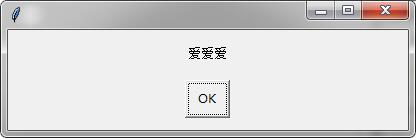
如何添加图片.
 import easygui as g

 import sys

 g.buttonbox('大家说我长得帅吗?', image='D:/Documents/Pictures/2.gif', choices=('帅', '不帅', '!@#$%'))

为用户提供一组选项.
 multchoicebox(msg='Pick as many items as you like.', title=' ', choices=(), **kwargs)

     Present the user with a list of choices.

     allow him to select multiple items and return them in a list.

     if the user doesn't choose anything from the list, return the empty list.

     return None if he cancelled selection.
 import easygui as g

 str1=g.multchoicebox('你现在最想干啥','这是标题',('抽烟','打游戏','和蔡伟伟一起玩','学东西写代码','唉,日了狗了'))

 if str1==None:

     g.msgbox('如果点击取消的话 会返回一个 None')

 print(str1)

 g.msgbox(str1)


让用户输入
 enterbox(msg='Enter something.', title=' ', default='', strip=True, image=None, root=None)

     Show a box in which a user can enter some text.

     You may optionally specify some default text, which will appear in the

     enterbox when it is displayed.

     Returns the text that the user entered, or None if he cancels the operation.

     By default, enterbox strips its result (i.e. removes leading and trailing

     whitespace).  (If you want it not to strip, use keyword argument: strip=False.)

     This makes it easier to test the results of the call::

         reply = enterbox(....)

         if reply:

             ...

         else:
>>> str1=g.enterbox(msg='请输入你想说的话', title='交互界面 ', default='这是默认用户输入', strip=True, image='D:/Documents/Pictures/2.gif', root=None)
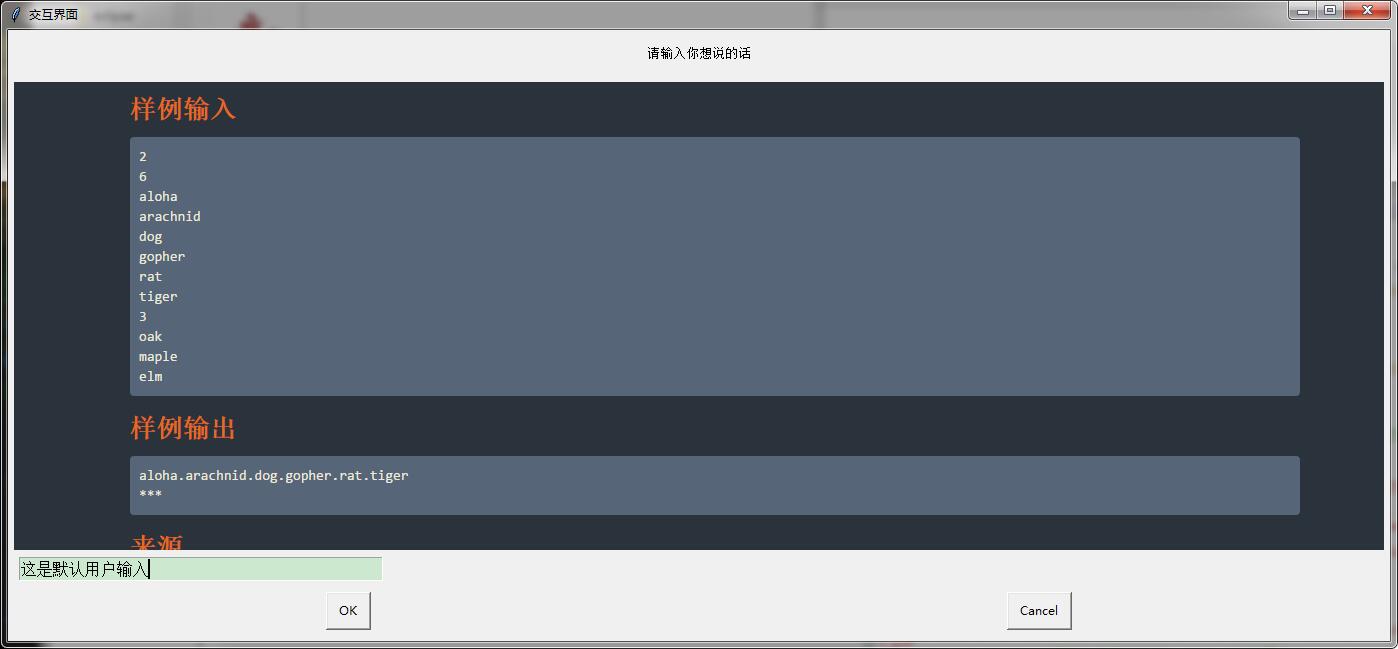
让用户输入数据
integerbox(msg='', title=' ', default='', lowerbound=0, upperbound=99, image=None, root=None, **invalidKeywordArguments)
 >>> g.integerbox(msg='输入你的分数 0~150', title='分数采集 ', default=0, lowerbound=0, upperbound=150)

 150

显示文本文档.
 import easygui as g

 f=open('C:/Users/Administrator/Desktop/新建文本文档.txt')

 str1=f.read()

 g.textbox('下面是题解','求模',str1,1)

输入帐号密码.
passwordbox(msg='Enter your password.', title=' ', default='', image=None, root=None)
g.msgbox(g.passwordbox('输入你的密码','登陆提示',''))


帐号密码登录框
 multpasswordbox(msg='Fill in values for the fields.', title=' ', fields=(), values=())

     Same interface as multenterbox.  But in multpassword box,

     the last of the fields is assumed to be a password, and

     is masked with asterisks.
import easygui as g

(account,password)=g.multpasswordbox('请输入您的账号密码','登录框',('帐号','密码'))

g.msgbox('帐号:  '+account+'\n'+'密码:  '+password)


目录和文件
 import easygui as g

 #gui编程中常见的一个场景是要求用户输入目录或者文件名

 #easygui提供了一些基本的函数让用户来浏览文件系统,选择一个目录或者文件.

 str1=g.diropenbox('选择文件目录','浏览文件夹','C:/Users/Administrator/Desktop')

 g.msgbox(str1)


选择一个文件并且返回包括文件名的目录
fileopenbox(msg=None, title=None, default='*', filetypes=None)
 import easygui as g

 #fileopenbox()函数用于提供一个对话框 , 返回用户选择的文件名(带完整路径)

 #如果用户选择 Cancel则返回None.

 str1=g.fileopenbox('选择文件','提示','C:/Users/Administrator/Desktop/__pycache__')

 g.msgbox(str1)

Python的图形化界面的更多相关文章
- python——Tkinter图形化界面及threading多线程
Tkinter模块("Tk 接口")是Python的标准Tk GUI工具包的接口.Tk和Tkinter可以在大多数的Unix平台下使用,同样可以应用在Windows和Macinto ...
- PySide——Python图形化界面
PySide——Python图形化界面 PySide——Python图形化界面入门教程(四) PySide——Python图形化界面入门教程(四) ——创建自己的信号槽 ——Creating Your ...
- PySide——Python图形化界面入门教程(四)
PySide——Python图形化界面入门教程(四) ——创建自己的信号槽 ——Creating Your Own Signals and Slots 翻译自:http://pythoncentral ...
- PySide——Python图形化界面入门教程(六)
PySide——Python图形化界面入门教程(六) ——QListView和QStandardItemModel 翻译自:http://pythoncentral.io/pyside-pyqt-tu ...
- PySide——Python图形化界面入门教程(五)
PySide——Python图形化界面入门教程(五) ——QListWidget 翻译自:http://pythoncentral.io/pyside-pyqt-tutorial-the-qlistw ...
- PySide——Python图形化界面入门教程(三)
PySide——Python图形化界面入门教程(三) ——使用内建新号和槽 ——Using Built-In Signals and Slots 上一个教程中,我们学习了如何创建和建立交互widget ...
- PySide——Python图形化界面入门教程(二)
PySide——Python图形化界面入门教程(二) ——交互Widget和布局容器 ——Interactive Widgets and Layout Containers 翻译自:http://py ...
- PySide——Python图形化界面入门教程(一)
PySide——Python图形化界面入门教程(一) ——基本部件和HelloWorld 翻译自:http://pythoncentral.io/intro-to-pysidepyqt-basic-w ...
- python+pycharm+PyQt5 图形化界面安装教程
python图形化界面安装教程 配置环境变量 主目录 pip所在目录,及script目录 更新pip(可选) python -m pip install --upgrade pip ps:更新出错一般 ...
随机推荐
- Linux GDB常用命令一栏
Linux GDB 常用命令如下: 1.启动和退出gdb (1)启动:gdb ***:显示一段版权说明: (*** 表示可执行程序名) (2)退出:quit.有的时候输入quit后会出现相关提示:类似 ...
- 大作业关于(“有爱”youi)的简介
我们团队一共四个人,我们足够了解对方的优缺点,能够很好的进行交流沟通.对于一些问题也能有好的方法去解决,我做事情比较讲究高效和尽可能的完美,或者说要做到我自己觉得完美,才会停下来.对于一件事情,我有自 ...
- 关于PATH_INFO SCRIPT_NAME SCRIPT_FILENAME REDIRECT_URL 详解
参考:http://www.nginx.cn/426.html http://www.cnblogs.com/xiaochaohuashengmi/archive/2011/09/13/217507 ...
- BZOJ2280 [Poi2011]Plot
恩..这题真是sxbk 我们先二分答案,然后判断答案是否满足要求 判断方法是二分当前段的长度一直做到底,当然我们可以用倍增这样快一点,直接随机增量就可以了 然后就是卡常..... 然后就是卡精度QAQ ...
- EF Code First 导航属性 与外键
一对多关系 项目中最常用到的就是一对多关系了.Code First对一对多关系也有着很好的支持.很多情况下我们都不需要特意的去配置,Code First就能通过一些引用属性.导航属性等检测到模型之间的 ...
- 如何在Quagga BGP路由器中设置IPv6的BGP对等体和过滤
在本教程中,我们会向你演示如何创建IPv6 BGP对等体并通过BGP通告IPv6前缀.同时我们也将演示如何使用前缀列表和路由映射特性来过滤通告的或者获取到的IPv6前缀. 拓扑 服务供应商A和B希望在 ...
- 转: 详解css中的display属性
在一般的CSS布局制作时候,我们常常会用到display对应值有block.none.inline这三个值.下面我们来分别来认识和学习什么时候用什么值.这里通过CSS display知识加实例讲解方法 ...
- python处理url中的中文编码,以及其他编码问题
1.python中的urlencode与urldecode 2.各种编码转换在线工具 3.python用于url解码和中文解析的小脚本(python url decoder) 4.如何只对url中的中 ...
- 兼容 IE,firfox 的时间日期出现 NaN
//当前日期加上天数后的新日期.function AddDays(days) { var d = new Date(); var year = d.getFullYear(); var day = ...
- Java与.NET DES加密解密互转
上代码: Java代码: import javax.crypto.Cipher; import javax.crypto.SecretKey; import javax.crypto.SecretKe ...