
Unity 3D 之贪吃蛇 Text 心得 & Audio
当我们需要在游戏街面上增加文本时, 我们就需要用到Text 组件
注意: 当文本的长度或者宽度不够时,字体将无法显示。
因为是面对组件编程,所以每一个组件的component都可以同过GetCompoment 得到。
退出时,Application.Quit 在测试代码完成不了,必须Build 之后才可以。
Audio API
Audio Source
The Audio Source plays back an Audio Clip in the scene. The clip can be played to an audio listener or through an audio mixer. The audio source can play any type of Audio Clip and can be configured to play these as 2D, 3D, or as a mixture (SpatialBlend). The audio can be spread out between speakers (stereo to 7.1) (Spread) and morphed between 3D and 2D (SpatialBlend). This can be controlled over distance with falloff curves. Also, if the listener is within one or multiple Reverb Zones, reverberation is applied to the source. Individual filters can be applied to each audio source for an even richer audio experience. See Audio Effects for more details.
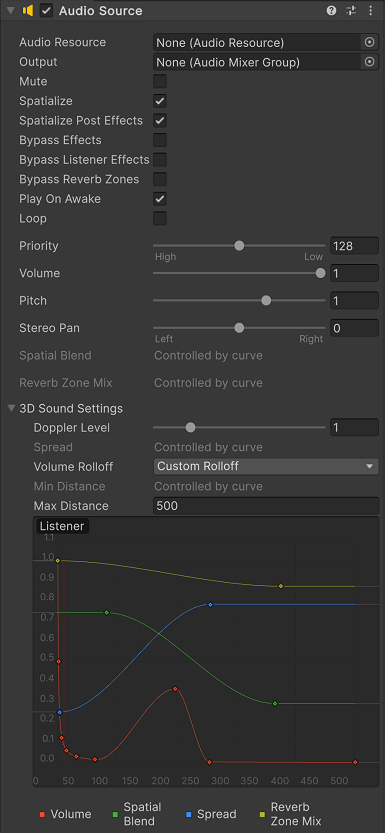
Properties
| Property: | Function: |
|---|---|
| Audio Clip | Reference to the sound clip file that will be played. |
| Output | The sound can be output through an audio listener or an audio mixer. |
| Mute | If enabled the sound will be playing but muted. |
| Bypass Effects | This is to quickly “by-pass” filter effects applied to the audio source. An easy way to turn all effects on/off. |
| Bypass Listener Effects | This is to quickly turn all Listener effects on/off. |
| Bypass Reverb Zones | This is to quickly turn all Reverb Zones on/off. |
| Play On Awake | If enabled, the sound will start playing the moment the scene launches. If disabled, you need to start it using the Play() command from scripting. |
| Loop | Enable this to make the Audio Clip loop when it reaches the end. |
| Priority | Determines the priority of this audio source among all the ones that coexist in the scene. (Priority: 0 = most important. 256 = least important. Default = 128.). Use 0 for music tracks to avoid it getting occasionally swapped out. |
| Volume | How loud the sound is at a distance of one world unit (one meter) from the Audio Listener. |
| Pitch | Amount of change in pitch due to slowdown/speed up of the Audio Clip. Value 1 is normal playback speed. |
| Stereo Pan | Sets the position in the stereo field of 2D sounds. |
| Spatial Blend | Sets how much the 3D engine has an effect on the audio source. |
| Reverb Zone Mix | Sets the amount of the output signal that gets routed to the reverb zones. The amount is linear in the (0 - 1) range, but allows for a 10 dB amplification in the (1 - 1.1) range which can be useful to achieve the effect of near-field and distant sounds. |
| 3D Sound Settings | Settings that are applied proportionally to the Spatial Blend parameter. |
| Doppler Level | Determines how much doppler effect will be applied to this audio source (if is set to 0, then no effect is applied). |
| Spread | Sets the spread angle to 3D stereo or multichannel sound in speaker space. |
| Min Distance | Within the MinDistance, the sound will stay at loudest possible. Outside MinDistance it will begin to attenuate. Increase the MinDistance of a sound to make it ‘louder’ in a 3d world, and decrease it to make it ‘quieter’ in a 3d world. |
| Max Distance | The distance where the sound stops attenuating at. Beyond this point it will stay at the volume it would be at MaxDistance units from the listener and will not attenuate any more. |
| Rolloff Mode | How fast the sound fades. The higher the value, the closer the Listener has to be before hearing the sound. (This is determined by a Graph). |
| - Logarithmic Rolloff | The sound is loud when you are close to the audio source, but when you get away from the object it decreases significantly fast. |
| - Linear Rolloff | The further away from the audio source you go, the less you can hear it. |
| - Custom Rolloff | The sound from the audio source behaves accordingly to how you set the graph of roll offs. |
Types of Rolloff
There are three Rolloff modes: Logarithmic, Linear and Custom Rolloff. The Custom Rolloff can be modified by modifying the volume distance curve as described below. If you try to modify the volume distance function when it is set to Logarithmic or Linear, the type will automatically change to Custom Rolloff.
 Rolloff Modes that an audio source can have.
Distance Functions
There are several properties of the audio that can be modified as a function of the distance between the audio source and the audio listener.
Volume: Amplitude(0.0 - 1.0) over distance.
Spatial Blend: 2D (original channel mapping) to 3D (all channels downmixed to mono and attenuated according to distance and direction).
Spread: Angle (degrees 0.0 - 360.0) over distance.
Low-Pass (only if LowPassFilter is attached to the AudioSource): Cutoff Frequency (22000.0–10.0) over distance.
Reverb Zone: Amount of signal routed to the reverb zones. Note that the volume property and distance and directional attenuation are applied to the signal first and therefore affect both the direct and reverberated signals.
 Distance functions for Volume, Spatial Blend, Spread, Low-Pass audio filter, and Reverb Zone Mix. The current distance to the Audio Listener is marked in the graph by the red vertical line.
To modify the distance functions, you can edit the curves directly. For more information, see the guide to Editing Curves.
Creating Audio Sources
Audio Sources don’t do anything without an assigned Audio Clip. The Clip is the actual sound file that will be played back. The Source is like a controller for starting and stopping playback of that clip, and modifying other audio properties.
To create a new Audio Source:
- Import your audio files into your Unity Project. These are now Audio Clips.
- Go to GameObject->Create Empty from the menubar.
- With the new GameObject selected, select Component->Audio->Audio Source.
- Assign the Audio Clip property of the Audio Source Component in the Inspector.
Note: If you want to create an Audio Source just for one Audio Clip that you have in the Assets folder then you can just drag that clip to the scene view - a GameObject with an Audio Source component will be created automatically for it. Dragging a clip onto on existing GameObject will attach the clip along with a new Audio Source if there isn’t one already there. If the object does already have an Audio Source then the newly dragged clip will replace the one that the source
Unity 3D 之贪吃蛇 Text 心得 & Audio的更多相关文章
- Unity 3D游戏-贪吃蛇类游戏源码:重要方法和功能的实现
贪吃蛇类游戏源码 本文提供全流程,中文翻译.Chinar坚持将简单的生活方式,带给世人!(拥有更好的阅读体验 -- 高分辨率用户请根据需求调整网页缩放比例) 1 头部移动方式 2 生成 Shit 道具 ...
- Unity初级案例——贪吃蛇
using System.Collections; using System.Collections.Generic; using UnityEngine; using UnityEngine.UI; ...
- WebGL实现HTML5贪吃蛇3D游戏
js1k.com收集了小于1k的javascript小例子,里面有很多很炫很酷的游戏和特效,今年规则又增加了新花样,传统的classic类型基础上又增加了WebGL类型,以及允许增加到2K的++类型, ...
- WebGL实现HTML5的3D贪吃蛇游戏
js1k.com收集了小于1k的javascript小例子,里面有很多很炫很酷的游戏和特效,今年规则又增加了新花样,传统的classic类型基础上又增加了WebGL类型,以及允许增加到2K的++类型, ...
- 100行JS实现HTML5的3D贪吃蛇游戏
js1k.com收集了小于1k的javascript小例子,里面有很多很炫很酷的游戏和特效,今年规则又增加了新花样,传统的classic类型基础上又增加了WebGL类型,以及允许增加到2K的++类型, ...
- unity像素贪吃蛇
[ 星 辰 · 别 礼 ] 设计过程: 首先,在之前玩坏控制台做的那个c#贪吃蛇之后,我以为做unity会很简单,但事实比较不如人意...拖了好几天.因为过程中遇到一些问题 蛇身的移动,还是用列表,将 ...
- Unity经典游戏教程之:贪吃蛇
版权声明: 本文原创发布于博客园"优梦创客"的博客空间(网址:http://www.cnblogs.com/raymondking123/)以及微信公众号"优梦创客&qu ...
- Unity3D_(游戏)贪吃蛇
Unity制作贪吃蛇小游戏 玩家通过“WASD”控制小蛇上下左右移动,蛇头撞倒食物,则食物被吃掉,蛇身体长一节,接着又出现食物,等待蛇来吃,如果蛇在移动中撞到墙或身体交叉蛇头撞倒自己身体游戏结束 可通 ...
- 超多经典 canvas 实例,动态离子背景、移动炫彩小球、贪吃蛇、坦克大战、是男人就下100层、心形文字等等等
超多经典 canvas 实例 普及:<canvas> 元素用于在网页上绘制图形.这是一个图形容器,您可以控制其每一像素,必须使用脚本来绘制图形. 注意:IE 8 以及更早的版本不支持 &l ...
随机推荐
- 【Spring】整合SpringMVC、MyBatis
在使用xml配置方式的最佳整合方式: <?xml version="1.0" encoding="UTF-8"?> <beans xmlns= ...
- javascript一些比较难理解的知识点
原文出处:https://segmentfault.com/a/1190000010371988 看了一下这篇文章,自己也手敲了一遍 //1. 立即执行函数 作用:将var变量的作用域限制于函数内,这 ...
- ID3算法(1)
1 简述1.1 id3是一种基于决策树的分类算法,由J.Ross Quinlan在1986年开发.id3根据信息增益,运用自顶向下的贪心策略建立决策树.信息增益用于度量某个属性对样本集合分类的好 ...
- shell 之解释器、变量、字符串、数组
1.Shell简介 Shell 是一个用 C 语言编写的程序,它是用户使用 Linux 的桥梁.Shell 既是一种命令语言,又是一种程序设计语言.Shell 是指一种应用程序,这个应用程序提供了一个 ...
- xcode模拟器不显示键盘解决方案
当我们使用Xcode进行开发的时候,并不是所有的时候都需要将代码运行在iPhone,有时候模拟器就可以解决这些问题, 但是当你使用模拟器的时候会发现,在TextFiled中输入信息时,如果你是用模拟器 ...
- ButterKnife的安装与使用以及ButterKnife右键不显示的大坑
作为从安卓的的入门选手,第一次看到还以为是个第三方呢,从github下来之后感觉不对啊,这么多东西,后来一搜原来是个插件,而且不用从github上下载. 安装的方法很简单. 第一步:打开安卓studi ...
- 在Centos7x上部署docker
docker只支持CentOS7.x系统,所以近期根据docker官网指南自己搭建了一套,供大家参考. 1.部署Centos7.x系统,查看系统版本. 2.执行 sudo yum update 更新到 ...
- Spring mybatis源码篇章-XMLLanguageDriver解析sql包装为SqlSource
前言:通过阅读源码对实现机制进行了解有利于陶冶情操,承接前文Spring mybatis源码篇章-MybatisDAO文件解析(二) 首先了解下sql mapper的动态sql语法 具体的动态sql的 ...
- 团队作业4——第一次项目冲刺 FiFtH DaY
项目冲刺--Penta Kill 很开心,小编今天LOL也拿到了五杀,感觉自己又可以去吹一年了. 不扯这些有的没的了,让我们来看看今天的任务吧~ Mission 看起来好像和昨天没有什么不同哦,其实是 ...
- 201521123096《Java程序设计》第七周学习总结
1. 本周学习总结 2. 书面作业 ArrayList代码分析 1.1 解释ArrayList的contains源代码 contains遍历了ArrayList,如果ArrayList中存在与o相等的 ...