
html的小例子
常用的前端实例:
1略
2、在网页商城中的图片当我们把鼠标放上去之后,图片会显示一个有颜色的外边框,图片某一部分的字体的颜色并发生改变
鼠标放上去之前

鼠标放上去之后:

实现的代码:
<!DOCTYPE html>

<html lang="en">

<head>

    <meta charset="UTF-8" content="text/html" http-equiv="Content-Type">

    <title>Title</title>

    <style>

        .ele{

            /*先给图片的变框设置一个有宽度的变框这个鼠标放上去看到的效果就是静态的*/

            border: 1px solid transparent;

            /*加变框是为了不希望看到图片的位置发生改变*/

        }

        .ele:hover{

            /*伪类 :鼠标放上去会出现一个外边框*/

            border: 1px solid gray;

        }

        /*鼠标放上去 一部分的字体颜色发生改变*/

        .ele:hover .ele-item{

            color: red;

        }

    </style>

</head>

<body>

    <div class="ele">

        <div>123</div>

        <div class="ele-item">123</div>

    </div>

</body>

</html>
边框加颜色-并改变某一部分的字体颜色
3、鼠标放到图片上,图片上会显示一些相关的信息:
之前的效果:

设置代码之后的效果:
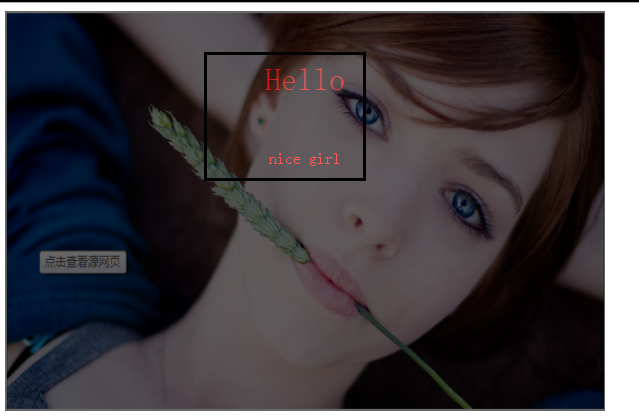
上代码:
<!DOCTYPE html>

<html lang="en">

<head>

    <meta charset="UTF-8" content="text/html" http-equiv="Content-Type">

    <title>隐藏</title>

    <style>

        .touch{

            /*父亲div的position采用relative

            那么在其内部的div只需要使用absolute就可以定位在父div的任意位置*/

            overflow: hidden;

            position: relative;

            width: 600px;

            height: 400px;

        }

        .touch img{

            /*设置图片的宽和高让它在框架的div中铺满*/

            width: 600px;

            height: 400px;

        }

        .touch .content{

            position: absolute;

            top:0;

            left:0;

            right:0;

            bottom:0;

            background-color: black;

            opacity: 0.6;   /*透明度*/

            color: red;

            text-align: center;

            visibility: hidden;

        }

        .touch:hover .content{

            /*内容设置一个伪类 鼠标放上去让其可见*/

            visibility: visible;

        }

        .touch .content .c1{

            font-size: 32px;

            padding: 50px 0;

        }

     </style>

</head>

<body>

    <div class="touch">

        <div><img src="nice.png"></div>

        <div class="content">

            <div class="c1">Hello</div>

            <div class="c2">nice girl</div>

        </div>

    </div>

</body>

</html>
图片上边加一层效果
4、画三角形:
4.1、border的特性:拐角处是特殊的样式:

|
1
2
3
4
5
6
7
8
9
10
11
12
13
14
15
16
17
18
|
<!DOCTYPE html><html lang="en"><head> <meta charset="UTF-8" content="text/html" http-equiv="Content-Type"> <title>画图</title> <style> .picture{ border-top: 30px solid black; border-bottom: 30px solid red; border-right: 30px solid purple; border-left: 30px solid pink; } </style></head><body><div class="picture"></div></body></html> |
拉长的效果是由于div是块级标签
4.2、将图形变成一个正方形:

<!DOCTYPE html>

<html lang="en">

<head>

    <meta charset="UTF-8" content="text/html" http-equiv="Content-Type">

    <title>画图</title>

    <style>

        .picture{

            border-top: 30px solid black;

            border-bottom: 30px solid red;

            border-right: 30px solid purple;

            border-left: 30px solid pink;

            /*将块级变成内联的且可以设置宽度高度*/

            display: inline-block;

        }

    </style>

</head>

<body>

<div class="picture"></div>

</body>

</html>
画一个正方形
4.3画一个上三角形
就是把上边的正方的其他边设置成透明色就可以达到设置三角的目的:
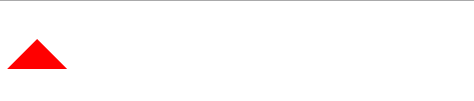
<!DOCTYPE html>

<html lang="en">

<head>

    <meta charset="UTF-8" content="text/html" http-equiv="Content-Type">

    <title>画三角</title>

    <style>

        .up{

            border-top: 30px solid transparent;

            border-bottom: 30px solid red;

            border-right: 30px solid transparent;

            border-left: 30px solid transparent;

            /*将块级变成内联的且可以设置宽度高度*/

            display: inline-block;

        }

    </style>

</head>

<body>

<div class="up"></div>

</body>

</html>
上三角
4.4画一个下三角,鼠标放上去变成下三角且颜色不一样:
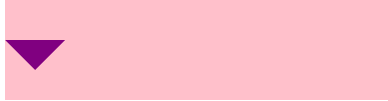
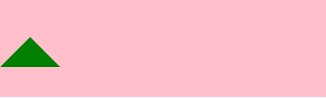
<!DOCTYPE html>

<html lang="en">

<head>

    <meta charset="UTF-8" content="text/html" http-equiv="Content-Type">

    <title>尖角</title>

    <style>

                .c1{

            border: 30px solid transparent;

            border-top: 30px solid purple;

           margin-top: 40px;

            display: inline-block;

        }

        .c1:hover{

            border: 30px solid transparent;

            border-bottom: 30px solid green;

            margin-top: 10px;

        }

           </style>

</head>

<body>

<div style="height: 100px;background-color: pink;">

    <div class="c1"></div>

</div>

</body>

</html>
下三角变上三角
5、引用特殊的图标:(awesome)

<!DOCTYPE html>

<html lang="en">

<head>

    <meta charset="UTF-8" content="text/html" http-equiv="Content-Type">

    <title>图标</title>

    <link rel="stylesheet" href="font-awesome/css/font-awesome.css">

    <style>

    </style>

</head>

<body>

    <i class="icon-cny"></i>

    <i class="icon-collapse"></i>

    <i class="icon-twitter-sign"></i>

</body>

</html>
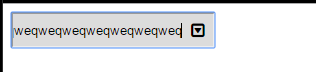
6、输入框

<!DOCTYPE html>

<html lang="en">

<head>

    <meta charset="UTF-8" content="text/html" http-equiv="Content-Type">

    <title>form-input</title>

    <link href="font-awesome/css/font-awesome.css" rel="stylesheet">

    <style>

        .user{

            position: relative;

            /*background-color: purple;*/

            width: 250px;

        }

        .user input{

            height: 30px;

            width: 170px;

            background-color: gainsboro;

            padding-right: 30px;

        }

        .user .ren{

            position: absolute;

            top: 10px;

            left: 180px;

        }

        .icon-collapse{

            cursor: pointer;

        }

    </style>

</head>

<body>

    <div class="user">

        <input type="text">

        <span class="ren icon-collapse"></span>

    </div>

</body>

</html>
form-input
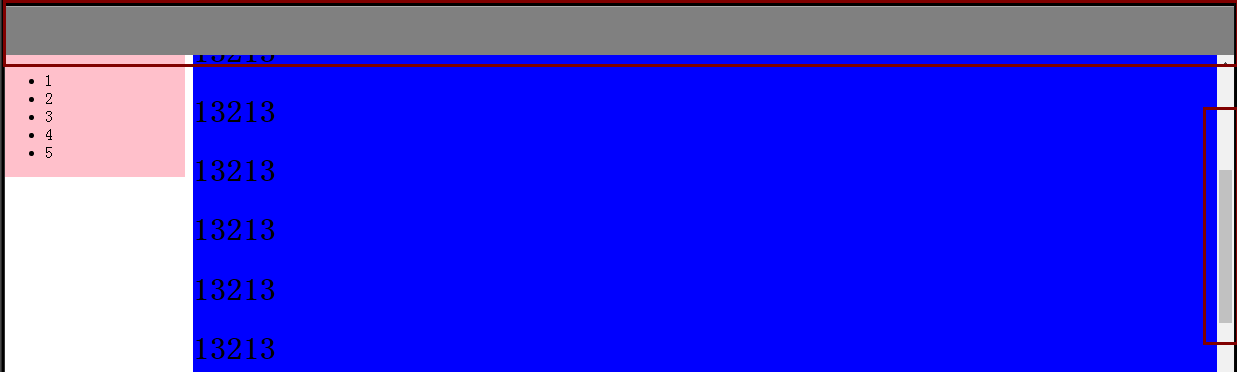
7、页面布局:
- 导航栏固定
- 菜单栏如果超出屏幕范围则有下拉框
- 内容部分超出页面也会有下拉框
<!DOCTYPE html>

<html lang="en">

<head>

    <meta charset="UTF-8" content="text/html" http-equiv="Content-Type">

    <title>布局页-1</title>

    <style>

        body{

            margin: 0;

        }

        .pg-body{

            height: 48px;

            background-color: gray;

        }

        .pg-body .body-menu{

            top: 48px;

            position: absolute;

            width: 180px;

            background-color: pink;

            left: 0px;

        }

        .pg-body .body-content{

            position:absolute;

            top: 48px;

            left: 188px;

            right:0;

            bottom:0;

            background-color: blue;

            overflow: auto;

        }

    </style>

</head>

<body>

<div class="pg-header">

</div>

<div class="pg-body">

    <div class="body-menu">

        <ul>

            <li>1</li>

            <li>2</li>

            <li>3</li>

            <li>4</li>

            <li>5</li>

        </ul>

    </div>

    <div class="body-content">

        <h1>13213</h1><h1>13213</h1><h1>13213</h1><h1>13213</h1><h1>13213</h1><h1>13213</h1><h1>13213</h1><h1>13213</h1><h1>13213</h1><h1>13213</h1><h1>13213</h1><h1>13213</h1>

        <h1>13213</h1><h1>13213</h1><h1>13213</h1><h1>13213</h1><h1>13213</h1><h1>13213</h1><h1>13213</h1><h1>13213</h1><h1>13213</h1><h1>13213</h1><h1>13213</h1><h1>13213</h1><h1>13213</h1><h1>13213</h1>

        <h1>13213</h1><h1>13213</h1><h1>13213</h1><h1>13213</h1><h1>13213</h1><h1>13213</h1><h1>13213</h1><h1>13213</h1><h1>13213</h1><h1>13213</h1><h1>13213</h1><h1>13213</h1><h1>13213</h1><h1>13213</h1>

    </div>

</div>

<div></div>

</body>

</html>
页面布局
8、有些页面打开之后我们点击登录,会弹出一个小的文本框,在屏幕的中间让用户登录或者注册,且页面的内容是可见的;
效果如下:
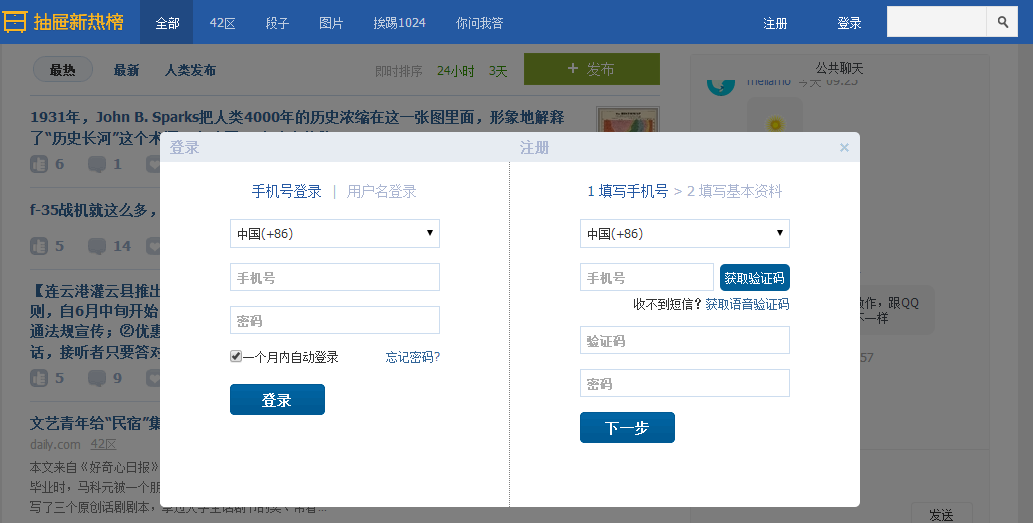
这个画面共有三个层次,最底部是网页,第二层是一个遮罩层(透明的灰色), 第三层就是我们看到的登录注册的页面且在页面偏上的位置:
<!DOCTYPE html>

<html lang="en">

<head>

    <meta charset="UTF-8" content="text/html" http-equiv="Content-Type">

    <title>模态对话框</title>

    <style>

        body{

            margin: 0;

            padding: 0;

        }

        .model{

            position: fixed;

            top:0;

            left:0;

            bottom:0;

            right:0;

            background: rgba(0,0,0,.6);

            z-index: 2;

        }

        .content{

            height: 300px;

            width: 400px;

            background-color: white;

            position: fixed;

            top:50%;

            left: 50%;

            z-index: 3;

            margin-top: -200px;

            margin-left: -200px;

        }

    </style>

</head>

<body>

<div style="height: 2000px;background-color: gainsboro">

    <h1>132</h1><h1>132</h1><h1>132</h1><h1>132</h1><h1>132</h1>

    <h1>132</h1><h1>132</h1><h1>132</h1>

</div>

    <div class="model"></div>

    <div class="content"></div>

</body>

</html>
模拟对话框
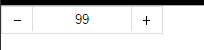
9、购物的时候可以选择一个或者多个
<!DOCTYPE html>

<html lang="en">

<head>

    <meta charset="UTF-8" content="text/html" http-equiv="Content-Type">

    <title>商品数量的加减</title>

    <style>

        body{

            margin: 0;

        }

        .left{

            float: left;

        }

        .center{

            line-height: 26px;

            text-align: center;

        }

        .wrap{

            width: 160px;

            height: 26px;

            border: 1px solid #dddddd;

            /*background-color: gainsboro;*/

        }

        .wrap .minus{

            height: 26px;

            width: 30px;

            cursor: pointer;

        }

        .wrap .plus{

            height: 26px;

            width: 30px;

            cursor: pointer;

        }

        .wrap .count input{

            height: 24px;

            border: 0;

            width: 98px;

            padding: 0;

            border-right: 1px solid #dddddd;

            border-left: 1px solid #dddddd;

            text-align: center;

        }

    </style>

</head>

<body>

<div class="wrap">

    <div class="minus left center" onclick="Minus();">-</div>

    <div class="count left">

        <input id="count" type="text" value="">

    </div>

    <div class="plus left center" onclick="Plus();">+</div>

</div>

<script type="text/javascript">

    function Plus(){

        var old_str = document.getElementById("count").value;

        var old_int = parseInt(old_str);

        var new_int = old_int + 1;

        document.getElementById('count').value = new_int;

    }

    function Minus(){

        var old_str = document.getElementById("count").value;

        var old_int = parseInt(old_str);

        var new_int = old_int - 1;

        document.getElementById('count').value = new_int;

    }

</script>

</body>

</html>
商品数量的加减
html的小例子的更多相关文章
- springmvc入门的第一个小例子
今天我们探讨一下springmvc,由于是初学,所以简单的了解一下 springmvc的流程,后续会持续更新... 由一个小例子来简单的了解一下 springmvc springmvc是spring框 ...
- java即时通信小例子
学习java一段时间了,今天写来一个即时通信的小例子练手在其过程中也学到了一些知识拿出来和大家分享,请路过的各位大神多多赐教... 好了下面讲一下基本的思路: 首先,编写服务器端的程序,简单点说吧就是 ...
- Runtime的几个小例子(含Demo)
一.什么是runtime(也就是所谓的“运行时”,因为是在运行时实现的.) 1.runtime是一套底层的c语言API(包括很多强大实用的c语言类型,c语言函数); [runti ...
- bootstrap 模态 modal 小例子
bootstrap 模态 modal 小例子 <html> <head> <meta charset="utf-8" /> <title ...
- INI配置文件分析小例子
随手写个解析INI配置字符串的小例子 带测试 #include <iostream> #include <map> #include <string> #inclu ...
- JavaScript小例子:复选框全选
JavaScript小例子:复选框全选 这只是一个小例子,很简单,但是这个功能还是很常用的: 实现后效果如图: JavaScript代码: <script type="text/jav ...
- 【zTree】 zTree使用的 小例子
使用zTree树不是第一次了 但是 还是翻阅着之前做的 对照着 使用起来比较方便 这里就把小例子列出来 总结一下使用步骤 这样方便下次使用起来方便一点 使用zTree树的步骤: 1.首先 在 ...
- js小例子(标签页)
运用js写的一个小例子,实现点击不同的标签出现不同的内容: <!DOCTYPE html> <html> <head> <meta chaset=" ...
- sbrk与brk的使用小例子
sbrk() 和 brk() - Unix的系统函数 sbrk()和brk() 系统的底层会维护一个位置,通过位置的移动完成内存的分配和回收.映射内存时 以一个内存页作为基本单位. void* ...
- c# BackGroundWorker 多线程操作的小例子
在我们的程序中,经常会有一些耗时较长的运算,为了保证用户体验,不引起界面不响应,我们一般会采用多线程操作,让耗时操作在后台完成,完成后再进行处理或给出提示,在运行中,也会时时去刷新界面上的进度条等显示 ...
随机推荐
- Max-heap && Min-heap && push_heap
最大堆:make_heap(vi.begin(),vi.end()) #include <iostream> #include <vector> #include <al ...
- qt include_directories没用
include_directories之后在.cpp文件中include.h文件没有路径补全说明qt没有找到该.h文件 问题解决: 在add_executable里加入那个.cpp文件就可以了 因为c ...
- AC日记——【清华集训2014】奇数国 uoj 38
#38. [清华集训2014]奇数国 思路: 题目中的number与product不想冲: 即为number与product互素: 所以,求phi(product)即可: 除一个数等同于在模的意义下乘 ...
- Vmware vSphere常见问题及解决办法
Vmware vSphere常见问题及解决办法 日期:2012-6-29来源:51cto Vmware vSphere 12 1. 虚拟机文件被锁,无法正常 power on 故障状态: 启动虚拟 ...
- HDU 1391 number steps(找规律,数学)
Starting from point (0,0) on a plane, we have written all non-negative integers 0, 1, 2,... as shown ...
- 最小生成树(Kruskal)(并查集)
最小生成树 时间限制: 1 Sec 内存限制: 64 MB提交: 11 解决: 2[提交][状态][讨论版] 题目描述 某个宇宙帝国有N个星球,由于宇宙的空间是三维的,因此每个星球的位置可以用三维 ...
- 【三分】Codeforces Round #403 (Div. 2, based on Technocup 2017 Finals) B. The Meeting Place Cannot Be Changed
三分显然,要注意EPS必须设成1e-6,设得再小一点都会TLE……坑炸了 #include<cstdio> #include<algorithm> #include<cm ...
- 【小笔记】斜率优化的结论(WC)
- 【LCA倍增】POJ1330-Nearest Common Ancestors
[知识点:离线算法&在线算法] 一个离线算法,在开始时就需要知道问题的所有输入数据,而且在解决一个问题后就要立即输出结果. 一个在线算法是指它可以以序列化的方式一个个的处理输入,也就是说在开始 ...
- Java小问题的解决方法系列
1)IDEA中文乱码,解决方法:http://blog.csdn.net/zht666/article/details/8953516 2)卸载OpenJdk,http://my.oschina.ne ...