
WPF中的常用布局
一 写在开头
1.1 写在开头
评价一门技术的好坏得看具体的需求,没有哪门技术是面面俱到地好。
1.2 本文内容
本文主要内容为WPF中的常用布局,大部分内容转载至https://blog.csdn.net/woshisunjiale/article/details/54136323,代码片段可能有所不同。
二 WPF中的常用布局
因为项目需要,所以得学习WPF开发。WPF使软件界面和逻辑相分离,手写xaml进行程序UI的开发是件很惬意的事情。从这点来说WPF要比Qt和GTK+要好。当然了,如果其能跨平台甚至开源那就更好了。但是,商业有商业自身的规律。
2.1 Canvas布局
Canvas是一个类似于坐标系的面板,所有的元素通过设置坐标来决定其在坐标系中的位置。具体表现为使用Left、Top、Right、 Bottom附加属性在Canvas中定位控件。
 <Window x:Class="WPF_Layout.MainWindow"

 xmlns="http://schemas.microsoft.com/winfx/2006/xaml/presentation"

 xmlns:x="http://schemas.microsoft.com/winfx/2006/xaml"

 Title="WPF-Layout" Height="350" Width="525">

 <Grid>

 <Canvas>

 <Button Canvas.Left="50" Canvas.Top="50" Content="Button 1"></Button>

 <Button Canvas.Right="50" Canvas.Top="50" Content="Button 2"></Button>

 <Button Canvas.Left="50" Canvas.Bottom="50" Content="Button 3"></Button>

 <Button Canvas.Right="50" Canvas.Bottom="50" Content="Button 4"></Button>

 </Canvas>

 </Grid>

 </Window>
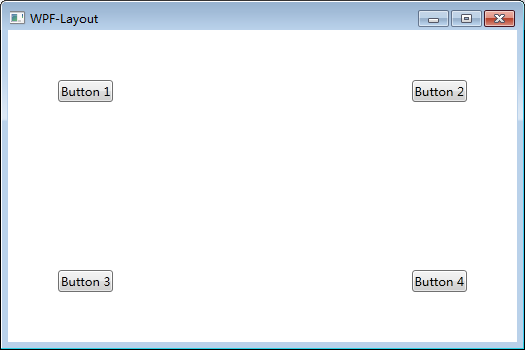
注意:如果同时设置 Canvas.Left="50"Canvas.Right="50",则以Canvas.Left="50"为准。如果同时设置Canvas.Top="50" Canvas.Bottom="50",则以Canvas.Top ="50"为准。(别这么丧心病狂地同时写Left和Right,请遵循基本的编程逻辑)
2.2 StackPanel布局
StackPanel将控件按照行或列来顺序排列,但不会换行。通过设置面板的Orientation属性设置了两种排列方式:横排(Horizontal默认的)和竖排(Vertical),默认为竖排(Vertical)。
 <Window x:Class="WPF_Layout.MainWindow"

 xmlns="http://schemas.microsoft.com/winfx/2006/xaml/presentation"

 xmlns:x="http://schemas.microsoft.com/winfx/2006/xaml"

 Title="WPF-Layout" Height="350" Width="525">

 <Grid>

 <StackPanel Name="stackpanel1" Orientation="Horizontal">

 <Button Content="Button1"></Button>

 <Button Content="Button2"></Button>

 <Button Content="Button3"></Button>

 </StackPanel>

 <StackPanel Name="stackpanel2" Orientation="Vertical">

 <Button Content="Button4"></Button>

 <Button Content="Button5"></Button>

 <Button Content="Button6"></Button>

 </StackPanel>

 <StackPanel Name="stackpanel3" Orientation="Horizontal" FlowDirection="RightToLeft">

 <Button Content="Button7"></Button>

 <Button Content="Button8"></Button>

 <Button Content="Button9"></Button>

 </StackPanel>

 </Grid>

 </Window>
注意:Orientation="Horizontal"时,设置FlowDirection属性为RightToLeft,,则元素将从右向左排列。
2.3 DockPanel布局
DockPanel支持让元素简单地停靠在整个面板的某一条边上,然后拉伸元素以填满全部宽度或高度。它也支持让一个元素填充其他已停靠元素没有占用的剩余空间。
DockPanel有一个Dock附加属性,因此子元素用4个值来控制她们的停靠:Left、Top、Right、Bottom。Dock没有Fill值。作为替代,最后的子元素将加入一个DockPanel并填满所有剩余的空间,除非DockPanel的LastChildFill属性为false,它将朝某个方向停靠。
 <Window x:Class="WPF_Layout.MainWindow"

         xmlns="http://schemas.microsoft.com/winfx/2006/xaml/presentation"

         xmlns:x="http://schemas.microsoft.com/winfx/2006/xaml"

         Title="WPF-Layout" Height="350" Width="525">

     <Grid>

         <DockPanel>

             <Button Content="上" DockPanel.Dock="Left"></Button>

             <Button Content="下" DockPanel.Dock="Bottom"></Button>

             <Button Content="左" DockPanel.Dock="Left"></Button>

             <Button Content="右" DockPanel.Dock="Right"></Button>

         </DockPanel>

     </Grid>

 </Window>
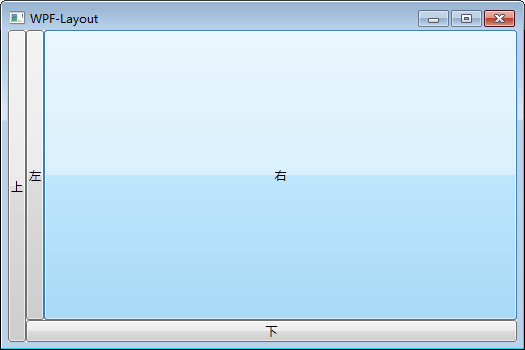
设置LastChildFill属性为false
 <Window x:Class="WPF_Layout.MainWindow"

         xmlns="http://schemas.microsoft.com/winfx/2006/xaml/presentation"

         xmlns:x="http://schemas.microsoft.com/winfx/2006/xaml"

         Title="WPF-Layout" Height="350" Width="525">

     <Grid>

         <DockPanel LastChildFill="False">

             <Button Content="上" DockPanel.Dock="Left"></Button>

             <Button Content="下" DockPanel.Dock="Bottom"></Button>

             <Button Content="左" DockPanel.Dock="Left"></Button>

             <Button Content="右" DockPanel.Dock="Right"></Button>

         </DockPanel>

     </Grid>

 </Window>

2.4 WrapPanel布局
WrapPanel布局面板将各个控件按照一定方向罗列,当长度或高度不够时自动调整进行换行换列。
Orientation="Horizontal"时各控件从左至右罗列,当面板长度不够时,子控件就会自动换行,继续按照从左至右的顺序排列。
Orientation="Vertical"时各控件从上至下罗列,当面板高度不够时,子控件就会自动换列,继续按照从上至下的顺序排列。
 <Window x:Class="WPF_Layout.MainWindow"

         xmlns="http://schemas.microsoft.com/winfx/2006/xaml/presentation"

         xmlns:x="http://schemas.microsoft.com/winfx/2006/xaml"

         Title="WPF-Layout" Height="350" Width="525">

     <Grid>

         <WrapPanel Orientation="Horizontal">

             <Button Content="Button 150" Width="150"></Button>

             <Button Content="Button 200" Width="200"></Button>

             <Button Content="Button 150" Width="150"></Button>

             <Button Content="Button 200" Width="200"></Button>

             <Button Content="Button 150" Width="150"></Button>

             <Button Content="Button 200" Width="200"></Button>

             <Button Content="Button 150" Width="150"></Button>

         </WrapPanel>

     </Grid>

 </Window>

2.5 Grid布局
Grid允许我们通过自定义行列来进行布局,这类似于表格.通过定义Grid的RowDifinitions和ColumnDifinitions来实现对于表格行和列的定义,元素根据附加属性Grid.Row和Grid.Column确定自己的位置。
1)Grid的列宽与行高可采用固定、自动、按比列三种方式定义
第一种,固定长度——值为一个确定的数字
第二种,自动长度——值为Auto,实际作用就是取实际控件所需的最小值
第三种,比例长度——*表示占用剩余的全部宽度;两行都是*,将平分剩余宽度;一个2*,一个*,则前者占剩余全部宽度的2/3,后者占1/3;依此类推
 <Window x:Class="WPF_Layout.MainWindow"

         xmlns="http://schemas.microsoft.com/winfx/2006/xaml/presentation"

         xmlns:x="http://schemas.microsoft.com/winfx/2006/xaml"

         Title="WPF-Layout" Height="350" Width="525">

     <Grid>

         <Grid.RowDefinitions>

             <RowDefinition Height="40"></RowDefinition>

             <RowDefinition Height="Auto"></RowDefinition>

             <RowDefinition Height="2*"></RowDefinition>

             <RowDefinition Height="*"></RowDefinition>

         </Grid.RowDefinitions>

         <Button Grid.Row="0" Content="Button 1"></Button>

         <Button Grid.Row="1" Content="Button 2"></Button>

         <Button Grid.Row="2" Content="Button 3"></Button>

         <Button Grid.Row="3" Content="Button 4"></Button>

     </Grid>

 </Window>

2) 合并行或列
 <Window x:Class="WPF_Layout.MainWindow"

         xmlns="http://schemas.microsoft.com/winfx/2006/xaml/presentation"

         xmlns:x="http://schemas.microsoft.com/winfx/2006/xaml"

         Title="WPF-Layout" Height="350" Width="525">

     <Grid>

         <Grid.RowDefinitions>

             <RowDefinition Height="40"></RowDefinition>

             <RowDefinition Height="Auto"></RowDefinition>

             <RowDefinition Height="2*"></RowDefinition>

             <RowDefinition Height="*"></RowDefinition>

         </Grid.RowDefinitions>

         <Button Grid.Row="0" Content="Button 1"></Button>

         <Button Grid.Row="1" Content="Button 2"></Button>

         <Button Grid.Row="2" Grid.RowSpan="2" Content="Button 3"></Button>

     </Grid>

 </Window>

3)GridSplitter重新分布Grid控件的列间距或行间距。(类似于WinForm中SplitContainer)
 <Window x:Class="WPF_Layout.MainWindow"

         xmlns="http://schemas.microsoft.com/winfx/2006/xaml/presentation"

         xmlns:x="http://schemas.microsoft.com/winfx/2006/xaml"

         Title="WPF-Layout" Height="350" Width="525">

     <Grid>

         <Grid.RowDefinitions>

             <RowDefinition Height="*"></RowDefinition>

             <RowDefinition Height="3"></RowDefinition>

             <RowDefinition Height="*"></RowDefinition>

         </Grid.RowDefinitions>

         <Button Grid.Row="0" Content="Button"></Button>

         <GridSplitter Grid.Row="1" HorizontalAlignment="Stretch"></GridSplitter>

         <Button Grid.Row="2" Content="Button"></Button>

     </Grid>

 </Window>

2.6 UniformGrid布局
UniformGrid就是Grid的简化版,每个单元格的大小相同,不需要定义行列集合。每个单元格始终具有相同的大小,每个单元格只能容纳一个控件。
若不设置RowsColums,则按照定义在其内部的元素个数,自动创建行列,并通常保持相同的行列数。若只设置Rows则固定行数,自动扩展列数。若只设置Colums则固定列数,自动扩展行数。
UniformGrid 中没有Row和Column附加属性,也没有空白单元格。
 <Window x:Class="WPF_Layout.MainWindow"

         xmlns="http://schemas.microsoft.com/winfx/2006/xaml/presentation"

         xmlns:x="http://schemas.microsoft.com/winfx/2006/xaml"

         Title="WPF-Layout" Height="350" Width="525">

     <Grid>

         <UniformGrid>

             <Button Content="Button"></Button>

             <Button Content="Button"></Button>

             <Button Content="Button"></Button>

             <Button Content="Button"></Button>

             <Button Content="Button"></Button>

             <Button Content="Button"></Button>

             <Button Content="Button"></Button>

         </UniformGrid>

     </Grid>

 </Window>

 <Window x:Class="WPF_Layout.MainWindow"

         xmlns="http://schemas.microsoft.com/winfx/2006/xaml/presentation"

         xmlns:x="http://schemas.microsoft.com/winfx/2006/xaml"

         Title="WPF-Layout" Height="350" Width="525">

     <Grid>

         <UniformGrid Columns="2">

             <Button Content="Button"></Button>

             <Button Content="Button"></Button>

             <Button Content="Button"></Button>

             <Button Content="Button"></Button>

             <Button Content="Button"></Button>

             <Button Content="Button"></Button>

             <Button Content="Button"></Button>

         </UniformGrid>

     </Grid>

 </Window>

2.7 ScrollViewer布局
ScrollViewer是带有滚动条的面板。在ScrollViewer中只能有一个子控件,若要显示多个子控件,需要将一个附加的 Panel控件放置在父 ScrollViewer中。然后可以将子控件放置在该控件中。
HorizontalScrollBarVisibility水平滚动条是否显示默认为Hidden
VerticalScrollBarVisibility垂直滚动条是否显示 默认为Visible。
一般我们都会设置 HorizontalScrollBarVisibility="Auto" VerticalScrollBarVisibility="Auto"
意思是:当内容超出可视范围时,才显示横向/纵向滚动条
 <Window x:Class="WPF_Layout.MainWindow"

         xmlns="http://schemas.microsoft.com/winfx/2006/xaml/presentation"

         xmlns:x="http://schemas.microsoft.com/winfx/2006/xaml"

         Title="WPF-Layout" Height="350" Width="525">

     <Grid>

         <ScrollViewer HorizontalScrollBarVisibility="Auto" VerticalScrollBarVisibility="Auto">

             <Button Content="Button" Width="800" Height="800"></Button>

         </ScrollViewer>

     </Grid>

 </Window>

2.8 ViewBox布局
Viewbox的作用是拉伸或延展位于其中的组件,以填满可用空间。在Viewbox中只能有一个子控件,若要显示多个子控件,需要将一个附加的Panel控件放置在父Viewbox中。然后可以将子控件放置在该控件中。
常用属性:
Stretch:获取或设置拉伸模式以决定该组件中的内容以怎样的形式填充该组件的已有空间。具体设置值如下:
None:不进行拉伸,按子元素设置的长宽显示。
Uniform:按原比例缩放子元素,使得一边不足,另一边恰好填充
Fill:缩放子元素,使得子元素的长变为Viewbox的长,宽变为Viewbox的宽
UniformToFill:按原比例缩放子元素,使得子元素一边恰好填充,另一边超出Viewbox的区域
Stretch默认值为Uniform。
 <Window x:Class="WPF_Layout.MainWindow"

         xmlns="http://schemas.microsoft.com/winfx/2006/xaml/presentation"

         xmlns:x="http://schemas.microsoft.com/winfx/2006/xaml"

         Title="WPF-Layout" Height="350" Width="525">

     <Grid>

         <Grid.RowDefinitions>

             <RowDefinition>

             </RowDefinition>

         </Grid.RowDefinitions>

         <Grid.ColumnDefinitions>

             <ColumnDefinition>

             </ColumnDefinition>

         </Grid.ColumnDefinitions>

         <Viewbox Grid.Row="0" Grid.Column="0" Stretch="None">

             <Button Width="100" Height="50" Content="None"></Button>

         </Viewbox>

         <Viewbox Grid.Row="0" Grid.Column="1" Stretch="Uniform">

             <Button Width="100" Height="50" Content="Uniform"></Button>

         </Viewbox>

         <Viewbox Grid.Row="1" Grid.Column="0" Stretch="Fill">

             <Button Width="100" Height="50" Content="Fill"></Button>

         </Viewbox>

         <Viewbox Grid.Row="1" Grid.Column="1" Stretch="UniformToFill">

             <Button Width="100" Height="50" Content="UniformToFill"></Button>

         </Viewbox>

     </Grid>

 </Window>

2.9 Border
Border 是一个装饰的控件,此控件用于绘制边框及背景,在Border中只能有一个子控件,若要显示多个子控件,需要将一个附加的Panel控件放置在父Border中。然后可以将子控件放置在该 Panel控件中。
常用属性:
Background: 背景色 ;
BorderBrush: 边框色 ;
BorderThickness: 边框宽度;
CornerRadius: 各个角 圆的半径;
 <Window x:Class="WPF_Layout.MainWindow"

         xmlns="http://schemas.microsoft.com/winfx/2006/xaml/presentation"

         xmlns:x="http://schemas.microsoft.com/winfx/2006/xaml"

         Title="WPF-Layout" Height="350" Width="525">

     <Grid>

         <Border Background="YellowGreen" BorderBrush="Black" BorderThickness="0, 2, 4, 6" CornerRadius="0, 10, 20, 30"></Border>

     </Grid>

 </Window>

三 精确定位的常用属性
在设计UI时,WPF为我们提供了一些属性用于精确定位元素,其中最常用的有三个:Alignment(包括水平,垂直),Margin,Padding,具体用法如下:
HorizontalAlignment: 子元素在水平方向的对齐方式,有左对齐,右对齐,中间对齐,拉伸填充等四种方式。
VerticalAlignment:子元素在垂直方向的对齐方式,有顶端对齐,底部对齐,中间对齐,拉伸填充等四种方式。
Margin:用于指定元素与其父级或同级之间的距离,包括上下左右四个值。也可通过使用 Margin="20"同时指定四个值。
Padding:用于指定元素与其子级之间的距离,包括上下左右四个值。也可通过使用Padding="20"同时指定四个值。
 <Window x:Class="WPF_Layout.MainWindow"

         xmlns="http://schemas.microsoft.com/winfx/2006/xaml/presentation"

         xmlns:x="http://schemas.microsoft.com/winfx/2006/xaml"

         Title="WPF-Layout" Height="350" Width="525">

     <Grid>

         <Grid.RowDefinitions>

             <RowDefinition>

             </RowDefinition>

             <RowDefinition>

             </RowDefinition>

         </Grid.RowDefinitions>

         <Button Grid.Row="0" Content="Center" HorizontalAlignment="Center"></Button>

         <Button Grid.Row="1" Content="Left" HorizontalAlignment="Left"></Button>

         <Button Grid.Row="2" Content="Right" HorizontalAlignment="Right"></Button>

         <Button Grid.Row="3" Content="Stretch" HorizontalAlignment="Stretch"></Button>

     </Grid>

 </Window>

 <Window x:Class="WPF_Layout.MainWindow"

         xmlns="http://schemas.microsoft.com/winfx/2006/xaml/presentation"

         xmlns:x="http://schemas.microsoft.com/winfx/2006/xaml"

         Title="WPF-Layout" Height="350" Width="525">

     <Grid>

         <Border Background="YellowGreen">

             <Button Margin="0, 50, 100, 150"></Button>

         </Border>

     </Grid>

 </Window>

 <Window x:Class="WPF_Layout.MainWindow"

         xmlns="http://schemas.microsoft.com/winfx/2006/xaml/presentation"

         xmlns:x="http://schemas.microsoft.com/winfx/2006/xaml"

         Title="WPF-Layout" Height="350" Width="525">

     <Grid>

         <Border Background="YellowGreen" Padding="0, 50, 100, 150">

             <Button ></Button>

         </Border>

     </Grid>

 </Window>

WPF中的常用布局的更多相关文章
- WPF中的常用布局 栈的实现 一个关于素数的神奇性质 C# defualt关键字默认值用法 接口通俗理解 C# Json序列化和反序列化 ASP.NET CORE系列【五】webapi整理以及RESTful风格化
WPF中的常用布局 一 写在开头1.1 写在开头微软是一家伟大的公司.评价一门技术的好坏得看具体的需求,没有哪门技术是面面俱到地好,应该抛弃对微软和微软的技术的偏见. 1.2 本文内容本文主要内容 ...
- android中的常用布局管理器(三)
接上篇博客 (5)TableLayout 表格布局管理器 在android中,线性布局和表格布局用的是最多的. 在很多的输出操作中,往往会使用表格的形式对显示的数据进行排版,tablelayo ...
- WPF中的常用类汇总:
1.FrameworkElement: WPF中大部分的控件都可以转化成FrameworkElement,利用FrameworkElement属性获取相应的值: 2.WPF获取当前工作区域的宽度和高度 ...
- [转]在WPF中区别TextBlock和Label
TextBlock和Label都是用来显示少量数据的.好多文章对Label存在的描述都是它允许使用"快速获取"."快速获取"就是允许你用Alt加上其它的按键快速 ...
- WPF中的触发器简单总结
原文 http://blog.sina.com.cn/s/blog_5f2ed5cb0100p3ab.html 触发器,从某种意义上来说它也是一种Style,因为它包含有一个Setter集合,并根据一 ...
- 【WPF学习笔记】[转]周银辉之WPF中的动画 && 晓风影天之wpf动画——new PropertyPath属性链
(一)WPF中的动画 动画无疑是WPF中最吸引人的特色之一,其可以像Flash一样平滑地播放并与程序逻辑进行很好的交互.这里我们讨论一下故事板. 在WPF中我们采用Storyboard(故事板)的方式 ...
- 示例:WPF中自定义StoryBoarService在代码中封装StoryBoard、Animation用于简化动画编写
原文:示例:WPF中自定义StoryBoarService在代码中封装StoryBoard.Animation用于简化动画编写 一.目的:通过对StoryBoard和Animation的封装来简化动画 ...
- WPF常用布局介绍
概述:本文简要介绍了WPF中布局常用控件及布局相关的属性 1 Canvas Canvas是一个类似于坐标系的面板,所有的元素通过设置坐标来决定其在坐标系中的位置..具体表现为使用Left.Top.Ri ...
- WPF中Grid布局
WPF中Grid布局XMAl与后台更改,最普通的登录界面为例. <Grid Width="200" Height="100" > <!--定义 ...
随机推荐
- 爬虫系列二(数据清洗--->正则表达式)
一 正则常识 模式 描述 \w 匹配字母数字及下划线 \W 匹配非字母数字及下划线 \s 匹配任意空白字符,等价于 [\t\n\r\f]. \S 匹配任意非空字符 \d 匹配任意数字,等价于 [0-9 ...
- Failed to start /etc/rc.d/rc.local Compatibility
查看/var/log/message Jun :: root systemd: Started Network Manager. Jun :: root systemd: Starting LSB: ...
- 详解vuex结合localstorage动态监听storage的变化
这篇文章主要介绍了详解vuex结合localstorage动态监听storage的变化,小编觉得挺不错的,现在分享给大家,也给大家做个参考.一起跟随小编过来看看吧 需求:不同组件间共用同一数据,当一个 ...
- 背景图片固定不随页面上下滚动而滚动 ,属性 background-attachment
<div id="testimonials-section" class="text-center"> </div> css: #tes ...
- HashMap线程不安全的体现
前言:我们都知道HashMap是线程不安全的,在多线程环境中不建议使用,但是其线程不安全主要体现在什么地方呢,本文将对该问题进行解密. 1.jdk1.7中的HashMap 在jdk1.8中对HashM ...
- day 1总结-python基础
第一天的复习 目录:1.编程语言的区分 2.python的优缺点 3.python环境的搭建,版本之间的大致区别 4.代码的注释规则 5.变量 6.常量 7.基本程序交互 8.基础数据类型 9.基础循 ...
- Java 通过地址获取经纬度 - 高德地图
一.添加依赖 <dependency> <groupId>org.hibernate</groupId> <artifactId>hibernate-v ...
- 《通过C#学Proto.Actor模型》之Supervision
Supervision,字面意思是监督,是父Actor发现子Actor有异常发生后,对子Actor产用保种策略处理的机制,如果父Actor不处理,则往上传递. 子Actor发生异常后处理的策略有: R ...
- Linux Hung Task分析
关键词:khungtaskd.TASK_UNINTERRUPTIBLE.nvcsw.nivcsw.last_switch_count等等. 经常会遇到内核打印“INFO: task xxx:xxx b ...
- 2、FreeRTOS任务相关API函数
1.任务相关的API函数 函数存在于task.c中,主要的函数有: xTaskCreate():使用动态的方法创建一个任务: xTaskCreatStatic():使用静态的方法创建一个任务(用的非常 ...