
微信小程序商品发布
<!--pages/good/good.wxml-->

<!--商品发布-->

<form bindsubmit="formSubmit">

  <!--商品名称-->

  <view class='title'>

    <view class='title_text'>

      <text>商品名称:</text>

      <input name="title" type='text' value='{{title}}' bindblur='titleBlur'></input>

    </view>

  </view>

  <!--商品价格-->

  <view class='title'>

    <view class='title_text'>

      <text>商品价格:</text>

      <input name="price" type='number' value='{{price}}' bindblur='priceBlur'></input>

    </view>

  </view>

  <!--商品信息-->

  <view class='info-point'>

    <view class='title_text'>

      <text>商品属性:</text>

      <textarea name="info" class='textarea' value='{{info}}' bindblur='infoBlur'></textarea>

    </view>

  </view>

  <!--商品类型-->

  <view class='title'>

    <view class='title_text'>

      <text>商品类型:</text>

      <picker name="type" mode="selector" range="{{type}}" range-key="name" value="{{typeInd}}" bindchange="type">

        <input id='{{type[typeInd].id}}' name="type" type='text' value='{{type[typeInd].name}}'disabled='true'></input>

      </picker>

      <span class='icon iconfont icon-weibiaoti34'></span>

    </view>

  </view>

    <view class='upImv_text'>商品图片上传</view>

    <view class="addImv">

      <!--这个是已经选好的图片-->

      <view wx:for="{{detail}}" wx:key="key" class="upFile" bindtap="showImageDetail" style="border-radius: 5px" data-id="{{index}}">

        <image class="itemImv" src="{{item}}" name="img"></image>

        <image class="closeImv" src="../../resources/images/delect.png" mode="scaleToFill" catchtap="deleteImvDetail" data-id="{{index}}" name="img"></image>

      </view>

      <!--这个是选择图片-->

      <view class="chooseView" bindtap="chooseDetail" wx:if="{{chooseViewShowDetail}}">

        <image class="chooseImv"  name="img" src="../../resources/images/add.png"></image>

      </view>

    </view>

<!-- 点击按钮 -->

  <button form-type='submit' class='sureRelease'>确认发布</button>

</form>
wxjs:
// pages/productReleased/productReleased.js

var app = getApp();

Page({

  /**

   * 页面的初始数据

   */

  data: {

    title: "",

    info: "",

    point: "",

    price: "",

    type: [{

      name: "实物",

      id: 0

    }, {

      name: "虚拟",

      id: 1

    }],

    productID: 0,

    category: [],

    typeInd: 0, //类型

    detail: [], //详情图片

    detailNew: [],

    detailAll: [],

    checkUp: true, //判断从编辑页面进来是否需要上传图片

    chooseViewShowDetail: true,

    chooseViewShowBanner: true,

    params: {

      productID: 0,

      contentFile: "",

      bannerFile: "",

      check: false,

    },

    dis: false,

  },

  /**

   * 生命周期函数--监听页面加载

   */

  onLoad: function(options) {

  },

  /**

   * 获取标题

   */

  titleBlur(e) {

    this.setData({

      title: e.detail.value

    })

  },

  /**

   * 获取商品价格

   */

  priceBlur(e) {

    this.setData({

      price: e.detail.value

    })

  },

  /**

   * 获取商品信息

   */

  infoBlur(e) {

    this.setData({

      info: e.detail.value

    })

  },

  /**

   * 商品价格

   */

  price(e) {

    this.setData({

      price: e.detail.value

    })

  },

  /**

   * 商品类型

   */

  type(e) {

    this.setData({

      typeInd: e.detail.value

    })

  },

  /**发布提交 */

  formSubmit(e) {

//   获取商品名称

     var title=e.detail.value.title;

    //  商品价格

     var price=e.detail.value.price;

    //  商品类型

     var type=e.detail.value.type;

    //  商品属性

     var info=e.detail.value.info;

     let that=this

    var priceTF = /^\d+(\.\d{1,2})?$/

    // 验证非空

    if (e.detail.value.title === "") {

      wx.showToast({

        title: '请输入商品名称',

        icon: "none",

        duration: 1000,

        mask: true,

      })

    } else if (e.detail.value.title.length > 60) {

      wx.showToast({

        title: '商品名称不得大于60字',

        icon: "none",

        duration: 1000,

        mask: true,

      })

    } else if (e.detail.value.title.length === "") {

      wx.showToast({

        title: '请输入商品价格',

        icon: "none",

        duration: 1000,

        mask: true,

      })

    } else if (!priceTF.test(e.detail.value.price)) {

      wx.showToast({

        title: '商品价格精确到两位',

        icon: "none",

        duration: 1000,

        mask: true,

      })

    } else if (e.detail.value.info === "") {

      wx.showToast({

        title: '请输入商品信息',

        icon: "none",

        duration: 1000,

        mask: true,

      })

    } else if (e.detail.value.point === "") {

      wx.showToast({

        title: '请输入商品卖点',

        icon: "none",

        duration: 1000,

        mask: true,

      })

    }

     else if (that.data.typeInd === -1) {

      wx.showToast({

        title: '请选择商品类型',

        icon: "none",

        duration: 1000,

        mask: true,

      })

    }

   else if (that.data.detail.length === 0) {

      wx.showToast({

        title: '请选择图片',

        icon: "none",

        duration: 1000,

        mask: true,

      })

    }

    // 发送Ajax请求,进行入库

    wx.request({

      url: 'http://www.yan.com/api/xcx/getData',

      data: {

        title:title,

        price :price,

        type:type,

        info:info,

      },

      header: {

        'content-type': 'application/json' // 默认值

      },

      method:'POST',

      success (res) {

        //   提示发布成功

       if(res.data.code==200){

           wx.showToast({

             title: res.data.meg,

           })

       }

      }

    })

  },

  /** 选择图片detail */

  chooseDetail: function() {

    var that = this;

    if (that.data.detail.length < 3) {

      wx.chooseImage({

        count: 3,

        sizeType: [ 'compressed'],

        sourceType: ['album', 'camera'],

        success: function(photo) {

          //detail中包含的可能还有编辑页面下回显的图片,detailNew中包含的只有所选择的图片

          let detail = that.data.detail;

          detail = detail.concat(photo.tempFilePaths);

          let detailNew = that.data.detailNew

          detailNew = detailNew.concat(photo.tempFilePaths)

          that.setData({

            detail: detail,

            detailNew: detailNew,

            checkUp: false

          })

          that.chooseViewShowDetail();

          if (that.data.productID != 0) {

            let params = {

              productID: that.data.productID,

              isBanner: false,

              index: -1,

            }

            app.deleteProductImage(params).then(res => {

              //判断不为空防止将原有图片全删除后文件夹名返回空

              if (res.data.fileContent !== "" && res.data.fileBanner !== "") {

                that.data.params.contentFile = res.data.fileContent

                that.data.params.bannerFile = res.data.fileBanner

              }

            })

          }

        }

      })

    } else {

      wx.showToast({

        title: '限制选择3个文件',

        icon: 'none',

        duration: 1000

      })

    }

  },

  /** 删除图片detail */

  deleteImvDetail: function(e) {

    var that = this;

    var detail = that.data.detail;

    var itemIndex = e.currentTarget.dataset.id;

    if (that.data.productID != 0) {

      wx.showModal({

        title: '提示',

        content: '删除不可恢复,请谨慎操作',

        success(res) {

          if (res.confirm) {

            detail.splice(itemIndex, 1);

            that.setData({

              detail: detail,

              checkUp: false

            })

            that.chooseViewShowDetail();

            let params = {

              productID: that.data.productID,

              isBanner: false,

              index: itemIndex,

            }

            app.deleteProductImage(params).then(res => {

              if (res.data.fileContent !== "" && res.data.fileBanner !== "") {

                that.data.params.contentFile = res.data.fileContent

                that.data.params.bannerFile = res.data.fileBanner

              }

            })

          }

        }

      })

    } else {

      detail.splice(itemIndex, 1);

      that.setData({

        detail: detail,

        checkUp: false

      })

      that.chooseViewShowDetail();

    }

  },

  /** 是否隐藏图片选择detail */

  chooseViewShowDetail: function() {

    if (this.data.detail.length >= 3) {

      this.setData({

        chooseViewShowDetail: false

      })

    } else {

      this.setData({

        chooseViewShowDetail: true

      })

    }

  },

  /** 查看大图Detail */

  showImageDetail: function(e) {

    var detail = this.data.detail;

    var itemIndex = e.currentTarget.dataset.id;

    wx.previewImage({

      current: detail[itemIndex], // 当前显示图片的http链接

      urls: detail // 需要预览的图片http链接列表

    })

  },

  /** 选择图片Banner */

  chooseBanner: function() {

    var that = this;

    if (that.data.banner.length < 2) {

      wx.chooseImage({

        count: 2, //最多选择4张图片- that.data.imgArr.length,

        sizeType: ['compressed'], // 可以指定是原图还是压缩图,默认二者都有

        sourceType: ['album', 'camera'], // 可以指定来源是相册还是相机,默认二者都有

        success: function(photo) {

          var banner = that.data.banner;

          banner = banner.concat(photo.tempFilePaths);

          var bannerNew = that.data.bannerNew;

          bannerNew = bannerNew.concat(photo.tempFilePaths);

          that.setData({

            banner: banner,

            bannerNew: bannerNew,

            checkUp: false

          })

          that.chooseViewShowBanner();

          if (that.data.productID != 0) {

            let params = {

              productID: that.data.productID,

              isBanner: false,

              index: -1,

            }

            app.deleteProductImage(params).then(res => {

              if (res.data.fileContent !== "" && res.data.fileBanner !== "") {

                that.data.params.contentFile = res.data.fileContent

                that.data.params.bannerFile = res.data.fileBanner

              }

            })

          }

        }

      })

    } else {

      wx.showToast({

        title: '限制选择2个文件',

        icon: 'none',

        duration: 1000

      })

    }

  },

  /** 删除图片Banner */

  deleteImvBanner: function(e) {

    var that = this

    var banner = that.data.banner;

    var itemIndex = e.currentTarget.dataset.id;

    if (that.data.productID != 0) {

      wx.showModal({

        title: '提示',

        content: '删除不可恢复,请谨慎操作',

        success(res) {

          if (res.confirm) {

            banner.splice(itemIndex, 1);

            that.setData({

              banner: banner,

              checkUp: false

            })

            that.chooseViewShowBanner();

            let params = {

              productID: that.data.productID,

              isBanner: true,

              index: itemIndex,

            }

            app.deleteProductImage(params).then(res => {

              if (res.data.fileContent !== "" && res.data.fileBanner !== "") {

                that.data.params.contentFile = res.data.fileContent

                that.data.params.bannerFile = res.data.fileBanner

              }

            })

          }

        }

      })

    } else {

      banner.splice(itemIndex, 1);

      that.setData({

        banner: banner,

        checkUp: false

      })

      that.chooseViewShowBanner();

    }

  },

  /** 是否隐藏图片选择Banner*/

  chooseViewShowBanner() {

    if (this.data.banner.length >= 2) {

      this.setData({

        chooseViewShowBanner: false

      })

    } else {

      this.setData({

        chooseViewShowBanner: true

      })

    }

  },

  /** 查看大图Banner */

  showImageBanner: function(e) {

    var banner = this.data.banner;

    var itemIndex = e.currentTarget.dataset.id;

    wx.previewImage({

      current: banner[itemIndex], // 当前显示图片的http链接

      urls: banner // 需要预览的图片http链接列表

    })

  },

})
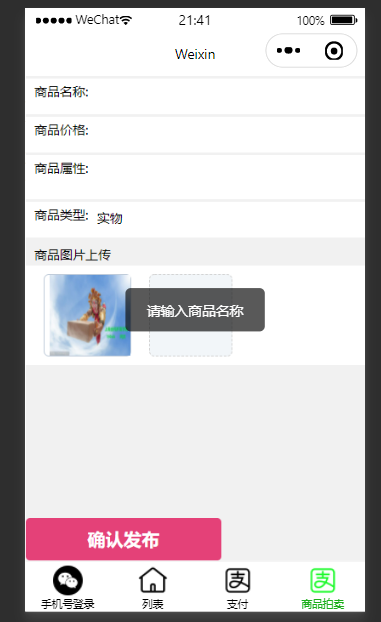
页面效果图:
点击发布按钮将数据发布至laravel7进行添加入库
首先laravel7,api.php定义一个路由:
Route::group(['namespace'=>'xcx'],function (){

//商品发布

    Route::post('xcx/getData','LoginController@getData');

});
控制器代码:
   public function getData(Request $request)

    {

        $data = $request->post();

        $validator = Validator::make($data, ['title' => 'required', 'price' => 'required', 'type' => 'required', 'info' => 'required'],

            ['title.required' => '商品名称不可以为空', 'price.required' => '商品价格不可以为空', 'type.required' => '商品类型不可以为空', 'info.required' => '商品属性不可以为空',]);

        if ($validator->fails()) {

            return ['code' => 501, 'meg' => $validator->errors()->first(), 'data' => ''];

        }

        $res = GoodRelease::create($data);

        if (!$res) {

            return ['code' => 500, 'meg' => '发布失败', 'data' => ''];

        }

        return ['code' => 200, 'meg' => '发布成功', 'data' => $data];

    }
模型代码:
<?php

namespace App\Models;

use Illuminate\Database\Eloquent\Model;

class GoodRelease extends Model

{

    //

    public $timestamps=false;

    protected $table='good_release';

    protected $guarded=[];

}
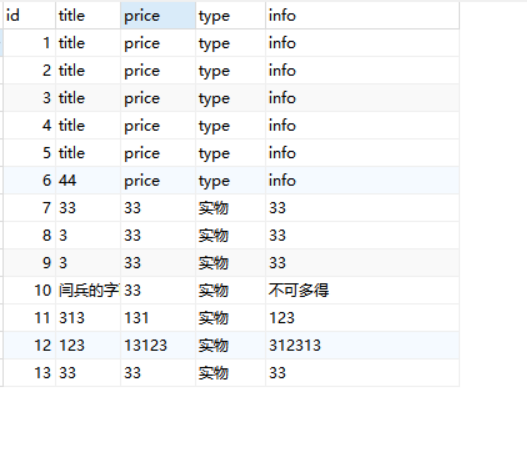
数据库字段
微信小程序商品发布的更多相关文章
- 微信小程序的发布流程
一.背景 在中大型的公司里,人员的分工非常仔细,一般会有不同岗位角色的员工同时参与同一个小程序项目.为此,小程序平台设计了不同的权限管理使得项目管理者可以更加高效管理整个团队的协同工作 以往我们在开发 ...
- 微信小程序已发布版本vconsole仍出现问题解决办法
解决办法很简单,进入小程序的体验或者开发版,点击关闭调试,再次进入小程序,就不会出现了
- 微信小程序商品筛选,侧方弹出动画选择页面
https://blog.csdn.net/qq_36538012/article/details/85110641
- 微信小程序商品详情 + 评论功能实现
这是一个商品展示并能进行评论和答复的功能页面, 遇到的问题有: 分享功能没有办法将json数据写在地址中,只能传id来进行获取 这里必须新加一个状态用来判断是否显示x回复@x,因为我以前的判断这个依据 ...
- 像VUE一样写微信小程序-深入研究wepy框架
像VUE一样写微信小程序-深入研究wepy框架 微信小程序自发布到如今已经有半年多的时间了,凭借微信平台的强大影响力,越来越多企业加入小程序开发. 小程序于M页比相比,有以下优势: 1.小程序拥有更多 ...
- 微信小程序学习指南
作者:初雪链接:https://www.zhihu.com/question/50907897/answer/128494332来源:知乎著作权归作者所有.商业转载请联系作者获得授权,非商业转载请注明 ...
- 如何为你的微信小程序体积瘦身?
众所周知,微信小程序在发布的时候,对提交的代码有1M大小的限制!所以,如果你正在写一个功能稍微复杂一点的小程序,就必须得时刻小心注意你的代码是不是快触及这个底线了. 在设计一个小程序之初,我们就需要重 ...
- 用微信小程序做H5游戏尝试
微信小程序发布后,公司虽然没有拿到第一批内测资格,但作为微信亲密合作伙伴,一定要第一时间去尝试啦.现在微信小程序刚发布还在测试阶段,可以说是1.0版本,所以框架和结构内容都还不多,相关的文档跟微信AP ...
- 微信小程序入门学习
前(che)言(dan): 近几天,微信小程序的内测引起了众多开发人员的热议,很多人都认为这将会成为一大热门,那么好吧,虽然我是一个小白,但这是个新玩意,花点时间稍稍钻研一下也是无妨的,谁让我没有女朋 ...
随机推荐
- bom-location
<!DOCTYPE html> <html lang="en"> <head> <meta charset="UTF-8&quo ...
- undefined index: php中提示Undefined ...
我们经常接收表单POST过来的数据时报Undefined index错误,如下:$act=$_POST['action'];用以上代码总是提示Notice: Undefined index: act ...
- linux内核可以接受的参数 | Linux kernel启动参数 | 通过grub给内核传递参数
在Linux中,给kernel传递参数以控制其行为总共有三种方法: 1.build kernel之时的各个configuration选项. 2.当kernel启动之时,可以参数在kernel被GRUB ...
- 取代 Mybatis Generator,这款代码生成神器配置更简单,开发效率更高!
作为一名 Java 后端开发,日常工作中免不了要生成数据库表对应的持久化对象 PO,操作数据库的接口 DAO,以及 CRUD 的 XML,也就是 mapper. Mybatis Generator 是 ...
- 【Linux/Oracle】ORA-00031:标记要终止的会话 解决
在PL/SQL操作了一条delete语句用于删除这张1.4亿条数据的表,执行了12个小时还没删完 (经DB指导,量级大的需要使用truncate table table_name 进行删除) --查询 ...
- Solution -「AGC 002F」「AT 2000」Leftmost Ball
\(\mathcal{Description}\) Link. 给你 \(n\) 种颜色的球,每个球有 \(k\) 个,把这 \(n\times k\) 个球排成一排,把每一种颜色的最左边出现 ...
- 我们一起来学Shell - shell的函数
文章目录 定义函数 执行不带参数的函数 执行带参数的函数 函数的执行总结 我们一起来学Shell - 初识shell 我们一起来学Shell - shell的变量 我们一起来学Shell - shel ...
- c++ 指针数组与指向数组的指针
指针数组与指向数组的指针 1.int (*a)[10]-->指向数组的指针 a是一个二级指针,可认为是一个二维数组的首地址,指向一个一维数组,数组存储了10个int数据. int arr1[10 ...
- 前端程序员初步认识 docker
初步认识 docker 为什么要学习 docker 有同学说他开发工作中有两大神器,一个是 vim 编辑器,另一个就是 Docker. 什么是 docker Docker 是一个开源的应用容器引擎. ...
- Kali Linux解压包命令:
Kali Linux解压包命令: tar.gz格式压缩包: root@kali:~# tar -xzvf 压缩包.tar.gz -C /root/home/Desktop root@kali:~# c ...