
WPF实现滚动显示的TextBlock
在我们使用TextBlock进行数据显示时,经常会遇到这样一种情况就是TextBlock的文字内容太多,如果全部显示的话会占据大量的界面,这是我们就会只让其显示一部分,另外的一部分就让其随着时间的推移去滚动进行显示,但是WPF默认提供的TextBlock是不具备这种功能的,那么怎么去实现呢?
其实个人认为思路还是比较清楚的,就是自己定义一个UserControl,然后将WPF简单的元素进行组合,最终实现一个自定义控件,所以我们顺着这个思路就很容易去实现了,我们知道Canvas这个控件可以通过设置Left、Top、Right、Bottom属性去精确控制其子控件的位置,那么很显然我们需要这一控件,另外我们在Canvas容器里面再放置TextBlock控件,并且设置TextWrapping="Wrap"让其全部显示所有的文字,当然这里面既然要让其滚动,那么TextBlock的高度肯定会超过Canvas的高度,这样才有意义,另外一个重要的部分就是设置Canvas的ClipToBounds="True"这个属性,这样超过的部分就不会显示,具体的实现思路参照代码我再一步步去认真分析!
1 新建一个UserControl,命名为RollingTextBlock。
<UserControl x:Class="TestRoilingTextBlock.RoilingTextBlock"

             xmlns="http://schemas.microsoft.com/winfx/2006/xaml/presentation"

             xmlns:x="http://schemas.microsoft.com/winfx/2006/xaml"

             xmlns:mc="http://schemas.openxmlformats.org/markup-compatibility/2006"

             xmlns:d="http://schemas.microsoft.com/expression/blend/2008"

             DataContext="{Binding RelativeSource={RelativeSource Self}}"

             mc:Ignorable="d" d:DesignWidth="300" Height="136" Width="400">

    <UserControl.Template>

        <ControlTemplate TargetType="UserControl">

            <Border BorderBrush="Gray"

                    BorderThickness="1"

                    Padding="2"

                    Background="Gray">

                <Canvas x:Name="innerCanvas"

                        Width="Auto"

                        Height="Auto"

                        Background="AliceBlue"

                        ClipToBounds="True">

                    <TextBlock x:Name="textBlock"

                               Width="{Binding ActualWidth,ElementName=innerCanvas}"

                               TextAlignment="Center"

                               TextWrapping="Wrap"

                               Height="Auto"

                               ClipToBounds="True"

                               Canvas.Left="{Binding Left,Mode=TwoWay}"

                               Canvas.Top="{Binding Top,Mode=TwoWay}"

                               FontSize="{Binding FontSize,Mode=TwoWay}"

                               Text="{Binding Text,Mode=TwoWay}"

                               Foreground="{Binding Foreground,Mode=TwoWay}">

                    </TextBlock>

                </Canvas>

            </Border>

        </ControlTemplate>

    </UserControl.Template>

</UserControl>
这里分析几个重要的知识点:A:DataContext="{Binding RelativeSource={RelativeSource Self}}" 这个为当前的前台绑定数据源,这个是第一步,同时也是基础。B 为当前的TextBlock绑定Text、Canvas.Left、Canvas.Top以及Width等属性,当然这些属性要结合自己的需要去绑定,并在后台定义相关的依赖项属性。
然后再看看后台的逻辑代码:
using System;

using System.Collections.Generic;

using System.Linq;

using System.Text;

using System.Threading.Tasks;

using System.Windows;

using System.Windows.Controls;

using System.Windows.Data;

using System.Windows.Documents;

using System.Windows.Input;

using System.Windows.Media;

using System.Windows.Media.Imaging;

using System.Windows.Navigation;

using System.Windows.Shapes;

using System.Windows.Threading;

namespace TestRoilingTextBlock

{

    /// <summary>

    /// RoilingTextBlock.xaml 的交互逻辑

    /// </summary>

    public partial class RoilingTextBlock : UserControl

    {

        private bool   canRoll = false;

        private double rollingInterval = 16;//每一步的偏移量

        private double offset=6;//最大的偏移量

        private TextBlock currentTextBlock = null;

        private DispatcherTimer currentTimer = null;

        public RoilingTextBlock()

        {

            InitializeComponent();

            Loaded += RoilingTextBlock_Loaded;

        }

        void RoilingTextBlock_Loaded(object sender, RoutedEventArgs e)

        {

            if (this.currentTextBlock != null)

            {

                canRoll = this.currentTextBlock.ActualHeight > this.ActualHeight;

            }

            currentTimer = new System.Windows.Threading.DispatcherTimer();

            currentTimer.Interval = new TimeSpan(0, 0, 1);

            currentTimer.Tick += new EventHandler(currentTimer_Tick);

            currentTimer.Start();

        }

        public override void OnApplyTemplate()

        {

            try

            {

                base.OnApplyTemplate();

                currentTextBlock = this.GetTemplateChild("textBlock") as TextBlock;

            }

            catch (Exception ex)

            {

            }

        }

        void currentTimer_Tick(object sender, EventArgs e)

        {

            if (this.currentTextBlock != null && canRoll)

            {

                if (Math.Abs(Top) <= this.currentTextBlock.ActualHeight-offset)

                {

                    Top-=rollingInterval;

                }

                else

                {

                    Top = this.ActualHeight;

                }

            }

        }

        #region Dependency Properties

        public static DependencyProperty TextProperty =

           DependencyProperty.Register("Text", typeof(string), typeof(RoilingTextBlock),

           new PropertyMetadata(""));

        public static DependencyProperty FontSizeProperty =

            DependencyProperty.Register("FontSize", typeof(double), typeof(RoilingTextBlock),

            new PropertyMetadata(14D));

        public static readonly DependencyProperty ForegroundProperty =

           DependencyProperty.Register("Foreground", typeof(Brush), typeof(RoilingTextBlock), new FrameworkPropertyMetadata(Brushes.Green));

        public static DependencyProperty LeftProperty =

           DependencyProperty.Register("Left", typeof(double), typeof(RoilingTextBlock),new PropertyMetadata(0D));

        public static DependencyProperty TopProperty =

           DependencyProperty.Register("Top", typeof(double), typeof(RoilingTextBlock),new PropertyMetadata(0D));

        #endregion

        #region Public Variables

        public string Text

        {

            get { return (string)GetValue(TextProperty); }

            set { SetValue(TextProperty, value); }

        }

        public double FontSize

        {

            get { return (double)GetValue(FontSizeProperty); }

            set { SetValue(FontSizeProperty, value); }

        }

        public Brush Foreground

        {

            get { return (Brush)GetValue(ForegroundProperty); }

            set { SetValue(ForegroundProperty, value); }

        }

        public double Left

        {

            get { return (double)GetValue(LeftProperty); }

            set { SetValue(LeftProperty, value); }

        }

        public double Top

        {

            get { return (double)GetValue(TopProperty); }

            set { SetValue(TopProperty, value); }

        }

        #endregion

    }

}
再看后台的代码,这里我们只是通过一个定时器每隔1秒钟去更新TextBlock在Canvas中的位置,这里面有一个知识点需要注意,如何获取当前TextBlock的ActualHeight,我们可以通过重写基类的OnApplyTemplate这个方法来获取,另外这个方法还是存在前台和后台的耦合,是否可以通过绑定来获取TextBlock的ActualHeight,如果通过绑定应该注意些什么?这其中需要特别注意的是ActualHeight表示的是元素重绘制后的尺寸,并且是只读的,也就是说其始终是真实值,在绑定时是无法为依赖性属性增加Set的,并且在绑定时绑定的模式只能够是Mode=“OneWayToSource”而不是默认的Mode=“TwoWay”。
另外在使用定时器时为什么使用System.Windows.Threading.DispatcherTimer而不是System.Timers.Timer?这个需要我们去认真分析原因,只有这样才能真正地去学会WPF。
当然本文只是提供一种简单的思路,后面还有很多可以扩展的地方,比如每次移动的距离如何确定,移动的速率是多少?这个如果做丰富,是有很多的内容,这个需要根据具体的项目需要去扩展,这里只是提供最简单的一种方式,仅仅提供一种思路。
2 如何引用当前的自定义RollingTextBlock?
<Window x:Class="TestRoilingTextBlock.MainWindow"

        xmlns="http://schemas.microsoft.com/winfx/2006/xaml/presentation"

        xmlns:x="http://schemas.microsoft.com/winfx/2006/xaml"

        xmlns:local="clr-namespace:TestRoilingTextBlock"

        Title="MainWindow" Height="550" Width="525">

    <Grid>

        <local:RoilingTextBlock Foreground="Teal"

                                Text="汉皇重色思倾国,御宇多年求不得。杨家有女初长成,养在深闺人未识。天生丽质难自弃,一朝选在君王侧。回眸一笑百媚生,六宫粉黛无颜色。春寒赐浴华清池,温泉水滑洗凝脂。

                                侍儿扶起娇无力,始是新承恩泽时。云鬓花颜金步摇,芙蓉帐暖度春宵。春宵苦短日高起,从此君王不早朝。"

                                FontSize="22">

        </local:RoilingTextBlock>

    </Grid>

</Window>
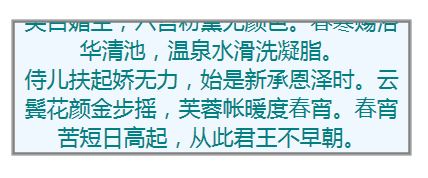
3 最后来看看最终的效果,当然数据是处于不断滚动状态,这里仅仅贴出一张图片。
WPF实现滚动显示的TextBlock的更多相关文章
- WPF数字滚动效果
和WPF数字滚动抽奖有区别,WPF数字滚动抽奖是随机的,而这里是确定的. 为了系统演示,这个效果通宵加班写了整整6个小时,中间就上了次厕所. 代码: RollingNumberItemCtrl.xam ...
- WPF上下滚动字幕
XAML代码: <local:WorkSpaceContent x:Class="SunCreate.CombatPlatform.Client.NoticeMarquee" ...
- WPF 文字换行TextWrapping 显示不全用省略号TextTrimming 显示不全弹提示内容ToolTip
原文:WPF 文字换行TextWrapping 显示不全用省略号TextTrimming 显示不全弹提示内容ToolTip [TextBlock] 换行 TextWrapping="W ...
- WPF ListView 居中显示
原文:WPF ListView 居中显示 今天遇到的问题: 方法1:设置GridViewColumn的ActualWidth <ListView > <ListView.View&g ...
- Jquery控制滚动显示欢迎字幕v2
Jquery控制滚动显示欢迎字幕v2: 之前做的那个比较适合测试环境,但要套入到网站中,有两个按钮在那摆着,还是不太好看.后面对代码进行了修改,如下: 参考代码: <html> <h ...
- Jquery实现滚动显示欢迎字幕效果
Jquery控制滚动显示欢迎字幕: 参考代码: <!DOCTYPE html> <html> <head> <title>Colin Marquee W ...
- ListView的自动循环滚动显示
最近项目里需要做评价内容的循环滚动显示,一开始想到的就是定时器.后来查了资料才知道ListView里面有个函数smoothScrollToPosition(position),瞬间觉得简单了很多.首先 ...
- JS滚动显示
<%@ page language="java" contentType="text/html; charset=utf-8" pageEncoding= ...
- scrollReveal.js – 页面滚动显示动画JS
简介 和 WOW.js 一样,scrollReveal.js 也是一款页面滚动显示动画的 JavaScript ,能让页面更加有趣,更吸引用户眼球.不同的是 WOW.js 的动画只播放一次,而 ...
随机推荐
- 深度学习之GRU网络
1.GRU概述 GRU是LSTM网络的一种效果很好的变体,它较LSTM网络的结构更加简单,而且效果也很好,因此也是当前非常流形的一种网络.GRU既然是LSTM的变体,因此也是可以解决RNN网络中的长依 ...
- 【转】解决在Android设备播放音频与其他应用重音的问题,并监听耳机的控制按钮
概述 在安卓开发中免不了需要播放一点音乐了,音频了.但是这时候有别的应用正在播放,这时候就会出现重音的现象,完全影响用户体验,我们的项目就遇上了这样的尴尬,然后查找了一些文档,记录一下: 管理音频焦点 ...
- 【vue】在移动端使用better-scroll 实现滚动效果
安装依赖:(c)npm install better-scroll --save 引入: import BScroll from 'better-scroll' 格式: var obj = new B ...
- day26 Python 改变对象的字符串显示
__str__,__repr__,__format__ format_dict={ 'nat':'{obj.name}-{obj.addr}-{obj.type}',#学校名-学校地址-学校类型 't ...
- Flink 集群运行原理兼部署及Yarn运行模式深入剖析
1 Flink的前世今生(生态很重要) 原文:https://blog.csdn.net/shenshouniu/article/details/84439459 很多人可能都是在 2015 年才听到 ...
- 测试工具使用-Qunit单元测试使用过程
031302620 应课程要求写一篇单元测试工具的博客,但是暂时没用到java,所以不想使用junit(对各种类都不熟悉的也不好谈什么测试),原计划是要用phpunit,但是安装经历了三个小时,查阅各 ...
- webpack打包经验——处理打包文件体积过大的问题
前言 最近对一个比较老的公司项目做了一次优化,处理的主要是webpack打包文件体积过大的问题. 这里就写一下对于webpack打包优化的一些经验. 主要分为以下几个方面: 去掉开发环境下的配置 Ex ...
- Dockerfile centos7_tomcat7.0.64_jdk7u80
FROM centos:7 MAINTAINER jiangzhehao WORKDIR /tmp RUN yum -y install net-tools ADD jdk-7u80-linux-x6 ...
- tomcat7 内存溢出 java.lang.OutOfMemoryError 处理方法
找到tomcat的安装目录,在 tomcat安装目录/bin/catalina.sh最上面添加: JAVA_OPTS="-server -Xms800m -Xmx800m -XX:Perm ...
- 容器互联(linking)
容器互联(linking)是一种让多个容器中的应用进行快速交互的方式. 它会在源和接受容器中间创建连接关系,接受容器可以通过容器名快速访问到源容器而不用指出具体的IP地址.