
selenium web driver 配合使用testng
首先为eclipse添加testng插件
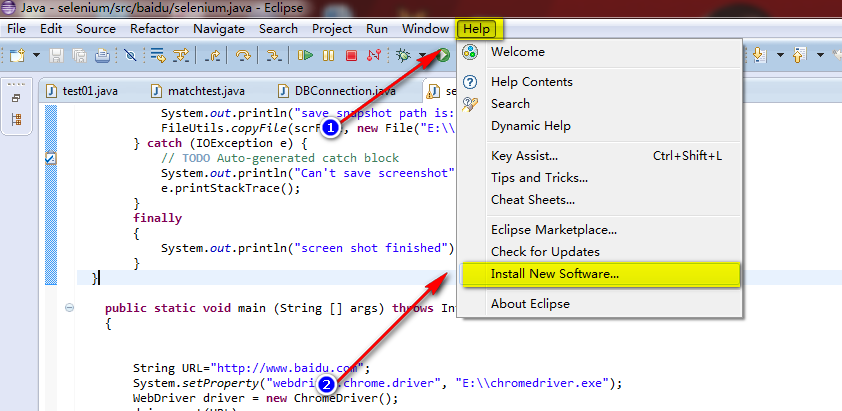
- 步骤如下:help->Install New SoftWare...
2. 添加testng链接,该链接可以在这里找到
For the Eclipse plug-in, we suggest using the update site:
- Select Help / Software updates / Find and Install.
- Search for new features to install.
- New remote site.
- For Eclipse 3.4 and above, enter http://beust.com/eclipse.
- For Eclipse 3.3 and below, enter http://beust.com/eclipse1.
- Make sure the check box next to URL is checked and click Next.
- Eclipse will then guide you through the process.
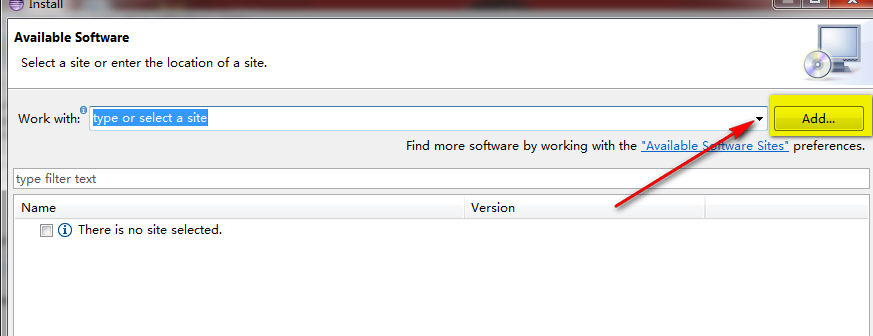
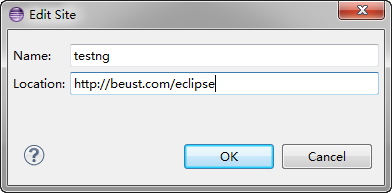
4.下载并安装 testng

testng和junit相比为什么要使用testng
1. testng 和junit功能基本相同testng支持suite,junit执行一大堆case,如果个别fail,只能所有case重跑
而testng可以单独跑
2.testng能生成漂亮的测试报告,比较直观
添加一个testng case,复制一份,保存为
openlinkTest1.java
package baidu;

import java.io.File;

import java.io.IOException;

import java.util.regex.Matcher;

import java.util.regex.Pattern;

import junit.framework.Assert;

import org.apache.commons.io.FileUtils;

import org.openqa.selenium.By;

import org.openqa.selenium.OutputType;

import org.openqa.selenium.TakesScreenshot;

import org.openqa.selenium.WebDriver;

import org.openqa.selenium.WebElement;

import org.openqa.selenium.chrome.ChromeDriver;

import org.testng.annotations.AfterMethod;

import org.testng.annotations.BeforeMethod;

import org.testng.annotations.Test;

public class openlinkTest {

  public static void snapshot(TakesScreenshot drivername, String filename)

  {

      // this method will take screen shot ,require two parameters ,one is driver name, another is file name

    File scrFile = drivername.getScreenshotAs(OutputType.FILE);

        // Now you can do whatever you need to do with it, for example copy somewhere

        try {

            System.out.println("save snapshot path is:E:/"+filename);

            FileUtils.copyFile(scrFile, new File("E:\\"+filename));

        } catch (IOException e) {

            // TODO Auto-generated catch block

            System.out.println("Can't save screenshot");

            e.printStackTrace();

        }

        finally

        {

            System.out.println("screen shot finished");

        }

  }

  @BeforeMethod

  public void tearUp()

  {

    //    WebDriver driver = new ChromeDriver();

  }

  @Test

    public static void runSelenium() throws InterruptedException

    {

         String URL="http://www.baidu.com";

         Pattern p = Pattern.compile("http");

         Matcher m = p.matcher(URL);

        if(m.find())

        {

            System.out.println(URL);

        }

        System.setProperty("webdriver.chrome.driver", "E:\\chromedriver.exe");

        WebDriver driver = new ChromeDriver();

        driver.get(URL);

        //max size the browser

        driver.manage().window().maximize();

 /*

        Navigation navigation = driver.navigate();

         navigation.to(URL);*/

         Thread.sleep(2000);

         snapshot((TakesScreenshot)driver,"open_baidu.png");

         //WebElement reg=driver.findElement(By.name("tj_reg"));

         //reg.click();

         //    WebElement keyWord = driver.findElement(By.id("kw1"));

         //find the element

         WebElement keyWord = driver.findElement(By.xpath("//input[@id='kw1']"));

        keyWord.clear();

        //send key words

         keyWord.sendKeys("Selenium");

         Thread.sleep(3000);

          snapshot((TakesScreenshot)driver,"input_keyWord.png");

          WebElement submit = driver.findElement(By.id("su1"));

          System.out.println(submit.getLocation());

          submit.click();

          //System.out.println(driver.getWindowHandle());

         Thread.sleep(5000);

        // System.out.println(driver.getPageSource());

        String pageSource=driver.getPageSource();

       //  System.out.println(pageSource);

        //WebElement link =driver.findElement(By.xpath(SELENIUM_LINK));

        WebElement link =driver.findElement(By.xpath("//*[@id=\"1\"]/h3/a"));     //*[@id="1"]/h3/a

        link.click();

        Thread.sleep(5000);

        driver.switchTo().window(driver.getWindowHandles().toArray(new String[0])[1]);

        //get page title

        System.out.println(driver.getTitle());

         Thread.sleep(5000);

    //     navigation.back();

          snapshot((TakesScreenshot)driver,"open_bake.png");

         System.out.println(driver.getTitle()+"\n"+driver.getCurrentUrl());

         Assert.assertEquals(driver.getTitle(),"Selenium - Web Browser Automation");

         driver.quit();

    }

     @AfterMethod

     public void tearDown()

     {

         //driver.quit();

         System.out.println("------------END----------------------");

     }

}
添加testng suite
<?xml version="1.0" encoding="UTF-8"?>

<suite name="Suite" parallel="false">

  <test name="Test">

    <classes>

      <class name="baidu.openlinkTest"/>

      <class name="baidu.openlinkTest1"/>

    </classes>

  </test> <!-- Test -->

</suite> <!-- Suite -->
执行case:
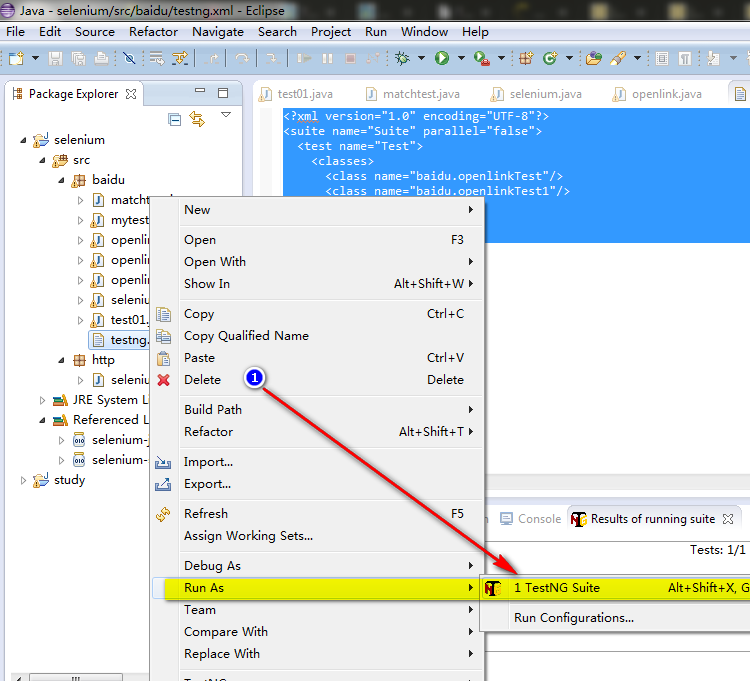
结果如下
[TestNG] Running:
C:\Users\Young\workspace\selenium\src\baidu\testng.xml
http://www.baidu.com
Starting ChromeDriver (v2.9.248315) on port 28218
save snapshot path is:E:/open_baidu.png
screen shot finished
save snapshot path is:E:/input_keyWord.png
screen shot finished
(858, 179)
Selenium - Web Browser Automation
save snapshot path is:E:/open_bake.png
screen shot finished
Selenium - Web Browser Automation
http://docs.seleniumhq.org/
------------END----------------------
http://www.baidu.com
Starting ChromeDriver (v2.9.248315) on port 5568
save snapshot path is:E:/open_baidu.png
screen shot finished
save snapshot path is:E:/input_keyWord.png
screen shot finished
(858, 179)
Selenium_百度百科
save snapshot path is:E:/open_bake.png
screen shot finished
Selenium_百度百科
http://baike.baidu.com/subview/478050/6464537.htm?fr=aladdin
------------END----------------------
===============================================
Suite
Total tests run: 2, Failures: 1, Skips: 0
===============================================
selenium web driver 配合使用testng的更多相关文章
- 25+ Useful Selenium Web driver Code Snippets For GUI Testing Automation
本文总结了使用Selenium Web driver 做页面自动化测试的一些 tips, tricks, snippets. 1. Chrome Driver 如何安装 extensions 两种方式 ...
- selenium web driver 使用JS修改input属性
selenium获取input时候,发现type=”hidden” 的input无法修改value,经牛人指点,可以使用js修改 首先html源文件如下,设置为text .hidden.submit ...
- selenium web driver 实现截图功能
在验证某些关键步骤时,需要截个图来记录一下当时的情况 Webdriver截图时,需要引入 import java.io.File; import java.io.IOException; import ...
- selenium web driver
WebDriver 支持的浏览器 IE6-10 FireFox大部分版本 Chrome Safari Opera Andrioid 系统上的自带浏览器 IOS系统上自带浏览器 HtmlUnit的无界面 ...
- Selenium Web 自动化 - 项目实战(三)
Selenium Web 自动化 - 项目实战(三) 2016-08-10 目录 1 关键字驱动概述2 框架更改总览3 框架更改详解 3.1 解析新增页面目录 3.2 解析新增测试用例目录 3. ...
- Selenium Web 自动化 - Selenium(Java)环境搭建
Selenium Web 自动化 - Selenium(Java)环境搭建 2016-07-29 1 下载JDK JDK下载地址:http://www.oracle.com/technetwork/j ...
- Selenium Web 自动化 - 如何找到元素
Selenium Web 自动化 - 如何找到元素 2016-07-29 1. 什么是元素? 元素:http://www.w3school.com.cn/html/html_elements.asp ...
- Selenium Web 自动化 - 项目实战(一)
Selenium Web 自动化 - 测试框架(一) 2016-08-05 目录 1 框架结构雏形2 把Java项目转变成Maven项目3 加入TestNG配置文件4 Eclipse编码修改5 编写代 ...
- Selenium Web 自动化 - 项目持续集成(进阶)
Selenium Web 自动化 - 项目持续集成(进阶) 2017-03-09 目录 1 背景及目标2 环境配置 2.1 SVN的安装及使用 2.2 新建Jenkins任务3 过程分析 1 背景 ...
随机推荐
- 新浪微博客户端(34)-block的细节与本质
main.m #import <Foundation/Foundation.h> void test4(); int main(int argc, const char * argv[]) ...
- angular-ngSanitize模块-$sanitize服务详解
本篇主要讲解angular中的$sanitize这个服务.此服务依赖于ngSanitize模块. 要学习这个服务,先要了解另一个指令: ng-bing-html. 顾名思义,ng-bind-html和 ...
- C#数字格式化
格式规范的完整形式:{index [,width][:formatstring]} index是此格式程序引用的格式字符串之后的参数,从零开始计数:width(可选) 是要设置格式的字段的宽度,wid ...
- jquery 获取和设置 checkbox radio 和 select option的值?
============== 获取和设置 checkbox radio 和 select的值? === val()函数, 其名字就表达了 它的意思: 他就是= value 的简写! val就是valu ...
- django view
当请求一个页面时,Django 创建一个包含有关请求数据的 HttpRequest 对象,并将它作为第一个参数传给视图函数,每个视图函数处理完相应逻辑后返回一个 HttpResponse 对象,Htt ...
- .Net程序员必须要知道的东西之HttpModules与HttpHandlers介绍
一.ASP.NET对请求处理的过程: 当客户端请求一个*.aspx文件的时候,这个请求会被inetinfo.exe进程截获,它判断文件的后缀(aspx)之后,将这个请求转交给ASPNET_ISAPI. ...
- 关于高性能Web服务的一点思考
下面这些概念对于专业做性能测试的会比较熟悉,但是对于开发人员不一定都那么清楚. 并发用户数: 某一时刻同时请求服务器的用户总数,通常我们也称并发数,并发连接数等. 吞吐率:对于web服务器来说就是每秒 ...
- POJ 3744 Scout YYF I
分段的概率DP+矩阵快速幂 Scout YYF I Time Limit: 1000MS Memory Limit: 65536K Total Sub ...
- hadoop 集群 加入一个新的存储节点和删除一个计算节点需要刷新集群状态命令
加入一个新的存储节点和删除一个计算节点需要刷新集群状态命令 方式1:静态添加datanode,停止namenode方式 1.停止namenode 2.修改slaves文件,并更新到各个节点3.启动na ...
- 使用批处理(bat)脚本对目录树下同种性质的目录或文件进行处理
问题起源:每次从svn管理的目录下面复制目录之后里面总是有很多.svn的目录,虽说不影响使用但看着很碍眼.同时自己也懒得使用svn的export功能. 因此一个简单的批处理脚本可以帮助我们搞定一切,当 ...