
刘志梅2017710101152.《面向对象程序设计(java)》第十三周学习总结
实验十三 图形界面事件处理技术
实验时间 2018-11-22
1、理论知识
(1)任何支持GUI的操作环境都要不断地监视按键或点击鼠标这样的事件。
JAVA这样的面向对象语言,都将事件的相关的信息封装在一个事件对象中。
不同的事件源可以产生不同类别的事件。
(2)AWT事件处理机制的概要:监听器对象是一个实现了特定监听器接口的类的实例;事件源是一个能够注册监听器对象的并发送事件对象的对象;当事件发生时,事件源将事件对象传递给所有注册的监听器;监听器对象将利用事件对象中的信息决定如何对事件作出响应。
为了实现ActionListeer接口,监听器类必须有一个被称为actionPerformed的方法,该方法接收一个ActionEvent对象参数。
每个监听器执行一个单独的动作。
在默认情况下,Swing程序使用Metal观感,可以采用两种方式改变观感(1.在Java安装的子目录jre/lib下有一个文件swing.properties,在这个文件中,将属性swing.defaultlaf设置为所希望的观感类名;2.动态的改变观感)。
窗口监听器必须是实现WindowListener接口的类的一个对象。
(3)将一个监听器对象加到下面几个事件源上:标记为Blue的工具栏按钮;标记为Blue的菜单项;按键CTRL+B。
一个动作是一个封装下列内容的对象:命令的说明(一个文本字符串和一个可选图标);执行命令所需要的参数。
如果动作对象添加到菜单或工具栏上,它的名称和图标就会被自动的提取出来,并显示在菜单项或工具栏项中(Action是一个接口,而不是一个类)。
用户界面中可以包含许多按钮、菜单、滚动栏以及其他组件。
习惯上,使用字符串none表示空动作。
用同一个动作响应按钮、菜单项或按键的方式:实现一个扩展于AbstractAction类的类(多个相关的动作可以使用同一个类);构造一个动作类的对象;使用动作对象创建按钮或菜单项(构造器将从动作对象中读取标签文本和图标);为了能够通过按键触发动作,必须额外的执行几步操作(首先定位顶层窗口组件);然后,得到顶层组件的WHEN_ANCESTOR_OF_FOCUS_COMPONENT输入映射;最后得到顶层组件的动作映射。
(4)鼠标操作将由用户界面中的各种组件内部处理。
当用户点击鼠标按钮时,将会调用三个监听器方法:鼠标第一次被按下时调用mousePressed;鼠标被释放时调用mouseReleased;最后调用mouseClicked。
可以采用位掩码来测试已经设置了哪个修饰符。
当鼠标在窗口移动时,窗口会收到一连串的鼠标移动事件;在程序中仅仅用拖动的矩形更新当前光标位置。
两个鼠标事件方法:mouseEntered和mouseExited。
(5) 事件对象封装了事件源与监听器彼此通信的事件信息。
AWT将事件分为底层事件和语义事件;语义事件是表示用户动作的事件;底层事件是形成那些事件的事件。
常用的语义事件类:ActionEvent(对应按钮点击、菜单选择、选择列表项或在文本框中ENTER);AdjustmentEvent(用户调节滚动条);ItemEvent(用户从复选框或列表框中任选一项)。
常用的5个底层事件类:KeyEvent(一个键被按下或释放);MouseEvent(鼠标键被按下、释放、移动或拖动);MouseWheelEvent(鼠标滚轮被转动);FocusEvent(某个组件获得焦点或失去焦点);WindowEvent(窗口状态被改变)。
2、实验内容和步骤
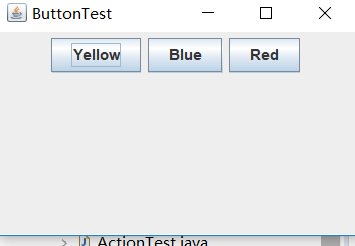
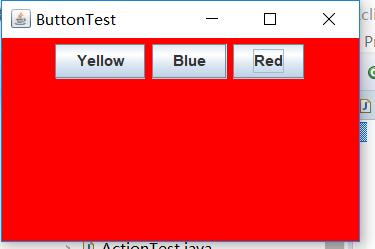
实验1: 导入第11章示例程序,测试程序并进行代码注释。
测试程序1:
l 在elipse IDE中调试运行教材443页-444页程序11-1,结合程序运行结果理解程序;
l 在事件处理相关代码处添加注释;
l 用lambda表达式简化程序;
l 掌握JButton组件的基本API;
l 掌握Java中事件处理的基本编程模型。
import java.awt.*;

import java.awt.event.*;

import javax.swing.*;

/**

 * A frame with a button panel

 */

public class ButtonFrame extends JFrame

{

   private JPanel buttonPanel;     //内容窗格对象

   private static final int DEFAULT_WIDTH = ;//宽度值300像素

   private static final int DEFAULT_HEIGHT = ;//高度值200像素

   public ButtonFrame()

   {

      setSize(DEFAULT_WIDTH, DEFAULT_HEIGHT);

      // create buttons

      JButton yellowButton = new JButton("Yellow");

      JButton blueButton = new JButton("Blue");

      JButton redButton = new JButton("Red");

      buttonPanel = new JPanel();//创建JPanel

      // add buttons to panel

      buttonPanel.add(yellowButton);

      buttonPanel.add(blueButton);

      buttonPanel.add(redButton);

      // add panel to frame

      add(buttonPanel);

      //为每种颜色new一个对象

      // create button actions

      ColorAction yellowAction = new ColorAction(Color.YELLOW);

      ColorAction blueAction = new ColorAction(Color.BLUE);

      ColorAction redAction = new ColorAction(Color.RED);//生成三个相同的类对象(colouraction)

      //(注册机制)

      // associate actions with buttons

      yellowButton.addActionListener(yellowAction);

      blueButton.addActionListener(blueAction);

      redButton.addActionListener(redAction);

   }

   /**

    * An action listener that sets the panel's background color.

    */

   private class ColorAction implements ActionListener

   {    //监听器接口ActionListener(监听器类且类名为ColorAction)

      private Color backgroundColor;

      public ColorAction(Color c)

      {

         backgroundColor = c;

      }

      public void actionPerformed(ActionEvent event)//ActionListener只有一个方法actionPerformed

      {

         buttonPanel.setBackground(backgroundColor);

      }

   }

}

//只有容器组件有add方法
修改后的:
package button;

import java.awt.*;

import java.awt.event.*;

import javax.swing.*;

/**

 * A frame with a button panel

 */

public class ButtonFrame extends JFrame

{

   private JPanel buttonPanel;//

   private static final int DEFAULT_WIDTH = ;//宽为300px

   private static final int DEFAULT_HEIGHT = ;//长为200px

//注释掉这个构造器之后只能显示一个窗格,面板上没有内容

/*   public ButtonFrame()//构造器

   {

      setSize(DEFAULT_WIDTH, DEFAULT_HEIGHT);//决定框架大小

      // create buttons  创建按钮

      JButton yellowButton = new JButton("Yellow");//Yellow字符串是显示在按钮上的文本

      JButton blueButton = new JButton("Blue");

      JButton redButton = new JButton("Red");

      buttonPanel = new JPanel();//使 buttonPanel指向一个具体的容器对象

      // add buttons to panel

      buttonPanel.add(yellowButton);//将按钮添加到面板中

      buttonPanel.add(blueButton);

      buttonPanel.add(redButton);

      // add panel to frame

      add(buttonPanel);

      // create button actions

      //生成三个监听器类对象   当事件发生时,事件源将事件对象传递给所有注册的监听器

      //颜色值在Color类中,通过类名调用

      ColorAction yellowAction = new ColorAction(Color.YELLOW);

      ColorAction blueAction = new ColorAction(Color.BLUE);

      ColorAction redAction = new ColorAction(Color.RED);

      // associate actions with buttons  将操作与按钮相关联

      yellowButton.addActionListener(yellowAction);

      //注释掉之后程序可以运行,点击按钮,背景色不变

      blueButton.addActionListener(blueAction);

      redButton.addActionListener(redAction);

   }*/

   public ButtonFrame()//构造器

   {

      buttonPanel = new JPanel();//使 buttonPanel指向一个具体的容器对象

      setSize(DEFAULT_WIDTH, DEFAULT_HEIGHT);//决定框架大小

      add(buttonPanel);

      makeButton("Yellow",Color.YELLOW);

      makeButton("blue",Color.BLUE);

      makeButton("red",Color.RED);

      makeButton("green",Color.GREEN);

   }

    public void makeButton(String name,Color BackgroundColor)

    {

        JButton button = new JButton(name);

        buttonPanel.add(button);

        ColorAction action = new ColorAction(BackgroundColor);//初始化一个颜色对象

        button.addActionListener(action);//添加一个事件监听器

    }

   /**

    * An action listener that sets the panel's background color.

    */

   //监听器类,类名是ColorAction

   private class ColorAction implements ActionListener//实现了一个监听器接口

   {

      private Color backgroundColor;

      public ColorAction(Color c)

      {

         backgroundColor = c;

      }

      public void actionPerformed(ActionEvent event)

      {

         buttonPanel.setBackground(backgroundColor);

      }

   }

}
测试程序2:
l 在elipse IDE中调试运行教材449页程序11-2,结合程序运行结果理解程序;
l 在组件观感设置代码处添加注释;
l 了解GUI程序中观感的设置方法。
import java.awt.*;

import javax.swing.*;

/**

 * @version 1.32 2015-06-12

 * @author Cay Horstmann

 */

public class PlafTest

{

   public static void main(String[] args)

   {

      EventQueue.invokeLater(() -> {

         JFrame frame = new PlafFrame();

         frame.setTitle("PlafTest");//框架标题(“PlafTest”)

         frame.setDefaultCloseOperation(JFrame.EXIT_ON_CLOSE);

         frame.setVisible(true);

      });

   }

}
import javax.swing.JButton;

import javax.swing.JFrame;

import javax.swing.JPanel;

import javax.swing.SwingUtilities;

import javax.swing.UIManager;

/**

 * A frame with a button panel for changing look-and-feel

 */

public class PlafFrame extends JFrame

{

   private JPanel buttonPanel;

   public PlafFrame()//按钮面板

   {

      buttonPanel = new JPanel();

      UIManager.LookAndFeelInfo[] infos = UIManager.getInstalledLookAndFeels();

      for (UIManager.LookAndFeelInfo info : infos)

         makeButton(info.getName(), info.getClassName());

      add(buttonPanel);

      pack();

   }

   /**

    * Makes a button to change the pluggable look-and-feel.

    * @param name the button name

    * @param className the name of the look-and-feel class

    */

   private void makeButton(String name, String className)

   {

      // add button to panel

      JButton button = new JButton(name);

      buttonPanel.add(button);

      // set button action

      button.addActionListener(event -> {

         // button action: switch to the new look-and-feel

         try

         {

            UIManager.setLookAndFeel(className);

            SwingUtilities.updateComponentTreeUI(this);

            pack();//调用静态UIManager.setLookAndFeel方法

         }

         catch (Exception e)

         {

            e.printStackTrace();

         }

      });

   }

}

测试程序3:
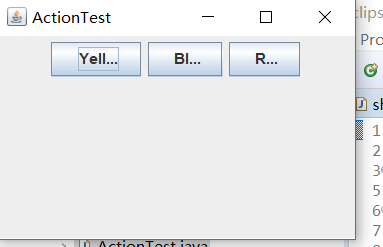
l 在elipse IDE中调试运行教材457页-458页程序11-3,结合程序运行结果理解程序;
l 掌握AbstractAction类及其动作对象;
l 掌握GUI程序中按钮、键盘动作映射到动作对象的方法。
import java.awt.*;

import java.awt.event.*;

import javax.swing.*;

/**

 * A frame with a panel that demonstrates color change actions.

 */

public class ActionFrame extends JFrame

{

   private JPanel buttonPanel;

   private static final int DEFAULT_WIDTH = ;

   private static final int DEFAULT_HEIGHT = ;

   public ActionFrame()

   {

      setSize(DEFAULT_WIDTH, DEFAULT_HEIGHT);

      buttonPanel = new JPanel();

      // define actions

      Action yellowAction = new ColorAction("Yellow", new ImageIcon("yellow-ball.gif"),

            Color.YELLOW);

      Action blueAction = new ColorAction("Blue", new ImageIcon("blue-ball.gif"), Color.BLUE);

      Action redAction = new ColorAction("Red", new ImageIcon("red-ball.gif"), Color.RED);

      // add buttons for these actions

      buttonPanel.add(new JButton(yellowAction));

      buttonPanel.add(new JButton(blueAction));

      buttonPanel.add(new JButton(redAction));

      //为这些动作添加按钮

      // add panel to frame

      add(buttonPanel);

      // associate the Y, B, and R keys with names

      InputMap imap = buttonPanel.getInputMap(JComponent.WHEN_ANCESTOR_OF_FOCUSED_COMPONENT);

      imap.put(KeyStroke.getKeyStroke("ctrl Y"), "panel.yellow");

      imap.put(KeyStroke.getKeyStroke("ctrl B"), "panel.blue");

      imap.put(KeyStroke.getKeyStroke("ctrl R"), "panel.red");

      // associate the names with actions

      ActionMap amap = buttonPanel.getActionMap();

      amap.put("panel.yellow", yellowAction);

      amap.put("panel.blue", blueAction);

      amap.put("panel.red", redAction);

   }

   public class ColorAction extends AbstractAction//公共类ColorAction扩展了AbstractAction

   {

      /**

       * Constructs a color action.

       * @param name the name to show on the button

       * @param icon the icon to display on the button

       * @param c the background color

       */

      public ColorAction(String name, Icon icon, Color c)//公共类ColorAction(字符串名称,图标,颜色)

      {

         putValue(Action.NAME, name);

         putValue(Action.SMALL_ICON, icon);

         putValue(Action.SHORT_DESCRIPTION, "Set panel color to " + name.toLowerCase());

         putValue("color", c);

      }

      public void actionPerformed(ActionEvent event)

      {

         Color c = (Color) getValue("color");

         buttonPanel.setBackground(c);

      }

   }

}
测试程序4:
l 在elipse IDE中调试运行教材462页程序11-4、11-5,结合程序运行结果理解程序;
l 掌握GUI程序中鼠标事件处理技术。
import java.awt.*;

import java.awt.event.*;

import java.awt.geom.*;

import java.util.*;

import javax.swing.*;

/**

 * A component with mouse operations for adding and removing squares.

 */

public class MouseComponent extends JComponent

{

   private static final int DEFAULT_WIDTH = ;//宽度定义为300像素

   private static final int DEFAULT_HEIGHT = ;//高度为200像素

   private static final int SIDELENGTH = ;

   private ArrayList<Rectangle2D> squares;

   private Rectangle2D current; // the square containing the mouse cursor

   public MouseComponent()

   {

      squares = new ArrayList<>();

      current = null;//当前为零

      addMouseListener(new MouseHandler());

      addMouseMotionListener(new MouseMotionHandler());

   }

   public Dimension getPreferredSize() { return new Dimension(DEFAULT_WIDTH, DEFAULT_HEIGHT); }

   public void paintComponent(Graphics g)

   {

      Graphics2D g2 = (Graphics2D) g;

      // draw all squares

      for (Rectangle2D r : squares)

         g2.draw(r);

   }

   /**

    * Finds the first square containing a point.

    * @param p a point

    * @return the first square that contains p

    */

   public Rectangle2D find(Point2D p)

   {

      for (Rectangle2D r : squares)

      {

         if (r.contains(p)) return r;

      }

      return null;//返回null

   }

   /**

    * Adds a square to the collection.

    * @param p the center of the square

    */

   public void add(Point2D p)

   {

      double x = p.getX();

      double y = p.getY();

      current = new Rectangle2D.Double(x - SIDELENGTH / , y - SIDELENGTH / , SIDELENGTH,

            SIDELENGTH);

      squares.add(current);

      repaint(); //重画

   }

   /**

    * Removes a square from the collection.

    * @param s the square to remove

    */

   public void remove(Rectangle2D s)

   {

      if (s == null) return;

      if (s == current) current = null;

      squares.remove(s);

      repaint();

   }

   private class MouseHandler extends MouseAdapter

   {

      public void mousePressed(MouseEvent event)

      {

         // add a new square if the cursor isn't inside a square

         current = find(event.getPoint());

         if (current == null) add(event.getPoint());

      }

      public void mouseClicked(MouseEvent event)

      {

         // remove the current square if double clicked

         current = find(event.getPoint());

         if (current != null && event.getClickCount() >= ) remove(current);

      }

   }

   private class MouseMotionHandler implements MouseMotionListener

   {

      public void mouseMoved(MouseEvent event)

      {

         // set the mouse cursor to cross hairs if it is inside

         // a rectangle

         if (find(event.getPoint()) == null) setCursor(Cursor.getDefaultCursor());

         else setCursor(Cursor.getPredefinedCursor(Cursor.CROSSHAIR_CURSOR));

      }

      public void mouseDragged(MouseEvent event)

      {

         if (current != null)

         {

            int x = event.getX();

            int y = event.getY();

            // drag the current rectangle to center it at (x, y)

            current.setFrame(x - SIDELENGTH / , y - SIDELENGTH / , SIDELENGTH, SIDELENGTH);

            repaint();//重新绘制画布,以显示新的鼠标位置

         }

      }

   }

}
import javax.swing.*;

/**

 * A frame containing a panel for testing mouse operations

 */

public class MouseFrame extends JFrame

{

   public MouseFrame()//公共类MouseFrame

   {

      add(new MouseComponent());

      pack();

   }

}
import java.awt.*;

import javax.swing.*;

/**

 * @version 1.34 2015-06-12

 * @author Cay Horstmann

 */

public class MouseTest

{

   public static void main(String[] args)

   {

      EventQueue.invokeLater(() -> {

         JFrame frame = new MouseFrame();

         frame.setTitle("MouseTest");

         frame.setDefaultCloseOperation(JFrame.EXIT_ON_CLOSE);

         frame.setVisible(true);

      });

   }

}

实验2:结对编程练习
利用班级名单文件、文本框和按钮组件,设计一个有如下界面(图1)的点名器,要求用户点击开始按钮后在文本输入框随机显示2017级网络与信息安全班同学姓名,如图2所示,点击停止按钮后,文本输入框不再变换同学姓名,此同学则是被点到的同学姓名。
import java.awt.*;

import java.awt.event.*;

import java.util.*;

public class dian {//公关类dian

public static void main(String []args){

MyFrame f = new MyFrame();

f.launchFrame();

}

}

class MyFrame extends Frame{

Label text2;

void launchFrame(){

setTitle("学生点名系统");

setVisible(true);

Button btn1 = new Button("开始");

Button btn2 = new Button("结束");

Label text1 = new Label("学号:");

text2 = new Label("按下开始按钮开始点名");

Panel p=new Panel();

setBounds(,,,);

p.setBackground(Color.white);

p.setBounds(,,,);

p.setLayout(new FlowLayout(FlowLayout.CENTER,,));

//btn1.setBounds(20,20,50,20);

//btn2.setBounds(90,20,50,20);

add(p);

p.add(text1);//添加text1

p.add(text2);//添加text2

p.add(btn1);//添加btn1

p.add(btn2);//添加btn2

this.addWindowListener(new MyWindowMoniter());

btn1.addActionListener(new btnMoniter(this));

btn2.addActionListener(new btnMoniter(this));

}

}

class btnMoniter implements ActionListener {

MyFrame f;

btnMoniter(MyFrame f){

this.f=f;

}

public void actionPerformed(ActionEvent e){

String s=e.getActionCommand();

Random r=new Random();

int i=r.nextInt();

if(s=="开始"){

f.repaint();

f.text2.setText("正在点名!");

}

if(s=="结束"){//如果s意为结束

f.repaint();//重新一次

f.text2.setText(""+i);

}

}

}

//window时间监听器,用于关闭window窗口

class MyWindowMoniter extends WindowAdapter{

public void windowClosing(WindowEvent e){

System.exit();//退出

}

}
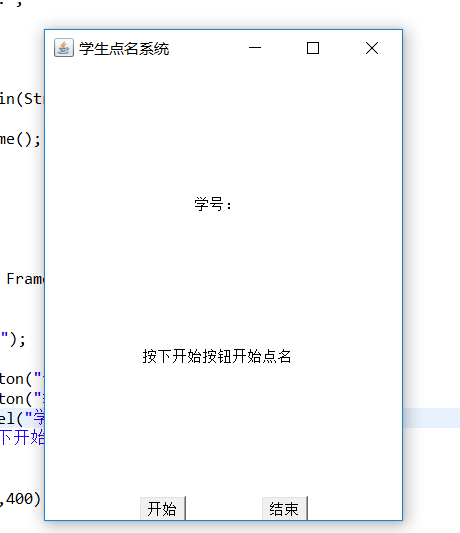
实验总结:通过本周实验学习了一些常见事件如鼠标移动。单击鼠标按钮、在文本框中进行输入等等,以及事件处理、动作、鼠标事件和AWT事件继承层次;事件处理基础包含:事件源、事件监听器与事件对象;此外还有监听器接口的实现;最后本周作业的编程有问题,代码不熟悉,在网上搜索然后解读代码,希望学长可以详细讲解一下。
刘志梅2017710101152.《面向对象程序设计(java)》第十三周学习总结的更多相关文章
- 201771010134杨其菊《面向对象程序设计java》第九周学习总结
第九周学习总结 第一部分:理论知识 异常.断言和调试.日志 1.捕获 ...
- 201871010132-张潇潇《面向对象程序设计(java)》第一周学习总结
面向对象程序设计(Java) 博文正文开头 项目 内容 这个作业属于哪个课程 https://www.cnblogs.com/nwnu-daizh/ 这个作业的要求在哪里 https://www.cn ...
- 扎西平措 201571030332《面向对象程序设计 Java 》第一周学习总结
<面向对象程序设计(java)>第一周学习总结 正文开头: 项目 内容 这个作业属于哪个课程 https://www.cnblogs.com/nwnu-daizh/ 这个作业的要求在哪里 ...
- 杨其菊201771010134《面向对象程序设计Java》第二周学习总结
第三章 Java基本程序设计结构 第一部分:(理论知识部分) 本章主要学习:基本内容:数据类型:变量:运算符:类型转换,字符串,输入输出,控制流程,大数值以及数组. 1.基本概念: 1)标识符:由字母 ...
- 201871010124 王生涛《面向对象程序设计JAVA》第一周学习总结
项目 内容 这个作业属于哪个课程 https://www.cnblogs.com/nwnu-daizh/ 这个作业的要求在哪里 https://edu.cnblogs.com/campus/xbsf/ ...
- 201871010115——马北《面向对象程序设计JAVA》第二周学习总结
项目 内容 这个作业属于哪个课程 https://www.cnblogs.com/nwnu-daizh/ 这个作业的要求在哪里 https://www.cnblogs.com/nwnu-daizh/p ...
- 201777010217-金云馨《面向对象程序设计(Java)》第二周学习总结
项目 内容 这个作业属于哪个课程 https://www.cnblogs.com/nwnu-daizh/ 这个作业的要求在哪里 https://www.cnblogs.com/nwnu-daizh/p ...
- 201871010132——张潇潇《面向对象程序设计JAVA》第二周学习总结
项目 内容 这个作业属于哪个课程 https://www.cnblogs.com/nwnu-daizh/ 这个作业的要求在哪里 https://www.cnblogs.com/nwnu-daizh/p ...
- 201771010123汪慧和《面向对象程序设计Java》第二周学习总结
一.理论知识部分 1.标识符由字母.下划线.美元符号和数字组成, 且第一个符号不能为数字.标识符可用作: 类名.变量名.方法名.数组名.文件名等.第二部分:理论知识学习部分 2.关键字就是Java语言 ...
- 201521123061 《Java程序设计》第十三周学习总结
201521123061 <Java程序设计>第十三周学习总结 1. 本周学习总结 2. 书面作业 1. 网络基础 1.1 比较ping www.baidu.com与ping cec.jm ...
随机推荐
- pycharm介绍
PyCharm是一种Python IDE(集成开发软件),带有一整套可以帮助用户在使用Python语言开发时提高其效率的工具. 1.1 PyCharm主界面 PyCharm包含4个主要区分,分别为 ...
- SQL数据库中查询中加N'' 前缀是什么意思
It's declaring the string as nvarchar data type, rather than varchar You may have seen Transact-SQL ...
- yarn安装
Yarn是Facebook提供的替代npm的工具,可以加速node模块的下载.React Native的命令行工具用于执行创建.初始化.更新项目.运行打包服务(packager)等任务. 先安装nod ...
- ubuntu18.04LTS修改键盘键位
在Linux中为了敲命令方便,所以需要做一下键盘键位调整: 1.Esc键和`(即数字键1前面的那个键)对换: 2.Caps Lock键和左Control键对换: 编辑键位文件: sudo vim /u ...
- C# 树状图
效果图: 结构: frmMain层 using hierarchy.BLL; using hierarchy.Model; using System; using System.Collections ...
- Unity VS 创建脚本自动添加头注释-时间-描述-作者等信息
Unity生成脚本自动添加头注释 本文提供全流程,中文翻译. Chinar 坚持将简单的生活方式,带给世人!(拥有更好的阅读体验 -- 高分辨率用户请根据需求调整网页缩放比例) Chinar -- 心 ...
- Queue 队列的使用
队列一个先进先出的对象集合 public class PlayChickTopicData : MonoBehaviour { Queue<TopicData> topicDatas = ...
- echarts数据区域缩放(鼠标滚轮、滚动条、拉选框)
当一个echarts图表上的数据很多时,想要查看部分区域的数据状态,可以通过数据区域缩放来实现,现总结三个方法: 鼠标滚轮缩放: var arr = []; for(var i = 0;i<15 ...
- Linux第八节课学习笔记
su命令可以切换用户身份,一般不用,而是用sudo. visudo命令中可执行命令列表不用ALL,我们可以先使用whereis命令找出命令所对应的保存路径,然后把配置文件第99行的用户权限参数修改成对 ...
- Android Studio学习NO.1 了解项目资源
2018.3.1 12:40:51 阅读书籍:第一行代码 1. res目录 drawable 图片 mipmap 图标 values 字符串.样式.颜色 layout 布局 2. 引用(可在Andro ...