
xenserver挂载新硬盘
注意:新加硬盘请不要加入raid,否则不认盘
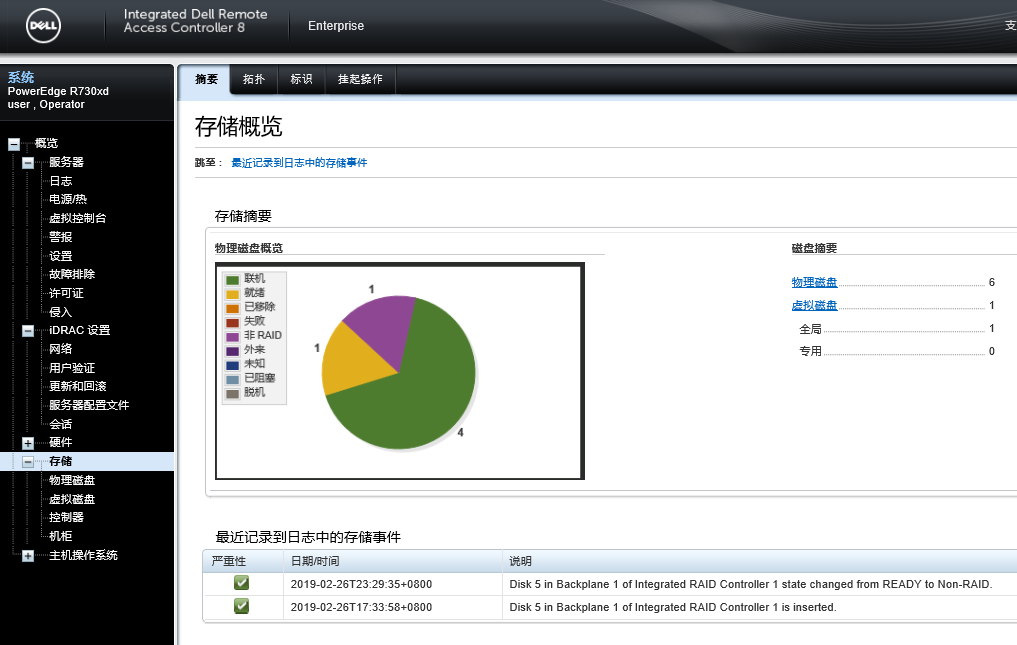
一:
1.1:查看磁盘列表
fdisk -l
[root@xenserver zz]# fdisk -l
Disk /dev/sdb: 7999.4 GB, 7999376588800 bytes, 15623782400 sectors
Units = sectors of 1 * 512 = 512 bytes
Sector size (logical/physical): 512 bytes / 512 bytes
I/O size (minimum/optimal): 512 bytes / 512 bytes
Disk label type: dos
Disk identifier: 0x00000000
Device Boot Start End Blocks Id System
/dev/sdb1 * 1 4294967295 2147483647+ ee GPT
Disk /dev/sda: 2000.4 GB, 2000398934016 bytes, 3907029168 sectors
Units = sectors of 1 * 512 = 512 bytes
Sector size (logical/physical): 512 bytes / 512 bytes
I/O size (minimum/optimal): 512 bytes / 512 bytes
Disk label type: dos
Disk identifier: 0x0000023f
Device Boot Start End Blocks Id System
Disk /dev/mapper/VG_XenStorage--342bacfc--f135--104c--bd2b--9963ffa9b0bb-MGT: 4 MB, 4194304 bytes, 8192 sectors
Units = sectors of 1 * 512 = 512 bytes
Sector size (logical/physical): 512 bytes / 512 bytes
I/O size (minimum/optimal): 512 bytes / 512 bytes
1.2:建立分区
fdisk /dev/sda
[root@xenserver zz]# fdisk /dev/sda
Welcome to fdisk (util-linux 2.23.2).
Changes will remain in memory only, until you decide to write them.
Be careful before using the write command.
Command (m for help): m
Command action
a toggle a bootable flag
b edit bsd disklabel
c toggle the dos compatibility flag
d delete a partition
g create a new empty GPT partition table
G create an IRIX (SGI) partition table
l list known partition types
m print this menu
n add a new partition
o create a new empty DOS partition table
p print the partition table
q quit without saving changes
s create a new empty Sun disklabel
t change a partition's system id
u change display/entry units
v verify the partition table
w write table to disk and exit
x extra functionality (experts only)
Command (m for help): n
Partition type:
p primary (0 primary, 0 extended, 4 free)
e extended
Select (default p):
Using default response p
Partition number (1-4, default 1):
First sector (2048-3907029167, default 2048):
Using default value 2048
Last sector, +sectors or +size{K,M,G} (2048-3907029167, default 3907029167):
Using default value 3907029167
Partition 1 of type Linux and of size 1.8 TiB is set
Command (m for help): m
Command action
a toggle a bootable flag
b edit bsd disklabel
c toggle the dos compatibility flag
d delete a partition
g create a new empty GPT partition table
G create an IRIX (SGI) partition table
l list known partition types
m print this menu
n add a new partition
o create a new empty DOS partition table
p print the partition table
q quit without saving changes
s create a new empty Sun disklabel
t change a partition's system id
u change display/entry units
v verify the partition table
w write table to disk and exit
x extra functionality (experts only)
Command (m for help): w
The partition table has been altered!
Calling ioctl() to re-read partition table.
Syncing disks.
1.3:格式化分区
mkfs.ext4 /dev/sda
[root@xenserver zz]# mkfs.ext4 /dev/sda

mke2fs 1.42.9 (28-Dec-2013)

/dev/sda is entire device, not just one partition!

Proceed anyway? (y,n) y

Filesystem label=

OS type: Linux

Block size=4096 (log=2)

Fragment size=4096 (log=2)

Stride=0 blocks, Stripe width=0 blocks

122101760 inodes, 488378646 blocks

24418932 blocks (5.00%) reserved for the super user

First data block=0

Maximum filesystem blocks=2636120064

14905 block groups

32768 blocks per group, 32768 fragments per group

8192 inodes per group

Superblock backups stored on blocks:

	32768, 98304, 163840, 229376, 294912, 819200, 884736, 1605632, 2654208,

	4096000, 7962624, 11239424, 20480000, 23887872, 71663616, 78675968,

	102400000, 214990848

Allocating group tables: done

Writing inode tables: done

Creating journal (32768 blocks): done

Writing superblocks and filesystem accounting information: done
[root@xenserver zz]# df -h

Filesystem      Size  Used Avail Use% Mounted on

devtmpfs        2.0G     0  2.0G   0% /dev

tmpfs           2.0G  120K  2.0G   1% /dev/shm

tmpfs           2.0G  1.5M  2.0G   1% /run

tmpfs           2.0G     0  2.0G   0% /sys/fs/cgroup

/dev/sdb1        18G  2.1G   15G  13% /

xenstore        2.0G     0  2.0G   0% /var/lib/xenstored

/dev/loop0       45M   45M     0 100% /var/xen/xc-install

/dev/sdb5       3.9G  245M  3.4G   7% /var/log

tmpfs           393M     0  393M   0% /run/user/0

[root@xenserver zz]# fdisk -l

Disk /dev/sdb: 7999.4 GB, 7999376588800 bytes, 15623782400 sectors

Units = sectors of 1 * 512 = 512 bytes

Sector size (logical/physical): 512 bytes / 512 bytes

I/O size (minimum/optimal): 512 bytes / 512 bytes

Disk label type: dos

Disk identifier: 0x00000000

   Device Boot      Start         End      Blocks   Id  System

/dev/sdb1   *           1  4294967295  2147483647+  ee  GPT

Disk /dev/sda: 2000.4 GB, 2000398934016 bytes, 3907029168 sectors

Units = sectors of 1 * 512 = 512 bytes

Sector size (logical/physical): 512 bytes / 512 bytes

I/O size (minimum/optimal): 512 bytes / 512 bytes

Disk /dev/mapper/VG_XenStorage--342bacfc--f135--104c--bd2b--9963ffa9b0bb-MGT: 4 MB, 4194304 bytes, 8192 sectors

Units = sectors of 1 * 512 = 512 bytes

Sector size (logical/physical): 512 bytes / 512 bytes

I/O size (minimum/optimal): 512 bytes / 512 bytes
1.4:创建挂载点
mkdir /data
1.5:挂载
mount /dev/sda /data
[root@xenserver /]# mount /dev/sda /data
[root@xenserver /]# df -h
Filesystem Size Used Avail Use% Mounted on
devtmpfs 2.0G 0 2.0G 0% /dev
tmpfs 2.0G 120K 2.0G 1% /dev/shm
tmpfs 2.0G 1.5M 2.0G 1% /run
tmpfs 2.0G 0 2.0G 0% /sys/fs/cgroup
/dev/sdb1 18G 2.1G 15G 13% /
xenstore 2.0G 0 2.0G 0% /var/lib/xenstored
/dev/loop0 45M 45M 0 100% /var/xen/xc-install
/dev/sdb5 3.9G 246M 3.4G 7% /var/log
tmpfs 393M 0 393M 0% /run/user/0
/dev/sda 1.8T 77M 1.7T 1% /data
1.6:开机自动挂载
vim /etc/fstab
添加
/dev/sda /data ext4 defaults 0 0
LABEL=root-gjnvrn    /         ext3     defaults   1  1

LABEL=swap-gjnvrn          swap      swap   defaults   0  0

LABEL=logs-gjnvrn    /var/log         ext3     defaults   0  2

/opt/xensource/packages/iso/XenCenter.iso   /var/xen/xc-install   iso9660   loop,ro   0  0

/dev/sda        /data           ext4            defaults        0 0
感谢:
https://jingyan.baidu.com/article/a681b0de5b46db3b184346fc.html
xenserver挂载新硬盘的更多相关文章
- 【转】linux挂载新硬盘,开机自动挂载
[转]linux挂载新硬盘,开机自动挂载 ※※※※※※※※※※※※※※※※※※※※※※※※※※※※※※※※※※※※※※※※※※※※※※ Linux的硬盘识别: 2.6 kernel以后,linux会将 ...
- linux挂载新硬盘并进行分区格式化
最近要给小伙伴们写几篇文章,关于<linux下误删除文件之后该如何恢复>.对于没有进程占用的文件想要进行数据恢复,不同的文件系统格式需要使用不同的工具,比如:ext4.xfs等.我找遍了我 ...
- linux下挂载新硬盘
挂载好新硬盘后输入fdisk -l命令看当前磁盘信息 1.创建新硬盘分区 用fdisk + 路径 进行分区 进入磁盘,对磁盘进行分区 #fdisk /dev/sdb Command (m for h ...
- Linux 挂载新硬盘
Linux 的硬盘识别 在 /dev/ 下建立相应的设备文件.如 sda 表示第一块 SCSI 硬盘 hda 表示第一块 IDE 硬盘(即连接在第一个 IDE 接口的 Master 口上) scd0 ...
- CentOS挂载新硬盘
1.查看当前硬盘使用状况: df -h root@VM_160_34_centos:~> df -h Filesystem Size Used Avail Use% Mounted on /de ...
- linux挂载新硬盘
Linux添加新硬盘自动挂载硬盘的具体步骤 1.插入新硬盘,启动Linux服务器,使用fdisk -l 查看硬盘 #fdisk -l Disk /dev/sdb: 1000.2 GB, 1000204 ...
- Linux下挂载新硬盘方法
Linux的硬盘识别在/dev/下建立相应的设备文件.如 sda 表示第一块SCSI硬盘 hda 表示第一块IDE硬盘(即连接在第一个IDE接口的Master口上) scd0 表示第一个USB光 ...
- linux硬盘挂载-新硬盘挂载和扩容硬盘挂载
这里对当前我实际操作后的两种硬盘挂载进行整理: 第1种是直接添加一块新硬盘,然后进行挂载. 第2种是对硬盘进行扩容后,对扩容后的空间进行分区再进行挂载. [内容为参考网上资料,再加自已实际操作情况进行 ...
- Linux 下挂载新硬盘方法
Linux的硬盘识别: 一般使用”fdisk -l”命令可以列出系统中当前连接的硬盘 设备和分区信息.新硬盘没有分区信息,则只显示硬盘大小信息. 1.关闭服务器加上新硬盘 2.启动服务器,以r ...
随机推荐
- Python记录10:模块
''' 1. 什么是模块 模块就一系列功能的集合体 模块有三种来源: 1. 内置的模块 2. 第三方的模块:pip install +模块名称 ...
- [Android] 转-RxJava+MVP+Retrofit+Dagger2+Okhttp大杂烩
原文url: http://blog.iliyun.net/2016/11/20/%E6%A1%86%E6%9E%B6%E5%B0%81%E8%A3%85/ 这几年来android的网络请求技术层出不 ...
- IntelliJ Idea 使用笔记
1. IntelliJ Idea解决Could not autowire. No beans of 'xxxx' type found的错误提示. 原因可能有两个,第一个是IntellijIDEA本身 ...
- 像素与DPI之间的关系
先说像素.像素是电子图像组成的基本单位,将图像放大数倍,会发现图像是由一个个“小色块”紧密排列组成的,每一个“小色块”就是一个像素点. 也就是说,每个图像都是由n多个像素点组成. 再说分辨率.所谓分辨 ...
- 怎样从外网访问内网CouchDB数据库
外网访问内网CouchDB数据库 本地安装了CouchDB数据库,只能在局域网内访问,怎样从外网也能访问本地CouchDB数据库? 本文将介绍具体的实现步骤. 1. 准备工作 1.1 安装并启动Cou ...
- 第六节 DOM操作应用
创建.插入和删除元素 创建DOM元素: createElement(标签名); //创建一个节点 appendChild(节点); //追加一个节点 例如:document.body.appendCh ...
- 虚拟机下Linux安装jdk
1.利用共享文件夹复制本地硬盘下(H:/share)的压缩包到指定目录 cp jdk-8u161-linux-x64.tar.gz /soft/jdk 2.进入/soft/jdk目录下,解压jdk到当 ...
- python学习笔记:深浅拷贝的使用和原理
在理解深浅拷贝之前,我们先熟悉下变量对象和数据类型 1.变量和对象 变量-引用-对象(可变对象,不可变对象) 在python中一切都是对象,比如[1,2],'hello world',123,{'k1 ...
- JavaScript test() 方法
JavaScript test() 方法 JavaScript RegExp 对象 定义和用法 test() 方法用于检测一个字符串是否匹配某个模式. 语法 RegExpObject.test(str ...
- Oracle使用——oracle复制表
复制表结构和数据 create table table_name_new as select * from table_name_old; 复制表结构 ; 复制表数据(全量插入数据) 两个表结构相同 ...