
windows下安装nginx和基本配置
1.下载并安装nginx
到nginx官网上下载相应的安装包,http://nginx.org/en/download.html;
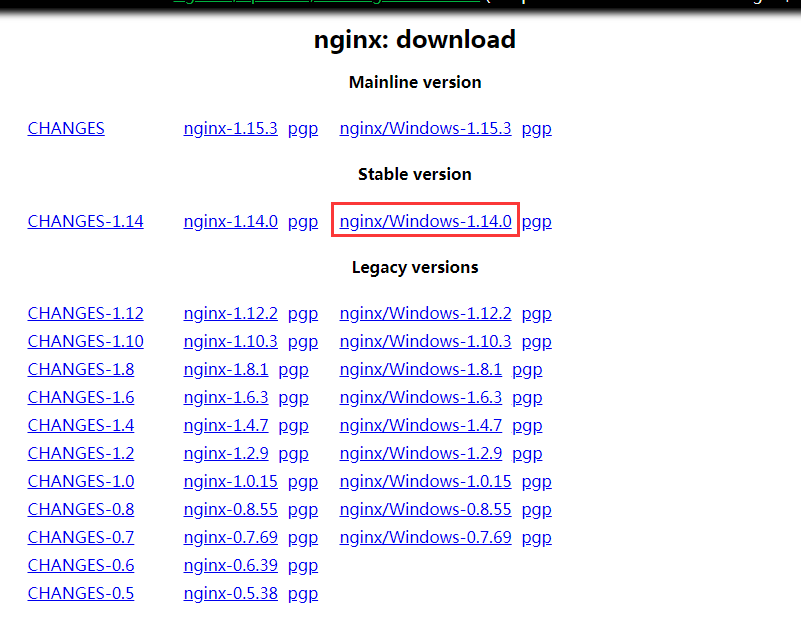
下载之后进行解压,将解压后的文件放到自己心仪的目录下,如下图所示:

至此,下载和安装nginx就已经完成了。
2.启动nginx
打开cmd命令窗口,切换到nginx解压目录下,输入命令 start nginx ,回车即可,此时可能会有一个黑色的弹窗一闪而过,不用理会。
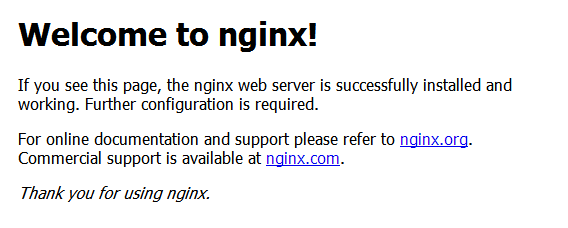
打开浏览器,输入网址 http://localhost:80;回车,如果出现以下页面说明启动成功:
3.nginx常用命令
| 命令 | 描述 |
|---|---|
| nginx -h | 查看nginx帮助 |
| nginx -v | 查看nginx版本 |
| nginx -t | 测试nginx配置 |
| nginx -T | 测试nginx帮助,并打印配置信息 |
| nginx -s reload | 重新加载配置文件,平滑启动nginx |
| nginx -s stop | 快速停止nginx |
| nginx -s quit | 完整有序的停止nginx |
4.nginx基本配置
nginx的配置文件在nginx解压目录/conf/nginx.conf,用编辑器打开即可进行相关配置
#user  nobody;              # 设置nginx服务的系统使用用户

worker_processes  1;        # 工作进程数

#error_log  logs/error.log;           # nginx错误日志

#error_log  logs/error.log  notice;

#error_log  logs/error.log  info;

#pid        logs/nginx.pid;           # nginx服务启动时候的pid

events {

    worker_connections  1024;         # 每个进程允许最大连接数

}

http {

    include       mime.types;

    default_type  application/octet-stream;

    # access_log日志展示格式

    # $remote_addr:客户端地址

    # $remote_user:客户端请求nginx认证的用户名,默认不开启认证模块,没有记录

    # $time_local: 客户端请求的时间

    # $request:客户端请求的请求头

    # $status: 请求的状态码

    # $body_bytes_sent: 服务端相应客户端body信息的大小

    # $http_referer: 访问当前页面的上一级页面地址

    # $http_user_agent: 客户端浏览器的agent

    # $http_x_forwarded_for:请求所携带的http信息

    log_format  main  '$remote_addr - $remote_user [$time_local] "$request" '

                      '$status $body_bytes_sent "$http_referer" '

                      '"$http_user_agent" "$http_x_forwarded_for"';

    access_log  logs/access.log  main;

    sendfile        on;

    #tcp_nopush     on;

    #keepalive_timeout  0;

    keepalive_timeout  65;        # 连接超时时间

    #gzip  on;

    server {

        listen       80;                # 监听前端打开的80端口

        server_name  localhost;         # 代理前端访问的地址

        charset utf-8;

        #access_log  logs/host.access.log  main;

        location / {

            root   html;                   # 需要代理的前端页面代码目录(包含index.html等文件的目录)

            index  index.html index.htm;

        }

        location /test/ {

            proxy_pass http://127.0.0.1:8000/test/;       # 将前端的/test/请求转发到后端哪个地址

            proxy_set_header   Host             $host;

            proxy_set_header   X-Real-IP        $remote_addr;

            proxy_set_header   X-Forwarded-For  $proxy_add_x_forwarded_for;

        }

        # 静态资源文件

		location /files/ {

			root F:/nginx-1.12.2/nginx-1.12.2/;

			autoindex on;

		}

        #error_page  404              /404.html;

        # redirect server error pages to the static page /50x.html

        #

        error_page   500 502 503 504  /50x.html;

        location = /50x.html {

            root   html;

        }

        # proxy the PHP scripts to Apache listening on 127.0.0.1:80

        #

        #location ~ \.php$ {

        #    proxy_pass   http://127.0.0.1;

        #}

        # pass the PHP scripts to FastCGI server listening on 127.0.0.1:9000

        #

        #location ~ \.php$ {

        #    root           html;

        #    fastcgi_pass   127.0.0.1:9000;

        #    fastcgi_index  index.php;

        #    fastcgi_param  SCRIPT_FILENAME  /scripts$fastcgi_script_name;

        #    include        fastcgi_params;

        #}

        # deny access to .htaccess files, if Apache's document root

        # concurs with nginx's one

        #

        #location ~ /\.ht {

        #    deny  all;

        #}

    }

    # another virtual host using mix of IP-, name-, and port-based configuration

    #

    #server {

    #    listen       8000;

    #    listen       somename:8080;

    #    server_name  somename  alias  another.alias;

    #    location / {

    #        root   html;

    #        index  index.html index.htm;

    #    }

    #}

    # HTTPS server

    #

    #server {

    #    listen       443 ssl;

    #    server_name  localhost;

    #    ssl_certificate      cert.pem;

    #    ssl_certificate_key  cert.key;

    #    ssl_session_cache    shared:SSL:1m;

    #    ssl_session_timeout  5m;

    #    ssl_ciphers  HIGH:!aNULL:!MD5;

    #    ssl_prefer_server_ciphers  on;

    #    location / {

    #        root   html;

    #        index  index.html index.htm;

    #    }

    #}

}
(完)
windows下安装nginx和基本配置的更多相关文章
- windows下安装nginx
说起开发,自己感到非常惭愧,由于公司让我给<绿电侠>项目写整体架构解决方案,才开始接触nginx这个东东,突然觉得它是一把非常好的利器. 本文主要记录在windows下安装nginx,另参 ...
- windows下安装MongoDB扩展和配置
windows下安装MongoDB扩展和配置 1.下载mongoDB扩展,根据当前php版本进行下载 地址如下:http://pecl.php.net/package/mongo 我本地php版本是 ...
- Windows下安装Nginx+php+mysql环境
系统:Windows 7 64位系统 安装之前,首先下载软件: Nginx: http://nginx.org/en/download.html PHP Stable PHP 5.6.26: http ...
- mac下安装nginx及相关配置
1. 安装 Homebrew 首先 homebrew是什么?它是Mac中的一款软件包管理工具,通过brew可以很方便的在Mac中安装软件或者是卸载软件.不了解的同学看以看官网(https://br ...
- Windows下安装Nginx及负载均衡
1.下载Windows版本的Nginx http://nginx.org/en/download.html 2.解压Nginx包,配置conf文件下的nginx.conf文件 3.配置说明: #use ...
- windows 下安装nginx
1.首先去官网下载 nginxWindows版本,官网下载:http://nginx.org/en/download.html 选择最新版本,下载到软件包后,解压文件包到指定目录,例如我的目录是D:\ ...
- windows下安装nginx,并添加至系统服务
安装:解压修改配置文件运行即可 添加服务 需要借助"Windows Service Wrapper"小工具下载地址:winsw GitHub 下载后放在nginx目录下,并修改名字 ...
- windows 下安装 nginx + php
1. 下载软件 需要的软件有nginx,php,mysql(如不需要可不安装) nginx.org,www.php.net上面有得下 全部解压出来 php基本不用做任何修改(下载直接解压版本的) 用c ...
- (转)Windows下安装Docker, GitBash环境配置
转:https://blog.csdn.net/chengly0129/article/details/68944269 官网介绍: https://docs.docker.com/toolbox/t ...
随机推荐
- Spring Boot 常用注解汇总
一.启动注解 @SpringBootApplication @Target(ElementType.TYPE) @Retention(RetentionPolicy.RUNTIME) @Documen ...
- e课表项目第二次冲刺周期第六天
昨天干了什么? 昨天是这次冲刺周期的第五天,我们的冲刺周期已经快过了一半,我们已经实现了对第一层界面的设计,所以我们的进度和我们的时间正好吻合,所以我们有信心完成我们的软件.我在网上搜了一些关于监听的 ...
- 解决 canvas 将图片转为base64报错: Uncaught DOMException: Failed to execute 'toDataURL' on 'HTMLCanvasEleme...
问题描述 当用户点击分享按钮时,生成一张海报,可以保存图片分享到朋友圈,用户的图片是存储在阿里云的OSS,当海报完成后,执行.canvas.toDataURL("image/png" ...
- Oracle11g安装与基本使用
目录 安装 修改用户密码 配置文件修改 使用PLSQL连接Oracle数据库 如何执行SQL 语句 本教程基于oracle11g和PLSQL进行 下载资源见百度网盘链接:https://pan.bai ...
- [LUOGU1272] 重建道路 - 树形背包
题目描述 一场可怕的地震后,人们用N个牲口棚(1≤N≤150,编号1..N)重建了农夫John的牧场.由于人们没有时间建设多余的道路,所以现在从一个牲口棚到另一个牲口棚的道路是惟一的.因此,牧场运输系 ...
- 问题:LinkedList 是原始类型。应该将对通用类型 LinkedList<E> 的引用参数化
jdk1.5之后,引入了泛型,类似下面这种写法会出现类似警告,可以忽略, LinkedList llist = new LinkedList();也可以修改一下,指定类型 LinkedList&l ...
- opencv::直方图计算
直方图概念 上述直方图概念是基于图像像素值,其实对图像梯度.每个像素的角度.等一切图像的属性值,我们都可以建立直方图. 这个才是直方图的概念真正意义,不过是基于图像像素灰度直方图是最常见 ...
- mysql 二十余种报错注入姿势
1.floor() floor 和group by 搭配使用 利用group by 的key唯一性 和mysql 编码执行顺序导致二次执行产生不同key ))) ) 数值型注入时 不用闭合‘ 进行 ...
- xml 文件操作
'XML添加 Public Sub Add(ID As String, RFSerialnumber As String, Mood As Integer) If reatch(RFS ...
- Mobius反演学习
这篇文章参考了许多资料和自己的理解. 先放理论基础. 最大公约数:小学学过,这里只提一些重要的公式: $·$若$a=b$,则$\gcd(a,b)=a=b$: $·$若$\gcd(a,b)=d$,则$\ ...