
【Android】5.5 状态切换(Switch)和评级条(RatingBar)
分类:C#、Android、VS2015;
创建日期:2016-02-07
一、简介
1、利用Switch或者ToggleButton切换状态
如果只有两种状态,可以用ToggleButton控件或Switch控件切换这两种状态。如下图所示(左侧是ToggleButton的效果,右侧是从API 19开始增加的Switch的效果):
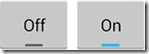

2、利用五角星评级条(RatingBar)设置评级
【NumStars】属性:定义星级的个数。
【StepSize】属性:定义每一颗星的粒度(值为 0.5 将允许半星级评级)。
【RatingBarChange】事件:星级发生变化时引发。
例如:
<RatingBar android:id="@+id/ratingbar"
android:layout_width="wrap_content"
android:layout_height="wrap_content"
android:numStars="5"
android:stepSize="1.0"/>
二、示例6—Demo06SwitchAndRatingBar
1、运行效果:

2、添加demo06_SwitchAndRatingBar.axml文件
<?xml version="1.0" encoding="utf-8"?>

<LinearLayout xmlns:android="http://schemas.android.com/apk/res/android"

    android:orientation="vertical"

    android:layout_width="match_parent"

    android:layout_height="match_parent">

    <Button

        android:id="@+id/button"

        android:layout_width="wrap_content"

        android:layout_height="wrap_content"

        android:padding="10dp"

        android:background="@drawable/android_button" />

    <EditText

        android:id="@+id/edittext"

        android:layout_width="fill_parent"

        android:layout_height="wrap_content" />

    <CheckBox

        android:id="@+id/checkbox"

        android:layout_width="wrap_content"

        android:layout_height="wrap_content"

        android:text="check it out" />

    <RadioGroup

        android:layout_width="fill_parent"

        android:layout_height="wrap_content"

        android:orientation="vertical">

        <RadioButton

            android:id="@+id/radio_red"

            android:layout_width="wrap_content"

            android:layout_height="wrap_content"

            android:text="Red" />

        <RadioButton

            android:id="@+id/radio_blue"

            android:layout_width="wrap_content"

            android:layout_height="wrap_content"

            android:text="Blue" />

    </RadioGroup>

    <Switch

        android:id="@+id/togglebutton"

        android:layout_width="wrap_content"

        android:layout_height="wrap_content"

        android:text="允许开启XX功能码?"

        android:checked="true" />

    <RatingBar

        android:id="@+id/ratingbar"

        android:layout_width="wrap_content"

        android:layout_height="wrap_content"

        android:numStars="5"

        android:stepSize="1.0" />

</LinearLayout>
3、添加Demo06SwitchAndRatingBar.cs文件
using System;

using Android.App;

using Android.OS;

using Android.Views;

using Android.Widget;

namespace ch05demos.SrcActivity

{

    [Activity(Label = "SwitchAndRatingBarDemo")]

    public class Demo06SwitchAndRatingBar : Activity

    {

        protected override void OnCreate(Bundle savedInstanceState)

        {

            base.OnCreate(savedInstanceState);

            SetContentView(Resource.Layout.demo06_SwitchAndRatingBar);

            Button button = FindViewById<Button>(Resource.Id.button);

            button.Click += delegate

            {

                Toast.MakeText(this, "Beep Boop", ToastLength.Short).Show();

            };

            var editText = FindViewById<EditText>(Resource.Id.edittext);

            //---------------------------------------------------------

            //技巧:按+=后,连续按两次<Tab>键,就会自动生成事件处理程序

            //---------------------------------------------------------

            editText.KeyPress += EditText_KeyPress;

            var checkbox = FindViewById<CheckBox>(Resource.Id.checkbox);

            checkbox.Click += delegate

            {

                if (checkbox.Checked)

                    Toast.MakeText(this, "Selected", ToastLength.Short).Show();

                else

                    Toast.MakeText(this, "Not selected", ToastLength.Short).Show();

            };

            var radioRed = FindViewById<RadioButton>(Resource.Id.radio_red);

            var radioBlue = FindViewById<RadioButton>(Resource.Id.radio_blue);

            radioRed.Click += Radio_Click;

            radioBlue.Click += Radio_Click;

            Switch toggleButton = FindViewById<Switch>(Resource.Id.togglebutton);

            toggleButton.Click += (o, e) => {

                if (toggleButton.Checked)

                    Toast.MakeText(this, "Checked", ToastLength.Short).Show();

                else

                    Toast.MakeText(this, "Not checked", ToastLength.Short).Show();

            };

            RatingBar ratingbar = FindViewById<RatingBar>(Resource.Id.ratingbar);

            ratingbar.RatingBarChange += (o, e) => {

                Toast.MakeText(this, "New Rating: " + ratingbar.Rating.ToString(), ToastLength.Short).Show();

            };

        }

        private void EditText_KeyPress(object sender, View.KeyEventArgs e)

        {

            var editText = sender as EditText;

            e.Handled = false;

            if (e.Event.Action == KeyEventActions.Down && e.KeyCode == Keycode.Enter)

            {

                Toast.MakeText(this, editText.Text, ToastLength.Short).Show();

                e.Handled = true;

            }

        }

        private void Radio_Click(object sender, EventArgs e)

        {

            RadioButton r = sender as RadioButton;

            Toast.MakeText(this, r.Text, ToastLength.Short).Show();

        }

    }

}
运行观察效果。
【Android】5.5 状态切换(Switch)和评级条(RatingBar)的更多相关文章
- Android ToggleButton:状态切换的Button
Android ToggleButton:状态切换的Button Android ToggleButton和Android Button类似,但是ToggleButton提供了一种选择机制,可以 ...
- Android APP前后台状态切换
getActivity().getApplication().registerActivityLifecycleCallbacks(new Application.ActivityLifecycleC ...
- Android实现监测网络状态
本文主要用到了安卓监测网络状态变化功能,实现了WIFI,3G,无网络状态切换时发出通知的功能. 主要知识点 service broadcast 接口回调实现 service的基本知识 service可 ...
- android 电平信号状态识别View平局
1.前言 级信号状态View在今天的Android系统是常见.状态的图标就很的经典,有几种状态,到了快没电的时候有些还会闪烁提示用户充电:还有的就是一些地图App的GPS信号强度的提示.Wifi信号强 ...
- Android 中Activity生命周期分析:Android中横竖屏切换时的生命周期过程
最近在面试Android,今天出了一个这样的题目,即如题: 我当时以为生命周期是这样的: onCreate --> onStart -- ---> onResume ---> onP ...
- Android菜鸟的成长笔记(14)—— Android中的状态保存探究(上)
原文:[置顶] Android菜鸟的成长笔记(14)—— Android中的状态保存探究(上) 我们在用手机的时候可能会发现,即使应用被放到后台再返回到前台数据依然保留(比如说我们正在玩游戏,突然电话 ...
- Android菜鸟的成长笔记(15)—— Android中的状态保存探究(下)
原文:Android菜鸟的成长笔记(15)-- Android中的状态保存探究(下) 在上一篇中我们简单了解关于Android中状态保存的过程和原理,这一篇中我们来看一下在系统配置改变的情况下保存数据 ...
- android 获得电池状态
<RelativeLayout xmlns:android="http://schemas.android.com/apk/res/android" xmlns:tools= ...
- Android屏幕横竖屏切换和生命周期管理的详细总结
一般的我们去切换屏幕方向都是不希望Activity被重新创建,这时就需要对一些属性进行设置,或者使用代码设置. 今天想学一下Android屏幕横竖屏切换,但是网上很多知识不准确或不正确, ...
随机推荐
- PL/SQL之DBMS_SQL程序包使用(1)(学习笔记)
dbms_sql程序包dbms_sql程序包是系统提供给我们的另一种使用动态SQL的方法:使用DBMS_SQL包实现动态的SQL的步骤如下:1.将要执行的SQL语句或者一个语句放到一个字符串变量中2. ...
- Tomcat环境的搭建(web基础学习笔记一)
一.下载和安装Tomcat服务器 下载Tomcat安装程序包:http://tomcat.apache.org/ 点击[Download]跳转到如下图所示的下载页面 二.点击左侧要下载的版本,选择To ...
- EventBus源码分析
一. EventBus简介 1.1.EventBus EventBus 是一个 Android 事件发布/订阅框架,通过解耦发布者和订阅者简化Android 事件传递,这里的事件可 ...
- sass / scss
Sass 有两种语法规则(syntaxes),目前新的语法规则(从 Sass 3开始)被称为 “SCSS”( 时髦的css(Sassy CSS)),它是css3语法的的拓展级,就是说每一个语法正确的C ...
- 【Android架构综述篇】之应用程序、应用程序訪问硬件的流程
对于分层的系统.刚開始认识时,从宏观的框架层面了解应用的构建过程,有助于形成自己对新系统的清晰概念. 1.Android应用程序构建框架: 这里就涉及活动.布局.注冊之间的关系.搞清了这三者.会对真个 ...
- POJ 1579 Function Run Fun 记忆化递归
典型的记忆化递归问题. 这类问题的记忆主要是利用数组记忆.那么已经计算过的值就能够直接返回.不须要进一步递归了. 注意:下标越界.递归顺序不能错,及时推断是否已经计算过值了,不要多递归. 或者直接使用 ...
- 解决ListView中Item的子控件与Item点击事件冲突
常常会碰到在ListView中点击当中一个Item.会一并触发其子控件的点击事件.比如Item中的Button.ImageButton等.导致了点击Item中Button以外区域也会触发Button点 ...
- HDOJ 4699 Editor 栈 模拟
用两个栈模拟: Editor Time Limit: 3000/2000 MS (Java/Others) Memory Limit: 131072/131072 K (Java/Others) ...
- 在MyEclipse中改动jsp页面的默认打开方式
在JavaWeb项目中.当然有非常多jsp页面,可是我发现,双击打开jsp页面总是卡机.相对于打开其它java文件而言非常慢,感觉非常不舒服.MyEclipse中默认打开jsp页面是以可视化的形式展现 ...
- 转载:PHP详解ob_clean,ob_start和ob_get_contents函数
1.这三个函数运用在PHP4和PHP5中.在一些PHP项目中,经常能看到这三个函数的使用. 有的输出,前面本来要显示在页面里的东西全都被清除了,不显示了. 第二个函数:ob_start(); 告诉ph ...