
WPF 实现带蒙版的 MessageBox 消息提示框
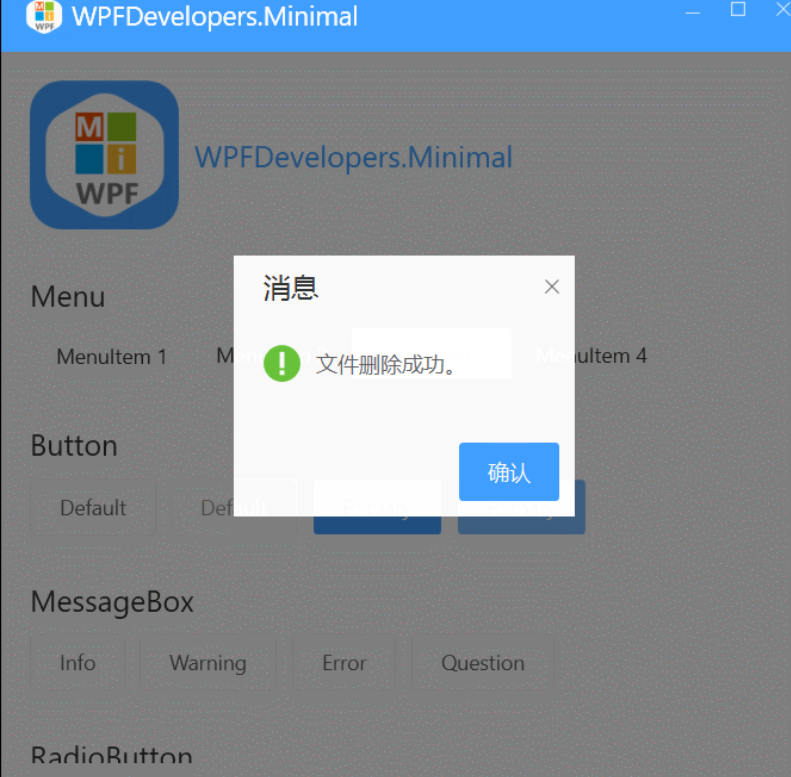
WPF 实现带蒙版的 MessageBox 消息提示框
WPF 实现带蒙版的 MessageBox 消息提示框
作者:WPFDevelopersOrg
原文链接: https://github.com/WPFDevelopersOrg/WPFDevelopers.Minimal
- 框架使用大于等于
.NET40; Visual Studio 2022;- 项目使用 MIT 开源许可协议;
- Nuget
Install-Package WPFDevelopers.Minimal3.2.6-preview
MessageBox
- 实现
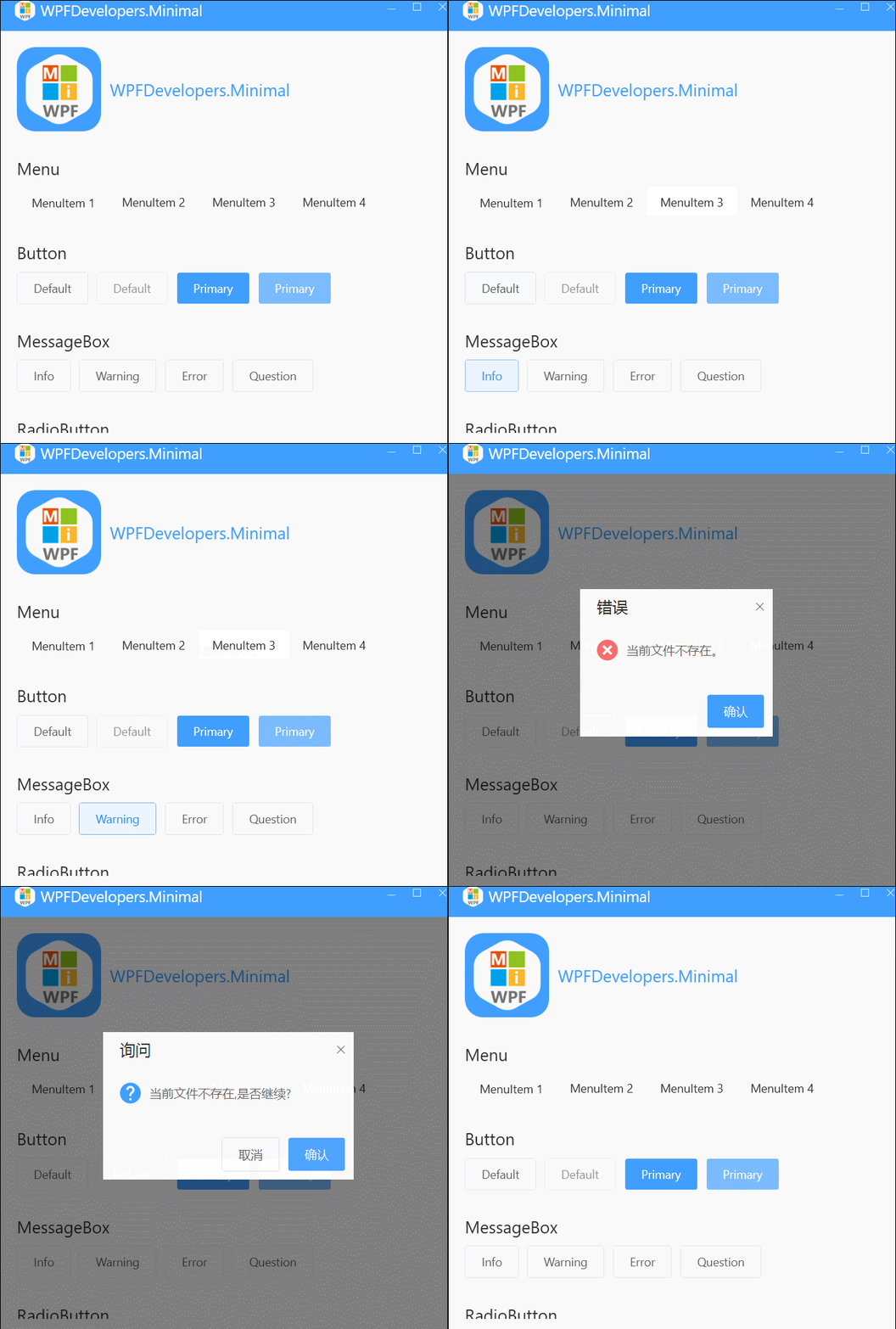
MessageBox的Show五种方法;Show(string messageBoxText)传入Msg参数;Show(string messageBoxText, string caption)传入Msg与标题参数;Show(string messageBoxText, string caption, MessageBoxButton button)传入Msg与标题、操作按钮参数;Show(string messageBoxText, string caption, MessageBoxImage icon)传入Msg与标题、消息图片参数;Show(string messageBoxText, string caption, MessageBoxButton button, MessageBoxImage icon)传入Msg与标题、操作按钮、消息图片参数;
- 拿到父级
Window窗体的内容Content,放入一个Grid里,再在容器里放入一个半透明的Grid,最后将整个Grid赋给父级Window窗体的内容Content;
一、MessageBox.cs 代码如下;
using System;

using System.Collections.Generic;

using System.Linq;

using System.Text;

using System.Windows;

using System.Windows.Controls;

using System.Windows.Media;

namespace WPFDevelopers.Minimal.Controls

{

    public static class MessageBox

    {

        public static MessageBoxResult Show(string messageBoxText)

        {

            var msg = new WPFMessageBox(messageBoxText);

            return GetWindow(msg);

        }

        public static MessageBoxResult Show(string messageBoxText, string caption)

        {

            var msg = new WPFMessageBox(messageBoxText, caption);

            return GetWindow(msg);

        }

        public static MessageBoxResult Show(string messageBoxText, string caption, MessageBoxButton button)

        {

            var msg = new WPFMessageBox(messageBoxText, caption, button);

            return GetWindow(msg);

        }

        public static MessageBoxResult Show(string messageBoxText, string caption, MessageBoxImage icon)

        {

            var msg = new WPFMessageBox(messageBoxText, caption, icon);

            return GetWindow(msg);

        }

        public static MessageBoxResult Show(string messageBoxText, string caption, MessageBoxButton button, MessageBoxImage icon)

        {

            var msg = new WPFMessageBox(messageBoxText, caption,button,icon);

            return GetWindow(msg);

        }

        static MessageBoxResult GetWindow(WPFMessageBox msg)

        {

            msg.WindowStartupLocation = WindowStartupLocation.CenterOwner;

            Window win = null;

            if (Application.Current.Windows.Count > 0)

                win = Application.Current.Windows.OfType<Window>().FirstOrDefault(o => o.IsActive);

            if (win != null)

            {

                var layer = new Grid() { Background = new SolidColorBrush(Color.FromArgb(128, 0, 0, 0)) };

                UIElement original = win.Content as UIElement;

                win.Content = null;

                var container = new Grid();

                container.Children.Add(original);

                container.Children.Add(layer);

                win.Content = container;

                msg.Owner = win;

                msg.ShowDialog();

                container.Children.Clear();

                win.Content = original;

            }

            else

                msg.Show();

            return msg.Result;

        }

    }

}
二、Styles.MessageBox.xaml 代码如下;
<ResourceDictionary xmlns="http://schemas.microsoft.com/winfx/2006/xaml/presentation"

                    xmlns:x="http://schemas.microsoft.com/winfx/2006/xaml"

                    xmlns:sys="clr-namespace:System;assembly=mscorlib"

                    xmlns:wpfsc="clr-namespace:WPFDevelopers.Minimal.Controls">

    <ResourceDictionary.MergedDictionaries>

        <ResourceDictionary Source="../Themes/Basic/ControlBasic.xaml"/>

        <ResourceDictionary Source="../Themes/Basic/Animations.xaml"/>

    </ResourceDictionary.MergedDictionaries>

    <Style TargetType="{x:Type wpfsc:WPFMessageBox}">

        <Setter Property="Foreground" Value="{DynamicResource PrimaryTextSolidColorBrush}" />

        <Setter Property="Background"  Value="{DynamicResource WhiteSolidColorBrush}" />

        <Setter Property="BorderBrush" Value="{DynamicResource PrimaryNormalSolidColorBrush}" />

        <Setter Property="SizeToContent"  Value="WidthAndHeight" />

        <Setter Property="ResizeMode" Value="NoResize" />

        <Setter Property="ShowInTaskbar" Value="False" />

        <Setter Property="SnapsToDevicePixels" Value="True"/>

        <Setter Property="UseLayoutRounding" Value="True" />

        <Setter Property="TextOptions.TextFormattingMode" Value="Display" />

        <Setter Property="TextOptions.TextRenderingMode" Value="ClearType" />

        <Setter Property="WindowStyle"  Value="None" />

        <Setter Property="FontFamily" Value="{DynamicResource NormalFontFamily}" />

        <Setter Property="Template">

            <Setter.Value>

                <ControlTemplate TargetType="{x:Type wpfsc:WPFMessageBox}">

                    <Border Background="{TemplateBinding Background}"

                            BorderBrush="{TemplateBinding BorderBrush}"

                            BorderThickness="{TemplateBinding BorderThickness}">

                        <Grid>

                            <Grid.RowDefinitions>

                                <RowDefinition/>

                                <RowDefinition />

                                <RowDefinition/>

                            </Grid.RowDefinitions>

                            <Grid Grid.Row="0">

                                <DockPanel Margin="20,0,0,0">

                                    <TextBlock x:Name="PART_Title"

                                           HorizontalAlignment="Left"

                                           VerticalAlignment="Center"

                                           FontSize="{DynamicResource TitleFontSize}"

                                           Foreground="{DynamicResource PrimaryTextSolidColorBrush}"/>

                                    <Button Name="PART_CloseButton" Margin="0,6"

                                            ToolTip="Close" HorizontalAlignment="Right"

                                            IsTabStop="False" Style="{DynamicResource WindowButtonStyle}">

                                        <Path Width="10" Height="10"

                              HorizontalAlignment="Center"

                              VerticalAlignment="Center"

                              Data="{DynamicResource PathMetroWindowClose}"

                              Fill="{DynamicResource PrimaryTextSolidColorBrush}"

                              Stretch="Fill" />

                                    </Button>

                                </DockPanel>

                            </Grid>

                            <Grid Grid.Row="1" Margin="20">

                                <DockPanel>

                                    <Path x:Name="PART_Path" Data="{DynamicResource PathInformation}"

                                      Fill="{DynamicResource PrimaryNormalSolidColorBrush}"

                                      Height="25" Width="25" Stretch="Fill"></Path>

                                    <TextBlock x:Name="PART_Message" TextWrapping="Wrap"

                                           MaxWidth="500" Width="Auto" VerticalAlignment="Center"

                                           FontSize="{DynamicResource NormalFontSize}"

                                           Padding="10,0"

                                           Foreground="{DynamicResource RegularTextSolidColorBrush}"/>

                                </DockPanel>

                            </Grid>

                            <Grid Grid.Row="2" Margin="140,20,10,10">

                                <StackPanel Orientation="Horizontal" HorizontalAlignment="Right">

                                    <Button x:Name="PART_ButtonCancel" Content="取消" Visibility="Collapsed"/>

                                    <Button x:Name="PART_ButtonOK" Style="{DynamicResource PrimaryButton}"

                                        Margin="10,0,0,0" Content="确认"/>

                                </StackPanel>

                            </Grid>

                        </Grid>

                    </Border>

                </ControlTemplate>

            </Setter.Value>

        </Setter>

    </Style>

</ResourceDictionary>
三、WPFMessageBox.cs 代码如下;
using System;

using System.Collections.Generic;

using System.ComponentModel;

using System.Text;

using System.Windows;

using System.Windows.Controls;

using System.Windows.Media;

using System.Windows.Shapes;

namespace WPFDevelopers.Minimal.Controls

{

    [TemplatePart(Name = TitleTemplateName, Type = typeof(TextBlock))]

    [TemplatePart(Name = CloseButtonTemplateName, Type = typeof(Button))]

    [TemplatePart(Name = MessageTemplateName, Type = typeof(TextBlock))]

    [TemplatePart(Name = ButtonCancelTemplateName, Type = typeof(Button))]

    [TemplatePart(Name = ButtonCancelTemplateName, Type = typeof(Button))]

    [TemplatePart(Name = PathTemplateName, Type = typeof(Path))]

    public sealed class WPFMessageBox : Window

    {

        private const string TitleTemplateName = "PART_Title";

        private const string CloseButtonTemplateName = "PART_CloseButton";

        private const string MessageTemplateName = "PART_Message";

        private const string ButtonCancelTemplateName = "PART_ButtonCancel";

        private const string ButtonOKTemplateName = "PART_ButtonOK";

        private const string PathTemplateName = "PART_Path";

        private string _messageString;

        private string _titleString;

        private Geometry _geometry;

        private SolidColorBrush _solidColorBrush;

        private Visibility _cancelVisibility = Visibility.Collapsed;

        private Visibility _okVisibility;

        private TextBlock _title;

        private TextBlock _message;

        private Button _closeButton;

        private Button _buttonCancel;

        private Button _buttonOK;

        private Path _path;

        static WPFMessageBox()

        {

            DefaultStyleKeyProperty.OverrideMetadata(typeof(WPFMessageBox), new FrameworkPropertyMetadata(typeof(WPFMessageBox)));

        }

        public override void OnApplyTemplate()

        {

            base.OnApplyTemplate();

            _title = GetTemplateChild(TitleTemplateName) as TextBlock;

            _message = GetTemplateChild(MessageTemplateName) as TextBlock;

            if (_title == null || _message == null)

                throw new InvalidOperationException("the title or message control is null!");

            _title.Text = _titleString;

            _message.Text = _messageString;

            _path = GetTemplateChild(PathTemplateName) as Path;

            if (_path != null)

            {

                _path.Data = _geometry;

                _path.Fill = _solidColorBrush;

            }

            _closeButton = GetTemplateChild(CloseButtonTemplateName) as Button;

            if (_closeButton != null)

                _closeButton.Click += _closeButton_Click;

            _buttonCancel = GetTemplateChild(ButtonCancelTemplateName) as Button;

            if (_buttonCancel != null)

            {

                _buttonCancel.Visibility = _cancelVisibility;

                _buttonCancel.Click += _buttonCancel_Click;

            }

            _buttonOK = GetTemplateChild(ButtonOKTemplateName) as Button;

            if (_buttonOK != null)

            {

                _buttonOK.Visibility = _okVisibility;

                _buttonOK.Click += _buttonOK_Click;

            }

            if (Owner == null)

            {

                BorderThickness = new Thickness(1);

                WindowStartupLocation = WindowStartupLocation.CenterScreen;

            }

        }

        private void _buttonOK_Click(object sender, RoutedEventArgs e)

        {

            Result = MessageBoxResult.OK;

            Close();

        }

        private void _buttonCancel_Click(object sender, RoutedEventArgs e)

        {

            Result = MessageBoxResult.Cancel;

            Close();

        }

        private void _closeButton_Click(object sender, RoutedEventArgs e)

        {

            Close();

        }

        protected override void OnClosed(EventArgs e)

        {

            base.OnClosed(e);

            if (Owner == null)

                return;

            var grid = Owner.Content as Grid;

            UIElement original = VisualTreeHelper.GetChild(grid, 0) as UIElement;

            grid.Children.Remove(original);

            Owner.Content = original;

        }

        public MessageBoxResult Result { get; set; }

        public WPFMessageBox(string message)

        {

            _messageString = message;

        }

        public WPFMessageBox(string message, string caption)

        {

            _titleString = caption;

            _messageString = message;

        }

        public WPFMessageBox(string message, string caption, MessageBoxButton button)

        {

            _titleString = caption;

            _messageString = message; ;

        }

        public WPFMessageBox(string message, string caption, MessageBoxImage image)

        {

            _titleString = caption;

            _messageString = message;

            DisplayImage(image);

        }

        public WPFMessageBox(string message, string caption, MessageBoxButton button, MessageBoxImage image)

        {

            _titleString = caption;

            _messageString = message;

            DisplayImage(image);

            DisplayButtons(button);

        }

        private void DisplayButtons(MessageBoxButton button)

        {

            switch (button)

            {

                case MessageBoxButton.OKCancel:

                case MessageBoxButton.YesNo:

                    _cancelVisibility = Visibility.Visible;

                    _okVisibility = Visibility.Visible;

                    break;

                //case MessageBoxButton.YesNoCancel:

                //    break;

                default:

                    _okVisibility = Visibility.Visible;

                    break;

            }

        }

        private void DisplayImage(MessageBoxImage image)

        {

            switch (image)

            {

                case MessageBoxImage.Warning:

                    _geometry = Application.Current.Resources["PathWarning"] as Geometry;

                    _solidColorBrush = Application.Current.Resources["WarningSolidColorBrush"] as SolidColorBrush;

                    break;

                case MessageBoxImage.Error:

                    _geometry = Application.Current.Resources["PathError"] as Geometry;

                    _solidColorBrush = Application.Current.Resources["DangerSolidColorBrush"] as SolidColorBrush;

                    break;

                case MessageBoxImage.Information:

                    _geometry = Application.Current.Resources["PathWarning"] as Geometry;

                    _solidColorBrush = Application.Current.Resources["SuccessSolidColorBrush"] as SolidColorBrush;

                    break;

                case MessageBoxImage.Question:

                    _geometry = Application.Current.Resources["PathQuestion"] as Geometry;

                    _solidColorBrush = Application.Current.Resources["PrimaryNormalSolidColorBrush"] as SolidColorBrush;

                    break;

                default:

                    break;

            }

        }

    }

}
Nuget Install-Package WPFDevelopers.Minimal
其他基础控件
1.Window
2.Button
3.CheckBox
4.ComboBox
5.DataGrid
6.DatePicker
7.Expander
8.GroupBox
9.ListBox
10.ListView
11.Menu
12.PasswordBox
13.TextBox
14.RadioButton
15.ToggleButton
16.Slider
17.TreeView
18.TabControl
WPF 实现带蒙版的 MessageBox 消息提示框的更多相关文章
- wpf实现仿qq消息提示框
原文:wpf实现仿qq消息提示框 版权声明:本文为博主原创文章,未经博主允许不得转载. https://blog.csdn.net/huangli321456/article/details/5052 ...
- WPF自定义控件三:消息提示框
需求:实现全局消息提示框 一:创建全局Message public class Message { private static readonly Style infoStyle = (Style)A ...
- MFC上下浮动与渐入渐出消息提示框实现
类似QQ与360软件,消息提示有两种.上下浮动.渐入渐出. 1.上下浮动提示框实现 机制,定时器响应上下浮动消息. 主要API:MoveWindow. 源码如下UpDownTipDlg.h.UpDow ...
- Android消息提示框Toast
Android消息提示框Toast Toast是Android中一种简易的消息提示框.和Dialog不一样的是,Toast是没有焦点的,toast提示框不能被用户点击,而且Toast显示的时间有限,t ...
- easyui 消息提示框
1.浏览器消息提示框 浏览器弹出框,可以在浏览器设置中被屏蔽掉,导致效果失效 alert() 2.easyui 框架提供的消息框 easyui 框架自带的消息框,不可以被屏蔽. $.messager. ...
- UWP中的消息提示框(二)
在UWP中的消息提示框(一)中介绍了一些常见的需要用户主动去干涉的一些消息提示框,接下来打算聊聊不需要用户主动去干涉的一些消息提示框.效果就是像双击退出的那种提示框. 先说说比较简单的吧,通过系统To ...
- 重绘DevExpress的XtraMessageBox消息提示框控件
先来看提示框,可以看到框其实是一个去掉最大化.最小化按钮后的窗体,窗体的内容就是我们想要提示的内容,重绘提示框其实就是重绘窗体以及中间部分的内容. 首先重绘窗体,消息提示框的窗体不是XtraForm而 ...
- 自定义iOS 中推送消息 提示框
看到标题你可能会觉得奇怪 推送消息提示框不是系统自己弹出来的吗? 为什么还要自己自定义呢? 因为项目需求是这样的:最近需要做 远程推送通知 和一个客服系统 包括店铺客服和官方客服两个模块 如果有新的消 ...
- Android第三方开源对话消息提示框:SweetAlertDialog(sweet-alert-dialog)
Android第三方开源对话消息提示框:SweetAlertDialog(sweet-alert-dialog) Android第三方开源对话消息提示框:SweetAlertDialog(sweet- ...
随机推荐
- 博弈论(nim游戏,SG函数)
说到自己,就是个笑话.思考问题从不清晰,sg函数的问题证明方法就在眼前可却要弃掉.不过自己理解的也并不透彻,做题也不太行.耳边时不时会想起alf的:"行不行!" 基本的小概念 这里 ...
- 【leetcode 206】 反转链表(简单)
链表 概念: 区别于数组,链表中的元素不是存储在内存中连续的一片区域,链表中的数据存储在每一个称之为「结点」复合区域里,在每一个结点除了存储数据以外,还保存了到下一个结点的指针(Pointer). 由 ...
- linux基本命令续(杂糅和转)
此处使用CP 命令复制/etc/profile和/etc/init.d/network到家目录下,当然也可以指定其他目录如./ 根目录等. 在2提示处,如果输错了文字,可以ctrl+backspace ...
- GDOI 2021 普及组溺水记
Day 1 T1 一看样例:答案不就是 \(\dfrac{\max_{i=1}^n a_i +1}{2}\) 吗? 于是自信打上,拍都不拍.然后就,,对了? 插曲:自己出了一个极端数据,发现 scan ...
- vue华视电子身份证阅读器的使用
ie还是谷歌都是可以用的 只需要直接启用华视电子身份证阅读器的服务来的,至于服务已经上传到了网上 华视阅读器服务,下载下来解压,找到对应的华视电子读卡服务.exe文件,路径是CVR-1 ...
- 使用 Dapr JS SDK 让 Nest.js 集成 Dapr
Dapr 是一个可移植的.事件驱动的运行时,它使任何开发人员能够轻松构建出弹性的.无状态和有状态的应用程序,并可运行在云平台或边缘计算中,它同时也支持多种编程语言和开发框架. Dapr 中文手册:ht ...
- make 随笔
# --with--cc-opt flag导致./configure时找不到对应库文件? checking for --with-ld-opt="-Wl,-z,relro -Wl,-z,no ...
- netty系列之:HashedWheelTimer一种定时器的高效实现
目录 简介 java.util.Timer java.util.concurrent.ScheduledThreadPoolExecutor HashedWheelTimer 总结 简介 定时器是一种 ...
- 重学ES系列之函数优化
<!DOCTYPE html> <html lang="en"> <head> <meta charset="UTF-8&quo ...
- 解决方案:可以ping别人,但是别人不能ping我
背景:我在写分布式爬虫项目时遇到了slave端无法ping通我的master,我的master可以ping通slave.我将master的防火墙关闭后slave可以ping了,但是这不是解决办法.于是 ...