
微信小程序 - 表单验证插件WxValidate(自定义警告信息形式)
弹出的形式对于用户来说,总是不太友好的
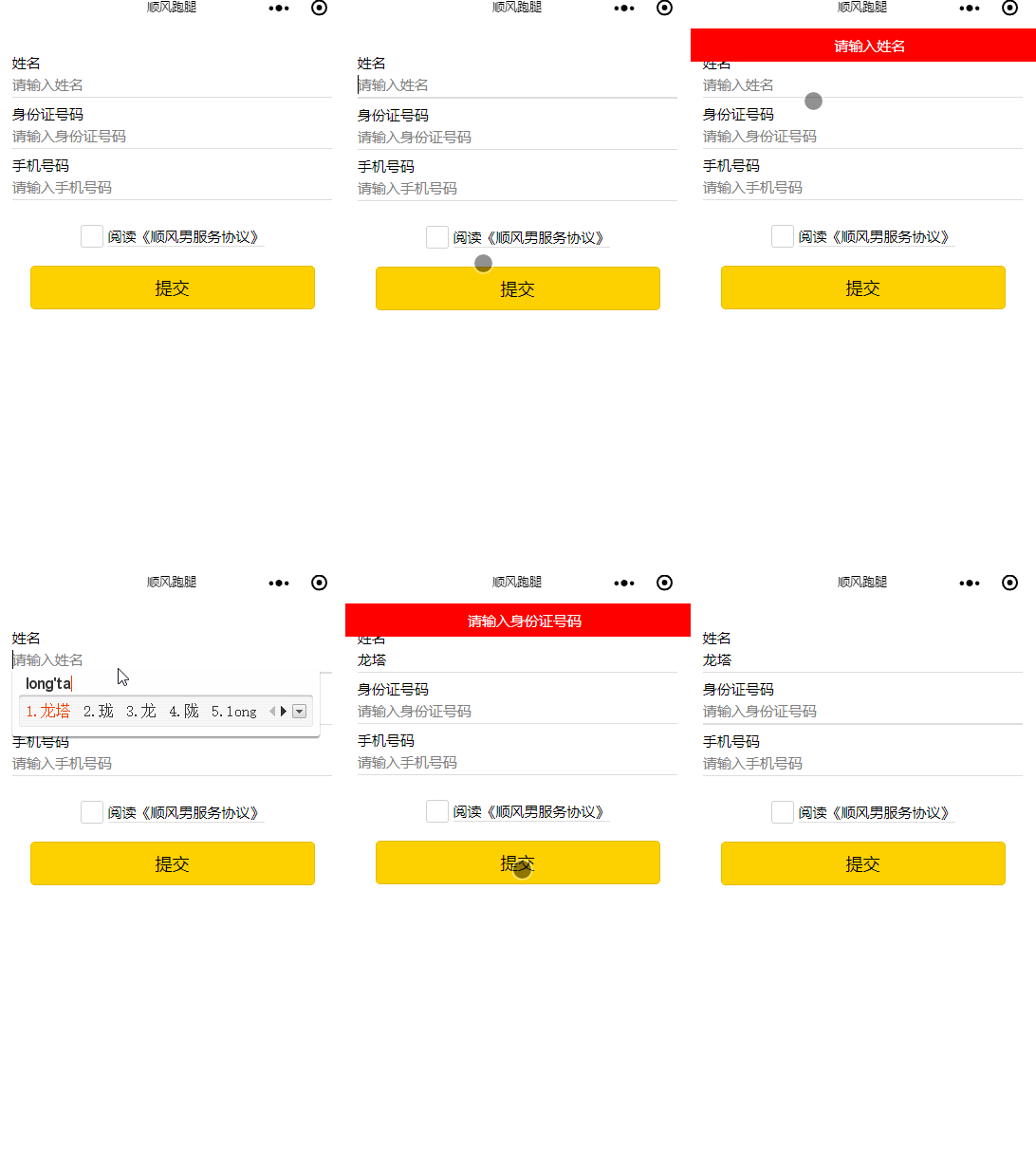
可能会出现层级问题(只需要设置一下提示的层级即可)
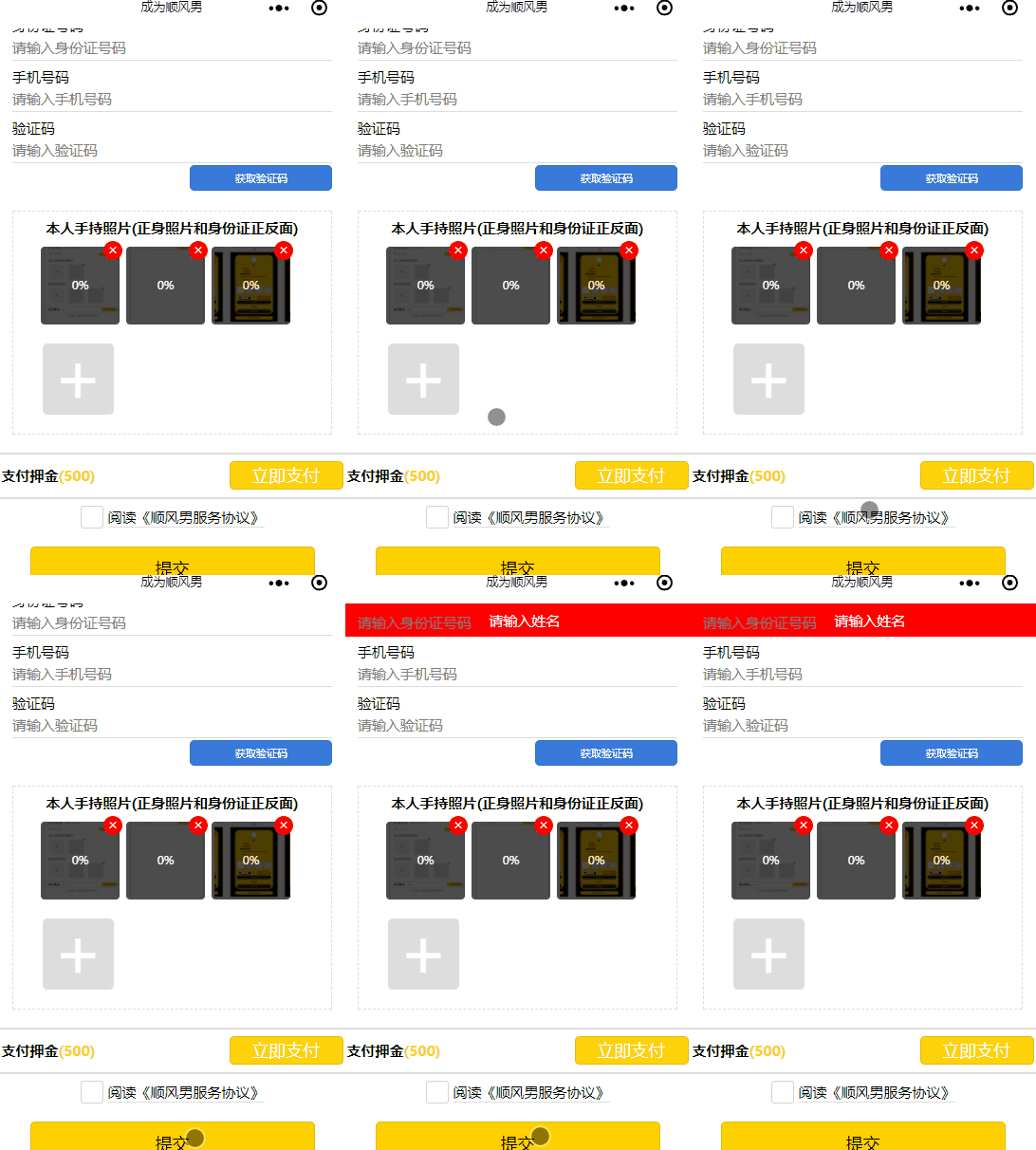
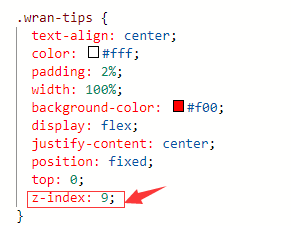
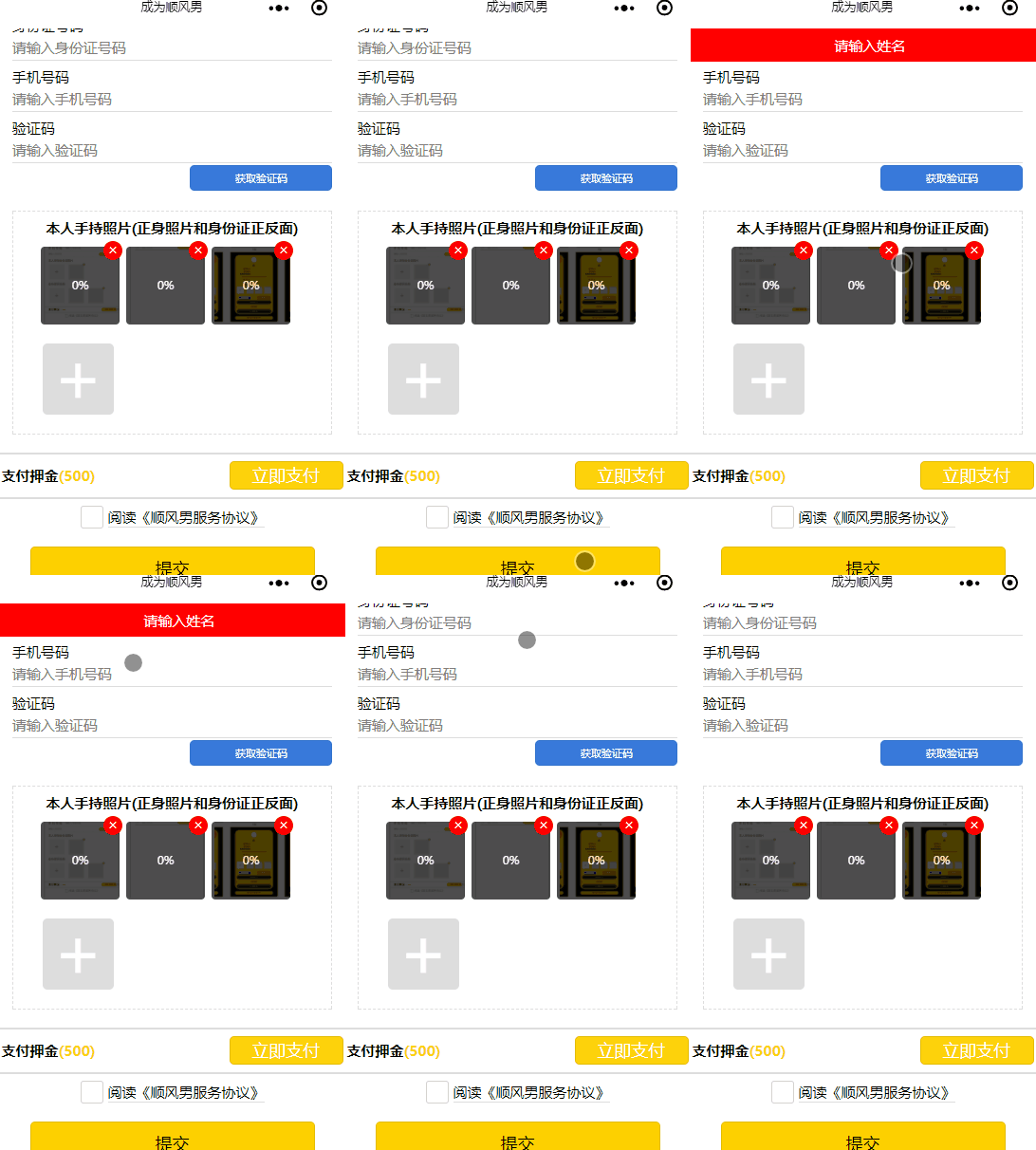
WxValidate内置规则
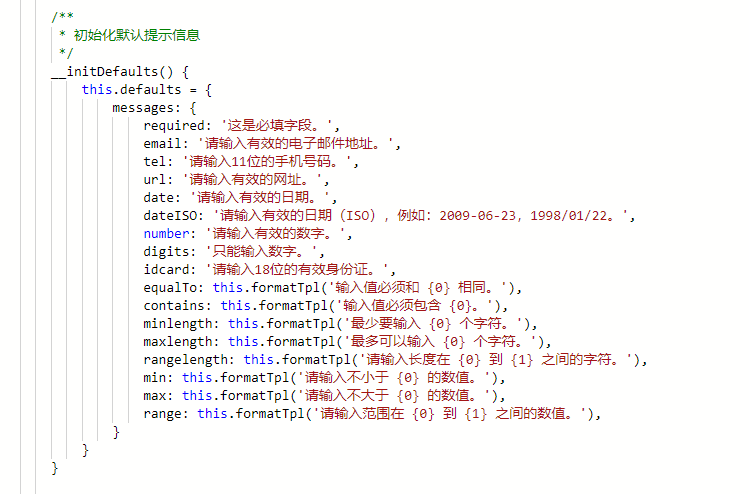
以下代码拷贝即可使用~
wxml
 <form bindsubmit='submitCheckInfo'>

   <!-- 提示警告! -->

   <view class='wran-tips' style='{{displayWarn}}'>

     <text>{{warnInfo}}</text>

   </view>

   <view class="container">

     <view class='container-info'>

       <view class="man-form-info">

         <view class='name'>姓名

           <input placeholder='请输入姓名' name="name"></input>

         </view>

         <view class='idcard'>

           身份证号码

           <input maxlength='18' placeholder='请输入身份证号码' type='idcard' name="idcard"></input>

         </view>

         <view class='phone'>

           手机号码

           <input maxlength='11' placeholder='请输入手机号码' type='number' bindinput="phoneInput" name="tel"></input>

         </view>

       </view>

     </view>

     <view class='read-man-pact'>

       <checkbox-group name="assistance">

         <checkbox></checkbox>

         <navigator class='pact'>阅读《顺风男服务协议》</navigator>

       </checkbox-group>

     </view>

     <view class='submit-form-info'>

       <button form-type='submit'>提交</button>

     </view>

   </view>

 </form>
js
 import WxValidate from '../../../utils/WxValidate';

 Page({

   /**

    * 页面的初始数据

    */

   data: {

     // 初始化警告

     displayWarn: 'display:none'

   },

   /**

    * 生命周期函数--监听页面加载

    */

   onLoad: function(options) {

     // 校验规则 -rules

     this.initValidate();

   },

   /**

    * 表单验证->(可自定义验证形式)

    */

   showWarnInfo(error) {

     // 当前page是this对象

     let page = this;

     // 延时时间等待

     let delayTime = 1;

     // 延时等待毫秒,现设置为1000

     let delayMillsecond = 1000;

     // 调用显示警告函数

     showWran(page, error, delayTime, delayMillsecond);

   },

   /**

    * 表单-提交前的(校验)

    */

   submitCheckInfo(e) {

     const params = e.detail.value

     console.log(params)

     // 传入表单数据,调用验证方法

     if (!this.WxValidate.checkForm(params)) {

       const error = this.WxValidate.errorList[0]

       this.showWarnInfo(error)

       return false

     }

     // 验证通过以后

     this.submitForm(params);

   },

   /**

    * 表单-提交(到后端)

    */

   submitForm(params) {

     console.log(params);

     wx.showToast({

       title: '提交吧~Q!',

     })

   },

   /**

    * 表单-验证字段

    */

   initValidate() {

     const rules = {

       name: {

         required: true,

         rangelength: [2, 4]

       },

       idcard: {

         required: true,

         idcard: true,

       },

       tel: {

         required: true,

         tel: true,

       },

       regcode: {

         required: false,

         minlength: 6

       },

       assistance: {

         required: true,

         assistance: true,

       },

     }

     // 验证字段的提示信息,若不传则调用默认的信息

     const messages = {

       name: {

         required: '请输入姓名',

         rangelength: '请输入2~4个汉字个汉字'

       },

       tel: {

         required: '请输入11位手机号码',

         tel: '请输入正确的手机号码',

       },

       idcard: {

         required: '请输入身份证号码',

         idcard: '请输入正确的身份证号码',

       },

       regcode: {

         required: '请输入验证码',

         minlength: '请输入正确的验证码'

       },

       assistance: {

         required: '请勾选 《顺风男服务协议》'

       },

     }

     // 创建实例对象

     this.WxValidate = new WxValidate(rules, messages)

     // 自定义验证规则

     this.WxValidate.addMethod('assistance', (value, param) => {

       return this.WxValidate.optional(value) || (value.length >= 1 && value.length <= 2)

     }, '请勾选 《顺风男服务协议》')

   }

 })

 /**

  * 可加入工具集-减少代码量

  */

 function showWran(page, error, delayTime, delayMillsecond) {

   let timesRun = 0;

   let interval = setInterval(function() {

     timesRun += delayTime;

     if (timesRun === delayTime) {

       clearInterval(interval);

     }

     page.setData({

       warnInfo: error.msg,

       displayWarn: 'display:none'

     });

   }, delayMillsecond);

   page.setData({

     warnInfo: error.msg,

     displayWarn: 'display:block'

   });

 }
wxss
 @import "../../template/up-pic.wxss";

 page {

   font-size: 30rpx;

 }

 button:active {

   opacity: 0.7;

 }

 .wran-tips {

   text-align: center;

   color: #fff;

   padding: 2%;

   width: 100%;

   background-color: #f00;

   display: flex;

   justify-content: center;

   position: fixed;

   top:;

 }

 .container-info {

   padding: 5%;

   /* margin-top: 4%; */

 }

 .man-form-info {

   display: flex;

   flex-wrap: wrap;

   justify-content: center;

 }

 .man-form-info .name, .man-form-info .idcard, .man-form-info .phone,

 .man-form-info .regcode {

   display: flex;

   width: 100%;

   flex-wrap: wrap;

   margin-top: 2%;

 }

 .man-form-info input {

   width: 100%;

   border-bottom: 1px solid #ddd;

 }

 .regcode {

   position: relative;

 }

 .regcode button {

   border-radius: 10rpx;

   background-color: #3879d9;

   color: #fff;

   height: 54rpx;

   line-height: 54rpx;

   font-size: 23rpx;

   width: 300rpx;

   margin-top: -2%;

 }

 .regcode input {

   /* width: 50%; */

   width: 100%;

 }

 .code {

   position: relative;

   width: 100%;

 }

 .code button {

   position: absolute;

   top: 72rpx;

   right:;

 }

 input:hover {

   border-bottom: 2px solid #ddd;

 }

 .self-idcard-info {

   margin-top: 15%;

   display: flex;

   flex-wrap: wrap;

   justify-content: center;

   width: 100%;

   border: 1px dashed #ddd;

   padding: 2%;

 }

 .f-center {

   display: flex;

   justify-content: center;

   width: 100%;

 }

 .picture_list {

   /* justify-content: center; */

   padding: 0 7%;

 }

 .add-image {

   background-color: #ddd;

   color: #fff;

 }

 .upload_progress {

   width: 167rpx;

   height: 164rpx;

 }

 .apply {

   width: 96%;

   display: flex;

   justify-content: space-between;

   align-items: center;

   padding: 2%;

   border-top: 2px solid #ddd;

   border-bottom: 2px solid #ddd;

 }

 .apply-deposit {

   font-weight: bold;

 }

 .apply-deposit-amount {

   font-weight: bold;

   color: #fdd20c;

 }

 .apply button {

   margin:;

   padding:;

   width: 240rpx;

   height: 60rpx;

   line-height: 60rpx;

   color: #fff;

   background-color: #fdd20c;

 }

 .read-man-pact {

   display: flex;

   justify-content: center;

   padding: 2%;

 }

 .read-man-pact checkbox-group {

   display: flex;

   align-items: center;

 }

 .pact {

   border-bottom: 1px solid #ddd;

 }

 .submit-form-info {

   display: flex;

   justify-content: center;

 }

 .submit-form-info button {

   background-color: #fdd000;

   width: 80%;

   margin: 3% 0;

 }
微信小程序 - 表单验证插件WxValidate(自定义警告信息形式)的更多相关文章
- 微信小程序——表单验证插件WxValidate的二次封装(二)
在上一篇博客<微信小程序——仿jqueryValidate表单验证插件WxValidate的二次封装>中,我将WxValidate做了再次封装,简化了初始规则数据的构造,但是当有错误时页面 ...
- 微信小程序——表单验证插件WxValidate的二次封装(终极版)
微信小程序表单验证前面的两篇文章做的效果总感觉都有点不太友好,第一篇里的效果是将错误信息通过对话框形式弹出来,这种形式在web形式下早已经淘汰了:第二篇是一次性全部显示所有的错误,然后3秒后自动消失, ...
- 微信小程序 - 表单验证插件WxValidate使用
插件下载地址及官方文档:https://github.com/skyvow/wx-extend 具体的WxValidate.js文件的位置在wx-extend/src/assets/plugins/w ...
- 微信小程序——仿jqueryValidate表单验证插件WxValidate的二次封装(一)
在做web开发时,表单验证插件我们前端用的是jqueryValidate,由于个人主要精力是在后台JAVA开发上,为了让插件与后台更好的结合和使用,通过JAVA的自定义组件将表单全部重新写了一边,同时 ...
- 微信小程序-表单
wxml <view> 按钮: <button size="{{buttom.size}}" type="{{buttom.type}}" p ...
- 微信小程序-表单组件
button 按钮 注:button-hover 默认为{background-color: rgba(0, 0, 0, 0.1); opacity: 0.7;} 示例代码: /** wxss **/ ...
- 微信小程序-表单笔记
发布页——向云端数据库上传多行文字和4张图片 第6,8行注释掉和不注释掉都可以实现数据上传 var _this = this; wx.cloud.callFunction({ name: 'searc ...
- 微信小程序 --- 表单输入验证(手机号、邮箱验证、输入非空)
js代码 Page({ /** * 页面的初始数据 */ data: { indicatorDots: false, ...
- 微信小程序-表单笔记2
本地添加4张图片并显示至页面——组件位置.设置样式.列表渲染 Q.button是一张图片,需要实现点击这张图片后选择本地图片后显示至页面,不知道怎么让本地图片将button挤到右边 S.在wxml中 ...
随机推荐
- sql参数化防止sql注入导致的暴露数据库问题
#转载请联系 假如你在京东工作,你要做的任务就是做一个商品搜索的东西供用户使用. 然后你写出了这么一个程序的雏形. import pymysql def main(): conn = pymysql. ...
- HDU-3555
Bomb Time Limit: 2000/1000 MS (Java/Others) Memory Limit: 131072/65536 K (Java/Others)Total Submi ...
- eclipse中的project 和classpath文件的具体作用
项目->右键 Properties-> java Build Path -> source: xxx/data xxx/src 体现在 .classpath文件中: .classpa ...
- KDJ回测
# -*- coding: utf-8 -*- import os import pandas as pd # ========== 遍历数据文件夹中所有股票文件的文件名,得到股票代码列表stock_ ...
- vs code 体验
今天用了一下 vs code, 第一感觉非常棒.用过 sublime text 和 vs 的经验.对vs code有一种曾相识的感觉. 在界面体验上,比目前用的 sublime text的感觉要好,比 ...
- HDU 6318.Swaps and Inversions-求逆序对-线段树 or 归并排序 or 离散化+树状数组 (2018 Multi-University Training Contest 2 1010)
6318.Swaps and Inversions 这个题就是找逆序对,然后逆序对数*min(x,y)就可以了. 官方题解:注意到逆序对=交换相邻需要交换的次数,那么输出 逆序对个数 即可. 求逆序对 ...
- HSV与RGB的相互转换的公式
H参数表示色彩信息,即所处的光谱颜色的位置.该参数用一角度量来表示,红.绿.蓝分别相隔120度.互补色分别相差180度.纯度S为一比例值,范围从0到1,它表示成所选颜色的纯度和该颜色最大的纯度之间的比 ...
- 1087: Common Substrings (哈希)
1087: Common Substrings Time Limit:3000/1000 MS (Java/Others) Memory Limit:163840/131072 KB (Java/ ...
- 谜题12:ABC
这个谜题要问的是一个悦耳的问题,下面的程序将打印什么呢? public class ABC{ public static void main(String[] args){ String letter ...
- [CEOI2017]One-Way Streets
题目大意: 给你一个无向图,现在告诉你一些点对(u,v), 要你在保证从u到v的所有路径都不变的情况下,尽可能把所有的边变成单向边, 问你可以唯一确定哪些边的方向,以及方向是从u到v还是从v到u. 思 ...