
C#实现麦克风採集与播放
在网络聊天系统中。採集麦克风的声音并将其播放出来。是最基础的模块之中的一个。本文我们就介绍怎样高速地实现这个基础模块。
一. 基础知识
有几个与声音採集和播放相关的专业术语必需要先了解一下,否则。后面的介绍将无法展开。语音採集指的是从麦克风採集音频数据。即声音样本转换成数字信号。
其涉及到几个重要的參数:採样率、採样位数、声道数。
简单的来说:
採样率:即採样频率,就是在1秒内进行採集动作的次数。
採样位数:又叫採样深度。就是每次採集动作得到的数据长度,即使用多少个bit来记录一个样本。
声道数:通常是单声道或双声道(立体声)。普通的麦克风採集差点儿都是单声道的。
这样。1秒钟採集得到的声音数据的大小为(单位byte):(採样频率×採样位数×声道数×时间)/8。
音频帧:通常一个音频帧的时长为10ms,即每10ms的数据构成一个音频帧。假设:採样率16k、採样位数16bit、声道数1,那么一个10ms的音频帧的大小为:(16000*16*1*0.01)/8 = 320 字节。计算式中的0.01为秒。即10ms
二. 怎样採集、播放?
假设直接基于底层的DirectX来进行麦克风的採集与播放。那将是十分繁琐的。
好在我们有现成的组件来完毕这个工作。MCapture 用于採集硬件设备(如麦克风、摄像头、声卡、屏幕等)。MPlayer用于播放採集到的数据。
1.採集麦克风
MCapture提供了IMicrophoneCapturer。用于採集麦克风输入的声音。其每隔20ms触发一次AudioCaptured事件,通过事件的參数byte[]暴露这20ms採集得到的数据。
IMicrophoneCapturer 相关採集參数的值是这种:
採样频率:16000,採样位数:16bit。声道数:1。
所以,依照上面的公式进行计算,我们能够得到AudioCaptured事件的參数byte[]的长度为640。
2. 播放声音数据
MPlayer提供了IAudioPlayer,用于播放声音数据。在创建IAudioPlayer实例时,要正确的设置採样频率、採样位数、声道数这些參数的值。假设它们与即将要播放的声音数据的特征不一致,播放将出现错误。
我们在拿到MCapture採集的声音数据后,将其提交给IAudioPlayer的Play方法进行播放就可以。
三.Demo实现
在有了前面的介绍作为基础后,接下来实现麦克风的採集和播放就相当简单了。在接下来的demo中。不仅演示了播放从麦克风採集到的声音,并且多加了一个功能。就是直接播放wav声音文件,这些实现都是相当简单的。

    public partial class Form1 : Form

    {

        private IAudioPlayer audioPlayer;

        private IMicrophoneCapturer microphoneCapturer;

        public Form1()

        {

            InitializeComponent();

        }

        private void button_mic_Click(object sender, EventArgs e)

        {

            try

            {

                this.microphoneCapturer = CapturerFactory.CreateMicrophoneCapturer(int.Parse(this.textBox_mic.Text));

                this.microphoneCapturer.AudioCaptured += new ESBasic.CbGeneric<byte[]>(microphoneCapturer_AudioCaptured);

                this.audioPlayer = PlayerFactory.CreateAudioPlayer(int.Parse(this.textBox_speaker.Text), 16000, 1, 16, 2);

                this.microphoneCapturer.Start();

                this.label_msg.Text = "正在採集麦克风,并播放 . . .";

                this.label_msg.Visible = true;

                this.button_wav.Enabled = false;

                this.button_mic.Enabled = false;

                this.button_stop.Enabled = true;

            }

            catch (Exception ee)

            {

                MessageBox.Show(ee.Message);

            }

        }

        void microphoneCapturer_AudioCaptured(byte[] audioData)

        {

            if (this.audioPlayer != null)

            {

                this.audioPlayer.Play(audioData);

            }

        }

        private void button_wav_Click(object sender, EventArgs e)

        {

            try

            {

                string path = ESBasic.Helpers.FileHelper.GetFileToOpen2("请选择要播放的wav文件", AppDomain.CurrentDomain.BaseDirectory, ".wav");

                if (path == null)

                {

                    return;

                }

                AudioInformation info = PlayerFactory.ParseWaveFile(path);

                if (info.FormatTag != (int)WaveFormats.Pcm)

                {

                    MessageBox.Show("只支持PCM编码方式的语音数据!");

                    return;

                }

                int secs = info.GetTimeInMsecs() / 1000; //声音数据的播放时长

                this.audioPlayer = PlayerFactory.CreateAudioPlayer(int.Parse(this.textBox_speaker.Text), info.SampleRate, info.ChannelCount, info.BitsNumber, secs + 1);

                this.audioPlayer.Play(info.AudioData);

                this.label_msg.Text = "正在播放wav文件 . . .";

                this.label_msg.Visible = true;

                this.button_wav.Enabled = false;

                this.button_mic.Enabled = false;

                this.button_stop.Enabled = true;

            }

            catch (Exception ee)

            {

                MessageBox.Show(ee.Message);

            }

        }

        private void Form1_FormClosing(object sender, FormClosingEventArgs e)

        {

            if (this.microphoneCapturer != null)

            {

                this.microphoneCapturer.Stop();

                this.microphoneCapturer.Dispose();

                this.microphoneCapturer = null;

            }

            if (this.audioPlayer != null)

            {

                this.audioPlayer.Dispose();

                this.audioPlayer = null;

            }

        }

        private void button_stop_Click(object sender, EventArgs e)

        {

            if (this.audioPlayer == null)

            {

                return;

            }

            if (this.microphoneCapturer != null)

            {

                this.microphoneCapturer.Stop();

                this.microphoneCapturer.Dispose();

                this.microphoneCapturer = null;

            }

            this.audioPlayer.Clear();

            this.audioPlayer.Dispose();

            this.audioPlayer = null;

            this.label_msg.Visible = false;

            this.button_wav.Enabled = true;

            this.button_mic.Enabled = true;

            this.button_stop.Enabled = false;

        }

    }
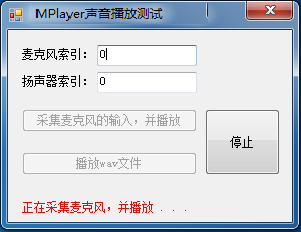
看看demo执行的效果图:
C#实现麦克风採集与播放的更多相关文章
- C++ 採集音频流(PCM裸流)实现录音功能
与上一篇的"C++ 播放音频流(PCM裸流)" 点击打开链接 相相应,本篇是关于用C++实现录音功能的.相同是直接建一个win32控制台程序然后将代码拷过去改个文件名称就能够用,也 ...
- XP下採用DirectShow採集摄像头
转载请标明是引用于 http://blog.csdn.net/chenyujing1234 欢迎大家提出意见,一起讨论! 须要演示样例源代码的请独自联系我. 前提: 摄像头能正常工作.摄像头有创建di ...
- 手机Android音视频採集与直播推送,实现单兵、移动监控类应用
最新手机採集推送直播监控以及EasyDarwin开源流媒体平台的版本号及代码: EasyDarwin 开源流媒体云平台:https://github.com/easydarwin EasyClient ...
- 用DirectShow实现视频採集-流程构建
DirectShow作为DirectX的一个子集,它为用户提供了强大.方便的多媒体开接口,而且它拥有直接操作硬件的能力,这使得它的效率远胜于用GDI等图形方式编写的多媒体程序.前面一篇文章已经对Dir ...
- 开源 java CMS - FreeCMS2.3 Web页面信息採集
原文地址:http://javaz.cn/site/javaz/site_study/info/2015/23312.html 项目地址:http://www.freeteam.cn/ Web页面信息 ...
- python爬虫之採集——360联想词W2版本号
http://blog.csdn.net/recsysml/article/details/30541197,我的这个博文介绍了对应的简单的方法做一个联想词的爬虫,并且还承诺了下面优化: 下一版本号的 ...
- 【源代码】基于Android和蓝牙的单片机温度採集系统
如需转载请标明出处:http://blog.csdn.net/itas109 QQ技术交流群:129518033 STC89C52单片机通过HC-06蓝牙模块与Android手机通信实例- 基于And ...
- 【MFC两种视频图像採集方法】DirectShow与Opencv
效果图: DirectShow採集核心代码: 创建线程调用该函数,採集图像通过x264解码封装rtmp协议包.推送至FMSserver,可实现视频直播 UINT __stdcall StartVide ...
- PHP採集CSDN博客边栏的阅读排行
项目中要用到採集的数据,所以就先拿CSDN博客来试了试.这里使用Simple HTML DOM(官网)这个库,它可以方便的遍历HTML文档. <?php include_once('simple ...
随机推荐
- 关于禁用html中a标签的思考
事实上这个问题在初次学习html中select标签时就已经冒出来了,时至今日,依旧没有找到使用纯css禁用a标签的办法--同事.同学.老师我都问过了,他们都千篇一律借助了JavaScript,难道真的 ...
- matlab在图像中画长方形(框)
function [state,result]=draw_rect(data,pointAll,windSize,showOrNot) % 函数调用:[state,result]=draw_rect( ...
- 探索 Python、机器学习和 NLTK 库 开发一个应用程序,使用 Python、NLTK 和机器学习对 RSS 提要进行分类
挑战:使用机器学习对 RSS 提要进行分类 最近,我接到一项任务,要求为客户创建一个 RSS 提要分类子系统.目标是读取几十个甚至几百个 RSS 提要,将它们的许多文章自动分类到几十个预定义的主题领域 ...
- liunx修改字体为宋体
有找到修改Linux默认字体的方法sudo vi /etc/fonts/conf.d/69-language-selector-zh-cn.conf修改下sans-serif相关设定 <m ...
- FishEye
- Tensorflow之调试(Debug) && tf.py_func()
Tensorflow之调试(Debug)及打印变量 tensorflow调试tfdbg 几种常用方法: 1.通过Session.run()获取变量的值 2.利用Tensorboard查看一些可视化统计 ...
- 国内站点经常使用的一些 CDN 静态资源公共库加速服务
web开发人员们的福利来了..旨在为大家提供更快很多其它更好的静态资源库的CDN载入库方案! CDN公共库是指将经常使用的JS库存放在CDN节点,以方便广大开发人员直接调用. 与将JS库存放在serv ...
- ireport制作报表pageheader只在第一页出现的解决办法
这问题居然没找到解决办法..... 好吧,那我自己解决..... 其实很简单..... 只要打开ireport,pageheader的属性,在print when expression设置$V{PAG ...
- Ext.encode 与 Ext.decode .
Ext.encode( Mixed o ) : String: json对象转换json字符串 Ext.decode( String json ) : Object: json字符串转换json对象 ...
- 【Leet Code】String to Integer (atoi) ——常考类型题
String to Integer (atoi) Total Accepted: 15482 Total Submissions: 106043My Submissions Implement ato ...