
iOS UI基础-3.0图片浏览器及plist使用

//

//  UYViewController.m

//  3.0图片查看器

//

//  Created by jiangys on 15/8/19.

//  Copyright (c) 2015年 uxiaoyuan. All rights reserved.

//

#import "UYViewController.h"

@interface UYViewController ()

@property(nonatomic,strong) UILabel *noLabel;

@property(nonatomic,strong) UIImageView *iconImage;

@property(nonatomic,strong) UILabel *descLable;

@property(nonatomic,strong) UIButton *leftButton;

@property(nonatomic,strong) UIButton *rightButton;

//显示当前的照片索引

@property(nonatomic,assign) int index;

//图片信息的数组

@property(nonatomic,strong) NSArray *imageList;

@end

@implementation UYViewController

-(NSArray *)imageList

{

    if (_imageList==nil) {

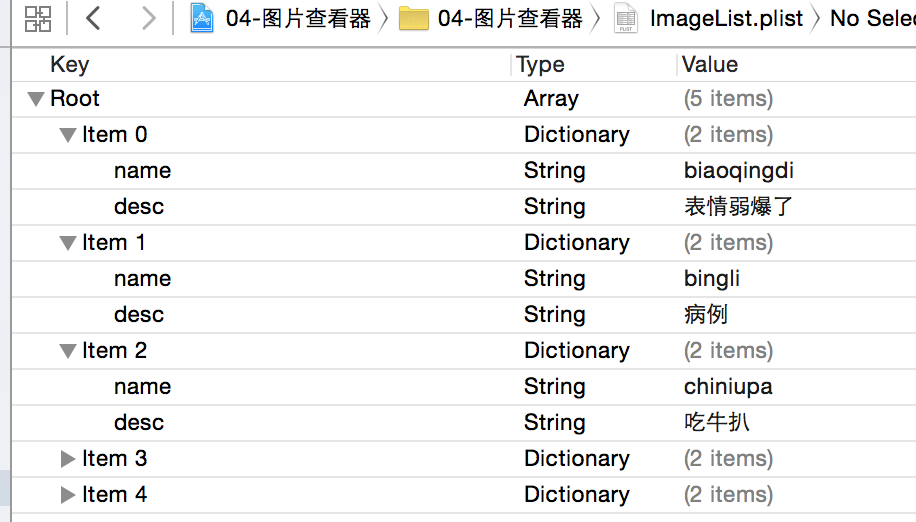
        NSString *path=[[NSBundle mainBundle] pathForResource:@"ImageList" ofType:@"plist"];

        //在OC中,通常需要完整的路径

        _imageList=[NSArray arrayWithContentsOfFile:path];

    }

    return _imageList;

}

- (void)viewDidLoad

{

    [super viewDidLoad];

    //1.索引

    _noLabel=[[UILabel alloc] initWithFrame:CGRectMake(, , self.view.frame.size.width, )];

    _noLabel.text=@"1/5";

    _noLabel.textAlignment=NSTextAlignmentCenter;

    [self.view addSubview:_noLabel];

    //2.图片

    CGFloat imageW=;

    CGFloat imageH=;

    CGFloat imageX=(self.view.frame.size.width-imageW)*0.5;

    CGFloat imageY=CGRectGetMidY(self.noLabel.frame)+;

    _iconImage=[[UIImageView alloc] initWithFrame:CGRectMake(imageX, imageY, imageW, imageH)];

    _iconImage.image=[UIImage imageNamed:@"biaoqingdi"];

    [self.view addSubview:_iconImage];

    //3.描述

    _descLable=[[UILabel alloc] initWithFrame:CGRectMake(, CGRectGetMaxY(self.iconImage.frame), self.view.frame.size.width, )];

    _descLable.text=@"测试的拉";

    _descLable.textAlignment=NSTextAlignmentCenter;

    //需要Label具有“足够的高度”,不限制显示的行数

    _descLable.numberOfLines=;

    [self.view addSubview:_descLable];

    //4.左边的按钮

    _leftButton=[[UIButton alloc] initWithFrame:CGRectMake(, , , )];

    CGFloat centerX=self.iconImage.frame.origin.x*0.5;

    CGFloat centerY=self.iconImage.center.y;

    _leftButton.center=CGPointMake(centerX, centerY);

    _leftButton.tag=-;

    [_leftButton setBackgroundImage:[UIImage imageNamed:@"left_normal"] forState:UIControlStateNormal];

    [_leftButton setBackgroundImage:[UIImage imageNamed:@"left_highlighted"] forState:UIControlStateHighlighted];

    [_leftButton addTarget:self action:@selector(clickButton:) forControlEvents:UIControlEventTouchUpInside];

    [self.view addSubview:_leftButton];

    //5.右边的按钮

    _rightButton=[[UIButton alloc] initWithFrame:CGRectMake(, , , )];

    _rightButton.center=CGPointMake(self.view.bounds.size.width-centerX, centerY);

    [_rightButton setBackgroundImage:[UIImage imageNamed:@"right_normal"] forState:UIControlStateNormal];

    [_rightButton setBackgroundImage:[UIImage imageNamed:@"rigth_highlighted"] forState:UIControlStateHighlighted];

    [self.view addSubview:_rightButton];

    _rightButton.tag=;

    [_rightButton addTarget:self action:@selector(clickButton:) forControlEvents:UIControlEventTouchUpInside];

    [self showPhotoInfo];

}

-(void)clickButton:(UIButton *)button

{

    //根据按钮调整当前显示图片的索引

    self.index+=(int)button.tag;

    [self showPhotoInfo];

}

-(void)showPhotoInfo

{

    self.noLabel.text=[NSString stringWithFormat:@"%d/%d",self.index+,];

    self.iconImage.image=[UIImage imageNamed:self.imageList[self.index][@"name"]];

    self.descLable.text=self.imageList[self.index][@"desc"];

    self.rightButton.enabled=(self.index!=);

    self.leftButton.enabled=(self.index!=);

}

@end
plist文件的使用:
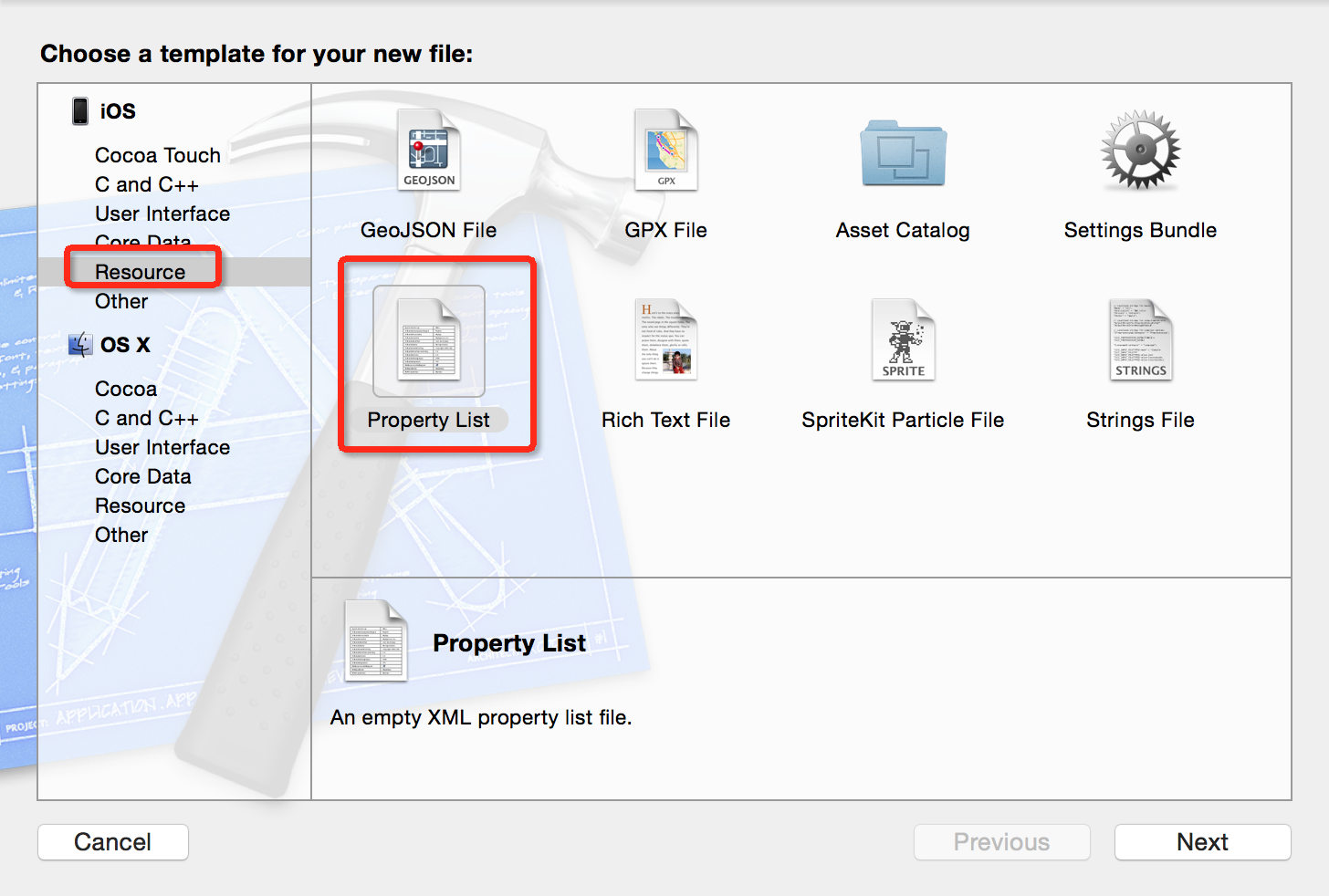
1.创建一个plist
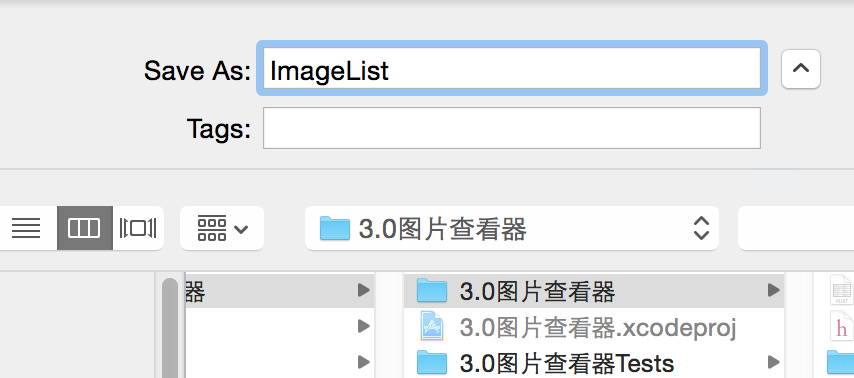
2.填写为ImageList.plist
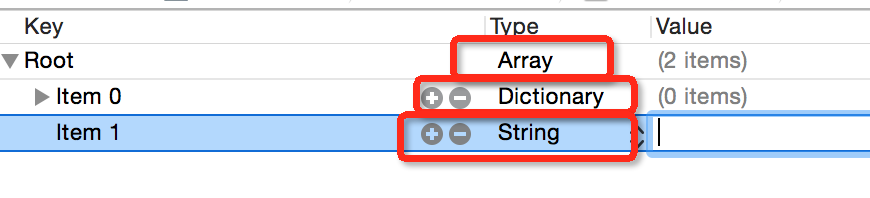
3.填入数据
4.完成
iOS UI基础-3.0图片浏览器及plist使用的更多相关文章
- iOS UI基础-4.0应用程序管理
功能与界面 功能分析: 以九宫格的形式展示应用信息 点击下载按钮后,做出相应的操作 步骤分析: 加载应用信息 根据应用的个数创建对应的view 监听下载按钮点击 整个应用界面: 程序实现 思路 UI布 ...
- iOS UI基础-17.0 UILable之NSMutableAttributedString
在iOS开发中,常常会有一段文字显示不同的颜色和字体,或者给某几个文字加删除线或下划线的需求.之前在网上找了一些资料,有的是重绘UILabel的textLayer,有的是用html5实现的,都比较麻烦 ...
- iOS UI基础-16.0 UIButton
回归自然,UIButton是我们使用最频烦的一个控件.下面,对该控件的一些常用方法进行一些总结. UIButton *payStateBtn = [UIButton buttonWithType:UI ...
- iOS UI基础-15.0 UIWebView
WebView介绍 知识点: 代码创建一个UIWebView OC调用html的js js页面调用OC 相关代码实现 代码创建一个UIWebView // 1.webView UIWebView *w ...
- iOS UI基础-10.0 QQ聊天布局之键盘及文本使用
要实现的效果: 这里只说用到的几个知识点 1.图片包含文字 在设置文字的Frame的时候,使用背景(按钮)的尺寸,文字使用了内边距 背景图片,使用拉伸 /** * 返回一张可以随意拉伸不变形的图片 ...
- iOS UI基础-9.0 UITableView基础
在iOS中,要实现表格数据展示,最常用的做法就是使用UITableView.UITableView继承自UIScrollView,因此支持垂直滚动,而且性能极佳. UITableView有两种样式: ...
- iOS UI基础-7.0 UIScrollView
概述 移动设备的屏幕大小是极其有限的,因此直接展示在用户眼前的内容也相当有限.当展示的内容较多,超出一个屏幕时,用户可通过滚动手势来查看屏幕以外的内容,普通的UIView不具备滚动功能,不能显示过多的 ...
- iOS UI基础-19.0 UICollectionView
直接上代码,说明请看注释吧 1.继承三个代理 UICollectionViewDataSource,UICollectionViewDelegate,UICollectionViewDelegateF ...
- iOS UI基础-13.0 数据存储
应用沙盒 每个iOS应用都有自己的应用沙盒(应用沙盒就是文件系统目录),与其他文件系统隔离.应用必须待在自己的沙盒里,其他应用不能访问该沙盒 应用沙盒的文件系统目录,如下图所示(假设应用的名称叫Lay ...
随机推荐
- git 命令自动补全
下载 Git 的源代码 使用如下命令即可下载: git clone https://github.com/git/git 复制 git-completion.bash 源代码下有个 contrib/c ...
- 题目1100:最短路径(最短路径问题进阶dijkstra算法)
题目链接:http://ac.jobdu.com/problem.php?pid=1100 详细链接:https://github.com/zpfbuaa/JobduInCPlusPlus 参考代码: ...
- POJ 1117 Pairs of Integers
Pairs of Integers Time Limit: 1000MS Memory Limit: 10000K Total Submissions: 4133 Accepted: 1062 Des ...
- window上安装pymysql
date: 2018-11-26 18:54:04 安装: cmd: pip install pymysql 验证: cmd: python >>import pymysql 不报错即 ...
- 使用eclipse执行maven-release-plugin插件发布jar异常问题(.project)(Cannot prepare the release because you have local modifications )
开发是用的eclipse,里面有工程文件.project这种文件,运行release:prepare的时候报异常: Cannot prepare the release because you hav ...
- Android aapt使用小结
Android打包成Apk后,其实是一个压缩文件,我们用winrar打开也能看到里面的文件结构.还能看到AndroidManifest.但是里面的内容有点问题. 不知道是因为加密还是Android就是 ...
- MySQL的btree索引和hash索引的区别 (转)
Hash 索引结构的特殊性,其检索效率非常高,索引的检索可以一次定位,不像B-Tree 索引需要从根节点到枝节点,最后才能访问到页节点这样多次的IO访问,所以 Hash 索引的查询效率要远高于 B-T ...
- SharePoint 2013 字段属性之JSLink
在SharePoint 2013中,SPField新增加了一个属性是JSLink,使用客户端脚本修改字段前台展示,我们可以用很多方法修改这个脚本的引用,然后来修改脚本,下面,我们举一个简单的例子. 具 ...
- 11.21 CSS学习-下午
CSS框模型,看似一个盒子,封装周围的HTML元素,包括:边距.边框.填充和实际内容Margin:清除边框区域,没有背景色,完全透明Border:边框周围的填充和内容,边框是受到盒子的背景色影响Pad ...
- python 关于GUI的思考(转)
作者:知乎用户链接:https://www.zhihu.com/question/19721063/answer/21311275来源:知乎著作权归作者所有.商业转载请联系作者获得授权,非商业转载请注 ...