
iOS开发基础框架
---恢复内容开始---
//appdelegate
//
// AppDelegate.m
// iOS开发架构
//
// Copyright © 2016年 Chason. All rights reserved.
//
#import "AppDelegate.h"
#import "ViewController.h"
#import "CYCTabBarViewController.h"
@interface AppDelegate ()
@end
@implementation AppDelegate
- (BOOL)application:(UIApplication *)application didFinishLaunchingWithOptions:(NSDictionary *)launchOptions {
self.window = [[UIWindow alloc] initWithFrame:[UIScreen mainScreen].bounds];
self.window.backgroundColor = [UIColor whiteColor];
[self.window makeKeyAndVisible];
//第一次启动程序时开启项目引导图
if (![[NSUserDefaults standardUserDefaults] boolForKey:@"firstLaunch"]) {
[[NSUserDefaults standardUserDefaults] setBool:YES forKey:@"firstLaunch"];
//如果是第一次启动的话, 使用用户引导图作为根视图
ViewController *firstVC = [[ViewController alloc] init];
self.window.rootViewController = firstVC;
}else{
//否则, 直接进入APP主界面
CYCTabBarViewController *dkTabBar = [[CYCTabBarViewController alloc] init];
self.window.rootViewController = dkTabBar;
}
return YES;
}
//设置APP启动图
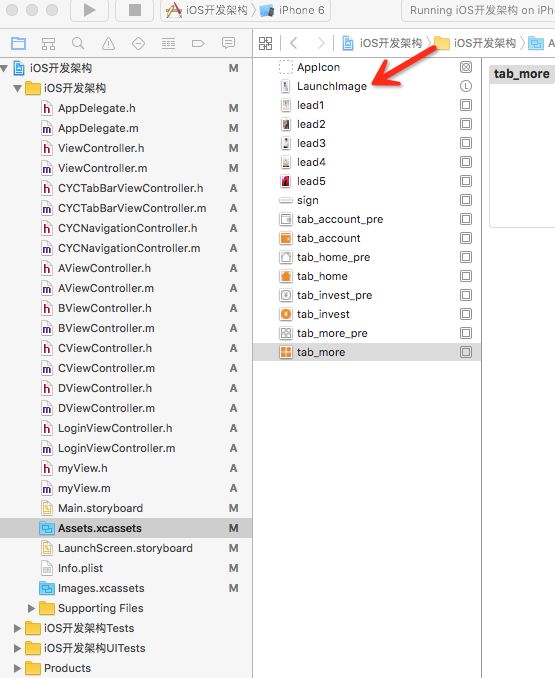
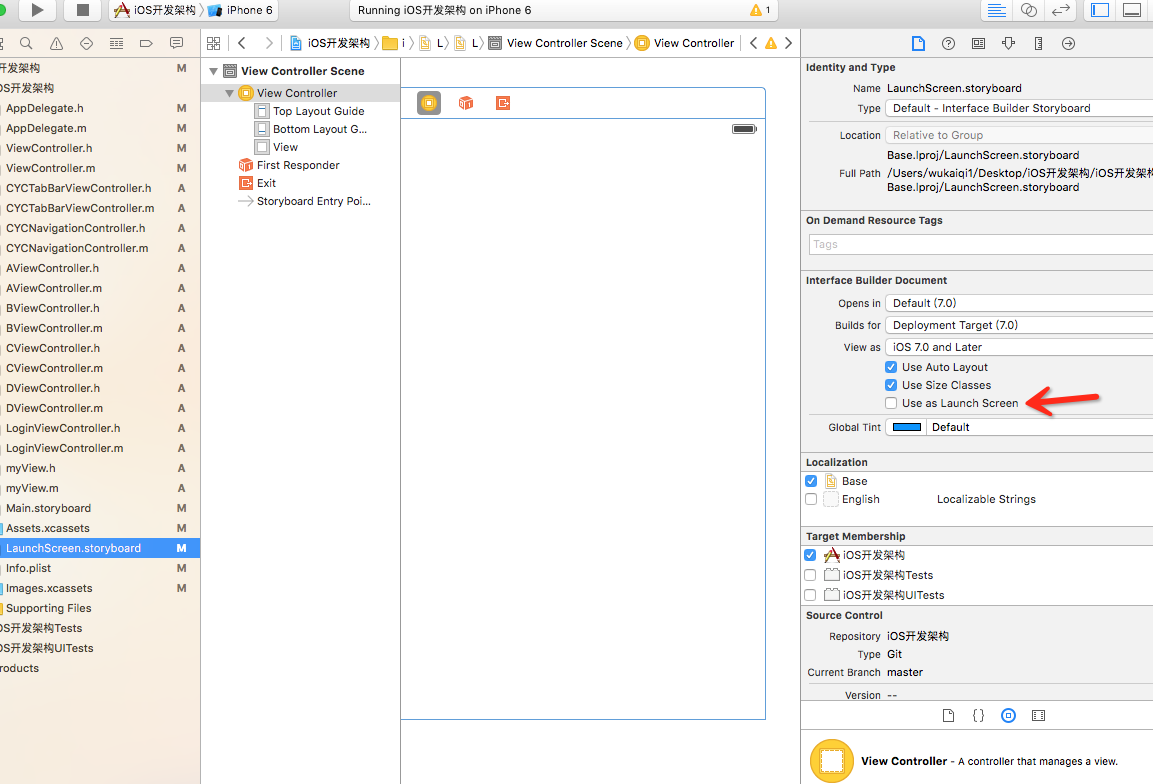

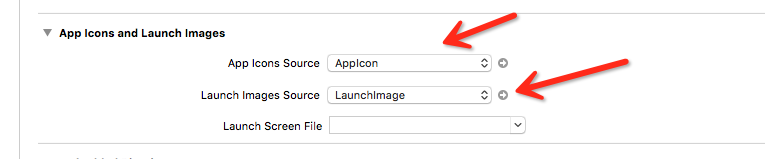
- (void)applicationWillResignActive:(UIApplication *)application {
// Sent when the application is about to move from active to inactive state. This can occur for certain types of temporary interruptions (such as an incoming phone call or SMS message) or when the user quits the application and it begins the transition to the background state.
// Use this method to pause ongoing tasks, disable timers, and throttle down OpenGL ES frame rates. Games should use this method to pause the game.
}
- (void)applicationDidEnterBackground:(UIApplication *)application {
// Use this method to release shared resources, save user data, invalidate timers, and store enough application state information to restore your application to its current state in case it is terminated later.
// If your application supports background execution, this method is called instead of applicationWillTerminate: when the user quits.
}
- (void)applicationWillEnterForeground:(UIApplication *)application {
// Called as part of the transition from the background to the inactive state; here you can undo many of the changes made on entering the background.
}
- (void)applicationDidBecomeActive:(UIApplication *)application {
// Restart any tasks that were paused (or not yet started) while the application was inactive. If the application was previously in the background, optionally refresh the user interface.
}
- (void)applicationWillTerminate:(UIApplication *)application {
// Called when the application is about to terminate. Save data if appropriate. See also applicationDidEnterBackground:.
}
@end
//viewController
//
// ViewController.m
// iOS开发架构
//
// Copyright © 2016年 Chason. All rights reserved.
//
#import "ViewController.h"
#import "CYCTabBarViewController.h"
//手机屏幕的宽和高
#define kScreenWidth [UIScreen mainScreen].bounds.size.width
#define KScreenHeight [UIScreen mainScreen].bounds.size.height
@interface ViewController ()<UIScrollViewDelegate>
@property (nonatomic, retain) UIPageControl *page;
@end
@implementation ViewController
- (void)viewDidLoad {
[super viewDidLoad];
//添加app引导图
self.navigationController.navigationBarHidden = YES;
UIScrollView *scrollView = [[UIScrollView alloc] initWithFrame:CGRectMake(0, 0, kScreenWidth, KScreenHeight)];
scrollView.contentSize = CGSizeMake(5 *kScreenWidth, KScreenHeight);
scrollView.pagingEnabled = YES;
scrollView.bounces = NO;
scrollView.delegate = self;
scrollView.contentOffset = CGPointMake(0, 0);
scrollView.showsHorizontalScrollIndicator = NO;
scrollView.showsVerticalScrollIndicator = NO;
UIImageView *imageView = [[UIImageView alloc] initWithFrame:CGRectMake(0, 0, kScreenWidth, KScreenHeight)];
[imageView setImage:[UIImage imageNamed:@"lead1.jpg"]];
[scrollView addSubview:imageView];
UIImageView *imageView1 = [[UIImageView alloc] initWithFrame:CGRectMake(kScreenWidth, 0, kScreenWidth, KScreenHeight)];
[imageView1 setImage:[UIImage imageNamed:@"lead2.jpg"]];
[scrollView addSubview:imageView1];
UIImageView *imageView2 = [[UIImageView alloc] initWithFrame:CGRectMake(2 * kScreenWidth, 0, kScreenWidth, KScreenHeight)];
[imageView2 setImage:[UIImage imageNamed:@"lead3.jpg"]];
[scrollView addSubview:imageView2];
UIImageView *imageView3 = [[UIImageView alloc] initWithFrame:CGRectMake(3 * kScreenWidth, 0, kScreenWidth, KScreenHeight)];
[imageView3 setImage:[UIImage imageNamed:@"lead4.jpg"]];
[scrollView addSubview:imageView3];
UIImageView *imageView4 = [[UIImageView alloc] initWithFrame:CGRectMake(4 * kScreenWidth, 0, kScreenWidth, KScreenHeight)];
[imageView4 setImage:[UIImage imageNamed:@"lead5.jpg"]];
imageView4.userInteractionEnabled = YES;
[scrollView addSubview:imageView4];
//添加体验按钮
UIImageView *imageBtn = [[UIImageView alloc] initWithFrame:CGRectMake(kScreenWidth / 2 - 75, KScreenHeight - 120, 150, 40)];
imageBtn.image = [UIImage imageNamed:@"sign.png"];
imageBtn.userInteractionEnabled = YES;
UITapGestureRecognizer *tap = [[UITapGestureRecognizer alloc] initWithTarget:self action:@selector(handleTap )];
[imageBtn addGestureRecognizer:tap];
[imageView4 addSubview:imageBtn];
[self.view addSubview:scrollView];
//设置翻页控件
_page = [[UIPageControl alloc] initWithFrame:CGRectMake(0, KScreenHeight - 50, kScreenWidth, 40)];
_page.numberOfPages = 5;//总页数
_page.pageIndicatorTintColor = [UIColor lightGrayColor];//主题颜色
_page.currentPageIndicatorTintColor = [UIColor whiteColor];//当前页的小球颜色
[self.view addSubview:_page];//添加到self.view上面,因为如果添加到滚动视图上面的话 就会随着滚动从屏幕显示范围内离开。
}
//在滚动视图停止减速,也就是静止的方法内部,我们改变UIPageControl的currentPage
- (void)scrollViewDidEndDecelerating:(UIScrollView *)scrollView
{
//获取当前滚动视图的偏移量
CGPoint offset = scrollView.contentOffset;
//计算当前是第几页
NSInteger page = offset.x / kScreenWidth;
//给currentPage属性赋值
_page.currentPage = page;
}
- (void)handleTap
{
//进入程序主界面
[self presentViewController:[[CYCTabBarViewController alloc] init] animated:NO completion:nil];
}
- (void)didReceiveMemoryWarning {
[super didReceiveMemoryWarning];
// Dispose of any resources that can be recreated.
}
@end
//tabBar
//
// CYCTabBarViewController.m
// iOS开发架构
//
// Copyright © 2016年 Chason. All rights reserved.
//
#import "CYCTabBarViewController.h"
#import "CYCNavigationController.h"
#import "AViewController.h"
#import "BViewController.h"
#import "CViewController.h"
#import "DViewController.h"
@interface CYCTabBarViewController ()
@end
@implementation CYCTabBarViewController
- (void)viewDidLoad {
[super viewDidLoad];
//创建四个导航试图控制器
CYCNavigationController *ANaVC = [[CYCNavigationController alloc] initWithRootViewController:[[AViewController alloc] init]];
ANaVC.tabBarItem.title = @"A";
CYCNavigationController *BNaVC = [[CYCNavigationController alloc] initWithRootViewController:[[BViewController alloc] init]];
BNaVC.tabBarItem.title = @"B";
CYCNavigationController *CNaVC = [[CYCNavigationController alloc] initWithRootViewController:[[CViewController alloc] init]];
CNaVC.tabBarItem.title = @"C";
CYCNavigationController *DNaVC = [[CYCNavigationController alloc] initWithRootViewController:[[DViewController alloc] init]];
DNaVC.tabBarItem.title = @"D";
//将导航试图控制器添加到标签试图控制器上
NSArray *controllerArray = [[NSArray alloc] initWithObjects:ANaVC, BNaVC, CNaVC, DNaVC, nil];
self.viewControllers = controllerArray;
self.tabBar.tintColor = [UIColor orangeColor];
//设置tabbar图标(22x22/44x44)
ANaVC.tabBarItem.image=[[UIImage imageNamed:@"tab_home_pre.png" ] imageWithRenderingMode:UIImageRenderingModeAlwaysOriginal];
ANaVC.tabBarItem.selectedImage = [[UIImage imageNamed:@"tab_home.png"]imageWithRenderingMode:UIImageRenderingModeAlwaysOriginal];
BNaVC.tabBarItem.image = [[UIImage imageNamed:@"tab_invest_pre.png"]imageWithRenderingMode:UIImageRenderingModeAlwaysOriginal];
BNaVC.tabBarItem.selectedImage = [[UIImage imageNamed:@"tab_invest.png"]imageWithRenderingMode:UIImageRenderingModeAlwaysOriginal];
CNaVC.tabBarItem.image = [[UIImage imageNamed:@"tab_account_pre.png"] imageWithRenderingMode:UIImageRenderingModeAlwaysOriginal];
CNaVC.tabBarItem.selectedImage = [[UIImage imageNamed:@"tab_account.png"]imageWithRenderingMode:UIImageRenderingModeAlwaysOriginal];
DNaVC.tabBarItem.image = [[UIImage imageNamed:@"tab_more_pre.png"] imageWithRenderingMode:UIImageRenderingModeAlwaysOriginal];
DNaVC.tabBarItem.selectedImage = [[UIImage imageNamed:@"tab_more.png"]imageWithRenderingMode:UIImageRenderingModeAlwaysOriginal];
}
- (void)didReceiveMemoryWarning {
[super didReceiveMemoryWarning];
// Dispose of any resources that can be recreated.
}
@end
//创建一个控制器
//
// AViewController.m
// iOS开发架构
//
// Copyright © 2016年 Chason. All rights reserved.
//
#import "AViewController.h"
#import "LoginViewController.h"
@interface AViewController ()
@property (nonatomic, strong) UIButton *loginBtn;
@end
@implementation AViewController
- (void)viewDidLoad {
[super viewDidLoad];
self.title = @"A";
}
//跳转到登录注册界面
- (void)pushToLoginAndRegistVC
{
LoginViewController *loginVC = [[LoginViewController alloc] init];
[self.navigationController pushViewController:loginVC animated:YES];
}
- (void)userOutLogin
{
[[NSUserDefaults standardUserDefaults] setObject:@"" forKey:@"loginName"];
[[NSUserDefaults standardUserDefaults] setObject:@"" forKey:@"loginPwd"];
UIBarButtonItem *rightItem = [[UIBarButtonItem alloc] initWithTitle:@"登录|注册" style:UIBarButtonItemStylePlain target:self action:@selector(pushToLoginAndRegistVC)];
self.navigationItem.rightBarButtonItem = rightItem;
self.navigationController.navigationBar.tintColor = [UIColor redColor];
}
-(void)viewWillAppear:(BOOL)animated
{
//判断用户是否登录(本地存储免登陆)
//根据用户登录状况添加/移除登录|注册按钮
if ([[[NSUserDefaults standardUserDefaults] objectForKey:@"loginName"] isEqualToString:@""] || [[[NSUserDefaults standardUserDefaults] objectForKey:@"loginPwd"] isEqualToString:@""]) {
UIBarButtonItem *rightItem = [[UIBarButtonItem alloc] initWithTitle:@"登录|注册" style:UIBarButtonItemStylePlain target:self action:@selector(pushToLoginAndRegistVC)];
self.navigationItem.rightBarButtonItem = rightItem;
self.navigationController.navigationBar.tintColor = [UIColor redColor];
}else
{
//用户处于登录状态
UIBarButtonItem *rightItem = [[UIBarButtonItem alloc] initWithTitle:@"退出" style:UIBarButtonItemStylePlain target:self action:@selector(userOutLogin)];
self.navigationItem.rightBarButtonItem = rightItem;
self.navigationController.navigationBar.tintColor = [UIColor redColor];
}
}
@end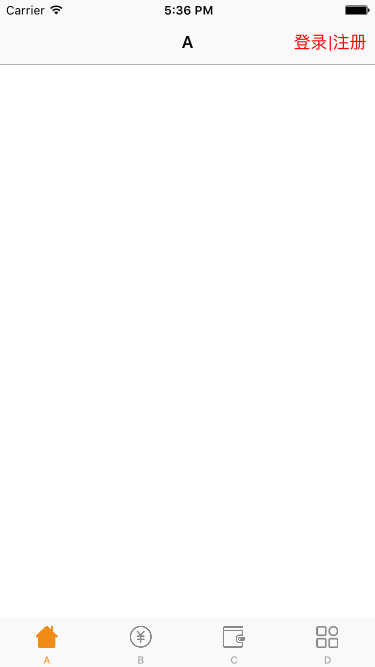
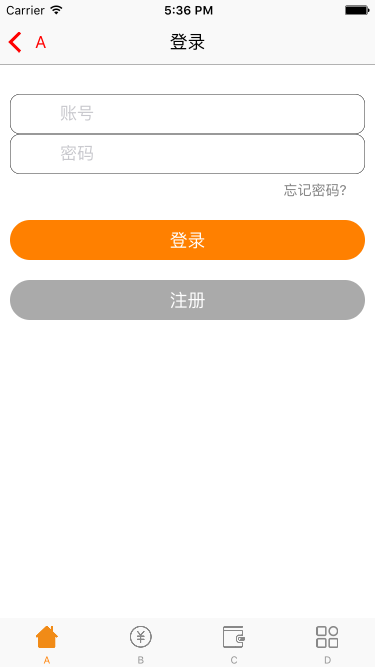
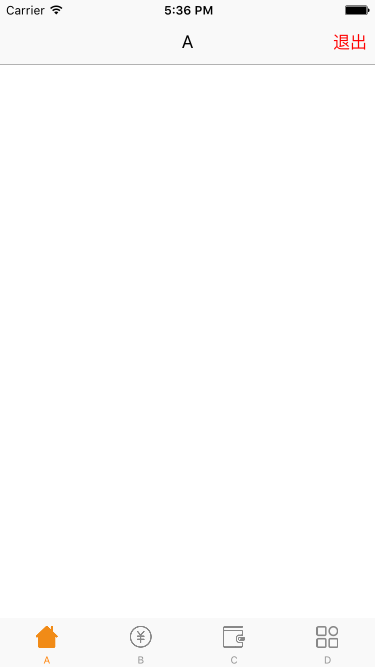
//登录控制器
//
// LoginViewController.m
//
// Copyright (c) 2015年 54贷客. All rights reserved.
//
#import "LoginViewController.h"
#import "myView.h"
//手机屏幕的宽和高
#define kScreenWidth [UIScreen mainScreen].bounds.size.width
#define KScreenHeight [UIScreen mainScreen].bounds.size.height
@interface LoginViewController ()<UITextFieldDelegate>
@property (nonatomic,copy)UITextField * userNametextField;
@property (nonatomic,copy)UITextField * passwordtextField;
@end
@implementation LoginViewController
- (BOOL)textFieldShouldReturn:(UITextField *)textField
{
[textField resignFirstResponder];
return YES;
}
- (void)viewDidLoad {
[super viewDidLoad];
self.view.backgroundColor = [UIColor whiteColor];
self.navigationItem.title = @"登录";
[self.navigationController.navigationBar setTitleTextAttributes:@{NSFontAttributeName:[UIFont systemFontOfSize:18], NSForegroundColorAttributeName:[UIColor blackColor]}];
[self addLoginView];
//添加退出键盘手势
UITapGestureRecognizer *exitKeyBoard = [[UITapGestureRecognizer alloc] initWithTarget:self action:@selector(viewTapped:)];
exitKeyBoard.cancelsTouchesInView = NO;
[self.view addGestureRecognizer:exitKeyBoard];
}
- (void)viewTapped:(UITapGestureRecognizer*)tap1
{
[self.view endEditing:YES];
}
-(void)addLoginView{
NSArray *arr = @[@"账号",@"密码"];
NSArray *imageArr = @[@"user",@"password"];
for (int i = 0; i<2; i++) {
UILabel *label = [[UILabel alloc]initWithFrame:CGRectMake(10, 94 + 40 * i, kScreenWidth - 20, 40)];
label.layer.borderWidth = 0.4f;
label.layer.cornerRadius = 10;
[self.view addSubview:label];
UIImageView *imageView = [[UIImageView alloc]initWithFrame:CGRectMake(10, 12, 13, 16)];
imageView.image = [[UIImage imageNamed:[NSString stringWithFormat:@"%@.png",imageArr[i]]] imageWithRenderingMode:UIImageRenderingModeAlwaysOriginal];
[label addSubview:imageView];
label.userInteractionEnabled = YES;
if (i==0) {
_userNametextField = [[UITextField alloc]initWithFrame:CGRectMake(50, 00, kScreenWidth - 100, 40)];
_userNametextField.clearButtonMode = UITextFieldViewModeWhileEditing;
_userNametextField.delegate = self;
_userNametextField.keyboardType = UIKeyboardTypeNumbersAndPunctuation;
_userNametextField.layer.cornerRadius = 10;
_userNametextField.placeholder = arr[i];
[label addSubview:_userNametextField];
}else if(i==1){
_passwordtextField = [[UITextField alloc]initWithFrame:CGRectMake(50, 00, kScreenWidth - 100, 40)];
_passwordtextField.clearButtonMode = UITextFieldViewModeWhileEditing;
_passwordtextField.delegate = self;
_passwordtextField.layer.cornerRadius = 10;
_passwordtextField.secureTextEntry = YES;
_passwordtextField.placeholder = arr[i];
[label addSubview:_passwordtextField];
}
}
//忘记密码
UIButton *button = [UIButton buttonWithType:UIButtonTypeSystem];
[button setTitle:@"忘记密码?" forState:UIControlStateNormal];
button.frame = CGRectMake(kScreenWidth - 100, 180, 80, 20);
button.titleLabel.font = [UIFont systemFontOfSize:14];
[button addTarget:self action:@selector(forgetPwdClick) forControlEvents:UIControlEventTouchUpInside];
button.tintColor = [UIColor grayColor];
[self.view addSubview:button];
//登录 免费注册按钮
UIButton *loginBtn = [myView creatButtonWithFrame:CGRectMake(10, 220, kScreenWidth-20, 40) title:@"登录" tag:10001 tintColor:[UIColor whiteColor] backgroundColor:[UIColor orangeColor]];
[loginBtn addTarget:self action:@selector(clickLoginButton:) forControlEvents:UIControlEventTouchUpInside];
loginBtn.layer.cornerRadius = 20;
[self.view addSubview:loginBtn];
UIButton *registBtn = [myView creatButtonWithFrame:CGRectMake(10, 280, kScreenWidth-20, 40) title:@"注册" tag:10002 tintColor:[UIColor whiteColor] backgroundColor:[UIColor lightGrayColor]];
[registBtn addTarget:self action:@selector(registerClick) forControlEvents:UIControlEventTouchUpInside];
registBtn.layer.cornerRadius = 20;
[self.view addSubview:registBtn];
}
-(void)forgetPwdClick{
//跳转到忘记密码控制器
NSLog(@"忘记密码啦!");
}
-(void)registerClick{
//跳转到用户注册控制器
NSLog(@"快来注册吧!");
}
-(void)clickLoginButton:(UITextField *)textField{
//登录成功
//本地持久化
[[NSUserDefaults standardUserDefaults] setObject:_userNametextField.text forKey:@"loginName"];
[[NSUserDefaults standardUserDefaults] setObject:_passwordtextField.text forKey:@"loginPwd"];
//登陆成功之后 隐藏输入框内容
[_passwordtextField resignFirstResponder];
[self popToRootVC];//登陆成功后返回
}
- (void)popToRootVC
{
_userNametextField.text = @"";
_passwordtextField.text = @"";
[self.navigationController popToRootViewControllerAnimated:YES];
}
- (void)didReceiveMemoryWarning {
[super didReceiveMemoryWarning];
}
@end
//自定义一个view类
//
// myView.h
//
// Copyright (c) 2015年 54贷客. All rights reserved.
//
#import <Foundation/Foundation.h>
#import <UIKit/UIKit.h>
@interface myView : NSObject
+(UIButton *)creatButtonWithFrame:(CGRect)frame title:(NSString *)title tag:(NSInteger)tag tintColor:(UIColor *)tintColor backgroundColor:(UIColor *)backgroundColor;
@end
//
// myView.m
//
// Copyright (c) 2015年 54贷客. All rights reserved.
//
#import "myView.h"
@implementation myView
+(UIButton *)creatButtonWithFrame:(CGRect)frame title:(NSString *)title tag:(NSInteger)tag tintColor:(UIColor *)tintColor backgroundColor:(UIColor *)backgroundColor{
UIButton *button = [UIButton buttonWithType:UIButtonTypeCustom];
[button setTitle:title forState:UIControlStateNormal];
button.tag = tag;
button.backgroundColor = backgroundColor;
button.tintColor= tintColor;
button.frame = frame;
[button setTitleColor:tintColor forState:UIControlStateNormal];
return button;
}
@end
---恢复内容结束---
iOS开发基础框架的更多相关文章
- IOS开发 基础框架(Fondation Framework)的线程安全
有一种误解,认为基础框架(Foundation framework)是线程安全的,而Application Kit是非线程安全的.不幸的是,这是一个总的概括,从而造成一点误导.每个框架都包含了线程安全 ...
- IOS开发基础知识碎片-导航
1:IOS开发基础知识--碎片1 a:NSString与NSInteger的互换 b:Objective-c中集合里面不能存放基础类型,比如int string float等,只能把它们转化成对象才可 ...
- iOS开发——总结篇&IOS开发基础知识
IOS开发基础知识 1:Objective-C语法之动态类型(isKindOfClass, isMemberOfClass,id) 对象在运行时获取其类型的能力称为内省.内省可以有多种方法实现. 判断 ...
- IOS开发基础环境搭建
一.目的 本文的目的是windows下IOS开发基础环境搭建做了对应的介绍,大家可根据文档步骤进行mac环境部署: 二.安装虚拟机 下载虚拟机安装文件绿色版,点击如下文件安装 获取安装包: ...
- iOS开发基础-九宫格坐标(6)
继续对iOS开发基础-九宫格坐标(5)中的代码进行优化. 优化思路:把字典转模型部分的数据处理操作也拿到模型类中去实现,即将 ViewController 类实现中 apps 方法搬到 WJQAppI ...
- iOS开发基础-九宫格坐标(5)
继续在iOS开发基础-九宫格坐标(4)的基础上进行优化. 一.改进思路 1)iOS开发基础-九宫格坐标(4)中 viewDidLoad 方法中的第21.22行对控件属性的设置能否拿到视图类 WJQAp ...
- iOS开发基础-九宫格坐标(4)
对iOS开发基础-九宫格坐标(3)的代码进行进一步优化. 新建一个 UIView 的子类,并命名为 WJQAppView ,将 appxib.xib 中的 UIView 对象与新建的视图类进行关联. ...
- iOS开发基础-九宫格坐标(3)之Xib
延续iOS开发基础-九宫格坐标(2)的内容,对其进行部分修改. 本部分采用 Xib 文件来创建用于显示图片的 UIView 对象. 一.简单介绍 Xib 和 storyboard 的比较: 1) X ...
- iOS开发基础-九宫格坐标(2)之模型
在iOS开发基础-九宫格(1)中,属性变量 apps 是从plist文件中加载数据的,在 viewDidLoad 方法中的第20行.26行中,直接通过字典的键名来获取相应的信息,使得 ViewCont ...
随机推荐
- 当他们也换成了Linux OS
近期,斯诺登的事闹得沸沸扬扬,美帝损失了公信.又有传言说Win8给美帝安全局留了后门?XP依旧是生命力旺盛. 还不就是因为那点事儿,看不到人家的源代码? 斗胆提一个问题,如果公务员们或者是一部分,开始 ...
- 经典信息图表:2013 扁平设计 VS 拟物设计
inTacto 是一家互动数字公司,由 Alejandro Lazos 和 Sebastian Caramés 成立于2001年.他们刚刚发布一个信息图表:<平面设计 VS 现实主义>.这 ...
- iOS-布局-Masonry
一.说明:demo中的举例视图介绍 UIView *_blackView; 作为父视图 UIView *_redView; 与父视图内边距为10 ...
- iOS-沙盒路径总结、文件管理NSFileManager总结
// // ViewController.m // 沙盒操作 // // Created by mncong on 15/11/26. // Copyright © 2015年 mancong ...
- Mysql学习笔记(四)字符串函数
PS:终于看完了字符串函数,心都快碎了...涉及的函数真是太多了...感觉这里的字符串函数和JAVA里的基本都差不多了...基本上算是掌握了,但是想全记住那是不太可能的... 学习内容: 字符串函数的 ...
- jquery选中下拉列表的某个值
$('#villageToiletAnn').val('xxx'); id是select的ID,不是option的ID
- python内置模块(1)
Python的模块在其它语言中通常称为库或类库,也就是lib.它是编程语言的第三级封装,第四级则是包,也就是模块的打包组合,而前两级分别是函数和类.封装的好处,自然不用多言,高内聚,松耦合,减少代码重 ...
- 流行的ios开源项目
本文介绍一些流行的iOS的开源项目库 1.AFNetworking 更新频率高的轻量级的第三方网络库,基于NSURL和NSOperation,支持iOS和OSX.https://github.com/ ...
- ok6410 android driver(11)
This essay, I go to a deeply studying to android HAL device driver program. According to the android ...
- Entity FrameWork 延迟加载的本质(一)
1.集合的标准查询运算符方法,是来自于System.Linq.Enumerable里给IEnumerable接口添加的扩展方法 2.EF上下文里的DBSet<T>里的标准查询运算符方法,来 ...