
nginx配置基于域名、端口、IP的虚拟主机
1、基于域名的虚拟主机:
绝大多数企业对外提供服务的网站使用的都是基于域名的主机,通过不同的域名区分不同的虚拟主机。
首先我们进入安装nginxd的目录下:/application/nginx-1.6.3/conf
我们去除掉默认配置文件里的注释和空行并重定向到nginx.conf文件里,同时我们需要配置如下:
egrep -v "#|^$" nginx.conf.default >nginx.conf //去掉包含#号和空行的内容
[root@lamp01 conf]# vim nginx.conf

worker_processes  1;

events {

    worker_connections  1024;

}

http {

    include       mime.types;

    default_type  application/octet-stream;

    sendfile        on;

    keepalive_timeout  65;

    server {

        listen       80;

        server_name  www.jyw1.com;

        location / {

            root   html/www;

            index  index.html index.htm;

        }

    }

     server {

        listen       80;

        server_name  bbs.jyw2.com;

        location / {

            root   html/bbs;

            index  index.html index.htm;

         }

     }

}
创建站点目录文件:
mkdir ../html/{www,bbs} -p
[root@lamp01 conf]# tree ../html/

../html/

├── 50x.html

├── bbs

│   └── index.html

├── index.html

└── www

     └── index.html
为站点目录生成首页并追加内容:
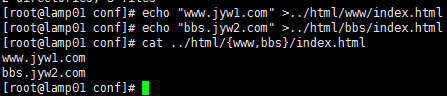
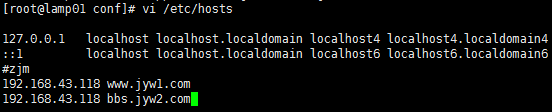
通过hosts来做dns解析
[root@lamp01 conf]# echo "www.jyw1.com" >../html/www/index.html

[root@lamp01 conf]# echo "bbs.jyw2.com" >../html/bbs/index.html

[root@lamp01 conf]# cat ../html/{www,bbs}/index.html

www.jyw1.com

bbs.jyw2.com

[root@lamp01 conf]# /application/nginx/sbin/nginx -t  #检查语法

nginx: the configuration file /application/nginx-1.6.3/conf/nginx.conf syntax is ok

nginx: configuration file /application/nginx-1.6.3/conf/nginx.conf test is successful

[root@lamp01 conf]# /application/nginx/sbin/nginx -s reload  #刷新配置

[root@lamp01 conf]# vi /etc/hosts

[root@lamp01 conf]# ping www.jyw1.com

PING www.jyw1.com (192.168.43.118) 56(84) bytes of data.

64 bytes from www.jyw1.com (192.168.43.118): icmp_seq=1 ttl=64 time=0.022 ms

64 bytes from www.jyw1.com (192.168.43.118): icmp_seq=2 ttl=64 time=0.020 ms

^C

--- www.jyw1.com ping statistics ---

2 packets transmitted, 2 received, 0% packet loss, time 1280ms

rtt min/avg/max/mdev = 0.020/0.021/0.022/0.001 ms

[root@lamp01 conf]# ping bbs.jyw2.com

PING bbs.jyw2.com (192.168.43.118) 56(84) bytes of data.

64 bytes from www.jyw1.com (192.168.43.118): icmp_seq=1 ttl=64 time=0.015 ms

64 bytes from www.jyw1.com (192.168.43.118): icmp_seq=2 ttl=64 time=0.020 ms

^C

--- bbs.jyw2.com ping statistics ---

2 packets transmitted, 2 received, 0% packet loss, time 1311ms

rtt min/avg/max/mdev = 0.015/0.017/0.020/0.004 ms

[root@lamp01 conf]# curl www.jyw1.com

www.jyw1.com

[root@lamp01 conf]# curl bbs.jyw2.com

bbs.jyw2.com

[root@lamp01 conf]#
我是用的windows系统,配置一下host在“C:\Windows\System32\drivers\etc”下的hosts中配置一下域名重定向
192.168.43.118 www.jyw1.com bbs.jyw2.com
然后cmd再ping一下这个域名是否正确指向了这个IP上
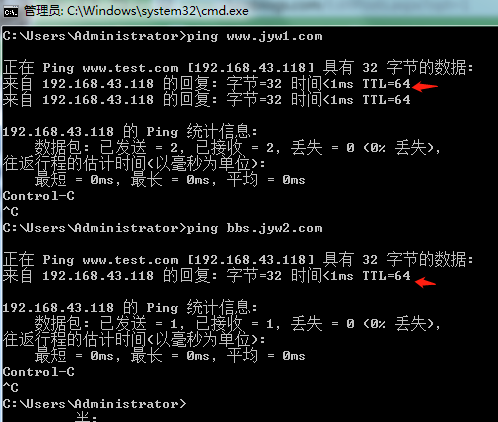
打开浏览器,输入www.test.com会得到以下结果,就说明外网访问成功
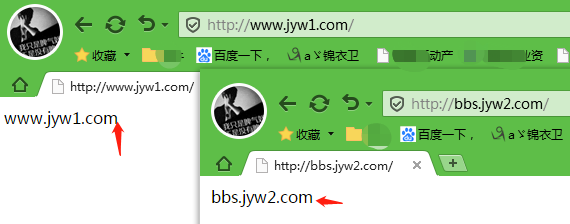
ok,通过多域名来访问站点,同样也可以一个站点多个域名。
2.基于端口的虚拟主机配置:
此类型的虚拟主机主要应用于企业内部的网站,需要加端口号才能访问,通过不同的端口来区分不同的虚拟主机,为企业网站安全优化,例如:企业的网站后台,资料共享等。
在前面配置的基于域名的虚拟主机的基础上只需要修改nginx.conf文件,刷新配置即可完成:
修改nginx.conf配置文件
[root@lamp01 conf]# vim nginx.conf

worker_processes  1;

events {

    worker_connections  1024;

}

http {

    include       mime.types;

    default_type  application/octet-stream;

    sendfile        on;

    keepalive_timeout  65;

    server {

        listen       ;

        server_name  www.jyw1.com;

        location / {

            root   html/www;

            index  index.html index.htm;

        }

    }

     server {

        listen       ;

        server_name  bbs.jyw2.com;

        location / {

            root   html/bbs;

            index  index.html index.htm;

         }

     }

}
刷新配置,测试结果如下
[root@lamp01 conf]# /application/nginx/sbin/nginx -t

nginx: the configuration file /application/nginx-1.6.3/conf/nginx.conf syntax is ok

nginx: configuration file /application/nginx-1.6.3/conf/nginx.conf test is successful

[root@lamp01 conf]# /application/nginx/sbin/nginx -s reload

[root@lamp01 conf]# curl www.jyw1.com

curl: (7) couldn't connect to host

[root@lamp01 conf]# curl www.jyw1.com:8001

www.jyw1.com

[root@lamp01 conf]# curl bbs.jyw2.com:8002

bbs.jyw2.com

[root@lamp01 conf]#
在windows下测试如下:

ok,既可以对应多个站点,多个端口访问,也可以对应一个站点多个端口访问。
3.基于IP地址虚拟主机:
通过不同的IP区分不同的虚拟主机,此类型企业应用于比较少,通常用到不通业务流中或者负载均衡上面。
在前面配置的基于域名的虚拟主机的基础上只需要修改nginx.conf文件,刷新配置即可完成:
修改nginx.conf配置文件
[root@lamp01 conf]# vim nginx.conf

worker_processes  1;

events {

    worker_connections  1024;

}

http {

    include       mime.types;

    default_type  application/octet-stream;

    sendfile        on;

    keepalive_timeout  65;

    server {

        listen      192.168.43.118:80;

        server_name  www.jyw1.com;

        location / {

            root   html/www;

            index  index.html index.htm;

        }

    }

     server {

        listen 192.168.43.88:80;

        server_name  bbs.jyw2.com;

        location / {

            root   html/bbs;

            index  index.html index.htm;

         }

     }

}
修改完配置文件后,我们需要虚拟一块网卡:
ip addr add //添加
ip addr del 192.168.43.88/24 dev eth0 //删除
临时性网卡: ip addr add 192.168.43.88/24 label eth0:1 dev eth0 或者 ifconfig eth0:1 192.168.43.88/24 up
[root@lamp01 conf]# ip addr add 192.168.43.88/24 label eth0:1 dev eth0  添加网卡(推荐使用ip addr)

[root@lamp01 conf]# ifconfig

eth0      Link encap:Ethernet  HWaddr 00:0C:29:01:4D:22

          inet addr:192.168.43.118  Bcast:192.168.43.255  Mask:255.255.255.0

          inet6 addr: fe80::20c:29ff:fe01:4d22/64 Scope:Link

          UP BROADCAST RUNNING MULTICAST  MTU:1500  Metric:1

          RX packets:1100 errors:0 dropped:0 overruns:0 frame:0

          TX packets:664 errors:0 dropped:0 overruns:0 carrier:0

          collisions:0 txqueuelen:1000

          RX bytes:94218 (92.0 KiB)  TX bytes:76354 (74.5 KiB)

eth0:1    Link encap:Ethernet  HWaddr 00:0C:29:01:4D:22

          inet addr:192.168.43.88  Bcast:192.168.43.255  Mask:255.255.255.0

          UP BROADCAST RUNNING MULTICAST  MTU:1500  Metric:1

[root@lamp01 conf]# ip addr del 192.168.43.99/24 dev eth0   删除网卡

[root@lamp01 conf]# ifconfig

eth0      Link encap:Ethernet  HWaddr 00:0C:29:01:4D:22

          inet addr:192.168.43.118  Bcast:192.168.43.255  Mask:255.255.255.0

          inet6 addr: fe80::20c:29ff:fe01:4d22/64 Scope:Link

          UP BROADCAST RUNNING MULTICAST  MTU:1500  Metric:1

          RX packets:1218 errors:0 dropped:0 overruns:0 frame:0

          TX packets:724 errors:0 dropped:0 overruns:0 carrier:0

          collisions:0 txqueuelen:1000

          RX bytes:103486 (101.0 KiB)  TX bytes:83366 (81.4 KiB)

[root@lamp01 conf]#
永久性网卡:
cd /etc/sysconfig/network-scripts/ //进入到网卡配置文件的目录
cp ifcfg-eth0 ifcfg-eth0:1 //拷贝配置文件并重命名
vim ifcfg-eth0:1 //编辑配置文件
/etc/init.d/network restart //重启网络服务
图略....
下面我们刷新配置,查看效果:
[root@lamp01 ~]# /application/nginx/sbin/nginx -t

nginx: the configuration file /application/nginx-1.6.3/conf/nginx.conf syntax is ok

nginx: configuration file /application/nginx-1.6.3/conf/nginx.conf test is successful

[root@lamp01 ~]# /application/nginx/sbin/nginx -s reload

[root@lamp01 ~]# curl 192.168.43.88

bbs.jyw2.com

[root@lamp01 ~]# curl 192.168.43.118

www.jyw1.com

[root@lamp01 ~]#
在windows下测试如下:
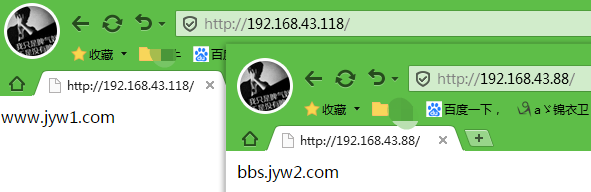
ok,既可以多个IP对应一个站点,也可以对应多个站点访问。
nginx配置基于域名、端口、IP的虚拟主机的更多相关文章
- 源码编译安装LNMP环境及配置基于域名访问的多虚拟主机
实验环境及软件版本: CentOS版本: 6.6(2.6.32.-504.el6.x86_64) nginx版本: nginx-1.6.2 mysql版本: Mysql-5.6.23 php版本: ...
- 源码编译安装LAMP环境及配置基于域名访问的多虚拟主机
实验环境及软件版本: CentOS版本: 6.6(2.6.32.-504.el6.x86_64) apache版本: apache2.2.27 mysql版本: Mysql-5.6.23 php版本 ...
- nginx配置基于域名的虚拟主机
其实基于域名和基于ip的虚拟主机配置是差不多的,在配置基于ip的虚拟主机上我们只需要修改几个地方就能变成基于域名的虚拟主机,一个是要修改域名,一个是host文件直接看代码 [root@localhos ...
- Nginx 配置基于域名的虚拟
编辑配置文件 vi /etc/nginx/nginx.conf user www www; worker_processes 2; error_log logs/error.log not ...
- nginx 配置 同一域名端口下,根据URL 导向不同的项目目录
我们现在拥有2个项目.但是只有一个域名,通过nginx配置来实现以下url导向不同的项目. 后台管理台:{域名}/admin 用户客户端:{域名}/client server { listen 888 ...
- Nginx配置基于多域名、端口、IP的虚拟主机
原文:https://www.cnblogs.com/ssgeek/p/9220922.html ------------------------------- Nginx配置基于多域名.端口.IP的 ...
- Apache基于域名、端口、IP的虚拟主机配置(Centos 6.5)
虚拟主机:部署多个站点,每个站点,希望用不同的域名和站点目录,或者是不同的端口,不同的ip,需要虚拟主机功能.一句话,一个http服务要配置多个站点,就需要虚拟主机. 虚拟主机分类:基于域名.基于端口 ...
- Nginx总结(二)基于ip的虚拟主机配置
前面讲了如何安装配置Nginx,大家可以去这里看看nginx系列文章:https://www.cnblogs.com/zhangweizhong/category/1529997.html 今天要说的 ...
- Nginx的配置文件简介及在Nginx中配置基于不同ip的虚拟主机
Nginx的配置文件简介及在Nginx中配置基于不同ip的虚拟主机: #user nobody; worker_processes 1; #error_log logs/error.log; #err ...
随机推荐
- 移动 Ubuntu16.04 桌面左侧的启动器到屏幕底部
与其他 Linux 发行版不同,Ubuntu 多年来一直使用 Unity 做桌面环境,该环境的最突出特点就是桌面左侧有一个启动器栏(Launcher).从 16.04 版本开始,Ubuntu 提供了一 ...
- Linux驱动:内核等待队列
在Linux中, 一个等待队列由一个"等待队列头"来管理,等待队列是双向链表结构. 应用场合:将等待同一资源的进程挂在同一个等待队列中. 数据结构 在include/linux/w ...
- Python:SQLMap源码精读—基于错误的盲注(error-based blind)
目标网址 http://127.0.0.1/shentou/sqli-labs-master/Less-5/?id=1 Payload的生成 <test> <title>MyS ...
- 爬虫--工具安装Jupyter anaconda
anaconda https://www.anaconda.com/download http://docs.anaconda.com/anaconda/user-guide/getting-star ...
- sublime text 前端开发插件安装和配置
前端开发sublimeconfig mac配置 此文件目录中文件主要是关于sublime的插件配置,快捷键配置,主题和字体配置. 插件列表 所有插件都可以使用Package Control安装,具体的 ...
- Cassandra 数据模型
Cassandra的数据模型类似于关系型数据库的模型,且提供了与SQL语言非常类似的CQL语言进行操作. 但是Cassandra的数据模型类似于多层键值对结构,与关系型数据库存在巨大差别. 本文基于: ...
- WPF Application 类介绍以及怎样修改启动方式
因为想要修改wpf的启动方式,所以研究了下Application类,现把一些有用的属性与大家分享下: 属性: Current 获取当前 AppDomain的 Appl ...
- XML部分
XML文档定义有几种形式?它们之间有何本质区别?解析XML文档有哪几种方式? 两种形式:DTD以及schema: 本质区别:schema本身是xml的,可以被XML解析器解析(这也是从DTD上发展sc ...
- dotnet 从入门到放弃的 500 篇文章合集
本文是记录我从入门到放弃写的博客 博客包括 C#.WPF.UWP.dotnet core .git 和 VisualStudio 和一些算法,所有博客使用 docx 保存 下载:dotnet 从入门到 ...
- UML速记
依赖:虚线箭头 关联:实线箭头 接口:虚线三角 父类:实线三角 聚合:空心菱形 组合:实心菱形 顺着箭头方向: 依赖于和什么关联是什么的子类是什么的接口的实现是什么的聚合是什么的组合