
文本文件打印类库(C#)
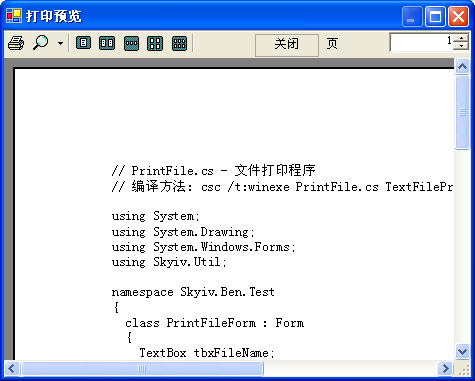
我写了一个打印文本文件的类库,功能包含:打印预览、打印。打印时能够选择打印机。能够指定页码范围。
调用方法很easy:
TextFilePrinter p = new TextFilePrinter(tbxFileName.Text);
p.View(); // 打印预览
p.Print(); // 打印文件
使用 TextFilePrinter 类的下面构造函数能够指定打印时使用的字体:
TextFilePrinter(string fileName, Encoding theEncode, Font theFont)
以下測试程序执行时的截图:
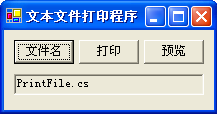
点击“预览”button后:
点击“打印”button后:
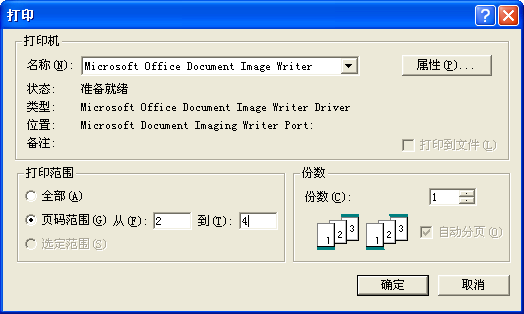
这幅图中的打印机:“Microsoft Office Doument Image Writer”是 Microsoft Office 2003 软件提供一个虚拟打印机,用来调试打印程序很方便(使用“打印预览”也能够调试打印程序,但“打印预览”仅仅能使用默认的打印机和默认的打印属性。也不能设置页码范围),能够设置打印属性和页码范围以及打印份数。
使用它来调试打印程序,能够节省不少打印纸。为建设节约型社会作贡献 :)
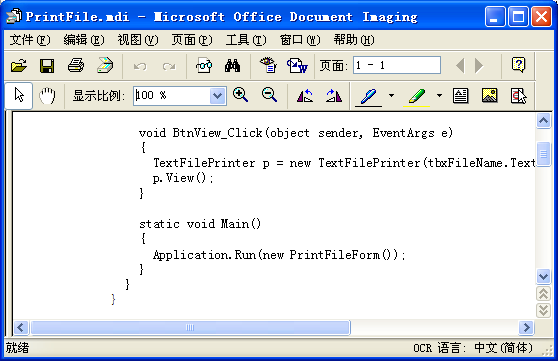
这幅图就是该虚拟打印机在屏幕上的显示的结果。
这里是測试程序的源码:
 // PrintFile.cs - 文件打印程序// 编译方法: csc /t:winexe PrintFile.cs TextFilePrinter.csusing System;using System.Drawing;using System.Windows.Forms;using Skyiv.Util;namespace Skyiv.Ben.Test
 {
{ class PrintFileForm : Form
 { TextBox tbxFileName; public PrintFileForm() { SuspendLayout(); Button btnFileName = new Button(); btnFileName.Text = "文件名称"; btnFileName.Location = new Point(10, 10); btnFileName.Size = new Size(60, 24); btnFileName.Click += new EventHandler(BtnFileName_Click); Button btnPrint = new Button(); btnPrint.Text = "打印"; btnPrint.Location = new Point(75, 10); btnPrint.Size = new Size(60, 24); btnPrint.Click += new EventHandler(BtnPrint_Click); Button btnView = new Button(); btnView.Text = "预览"; btnView.Location = new Point(140, 10); btnView.Size = new Size(60, 24); btnView.Click += new EventHandler(BtnView_Click); tbxFileName = new TextBox(); tbxFileName.Text = "PrintFile.cs"; tbxFileName.Location = new Point(10, 44); tbxFileName.Size = new Size(190, 20); tbxFileName.ReadOnly = true; tbxFileName.Anchor = (AnchorStyles.Top | AnchorStyles.Left | AnchorStyles.Right); Controls.AddRange(new Control[]{btnFileName, btnPrint, btnView, tbxFileName}); Text = "文本文件打印程序"; ClientSize = new Size(210, 80); ResumeLayout(false);
 } void BtnFileName_Click(object sender, EventArgs e) { OpenFileDialog dlg = new OpenFileDialog(); if(dlg.ShowDialog() != DialogResult.OK) return; tbxFileName.Text = dlg.FileName; } void BtnPrint_Click(object sender, EventArgs e) { TextFilePrinter p = new TextFilePrinter(tbxFileName.Text); p.Print(); } void BtnView_Click(object sender, EventArgs e) { TextFilePrinter p = new TextFilePrinter(tbxFileName.Text); p.View(); } static void Main() { Application.Run(new PrintFileForm()); } }
 }
}这里是该类的源码:
using System;using System.Drawing;using System.Drawing.Printing;using System.Windows.Forms;using System.IO;using System.Text;namespace Skyiv.Util{ sealed class TextFilePrinter { string fileName; Encoding theEncode; Font theFont; StreamReader srToPrint; int currPage; public TextFilePrinter(string fileName) : this(fileName, Encoding.GetEncoding("GB18030"), new Font("新宋体", 10)) { } public TextFilePrinter(string fileName, Encoding theEncode, Font theFont) { this.fileName = fileName; this.theEncode = theEncode; this.theFont = theFont; } public void Print() { using (srToPrint = new StreamReader(fileName, theEncode)) { PrintDialog dlg = new PrintDialog(); dlg.Document = GetPrintDocument(); dlg.AllowSomePages = true; dlg.AllowPrintToFile = false; if (dlg.ShowDialog() == DialogResult.OK) dlg.Document.Print(); } } public void View() { using (srToPrint = new StreamReader(fileName, theEncode)) { PrintPreviewDialog dlg = new PrintPreviewDialog(); dlg.Document = GetPrintDocument(); dlg.ShowDialog(); } } PrintDocument GetPrintDocument() { currPage = 1; PrintDocument doc = new PrintDocument(); doc.DocumentName = fileName; doc.PrintPage += new PrintPageEventHandler(PrintPageEvent); return doc; } void PrintPageEvent(object sender, PrintPageEventArgs ev) { string line = null; float linesPerPage = ev.MarginBounds.Height / theFont.GetHeight(ev.Graphics); bool isSomePages = ev.PageSettings.PrinterSettings.PrintRange == PrintRange.SomePages; if (isSomePages) { while (currPage < ev.PageSettings.PrinterSettings.FromPage) { for (int count = 0; count < linesPerPage; count++) { line = srToPrint.ReadLine(); if (line == null) break; } if (line == null) return; currPage++; } if (currPage > ev.PageSettings.PrinterSettings.ToPage) return; } for (int count = 0; count < linesPerPage; count++) { line = srToPrint.ReadLine(); if (line == null) break; ev.Graphics.DrawString(line, theFont, Brushes.Black, ev.MarginBounds.Left, ev.MarginBounds.Top + (count * theFont.GetHeight(ev.Graphics)), new StringFormat()); } currPage++; if (isSomePages && currPage > ev.PageSettings.PrinterSettings.ToPage) return; if (line != null) ev.HasMorePages = true; } }}这些程序都相当简当明了,这里就不再解释了。
这个类库有个缺点:当文本文件里的一行不能在打印纸的一行中打印完时,该行的后半部就丢失了。
文本文件打印类库(C#)的更多相关文章
- C# 文本文件打印类库(C#)
我写了一个打印文本文件的类库,功能包括:打印预览.打印.打印时可以选择打印机,可以指定页码范围.调用方法非常简单:TextFilePrinter p = new TextFilePrinter(tbx ...
- whoosh----索引|搜索文本类库
先了解基本概念和步骤: Quick Start Whoosh是一个索引文本和搜索文本的类库,他可以为你提供搜索文本的服务,比如如果你在创建一个博客的软件,你可以用whoosh为它添加添加一个搜索功能以 ...
- 利用人工智能(Magpie开源库)给一段中文的文本内容进行分类打标签
当下人工智能是真心的火热呀,各种原来传统的业务也都在尝试用人工智能技术来处理,以此来节省人工成本,提高生产效率.既然有这么火的利器,那么我们就先来简单认识下什么是人工智能吧,人工智能是指利用语音识别. ...
- 移除HTML标签(CharacterUtility)类库
最近时间,专案需要,写了一个类库,主要是为了移除HTML标签以及截取前一段文本的类库. 下载地址:http://download.cnblogs.com/insus/Library/Character ...
- 怎样做出通用的pos小票打印程序
POS小票打印机分为热敏和针式俩种. 打印纸的宽度分为58毫米.76毫米和80毫米三种. 打印接口分为:串口.并口.USB和网口(以太网). 热敏打印机速度较快,打印的时候噪音少,针打可以使用多联纸自 ...
- Linux系统文件与目录管理(1)
文件与目录的操作 在Linux系统的文件与目录的管理上,不外乎『显示属性』.『拷贝』.『删除文件』.『移动文件或目录』.『重命名』等常用操作,由于文件与目录的管理在 Linux当中是很重要的,尤其是每 ...
- java-编码解码-流的操作规律
一 编码解码 字符串:String 字节数组:byte[]字符串--编码(getBytes())-->字节数组字节数组--解码(new String(byte[]))-->字符串 publ ...
- Linux 系统常用管理命令(精简笔记)
Linux是一套免费使用和自由传播的类Unix操作系统,下面的笔记是我从鸟菜中摘抄出来的重要命令,并进行了一定的排版,摒弃了一些用不到的乱七八糟的命令,目的是在生产环境中能够快速的定位并查询需要命令的 ...
- Arch系统软件列表
1. 安装统计 2. 安装列表 3. 安装说明 4. 作为依赖项的安装列表 5. 更正 mangaro使用减的方式安装系统.开箱即用的豪华版本,大部分人需要的都有了,同样包括个别用户不需要的,配置方面 ...
随机推荐
- Iterator pattern 及其在java API中的运用
1.问题: 当我们看到java中的Collection,List,Set,Map等集合类时都可以用Iterator进行遍历元素时,我们是否感到很神奇.我们不禁要问java是如何实现这一目标的.这就是我 ...
- openGL初学函数解释汇总
openGL初学函数解释汇总 1.GLUT工具包提供的函数 //GLUT工具包所提供的函数 glutInit(&argc, argv);//对GLUT进行初始化,这个函数必须在其它的GLUT使 ...
- Hoof, Paper, Scissors(USACO)
题目大意: 一种游戏(类似于石头剪刀布):两个人分别给出一个字母,然后比较:H>S,S>P,P>H,我们已知对手的字母顺序,求在前n局中我们最多能赢多少次. 由于出字母的人非常懒,所 ...
- Linux/Android——input_handler之evdev (四) 【转】
转自:http://blog.csdn.net/u013491946/article/details/72638919 版权声明:免责声明: 本人在此发文(包括但不限于汉字.拼音.拉丁字母)均为随意敲 ...
- 我们为什么需要 lock 文件
前言 从 Yarn 横空出世推出 lock 文件以来,已经两年多时间了,npm 也在 5.0 版本加入了类似的功能,lock 文件越来越被开发者们接收和认可.本篇文章想从前端视角探讨一下我们为什么需要 ...
- 1.tornado基础
import tornado.web ''' tornado基础web框架模块 ''' import tornado.ioloop ''' tornado的核心循环IO模块,封装了linux的epol ...
- AJAX中的同步加载与异步加载
AJAX是四个单词的简写,其中Asynchronous即异步的意思,异步的链接可以同时发起多个,并且不会阻止JS代码执行.与之对应的概念是同步,同步的链接在同一时刻只会有一个,并且会阻止后续JS代码的 ...
- Selenium2+python自动化2-pip降级selenium3.0【转载】
selenium版本安装后启动Firefox出现异常:'geckodriver' executable needs to be in PATH selenium默默的升级到了3.0,然而网上的教程都是 ...
- Javascript中call、apply函数浅析
call/apply函数作用其实就是改变this的取值,有一句话是:谁调用的这个方法那方法里的this就是指谁,而有时我们会需要改变this值,所以call/apply就能派上用场. 下面我写个方法来 ...
- Codeforces Round #277.5 (Div. 2) B. BerSU Ball【贪心/双指针/每两个跳舞的人可以配对,并且他们两个的绝对值只差小于等于1,求最多匹配多少对】
B. BerSU Ball time limit per test 1 second memory limit per test 256 megabytes input standard input ...