
Mini projects #4 ---- Pong
课程全名:An Introduction to Interactive Programming in Python,来自 Rice University
授课教授:Joe Warren, Scott Rixner, John Greiner, Stephen Wong
工具:http://www.codeskulptor.org/, simplegui 模块
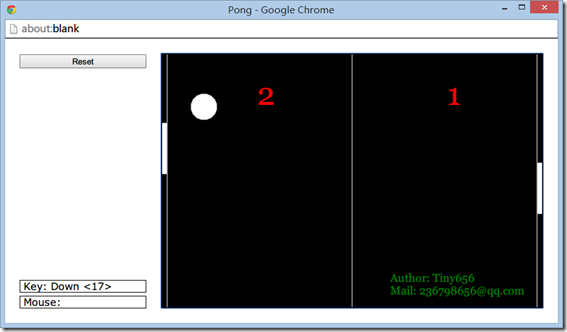
第四次作业,完成一个弹球的游戏,游戏的界面如下,规则也很简单,球不断在两边的paddle之间撞击后速度会不断加快,直到有一名玩家无法将球回击,则另一名玩家得分。
之前得了解一下控制物体移动的方式。
假设物体与点p相对应,第一种方式是直接通过控制点p的坐标来实现移动。
在draw_handler中不用进行更新,只用绘制他的position就可以
坐标的变化放在key_handler中进行修改,比如
key_handler:
Left Arrow –> p[0] –= c
Right Arrow –> p[0] += c
Up Arrow –> p[1] –= c
Down Arrow –> p[1] += c
代码如下:
import simplegui

WIDTH = 500

HEIGHT = 300

p = [WIDTH/2, HEIGHT/2]

def draw(canvas):

    canvas.draw_circle(p, 30, 1, "White", "White")

def key_down(key):

    c = 4

    if key == simplegui.KEY_MAP['up']:

        p[1] -= c

    elif key == simplegui.KEY_MAP['down']:

        p[1] +=c

    elif key == simplegui.KEY_MAP['left']:

        p[0] -= c

    elif key == simplegui.KEY_MAP['right']:

        p[0] += c

# Create a frame and assign callbacks to event handlers

frame = simplegui.create_frame("Position Control", WIDTH, HEIGHT)

frame.set_draw_handler(draw)

frame.set_keydown_handler(key_down)

# Start the frame animation

frame.start()
第二种方式通过控制点p的速率(velocity)变化来实现移动。
draw_handler中进行坐标的更新和绘制
在key_handler中进行速率的调整
draw_handler:
p[0] += v[0]
p[1] += v[1]
key_handler:
Left Arrow –> v[0] –= c
Right Arrow –> v[0] += c
Up Arrow –> v[1] –= c
Down Arrow –> v[1] += c
代码如下:
import simplegui

WIDTH = 500

HEIGHT = 300

v = [0, 0]

p = [WIDTH/2, HEIGHT/2]

def draw(canvas):

    p[0] += v[0]

    p[1] += v[1]

    canvas.draw_circle(p, 30, 1, "White", "White")

def key_down(key):

    c = 1

    if key == simplegui.KEY_MAP['up']:

        v[1] -= c

    elif key == simplegui.KEY_MAP['down']:

        v[1] +=c

    elif key == simplegui.KEY_MAP['left']:

        v[0] -= c

    elif key == simplegui.KEY_MAP['right']:

        v[0] += c

# Create a frame and assign callbacks to event handlers

frame = simplegui.create_frame("Position Control", WIDTH, HEIGHT)

frame.set_draw_handler(draw)

frame.set_keydown_handler(key_down)

# Start the frame animation

frame.start()
这里再提一下碰撞的处理,上下碰撞,只用把v[1]的方向取反,左右碰撞,把v[0]的方向取反。
主要就是边界位置的判断,对于一个假定中心为p,半径为r的求来说:
碰撞如下:
Left Wall:
p[0] <= r
Right Wall:
p[0] >= (width-1)-r
Top Wall:
p[1] <= r
Bottom Wall:
p[1] >= (height-1)-r
下面两张图来自老师的课件,关于定义
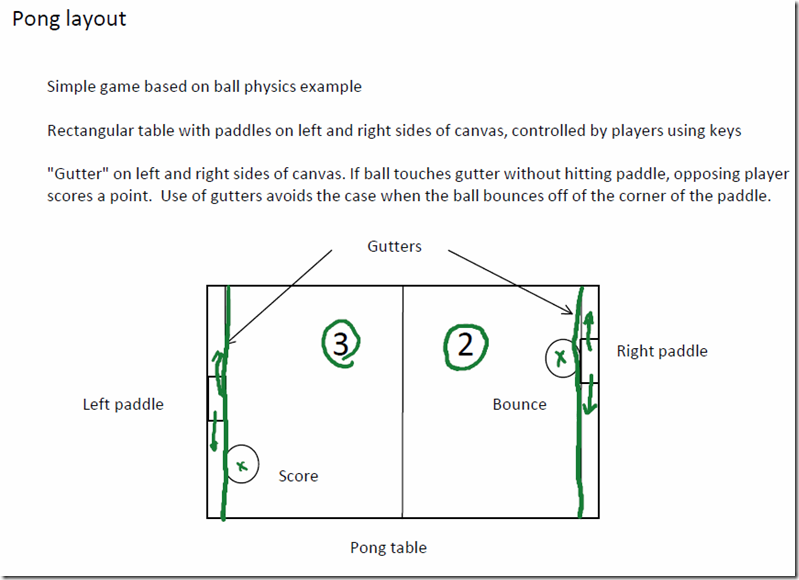
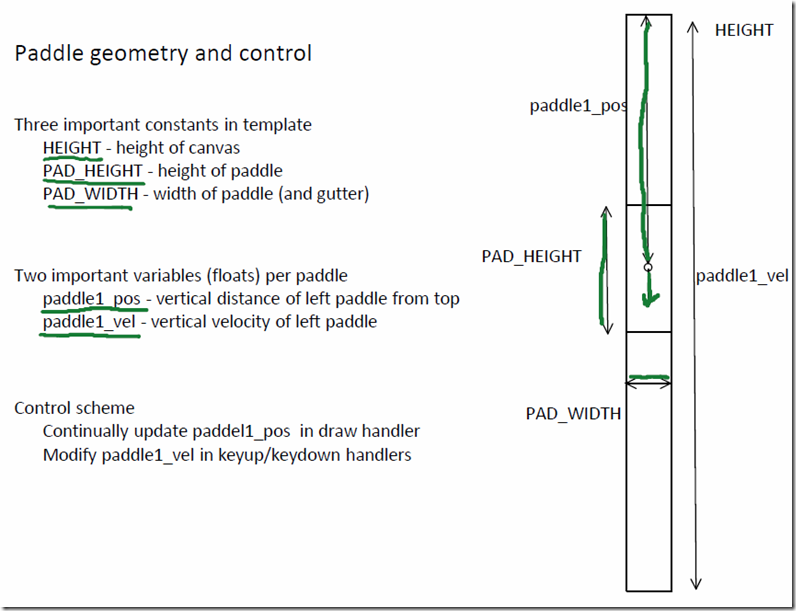
回归到这个游戏,基本要用到的知识也就这么多,移动paddle处理方式稍微特殊一点,keydown_handler进行velocity的正方向增加,那么keyup_handler进行velocity的负方向增加,这样就可以实现,按下按键后paddle持续移动,释放按键后paddle停止移动。
对于小球,初始随机给一个velocity,只要不是垂直或者水平,然后处理碰撞,在进行paddle碰撞后,要给予小球10%velocity上的增量。
完整代码如下:
# Implementation of classic arcade game Pong

import simplegui

import random

# initialize globals - pos and vel encode vertical info for paddles

WIDTH = 600

HEIGHT = 400

BALL_RADIUS = 20

PAD_WIDTH = 8

PAD_HEIGHT = 80

HALF_PAD_WIDTH = PAD_WIDTH / 2

HALF_PAD_HEIGHT = PAD_HEIGHT / 2

LEFT = False

RIGHT = True

# initialize ball_pos and ball_vel for new bal in middle of table

# if direction is RIGHT, the ball's velocity is upper right, else upper left

def spawn_ball(direction):

    global ball_pos, ball_vel # these are vectors stored as lists

    ball_pos = [WIDTH/2, HEIGHT/2]

    ball_dir = 1 if direction == RIGHT else -1

    ball_vel = [ball_dir * random.randrange(2, 4), -random.randrange(1, 3)]

# define event handlers

def new_game():

    global paddle1_pos, paddle2_pos, paddle1_vel, paddle2_vel  # these are numbers

    global score1, score2  # these are ints

    spawn_ball(random.choice([LEFT, RIGHT]))

    paddle1_pos, paddle2_pos = HEIGHT / 2, HEIGHT / 2

    paddle1_vel, paddle2_vel = 0, 0

    score1, score2 = 0, 0

def draw(canvas):

    global score1, score2, paddle1_pos, paddle2_pos, ball_pos, ball_vel

    # draw mid line and gutters

    canvas.draw_line([WIDTH / 2, 0],[WIDTH / 2, HEIGHT], 1, "White")

    canvas.draw_line([PAD_WIDTH, 0],[PAD_WIDTH, HEIGHT], 1, "White")

    canvas.draw_line([WIDTH - PAD_WIDTH, 0],[WIDTH - PAD_WIDTH, HEIGHT], 1, "White")

    # update ball

    new_ball_posX = ball_pos[0] + ball_vel[0]

    new_ball_posY = ball_pos[1] + ball_vel[1]

    if new_ball_posY <= BALL_RADIUS:

        ball_pos[1] = BALL_RADIUS

        ball_vel[1] *= -1

    elif new_ball_posY >= HEIGHT - 1 - BALL_RADIUS:

        ball_pos[1] = HEIGHT - 1 - BALL_RADIUS

        ball_vel[1] *= -1

    else:

        ball_pos[1] = new_ball_posY

    # hit the left gutter

    if new_ball_posX <= PAD_WIDTH + BALL_RADIUS:

        ball_pos[0] = PAD_WIDTH + BALL_RADIUS

        if (ball_pos[1] >= paddle1_pos - HALF_PAD_HEIGHT

            and ball_pos[1] <= paddle1_pos + HALF_PAD_HEIGHT):

            ball_vel[0] = -(ball_vel[0] + 0.1 * ball_vel[0])

            ball_vel[1] = ball_vel[1] + 0.1 * ball_vel[1]

        else:

            score2 = score2 + 1

            spawn_ball(RIGHT)

    # hit the right gutter

    elif new_ball_posX >= WIDTH - PAD_WIDTH - BALL_RADIUS:

        ball_pos[0] = WIDTH - PAD_WIDTH - BALL_RADIUS

        if (ball_pos[1] >= paddle2_pos - HALF_PAD_HEIGHT

            and ball_pos[1] <= paddle2_pos + HALF_PAD_HEIGHT):

            ball_vel[0] = -(ball_vel[0] + 0.1 * ball_vel[0])

            ball_vel[1] = ball_vel[1] + 0.1 * ball_vel[1]

        else:

            score1 = score1 + 1

            spawn_ball(LEFT)

    else:

        ball_pos[0] = new_ball_posX

    # draw ball

    canvas.draw_circle(ball_pos, BALL_RADIUS, 1, "White", "White")

    # update paddle's vertical position, keep paddle on the screen

    new_paddle1_pos = paddle1_pos + paddle1_vel

    if new_paddle1_pos <= HALF_PAD_HEIGHT:

        paddle1_pos = HALF_PAD_HEIGHT

    elif new_paddle1_pos >= HEIGHT-HALF_PAD_HEIGHT:

        paddle1_pos = HEIGHT-HALF_PAD_HEIGHT

    else:

        paddle1_pos = new_paddle1_pos

    new_paddle2_pos = paddle2_pos + paddle2_vel

    if new_paddle2_pos <= HALF_PAD_HEIGHT:

        paddle2_pos = HALF_PAD_HEIGHT

    elif new_paddle2_pos >= HEIGHT-HALF_PAD_HEIGHT:

        paddle2_pos = HEIGHT-HALF_PAD_HEIGHT

    else:

        paddle2_pos = new_paddle2_pos

    # draw paddles

    canvas.draw_polygon([[0, paddle1_pos-HALF_PAD_HEIGHT],

            [PAD_WIDTH-1, paddle1_pos-HALF_PAD_HEIGHT],

            [PAD_WIDTH-1, paddle1_pos+HALF_PAD_HEIGHT],

            [0, paddle1_pos+HALF_PAD_HEIGHT]], 1, "White", "White")

    canvas.draw_polygon([[WIDTH-PAD_WIDTH+1, paddle2_pos-HALF_PAD_HEIGHT],

            [WIDTH, paddle2_pos-HALF_PAD_HEIGHT],

            [WIDTH, paddle2_pos+HALF_PAD_HEIGHT],

            [WIDTH-PAD_WIDTH+1, paddle2_pos+HALF_PAD_HEIGHT]], 1, "White", "White")

    # draw scores

    canvas.draw_text(str(score1), (WIDTH/4, HEIGHT/5), 50, "Red")

    canvas.draw_text(str(score2), (WIDTH/4*3, HEIGHT/5), 50, "Red")

    canvas.draw_text("Author: Tiny656", (WIDTH/5*3, HEIGHT/20*18), 18, "Green")

    canvas.draw_text("Mail: 236798656@qq.com", (WIDTH/5*3, HEIGHT/20*19), 18, "Green")

def keydown(key):

    global paddle1_vel, paddle2_vel

    acc = 3

    if key == simplegui.KEY_MAP['w']:

        paddle1_vel -= acc

    elif key == simplegui.KEY_MAP['s']:

        paddle1_vel += acc

    if key == simplegui.KEY_MAP['up']:

        paddle2_vel -= acc

    elif key == simplegui.KEY_MAP['down']:

        paddle2_vel += acc

def keyup(key):

    global paddle1_vel, paddle2_vel

    acc = 3

    if key == simplegui.KEY_MAP['w']:

        paddle1_vel += acc

    elif key == simplegui.KEY_MAP['s']:

        paddle1_vel -= acc

    if key == simplegui.KEY_MAP['up']:

        paddle2_vel += acc

    elif key == simplegui.KEY_MAP['down']:

        paddle2_vel -= acc

def reset():

    new_game()

# create frame

frame = simplegui.create_frame("Pong", WIDTH, HEIGHT)

frame.set_draw_handler(draw)

frame.set_keydown_handler(keydown)

frame.set_keyup_handler(keyup)

frame.add_button("Reset", reset, 200)

# start frame

new_game()

frame.start()
Mini projects #4 ---- Pong的更多相关文章
- Mini projects #7 ---- Spaceship
课程全名:An Introduction to Interactive Programming in Python,来自 Rice University 授课教授:Joe Warren, Scott ...
- Mini projects #8–RiceRocks
课程全名:An Introduction to Interactive Programming in Python,来自 Rice University 授课教授:Joe Warren, Scott ...
- Mini projects #6 ---- Blackjack
课程全名:An Introduction to Interactive Programming in Python,来自 Rice University 授课教授:Joe Warren, Scott ...
- Mini projects #3 ---- Stopwatch: The Game
课程全名:An Introduction to Interactive Programming in Python,来自 Rice University 授课教授:Joe Warren, Scott ...
- Mini projects #5 ---- Memory
课程全名:An Introduction to Interactive Programming in Python,来自 Rice University 授课教授:Joe Warren, Scott ...
- Golang优秀开源项目汇总, 10大流行Go语言开源项目, golang 开源项目全集(golang/go/wiki/Projects), GitHub上优秀的Go开源项目
Golang优秀开源项目汇总(持续更新...)我把这个汇总放在github上了, 后面更新也会在github上更新. https://github.com/hackstoic/golang-open- ...
- A Complete List of .NET Open Source Developer Projects
http://scottge.net/2015/07/08/a-complete-list-of-net-open-source-developer-projects/?utm_source=tuic ...
- Building Xcode iOS projects and creating *.ipa file from the command line
For our development process of iOS applications, we are using Jenkins set up on the Mac Mini Server, ...
- All the Apache Streaming Projects: An Exploratory Guide
The speed at which data is generated, consumed, processed, and analyzed is increasing at an unbeliev ...
随机推荐
- centos网卡配置和防火墙停止和启动
Linux 设置网卡配置ip vi /etc/sysconfig/network-scripts/ifcfg-eth0 DEVICE=eth0 ONBOOT=yes BOOTPROTO=static ...
- 介绍开源的.net通信框架NetworkComms框架之三 传递List
原文网址: http://www.cnblogs.com/csdev Networkcomms 是一款C# 语言编写的TCP/UDP通信框架 作者是英国人 以前是收费的 目前作者已经开源 开源地 ...
- oracle 调用java
1.首先在PL/SQL中创建JAVA类,并编译 例如:这个是到的一个查询目录下面文件列表的java类 创建此java 类用: create or replace and compile java so ...
- 阐述程序员如何实现IT职业定位
[动力IT职业生涯规划课]阐述程序员如何实现IT职业定位 2016年9月16日下午17:00,南通动力IT教育创始人阙海忠先生,亲自向动力IT学员传授其十八年IT从业经验. 一个程序员的完美人生定位 ...
- (转)tar.xz文件如何解压
XZ压缩最新压缩率之王 xz这个压缩可能很多都很陌生,不过您可知道xz是绝大数Linux默认就带的一个压缩工具. 之前xz使用一直很少,所以几乎没有什么提起. 我是在下载phpmyadmin的时候看到 ...
- 使用UDP协议与韩国OACIS压机通讯
最近一个项目需要发送SN给OACIS, 研究了一下OACIS文档, 从文档中可以看出,传输协议只能使用UDP,切传输命令为>SN1; + SN + ; + LF LF的定义在Linux和Uni ...
- ASP.NET5 Beta8可用性
ASP.NET5 beta8现已上都的NuGet作为一个工具升级到Visual Studio2015!此版本极大地扩展.NET核心对OS X和Linux所支持的范围.您现在可以使用网络,加密和全球化特 ...
- html只给自己
//另外一个 height:400px; weight:400px; border-top-left-radius: 10px; border-top-right-radius: 10px; bord ...
- java中的算术运算符、赋值运算符、比较运算符、逻辑运算符、条件运算符
一.算术运算符 算术运算符主要用于进行基本的算术运算,如加法.减法.乘法.除法等. Java 中常用的算术运算符: 其中,++ 和 -- 既可以出现在操作数的左边,也可以出现在右边,但结果是不同滴 例 ...
- 查看Oracle中是否有锁表的sql
1.查看是否有锁表的sql 代码如下: select 'blocker('||lb.sid||':'||sb.username||')-sql:'|| qb.sql_text blockers, 'w ...