
C#中使用设置(Settings.settings) Properties.Settings.Default .(配置文件相当重要)
C#中使用设置(Settings.settings) Properties.Settings.Default .
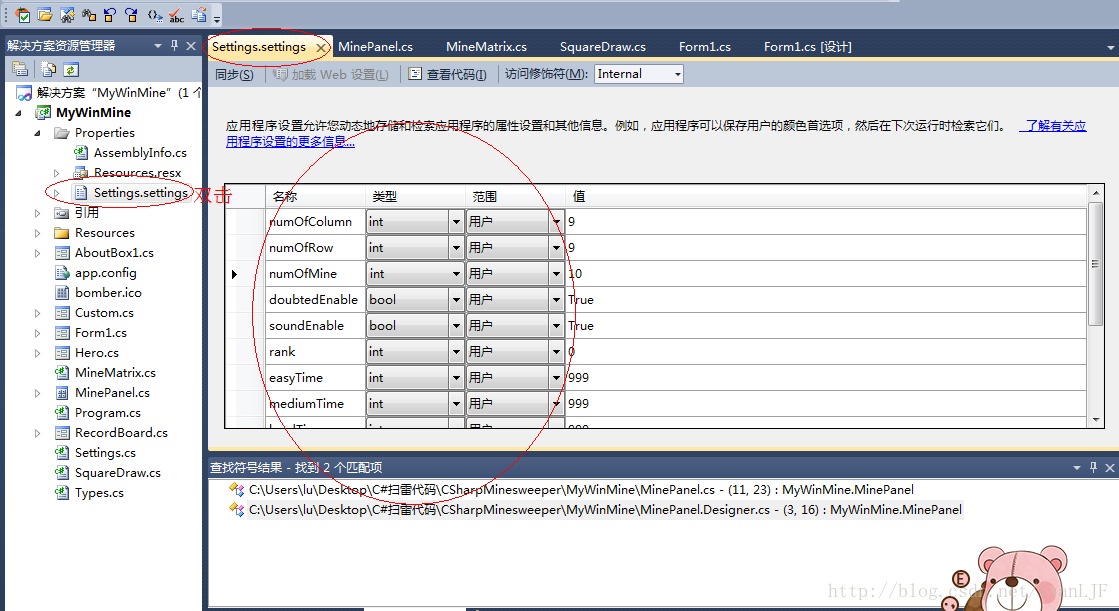
在设计时创建新设置的步骤
在“Solution Explorer”(解决方案资源管理器)中,展开项目的“Properties”(属性)节点。
在“Solution Explorer”(解决方案资源管理器)中,双击要在其中添加新设置的 .settings 文件。此文件的默认名称是 Settings.settings。
| • |
为设置键入新值,然后保存该文件。 |
在运行时使用设置
运行时应用程序可以通过代码使用设置。具有应用程序作用域的设置值能够以只读方式进行访问,而用户作用域设置的值可以进行读写。在 C# 中可以通过 Properties 命名空间使用设置。
在运行时读取设置
可在运行时使用 Properties 命名空间读取应用程序作用域及用户作用域设置。Properties 命名空间通过Properties.Settings.Default 对象公开了项目的所有默认设置。编写使用设置的代码时,所有设置都会出现在 IntelliSense 中并且被强类型化。因此,举例来说,如果设置的类型为 System.Drawing.Color,则无需先对其进行强制类型转换即可使用该设置,如下例所示:
this.BackColor = Properties.Settings.Default.myColor;
在运行时保存用户设置
应用程序作用域设置是只读的,只能在设计时或通过在应用程序会话之间修改 <AssemblyName>.exe.config 文件来进行更改。然而,用户作用域设置却可以在运行时进行写入,就像更改任何属性值那样。新值会在应用程序会话持续期间一直保持下去。可以通过调用 Settings.Save 方法来保持在应用程序会话之间对用户设置所做的更改。这些设置保存在 User.config 文件中。
在运行时写入和保持用户设置的步骤
| • |
访问用户设置并为其分配新值,如下例所示: Properties.Settings.Default.myColor = Color.AliceBlue;
|
| • |
如果要保持在应用程序会话之间对用户设置所做的更改,请调用 Save 方法,如以下代码所示: Properties.Settings.Default.Save(); |
=========================================================================================================================================================================================================================================================================================================================================================================================================
1、定义
在Settings.settings文件中定义配置字段。把作用范围定义为:User则运行时可更改,Applicatiion则运行时不可更改。可以使用数据网格视图,很方便;
2、读取配置值
text1.text = Properties.Settings.Default.FieldName;
//FieldName是你定义的字段
3、修改和保存配置
Properties.Settings.Default.FieldName = "server";
Properties.Settings.Default.Save();//使用Save方法保存更改
4、也可以自己创建
创建一个配置类FtpSetting。在WinForm应用程序里,一切配置类都得继承自 ApplicationSettingsBase 类。
sealed class FtpSettings : ApplicationSettingsBase
{
[UserScopedSetting]
[DefaultSettingValue("127.0.0.1")]
public string Server
{
get { return (string)this["Server"]; }
set { this["Server"] = value; }
}
[UserScopedSetting]
[DefaultSettingValue("21")]
public int Port
{
get { return (int)this["Port"]; }
set { this["Port"] = value; }
}
}
使用上述配置类,可以用:
private void button2_Click(object sender, EventArgs e)
{
FtpSettings ftp = new FtpSettings();
string msg = ftp.Server + ":" + ftp.Port.ToString();
MessageBox.Show(msg);
}
我们在使用上述FtpSetting 配置时,当然要先进行赋值保存,然后再使用,后面再修改,再保存,再使用。
private void button2_Click(object sender, EventArgs e)
{
FtpSettings ftp = new FtpSettings();
ftp.Server = "ftp.test.com";
ftp.Port = 8021;
ftp.Save();
ftp.Reload();
string msg = ftp.Server + ":" + ftp.Port.ToString();
MessageBox.Show(msg);
}
嗯。已经Save了,你可能会在应用程序文件夹里找不到它到底保存到哪里去了。由于我们是用UserScope的,所以其实该配置信息是保存到了你的Windows的个人文件夹里去了。比如我的就是 C:\Documents and Settings\brooks\Local Settings\Application Data\TestWinForm目录了。
=========================================================================================================================================================================================================================================================================================================================================================================================================
例:
using System;
using System.Collections.Generic;
using System.ComponentModel;
using System.Data;
using System.Drawing;
using System.Linq;
using System.Text;
using System.Windows.Forms;
using System.Configuration;
namespace 设置文件读写测试
{
public partial class Form1 : Form
{
public Form1()
{
InitializeComponent();
}
private void button1_Click(object sender, EventArgs e)
{
Properties.Settings.Default.name = this.textBox1.Text;
Properties.Settings.Default.Save();
this.label1.Text = Properties.Settings.Default.name;
}
private void button2_Click(object sender, EventArgs e)
{
this.label1.Text = Properties.Settings.Default.name;
}
private void button3_Click(object sender, EventArgs e)
{
FtpSettings ftp = new FtpSettings();
string msg = ftp.Server + ":" + ftp.Port.ToString();
this.label2.Text = msg;
}
private void button4_Click(object sender, EventArgs e)
{
FtpSettings ftp = new FtpSettings();
ftp.Server = this.textBox2.Text ;
ftp.Port = Convert.ToInt32(this.textBox3.Text);
ftp.Save();
//ftp.Reload();
string msg = ftp.Server + ":" + ftp.Port.ToString();
this.label2.Text = msg;
}
}
sealed class FtpSettings : ApplicationSettingsBase
{
[UserScopedSetting]
[DefaultSettingValue("127.0.0.1")]
public string Server
{
get { return (string)this["Server"]; }
set { this["Server"] = value; }
}
[UserScopedSetting]
[DefaultSettingValue("21")]
public int Port
{
get { return (int)this["Port"]; }
set { this["Port"] = value; }
}
}
}
C#中使用设置(Settings.settings) Properties.Settings.Default .(配置文件相当重要)的更多相关文章
- C#中使用设置(Settings.settings) Properties.Settings.Default
应用程序及用户设置 在设计时创建新设置的步骤 在“Solution Explorer”(解决方案资源管理器)中,展开项目的“Properties”(属性)节点. 在“Solution Explorer ...
- The content of element type "configuration" must match "(properties?,settings?,typeAliases?,typeHandlers?,objectFactory?...
<?xml version="1.0" encoding="UTF-8"?> <!DOCTYPE configuration PUBLIC & ...
- 【转】The content of element type "configuration" must match "(properties?,settings?,typeAliases?,typeHandlers?,objectFactory?...
[转]The content of element type "configuration" must match "(properties?,settings?,typ ...
- C# winform或控制台Properties.Settings.Default的使用及存储位置
C# winform或控制台Properties.Settings.Default的使用及存储位置 作者的程序 是MmPS.ClientForm.exe,使用Properties.Settings.D ...
- WPF 应用 - 使用 Properties.Settings 保存客户端密码
1. 先在项目的 Settings.settings 新建需要的字段和类型 有需要还可设置初始默认值 2. 启动客户端时,获取 Properties.Settings 的属性值 public void ...
- The content of element type "configuration" must match "(properties?,settings?,typeAliases?,typeHandlers?,objectFactory?,objectWrapperFactory?,reflectorFactory?,plugins?,environments?,databaseIdProv
在mybatis配置文件config.xml中报错: The content of element type "configuration" must match "(p ...
- mybatis:"configuration" must match "(properties?,settings?,typeAliase.....
在运行mybatis配置文件的时候,出现错误: mybatis:"configuration" must match "(properties?,settings?,ty ...
- 无法识别的配置节点 applicationSettings/* Properties.Settings 解决方法
http://blog.csdn.net/yaoxtao/article/details/7766888 在项目中引用web service时,偶然出现 无法识别的配置节点 applicationSe ...
- 元素类型为 "configuration" 的内容必须匹配 "(properties?,settings?,typeAliases?,typeHandlers?
报错主要部分如下: Error building SqlSession.### Cause: org.apache.ibatis.builder.BuilderException: Error cre ...
随机推荐
- TreeView 中 MVVM Command Binding
<HierarchicalDataTemplate x:Key="TreeNodes" ItemsSource="{Binding Path=Childs,Mode ...
- 图书商城(基于Jsp+Servlet)
这个项目主要是加深一下对于servlet和jsp知识相关的了解以及简单业务逻辑的处理. 用户更新的逻辑: 1.点击修改用户的那一行可以获取到用户的id 2.跳转到一个servlet,去查询该用户的基本 ...
- Linux下给mysql创建用户并分配权限
// fe_group 用户名// fe 数据库名// 123456 密码 1.新建用户 //登录MYSQL @>mysql -u root -p @>密码 //创建用户 mysql> ...
- 区分 for...in 和 for...of
我们都知道在 JavaScript 中 for...in 和 for...of 都可以迭代一个数组,但他们之间也有着很大的区别: 区别一:用于迭代器的返回值不同 for...in 和 for...of ...
- 【剑指Offer面试编程题】题目1354:和为S的连续正数序列--九度OJ
题目描述: 小明很喜欢数学,有一天他在做数学作业时,要求计算出9~16的和,他马上就写出了正确答案是100.但是他并不满足于此,他在想究竟有多少种连续的正数序列的和为100(至少包括两个数).没多久, ...
- Python数据类型-1 数据类型介绍
数据类型 在python这门语言中,数据类型分为两种. 内置的和自定义的. 内置的包括数字.字符串.布尔.列表.元组.字典.Bytes.集合这些常用的以及一些不太常用的数据类型.而自定义的,一般以类的 ...
- 第一次试水bof
BOF come from https://www.jarvisoj.com/challenges nc pwn2.jarvisoj.com 9881(远程连接) 在ubuntu16.04上进行连接, ...
- InnoDB中一棵B+树能存多少行数据
https://www.jianshu.com/p/3578beed5a68 https://www.cnblogs.com/tongongV/p/10952102.html InnoDB 存储引擎最 ...
- Linux centosVMware NFS exportfs命令、NFS客户端问题、FTP介绍、使用vsftpd搭建ftp
一.exportfs命令 常用选项 -a 全部挂载或者全部卸载 -r 重新挂载 -u 卸载某一个目录 -v 显示共享目录 以下操作在服务端上 vim /etc/exports //增加 /tmp/ 1 ...
- Java连载78-深入自动拆装箱、Date类和SimpleDateFormat格式化
一.深入自动拆装箱 1.直接举例: public class D78_AutomaticUnpackingAndPacking{ public static void main(String[] ar ...