
MSYS2 编译环境配置
博客转载自:https://medium.com/@fzubair/carnd-term2-gcc-setup-on-windows-287e1fd36845
2018/6/2 — mingw32/cmake doesn’t work in the latest msys2. Have added step 7 to use “cmake” installed from cmake.org instead
- Download latest msys2 installer from https://www.msys2.org/ (orjust download this version http://repo.msys2.org/distrib/x86_64/msys2-x86_64-20180531.exe)
- Run the installer, keep c:\msys64 as default, when it finishes, choose “Run MSYS now”
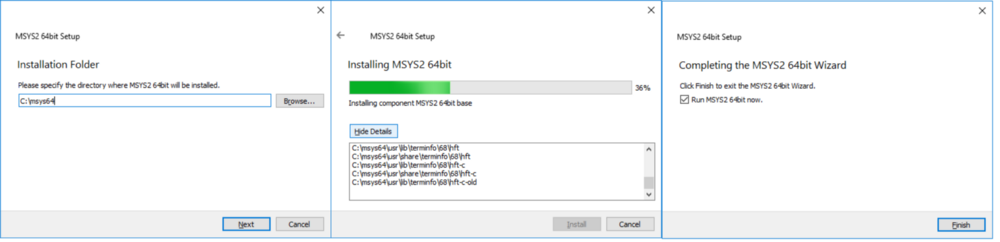
When the command prompt window opens type:
pacman -Syu //更新系统

A message will appear to close the terminal window. Close the window. (it might take long to close, and you might even have to kill it)
Note: Depending on the version you download from msys2, it might say everything is up to date, just continue.
3. Change home location by opening c:\msys64\etc\nsswitch.conf in any editor and change db_home to:
db_home: windows desc //将home定位到windows的home,不修改则在/home/username
4. Open MSYS2 MinGW 32bit and this time write:
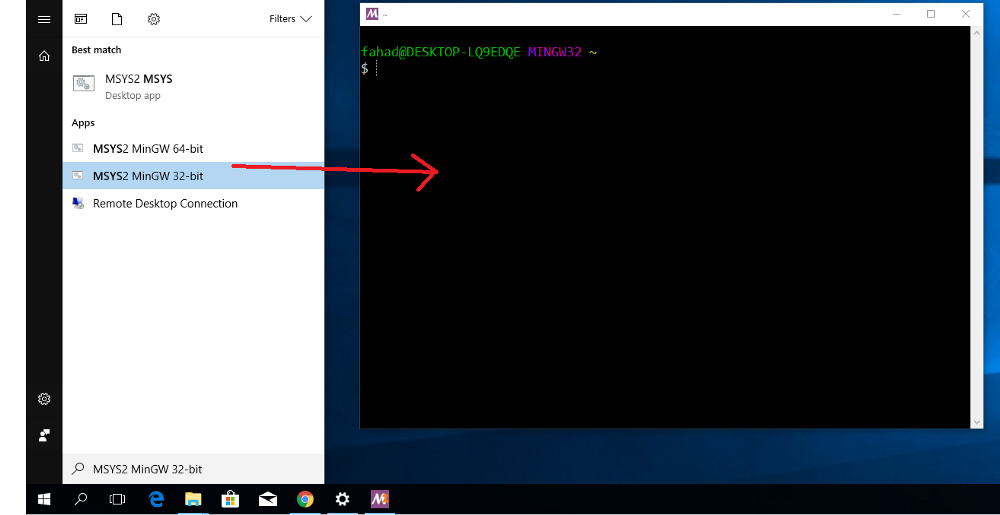
pacman -Su //
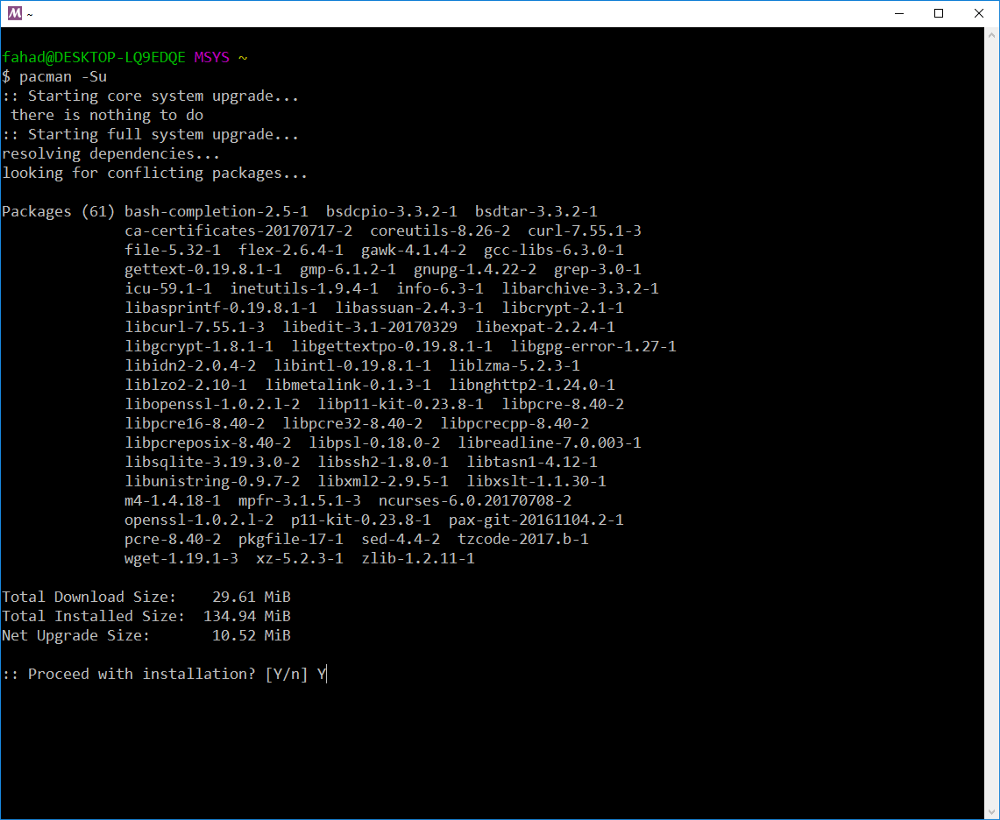
Note: Depending on the version you downloaded, it might say everything is up to date, so you can just continue. 可能下载速度很慢,可以通过更换源解决,方案参考 MSYS2 更换国内源
5.Download gcc-5.4
http://repo.msys2.org/mingw/i686/mingw-w64-i686-gcc-libs-5.4.0-1-any.pkg.tar.xz
http://repo.msys2.org/mingw/i686/mingw-w64-i686-gcc-libgfortran-5.4.0-1-any.pkg.tar.xz
http://repo.msys2.org/mingw/i686/mingw-w64-i686-gcc-5.4.0-1-any.pkg.tar.xz
http://repo.msys2.org/mingw/i686/mingw-w64-i686-gcc-fortran-5.4.0-1-any.pkg.tar.xz
http://repo.msys2.org/mingw/i686/mingw-w64-i686-gdb-7.11.1-4-any.pkg.tar.xz
或者使用以命令安装Toolchain
pacman -Syu mingw-w64-i686-toolchain
6.Install gcc / other packages:
$ cd ~/Downloads

$ pacman -U mingw-w64-i686-gcc-libgfortran-5.4.0-1-any.pkg.tar.xz mingw-w64-i686-gcc-libs-5.4.0-1-any.pkg.tar.xz mingw-w64-i686-gcc-5.4.0-1-any.pkg.tar.xz
mingw-w64-i686-gdb-7.11.1-4-any.pkg.tar.xz mingw-w64-i686-gcc-fortran-5.4.0-1-any.pkg.tar.xz

$ pacman -S mingw-w64-i686-make git make tar unzip patch automake autoconf mingw-w64-i686-python2 mingw-w64-i686-python2-matplotlib mingw-w64-i686-python2-pip
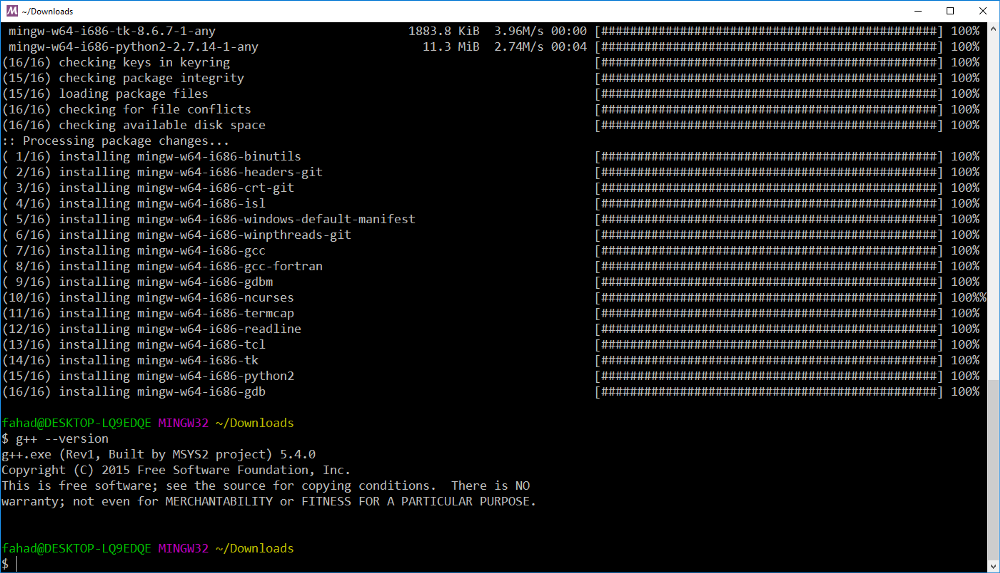
Confirm gcc is working:
g++ --version
7. Make sure you have cmake installed. If not, install cmake from https://cmake.org (or just install this version https://cmake.org/files/v3.11/cmake-3.11.3-win64-x64.msi)
Projects
Build uWebSockets for Mingw.
git clone https://github.com/drganjoo/uWebSockets.git

cd uWebSockets

git checkout carnd-mingw

mkdir build

cd build

"C:\Program Files\CMake\bin\cmake" -G "MSYS Makefiles" ..

make

make install

- ExtendedEKF
git clone https://github.com/udacity/CarND-Extended-Kalman-Filter-Project.git
Download the changed CMakeLists.txt or you can make the following changes to CMakeLists.txt file yourself:
Towards the bottom of the file add:
....

target_link_libraries(ExtendedKF z ssl uv uWS)

if (MINGW)

    target_link_libraries(ExtendedKF ws2_32)

endif()
Changed main.cpp to make it work on Windows:
Line #175, currently says:
if (h.listen(port))
Change this to (this change will work on Linux / MacOS as well, so you can submit your code with this change in it):
if (h.listen("127.0.0.1", port))
Build project:
mkdir build

cd build

"C:\Program Files\CMake\bin\cmake" -G "MSYS Makefiles" ..

make
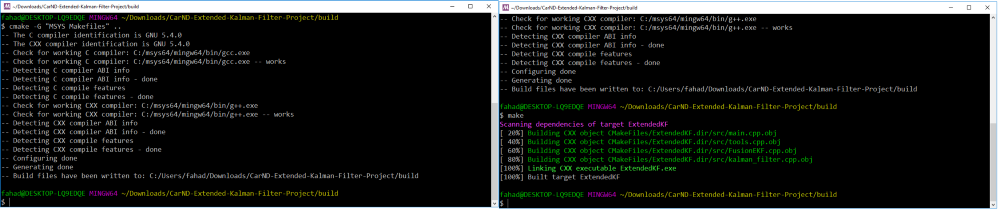
If you want to run it, you need to provide return values in tools.cpp otherwise the program will crash. Open src/tools.cpp and write the following for time being:
VectorXd Tools::CalculateRMSE(const vector<VectorXd> &estimations,

	const vector<VectorXd> &ground_truth) {

	/**

	TODO:

	* Calculate the RMSE here.

	*/

VectorXd temp(4);

	temp << 1, 2, 3, 4;

	return temp;

}

MatrixXd Tools::CalculateJacobian(const VectorXd& x_state) {

	/**

	TODO:

	* Calculate a Jacobian here.

	*/

MatrixXd temp(3,4);

	return temp;

}
Run the simulator and you should be able to see the 1,2,3,4 being sent to the simulator:
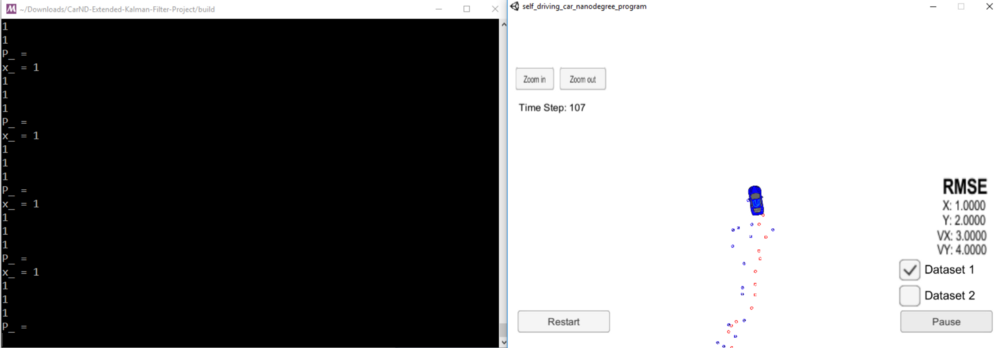
2.Unscented Kalman Filter Project
git clone https://github.com/udacity/CarND-Unscented-Kalman-Filter-Project.git
Download the changed CMakeLists.txt or you can make the following changes to CMakeLists.txt file yourself:
Towards the bottom of the file add:
....

target_link_libraries(UnscentedKF z ssl uv uWS)

if (MINGW)

    target_link_libraries(UnscentedKF ws2_32)

endif()
Changed main.cpp to make it work on Windows:
Line #178, currently says:
if (h.listen(port))
Change this to (this works on Linux / MacOS as well):
if (h.listen(“127.0.0.1”, port))
Build project:
mkdir build

cd build

cmake -G "MSYS Makefiles" ..

make
3. CarND-MPC-Quizes:
Open MinGW32 Shell (Start->MSYS MinGW32)
$ git clone https://github.com/udacity/CarND-MPC-Quizzes.git

$ cd CarND-MPC-Quizzes

$ wget https://www.coin-or.org/download/source/Ipopt/Ipopt-3.12.8.zip

$ unzip Ipopt-3.12.8.zip
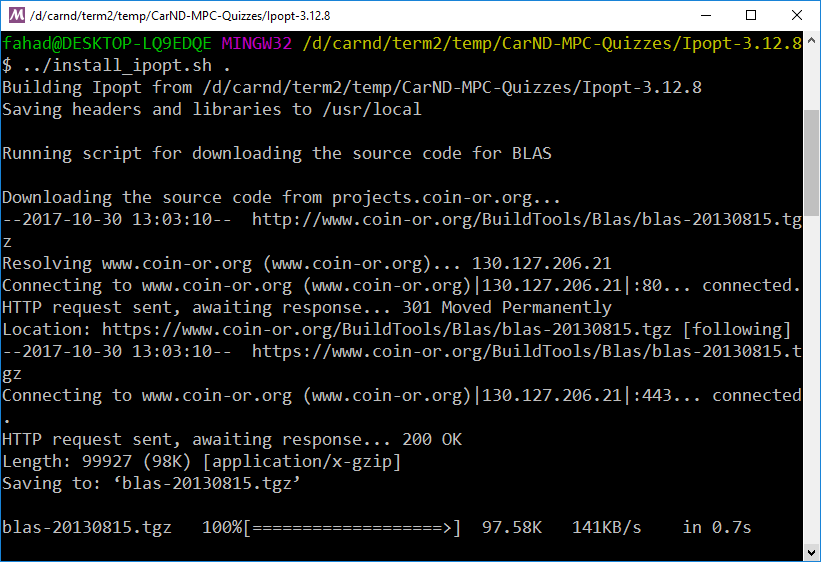
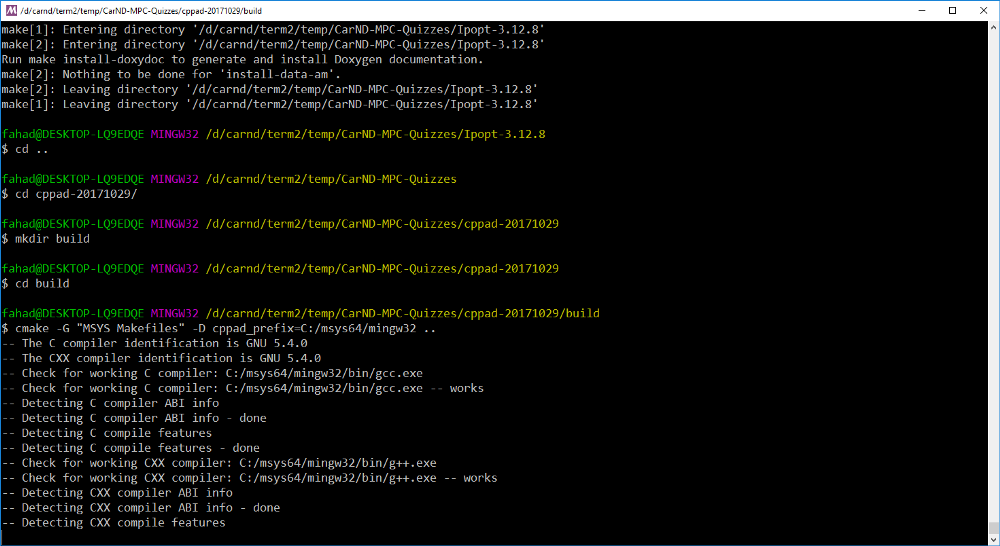
Install ipopt from the shell:
$ cd Ipopt-3.12.8/

$ ../install_ipopt.sh .

$ cd ..
Install cppad:
$ wget https://www.coin-or.org/download/source/CppAD/cppad-20180000.0.gpl.tgz

$ tar xvzf cppad-20180000.0.gpl.tgz

$ cd cppad-20180000.0

$ mkdir build && cd build

$ "C:\Program Files\CMake\bin\cmake" -G "MSYS Makefiles" -D cppad_prefix=/c/msys64/usr/local ..

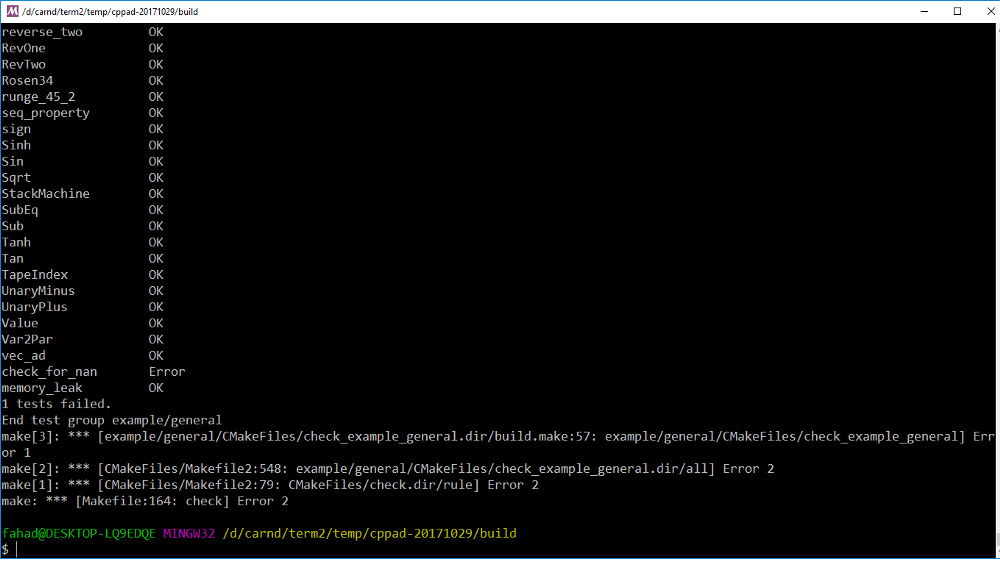
$ make check
One test will fail, but you can ignore it:
$ make install

$ cd ../..
3a) CarND-MPC-Quizzes/global_kinematic_model
Add on top of main.cpp:
// In this quiz you'll implement the global kinematic model.

#define _USE_MATH_DEFINES

#include <math.h>

....
To build:
make build

cd build

"C:\Program Files\CMake\bin\cmake" -G "MSYS Makefiles" ..

make
3b) CarND-MPC-Quizes/mpc_to_line
Change CMakeLists.txt (or Download)
if(MINGW)

set(CMAKE_CXX_USE_RESPONSE_FILE_FOR_INCLUDES 0)

endif()

add_executable(mpc ${sources})

if(${CMAKE_SYSTEM_NAME} MATCHES "Linux")

target_link_libraries(mpc ipopt python2.7)

elseif (MINGW)

target_link_libraries(mpc ipopt coinasl coinblas coinasl coinmumps coinlapack gfortran ws2_32 python2.7)

else()

target_link_libraries(mpc ipopt python27 )

endif()
Build:
mkdir build

cd build

"C:\Program Files\CMake\bin\cmake" -G "MSYS Makefiles" ..

make

./mpc

If you get an error regarding python, set the following environment variables and then run mpc.exe again
$ export PYTHONPATH=/mingw32/bin:/mingw32/lib/python2.7/site-packages:/mingw32/lib/python2.7/lib-dynload:/mingw32/lib/python2.7

$ export PYTHONHOME=/mingw32/bin
3c) CarND-MPC-Quizes/polyfit
mkdir build

cd build

"C:\Program Files\CMake\bin\cmake" -G "MSYS Makefiles" ..

make
4) CarND-MPC-Project
git clone https://github.com/udacity/CarND-MPC-Project.git
Towards the bottom, make following changes to CMakeLists.txt (or Download):
if(MINGW)

set(CMAKE_CXX_USE_RESPONSE_FILE_FOR_INCLUDES 0)

set(CMAKE_CXX_USE_RESPONSE_FILE_FOR_LIBRARIES 0)

endif()

target_link_libraries(mpc ipopt z ssl uv uWS)

if (MINGW)

    target_link_libraries(mpc ipopt coinasl coinblas coinasl coinmumps coinlapack gfortran ws2_32)

endif()
Changed main.cpp to make it work on Windows:
Line #1: Add the following:
#define _USE_MATH_DEFINES

#include <math>

...
Line #179, currently says:
if (h.listen(port))
Change this to (this works on Linux / MacOS as well):
if (h.listen(“127.0.0.1”, port))
Build project:
mkdir build

cd build

"C:\Program Files\CMake\bin\cmake" -G "MSYS Makefiles" ..

make
CLion Setup
Configure->Settings, under Build, Execution, Deployment set MinGW folder:
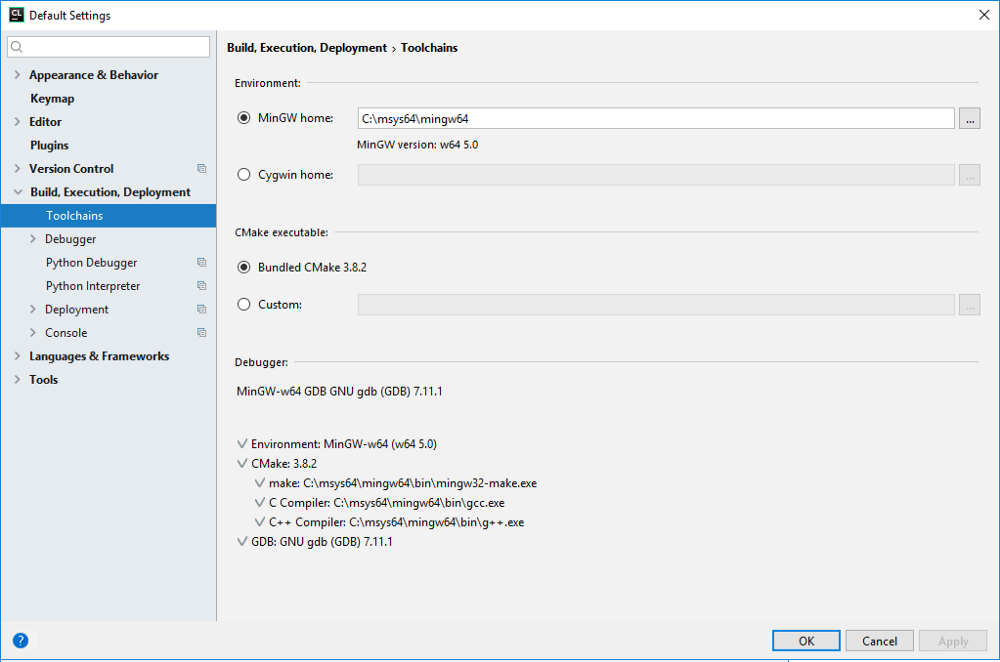
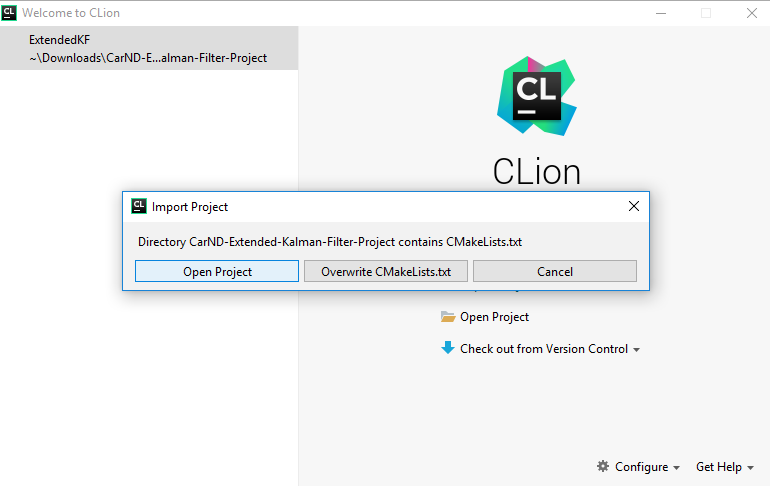
You can open project using ‘Import Project from Sources’ and choosing the root folder of the project e.g. ‘CarND-Extended-Kalman-Filter-Project’. Just choose Open Project instead of ‘Overwrite CMakeLists.txt’
If you want to debug, then you can either:
- Set the working directory to c:/msys64/mingw32/bin. In CLion IDE, choose Run →Edit Configuration
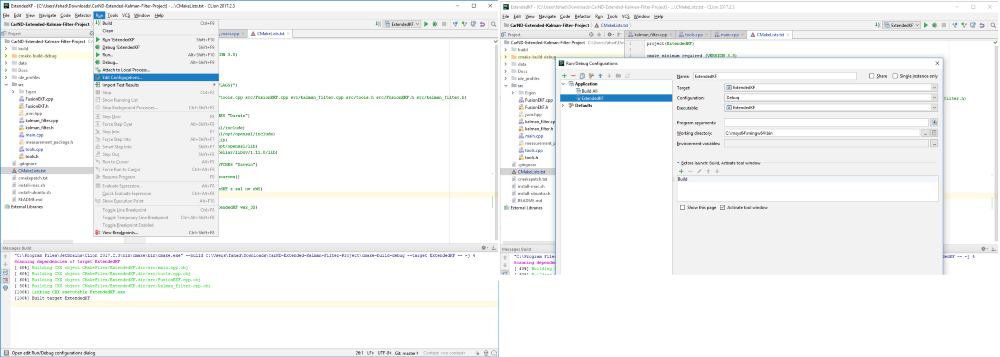
OR you can add c:/msys64/ming32/bin to System Path using environment variables

MSYS2 编译环境配置的更多相关文章
- linux内核编译环境配置
linux内核编译环境配置 如果不是编译内核,只需要安装与内核相匹配的kernel-devel开发包即可.即是/lib/modules/`uname -r`/build -> /usr/src/ ...
- Syslinux编译环境配置简要步骤
由于毕业设计要做一个加密U盘的LINUX,需要修改一sysylinux引导程序,在网上很少有关于syslinux编译环境配置的文章,在此简要总结一下,发出来共享. 需要的软件: 1. vmware ...
- Android编译环境配置
Android编译环境配置 网上关于Android编译环境配置的整理资料有不少,经整理亲测后,希望能给需要的亲们提供帮助. 主要分为四步: 1.安装JDK(Java Standard Edition ...
- mac OS(OS X)的OI编译环境配置指南
编译环境:gdb+Atom 如何安装gdb: http://logic0.blog.163.com/blog/static/1889281462014183271283/ Atom下载地址: ht ...
- Android编译环境配置(Ubuntu 14.04)
常识:编译Android源代码需要在Linux系统环境下进行... 在Linux中,开发Android环境包括以下需求:Git.repo.JDK(现在一般使用OpenJDK)等:其中,Git用于下载源 ...
- Berkeley DB (VC6.0 编译环境配置)
操作系统:winxp VC环境:VC6.0 必需文件:Berkeley DB安装文件(db-.msi) 下载地址:http://www.oracle.com/technology/software/p ...
- OpenCL编译环境配置(VS+Nvidia)
英伟达的显卡首先要下载安装CUDA开发包,可以参考这里的步骤: VS2015编译环境下CUDA安装配置 安装好CUDA之后,OpenCL的配置就已经完成了80%了,剩下的工作就是把OpenCL的路 ...
- Android代码编译环境配置 “Gerrit和Git环境配置”
Gerrit和Git环境配置可以参考<git&gerrit操作指导> 步骤1. 先在Gerrit中创建新的账户: 步骤2. 在新的客户端上生成密钥(可以使用的是生成的公钥): 步骤 ...
- 关于Sublime text 的PHP编译环境配置的问题
前一段时间终于装上了传说中的代码编辑神器====>Sublime Text ,一打开便爱不释手,于是在网上找PHP的配置方案和插件,所有的一切都搞定了,可就是编译的时候没有显示,也没有提示,熬了 ...
随机推荐
- JWT对SpringCloud进行系统认证和服务鉴权
JWT对SpringCloud进行系统认证和服务鉴权 一.为什么要使用jwt?在微服务架构下的服务基本都是无状态的,传统的使用session的方式不再适用,如果使用的话需要做同步session机制,所 ...
- CAD中如何将图形按一定的比例放大或缩小
1.双击CAD快捷键图标,打开CAD绘图界面: 2.以正五边形为例,点击左边的正多边形按钮: 3.绘制好后得到五边形图形: 4.给图形做好尺寸标注方便直观比较: 5.选择图像在命令行输入sc命令,按键 ...
- react中IOS手机里面两个input同时存在时,聚焦focus失效解决办法
最近在做webapp搜索功能时,用到两个input同时存在时,轻点input聚焦时,ios手机软键盘弹起又失效,一直在寻找合理的解决办法,现在最简单的总结回顾: <一>bug显示 < ...
- rhce 考试题目总结
rhce 考试题目总结归类 开机需要做的事: 检查系统版本 配置yum源 修改selinux的模式 ping一下server机器 1.分区类题目 1.1 rhcsa 第十五题 添加swap分区 要点: ...
- python——使用xlwing库进行Excel操作
Excel是现在比不可少的数据处理软件,python有很多支持Excel操作的库,xlwing就是其中之一. xlwings的安装 xlwings库使用pip安装: 在控制台输入 pip instal ...
- python开发笔记-类
类的基本概念: 问题空间:问题空间是问题解决者对一个问题所达到的全部认识状态,它是由问题解决者利用问题所包含的信息和已贮存的信息主动的地构成的. 初始状态:一开始时的不完全的信息或令人不满意的状况: ...
- Flume架构以及应用介绍(转)
在具体介绍本文内容之前,先给大家看一下Hadoop业务的整体开发流程: 从Hadoop的业务开发流程图中可以看出,在大数据的业务处理过程中,对于数据的采集是十分重要的一步,也是不可避免的一步,从而引出 ...
- 35 Top Open Source Companies
https://www.datamation.com/open-source/35-top-open-source-companies-1.html If you think of open sour ...
- Python 3的 bytes 数据类型
"""b'\xe6\x88\x91\xe7\x88\xb1Python\xe7\xbc\x96\xe7\xa8\x8b'代表这是一个字节窜,\x代表十六进制表示 e6是十 ...
- 纯js房贷计算器开源
<!DOCTYPE html> <html lang="en"> <head> <meta charset="UTF-8&quo ...