
画画板--第三方开源--DrawableView
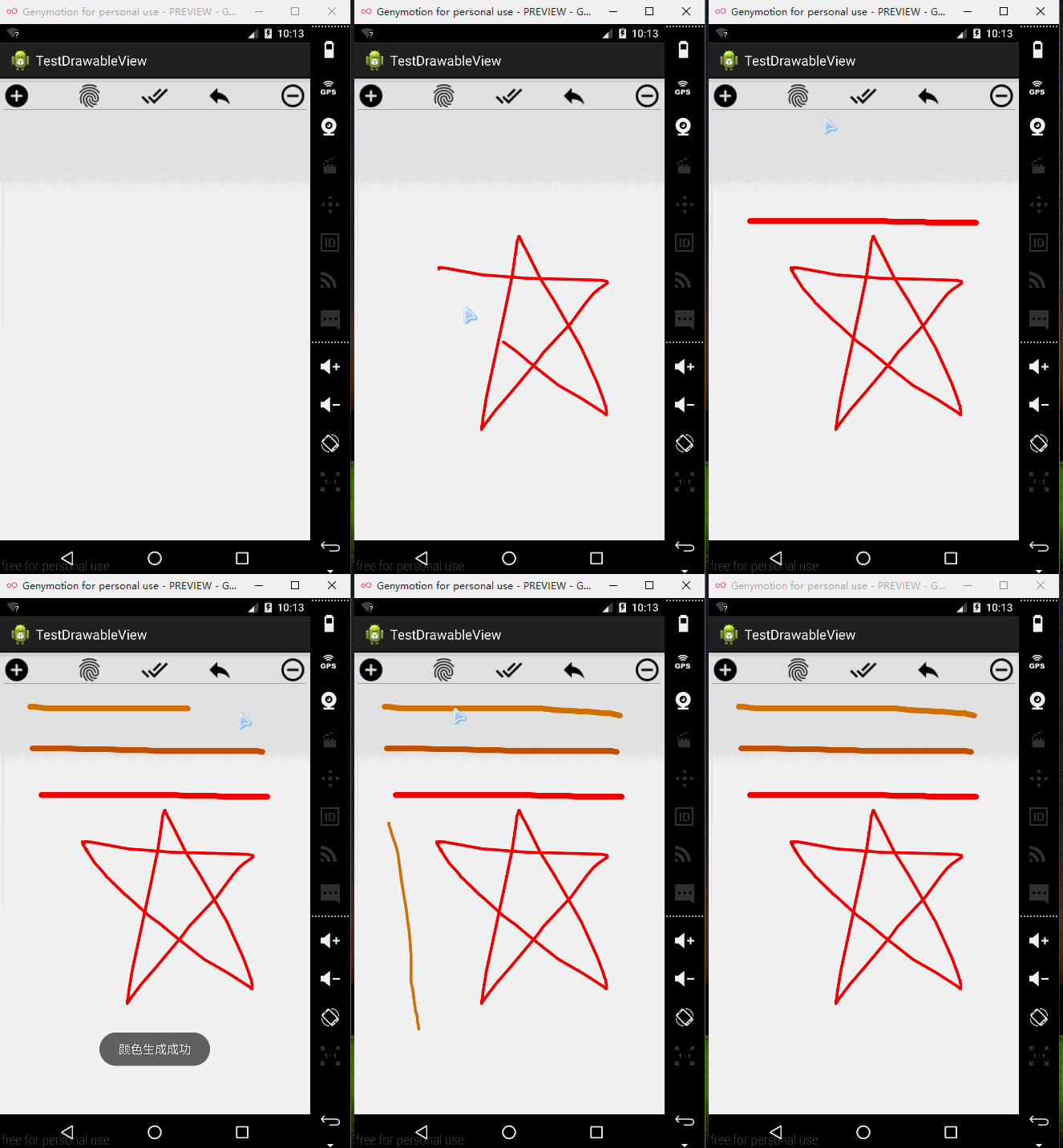
Android上的第三方开源DrawableView支持手写,类似于写字板。DrawableView支持改变画笔颜色,画笔线条粗细,画布的手势缩放和拖曳显示部分区域。并最终支持将手绘的图保存到本地。
在github上的项目主页:https://github.com/PaNaVTEC/DrawableView
先把布局文件中写一个DrawableView:
 <LinearLayout xmlns:android="http://schemas.android.com/apk/res/android"

     xmlns:tools="http://schemas.android.com/tools"

     android:padding="5dp"

     android:layout_width="match_parent"

     android:layout_height="match_parent"

     android:orientation="vertical"

     tools:context="com.zzw.testdrawableview.MainActivity" >

     <RelativeLayout

         android:layout_width="match_parent"

         android:layout_height="wrap_content" >

         <Button

             android:id="@+id/subWidth"

             android:layout_width="36dp"

             android:layout_height="36dp"

             android:layout_alignParentRight="true"

             android:layout_alignParentTop="true"

             android:background="@drawable/sub" />

         <Button

             android:id="@+id/addWidth"

             android:layout_width="36dp"

             android:layout_height="36dp"

             android:layout_alignParentLeft="true"

             android:layout_alignParentTop="true"

             android:background="@drawable/add" />

         <Button

             android:id="@+id/sava"

             android:layout_width="36dp"

             android:layout_height="36dp"

             android:layout_alignParentTop="true"

             android:layout_centerHorizontal="true"

             android:background="@drawable/sava" />

         <Button

             android:id="@+id/PaintColor"

             android:layout_width="36dp"

             android:layout_height="36dp"

             android:layout_alignParentTop="true"

             android:layout_marginRight="50dp"

             android:layout_toLeftOf="@+id/sava"

             android:background="@drawable/rand" />

         <Button

             android:id="@+id/undo"

             android:layout_width="36dp"

             android:layout_height="36dp"

             android:layout_alignParentTop="true"

             android:layout_marginLeft="50dp"

             android:layout_toRightOf="@+id/sava"

             android:background="@drawable/ret" />

     </RelativeLayout>

     <me.panavtec.drawableview.DrawableView

         android:id="@+id/paintView"

         android:layout_width="match_parent"

         android:layout_height="wrap_content"

         android:layout_alignParentBottom="true"

         android:layout_weight="1" />

 </LinearLayout>
JAVA代码:
 package com.zzw.testdrawableview;

 import java.io.File;

 import java.io.FileOutputStream;

 import java.io.IOException;

 import android.app.Activity;

 import android.graphics.Bitmap;

 import android.graphics.Color;

 import android.os.Bundle;

 import android.os.Environment;

 import android.util.Log;

 import android.view.View;

 import android.view.View.OnClickListener;

 import android.widget.Button;

 import android.widget.Toast;

 import me.panavtec.drawableview.DrawableView;

 import me.panavtec.drawableview.DrawableViewConfig;

 public class MainActivity extends Activity implements OnClickListener {

     private DrawableView drawableView;

     private DrawableViewConfig config;

     @Override

     protected void onCreate(Bundle savedInstanceState) {

         super.onCreate(savedInstanceState);

         setContentView(R.layout.activity_main);

         config = new DrawableViewConfig();

         drawableView = (DrawableView) findViewById(R.id.paintView);

         Button addWidth = (Button) findViewById(R.id.addWidth);

         Button subWidth = (Button) findViewById(R.id.subWidth);

         Button PaintColor = (Button) findViewById(R.id.PaintColor);

         Button undo = (Button) findViewById(R.id.undo);

         Button sava = (Button) findViewById(R.id.sava);

         addWidth.setOnClickListener(this);

         subWidth.setOnClickListener(this);

         PaintColor.setOnClickListener(this);

         undo.setOnClickListener(this);

         sava.setOnClickListener(this);

         // 画笔颜色

         config.setStrokeColor(Color.RED);

         // 画布边界

         config.setShowCanvasBounds(true);

         // 设置画笔宽度

         config.setStrokeWidth(10.0f);

         // 缩放

         config.setMinZoom(1.0f);

         config.setMaxZoom(3.0f);

         // 画布宽和高

         config.setCanvasHeight(3000);

         config.setCanvasWidth(2000);

         drawableView.setConfig(config);

     }

     @Override

     public void onClick(View v) {

         switch (v.getId()) {

         case R.id.addWidth:

             // 设置每次增加10.0的宽度

             config.setStrokeWidth(config.getStrokeWidth() + 10);

             Toast.makeText(getApplicationContext(),

                     "当前画笔宽度:" + config.getStrokeWidth(), 0).show();

             break;

         case R.id.subWidth:

             // 设置每次减少10.0的宽度

             if (config.getStrokeWidth() > 10) {

                 config.setStrokeWidth(config.getStrokeWidth() - 10);

                 Toast.makeText(getApplicationContext(),

                         "当前画笔宽度:" + config.getStrokeWidth(), 0).show();

             }

             break;

         case R.id.PaintColor:

             // 测试期间,随机生成一种颜色

             int r1 = (int) (Math.random() * 256);

             int r2 = (int) (Math.random() * 256);

             int r3 = (int) (Math.random() * 256);

             config.setStrokeColor(Color.argb(255, r1, r2, r3));

             Toast.makeText(getApplicationContext(), "颜色生成成功", 0).show();

             break;

         case R.id.undo:

             drawableView.undo();

             break;

         case R.id.sava:

             try {

                 savaBitmapToSDCard();

             } catch (IOException e) {

                 e.printStackTrace();

             }

             break;

         }

     }

     // 将用户手绘的DrawableView转化为图片保存到本地系统默认的图片库中。

     private void savaBitmapToSDCard() throws IOException {

         // 从DrawableView获得Bitmap

         Bitmap bmp = drawableView.obtainBitmap();

         // 获取保存的路径

         File parent_path = Environment

                 .getExternalStoragePublicDirectory(Environment.DIRECTORY_PICTURES);

         File f = new File(parent_path.getAbsoluteFile(), "myDrawableView.png");

         f.createNewFile();

         Log.d("保存路径", f.getAbsolutePath());

         FileOutputStream fos = new FileOutputStream(f);

         bmp.compress(Bitmap.CompressFormat.PNG, 100, fos);

         fos.flush();

         fos.close();

         Toast.makeText(getApplicationContext(),

                 "保存成功,保存路径" + f.getAbsolutePath(), 1).show();

     }

 }
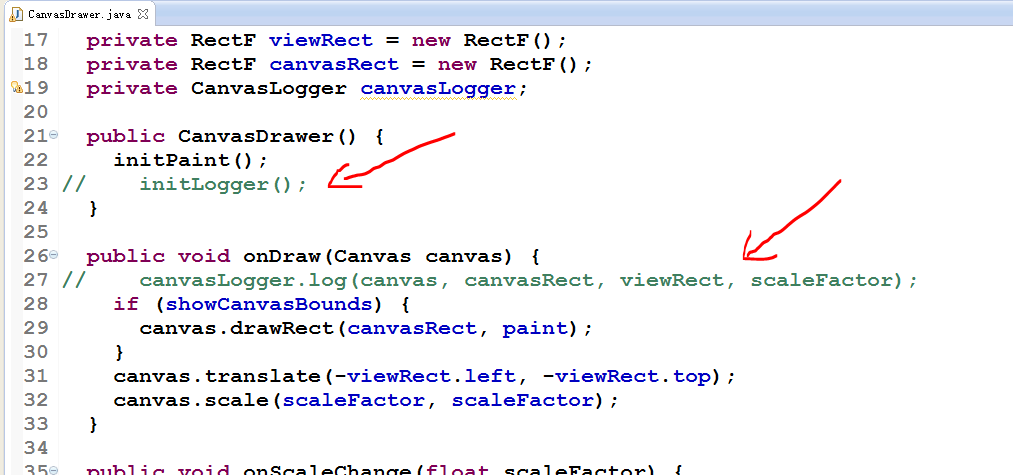
默认的,在未发布的debug阶段,DrawableView会在画布上添加一些log日志输出。如果不打算在画布中显示log,可以修改DrawableView的源代码去掉DrawableView默认的log日志。关键代码有两行,在CanvasDrawer的库文件源代码中:
 initLogger();

 ...

 canvasLogger.log(canvas, canvasRect, viewRect, scaleFactor);
将这两行注释掉即可,如图:
画画板--第三方开源--DrawableView的更多相关文章
- IOS-常用第三方开源框架介绍
iOS开发-常用第三方开源框架介绍(你了解的ios只是冰山一角) 时间:2015-05-06 16:43:34 阅读:533 评论:0 收藏:0 [点我收藏+] ...
- iOS开发-常用第三方开源框架介绍
iOS开发-常用第三方开源框架介绍 图像: 1.图片浏览控件MWPhotoBrowser 实现了一个照片浏览器类似 iOS 自带的相册应用,可显示来自手机的图片或者是网络图片,可自动从网 ...
- 第三方开源库和jar包的区别
jar包和第三方开源库的根本区别在于,开源库的功能比jar包功能更强大,通过引入库项目可以访问java文件以及该开源库项目下的资源文件,例如图片,layout等文件 jar包中只能放class文件 引 ...
- iOS常用第三方开源框架和优秀开发者博客等
博客收藏iOS开发过程好的开源框架.开源项目.Xcode工具插件.Mac软件.文章等,会不断更新维护,希望对你们有帮助.如果有推荐或者建议,请到此处提交推荐或者联系我. 该文档已提交GitHub,点击 ...
- python基础知识8——模块1——自定义模块和第三方开源模块
模块的认识 模块,用一砣代码实现了某个功能的代码集合. 类似于函数式编程和面向过程编程,函数式编程则完成一个功能,其他代码用来调用即可,提供了代码的重用性和代码间的耦合.而对于一个复杂的功能来,可能需 ...
- Android Studio 简介及导入 jar 包和第三方开源库方[转]
原文:http://blog.sina.com.cn/s/blog_693301190102v6au.html Android Studio 简介 几天前的晚上突然又想使用 Android Studi ...
- Android 实现图片画画板
本文主要讲述了Android 实现图片画画板 设计项目布局: <RelativeLayout xmlns:android="http://schemas.android.com/apk ...
- 开源框架】Android之史上最全最简单最有用的第三方开源库收集整理,有助于快速开发
[原][开源框架]Android之史上最全最简单最有用的第三方开源库收集整理,有助于快速开发,欢迎各位... 时间 2015-01-05 10:08:18 我是程序猿,我为自己代言 原文 http: ...
- 粉笔网iPhone端使用的第三方开源库
粉笔网iPhone端使用的第三方开源库 前言 最近有朋友问我粉笔网 iPhone 端使用了哪些第三方的开源库.我在这儿整理了一下,分享给大家. ASIHttpRequest ASIHttpReques ...
随机推荐
- [SQL]SQL语言入门级教材_SQL语言快速入门(五)
SQL语言快速入门(一) SQL是英文Structured Query Language的缩写,意思为结构化查询语言. SQL语言的主要功能就是同各种数据库建立联系,进行沟通.按照ANSI(美国国家标 ...
- android 资源文件
系统文档:http://developer.android.com/guide/topics/resources/available-resources.html 1. 系统下资源文件夹的名字是固定的 ...
- adb bugreport > d:/bug.txt
adb bugreport > d: 快速下载anr等bug日志
- 错误记录,找不到sqlite dll
Could not load file or assembly'System.Data.SQLite.dll' or one of its depedencies.找不到指定模块. 在CSDN找到解决 ...
- RDD缓存策略
Spark支持将数据集放置在集群的缓存中,以便于数据重用. Spark缓存策略对应的类: class StorageLevel private( private var useDisk_ : Bool ...
- 下载和编译 Open XML SDK
我们需要一些工具来开始 Open XML 的开发. 开发工具 推荐的开发工具是 Visual Studio 社区版. 开发工具:Visual Studio Community 2013 下载地址:ht ...
- 关于codeblocks调试错误
对于出血编程者,当代码有错误时,可能大家一般都是在程序的变量操作之后输出变量的值,但是这种方法较麻烦,工作量较大,也无法很快的找出错误,因此运用编程软件调试错误就显得尤为重要,刚才写啦一个代码,运用直 ...
- 深度解析国内O2O模式
今日在网上发现这篇文章很棒,详细的分析了当前BAT矩阵下的o2o 的模式.所以转载过来与大家一起分享. 文章来自于:http://www.siilu.com/20151214/158917.shtml ...
- DoTween使用
官网:http://dotween.demigiant.com/ 1.step 这里使用lamda表达式,通过dotween的to方法将其移动到 Vector3(348, 196, 0)的值返回到Ve ...
- Java创建WebService服务及客户端实现
简介 WebService是一种服务的提供方式,通过WebService,不同应用间相互间调用变的很方便,网络上有很多常用的WebService服务,如:http://developer.51cto. ...