
matplotlib 高阶之Transformations Tutorial
之前在legend的使用中,便已经提及了transforms,用来转换参考系,一般情况下,我们不会用到这个,但是还是了解一下比较好
| 坐标 | 转换对象 | 描述 |
|---|---|---|
| "data" | ax.transData | 数据的坐标系统,通过xlim, ylim来控制 |
| "axes" | ax.transAxes | Axes的坐标系统,(0, 0)代表左下角,(1, 1)代表右上角 |
| "figure" | fig.transFigure | Figure的坐标系统,(0, 0)代表左下角,(1, 1)代表右上角 |
| "figure-inches" | fig.dpi_scale_trans | 以inches来表示的Figure坐标系统,(0, 0)左下角,而(width, height)表示右上角 |
| "display" | None or IdentityTransform() | 显示窗口的像素坐标系统,(0, 0)表示窗口的左下角,而(width, height)表示窗口的右上角 |
| "xaxis", "yaxis" | ax.get_xaxis_transform(), ax.get_yaxis_transform() | 混合坐标系; 在另一个轴和轴坐标之一上使用数据坐标。没看懂 |
Data coordinates
最为常见的便是通过set_xlim, 和set_ylim来控制数据坐标
import numpy as np

import matplotlib.pyplot as plt

import matplotlib.patches as mpatches

x = np.arange(0, 10, 0.005)

y = np.exp(-x/2.) * np.sin(2*np.pi*x)

fig, ax = plt.subplots()

ax.plot(x, y)

ax.set_xlim(0, 10)

ax.set_ylim(-1, 1)

plt.show()
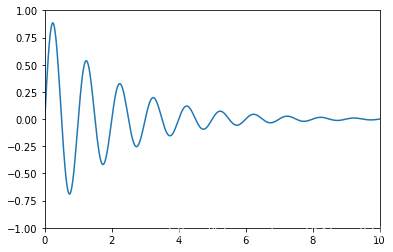
你可以通过ax.transData来将你的数据坐标,转换成再显示窗口上的像素坐标,单个坐标,或者传入序列都是被允许的
type(ax.transData)
matplotlib.transforms.CompositeGenericTransform
ax.transData.transform((5, 0)) #数据坐标(5, 0) 转换为显示窗口的像素坐标(221.4, 144.72) 这个玩意儿不一定的
array([221.4 , 144.72])
ax.transData.transform(((5, 0), (2, 3)))
array([[221.4 , 144.72],

       [120.96, 470.88]])
你也可以通过使用inverted()来反转,获得数据坐标
inv = ax.transData.inverted()
type(inv)
matplotlib.transforms.CompositeGenericTransform
inv.transform((221.4, 144.72))
array([5., 0.])
下面是一个比较完整的例子
x = np.arange(0, 10, 0.005)

y = np.exp(-x/2.) * np.sin(2*np.pi*x)

fig, ax = plt.subplots()

ax.plot(x, y)

ax.set_xlim(0, 10)

ax.set_ylim(-1, 1)

xdata, ydata = 5, 0

xdisplay, ydisplay = ax.transData.transform_point((xdata, ydata))

bbox = dict(boxstyle="round", fc="0.8")

arrowprops = dict(

    arrowstyle="->",

    connectionstyle="angle,angleA=0,angleB=90,rad=10")

offset = 72

ax.annotate('data = (%.1f, %.1f)' % (xdata, ydata),

            (xdata, ydata), xytext=(-2*offset, offset), textcoords='offset points',

            bbox=bbox, arrowprops=arrowprops)

disp = ax.annotate('display = (%.1f, %.1f)' % (xdisplay, ydisplay),

                   (xdisplay, ydisplay), xytext=(0.5*offset, -offset), #xytext 好像是text离前面点的距离

                   xycoords='figure pixels', #这个属性来变换坐标系

                   textcoords='offset points',

                   bbox=bbox, arrowprops=arrowprops)

plt.show()
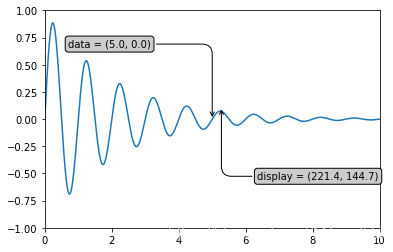
很显然的一点是,当我们改变xlim, ylim的时候,同样的数据点转换成显示窗口后发生变化
ax.transData.transform((5, 0))
array([221.4 , 144.72])
ax.set_ylim(-1, 2)
(-1, 2)
ax.transData.transform((5, 0))
array([221.4 , 108.48])
ax.set_xlim(10, 20)
(10, 20)
ax.transData.transform((5, 0))
array([-113.4 , 108.48])
Axes coordinates
除了数据坐标系,Axes坐标系是第二常用的,就像在上表中提到的(0, 0)表示左下角,而(1, 1)表示右上角,(0.5, 0.5)则表示中心。我们也可以过分一点,使用(-0.1, 1.1)会显示在axes的外围左上角部分。
fig = plt.figure()

for i, label in enumerate(('A', 'B', 'C', 'D')):

    ax = fig.add_subplot(2, 2, i+1)

    ax.text(0.05, 0.95, label, transform=ax.transAxes,

            fontsize=16, fontweight='bold', va='top')

plt.show()
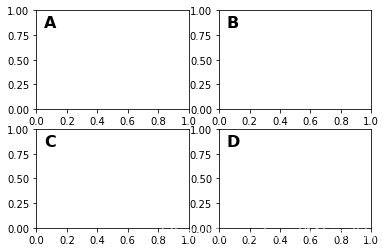
从上面的例子中我们可以看到,想在多个axes中相同的位置放置相似的东西,用ax.transAxes时非常方便的
fig, ax = plt.subplots()

x, y = 10*np.random.rand(2, 1000)

ax.plot(x, y, 'go', alpha=0.2)  # plot some data in data coordinates

circ = mpatches.Circle((0.5, 0.5), 0.25, transform=ax.transAxes,

                       facecolor='blue', alpha=0.75)

ax.add_patch(circ)

plt.show()
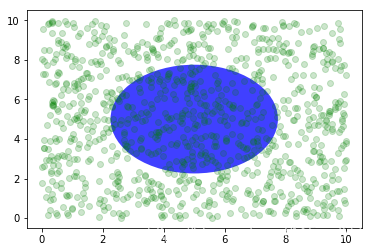
可以看到,上面的椭圆与数据坐标无关,始终放置在中间
Blended transformations 混合坐标系统
import matplotlib.transforms as transforms

fig, ax = plt.subplots()

x = np.random.randn(1000)

ax.hist(x, 30)

ax.set_title(r'$\sigma=1 \/ \dots \/ \sigma=2$', fontsize=16)

# the x coords of this transformation are data, and the

# y coord are axes

trans = transforms.blended_transform_factory(

    ax.transData, ax.transAxes)

# highlight the 1..2 stddev region with a span.

# We want x to be in data coordinates and y to

# span from 0..1 in axes coords

rect = mpatches.Rectangle((1, 0), width=1, height=1,

                         transform=trans, color='yellow',

                         alpha=0.5)

ax.add_patch(rect)

plt.show()
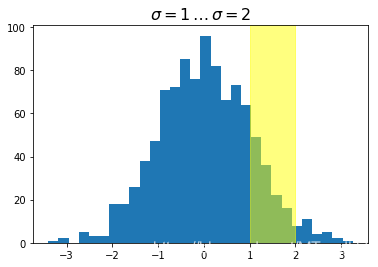
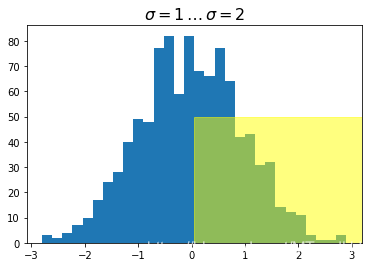
注意到,上面我们使用了混合坐标系统,x轴方向是数据坐标系,而y轴方向是axes的坐标系统,我们做一个反转试试
import matplotlib.transforms as transforms

fig, ax = plt.subplots()

x = np.random.randn(1000)

ax.hist(x, 30)

ax.set_title(r'$\sigma=1 \/ \dots \/ \sigma=2$', fontsize=16)

# the x coords of this transformation are data, and the

# y coord are axes

trans = transforms.blended_transform_factory(

    ax.transAxes, ax.transData) #调了一下

# highlight the 1..2 stddev region with a span.

# We want x to be in data coordinates and y to

# span from 0..1 in axes coords

rect = mpatches.Rectangle((0.5, 0), width=0.5, height=50,  #注意这里的区别

                         transform=trans, color='yellow',

                         alpha=0.5)

ax.add_patch(rect)

plt.show()
plotting in physical units
fig, ax = plt.subplots(figsize=(5, 4))

x, y = 10*np.random.rand(2, 1000)

ax.plot(x, y*10., 'go', alpha=0.2)  # plot some data in data coordinates

# add a circle in fixed-units

circ = mpatches.Circle((2.5, 2), 1.0, transform=fig.dpi_scale_trans,

                       facecolor='blue', alpha=0.75)

ax.add_patch(circ)

plt.show()
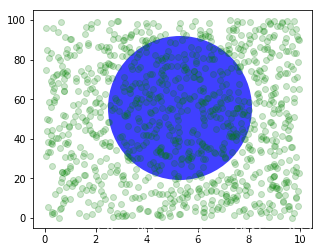
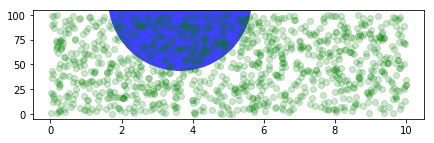
上面的圆使用了transform=fig.dpi_scale_trans坐标系统,其圆心为(2.5, 2),半径为1,显然这些都是以figsize为基准的,所以,这个圆会在图片中心,如果我们变换figsize,图片的位置(显示位置)会发生变化
fig, ax = plt.subplots(figsize=(7, 2))

x, y = 10*np.random.rand(2, 1000)

ax.plot(x, y*10., 'go', alpha=0.2)  # plot some data in data coordinates

# add a circle in fixed-units

circ = mpatches.Circle((2.5, 2), 1.0, transform=fig.dpi_scale_trans,

                       facecolor='blue', alpha=0.75)

ax.add_patch(circ)

plt.show()
再来看一个有趣的例子,虽然我不知道改如何解释
fig, ax = plt.subplots()

xdata, ydata = (0.2, 0.7), (0.5, 0.5)

ax.plot(xdata, ydata, "o")

ax.set_xlim((0, 1))

trans = (fig.dpi_scale_trans +

         transforms.ScaledTranslation(xdata[0], ydata[0], ax.transData))

# plot an ellipse around the point that is 150 x 130 points in diameter...

circle = mpatches.Ellipse((0, 0), 150/72, 130/72, angle=40,

                          fill=None, transform=trans)

ax.add_patch(circle)

plt.show()
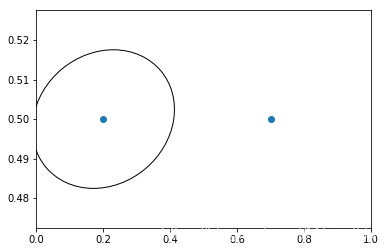
注意上面trans后面有个+号,这个表示,显示用dpi_scale_trans,即在图片(0, 0)也就是左下角位置画一个大小合适的椭圆,然后将这个椭圆移动到(x[data][0], y[data][0])位置处,感觉实现是椭圆上点每个都加上(xdata[0], ydata[0])
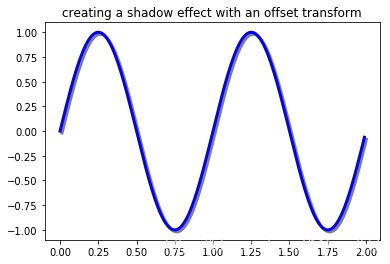
使用offset transforms 创建阴影效果
fig, ax = plt.subplots()

# make a simple sine wave

x = np.arange(0., 2., 0.01)

y = np.sin(2*np.pi*x)

line, = ax.plot(x, y, lw=3, color='blue')

# shift the object over 2 points, and down 2 points

dx, dy = 2/72., -2/72.

offset = transforms.ScaledTranslation(dx, dy, fig.dpi_scale_trans)

shadow_transform = ax.transData + offset

# now plot the same data with our offset transform;

# use the zorder to make sure we are below the line

ax.plot(x, y, lw=3, color='gray',

        transform=shadow_transform,

        zorder=0.5*line.get_zorder())

ax.set_title('creating a shadow effect with an offset transform')

plt.show()
函数链接
matplotlib 高阶之Transformations Tutorial的更多相关文章
- matplotlib 高阶之path tutorial
目录 Bezier example 用path来画柱状图 随便玩玩 import matplotlib.pyplot as plt from matplotlib.path import Path i ...
- matplotlib 高阶之patheffect (阴影,强调)
目录 添加阴影 使Artist变得突出 更多效果 我们可以通过path来修饰Artist, 通过set_path_effects import matplotlib.pyplot as plt imp ...
- c#语言-高阶函数
介绍 如果说函数是程序中的基本模块,代码段,那高阶函数就是函数的高阶(级)版本,其基本定义如下: 函数自身接受一个或多个函数作为输入. 函数自身能输出一个函数,即函数生产函数. 满足其中一个条件就可以 ...
- swift 的高阶函数的使用代码
//: Playground - noun: a place where people can play import UIKit var str = "Hello, playground& ...
- JavaScript高阶函数
所谓高阶函数(higher-order function) 就是操作函数的函数,它接收一个或多个函数作为参数,并返回一个新函数. 下面的例子接收两个函数f()和g(),并返回一个新的函数用以计算f(g ...
- 分享录制的正则表达式入门、高阶以及使用 .NET 实现网络爬虫视频教程
我发布的「正则表达式入门以及高阶教程」,欢迎学习. 课程简介 正则表达式是软件开发必须掌握的一门语言,掌握后才能很好地理解到它的威力: 课程采用概念和实验操作 4/6 分隔,帮助大家理解概念后再使用大 ...
- python--函数式编程 (高阶函数(map , reduce ,filter,sorted),匿名函数(lambda))
1.1函数式编程 面向过程编程:我们通过把大段代码拆成函数,通过一层一层的函数,可以把复杂的任务分解成简单的任务,这种一步一步的分解可以称之为面向过程的程序设计.函数就是面向过程的程序设计的基本单元. ...
- python学习道路(day4note)(函数,形参实参位置参数匿名参数,匿名函数,高阶函数,镶嵌函数)
1.函数 2种编程方法 关键词面向对象:华山派 --->> 类----->class面向过程:少林派 -->> 过程--->def 函数式编程:逍遥派 --> ...
- Scala的函数,高阶函数,隐式转换
1.介绍 2.函数值复制给变量 3.案例 在前面的博客中,可以看到这个案例,关于函数的讲解的位置,缺省. 4.简单的匿名函数 5.将函数做为参数传递给另一个函数 6.函数作为输出值 7.类型推断 8. ...
随机推荐
- ASP.NET Core中使用固定窗口限流
算法原理 固定窗口算法又称计数器算法,是一种简单的限流算法.在单位时间内设定一个阈值和一个计数值,每收到一个请求则计数值加一,如果计数值超过阈值则触发限流,如果达不到则请求正常处理,进入下一个单位时间 ...
- nodejs-npm模块管理器
JavaScript 标准参考教程(alpha) 草稿二:Node.js npm模块管理器 GitHub TOP npm模块管理器 来自<JavaScript 标准参考教程(alpha)> ...
- mysql 索引 零记
索引算法 二分查找法/折半查找法 伪算法 : 1. 前提,数据需要有序 2. 确定数据中间元素 K 3. 比如目标元素 A与K的大小 3.1 相等则找到 3.2 小于时在左区间 3.3 大于时在右 ...
- Linux基础命令---exportfs管理挂载的nfs文件系统
exportfs exportfs主要用于管理当前NFS服务器的文件系统. 此命令的适用范围:RedHat.RHEL.Ubuntu.CentOS.Fedora. 1.语法 /usr/sb ...
- spring生成EntityManagerFactory的三种方式
spring生成EntityManagerFactory的三种方式 1.LocalEntityManagerFactoryBean只是简单环境中使用.它使用JPA PersistenceProvide ...
- SVN终端演练-版本回退
1. 版本回退概念以及原因? 概念: 是指将代码(本地代码或者服务器代码), 回退到之前记录的某一特定版本 原因: 如果代码做错了, 想返回之前某个状态重做;2. 修改了,但未提交的情况下 ...
- Mave 下载与安装
一,Maven 介绍 我们在开发中经常需要依赖第三方的包,包与包之间存在依赖关系,版本间还有兼容性问题,有时还需要将旧的包升级或降级,当项目复杂到一定程度时包管理变得非常重要.Maven是当前最受欢迎 ...
- Dubbo声明式缓存
为了进一步提高消费者对用户的响应速度,减轻提供者的压力,Dubbo提供了基于结果的声明式缓存.该缓存是基于消费者端的,所以使用很简单,只需修改消费者配置文件,与提供者无关 一.创建消费者07-cons ...
- Java Log4j 配置文件
### 设置### log4j.rootLogger = debug,stdout,D,E ### 输出信息到控制抬 ### log4j.appender.stdout = org.apache.lo ...
- springmvc框架找那个@responseBody注解
<%@ page contentType="text/html;charset=UTF-8" language="java" %><html& ...