
【水滴石穿】douban-movies-react-native
这个项目的话,倒是可以做一个支架页面,就是你需要什么东西,你就可以在里面加,不过也是比较难的地方
就是数据流,数据处理的部分。react可以处理数据的方式很多,没有见过类似于古老的vue时候可以使用的
$.http(),我觉得实现功能是第一步,至于技术的高低,哎,捂脸
【博客后文把前面说的都否认了,talk is cheap,show me the code 】
项目地址为:https://github.com/XinmengSiRan/douban-movies-react-native
先看页面
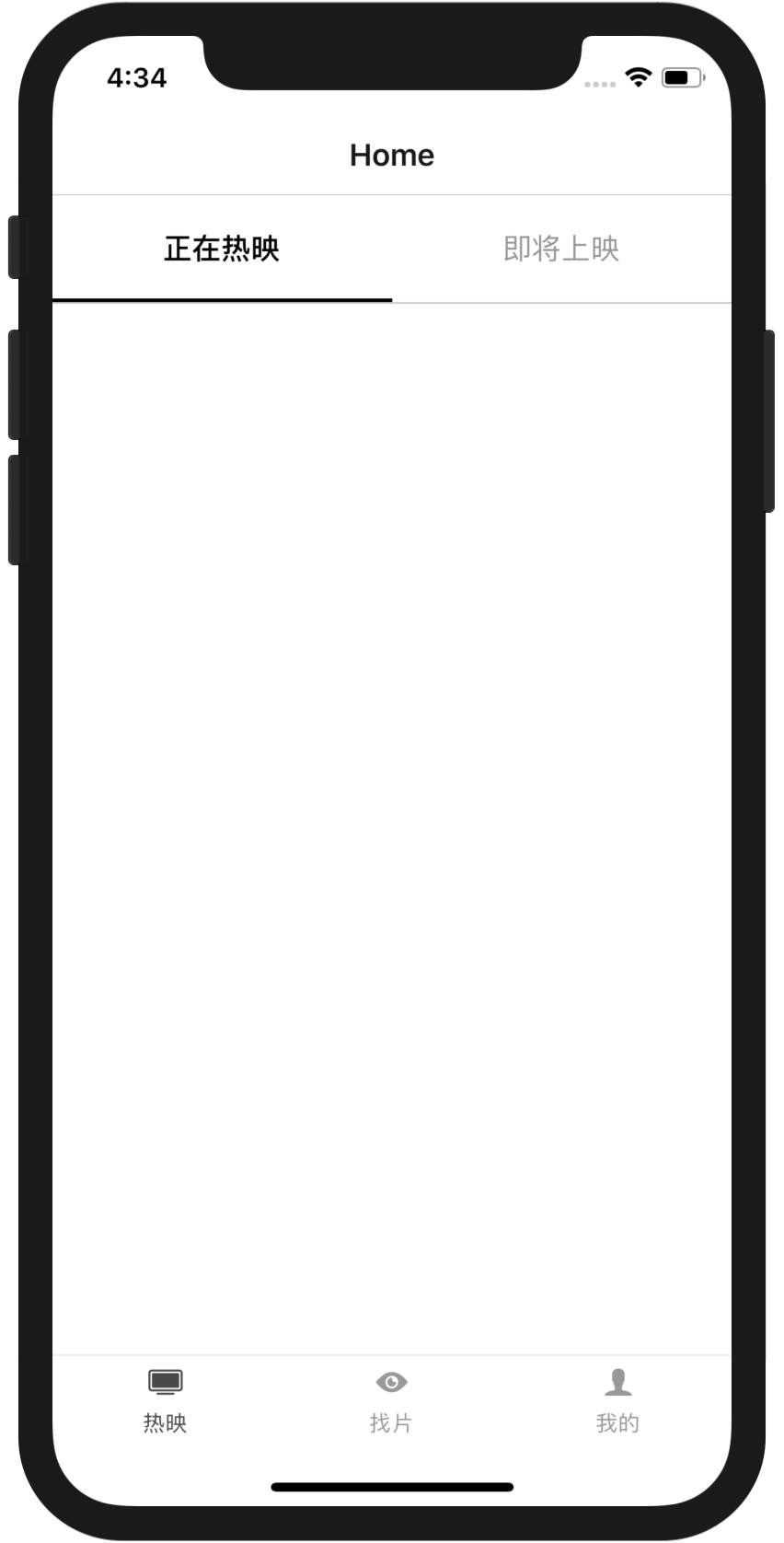
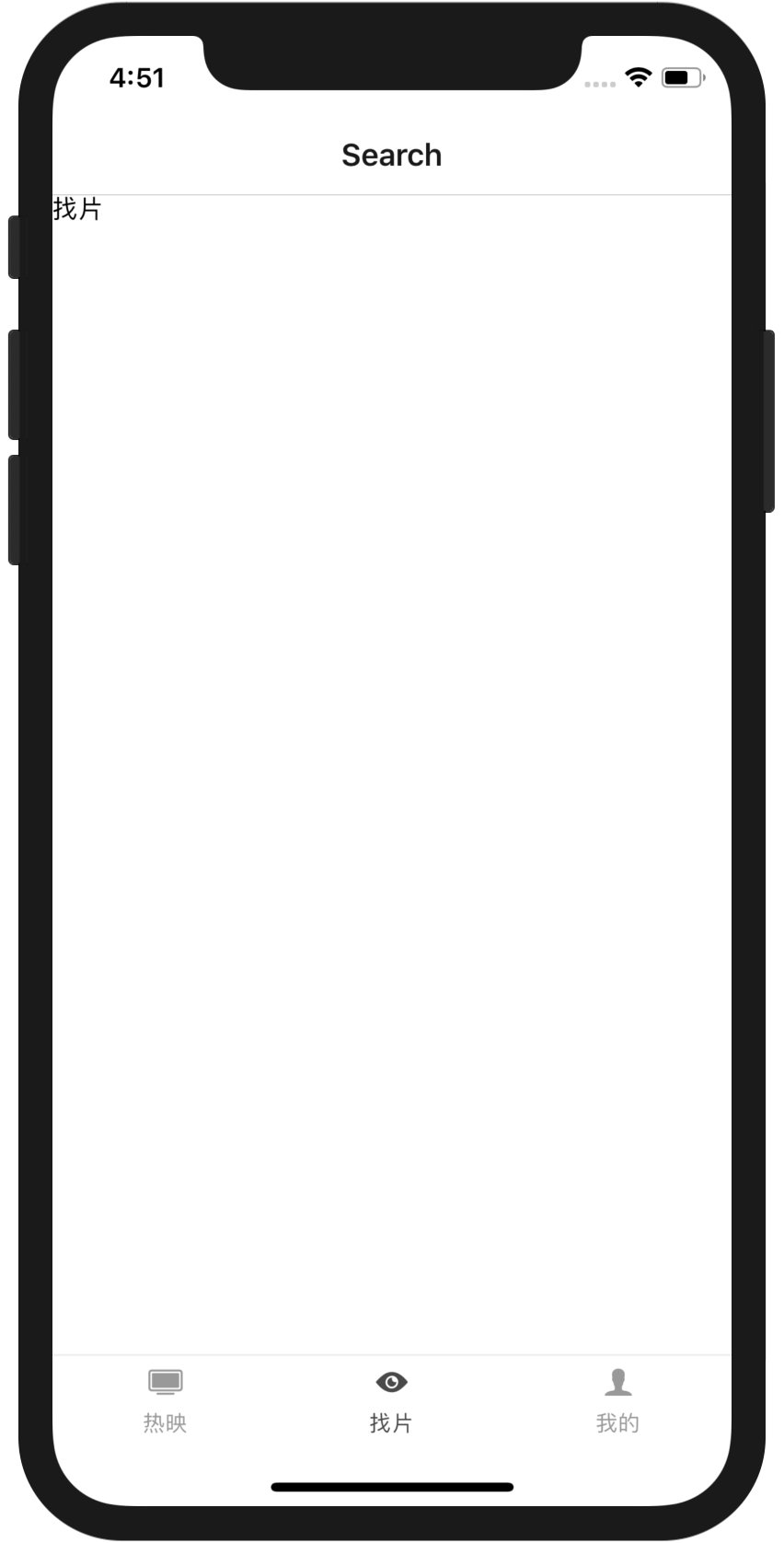
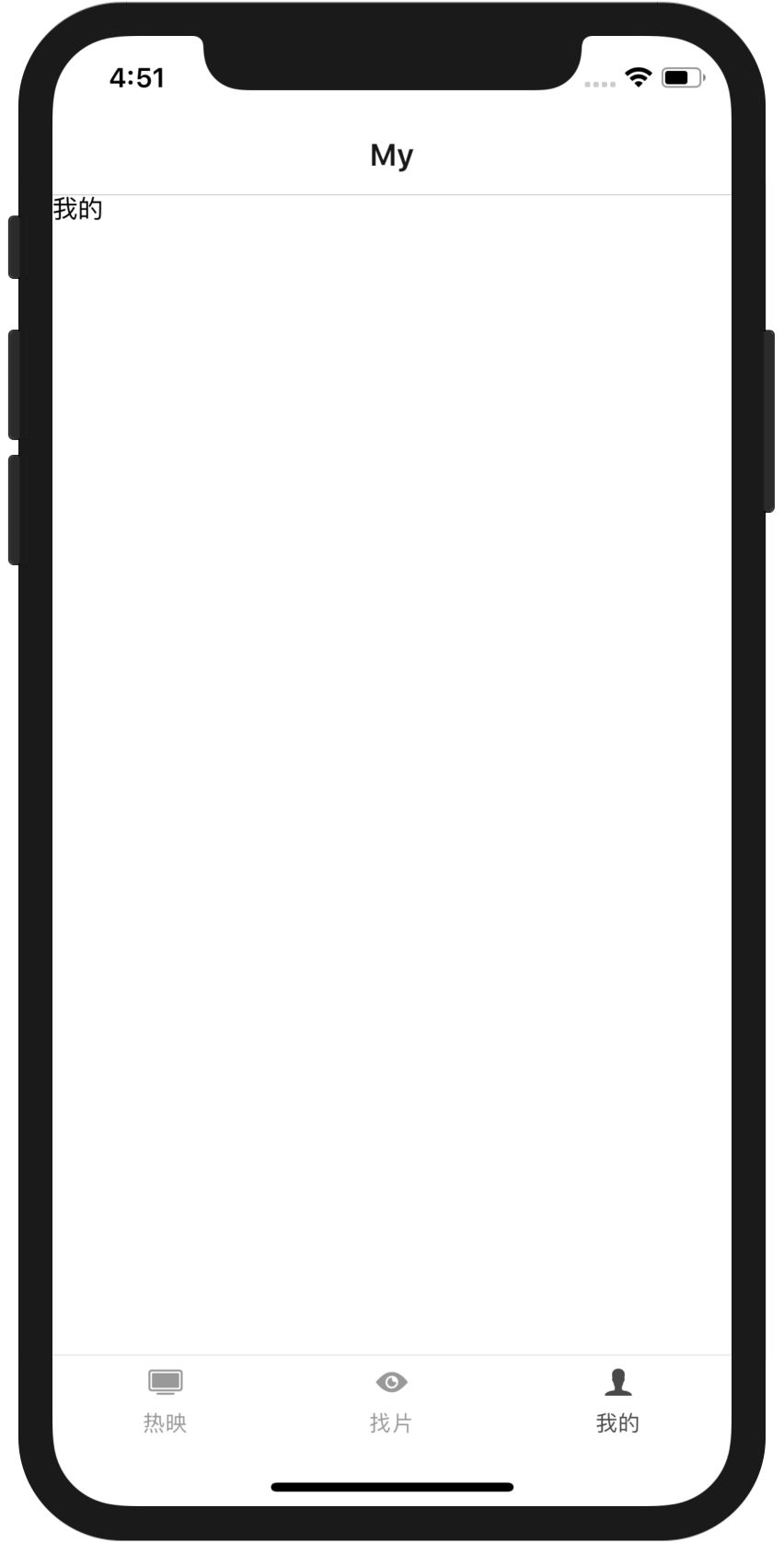
//index.js

/** @format */

import {AppRegistry} from 'react-native';

import App from './App';

import {name as appName} from './app.json';

AppRegistry.registerComponent(appName, () => App);
//App.js

//定义了根App.js

/**

 * Sample React Native App

 * https://github.com/facebook/react-native

 *

 * @format

 * @flow

 */

import React, {Component} from 'react';

import {StyleSheet, Text, View} from 'react-native';

import AppContainer from './src';

type Props = {

  navigation: any

};

export default class App extends Component <Props>{

  render() {

    return (

        <AppContainer />

    );

  }

}
//src/index.js

//定义底部和切换页面

import React, { Component } from 'react';

import { Dimensions, AppRegistry, StyleSheet, Text, View, ButtonTouchableOpacity, Image, ScrollView, FlatList, ActivityIndicator} from 'react-native';

import { createAppContainer, createStackNavigator, createBottomTabNavigator } from 'react-navigation';

import { createStore} from 'redux';

import ScrollableTabView, { DefaultTabBar, ScrollableTabBar } from 'react-native-scrollable-tab-view';

import PlayList from './components/PlayList';

import Search from './components/Search';

import My from './components/My';

import Icon from 'react-native-vector-icons/Ionicons';

/*为了注释调试提醒*/

console.ignoredYellowBox = ['Remote debugger'];

const BottomTabNavigator = createBottomTabNavigator({

    热映: {

        //通过createStackNavigator中的值来切换页面

        screen: createStackNavigator({PlayList}),

        navigationOptions: {

            tabBarLabel: '热映',

            tabBarIcon: ({tintColor}) => (

                <Icon name="ios-tv" size={20} color={tintColor} />

            )

        }

    },

    找片: {

        screen: createStackNavigator({Search}),

        navigationOptions: {

            tabBarLabel: '找片',

            tabBarIcon: ({tintColor}) => (

                <Icon name="ios-eye" size={20} color={tintColor} />

            )

        }

    },

    我的: {

        screen: createStackNavigator({My}),

        navigationOptions: {

            tabBarLabel: '我的',

            tabBarIcon: ({tintColor}) => (

                <Icon name="ios-person" size={20} color={tintColor} />

            )

        }

    }

}, {

    tabBarPosition: 'bottom',

    tabBarOptions: {

        activeTintColor: '#494949',

        inactiveTintColor: '#999999',

        labelStyle: {

            fontSize: 12,

            marginBottom: 5

        },

        style: {

            borderTopWidth: 1,

            borderTopColor: '#eeeeee',

            height: 50,

            backgroundColor: '#ffffff'

        }

    }

});

//切换的底部页面

const AppContainer = createAppContainer(BottomTabNavigator);

export default AppContainer;

//其实我比较好奇这种写法,一下子组件都引进来了,会不会首页太大很卡的问题
//src/components/PlayList.js
import React, { Component } from 'react';
import { StyleSheet, Dimensions, Text, View, Button, FlatList } from 'react-native';
import ScrollableTabView, { DefaultTabBar } from 'react-native-scrollable-tab-view';
import { createAppContainer, createStackNavigator} from 'react-navigation';
import HotList from './HotList';
import SoonList from './SoonList';
export default class PlayList extends Component {
//这里定义的头部
static navigationOptions = {
title: 'Home'
};
render() {

    return (

        <View style={styles.container}>

            <ScrollableTabView

                renderTabBar={() => <DefaultTabBar/> }

                tabBarUnderlineStyle={{

                    backgroundColor: '#000',

                    height: 2

                }}

                tabBarBackgroundColor='#fff'

                tabBarActiveTextColor='#000'

                tabBarInactiveTextColor='#959595'

                tabBarTextStyle={{ fontSize: 16 }}

                locked={false}

            >

                <View tabLabel='正在热映' style={{marginBottom:50}}>

                    <HotList navigation={this.props.navigation}></HotList>

                </View>

                <View tabLabel='即将上映' style={{marginBottom:50}}>

                    <SoonList navigation={this.props.navigation}></SoonList>

                </View>

            </ScrollableTabView>

        </View>

    );

}
}
//在页面里面判断的是不是iphonex做不做别的适配
const { width, height } = Dimensions.get('window');
const IS_IPHONE_X_SERIES = () => {
if (height == 812 || height == 896) {
return true;
}else{
return false;
}
}
const styles = StyleSheet.create({
container: {
width: width,
height: IS_IPHONE_X_SERIES ? (height - 88 - 34) : (height - 64),
paddingTop: 10,
backgroundColor: '#fff'
}
});
//里面有两个组件,代表的两个页面
我一开始以为页面真的就是架子,可是分析代码发现里面是有数据请求的

很惊讶阿,这种bug我不会调,先放代码

```js

//src/components/HotList.js

import React, { Component } from 'react';

import {

    ActivityIndicator,

    StyleSheet,

    Dimensions,

    Image,

    Text,

    TouchableOpacity,

    TouchableWithoutFeedback,

    View,

    Button,

    FlatList

} from 'react-native';

import Star from './Star';

export default class HotList extends Component {

    constructor(props) {

        super(props);

        this.state = {

            ready: true,

            refreshing: false,

            data: []

        }

    }

    componentDidMount() {

        this._fetchData();

    }

    handleOnPress = () => {

    }

    _fetchData = () => {

        fetch('https://api.douban.com/v2/movie/in_theaters')

        .then((response) => {

            this.setState({refreshing: false});

            return response.json();

        }).then((responseJson) => {

            console.log('response', responseJson);

            const dataArr = responseJson.subjects;

            this.setState({

                ready: false,

                refreshing: false,

                data: dataArr

            });

        }).catch((error) => {

            console.error(error);

        });

    }

    _refreshData = () => {

        this.setState({refreshing: true});

        this._fetchData();

    }

    render() {

        const {navigate} = this.props.navigation;

        const {data} = this.state;

        return (

            <View style={styles.container}>

            {

                this.state.ready

                ? <ActivityIndicator size='large' style={styles.loadding}/>

                : <FlatList

                data={data}

                onRefresh={this._refreshData}

                refreshing={this.state.refreshing}

                keyExtractor={(item, index ) => index+item}

                renderItem={({item}) => {

                    return (

                        <TouchableOpacity

                        style={styles.item}

                        onPress={this.handleOnPress}>

                            <View style={{flex: 1,}}>

                                <Image

                                source={{uri: item.images.large}}

                                style={styles.image} />

                            </View>

                            <View style={{flex: 2, alignItems: 'flex-start', paddingLeft: 5}}>

                                <Text style={styles.title}>{item.title}</Text>

                                <View style={styles.star}>

                                    <Star value={item.rating}></Star>

                                </View>

                                <Text style={styles.smallFont}>导演:{item.directors[0].name}</Text>

                                <Text style={styles.smallFont}>主演:{item.casts.map((v)  => v.name).join('/')}</Text>

                            </View>

                            <View style={{alignItems: 'flex-end'}}>

                                <Text style={[styles.smallFont, styles.redFont]}>{

                                    (item.collect_count / 10000.0 > 1)

                                    ? (item.collect_count / 10000.0).toFixed(1) + '万人看过'

                                    : item.collect_count + '人看过'

                                }

                                </Text>

                                <TouchableOpacity

                                style={styles.buyTicket}>

                                    <Text style={styles.redFont}>购票</Text>

                                </TouchableOpacity>

                            </View>

                        </TouchableOpacity>

                    );

                }} />

            }

            </View>

        );

    }

}

const styles = StyleSheet.create({

    loadding: {

        marginTop: 30

    },

    item: {

        height: 140,

        paddingLeft: 18,

        paddingRight: 18,

        paddingTop: 10,

        paddingBottom: 10,

        flexDirection: 'row',

        alignItems: 'center',

        borderBottomWidth: 1,

        borderBottomColor: '#eeeeee',

    },

    image: {

        width: 80,

        height: 120,

    },

    title: {

        fontSize: 16,

        fontWeight: 'bold'

    },

    smallFont: {

        fontSize: 12,

        lineHeight: 20,

        color: '#A6A6A6'

    },

    buyTicket: {

        width: 60,

        height: 30,

        marginTop: 5,

        borderRadius: 5,

        borderWidth: 1,

        borderColor:'#FF4E65',

        justifyContent: 'center',

        alignItems: 'center'

    },

    redFont: {

        color: '#FF4E65',

    },

    star: {

        marginTop: 10,

        marginBottom: 10

    }

});
//src/components/SoonList.js

import React, { Component } from 'react';

import {

    ActivityIndicator,

    StyleSheet,

    Image,

    Text,

    TouchableOpacity,

    View,

    FlatList,

} from 'react-native';

import Star from './Star';

export default class SoonList extends Component {

    constructor(props) {

        super(props);

        this.state = {

            ready: true,

            refreshing: false,

            data: []

        }

    }

    componentDidMount() {

        this._fetchData();

    }

    handleOnPress = () => {

    }

    _fetchData = () => {

        fetch('https://api.douban.com/v2/movie/coming_soon')

        .then((response => {

            this.setState({refreshing: false});

            return response.json();

        })).then((responseJson) => {

            console.log(responseJson);

            const dataArr = responseJson.subjects;

            this.setState({

                ready: false,

                refreshing: false,

                data: dataArr

            });

        }).catch((eror) => {

            console.error(error);

        });

    }

    _refreshData = () => {

        this.setState({refreshing: true});

        this._fetchData();

    }

    renderMovieItem = (item) => {

        return (

            <TouchableOpacity

            style={styles.item}

            onPress={this.handleOnPress}>

                <View style={{flex: 1,}}>

                    <Image

                    source={{uri: item.images.large}}

                    style={styles.image} />

                </View>

                <View style={{flex: 2, alignItems: 'flex-start', paddingLeft: 5}}>

                    <Text style={styles.title}>{item.title}</Text>

                    <View style={styles.star}>

                        <Star value={item.rating}></Star>

                    </View>

                    <Text style={styles.smallFont}>导演:{item.directors[0].name}</Text>

                    <Text style={styles.smallFont}>主演:{item.casts.map((v)  => v.name).join('/')}</Text>

                </View>

                <View style={{alignItems: 'flex-end'}}>

                    <Text style={[styles.smallFont, styles.yellowFont]}>{

                        (item.collect_count / 10000.0 > 1)

                        ? (item.collect_count / 10000.0).toFixed(1) + '万人想看'

                        : item.collect_count + '人想看'

                    }

                    </Text>

                    <TouchableOpacity

                    style={styles.buyTicket}>

                        <Text style={styles.yellowFont}>想看</Text>

                    </TouchableOpacity>

                </View>

            </TouchableOpacity>

        );

    }

    render() {

        const {data} = this.state;

        const {navigate} = this.props.navigation;

        return (

            <View>

            {

                this.state.ready

                ? <ActivityIndicator size='large' style={styles.loadding} />

                : <FlatList

                data={data}

                onRefresh={this._refreshData}

                refreshing={this.state.refreshing}

                keyExtractor={(item, index) => index + item}

                renderItem={({item}) => this.renderMovieItem(item)} />

            }

            </View>

        );

    }

}

const styles = StyleSheet.create({

    loadding: {

        marginTop: 30

    },

    item: {

        height: 140,

        paddingLeft: 18,

        paddingRight: 18,

        paddingTop: 10,

        paddingBottom: 10,

        flexDirection: 'row',

        alignItems: 'center',

        borderBottomWidth: 1,

        borderBottomColor: '#eeeeee',

    },

    image: {

        width: 80,

        height: 120,

    },

    title: {

        fontSize: 16,

        fontWeight: 'bold'

    },

    smallFont: {

        fontSize: 12,

        lineHeight: 20,

        color: '#A6A6A6'

    },

    buyTicket: {

        width: 60,

        height: 30,

        marginTop: 5,

        borderRadius: 5,

        borderWidth: 1,

        borderColor:'#EFA300',

        justifyContent: 'center',

        alignItems: 'center'

    },

    yellowFont: {

        color: '#EFA300'

    },

    star: {

        marginTop: 10,

        marginBottom: 10

    }

});
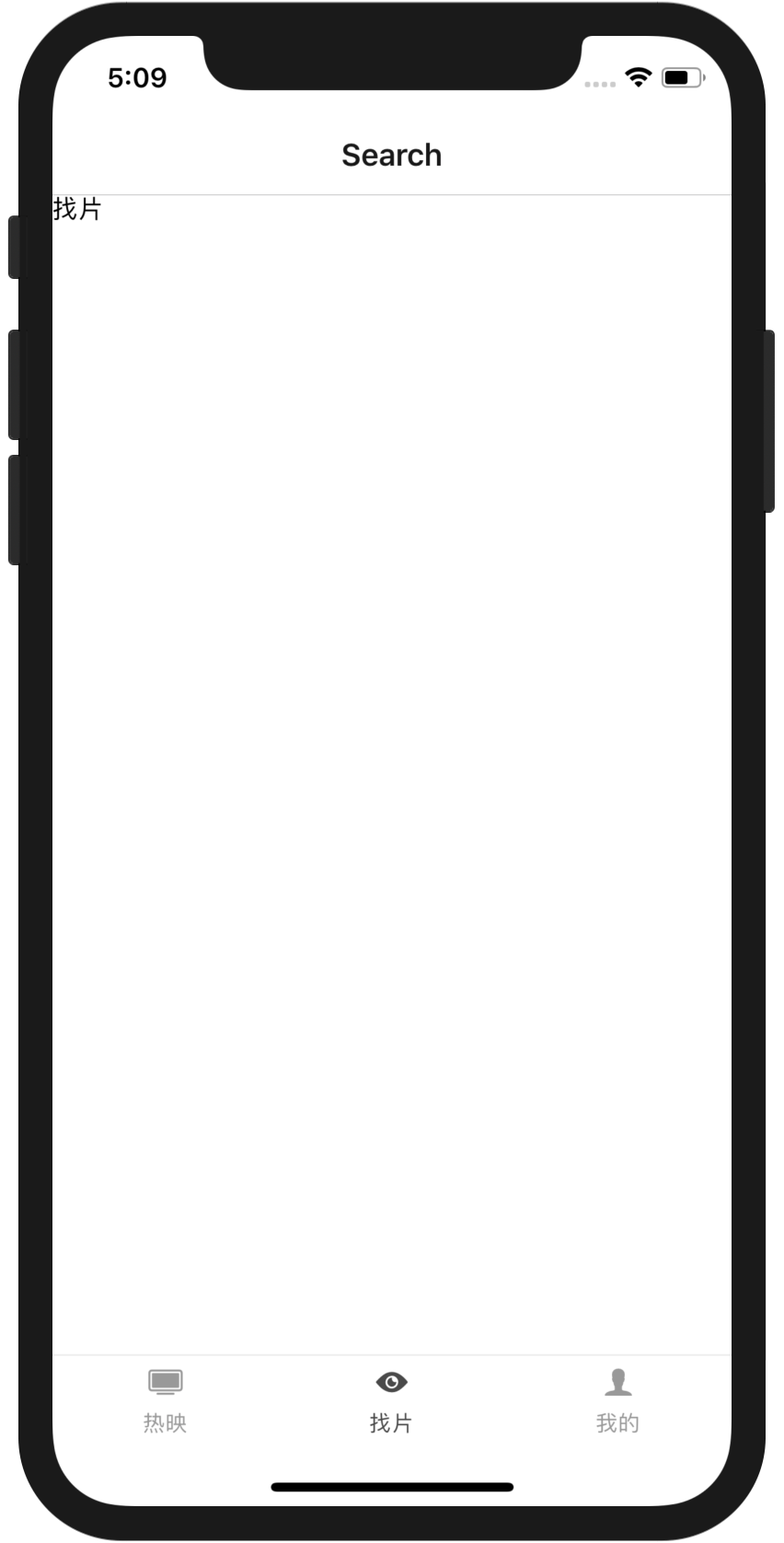
//src/components/Search.js

import React, { Component } from 'react';

import { Dimensions, Text, View, Button, FlatList } from 'react-native';

import ScrollableTabView, { DefaultTabBar } from 'react-native-scrollable-tab-view';

import { createAppContainer, createStackNavigator} from 'react-navigation';

const { width, height } = Dimensions.get('window');

export default class Search extends Component {

    static navigationOptions = {

        title: 'Search',

    };

    render() {

        const { navigate } = this.props.navigation;

        return (

            <View>

                <Text>找片</Text>

            </View>

        );

    }

}
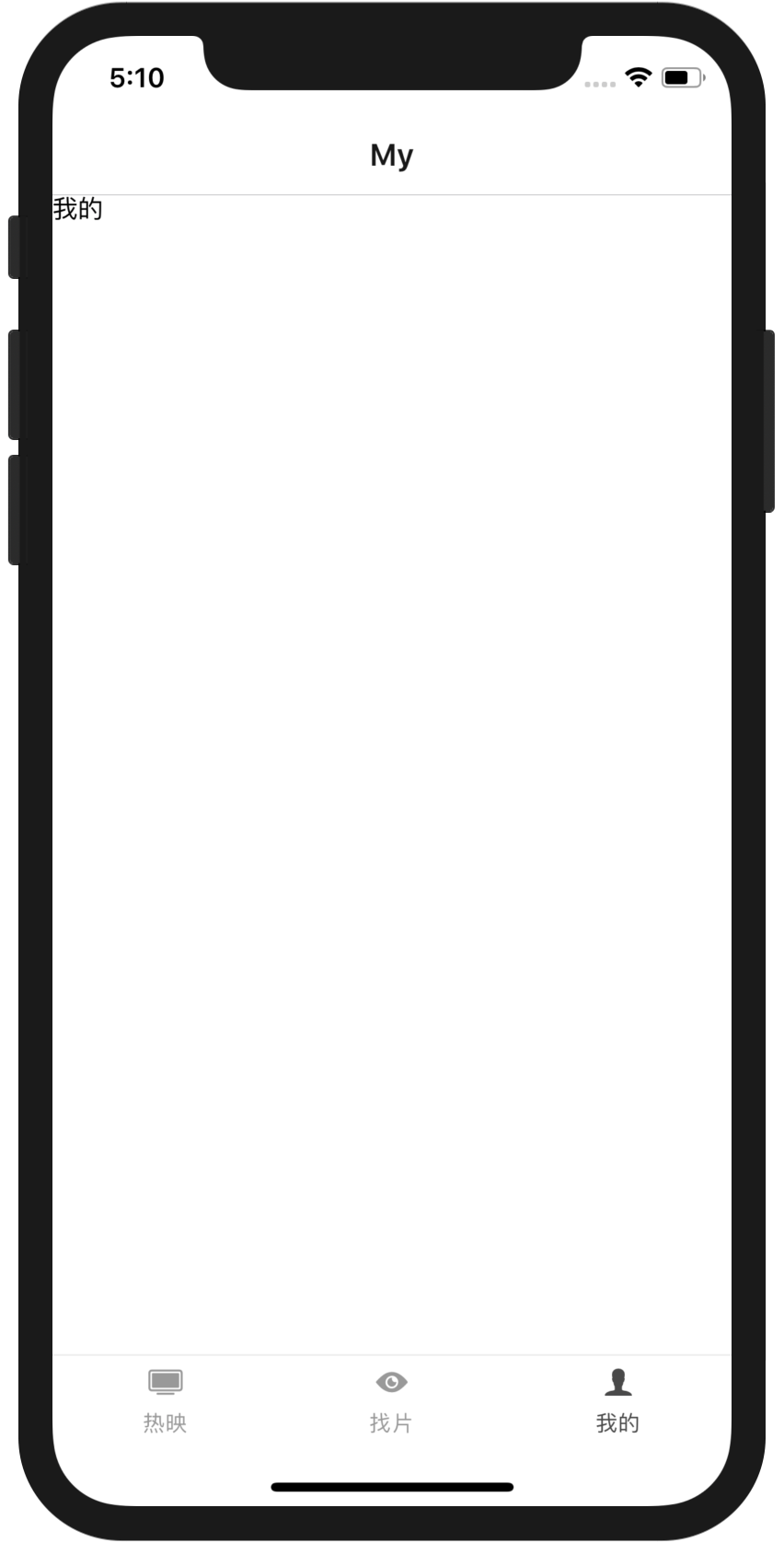
//src/components/My.js

import React, { Component } from 'react';

import { Dimensions, Text, View, Button, FlatList } from 'react-native';

import ScrollableTabView, { DefaultTabBar } from 'react-native-scrollable-tab-view';

import { createAppContainer, createStackNavigator} from 'react-navigation';

const { width, height } = Dimensions.get('window');

export default class My extends Component {

    static navigationOptions = {

        title: 'My'

    };

    render() {

        const { navigate } = this.props.navigation;

        return (

            <View>

                <Text>我的</Text>

            </View>

        );

    }

}
时时当勉励,岁月不待人,加油~~~加油~~~
【水滴石穿】douban-movies-react-native的更多相关文章
- React Native 项目实战 -- DoubanProject
引言:本文是我研究react-native时写的一个简单的demo,代码里有详细的注释,好废话不多说,直接上代码. 1.项目目录 2.index.android.js /** * index.andr ...
- React Native:使用 JavaScript 构建原生应用
[转载] 本篇为联合翻译,译者:寸志,范洪春,kmokidd,姜天意 数月前,Facebook 对外宣布了正在开发的 React Native 框架,这个框架允许你使用 JavaScript 开发原生 ...
- react native 入门实践
上周末开始接触react native,版本为0.37,边学边看写了个demo,语法使用es6/7和jsx.准备分享一下这个过程.之前没有native开发和react的使用经验,不对之处烦请指出.希望 ...
- React Native 获取网络数据
getMoviesFromApiAsync() { return fetch('http://facebook.github.io/react-native/movies.json') .then(( ...
- React Native官方DEMO
官方给我们提供了UIExplorer项目,这里边包含React Native的基本所有组件的使用介绍和方法. 运行官方DEMO步骤如下 安装react native环境 React Native项目源 ...
- React Native 简介:用 JavaScript 搭建 iOS 应用 (1)
[编者按]本篇文章的作者是 Joyce Echessa--渥合数位服务创办人,毕业于台湾大学,近年来专注于协助客户进行 App 软体以及网站开发.本篇文章中,作者介绍通过 React Native 框 ...
- 如何用 React Native 创建一个iOS APP?
诚然,React Native 结合了 Web 应用和 Native 应用的优势,可以使用 JavaScript 来开发 iOS 和 Android 原生应用.在 JavaScript 中用 Reac ...
- 基于React Native的58 APP开发实践
React Native在iOS界早就炒的火热了,随着2015年底Android端推出后,一套代码能运行于双平台上,真正拥有了Hybrid框架的所有优势.再加上Native的优秀性能,让越来越多的公司 ...
- react native ios打包到真机
每当在模拟器上完成了开发,都想到真机上秀秀,正好前段时候买了一个mac,哈哈有机会了.前篇文章以android为例,这里就以ios为例,讲一下打包到iphone真机的流程. 一.前置 1.首先你得有一 ...
- React Native网络请求
很多移动应用都需要从远程地址中获取数据或资源.你可能需要给某个REST API发起POST请求以提交用户数据,又或者可能仅仅需要从某个服务器上获取一些静态内容--以下就是你会用到的东西.新手可以对照这 ...
随机推荐
- java虚拟机(十一)--GC日志分析
GC相关:java虚拟机(六)--垃圾收集器和内存分配策略 java虚拟机(五)--垃圾回收机制GC 打印日志相关参数: -XX:+PrintGCDetails -XX:PrintGCTimestam ...
- 【python之路44】tornado的用法 (二)
参考:https://www.cnblogs.com/sunshuhai/articles/6253815.html 一.代码目录构建 代码目录设置如下图: #!/usr/bin/env python ...
- supports-screensandroid
最近在做一个开发者入门的专题,因此一直在搜索关于入门开发的知识和资料,希望能够给开始学习Android开发的朋友提供指导性参考.今天找到了一篇不错的技术文章. 语法: <supports-scr ...
- c++ 读取8, 10, 16进制数
c++基础知识都快忘了..记一下 dec-十进制(默认) oct-八进制 hex-十六进制
- struts2-自定义拦截器-struts2标签
1 自定义拦截器 1.1 架构 1.2 拦截器创建 创建方式1 创建方式2 创建方式3 ★★★★ 1.3 拦截器api 放行 前后处理 不放行,直接跳转到一个结果页面 不执行后续的拦截器以及Actio ...
- Dom4j官网解释实例
Dom4j是一个易于使用的,开源的库,在Java平台上与XML,XPath,XSLT协同工作.使用Java集合框架,全面支持DOM,SAX,JAXP. 官方网站:http://dom4j.org 1. ...
- Django之ORM多表操作
1.创建一对多: 1.外键建在多的一方(如:一个出版社可出版多本书,所以建在书的表) 2.创建表: 1.创建外键 2.关联的表名 2.一对多数据的操作 2.1数据的添加: 第一种方法: 第二种方法: ...
- LUOGU P2441 角色属性树
题目描述 绪萌同人社是一个有趣的组织,该组织结构是一个树形结构.有一个社长,直接下属一些副社长.每个副社长又直接下属一些部长--. 每个成员都有一个萌点的属性,萌点属性是由一些质数的萌元素乘积构成(例 ...
- webpack打包js,css和图片
1.webpack打包默认配置文件webpack.config.js 2.打包js文件:有这个文件并配置可以直接在cmd上webpack打包,没有这个文件要在cmd上输入 webpack main.j ...
- SpringBoot集成lombook让代码更简洁
1)添加lombok依赖 <dependency> <groupId>org.projectlombok</groupId> <artifactId>l ...