
[iOS] UICollectionView实现图片水平滚动
最新更新: 简单封装了一下代码,参考新文章:UICollectionView实现图片水平滚动
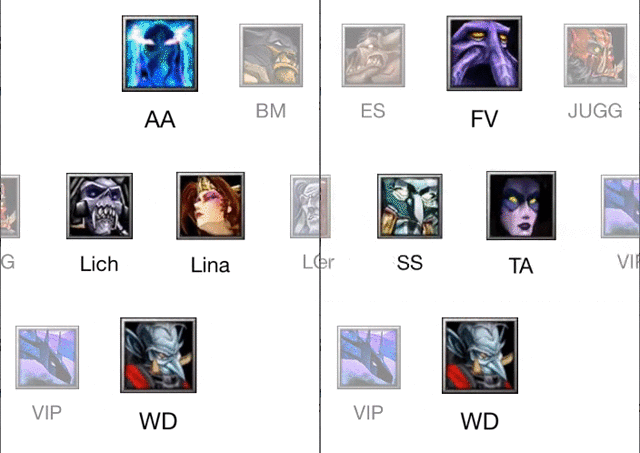
先简单看一下效果:
新博客:http://wossoneri.github.io
准备数据
首先先加入一些资源文件:
先建立一个xcassets文件,放入图片:

再建立一个plist文件,写入与图片对应的内容:
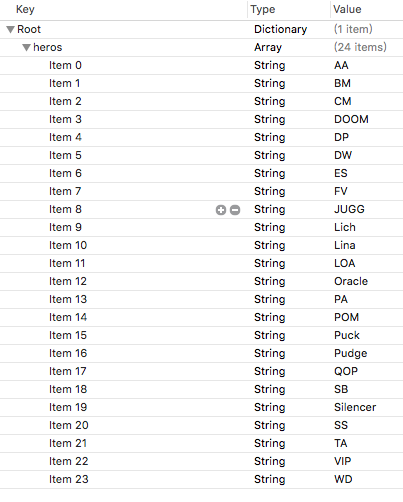
在ViewController中读取plist到词典中:
@property (nonatomic, strong) NSArray *itemTitles;

NSString *path = [[NSBundle mainBundle] pathForResource:@"titles" ofType:@"plist"];

NSDictionary *rootDictionary = [[NSDictionary alloc] initWithContentsOfFile:path];

self.itemTitles = [rootDictionary objectForKey:@"heros"];
可以打log输出,可以看到plist的内容已经读取出来,后面就可以用_itemTitle作为数据源了。
添加UICollectionView初步显示图片
每个CollectionView都有一个对应的布局layout,对于默认的的UICollectionViewFlowLayout,效果是类似Android的GridView的布局。如果要自定义CollectionView的样式,就要对这个layout进行修改。
建立自己的HorizontalFlowLayout,继承自UICollectionViewFlowLayout,然后在初始化方法里将滚动方向设置为水平:
- (instancetype) init {

    if (self = [super init]) {

        self.scrollDirection = UICollectionViewScrollDirectionHorizontal;

    }

    return self;

}
接下来定制我们的cell的显示样式,建立DotaCell,继承自UICollectionViewCell。由于我们要实现的是图片和文字的上下布局,所以增加两个属性:
@interface DotaCell : UICollectionViewCell

@property (nonatomic, strong) UIImageView *image;

@property (nonatomic, strong) UILabel *name;

@end
然后设置图片与文字上下对齐布局,这里我使用pod导入Masonry库来写自动布局:
- (instancetype)initWithFrame:(CGRect)frame {

    self = [super initWithFrame:frame];

    if (self) {

        [self initialize];

    }

    return self;

}

- (void)initialize {

    self.layer.doubleSided = NO;

    self.image = [[UIImageView alloc] init];

    self.image.backgroundColor = [UIColor clearColor];

    self.image.contentMode = UIViewContentModeCenter;

    self.image.autoresizingMask = UIViewAutoresizingFlexibleWidth | UIViewAutoresizingFlexibleHeight;

    self.name = [[UILabel alloc] init];

    self.name.font = [UIFont fontWithName:@"Helvetica Neue" size:20];

    self.name.textAlignment = NSTextAlignmentCenter;

    [self.contentView addSubview:self.image];

    [self.contentView addSubview:self.name];

    [_image mas_makeConstraints:^(MASConstraintMaker *make) {

        make.left.right.equalTo(self.contentView);

        make.top.equalTo(self.contentView).offset(30);

        make.bottom.equalTo(_name.mas_top).offset(-10);

    }];

    [_name mas_makeConstraints:^(MASConstraintMaker *make) {

        make.left.right.equalTo(self.contentView);

        make.top.equalTo(_image.mas_bottom).offset(10);

        make.bottom.equalTo(self.contentView).offset(-20);

    }];

}
写好layout和cell后就可以用这两个类来初始化我们的collectionView了:
//add in view did load

    self.layout = [[HorizontalFlowLayout alloc] init];

    CGRect rct = self.view.bounds;

    rct.size.height = 150;

    rct.origin.y = [[UIScreen mainScreen] bounds].size.height / 2.0 - rct.size.height;

    self.collectionView = [[UICollectionView alloc] initWithFrame:rct collectionViewLayout:_layout];

    self.collectionView.autoresizingMask = UIViewAutoresizingFlexibleWidth | UIViewAutoresizingFlexibleHeight;

    self.collectionView.showsHorizontalScrollIndicator = NO;

    self.collectionView.decelerationRate = UIScrollViewDecelerationRateNormal;

    [self.collectionView registerClass:[DotaCell class] forCellWithReuseIdentifier:NSStringFromClass([DotaCell class])];

    [self.collectionView setBackgroundColor:[UIColor clearColor]];

    [self.collectionView setDelegate:self];

    [self.collectionView setDataSource:self];

    [self.view addSubview:_collectionView];
添加UICollectionViewDataSource的代理方法,使其显示数据。
- (NSInteger)collectionView:(UICollectionView *)collectionView numberOfItemsInSection:(NSInteger)section {

    return [self.itemTitles count];

}

- (UICollectionViewCell *)collectionView:(UICollectionView *)collectionView cellForItemAtIndexPath:(NSIndexPath *)indexPath {

    DotaCell *cell = [collectionView dequeueReusableCellWithReuseIdentifier:NSStringFromClass([DotaCell class]) forIndexPath:indexPath];

    cell.image.image = [UIImage imageNamed:[self.itemTitles objectAtIndex:indexPath.row]];

    cell.name.text = [self.itemTitles objectAtIndex:indexPath.row];

    return cell;

}
这样程序就有了我们想要的初步效果:
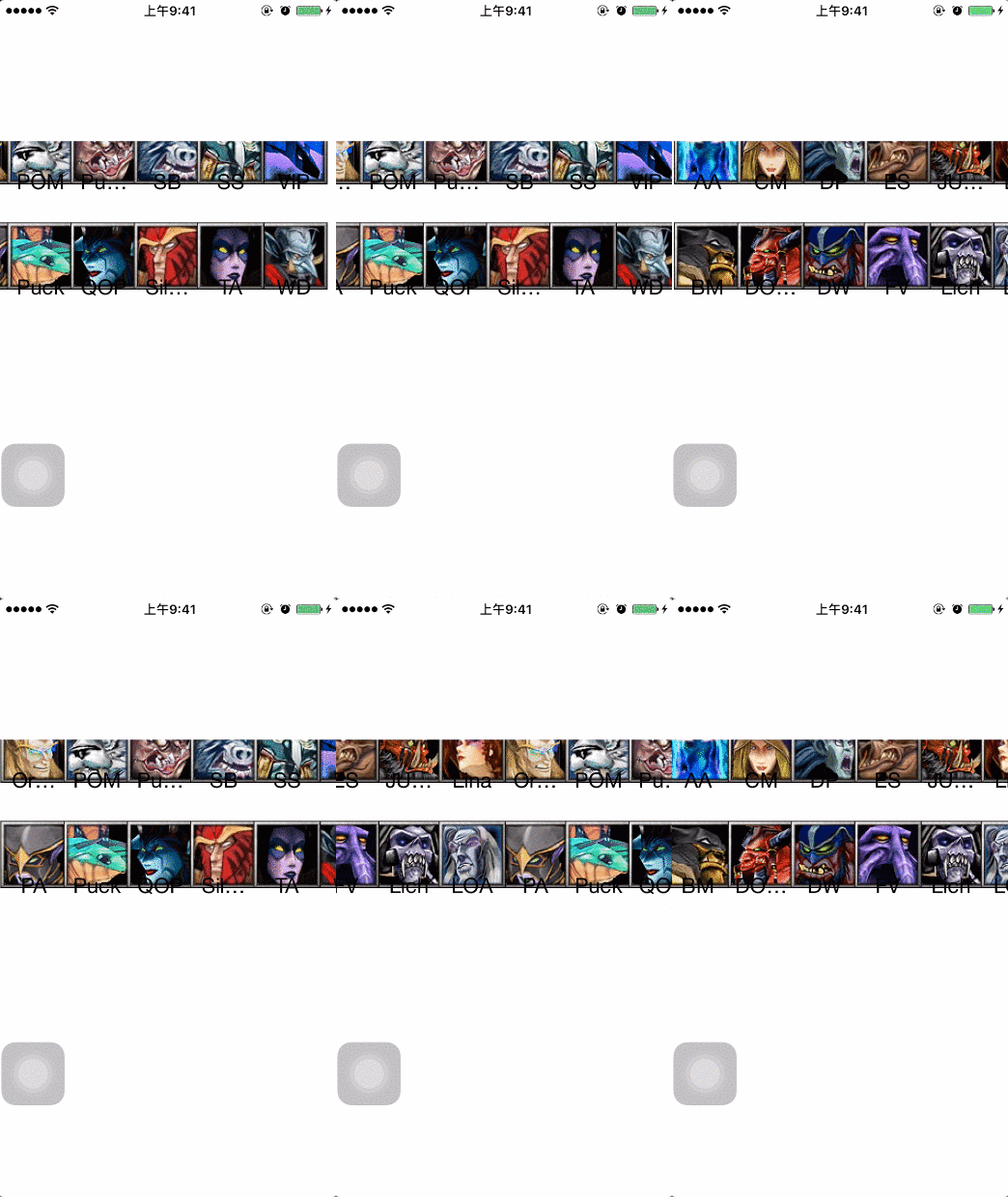
图片水平排放
但...效果的确很差!
下面要做的就是逐步完善效果,首先我们要让两排图像变成一排去展示。那要怎么去做?首先,我们在初始化collectionView的地方设置了高度为150,所以图片就挤在这个150的高度里尽可能的压缩显示。由于collectionView的尺寸已经设定,那么就剩cell的尺寸可以控制了。实现CollectionViewFlowLayoutDelegate的代理方法sizeForItemAtIndexPath:
- (CGSize)collectionView:(nonnull UICollectionView *)collectionView layout:(nonnull UICollectionViewLayout *)collectionViewLayout sizeForItemAtIndexPath:(nonnull NSIndexPath *)indexPath {

    return CGSizeMake(64, collectionView.bounds.size.height);

}
这里宽度64是图片的尺寸,高度设置填满
collectionView的高度是为了防止上图中两行图片挤压的情况,所以直接让一个cell的高度占满整个容器。
这时候的效果好了很多,已经有点样子了:
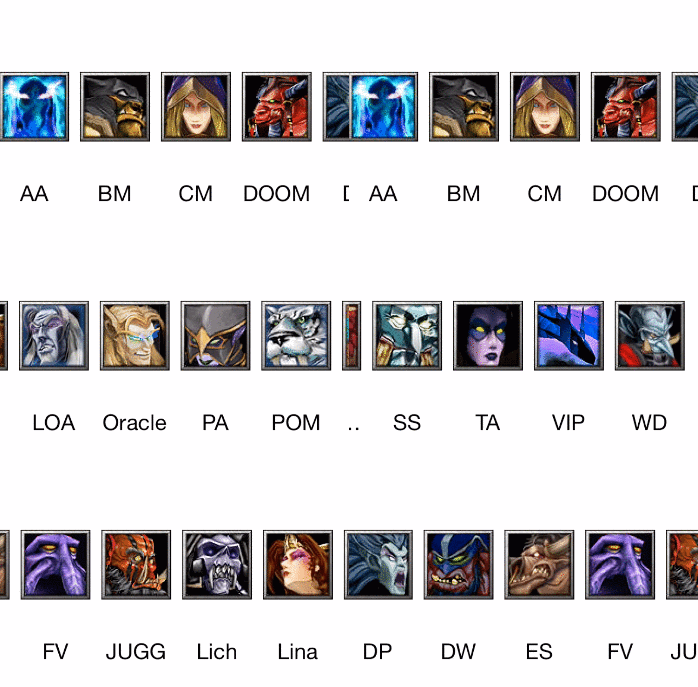
顶端图片滑到中间
但这离我们最终的效果还差很远,接下来我需要实现让第一张图片和最后一张图片都能滑到屏幕中点的位置,这应该是很常见的效果,实现起来也很简单。首先我们的一排cell都默认为顶端与collectionView的两端对齐的,collectionView的左右两端与viewController.view也是对齐的,所以显示的效果是,两端的图片都与屏幕对齐。知道这个关系就好办了,直接设置collectionView与其父view的内间距即可。
依旧是实现flowLayout的代理方法:
//Asks the delegate for the margins to apply to content in the specified section.安排初始位置

//使前后项都能居中显示

- (UIEdgeInsets)collectionView:(nonnull UICollectionView *)collectionView layout:(nonnull UICollectionViewLayout *)collectionViewLayout insetForSectionAtIndex:(NSInteger)section {

    NSInteger itemCount = [self collectionView:collectionView numberOfItemsInSection:section];

    NSIndexPath *firstIndexPath = [NSIndexPath indexPathForItem:0 inSection:section];

    CGSize firstSize = [self collectionView:collectionView layout:collectionViewLayout sizeForItemAtIndexPath:firstIndexPath];

    NSIndexPath *lastIndexPath = [NSIndexPath indexPathForItem:itemCount - 1 inSection:section];

    CGSize lastSize = [self collectionView:collectionView layout:collectionViewLayout sizeForItemAtIndexPath:lastIndexPath];

    return UIEdgeInsetsMake(0, (collectionView.bounds.size.width - firstSize.width) / 2,

                            0, (collectionView.bounds.size.width - lastSize.width) / 2);

}
效果如图:

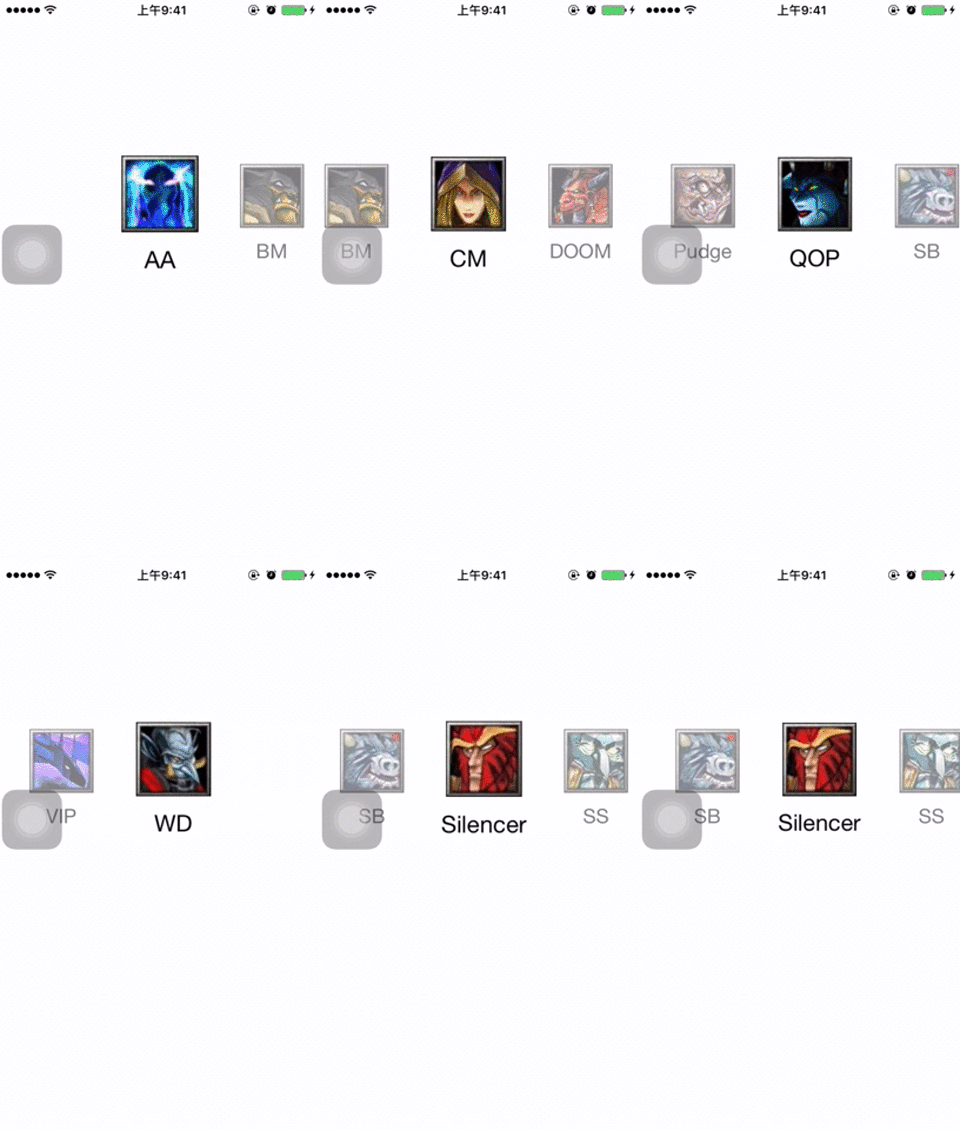
居中图片放大显示
接下来添加一个我们需要的特效,就是中间的图片放大显示,其余的缩小并且增加一层半透明效果。
在FlowLayout中有一个名为layoutAttributesForElementsInRect的方法,功能如其名,就是设置范围内元素的layout属性。对于这个效果,首先需要设置放大的比例,其次要根据图片大小和间距来设定一个合适的触发放大的区域宽度,当图滑入这个区域就进行缩放。
static CGFloat const ActiveDistance = 80;

static CGFloat const ScaleFactor = 0.2;

//这里设置放大范围

- (NSArray *)layoutAttributesForElementsInRect:(CGRect)rect

{

    NSArray *array = [super layoutAttributesForElementsInRect:rect];

    CGRect visibleRect = (CGRect){self.collectionView.contentOffset, self.collectionView.bounds.size};

    for (UICollectionViewLayoutAttributes *attributes in array) {

        //如果cell在屏幕上则进行缩放

        if (CGRectIntersectsRect(attributes.frame, rect)) {

            attributes.alpha = 0.5;

            CGFloat distance = CGRectGetMidX(visibleRect) - attributes.center.x;//距离中点的距离

            CGFloat normalizedDistance = distance / ActiveDistance;

            if (ABS(distance) < ActiveDistance) {

                CGFloat zoom = 1 + ScaleFactor * (1 - ABS(normalizedDistance)); //放大渐变

                attributes.transform3D = CATransform3DMakeScale(zoom, zoom, 1.0);

                attributes.zIndex = 1;

                attributes.alpha = 1.0;

            }

        }

    }

    return array;

}
效果如下:
滑动校正
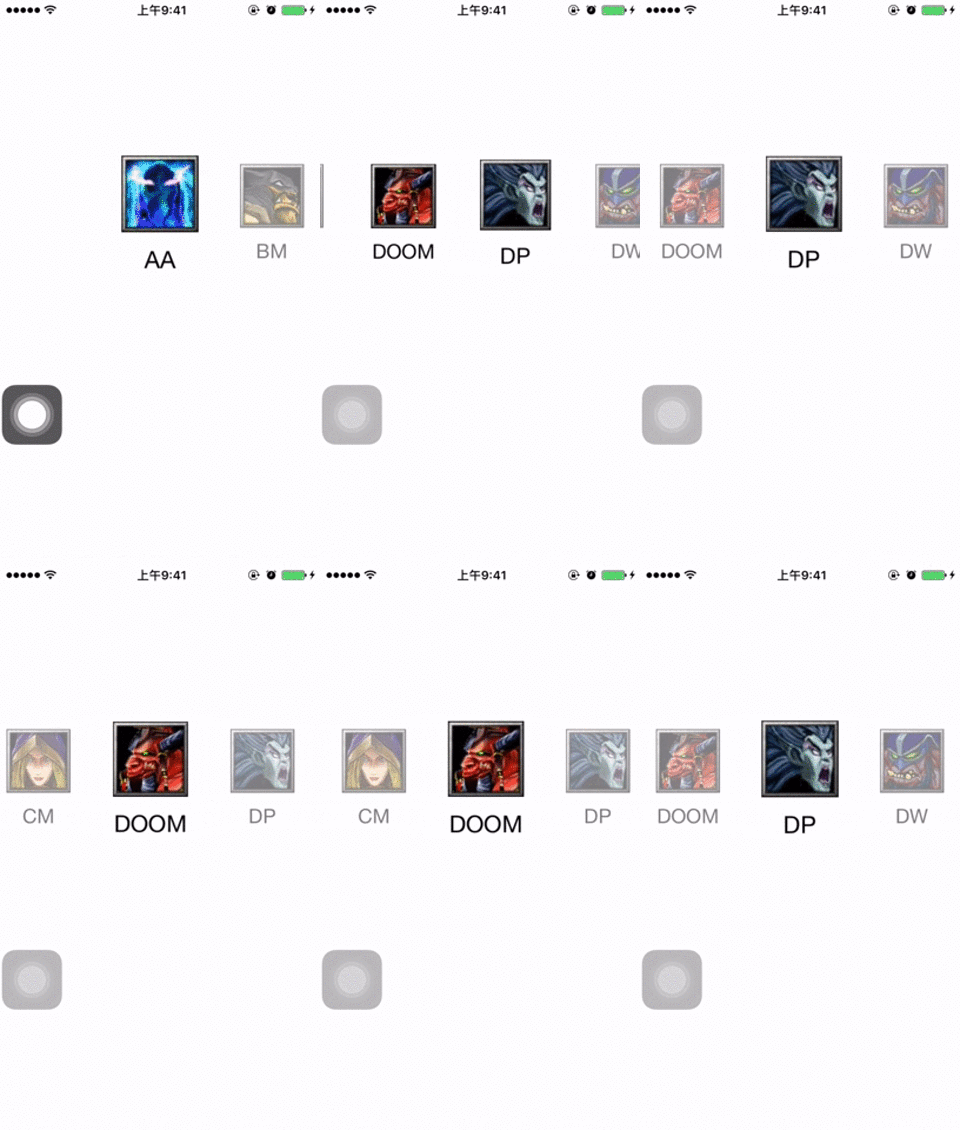
这时候几乎完成了,但还差点东西,就是让其在滚动停止的时候,离屏幕中间最近的cell自动矫正位置到中间。还是在FlowLayout添加该方法,具体说明我都写到注释里了:
//scroll 停止对中间位置进行偏移量校正

- (CGPoint)targetContentOffsetForProposedContentOffset:(CGPoint)proposedContentOffset withScrollingVelocity:(CGPoint)velocity {

    CGFloat offsetAdjustment = MAXFLOAT;

    ////  |-------[-------]-------|

    ////  |滑动偏移|可视区域 |剩余区域|

    //是整个collectionView在滑动偏移后的当前可见区域的中点

    CGFloat centerX = proposedContentOffset.x + (CGRectGetWidth(self.collectionView.bounds) / 2.0);

    //    CGFloat centerX = self.collectionView.center.x; //这个中点始终是屏幕中点

    //所以这里对collectionView的具体尺寸不太理解,输出的是屏幕大小,但实际上宽度肯定超出屏幕的

    CGRect targetRect = CGRectMake(proposedContentOffset.x, 0.0, self.collectionView.bounds.size.width, self.collectionView.bounds.size.height);

    NSArray *array = [super layoutAttributesForElementsInRect:targetRect];

    for (UICollectionViewLayoutAttributes *layoutAttr in array) {

        CGFloat itemCenterX = layoutAttr.center.x;

        if (ABS(itemCenterX - centerX) < ABS(offsetAdjustment)) { // 找出最小的offset 也就是最中间的item 偏移量

            offsetAdjustment = itemCenterX - centerX;

        }

    }

    return CGPointMake(proposedContentOffset.x + offsetAdjustment, proposedContentOffset.y);

}
增加图片点击效果
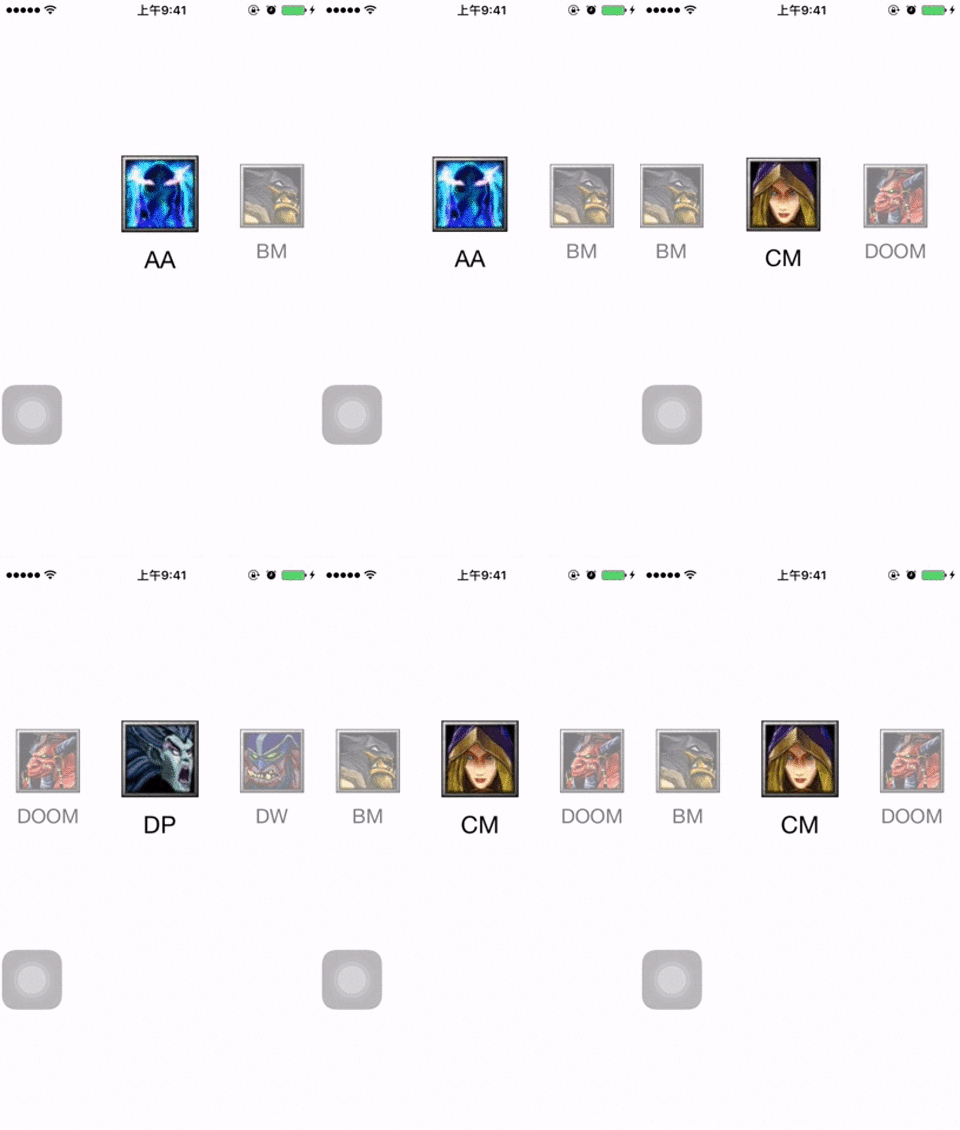
最后 添加一个点击cell 将其滚动到中间
在viewcontroller添加CollectionViewDelegate的代理方法
- (void)collectionView:(UICollectionView *)collectionView didSelectItemAtIndexPath:(NSIndexPath *)indexPath {

    [self.collectionView selectItemAtIndexPath:indexPath animated:YES scrollPosition:UICollectionViewScrollPositionNone];

    //滚动到中间

    [self.collectionView scrollToItemAtIndexPath:indexPath atScrollPosition:UICollectionViewScrollPositionCenteredHorizontally animated:YES];

}
封装成控件
当我们把效果实现之后,就可以考虑将代码优化一下,合到一个类里,减少书写常量,增加接口,封装成一个控件去使用。比如可以设定文字的显示与隐藏接口,再比如增加适应各种尺寸的图片等等。这个代码就不放了,毕竟不难,有问题给我留言好了。
[iOS] UICollectionView实现图片水平滚动的更多相关文章
- 【demo练习三】:图片水平滚动、点击按钮变更图片动画
要求:四张图片水平滚动,每隔5秒进行一次循环,点击按钮随机变更图片. XAML前台代码: <Window x:Class="图片滚动.MainWindow" xmlns=&q ...
- [iOS] WSHorizontalPickerView 图片水平滚动封装
之前这篇文章传送门本来是记录自己练手的demo的,后来很多人来问我要代码.今天就抽时间封装了一下,没有考虑太多情况,等我有空再去仔细考虑吧. 代码在:Github 用法很简单,创建对象,设置数据源,记 ...
- JS特效——图片水平滚动
具体源码如下: <!doctype html> <html lang="en"> <head> <meta http-equiv=&quo ...
- Android_ViewPager_实现多个图片水平滚动
1.示意图 2.实现分析 (1).xml配置 <!-- 配置container和pager的clipChildren=false, 并且指定margi ...
- Android ViewPager实现多个图片水平滚动
1.示意图 2.实现分析 (1).xml配置 <!-- 配置container和pager的clipChildren=false, 并且指定margi ...
- iOS开发之多图片无缝滚动组件封装与使用
经常有园友会问"博主,有没有图片无限滚动的Demo呀?", 正儿八经的图片滚动的Demo我这儿还真没有,今天呢就封装一个可以在项目中直接使用的图片轮播.没看过其他iOS图片无限轮播 ...
- IOS UIScrollView + UIButton 实现segemet页面和顶部标签页水平滚动效果
很长一段时间没有写博客了,最近在学习iOS开发,看了不少的代码,自己用UIScrollView和UIButton实现了水平滚动的效果,有点类似于今日头条的主界面框架,效果如下: 代码如下: MyScr ...
- ASP.NET中使用JavaScript实现图片自动水平滚动效果
参照网上的资料,在ASP.NET中使用JavaScript实现图片自动水平滚动效果. 1.页面前台代码: <%@ Page Language="C#" AutoEventWi ...
- 使用Recyclerview实现图片水平自动循环滚动
简介: 本篇博客主要介绍的是如何使用RecyclerView实现图片水平方向自动循环(跑马灯效果) 效果图: 思路: 1.准备m张图片 1.使用Recyclerview实现,返回无数个(实际Inter ...
随机推荐
- C# 多线程六之Task(任务)二
前面介绍了Task的由来,以及简单的使用,包括开启任务,处理任务的超时.异常.取消.以及如果获取任务的返回值,在回去返回值之后,立即唤起新的线程处理返回值.且如果前面的任务发生异常,唤起任务如果有效的 ...
- Android之密码的显示与隐藏
很多应用都是显示与隐藏密码的功能. 之前的项目都没这个功能要求,也没有专门研究这个.最近项目有加这个功能,我这里也刚好整理一下. 我的思路是设置EditText的InputType.代码如下: if ...
- filebeat-1-连通logstash
类似flume, 但功能更为强大 Filebeat是一个日志文件托运工具,在你的服务器上安装客户端后,filebeat会监控日志目录或者指定的日志文件,追踪读取这些文件(追踪文件的变化,不停的读),并 ...
- Linux配置多个Tomcat同时运行
Linux系统下怎样配置多个Tomcat同时运行呢,首先修改变量为第一个tomcat,然后修改第二个tomcat启动的脚本 1.修改环境变量 # vi /etc/profile ####### 工程1 ...
- SSM事务——事务回滚如何拿到返回值
MySQL数据库一共向用户提供了包括BDB.HEAP.ISAM.MERGE.MyISAM.InnoDB以及Gemeni这7种Mysql表类型.其中BDB.InnoDB属于事务安全类表,而其他属于事务非 ...
- Docker基础教程(常用命令篇)
1.查看docker信息 # 查看docker版本 $docker version # 显示docker系统的信息 $docker info 2.启动容器 # 交互式 $docker run -it ...
- android开发学习笔记系列(4)--android动态布局
前言 在做一个有关苏果APP的项目中,但是fuck的是,我完全使用相对布局之后及线性布局之后发现坑爹的事情了,屏幕不能适配,这是多大的痛,意味着,必须使用相应的代码实现动态布局!呵呵,不做项目不知道, ...
- UIKit 框架之UIControl
前面的UIWebView.UIImageView这些都是视图,显示为主,与用户交互较少,最多也就是通过UIResponder与用户交互.但这样会很麻烦,还要判断点击次数等等问题,那问题就来了:OC中怎 ...
- ASP.NET开发,从二层至三层,至面向对象
昨天Insus.NET有写了一篇博文<WEB控件没有什么所谓好不好,而是用得好不好>http://www.cnblogs.com/insus/p/3821644.html 很多网友持意见 ...
- Hibernate映射 --- 自身跟自身的一对多关联
自身跟自身的一对多关联 什么时候会出现自身一对多关系呢?下面举个例子. 淘宝店里商品分类,一级分类:家用电器,个人化妆,运动户外等 家用电器下面二级分类:大家电,生活电器,厨房电器等 二级分类大家 ...