
react18中antd的Upload组件上传头像,并且拿到服务器返回的头像的url地址在页面中显示头像
业务需求:上传头像,上传完毕后拿到头像的url,把头像展示在页面中,最终把头像url和其他用户信息一起发送给服务器
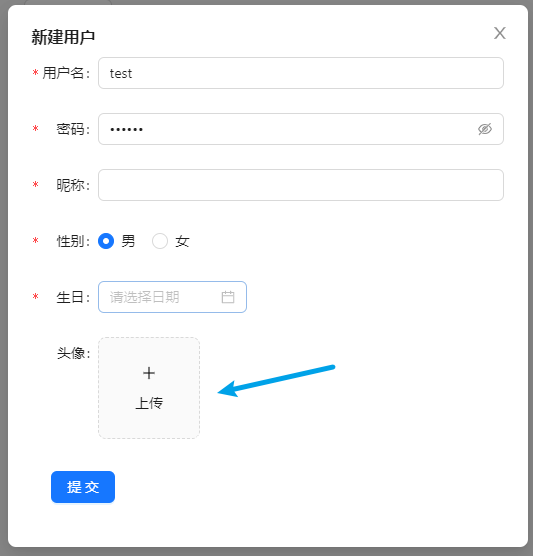
上传头像流程

导入 Upload 组件和图标(一个加号,一个加载中)
import { Upload } from 'antd';

import { PlusOutlined, LoadingOutlined } from '@ant-design/icons';
定义状态
const index = memo(() => {

  // 用于上传前和上传时切换

  const [loading, setLoading] = useState(false);

  // 用于保存服务端返回的头像url

  const [imageUrl, setImageUrl] = useState();

}
定义一个上传状态组件,上传前显示 + 号,上传时显示loading
const index = memo(() => {

  const uploadButton = (

    <div>

      {loading ? <LoadingOutlined /> : <PlusOutlined />}

      <div

        style={{

          marginTop: 8,

        }}

      >

        上传

      </div>

    </div>

  );

}
组件代码(省略其他...)
const index = memo(() => {

  return (

    <Upload

      listType="picture-card" // 上传列表的内建样式

      showUploadList={false} // 是否展示文件列表

      action="" // 这里填写上传的地址

      beforeUpload={beforeUpload} // 上传前执行的操作

      onChange={handleChange} // 上传中、完成、失败都会调用这个函数。

      name='avatar' // 传递给后端的字段

    >

      {imageUrl ? (

        <img

          src={imageUrl}

          alt="avatar"

          style={{

            width: '100%',

          }}

        />

      ) :  (uploadButton)}

    </Upload>

  )

})
定义头像上传前执行的钩子函数
const index = memo(() => {

  // 该函数会在上传前执行,会把file对象传过来,可以对上传的文件类型判断,限制大小等

  const beforeUpload = (file) => {

    const isJpgOrPng = file.type === 'image/jpeg' || file.type === 'image/png';

    if (!isJpgOrPng) {

      message.error('只能上传 JPG/PNG 文件!');

    }

    const isLt1M = file.size / 1024 / 1024 < 1;

    if (!isLt1M) {

      message.error('图片不能超过1MB!');

    }

    return isJpgOrPng && isLt1M;

  };

})
定义头像上传后执行的钩子函数
const index = memo(() => {

  const handleChange = (info) => {

      if (info.file.status === 'uploading') {

        setLoading(true);

        return;

      }

      // 当上传完毕

      if (info.file.status === 'done') {

          setLoading(false);

        // 判断是否上传成功

        if (info.file.response.code === 200) {

          // 把返回的图像地址设置给 imageUrl

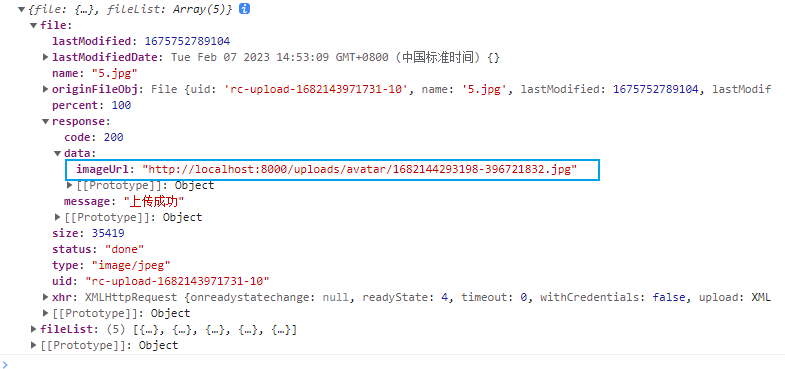
          setImageUrl(info.file.response.data.imageUrl) // 取决于服务端返回的字段名

        }

      }

    };

})
以下是在控制台输出 info 对象
完整demo
import React, { memo, useState } from 'react'

import { UserWrapper } from './style'

import { Upload } from 'antd';

import { PlusOutlined, LoadingOutlined } from '@ant-design/icons';

const index = memo(() => {

  const [loading, setLoading] = useState(false);

  const [imageUrl, setImageUrl] = useState();

  const beforeUpload = (file) => {

    const isJpgOrPng = file.type === 'image/jpeg' || file.type === 'image/png';

    if (!isJpgOrPng) {

      message.error('只能上传 JPG/PNG 文件!');

    }

    const isLt1M = file.size / 1024 / 1024 < 1;

    if (!isLt1M) {

      message.error('图片不能超过1MB!');

    }

    return isJpgOrPng && isLt1M;

  };

  const handleChange = (info) => {

    if (info.file.status === 'uploading') {

      setLoading(true);

      return;

    }

    if (info.file.status === 'done') {

      if (info.file.response.code === 200) {

        setLoading(false);

        setImageUrl(info.file.response.data.imageUrl)

      }

    }

  };

  const uploadButton = (

    <div>

      {loading ? <LoadingOutlined /> : <PlusOutlined />}

      <div

        style={{

          marginTop: 8,

        }}

      >

        上传

      </div>

    </div>

  );

  return (

    <Upload

      listType="picture-card"

      className="avatar-uploader"

      showUploadList={false}

      action="上传的地址"

      beforeUpload={beforeUpload}

      onChange={handleChange}

      name='avatar'

    >

      {imageUrl ? (

        <img

          src={imageUrl}

          alt="avatar"

          style={{

            width: '100%',

          }}

        />

      ) : (

        uploadButton

      )}

    </Upload>

  )

})

export default index
react18中antd的Upload组件上传头像,并且拿到服务器返回的头像的url地址在页面中显示头像的更多相关文章
- 关于本地使用antd的upload组件上传文件,ngnix报错405的问题
使用阿里的ui框架antd的upload,会自动请求ngnix上面的一个路径,也就是action所在的位置,一直报错405 not allowed,后来经讨论,统一将action写成一个路径,后端对这 ...
- React antd如何实现<Upload>组件上传附件再次上传已清除附件缓存问题。
最近在公司做React+antd的项目,遇到一个上传组件的问题,即上传附件成功后,文件展示处仍然还有之前上传附件的缓存信息,需要解决的问题是,要把上一次上传的附件缓存在上传成功或者取消后,可以进行清除 ...
- Ant Design Upload 组件上传文件到云服务器 - 七牛云、腾讯云和阿里云的分别实现
在前端项目中经常遇到上传文件的需求,ant design 作为 react 的前端框架,提供的 upload 组件为上传文件提供了很大的方便,官方提供的各种形式的上传基本上可以覆盖大多数的场景,但是对 ...
- VUE -- iview table 组件 中使用 upload组件 上传组件 on render 事件不会触发问题
碰到的问题是: upload 组件在 on中写的监听事件不会被触发 在 props 中来监听:==>
- vue watch 监听element upload组件上传成功返回的url列表
因为 on-success 上传成功返回的是一个异步的结果....如果父组件需要这个结果的话 必须用watch 监听 然后里面建立一个 save()方法 save方法里面再调用接口 传需要的上传之后的 ...
- element-ui upload组件上传
方法一: <el-table-column label="操作"> <template slot-scope="scope"> < ...
- 【antd Vue】封装upload图片上传组件(返回Base64)
最近需要把上传的图片信息存储到数据库,以base64的方式,需要重新封装一下antd的upload组件 1. 使用方法 引入组件然后配置一下即可使用,配置项包括 defaultImageList,需要 ...
- ueditor1.3.6jsp版在struts2应用中上传图片报"未找到上传文件"解决方案
摘要: ueditor1.3.6jsp版在struts2应用中上传图片报"未找到上传文件"解决方案 在struts2应用中使用ueditor富文本编辑器上传图片或者附件时,即使配置 ...
- 使用commons-fileUpload组件上传文件
在近期的一个项目中有用到commons-fileUpload组件进行实现文件上传的功能(由于没用到框架),在使用的过程中有遇到一些问题,经过自己的琢磨也算顺利地将其解决了,在这里做个记录. 一.com ...
- asp 文件上传(ASPUpload组件上传)
要实现该功能,就要利用一些特制的文件上传组件.文件上传组件网页非常多,这里介绍国际上非常有名的ASPUpload组件 1 下载和安装ASPUpload 要实现该功能,就要利用一些特制的文件上传组件 ...
随机推荐
- Java简单认识及环境下载
Java的特性和优势 简单性 面向对象 可移植性 跨平台性 write once run anywhere 高性能 分布式 动态性 反射 多线程 安全性 健壮性 Java三大版本 JavaSE:标准版 ...
- windows server 2012 AD域服务器的搭建安装 子域的创建加入 客户机加入域环境(Active Directory域)
1,安装Active Directory域前的准备工作 2,安装Active Directory域 3,加入子域(可选) 4,加入客户机 ******************************* ...
- Angular架构学习
定义 Angular 是一个用 HTML 和 JavaScript 或者一个可以编译成 JavaScript 的语言(例如 Dart 或者 TypeScript ),来构建客户端应用的框架. 写 An ...
- geom_smooth trasparent alpha 透明度
stat_smooth (geom="line", alpha=0.3, size=3, span=0.5) + geom_line(stat="smooth" ...
- python调用java&反编译地址
反编译工具地址: https://github.com/java-decompiler/jd-gui/releases 你想知道的JPype全在这里∞ 先总结自己趟的坑 1. python进程是6 ...
- 安装opencv相关
1.查看当前OpenCV的版本 pkg-config --modversion opencv 2.查找有关OpenCV文件 find / -iname "*opencv*" //- ...
- 7. 基础增删改 - 创建管理员用Model-Drive App管理后台信息 - 创建Model-Driven App(什么是model-driven app)
一..什么是Model-Driven App? Model-Driven App是一个以组件为中心的应用程序开发方法,它不需要通过代码来运行,而且可以根据自己的需求来设计布局,编写出各种简单或者复 ...
- 一条随手的Arduino sketch优化 以Examples-02.Digital-Debounce为例
1 const int buttonPin = 2; 2 const int ledPin = 13; 3 4 int ledState = HIGH; 5 int buttonState; 6 in ...
- time命令详解
Linux中time命令,我们经常用来计算某个程序的运行耗时,用户态cpu耗时,系统态cpu耗时. 例如: $ time foo real 0m0.003s user 0m ...
- 一篇文章带你快速入门学习RPA
大纲: 什么是RPA? RPA的应用领域有哪些? RPA机器人技术一般用于什么行业? RPA的市场需求是什么? RPA项目的实施过程? RPA的未来趋势怎么样? 什么是RPA? RPA 全称& ...