
Docker Compose 一键部署Nginx代理Tomcat集群
Docker Compose 一键部署Nginx代理Tomcat集群
目录结构
[root@localhost ~]# tree compose_nginx_tomcat/

compose_nginx_tomcat/

├── docker-compose.yml

├── mysql

│   ├── conf

│   │   └── my.cnf

│   └── data

├── nginx

│   ├── Dockerfile

│   ├── nginx-1.12.1.tar.gz

│   └── nginx.conf

├── tomcat

│   ├── apache-tomcat-8.0.46.tar.gz

│   ├── Dockerfile

│   ├── jdk-8u181-linux-x64.tar.gz

│   └── server.xml

└── webapps

    └── ROOT

        └── index.jsp

7 directories, 10 files
一、创建Nginx Compose
1、创建DockerCompose项目目录
mkdir compose_nginx_tomcat

cd compose_nginx_tomcat/
1.2、创建nginx管理目录
mkdir nginx

cd nginx
1.3、将nginx源码包下载到本地
- Nginx-1.12.1
- 下载地址:https://pan.baidu.com/s/1IAdODW63jbpwbQX992coYg
- 密码:p89j
1.4、创建Dockerfile文件
vim Dockerfile
# 指定镜像

FROM centos:6

# 指定管理员

MAINTAINER xiangsikai

# 执行命令安装编译库文件

RUN yum install -y gcc gcc-c++ make openssl-devel pcre-devel

# 添加解压nginx包到/tmp目录下

ADD nginx-1.12.1.tar.gz /tmp

# 进入目录进行编译安装

RUN cd /tmp/nginx-1.12.1 && ./configure --prefix=/usr/local/nginx && make -j 2 && make install

# 删除容器内置配置文件

RUN rm -f /usr/local/nginx/conf/nginx.conf

# 复制本地配置文件到容器内

COPY nginx.conf /usr/local/nginx/conf

# 声明暴露端口

EXPOSE 80

# 启动容器Nginx服务,指定全局命令daemon off保证服务在前台运行不会关闭

CMD ["/usr/local/nginx/sbin/nginx", "-g", "daemon off;"]
1.5、创建nginx.conf配置文件
vim nginx.conf
user  root;

worker_processes  auto;

error_log  logs/error.log  info;

pid        logs/nginx.pid;

events {

    use epoll;

}

http {

    include       mime.types;

    default_type  application/octet-stream;

    log_format  main '$upstream_addr $remote_addr - $remote_user [$time_local] "$request" '

                      '$status $body_bytes_sent "$http_referer" '

                      '"$http_user_agent" "$http_x_forwarded_for"';

    access_log logs/access.log main;

    sendfile        on;

    keepalive_timeout  65;

# 代理三台tomcat服务

    upstream www.example.com {

        #ip_hash;

        server tomcat01:8080;

    server tomcat02:8080;

    server tomcat03:8080;

    }

# 动静分离

    server {

        listen 80;

        server_name localhost;

# 动态请求转发给tomcat处理

    location / {

        proxy_pass http://www.example.com;

    }

# 静态资源请求交给nginx处理

        location ~ \.(html|css|js|jpg|png|gif)$ {

            root /opt/webapps/ROOT;

        }

    }

}
nginx配置文件
二、创建Mysql Compose
2.1、创建Mysql管理目录
mkdir mysql

cd mysql

mkdir conf

cd conf
2.2、创建mysql配置文件
vim my.cnf
[mysqld]

user=mysql

port=3306

datadir=/var/lib/mysql

socket=/var/run/mysqld/mysqld.sock

pid-file=/var/run/mysqld/mysqld.pid

log_error=/var/log/mysql/error.log

character_set_server = utf8

max_connections=3600
mysql配置文件
三、创建Tomcat Compose
3.1、创建tomcat管理目录与网站目录
mkdir tomcat

mkdir -p webapps/ROOT/

cd tomcat
3.2、下载tomcat、jdk 压缩文件下载到本地
- apache-tomcat-8.0.46
- 下载地址:https://pan.baidu.com/s/1MuSGn3S1wILUfKZmemUu8g
- 密码:xydu
- jdk-8u181-linux-x64
- 下载地址:https://pan.baidu.com/s/1eJPPR1cun09u4Uks0800hg
- 密码:gjvv
3.3 创建Dockerfile文件
vim Dockerfile
# 指定镜像

FROM centos:6

# 指定管理员

MAINTAINER xiangsikai

# 解压jdk包到指定目录

ADD jdk-8u181-linux-x64.tar.gz /usr/local

# 安装jdk包到指定目录

ENV JAVA_HOME /usr/local/jdk1.8.0_181

# 解压tomcat包到指定目录

ADD apache-tomcat-8.0.46.tar.gz /usr/local

# 将本地配置文件复制到镜像内

COPY server.xml /usr/local/apache-tomcat-8.0.46/conf

# 指定服务暴露端口

EXPOSE 8080

# 启动tomcat服务

ENTRYPOINT ["/usr/local/apache-tomcat-8.0.46/bin/catalina.sh", "run"]
3.4 创建server.xml配置文件
vim server.xml
<?xml version='1.0' encoding='utf-8'?>
<!--
Licensed to the Apache Software Foundation (ASF) under one or more
contributor license agreements. See the NOTICE file distributed with
this work for additional information regarding copyright ownership.
The ASF licenses this file to You under the Apache License, Version 2.0
(the "License"); you may not use this file except in compliance with
the License. You may obtain a copy of the License at http://www.apache.org/licenses/LICENSE-2.0 Unless required by applicable law or agreed to in writing, software
distributed under the License is distributed on an "AS IS" BASIS,
WITHOUT WARRANTIES OR CONDITIONS OF ANY KIND, either express or implied.
See the License for the specific language governing permissions and
limitations under the License.
-->
<!-- Note: A "Server" is not itself a "Container", so you may not
define subcomponents such as "Valves" at this level.
Documentation at /docs/config/server.html
-->
<Server port="" shutdown="SHUTDOWN">
<Listener className="org.apache.catalina.startup.VersionLoggerListener" />
<!-- Security listener. Documentation at /docs/config/listeners.html
<Listener className="org.apache.catalina.security.SecurityListener" />
-->
<!--APR library loader. Documentation at /docs/apr.html -->
<Listener className="org.apache.catalina.core.AprLifecycleListener" SSLEngine="on" />
<!-- Prevent memory leaks due to use of particular java/javax APIs-->
<Listener className="org.apache.catalina.core.JreMemoryLeakPreventionListener" />
<Listener className="org.apache.catalina.mbeans.GlobalResourcesLifecycleListener" />
<Listener className="org.apache.catalina.core.ThreadLocalLeakPreventionListener" /> <!-- Global JNDI resources
Documentation at /docs/jndi-resources-howto.html
-->
<GlobalNamingResources>
<!-- Editable user database that can also be used by
UserDatabaseRealm to authenticate users
-->
<Resource name="UserDatabase" auth="Container"
type="org.apache.catalina.UserDatabase"
description="User database that can be updated and saved"
factory="org.apache.catalina.users.MemoryUserDatabaseFactory"
pathname="conf/tomcat-users.xml" />
</GlobalNamingResources> <!-- A "Service" is a collection of one or more "Connectors" that share
a single "Container" Note: A "Service" is not itself a "Container",
so you may not define subcomponents such as "Valves" at this level.
Documentation at /docs/config/service.html
-->
<Service name="Catalina"> <!--The connectors can use a shared executor, you can define one or more named thread pools-->
<!--
<Executor name="tomcatThreadPool" namePrefix="catalina-exec-"
maxThreads="" minSpareThreads=""/>
--> <!-- A "Connector" represents an endpoint by which requests are received
and responses are returned. Documentation at :
Java HTTP Connector: /docs/config/http.html (blocking & non-blocking)
Java AJP Connector: /docs/config/ajp.html
APR (HTTP/AJP) Connector: /docs/apr.html
Define a non-SSL/TLS HTTP/1.1 Connector on port 8080
-->
<Connector port="" protocol="HTTP/1.1"
connectionTimeout=""
redirectPort="" />
<!-- A "Connector" using the shared thread pool-->
<!--
<Connector executor="tomcatThreadPool"
port="" protocol="HTTP/1.1"
connectionTimeout=""
redirectPort="" />
-->
<!-- Define a SSL/TLS HTTP/1.1 Connector on port 8443
This connector uses the NIO implementation that requires the JSSE
style configuration. When using the APR/native implementation, the
OpenSSL style configuration is required as described in the APR/native
documentation -->
<!--
<Connector port="" protocol="org.apache.coyote.http11.Http11NioProtocol"
maxThreads="" SSLEnabled="true" scheme="https" secure="true"
clientAuth="false" sslProtocol="TLS" />
--> <!-- Define an AJP 1.3 Connector on port 8009 -->
<Connector port="" protocol="AJP/1.3" redirectPort="" /> <!-- An Engine represents the entry point (within Catalina) that processes
every request. The Engine implementation for Tomcat stand alone
analyzes the HTTP headers included with the request, and passes them
on to the appropriate Host (virtual host).
Documentation at /docs/config/engine.html --> <!-- You should set jvmRoute to support load-balancing via AJP ie :
<Engine name="Catalina" defaultHost="localhost" jvmRoute="jvm1">
-->
<Engine name="Catalina" defaultHost="localhost"> <!--For clustering, please take a look at documentation at:
/docs/cluster-howto.html (simple how to)
/docs/config/cluster.html (reference documentation) -->
<!--
<Cluster className="org.apache.catalina.ha.tcp.SimpleTcpCluster"/>
--> <!-- Use the LockOutRealm to prevent attempts to guess user passwords
via a brute-force attack -->
<Realm className="org.apache.catalina.realm.LockOutRealm">
<!-- This Realm uses the UserDatabase configured in the global JNDI
resources under the key "UserDatabase". Any edits
that are performed against this UserDatabase are immediately
available for use by the Realm. -->
<Realm className="org.apache.catalina.realm.UserDatabaseRealm"
resourceName="UserDatabase"/>
</Realm> <Host name="localhost" appBase="webapps"
unpackWARs="true" autoDeploy="true"> <!-- SingleSignOn valve, share authentication between web applications
Documentation at: /docs/config/valve.html -->
<!--
<Valve className="org.apache.catalina.authenticator.SingleSignOn" />
--> <!-- Access log processes all example.
Documentation at: /docs/config/valve.html
Note: The pattern used is equivalent to using pattern="common" -->
<Valve className="org.apache.catalina.valves.AccessLogValve" directory="logs"
prefix="localhost_access_log" suffix=".txt"
pattern="%h %l %u %t "%r" %s %b" /> </Host>
</Engine>
</Service>
</Server>
tomcat配置文件
四、创建docker-compose.yml
4.1、在compose_nginx_tomcat目录下创建docker-compose.yml
vim docker-compose.yml
# 指定服务版本号

version: ''

# 服务

services:

# 服务名称

  nginx:

# 指定服务容器名字

    hostname: nginx

# 构建

    build:

# 指定目录上下文构建镜像

      context: ./nginx

# 指定dockerfile文件名称

      dockerfile: Dockerfile

# 映射数组级的端口

    ports:

      - 80:80

# 映射服务别名

    links:

      - tomcat01:tomcat01

      - tomcat02:tomcat02

      - tomcat03:tomcat03

# 映射服务数据卷路径

    volumes:

      - ./webapps:/opt/webapps

# 启动依赖,按顺序启动服务

    depends_on:

      - mysql

      - tomcat01

      - tomcat02

      - tomcat03

# 服务名称

  tomcat01:

# 指定服务容器名字

    hostname: tomcat01

# 指定目录上下文构建镜像

    build: ./tomcat

# 映射服务别名

    links:

      - mysql:mysql-db

# 映射服务数据卷路径

    volumes:

      - ./webapps:/usr/local/apache-tomcat-8.0.46/webapps

# 服务名称

  tomcat02:

# 指定服务容器名字

    hostname: tomcat02

# 指定目录上下文构建镜像

    build: ./tomcat

# 映射服务别名

    links:

      - mysql:mysql-db

# 映射服务数据卷路径

    volumes:

      - ./webapps:/usr/local/apache-tomcat-8.0.46/webapps

# 服务名称

  tomcat03:

# 指定服务容器名字

    hostname: tomcat03

# 指定目录上下文构建镜像

    build: ./tomcat

# 映射服务别名

    links:

      - mysql:mysql-db

# 映射服务数据卷路径

    volumes:

      - ./webapps:/usr/local/apache-tomcat-8.0.46/webapps

# 服务名称

  mysql:

# 指定服务容器名字

    hostname: mysql

# 指定服务容器名字

    image: mysql:5.6

# 映射数组级的端口

    ports:

      - 3306:3306

# 映射服务数据卷路径

    volumes:

      - ./mysql/conf:/etc/mysql/conf.d

      - ./mysql/data:/var/lib/mysql

# 指定数据库变量

    environment:

# 设置数据库密码

      MYSQL_ROOT_PASSWORD: 123456

# 添加user用户

      MYSQL_USER: user

# 设置user用户密码

      MYSQL_PASSWORD: user123
4.2、编写测试页面
vim webapps/ROOT/index.jsp
java ...........
4.3、执行dockerCompose 一键部署Nginx代理Tomcat集群
# 管理目录下compose_nginx_tomcat 执行该命令 -d 后台运行

docker-compose up -d
五、测试容器服务
5.1、查看启动状态终端输出
Creating compose_nginx_tomcat_mysql_1 ... done

Creating compose_nginx_tomcat_tomcat03_1 ... done

Creating compose_nginx_tomcat_tomcat02_1 ... done

Creating compose_nginx_tomcat_tomcat01_1 ... done

Creating compose_nginx_tomcat_nginx_1 ... done
5.2、查看后台运行容器
docker-compose ps
        Name                 Command         State          Ports

------------------------------------------------------------------------

compose_nginx_tomcat   docker-               Up      0.0.0.0:3306->3306/

_mysql_1               entrypoint.sh                 tcp

                       mysqld

compose_nginx_tomcat   /usr/local/nginx/sb   Up      0.0.0.0:80->80/tcp

_nginx_1               in/ngin ...

compose_nginx_tomcat   /usr/local/apache-    Up      8080/tcp

_tomcat01_1            tomcat-8 ...

compose_nginx_tomcat   /usr/local/apache-    Up      8080/tcp

_tomcat02_1            tomcat-8 ...

compose_nginx_tomcat   /usr/local/apache-    Up      8080/tcp

_tomcat03_1            tomcat-8 ...
5.3、测试数据库
# 1、进入数据库容器

docker container exec -it c764f337ffad /bin/bash

# 2、进入数据库

mysql -h192.168.1.77 -uroot -p123456

# 3、查看创建用户user

mysql> select user,host from mysql.user;

+------+-----------+

| user | host |

+------+-----------+

| root | % |

| user | % |

| root | localhost |

+------+-----------+

3 rows in set (0.00 sec)
5.4、浏览器测试nginx代理tomcat
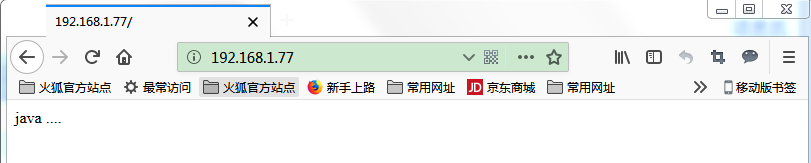
# 1、进入nginx管理界面

docker container exec -it c764f337ffad /bin/bash

# 2、查看输出日志测试轮询代理

[root@nginx /]# tail /usr/local/nginx/logs/access.log -f
172.20.0.4:8080 192.168.1.2 - - [25/Oct/2018:07:34:07 +0000] "GET / HTTP/1.1" 200 10 "-" "Mozilla/5.0 (Windows NT 6.1; Win64; x64; rv:62.0) Gecko/20100101 Firefox/62.0" "-"

172.20.0.3:8080 192.168.1.2 - - [25/Oct/2018:07:34:07 +0000] "GET /favicon.ico HTTP/1.1" 404 1016 "-" "Mozilla/5.0 (Windows NT 6.1; Win64; x64; rv:62.0) Gecko/20100101 Firefox/62.0" "-"

172.20.0.5:8080 192.168.1.2 - - [25/Oct/2018:07:34:31 +0000] "GET / HTTP/1.1" 200 10 "-" "Mozilla/5.0 (Windows NT 6.1; Win64; x64; rv:62.0) Gecko/20100101 Firefox/62.0" "-"

172.20.0.4:8080 192.168.1.2 - - [25/Oct/2018:07:34:35 +0000] "GET / HTTP/1.1" 200 10 "-" "Mozilla/5.0 (Windows NT 6.1; Win64; x64; rv:62.0) Gecko/20100101 Firefox/62.0" "-"

172.20.0.3:8080 192.168.1.2 - - [25/Oct/2018:07:34:40 +0000] "GET / HTTP/1.1" 200 10 "-" "Mozilla/5.0 (Windows NT 6.1; Win64; x64; rv:62.0) Gecko/20100101 Firefox/62.0" "-"

172.20.0.5:8080 192.168.1.2 - - [25/Oct/2018:07:34:41 +0000] "GET / HTTP/1.1" 200 10 "-" "Mozilla/5.0 (Windows NT 6.1; Win64; x64; rv:62.0) Gecko/20100101 Firefox/62.0" "-"
Docker Compose 一键部署Nginx代理Tomcat集群的更多相关文章
- Docker Compose部署 nginx代理Tomcat集群
一.简介 使用Docker镜像部署Nginx代理的多个Tomcat集群: 使用Dockerfile构建nginx镜像 使用Dockerfile构建tomcat镜像 mysql镜像使用docker hu ...
- [Docker]compose一键部署nginx
Docker-compose部署nginx 创建配置文件 mkdir -p /usr/local/docker/nginx cat > /usr/local/docker/nginx/docke ...
- Docker Compose一键部署Nginx反向代理Tomcat集群
目录结构如下 mysql/conf/my.cnf [mysqld] user=mysql port=3306 datadir=/var/lib/mysql socket=/var/lib/mysql/ ...
- Docker Compose 一键部署LNMP
Docker Compose 一键部署LNMP 目录结构 [root@localhost ~]# tree compose_lnmp/ compose_lnmp/ ├── docker-compose ...
- Docker Compose 一键部署多节点爬虫程序
Docker Compose 一键部署多节点爬虫程序 目录结构 [root@localhost ~]# tree compose_crawler/ compose_crawler/ ├── cento ...
- nginx整合tomcat集群并做session共享----测试案例
最近出于好奇心,研究了一下tomcat集群配置,并整合nginx,实现负载均衡,session共享,写篇记录,防止遗忘.---------菜鸡的自我修炼. 说明:博主采用一个web项目同时部署到两台t ...
- Nginx代理MysqlCluster集群(二)
Nginx代理MySql集群本次实验采用nginx 版本1.12以上 集合了tcp代理功能只需在编译时明文开启指定的功能 --with-stream--prefix=/usr/local/ngin - ...
- Nginx+Memcached+Tomcat集群配置(MSM--win7 64bit)
本次主要是在win7 64 上演示操作. web应用构建 Memcached安装配置启动 Tomcat配置 所需jar包 memcached-session-manager 序列化 contextxm ...
- Ubuntu下基于Nginx实现Tomcat集群负载均衡
版权声明:本文为博主原创文章,未经博主允许不得转载. 目录(?)[+] Nginx是一款HTTP和反向代理服务器,有关它的介绍可以到网上搜一下,很多很多,不再累述.这里,我们记录一下Nginx ...
随机推荐
- Spring data Jpa,Mybatis,读写锁,@Lock 使用
Spring data jpa 支持注解式的读写锁(悲观锁),实际上这个东西硬编码也简单,但是基于Jpa 命名方式定义的Sql,只能用注解添加支持读写锁了, 不了解读写锁的可以点这里 mysql读写锁 ...
- HTML禁止右键复制【两行代码实现】
很多的站长朋友会考虑保护网站的内容不被人复制,或者是不被人轻易的复制,下面就来告诉如何用两行代码来做HTML禁止右键复制html的方法: document.oncontextmenu=new Func ...
- 利用pl/sql执行计划评估SQL语句的性能简析
一段SQL代码写好以后,可以通过查看SQL的执行计划,初步预测该SQL在运行时的性能好坏,尤其是在发现某个SQL语句的效率较差时,我们可以通过查看执行计划,分析出该SQL代码的问题所在. 那么,作为 ...
- redis数据库通过dump.rdb文件恢复数据库或者数据库迁移
环境:centos7.2软件:redis-3.2.10(yum安装) 情景一:公司之前的redis没有开启aof模式,一直是rdb模式,但是数据又非常重要,数据一点也不能丢失,所以需要开启aof,但是 ...
- 数据库查询的数据导出到xls表,集合数据导出到xls表
//实体类package com.outxls; public class Student { private Integer studentId; private String studentNam ...
- 求最短路的三种方法:dijkstra,spfa,floyd
dijkstra是一种单源最短路算法.在没有负权值的图上,vi..vj..vk是vi到vk最短路的话,一定要走vi到vj的最短路.所以每次取出到起点距离最小的点,从该点出发更新邻接的点的距离,如果更新 ...
- Markdown编辑工具及命令
Markdown是一种可以使用普通文本编辑器编辑的标记语言,通过使用简单的编辑,可以使文本具有一定的格式. Typora是一款简介的Markerdown编辑器. 文本编辑语法: 标题: # 一阶标题 ...
- 架构3(基于LVS LB集群解决方案一:piranha)
1.实现调度器的HA 2.对realserver做健康检测 3.动态维护IPVS路由表 pulse 活跃和备用lvs路由器中都会运行pulse守护进程,在备用路由器中,pulse向活跃的服务器的公共接 ...
- RoR- Database setup& SQLite ... Migrations
*rails uses SQLite for database by default *Built-in command-line DB viewer *Self-contained,server-l ...
- Cestos7安装Elasticsearch5.4.3
Elasticsearch及配件下载地址:https://www.elastic.co/cn/downloads 为了简单起见,我们使用tar文件. 在/usl下创建elk目录 一.安装elastic ...