
鸿蒙js开发7 鸿蒙分组列表和弹出menu菜单
鸿蒙入门指南,小白速来!从萌新到高手,怎样快速掌握鸿蒙开发?【课程入口】
目录:
1.鸿蒙视图效果
2.js业务数据和事件
3.页面视图代码
4.跳转页面后的视图层
5.js业务逻辑部分
6.《鸿蒙js开发》系列文章合集
任正非:现在华为必须全面靠自己打造产品,要敢于将鸿蒙推入竞争,星光不问赶路人,时光不负有心人
1.鸿蒙视图效果
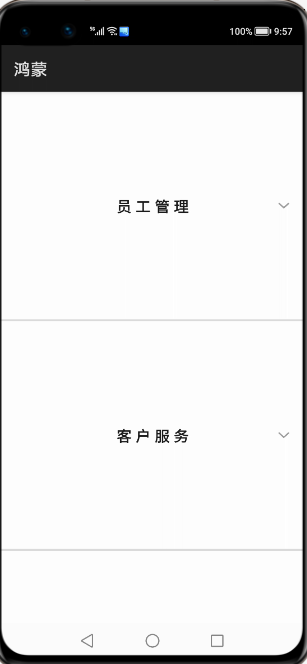
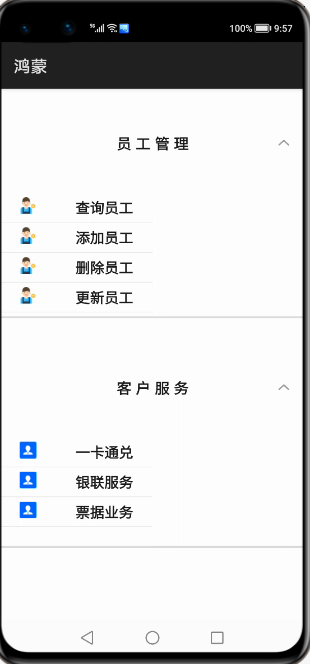
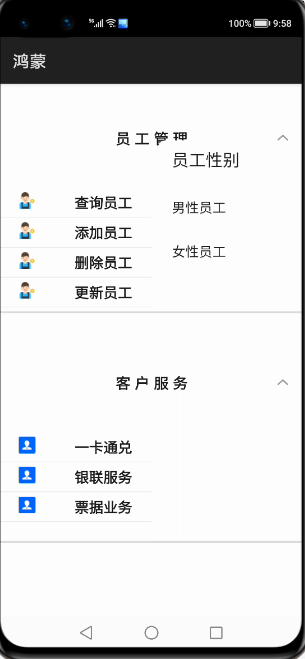
点击menu菜单一项,跳转页面,底部菜单栏和轮播布局和轮播图
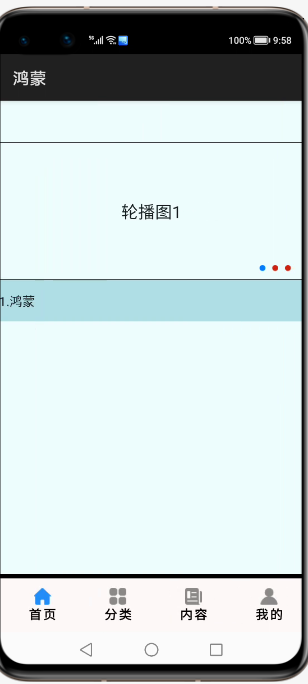
2.js业务数据和事件
import prompt from '@system.prompt';

import router from '@system.router';

export default {

    data: {

        title: 'World',

        fundatas:[{"fathermenu":"员工管理","childmenu":[{"icon":"/common/emp.png","text":"查询员工"},{"icon":"/common/emp.png","text":"添加员工"},{"icon":"/common/emp.png","text":"删除员工"},{"icon":"/common/emp.png","text":"更新员工"}]},

                  {"fathermenu":"客户服务","childmenu":[{"icon":"/common/customer.png","text":"一卡通兑"},{"icon":"/common/customer.png","text":"银联服务"},{"icon":"/common/customer.png","text":"票据业务"}]},

                  {"fathermenu":"内部管理","childmenu":[{"icon":"","text":""},{"icon":"","text":""},{"icon":"","text":""}]},

                  {"fathermenu":"合同管理","childmenu":[{"icon":"","text":""},{"icon":"","text":""},{"icon":"","text":""}]},

                  {"fathermenu":"资产管理","childmenu":[{"icon":"","text":""},{"icon":"","text":""},{"icon":"","text":""}]},

                  {"fathermenu":"绩效管理","childmenu":[{"icon":"","text":""},{"icon":"","text":""},{"icon":"","text":""}]},

        ]

    },

    clickitem(itemvalue)

    {

        if(itemvalue=="查询员工")

        {

            this.$element("menu").show({

                x: 360,

                y: 120

            });

            //this.$element("menu").show();

        }

        prompt.showToast({

            message:"点击了菜单"+itemvalue

        })

    },

    menuSelected(e) {

        prompt.showToast({

            message:"你选择查询的值是:"+e.value

        })

        router.push({

            uri:"pages/index/index"

        })

    }

}
3.页面视图代码
<div class="container">

    <list  class="listview">

       <block  for="{{fundatas}}">

           <list-item-group  class="groupview">

               <list-item class="listitem">

                   <text  class="tv1">{{$item.fathermenu}}</text>

               </list-item>

               <block  for="{{ (index,value)  in $item.childmenu}}">

                 <list-item class="listitemone" onclick="clickitem({{value.text}})">

                    <image  class="cimg"  src="{{value.icon}}"></image>

                    <text class="tv2">{{value.text}}</text>

                 </list-item>

               </block>

           </list-item-group>

       </block>

    </list>

    <menu id="menu"  title="员工性别"  onselected="menuSelected">

        <option value="男性员工">

            男性员工

        </option>

        <option value="女性员工">

            女性员工

        </option>

    </menu>

</div>
3.样式代码
.container {

    width: 100%;

    height: 1200px;

}

.listview{

    width: 100%;

    height: 100%;

}

.groupview{

    width: 100%;

    height: 46%;

    border-bottom: 5px solid  #DCDCDC;

}

.listitem{

    width: 100%;

    height: 20%;

    display: flex;

    justify-content: space-around;

}

.listitemone {

    width: 50%;

    height: 6%;

    border-bottom: 1px  solid  #DCDCDC;

    display: flex;

    justify-content: space-around;

}

.cimg{

    width: 40px;

    height: 40px;

}

.tv1{

    font-size: 35px;

    font-weight: bold;

    font-family: sans-serif;

    letter-spacing: 10px;

}

.tv2{

    font-size: 34px;

    font-weight: bold;

    font-family: sans-serif;

}
4.跳转页面后的视图层
<div  class="pageview">

    <swiper  class="swiperview"   id="swiper" index="0" >

        <div class ="sw1">

            <swiper class="swiper1" id="swiper1" autoplay="true" index="0" indicator="true"  loop="true" digital="false">

                <div class = "swiperContent1" >

                    <text class = "text" value="轮播图1"></text>

                </div>

                <div class = "swiperContent1">

                    <text class = "text" value="轮播图2"></text>

                </div>

                <div class = "swiperContent1">

                    <text class = "text" value="轮播图3"></text>

                </div>

            </swiper>

            <swiper class="swiper2" loop="true" vertical="true" indicator="false" autoplay="true">

                     <div class="lineview">

                       <text>1.鸿蒙</text>

                     </div>

                     <div class="lineview">

                         <text>2.苹果</text>

                     </div>

                     <div class="lineview">

                         <text>3.安卓</text>

                     </div>

            </swiper>

        </div>

        <div class ="sw2">

            <list class="todo-wraper">

                <list-item for="{{todolist}}" class="todo-item">

                    <text class="todo-title">{{$item.title}}</text>

                    <text class="todo-title">{{$item.date}}</text>

                </list-item>

            </list>

        </div>

        <div class ="sw3">

            <tabs class = "tabs" index="0" vertical="false" onchange="change">

                <tab-bar class="tab-bar" mode="fixed">

                    <text class="tab-text">推荐</text>

                    <text class="tab-text">视频</text>

                    <text class="tab-text">本地</text>

                    <text class="tab-text">内容</text>

                </tab-bar>

                <tab-content class="tabcontent" scrollable="true">

                    <div class="item-content" >

                        <div class="currentview">

                                <div  class="leftview"><text class="infot1">{{weatherInfo.city}}</text></div>

                                 <div class="rightview1">

                                    <div  class="cell"><text>{{winfo.info}}</text></div>

                                     <div class="cell"><text>{{winfo.direct}}</text></div>

                                     <div class="cell"><text>{{winfo.power}}</text></div>

                                 </div>

                        </div>

                        <div class="nextview">

                        </div>

                    </div>

                    <div class="item-content" >

                        <text class="item-title">第二个</text>

                    </div>

                    <div class="item-content" >

                        <text class="item-title">第三个</text>

                    </div>

                    <div class="item-content" >

                        <text class="item-title">第四个</text>

                    </div>

                </tab-content>

            </tabs>

        </div>

        <div class ="sw4">

            <text>第四幅</text>

        </div>

    </swiper>

    <div  class="bottommenu">

        <div  for="{{menus}}"  class="menubox"  onclick="changemenu({{$idx}})">

            <image  src="{{currentdata==$idx?$item.path:$item.path1}}" class="cimg"></image>

           <text  class="menutitle">{{$item.menu}}</text>

        </div>

    </div>

</div>
5.js业务逻辑部分
import   fetch  from '@system.fetch';

export default {

    data: {

        weatherInfo:{},

        winfo:{},

        nextInfo:[],

        currentdata:0,

        title: "",

        menus:[{menu:"首页","path":"./common/ones.png","path1":"./common/oneu.png"},

               {menu:"分类","path":"./common/cs.png","path1":"./common/cu.png"},

               {menu:"内容","path":"./common/cons.png","path1":"./common/conu.png"},

               {menu:"我的","path":"./common/mys.png","path1":"./common/myu.png"}],

       todolist: [{

      title: '刷leetcode',

      date: '2020-06-25 10:00:00',

    }, {

      title: '看电影',

      date: '2020-06-27 20:00:00',

    },

                  {

                      title: '刷leetcode',

                      date: '2020-06-25 10:00:00',

                  }, {

                      title: '看电影',

                      date: '2020-06-27 20:00:00',

                  },{

                      title: '刷leetcode',

                      date: '2020-06-25 10:00:00',

                  }, {

                      title: '看电影',

                      date: '2020-06-27 20:00:00',

                  },{

                      title: '刷leetcode',

                      date: '2020-06-25 10:00:00',

                  }, {

                      title: '看电影',

                      date: '2020-06-27 20:00:00',

                  },

                  {

                      title: '刷leetcode',

                      date: '2020-06-25 10:00:00',

                  }, {

                      title: '看电影',

                      date: '2020-06-27 20:00:00',

                  },

                  {

                      title: '刷leetcode',

                      date: '2020-06-25 10:00:00',

                  }, {

                      title: '看电影',

                      date: '2020-06-27 20:00:00',

                  },{

                      title: '刷leetcode',

                      date: '2020-06-25 10:00:00',

                  }, {

                      title: '看电影',

                      date: '2020-06-27 20:00:00',

                  },{

                      title: '刷leetcode',

                      date: '2020-06-25 10:00:00',

                  }, {

                      title: '看电影',

                      date: '2020-06-27 20:00:00',

                  },{

                      title: '刷leetcode',

                      date: '2020-06-25 10:00:00',

                  }, {

                      title: '看电影',

                      date: '2020-06-27 20:00:00',

                  },

                  {

                      title: '刷leetcode',

                      date: '2020-06-25 10:00:00',

                  }, {

                      title: '看电影',

                      date: '2020-06-27 20:00:00',

                  },{

                      title: '刷leetcode',

                      date: '2020-06-25 10:00:00',

                  }, {

                      title: '看电影',

                      date: '2020-06-27 20:00:00',

                  },{

                      title: '刷leetcode',

                      date: '2020-06-25 10:00:00',

                  }, {

                      title: '看电影',

                      date: '2020-06-27 20:00:00',

                  }

       ]

    },

    onInit() {

       // this.title = this.$t('strings.world');

        let  that  =this;

        fetch.fetch({

            url:"http://apis.juhe.cn/simpleWeather/query?city=南京&key=3dc98f3428c44424088015738a070554",

            responseType:"json",

            success:function(resp)

            {

                let  currentValue=JSON.parse(resp.data);

                that.weatherInfo=currentValue.result;

                that.winfo=currentValue.result.realtime;

               // that.nextInfo=currentValue.future;

            }

        })

    },

    changemenu(index)

    {

        this.currentdata=index;

        this.$element('swiper').swipeTo({index: index});

    }

}
5.样式代码
.pageview{

    width: 100%;

    height: 1600px;

    background-color: azure;

}

.bottommenu{

    width: 100%;

    height: 140px;

    background-color: snow;

    border-top: 10px  solid  black;

    z-index:999;

    position: fixed;

    left: 0px;

    bottom: 0px;

    display: flex;

    justify-content: center;

    align-items: center;

}

.menubox{

    width: 22%;

    height: 90%;

    /**border:9px  solid  #ccff6a;**/

    margin-left: 20px;

    display: flex;

    flex-direction: column;

    justify-content: center;

    align-items: center;

}

.menutitle{

    color: black;

    font-weight: bold;

    letter-spacing: 4px;

}

.cimg{

    width: 40px;

    height: 40px;

}

.swiperview{

    width: 100%;

    height: 100%;

}

.sw1{

    width: 100%;

    height: 100%;

    display: flex;

    flex-direction: column;

}

.sw2{

    width: 100%;

    height: 100%;

    background-color: cornflowerblue;

}

.sw3{

    width: 100%;

    height: 100%;

    background-color: #ccff6a;

}

.sw4{

    width: 100%;

    height: 100%;

    background-color: #009865;

}

.swiper1 {

    width: 100%;

    height: 330px;

    border: 1px solid #000000;

    indicator-color: #cf2411;

    indicator-size: 14px;

    indicator-bottom: 20px;

    indicator-right: 30px;

    margin-top: 100px;

}

.swiperContent1 {

    width: 800px;

    height: 100%;

    justify-content: center;

}

.button {

    width: 70%;

    margin: 10px;

}

.text {

    font-size: 40px;

}

.swiper2{

    width: 100%;

    height: 100px;

    background-color: powderblue;

}

.lineview{

    width: 100%;

    height: 100%;

}

.todo-wraper {

    width: 100%;

    height: 100%;

}

.todo-item {

    width: 100%;

    height: 80px;

    flex-direction: row;

    display: flex;

}

.todo-title {

    width: 454px;

    height: 40px;

    text-align: center;

}

.tabs {

    width: 100%;

}

.tab-bar {

    margin: 10px;

    height: 60px;

    border-color: #007dff;

    border-width: 1px;

}

.tab-text {

    width: 300px;

    text-align: center;

}

.tabcontent {

    width: 100%;

    height: 80%;

    justify-content: center;

}

.item-content {

    height: 100%;

    justify-content: center;

    display: flex;

    flex-direction: column;

}

.item-title {

    font-size: 60px;

}

.currentview{

    width: 100%;

    height: 30%;

    border-bottom: 4px  solid  peru;

    display: flex;

}

.nextview{

    width: 100%;

    height: 70%;

}

.leftview{

    width: 30%;

    height: 100%;

    border-right: 2px  solid  paleturquoise;

    border-bottom: 2px  solid  paleturquoise;

    display: flex;

    justify-content: center;

    align-items: center;

}

.rightview1{

    width: 70%;

    height: 100%;

    display: flex;

    flex-direction: column;

}

.infot1{

    font-family: 楷体;

    font-size: 80px;

    color: snow;

    font-weight: bold;

    letter-spacing: 5px;

}

.cell{

    width: 100%;

    height: 30%;

    border:1px  solid  red;

}
作者:六合李欣
想了解更多内容,请访问: 51CTO和华为官方战略合作共建的鸿蒙技术社区https://harmonyos.51cto.com
鸿蒙js开发7 鸿蒙分组列表和弹出menu菜单的更多相关文章
- 从微信小程序到鸿蒙js开发【11】——页面路由
目录: 1.router.push()&wx.navigateTo() 2.router.replace()&wx.redirectTo() 3.router.back()&w ...
- 从微信小程序到鸿蒙js开发【13】——list加载更多&回到顶部
鸿蒙入门指南,小白速来!从萌新到高手,怎样快速掌握鸿蒙开发?[课程入口] 目录: 1.list加载更多 2.list回到顶部 3.<从微信小程序到鸿蒙js开发>系列文章合集 1.list加 ...
- 从微信小程序到鸿蒙js开发【12】——storage缓存&自动登录
鸿蒙入门指南,小白速来!从萌新到高手,怎样快速掌握鸿蒙开发?[课程入口] 正文: 在应用开发时,我们常需要将一些数据缓存到本地,以提升用户体验.比如在一个电商的app中,如果希望用户登录成功后,下次打 ...
- 从微信小程序到鸿蒙js开发【15】——JS调用Java
鸿蒙入门指南,小白速来!0基础学习路线分享,高效学习方法,重点答疑解惑--->[课程入口] 目录:1.新建一个Service Ability2.完善代码逻辑3.JS端远程调用4.<从微信小 ...
- [转]js中confirm实现执行操作前弹出确认框的方法
原文地址:http://www.jb51.net/article/56986.htm 本文实例讲述了js中confirm实现执行操作前弹出确认框的方法.分享给大家供大家参考.具体实现方法如下: 现在在 ...
- EBS OAF开发中实现參数式弹出窗体
EBS OAF开发中实现參数式弹出窗体 (版权声明,本人原创或者翻译的文章如需转载,如转载用于个人学习,请注明出处:否则请与本人联系,违者必究) 概览 參数式弹出窗体和嵌入式弹出窗体不一样,它拥有独立 ...
- 从微信小程序到鸿蒙js开发【04】——list组件
目录: 1.可滚动区域 2.list + list-item 3.list + list-item-group + list-item 1.可滚动区域 在许多场景中,页面会有一块区域是可滚动的,比如这 ...
- 鸿蒙JS 开发整理
目录 一.前言: 二.鸿蒙 JS UI框架 2.1 JS UI特性 2.2 架构 2.3 新的UI框架结构 三.API 四.最后 一.前言: 5月25日,华为对外宣布计划在6月2日正式举办鸿蒙手机发布 ...
- 从微信小程序到鸿蒙js开发【06】——swiper&animator&marquee
目录: 1.swiper轮播图 2.image-animator幻灯片 3.marquee跑马灯 4.nginx动静分离 1.swiper轮播图 微信小程序的swiper组件中只能放置swiper-i ...
随机推荐
- Java方式导出EXCEL表格
最近几天做公司项目,应客户需求需要将表单的数据下载本地存成.xls文件.之前做毕设的时候,就有类似这方面的功能需 求,但是当时也没有做就搁浅了下来,这次补上. 一.业务开发描述 二.前台jsp页面及j ...
- PTA刷题记录
考虑到PAT甲级考试和开学后的XCPC比赛,决定寒假把PAT (Advanced Level) Practice刷完,进度条会在这篇博客下更新.由于主要以记录为主,大体上不会像单篇题解那么详细,但是对 ...
- zjnu1735BOB (单调队列,单调栈)
Description Little Bob is a famous builder. He bought land and wants to build a house. Unfortunately ...
- NCD 2019 H. Mr. Hamra and his quantum particles
题意:给你n个数,有m次操作,每次使得两个数相连接,询问q次,问某两个数是否连接在一起. 题解:这其实是一道并查集的裸题,这里就不再多说了,写个路径压缩的find函数即可. 代码: #include ...
- 仿ATM程序软件
一.目标: ATM仿真软件 1 系统的基本功能 ATM的管理系统其基本功能如下:密码验证机制:吞锁卡机制:存取款功能:账户查询功能:转账功能等. 要求 要能提供以下几个基本功能: (1)系统内的相关信 ...
- Codeforces Round #646 (Div. 2) C. Game On Leaves (贪心,博弈)
题意:给你一棵树,每次可以去掉叶节点的一条边,Ayush先开始,每回合轮流来,问谁可以第一个把\(x\)点去掉. 题解:首先如果\(x\)的入度为\(1\),就可以直接拿掉,还需要特判一下入度为\(0 ...
- Hyper-V安装CentOS修改分辨率
grubby --update-kernel=ALL --args="video=hyperv_fb:1600x900" reboot https://blog.csdn.net/ ...
- Java魔法堂:调用外部程序
前言 Java虽然五脏俱全但总有软肋,譬如获取CPU等硬件信息,当然我们可以通过JNI调用C/C++来获取,但对于对C/C++和Windows API不熟的码农是一系列复杂的学习和踩坑过程.那能不能通 ...
- Docker的OverlayFS存储驱动
OverlayFS存储驱动 OverlayFS是一个现代的Union Filesystem,类似于AUFS,但速度更快,实现更简单.Docker为OverlayFS提供了两个存储驱动程序:overla ...
- Chapter Zero 0.2.1 执行运算与判断的CPU
目录 执行运算与判断的CPU CPU效能比较的指标 CPU的工作频率:外频与倍频 32位与64位的CPU与总线[宽度] CPU的等级 超线程(Hyper-Threading,HT) 网上摘下几张主板图 ...