
WindowsTerminal折腾记
背景
Windows Terminal最近出了1.0版本,界面非常美观,但要配置好还是要下一番功夫,而且网上的教程都是互相抄,所以特将我的配置过程记录如下。
字体
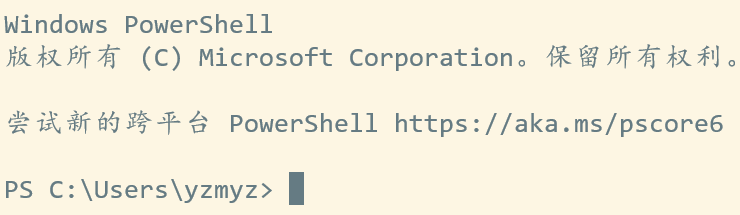
首先是字体,默认字体英文不错,但中文挺不好看的,而Windows Terminal不支持单字节字符和双字节字符配置不同的字体,所以我找到了一个合成字体的网站,将英文的Consolas字体和和中文的楷体合并成了一个字体,然后双击安装。在配置文件的defaults标签下修改fontFace为字体的名字,fontSize为字体的大小,这是使用了合成字体的界面:
背景图片
接着是背景图片,在配置文件的defaults标签下添加如下属性:
"backgroundImage": "D:\\images\\image.jpg",

"backgroundImageOpacity": 0.2,

"backgroundImageStretchMode": "uniformToFill",
第一个属性是路径,第二个是透明度,第三个是拉伸方式,拉伸方式有四种取值,可以参考微软官方文档,建议使用uniformToFill,它能在保持图片分辨率的同时将图片拉伸充满窗口。
主题
Windows Terminal自带可以更换的主题可以在官方github上面看到,因为我的背景图是暖色调的,所以我选择了Solarized Light这一主题,不过使用该主题会造成一些地方的颜色看不太清楚,比如此主题下运行vim的查找字符串高亮显示背景和文字的颜色就过于接近,看不清楚;我所使用的文件管理器vifm的当前行高亮也看不太清楚,PowerShell的一些字符也被背景掩盖,所以需要自己修改一下。这是我自己定制的Solarized Light主题:
        {

            "name": "My Solarized Light",

            "black": "#073642",

            "red": "#dc322f",

            "green": "#859900",

            "yellow": "#b58900",

            "blue": "#268bd2",

            "purple": "#d33682",

            "cyan": "#2aa198",

            "white": "#eee8d5",

            "brightBlack": "#002b36",

            "brightRed": "#cb4b16",

            "brightGreen": "#586e75",

            "brightYellow": "#657b83",

            "brightBlue": "#9ce3f8",

            "brightPurple": "#6c71c4",

            "brightCyan": "#859595",

            "brightWhite": "#fae7b3",

            "background": "#fdf6e3",

            "foreground": "#657b83"

        }
修改了brightBlue和brightCyan属性,同时将cursorColor属性改成了#657b83使得光标文字保持同个颜色,这个属性既可以出现在主题中也可以出现在前面的全局配置中,我放在前面了。如果还有显示不清楚的地方,可以用QQ的截图功能对想要修改的颜色区域进行取色,切换成十六进制后在主题中查找它对应的属性名然后修改。
以上可以解决各种程序的显示不清楚问题,但Powershell的问题本质上是Powershell语法高亮的问题,和Windows Terminal的主题无关,所以需要在PowerShell的配置文件里面修改。进入PowerShell,运行gvim $profile(gvim可以改成notepad等编辑器),然后输入下面的命令,保存退出:
Set-PSReadLineOption -Colors @{

    Number = 'DarkBlue'

    Member = 'DarkBlue'

} -EditMode 'Vi'
其中将Number和Member这两个token的颜色改成蓝色,因为原来的颜色就是黄色,和Solarized Light的背景颜色混起来看不清楚,如果还有显示不清楚的token,可以参考MSDN进行修改,editmode参数的修改属于我的个人喜好,Emacs党可以把Vi换成Emacs,都不是的就去掉这个参数即可。
完整配置
// This file was initially generated by Windows Terminal 1.0.1401.0

// It should still be usable in newer versions, but newer versions might have additional

// settings, help text, or changes that you will not see unless you clear this file

// and let us generate a new one for you.

// To view the default settings, hold "alt" while clicking on the "Settings" button.

// For documentation on these settings, see: https://aka.ms/terminal-documentation

{

    "$schema": "https://aka.ms/terminal-profiles-schema",

    "defaultProfile": "{0a920985-e2e7-4fe2-8610-f29c814c920a}",

    // You can add more global application settings here.

    // To learn more about global settings, visit https://aka.ms/terminal-global-settings

    // If enabled, selections are automatically copied to your clipboard.

    "copyOnSelect": true,

    // If enabled, formatted data is also copied to your clipboard

    "copyFormatting": true,

    "initialRows": 25,

    "initialCols": 80,

    // A profile specifies a command to execute paired with information about how it should look and feel.

    // Each one of them will appear in the 'New Tab' dropdown,

    //   and can be invoked from the commandline with `wt.exe -p xxx`

    // To learn more about profiles, visit https://aka.ms/terminal-profile-settings

    "profiles":

    {

        "defaults":

        {

            // Put settings here that you want to apply to all profiles.

            "fontFace": "KaiConsolas",

            "fontSize": 16,

            "cursorShape": "filledBox",

            "cursorColor": "#657b83",

            "backgroundImage": "D:\\images\\image.jpg",

            "backgroundImageOpacity": 0.2,

            "colorScheme": "My Solarized Light"

        },

        "list":

        [

            {

                // Make changes here to the powershell.exe profile.

                "guid": "{61c54bbd-c2c6-5271-96e7-009a87ff44bf}",

                "name": "Windows PowerShell",

                "commandline": "powershell.exe",

                "hidden": false

            },

            {

                "guid": "{0a920985-e2e7-4fe2-8610-f29c814c920a}",

                "hidden": false,

                "name": "Vifm",

                "commandline": "D:\\Apps\\vifm-w64-se-0.10.1-binary\\vifm.exe",

                "startingDirectory" : "D:\\"

            },

            {

                // Make changes here to the cmd.exe profile.

                "guid": "{0caa0dad-35be-5f56-a8ff-afceeeaa6101}",

                "name": "命令提示符",

                "commandline": "cmd.exe",

                "hidden": false

            },

            {

                "guid": "{2c4de342-38b7-51cf-b940-2309a097f518}",

                "hidden": false,

                "name": "Ubuntu",

                "source": "Windows.Terminal.Wsl"

            },

            {

                "guid": "{b453ae62-4e3d-5e58-b989-0a998ec441b8}",

                "hidden": false,

                "name": "Azure Cloud Shell",

                "source": "Windows.Terminal.Azure"

            }

        ]

    },

    // Add custom color schemes to this array.

    // To learn more about color schemes, visit https://aka.ms/terminal-color-schemes

    "schemes": [

        {

            "name": "My Solarized Light",

            "black": "#073642",

            "red": "#dc322f",

            "green": "#859900",

            "yellow": "#b58900",

            "blue": "#268bd2",

            "purple": "#d33682",

            "cyan": "#2aa198",

            "white": "#eee8d5",

            "brightBlack": "#002b36",

            "brightRed": "#cb4b16",

            "brightGreen": "#586e75",

            "brightYellow": "#657b83",

            "brightBlue": "#9ce3f8",

            "brightPurple": "#6c71c4",

            "brightCyan": "#859595",

            "brightWhite": "#fae7b3",

            "background": "#fdf6e3",

            "foreground": "#657b83"

        }

    ],

    // Add custom keybindings to this array.

    // To unbind a key combination from your defaults.json, set the command to "unbound".

    // To learn more about keybindings, visit https://aka.ms/terminal-keybindings

    "keybindings":

    [

        // Copy and paste are bound to Ctrl+Shift+C and Ctrl+Shift+V in your defaults.json.

        // These two lines additionally bind them to Ctrl+C and Ctrl+V.

        // To learn more about selection, visit https://aka.ms/terminal-selection

        // { "command": {"action": "copy", "singleLine": false }, "keys": "ctrl+c" },

        // { "command": "paste", "keys": "ctrl+v" },

        // Press Ctrl+Shift+F to open the search box

        { "command": "find", "keys": "ctrl+shift+f" },

        // Press Alt+Shift+D to open a new pane.

        // - "split": "auto" makes this pane open in the direction that provides the most surface area.

        // - "splitMode": "duplicate" makes the new pane use the focused pane's profile.

        // To learn more about panes, visit https://aka.ms/terminal-panes

        { "command": { "action": "splitPane", "split": "auto", "splitMode": "duplicate" }, "keys": "alt+shift+d" }

    ]

}
WindowsTerminal折腾记的更多相关文章
- 斐讯N1折腾记
斐讯N1折腾记:运行 Linux 及优化 2018-06-23 37条评论 4,445次阅读 11人点赞 最后更新时间:2019年03月10日 咳咳咳,上篇教程教大家给斐讯 N1 降级并且刷了 ...
- Atom编辑器折腾记
http://blog.csdn.net/bomess/article/category/3202419/2 Atom编辑器折腾记_(1)介绍下载安装 Atom编辑器折腾记_(2)基础了解使用 Ato ...
- BeagleBone折腾记(一):连接你的狗板
BeagleBone折腾记一连接你的狗板 准备 了解BeagleBone BeagleBone社区 所需软硬件 USB连接 TTL连接 结语 准备 了解BeagleBone BeagleBone可能一 ...
- Vue折腾记 - (3)写一个不大靠谱的typeahead组件
Vue折腾记 - (3)写一个不大靠谱的typeahead组件 2017年07月20日 15:17:05 阅读数:691 前言 typeahead在网站中的应用很多..今天跟着我来写一个不大靠谱的ty ...
- Anaconda折腾记(1)
Anaconda折腾记 谨此记录小白的我在Anaconda里面的摸爬滚打 更换更新源 可以不使用命令,直接进入C盘,进入user文件夹,进入当前的用户文件夹下,记得显示隐藏文件. 找到.condarc ...
- FreeBSD jail 折腾记(二)
FreeBSD jail 折腾记(二) 创建jail目录 创建4个 分别是模板 骨架 数据 项目 创建模板目录 mkdir -p /jail/j1 # 然后放入基本目录,上篇说过不再写 创建骨架目录 ...
- 【转载】有图 KVM折腾记..
KVM折腾记...https://lengjibo.github.io/KVM%E6%8A%98%E8%85%BE%E8%AE%B0/ Veröffentlicht am 2018-09-20 | ...
- Android编译环境折腾记
题记:感觉是时候写点什么了=_=! 第一次安装了ubuntu14.04.5,官网下载的iso,官网下的jar,编译android4.x需要安装jdk6,更高的版本会有问题,baidu到很多搭建环境的步 ...
- 【树莓派】【转载】Raspberry Pi (树莓派)折腾记
在网上看到一篇对树莓派折腾记录比较详细的文章,时间比较早,但是有些东西没变. 对于新手而言,还是有点参考价值.文章参见:http://skypegnu1.blog.51cto.com/8991766/ ...
随机推荐
- 【Java入门】JDK安装和环境变量配置(Win7版)
系统环境:Windows7 x64 安装JDK和JRE版本:1.8.0_191 1.下载JDK安装包 Oracle官网下载网址:https://www.oracle.com/technetwork/j ...
- CentOS Linux release 7.7.1908 (Core)--rabbitmq用户创建以及相关防火墙端口开启问题
增加访问用户,默认用户guest只能本地访问. #添加用户 rabbitmqctl add_user 账号 密码 rabbitmqctl add_user admin admin #分配用户标签(ad ...
- LaTeX常用符号(持续更新)
参考网址:https://qianwenma.cn/2018/05/17/mathjax-yu-fa-can-kao/# 基本运算 1.乘法$x\times y$ x\times y 2.乘法$x^{ ...
- Java根据模板生成Word文档
一,首先制作模板 1.先做一个Word文档, 2.打开Word,然后另存为*.xml文件 3.最后修改*.xml文件的后缀名为*.ftl 二,打开项目编辑器Idea,在pom文件中引入相关架包依赖(我 ...
- Windows下6款实用软件(强烈推荐!)
Windows下6款实用软件 1.notepads Notepads作为一款编辑器,美观.轻量,功能强大,支持多标签页.Markdown.日常文本编辑.查看,Notepads轻松胜任,如果厌烦了Win ...
- Mysql报错Error Code: 1175. You are using safe update
使用MySQL执行update的时候报错:Error Code: 1175. You are using safe update mode and you tried to update a tabl ...
- Downloadmanager实现app实现的升级下载使用
1.app升级下载现在不推荐使用downloadmanager下载: 原因有下面的几个方面: (1)三星note系列部分手机需要手动打开这个权限才能用这个功能,而有些国产手机更加nb了直接个阉割了(d ...
- BERT的前世今生
Transformer Transformer来自论文: All Attention Is You Need 别人的总结资源: 谷歌官方AI博客: Transformer: A Novel Neura ...
- akka-typed(8) - CQRS读写分离模式
前面介绍了事件源(EventSource)和集群(cluster),现在到了讨论CQRS的时候了.CQRS即读写分离模式,由独立的写方程序和读方程序组成,具体原理在以前的博客里介绍过了.akka-ty ...
- MFC:CImage显示OpenCV:Mat矩阵图像
*************************************/ //1.读入Mat矩阵(cvMat一样),Mat img=imread("*.*");//cvLoad ...