
Windows客户端的JProfiler远程监控Linux上的Tomcat
服务器:RedHat Linux 3.4.3-9.EL4(内核版本 2.6.9-5.EL),Tomcat5.5.20,Sun
JDK 1.5.0_09,JProfiler 4.3.2 for linux(安装包:jprofiler_linux_4_3_2.sh)
客户端:Windows XP,JProfiler 4.3.2 for windows(安装包:jprofiler_windows_4_3_2.exe)
2.JProfiler软件下载地址 http://www.ej-technologies.com/
3.客户端 JProfiler 安装 略
4.服务器端 JProfiler 安装:
把 jprofiler_linux_4.3.2.sh 上传到到服务器,假设路径为 /opt/jprofiler
# cd /opt/jprofiler
# chmod +x *.sh
# ./jprofiler_linux_4.3.2.sh -c
按照提示来安装,提示都很简单,不在多说。安装路径选择 /opt/jprofiler4
注意,这里的 -c 意思是用字符方式来安装,如果机器上没有 X 则加上该参数.
5.客户端连接配置
1). 运行 JProfiler 。第一次打开会有向导,忽略它。
2). 选择 Session->Integration Wizard->New Remote Integratation
3). 选择 On a remote computer;Platform of remote computer 选择 Linux x86/AMD 64;Next
4). 输入服务器 IP ;Next
5). 输入服务器上的 jprofiler 的安装路径,如 /opt/jprofiler4 ;next
6). 选择服务器的 JDK 环境,这里是:Sun,1.5.0,hotspot;next
7). 输入端口:这里是默认值 8849;next
8). 选择启动模式:这里选第一种 wait for a connection from the jprofiler GUI;next
9). 这里会列出需要在服务器端做的配置(very important):
Selected JVM: Sun 1.5.0 (hotspot)
Startup mode: Wait for JProfiler GUI
(1) Please insert
-agentlib:jprofilerti=port=8849 -Xbootclasspath/a:/opt/jprofiler4/bin/agent.jar
into the start command of your remote application right after the java command.
(2) Please add
/opt/jprofiler4/bin/linux-x86
to the environment variable LD_LIBRARY_PATH.
A remote session named Remote application on 192.168.40.15 will be created that connects to a running instance of the remote application that is started with the modified start command.
6.服务器端的配置
(1)修改系统环境配置文件 /etc/profile ,增加
export LD_LIBRARY_PATH=$LD_LIBRARY_PATH:$JPROFILER_HOME
(2)修改TOMCAT启动文件catalina.sh,添加-agentlib:jprofilerti=port=8849 -Xbootclasspath/a:/opt/jprofiler4/bin/agent.jar 内容到CATALINA_OPTS中;
“-agentlib:jprofilerti=port=8849 -Xbootclasspath/a:/opt/jprofiler4/bin/agent.jar ” 此内容由客户端软件生成
7.Reboot Linux and startup Tomcat using startup.sh;
The log of tomcat which is $CATALINA_HOME/logs/catalina.out will show:
JProfiler> Using JVMTI
JProfiler> 32-bit library
JProfiler> Listening on port: 8849.
JProfiler> Native library initialized
JProfiler> Waiting for a connection from the JProfiler GUI

8.启动客户端软件
点击jprofiler菜单 session>start center>Open Session
Available session configurations中列出了刚才配置的连接,选中使用就OK了!!
9.The log of tomcat which is $CATALINA_HOME/logs/catalina.out will show:
JProfiler> Time measurement: elapsed time
JProfiler> CPU profiling enabled
JProfiler> Hotspot compiler enabled
JProfiler> Starting org/apache/catalina/startup/Bootstrap
10.当中断JProfiler连接时
The log of tomcat which is $CATALINA_HOME/logs/catalina.out will show:
JProfiler> Listening on port: 8849.
各中间件配置
1、 服务端安装JProfiler(与客户端版本一致)
2、 客户端配置连接:
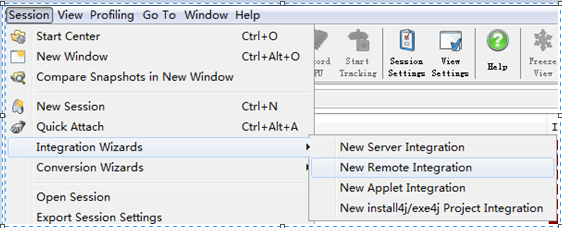
A)、session——integration wizards——New remote integration
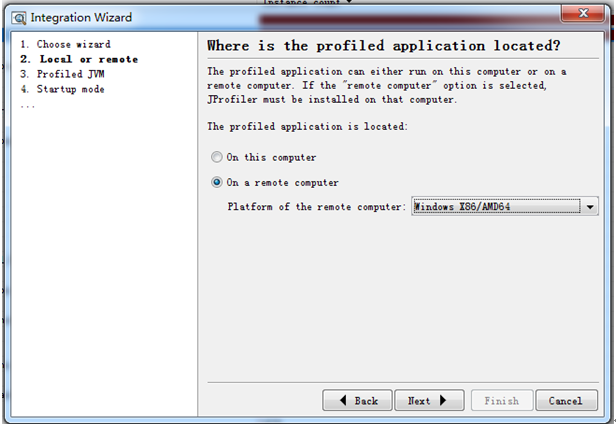
B)、选择远程监控的平台windows,点击next
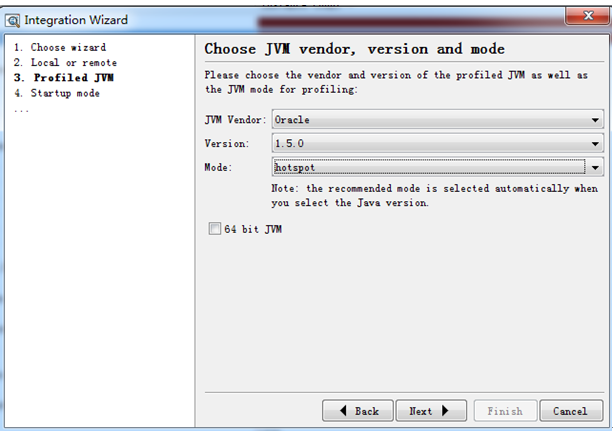
C)、选择jdk版本,如果服务器是64位的jdk则勾上64 bit jvm,点击next
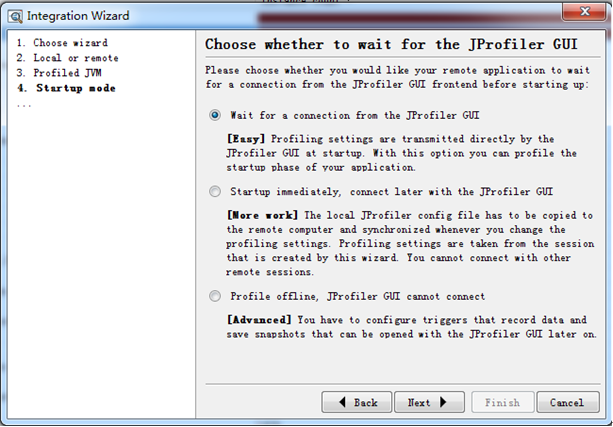
D)、选择等待连接,点击next
E)、输入服务端ip地址,点击next
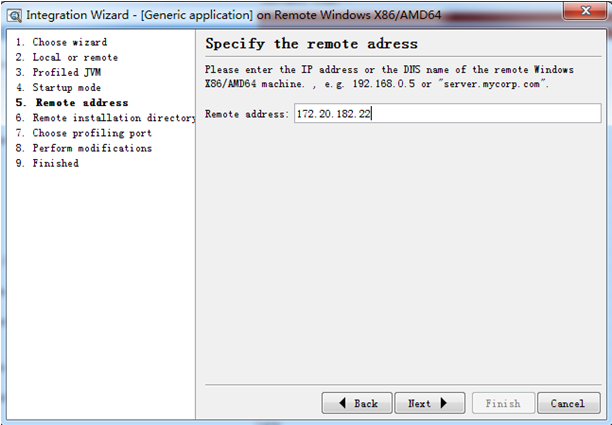
F)、输入服务端机器上的jprofiler的安装路径,点击next
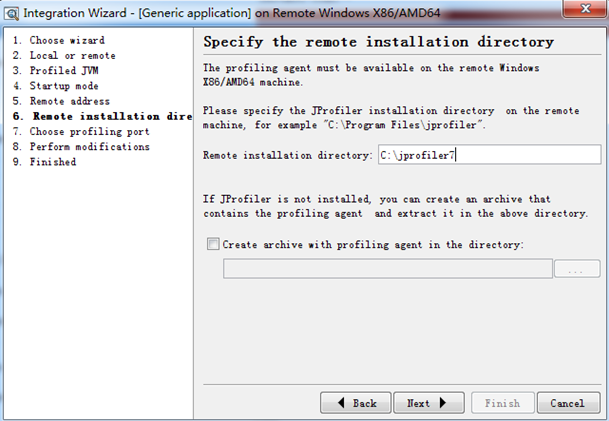
G)、端口默认8849,点击next
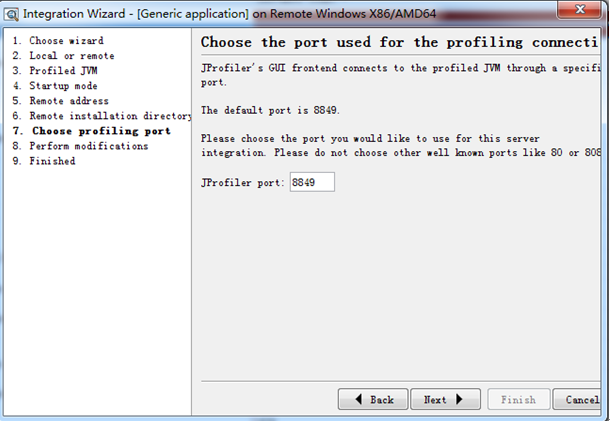
H)、提示需要在服务端插入下面的启动命令:-agentpath:C:\jprofiler7\bin\windows\jprofilerti.dll=port=8849
客户端配置完成

3、 服务端,在C:\jboss-4.2.3.GA(2)\jboss-4.2.3.GA\bin下面编辑run.bat
加入下面的启动项-agentpath:C:\jprofiler7\bin\windows\jprofilerti.dll=port=8849
如set JAVA_OPTS=%JAVA_OPTS% -Xms128m -Xmx512m -agentpath:C:\jprofiler7\bin\windows\jprofilerti.dll=port=8849
启动jboss,看到waiting for a connection from the JProfiler GUI… 就可以了
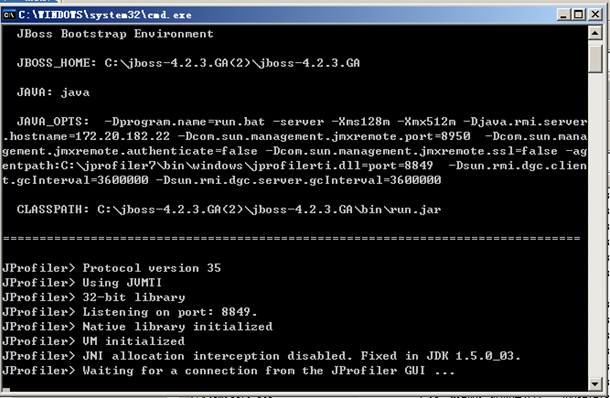
4、 配置好服务端后,继续点击客户端的next,然后再点击finish,连接即可
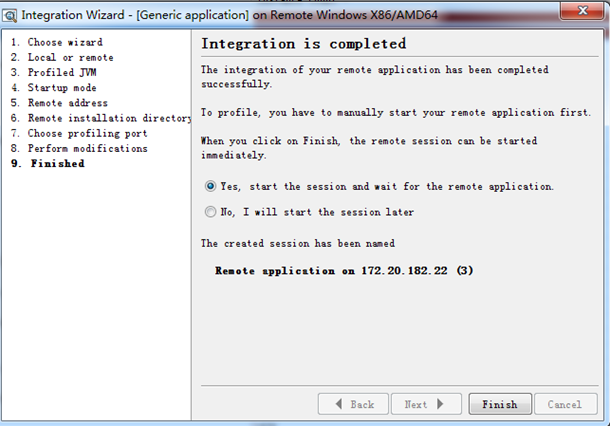
注:
A)、如果是tomcat则在编辑C:\my\apache-tomcat-6.0.14\apache-tomcat-6.0.14\bin下面catalina.bat
如set JAVA_OPTS=%JAVA_OPTS% -Djava.util.logging.manager=org.apache.juli.ClassLoaderLogManager -Djava.util.logging.config.file="%CATALINA_BASE%\conf\logging.properties" -agentpath:C:\my\jprofiler_windows_7_1_2\jprofiler7\bin\windows\jprofilerti.dll=port=8849
B)、如果是weblogic则编辑C:\bea\weblogic92\samples\domains\workshop\bin下面的setDomainEnv.cmd
如:
set JAVA_OPTIONS=%JAVA_OPTIONS% %JAVA_PROPERTIES% -Dwlw.iterativeDev=%iterativeDevFlag% -Dwlw.testConsole=%testConsoleFlag% -Dwlw.logErrorsToConsole=%logErrorsToConsoleFlag% -agentpath:C:\jprofiler7\bin\windows\jprofilerti.dll=port=8849
C)、如果是linux中的tomcat,则编辑/usr/local/apache-tomcat-6.0.35/bin下面的catalina.sh文件,在java_opts后面加上
-agentpath:/usr/local/jprofiler7/bin/linux-x86/libjprofilerti.so=port=8849"
(注意-agent参数要加载“之内)
如:
if [ -z "$LOGGING_MANAGER" ]; then
JAVA_OPTS="$JAVA_OPTS -Djava.util.logging.manager=org.apache.juli.ClassLoaderLogManager -agentpath:/usr/local/jprofiler7/bin/linux-x86/libjprofilerti.so=port=8849"
else
JAVA_OPTS="$JAVA_OPTS $LOGGING_MANAGER -agentpath:/usr/local/jprofiler7/bin/linux-x86/libjprofilerti.so=port=8849"
D)、如果是linux中的jboss,则编辑/usr/local/jboss-4.2.3.GA/bin下面的run.sh文件,在java_opts后面加上
-agentpath:/usr/local/jprofiler7/bin/linux-x86/libjprofilerti.so=port=8849
(注意-agent参数要加载“之内)
如:
if [ "$linux" = "true" ]; then
JAVA_OPTS="$JAVA_OPTS -Djava.net.preferIPv4Stack=true -agentpath:/usr/local/jprofiler7/bin/linux-x86/libjprofilerti.so=port=8849"
Fi
E)、如果是linux中的weblogic,则编辑/home/weblogic/user_projects/domains/Test/bin下面的setDomainEnv.sh
如:
JAVA_OPTIONS="${JAVA_OPTIONS} ${JAVA_PROPERTIES} -Dwlw.iterativeDev=${iterativeDevFlag} -Dwlw.testConsole=${testConsoleFlag} -Dwlw.logErrorsToConsole=${logErrorsToConsoleFlag} -agentpath:/usr/local/jprofiler7/bin/linux-x86/libjprofilerti.so=port=8849"
export JAVA_OPTIONS
----------------------------------------------------------------------------------------------------------------------------------------------------------------------------------------------------------------------------------
另一种方式(方便的操作linux+weblogic)
1、 客户端连接配置:
A)、session——new window,选择an application server,locally or remotely,点击next
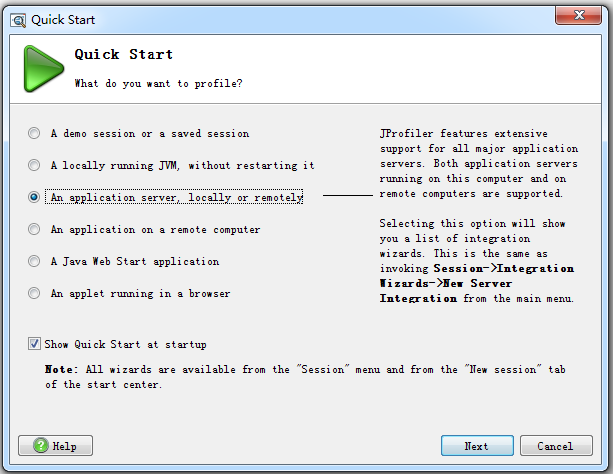
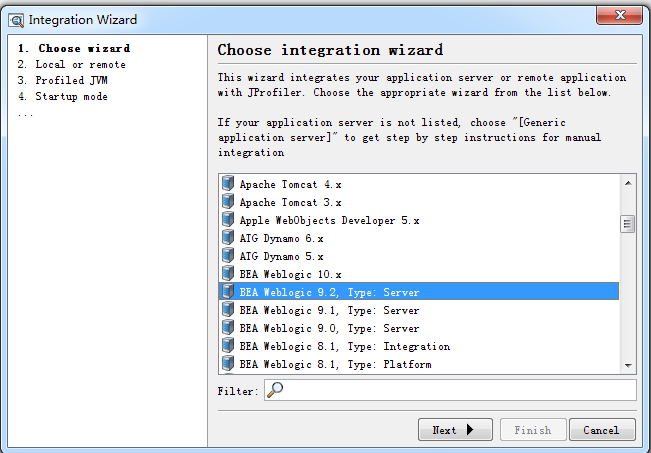
B)、选择监控的服务器(weblogic9.2),点击next
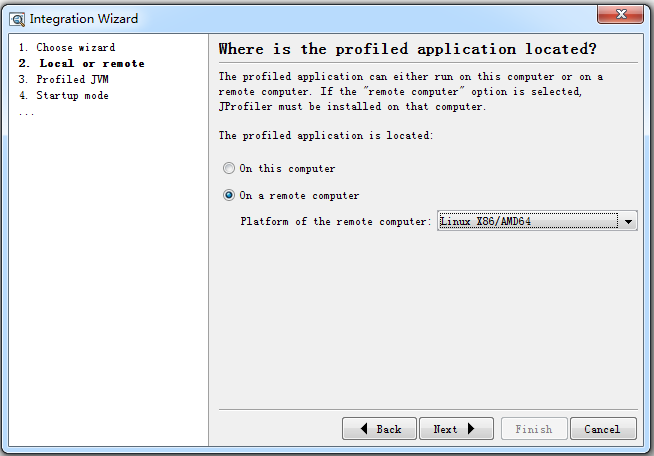
C)、选择远程监控机器平台
D)、选择jdk版本
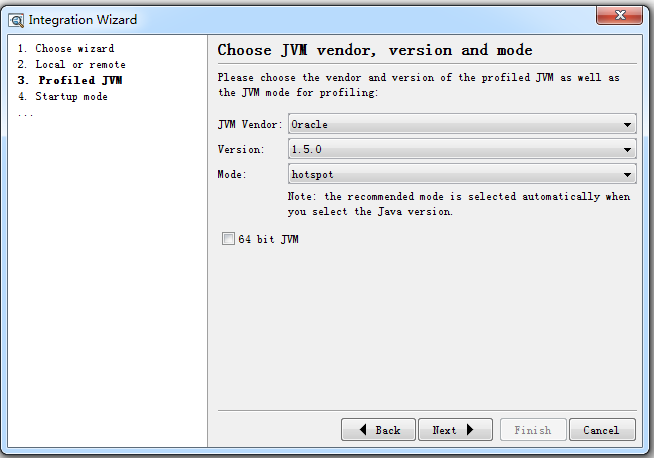
E)、选择立即启动,随时可以连接jprofiler,(即手动启动服务后,随时jprofiler可以连接)
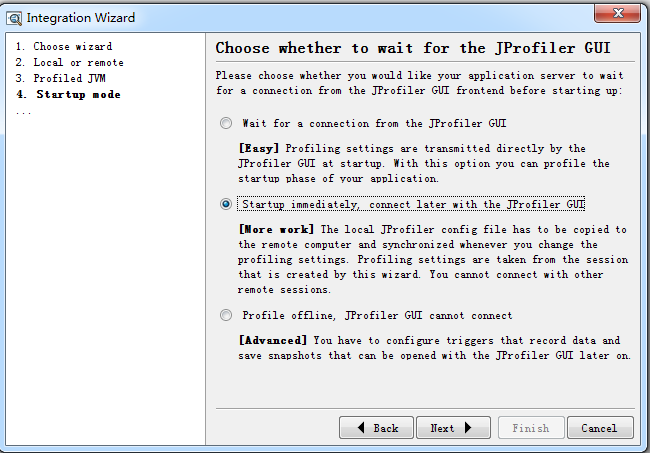
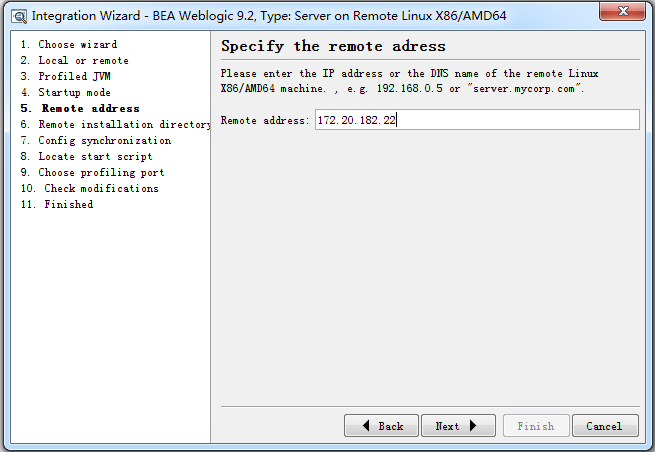
F)、输入远程ip地址
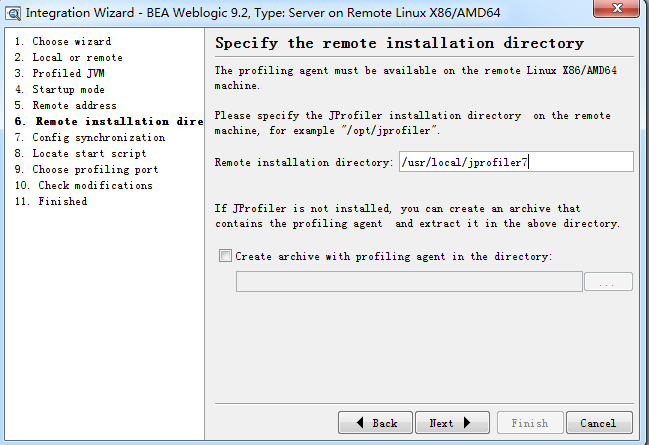
G)、输入远程机器上的jprofiler的路径
H)、选择远程配置文件的路径(完成后要把本地生成的config.xml拷贝到这)
选择拷贝配置文件到这个路径
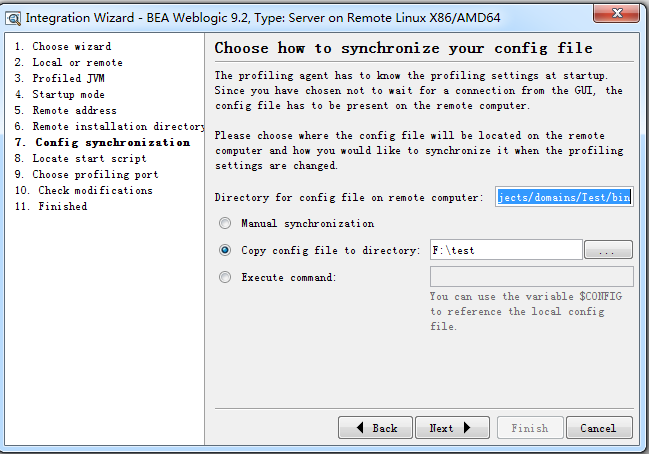
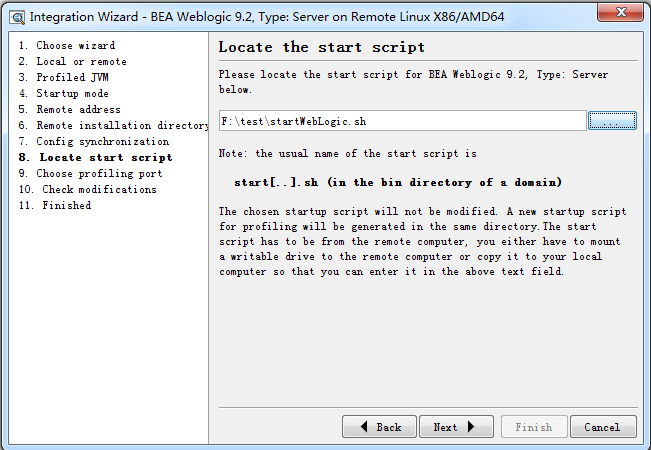
I)、这里选择提前在服务器上拷贝下来的startWebLogic.sh文件
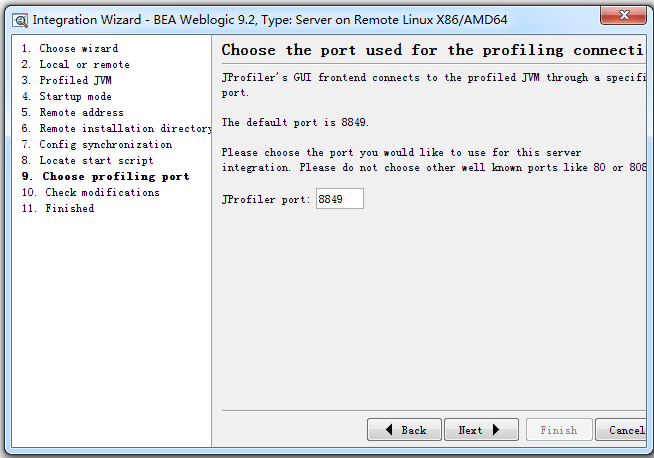
J)、显示端口,点击next
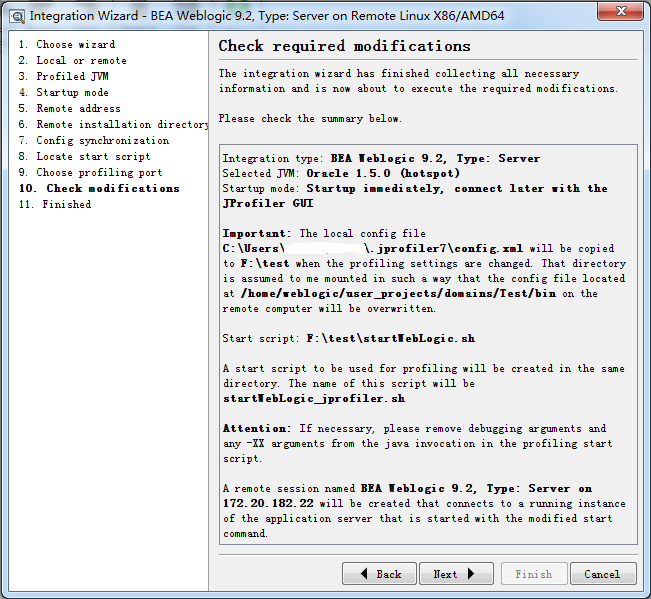
K)、提示要在服务端操作的内容,点击next
2、 服务端
A)、把C:\Users\xxxxxxx\.jprofiler7\config.xml拷贝到服务器的/home/weblogic/user_projects/domains/Test/bin路径下(要设置下这个文件的可操作权限chmod a+x /home/weblogic/user_projects/domains/Test/bin/config.xml)
B)、把F:\test\startWebLogic_jprofiler.sh拷贝到/home/weblogic/user_projects/domains/Test/bin路径下并授于可操作权
C)、./startWebLogic_jprofiler.sh启动weblogic即可

第一行是连接成功
第二行和第三行是断开
第四行是重新连接
Windows客户端的JProfiler远程监控Linux上的Tomcat的更多相关文章
- 转载:JProfiler远程监控LINUX上的Tomcat过程细讲
来源于xuwanbest的博客 所谓"工欲善其事,必先利其器",好的工具确能起到事半工倍的作用.我用到的最多的就两个JConsole 和JProfiler .JConsole监 ...
- JProfiler远程监控Linux上Tomcat的安装过程细讲(步骤非常详细!!!)
JProfiler远程监控Linux上Tomcat的安装过程细讲(步骤非常详细!!!) 1.文件准备: 服务器:CentOS Linux release 7.3.1611 (Core) Apa ...
- Windows负载机JVM 远程监控Linux服务器下tomcat
基本是跟着网上的操作进行的,除了遇到一个Local host name unknown的问题: 一.Linux服务器操作部分 服务器地址:10.64.111.68 首先配置JMX: 1.找到jdk目录 ...
- JConsole监控Linux上的Tomcat
JConsole监控Linux上的Tomcat 从Java 5开始引入了 JConsole,来监控 Java 应用程序性能和跟踪 Java 中的代码.jconsole是JDK自带监控工具,只需要找到 ...
- jprofile 远程监控linux上的jvm
环境 客户端:win7+jprofiler_windows-x64_10_0_4.exe linux服务器:tomcat7+jdk1.7+jprofiler_linux_10_0_4.sh 一.客户端 ...
- 记一个菜鸟在Linux上部署Tomcat的随笔
以前都只是在园子里找各种资料.文档.各种抱大腿,今天是第一次进园子里来添砖加瓦,实话说,都不知道整些啥东西上来,就把自己在Linux上搭建Tomcat的过程记录下来,人笨,请各位大虾们勿喷. 虽然做开 ...
- 在linux上部署tomcat服务
在linux上部署tomcat 1.安装JDK 2.下载tomcat http://tomcat.apache.org/download-70.cgi 3.上传到服务器,并解压 4.上传war包或者已 ...
- 在Linux上安装tomcat和JDK
1.tomcat的安装 a.#cd download(进入download文件夹) b.#wget http://111.23.5.142:82/mirrors.hust.edu.cn/apache/ ...
- Linux上部署Tomcat+Nginx负载均衡
前提:配置好了JDK. 我这里是vm上的linux虚拟机,可能不适用于所有情况. 一.Linux上配置Tomcat 1.下载地址:https://tomcat.apache.org/download- ...
随机推荐
- 使用Bootstrap 3开发响应式网站实践06,使用ListGroup、Thumbnails展示内容
□ ListGroup展示内容 当希望把同类型的内容以列表.区块展示的时候,ListGroup是不错的选择. <div class="col-sm-6"> <h3 ...
- hashcode(),equal()方法深入解析
首先,想要明白hashCode的作用,必须要先知道Java中的集合. 总的来说,Java中的集合(Collection)有两类,一类是List,再有一类是Set. 前者集合内的元素是有序的,元素可以重 ...
- CentOS6.5和RedHat6.5下以rpm方式安装mysql-5.6.20
转帖;http://blog.csdn.net/mw08091020/article/details/39234207 a.检查下linux是不是已经安装了mysql rpm -qa | grep - ...
- Java 内存释放
问题一什么叫垃圾回收机制 垃圾回收是一种动态存储管理技术它自动地释放不再被程序引用的对象按照特定的垃圾收集算法来实现资源自动回收的功能.当一个对象不再被引用的时候内存回收它占领的空间 ...
- 转: Go -- 单例
最近在学习Golang,想着可以就以前的知识做一些串通,加上了解到go语言也是面向对象编程语言之后.在最近的开发过程中,我碰到一个问题,要用go语言实现单例模式.本着“天下知识,同根同源”(我瞎掰的~ ...
- 使用开源库 SDWebImage 异步下载缓存图片(持续更新)
source https://github.com/rs/SDWebImage APIdoc http://hackemist.com/SDWebImage/doc Asynchronous im ...
- ubuntu 键盘布局修改
键盘打不出 | 符号 sudo dpkg-reconfigure keyboard-configuration 改为标准的罗技键盘
- Latex 初学者入门(四)-- 多个作者共享同一个地址
又给老板改格式,其实感觉大多会议都是模板不同,不同主要在于注释,作者,摘要以及引用文献的不同,上次的那篇讲bib数据库的用法,真是倒腾了一整天,不知道为什么一定要使用这种东西,而且老板貌似对人家的风格 ...
- 安全开发 | 如何让Django框架中的CSRF_Token的值每次请求都不一样
前言 用过Django 进行开发的同学都知道,Django框架天然支持对CSRF攻击的防护,因为其内置了一个名为CsrfViewMiddleware的中间件,其基于Cookie方式的防护原理,相比基于 ...
- WF4.0(2)----设计工作流
自从做了程序员,发现自己长胖了,而且自己的身体抵抗力也出了问题,最近身体不适,公司工作任务最近也很赶,上次写了WF4.0的简介,这次就工作中工作流设计的几种方式稍微总结一下.设计工作流包括四种方式:流 ...