
Understanding how uid and gid work in Docker containers
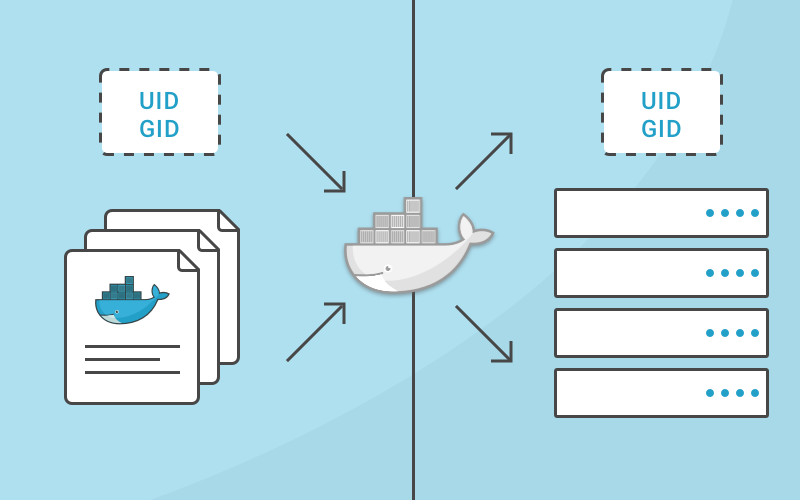
Understanding how usernames, group names, user ids (uid) and group ids (gid) map between the processes running inside a container and the host system is important to building a secure system. Without any other option provided, processes in containers will execute as root (unless a different uid was supplied in the Dockerfile). This article will explain how this works, how to properly grant privileges and show examples to illustrate.
Step by step analysis of uid/gid security
To start, let’s review how uids and gids are implemented. The linux kernel is responsible for managing the uid and gid space, and it’s kernel-level syscalls that are used to determine if requested privileges should be granted. For example, when a process attempts to write to a file, the uid and gid that created the process are examined by the kernel to determine if it has enough privileges to modify the file. The username isn’t used here, the uid is used.
When running Docker containers on a server, there’s still a single kernel. A huge part of the value that containerization brings is that all of these separate processes can continue to share a single kernel. This means that even on a server that is running Docker containers, the entire world of uids and gids is controlled by a single kernel.
So you can’t have different users with the same uid inside different containers. That’s because the username (and group names) that show up in common linux tools aren’t part of the kernel, but are managed by external tools (/etc/passwd, LDAP, Kerberos, etc). So, you might see different usernames, but you can’t have different privileges for the same uid/gid, even inside different containers. This can seem pretty confusing at first, so let’s illustrate it with a few examples:
Simple Docker Run
I’m going to start by logging in to a server as a normal user (marc) that is in the docker group. This allows me to start docker containers without using the sudo command. Then, from outside the container, let’s look at how this process appears.
marc@server:~$ docker run -d ubuntu:latest sleep infinity
92c57a8a4eda60678f049b906f99053cbe3bf68a7261f118e411dee173484d10
marc@server:~$ ps aux | grep sleep
root 15638 0.1 0.0 4380 808 ? Ss 19:49 0:00 sleep infinity
Interesting. Even though I never typed sudo and I wasn’t root, the sleep command I executed is started as the root user and has root privileges. How do I know it has root privileges? Does root inside the container == root outside the container? Yes, because, as I mentioned, there’s a single kernel and a single, shared pool of uids and gids. Because the username is showing up outside the container as “root”, I can know for certain that the process inside the container was started with a user that has uid = 0.
Dockerfile with a defined user
What happens when I create a different user inside my Dockerfile and start the command as that user? To simplify this example, I’m not specifying a gid here, but the same concept applies to group ids.
First, I’m running these commands as user “marc” which has uid of 1001.
marc@server:~$ echo $UID
1001
And the Dockerfile:
FROM ubuntu:latest
RUN useradd -r -u 1001 -g appuser appuser
USER appuser
ENTRYPOINT [“sleep”, “infinity”]
Let’s build and run this:
marc@server:~$ docker build -t test .
Sending build context to Docker daemon 14.34 kB
Step 1/4 : FROM ubuntu:latest
 — -> f49eec89601e
Step 2/4 : RUN useradd -r -u 1001 appuser
 — -> Running in 8c4c0a442ace
 — -> 6a81547f335e
Removing intermediate container 8c4c0a442ace
Step 3/4 : USER appuser
 — -> Running in acd9e30b4aba
 — -> fc1b765e227f
Removing intermediate container acd9e30b4aba
Step 4/4 : ENTRYPOINT sleep infinity
 — -> Running in a5710a32a8ed
 — -> fd1e2ab0fb75
Removing intermediate container a5710a32a8ed
Successfully built fd1e2ab0fb75
marc@server:~$ docker run -d test
8ad0cd43592e6c4314775392fb3149015adc25deb22e5e5ea07203ff53038073
marc@server:~$ ps aux | grep sleep
marc 16507 0.3 0.0 4380 668 ? Ss 20:02 0:00 sleep infinity
marc@server:~$ docker exec -it 8ad0 /bin/bash
appuser@8ad0cd43592e:/$ ps aux | grep sleep
appuser 1 0.0 0.0 4380 668 ? Ss 20:02 0:00 sleep infinity
What exactly is happening here and what does this show? I built a Docker image that has a user named “appuser” and this user has a defined uid of 1001. On my test server, the account I’m using is named “marc”, and it also has the uid of 1001. When I start the container, the sleep command executes as appuser, because the Dockerfile contains the line “USER appuser”. But this really doesn’t make it run as appuser, it makes it run as the uid of the user that the Docker images knows as appuser.
When I examine the processes running outside of the container, I see that it’s mapped to the user “marc”, but inside the container it’s mapped to the user “appuser”. Both of these usernames are just showing the username that their execution context knows maps to 1001.
This isn’t super important. But what is important is the know that inside the container, the user “appuser” is getting the rights and privileges of the user “marc” from outside the container. Granting a privilege to user marc or uid 1001 on the linux host will also be granting those privileges to appuser inside the container.
How to control the access a container has
Another option is to run a docker container and specify the username or uid, and also the group name or gid at runtime.
Using the initial example from above again.
marc@server:~$ docker run -d --user 1001 ubuntu:latest sleep infinity
84f436065c90ac5f59a2256e8a27237cf8d7849d18e39e5370c36f9554254e2b
marc@server$ ps aux | grep sleep
marc     17058 0.1 0.0 4380 664 ? Ss 21:23 0:00 sleep infinity
What did I do here? I created the container to start as the 1001 user. So the process maps to the “marc” user when I execute commands such as ps or top (or most monitoring tools).
Interestingly, when I exec into that container, you can see that the 1001 user doesn’t have an entry in the /etc/passwd file, and shows up as “I have no name!” in the bash prompt of the container.
marc@server:~$ docker exec -it 84f43 /bin/bash
I have no name!@84f436065c90:/$
It’s important to note that specifying a user flag when creating a container also overrides that value from the Dockerfile. Remember the second example where I used a Dockerfile that had a uid that mapped to a different username on the local host? What happens when we run that with a user flag on the command line to start a container that executes the “sleep infinity” process?
marc@server:$ docker run -d test
489a236261a0620e287e434ed1b15503c844648544694e538264e69d534d0d65
marc@server:~$ ps aux | grep sleep
marc     17689 0.2 0.0 4380 680 ? Ss 21:28 0:00 sleep infinity
marc@server:~$ docker run --user 0 -d test
ac27849fcbce066bad37190b5bf6a46cf526f56d889af61e7a02c3726438fa7a
marc@server:~$ ps aux | grep sleep
marc     17689 0.0 0.0 4380 680 ? Ss 21:28 0:00 sleep infinity
root     17783 0.3 0.0 4380 668 ? Ss 21:28 0:00 sleep infinity
In the final example above, you can see that I ended up with 2 containers running the sleep process, one as “marc” and one as “root”. This is because the second command changed the uid by passing the --user flag on the command line.
What this means
Now that we’ve explored this, it makes sense that the ways to run containers with limited privileges both leverage the user system from the host:
- If there’s a known uid that the process inside the container is executing as, it could be as simple as restricting access to the host system so that the uid from the container has limited access.
- The better solution is to start containers with a known uid using the
--user(you can use a username also, but remember that it’s just a friendlier way of providing a uid from the host’s username system), and then limiting access to the uid on the host that you’ve decided the container will run as. - Because of how uids and usernames (and gids and group names) map from a container to the host, specifying the user that a containerized process runs as can make the process appear to be owned by different users inside vs outside the container.
Note on these tests
I ran these tests on an Ubuntu 16.04 server. While it’s possible to execute the same commands and tests on Docker for OSX, you’ll see different results because Docker for OSX is actually executing docker-engine on a Alpine Linux based virtual machine, and the commands you execute are executing on OSX.
Understanding how uid and gid work in Docker containers的更多相关文章
- 理解 docker 容器中的 uid 和 gid
默认情况下,容器中的进程以 root 用户权限运行,并且这个 root 用户和宿主机中的 root 是同一个用户.听起来是不是很可怕,因为这就意味着一旦容器中的进程有了适当的机会,它就可以控制宿主机上 ...
- 修改Linux用户的UID、GID
对于NFS共享文件,保留文件权限,需要UID.GID与nfs-server端一致! 试验环境:Centos6.5_64/172.24.0.26 01.用户的UID和GID不能被占用 [root@26 ...
- VirtualBox: Effective UID is not root (euid=1000 egid=100 uid=1000 gid=100)
桌面上运行virtualbox出错: The virtual machine 'xp' has terminated unexpectedly during startup with exit cod ...
- Liunx UID and GID
一个文件都有一个所有者, 表示该文件是谁创建的. 同时, 该文件还有一个组编号, 表示该文件所属的组, 一般为文件所有者所属的组. 如果是一个可执行文件, 那么在执行时, 一般该文件只拥有调用该文件的 ...
- centos账户的uid和gid
修改/etc/passwd和/etc/group文件的UID和GID为0,可以获得root权限,不过不推荐~ UID和GID Linux系统如何区别不同的用户呢?可以很自然地想到,使用不同的用户名应该 ...
- Linux用户与用户组,UID及GID
以下列出文章: Linux系统下如果查看用户的UID和GID:http://blog.csdn.net/ahangliu/article/details/7567444 Linux的用户和用户组管理: ...
- Linux下修改用户的UID、GID
01.用户的UID和GID不能被占用 [root@26 ~]# id mvpuid=503(mvp) gid=503(mvp) groups=503(mvp) ###假定我需要设置mvp的uid/gi ...
- Linux 用户管理【UID和GID】
Linux 用户和用户组管理 Linux系统是一个多用户多任务的分时操作系统,任何一个要使用系统资源的用户,都必须首先向系统管理员申请一个账号,然后以这个账号的身份进入系统. 用户的账号一方面可以帮助 ...
- 每天一个linux命令-id,输出用户的uid、gid
id命令可以输出用户真实有效的uid和gid,uid代表用户的唯一标识,gid代表用户组id,与用户是一对多的关系. 命令格式: id [-gGnru] [用户名称] 除了id命令之外,还 ...
随机推荐
- 每天CSS学习之border-radius
css3的border-radius属性,我们用之来画圆角边框. 1.border-radius:none;//表示不用圆角边框,边框会变成方形. 2.border-radius:水平方向{1,4}[ ...
- Remove duplicates from array
//Given a sorted array, remove the duplicates in place such that each element appear only // once an ...
- 查看oracle数据库允许的最大连接数和当前连接数
1.查看当前的数据库连接数 select count(*) from v$process ; --当前的数据库连接数 2.数据库允许的最大连接数 select value from v$pa ...
- 爬虫系列5:scrapy动态页面爬取的另一种思路
前面有篇文章给出了爬取动态页面的一种思路,即应用Selenium+Firefox(参考<scrapy动态页面爬取>).但是selenium需要运行本地浏览器,比较耗时,不太适合大规模网页抓 ...
- Python扩展库2—matplotlib
1 载入matplotli的绘图模块,并重命名为plt import matplotlib.pyplot as plt 2 折线图 import matplotlib.pyplot as plt im ...
- FZU 1759-Super A^B mod C
传送门:http://acm.fzu.edu.cn/problem.php?pid=1759 Accept: 1161 Submit: 3892Time Limit: 1000 mSec ...
- Ubuntu创建新用户并设置权限
打开终端开启root账户 sudo passwd -u root 设置root密码,输入两次 sudo passwd root 切换root账号 su - 或 su root 退出root账户使用ex ...
- 笔记本1050ti显卡安装最新驱动版本 (415.27) 记录 NVIDIA显卡GeForce系列 (Ubuntu18.04)
在Linux上安装驱动,这事情多半是跑CUDA程序的人才会搞的,多年前学CUDA时为这一步骤头疼的很,现如今已经比较熟悉了,今日给出一些记录. 首先,在NVIDIA官方网站上找到驱动下载页面: htt ...
- 面向对象ZJ
面向对象: 对象: 万事万物皆为对象. 特征, 动作或功能放在一起的就是一个对象 对象如何创建的. 在python中对象是通过类来创建的. 类是对对象的描述.统称.约束. class Car: def ...
- RNN 通过字符语言模型 理解BPTT
链接:https://github.com/karpathy/char-rnn http://karpathy.github.io/2015/05/21/rnn-effectiveness/ http ...