
Android 基础UI组件(二)
1、Spinner
提供一个快速的方法来从一组值中选择一个值。在默认状态Spinner显示当前选择的值。触摸Spinner与所有其他可用值显示一个下拉菜单,可以选择一个新的值。
        /**

         * 写死内容:

         * 只需在value内创建一个array,写上数据,在xml里引用

         */

    <array name="city">

        <item>北京</item>

        <item>上海</item>

        <item>广州</item>

        <item>天津</item>

        <item>大连</item>

    </array>

    <Spinner

        android:id="@+id/sp_Ct"

        android:layout_width="match_parent"

        android:layout_height="wrap_content"

        android:entries="@array/city" />
动态设置数据:
        sp_name = (Spinner) findViewById(R.id.sp_name);

        //通过适配器进行数据得绑定

        //方式一:

        //创建一个数组适配器(参数:上下文、下拉列表里的布局、显示下拉列表选项的组件ID、数据)

        ArrayAdapter<String> adapter = new ArrayAdapter<String>(this,

                android.R.layout.simple_list_item_1,android.R.id.text1,name);

        //方式二:

        ArrayAdapter adapter2 = ArrayAdapter.createFromResource(this,

                R.array.city,android.R.layout.simple_dropdown_item_1line);

        sp_name.setAdapter(adapter);
2、AutoCompleteTextView
    <AutoCompleteTextView

        android:id="@+id/auto"

        android:layout_width="match_parent"

        android:layout_height="wrap_content"

        android:completionThreshold="1"/>
        auto = (AutoCompleteTextView) findViewById(R.id.auto);

        /**

         * AutoCompleteTextView:用法与Spinner类似
         * 为了实现自动完成,必须提供建议的文本

         * android:completionThreshold这个属性控制匹配几个字符显示列表

         */

        ArrayAdapter adapter = new ArrayAdapter(this,android.R.layout.simple_list_item_1,android.R.id.text1,name);

        auto.setAdapter(adapter);
3、ProgressBar
在默写操作进度中的可视指示器,为用户呈现操作的进度,还有一个次要的进度条,用来显示进度,如在流媒体播放的缓冲区的进度
一个进度条也可不显示进度,在不确定模式下,进度条显示循环动画。这种模式常用于应用程序使用任务的长度是未知的进度条也就是一个表示运转的过程,例如发送短信,连接网络等,表示一个过程正在执行中。
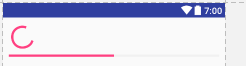
两种展示方式:表盘形式(普通、大、小)和进度条填充形式,在layout定义时,需要通过设置style属性类设置展示方式
    <ProgressBar

        android:id="@+id/progress"

        android:layout_width="wrap_content"

        android:layout_height="wrap_content"/>

    <ProgressBar

        android:id="@+id/progressBar"

        android:progress="50"

        style="?android:attr/progressBarStyleHorizontal"

        android:layout_width="match_parent"

        android:layout_height="wrap_content" />
         /*

         *   xml重要属性:

         *   android:max  进度条长度最大值

         *   android:progress  进度条当前进度值

         *   android:secondaryProgress 第二进度条进度值

         *   android:progressBarStyle  默认进度条样式

         *   android:progressBarStyleHorizontal  水平样式

         */
         /*

         *   重要方法:

         *   getMax()  返回这个进度条的范围上限

         *   getProgress()  返回当前进度值

         *   getSecondaryProgress()  返回次要当前进度之

         *   incrementProgressBy(int diff)  指定增加的进步--即步长

         *   isIndeterminate()  指示进度条是否在不确定模式下

         *   setVisibility(int v)  设置进度条是否可视

         */
创建对话框进度条
         //创建对话框进度条

        ProgressDialog pd = new ProgressDialog(this);

        pd.setMax(100);

//        pd.setIndeterminate(false);

        pd.setProgress(30);

        pd.setSecondaryProgress(70);

        //设置是否可以取消

        pd.setCancelable(true);

        pd.setTitle("下载中");

        pd.setMessage("正在下载中。。");

        pd.setProgressStyle(ProgressDialog.STYLE_HORIZONTAL);

        pd.show();
设置标题进度条(该方法必须在setContentView方法之前)
requestWindowFeature(Window.FEATURE_INDETERMINATE_PROGRESS);
//显示标题栏进度条

setProgressBarIndeterminate(true);
4、Dialog
/**

 * 对话框指的是在当前Activity之上的一个小窗口.

 * 对话框一般用于提示信息和与当前应用程序直接相关的小功能

 * 处于对话框下面的Activity失去焦点 对话框接受所有用户的交互

 * @author Administrator

 *

 */
        //创建一个提示对话框的构造者

        AlertDialog.Builder dialog = new AlertDialog.Builder(this);

        dialog.setTitle("温馨提示");

        dialog.setMessage("1111");

        dialog.setIcon(R.mipmap.ic_launcher);

        dialog.setPositiveButton("确定", new DialogInterface.OnClickListener() {

                    @Override

                    public void onClick(DialogInterface dialogInterface, int i) {

                        //选择之后的操作

                    }

                })

                .setNegativeButton("取消", new DialogInterface.OnClickListener() {

                    @Override

                    public void onClick(DialogInterface dialogInterface, int i) {

                        //选择之后的操作

                    }

                })

                .show();
            AlertDialog.Builder alertDialog2 = new AlertDialog.Builder(MainActivity.this);

            alertDialog2.setTitle("提示");

            alertDialog2.setIcon(R.drawable.ic_launcher);

            /**

             * 1.按钮中显示的文本内容 2点击按钮时触发的事件

             * 在Android2.3.1平台下三个按钮的位置是固定的 分别在最左侧 右侧 居中

             * 在4.0平台下 setPositiveButton和setNegativeButton位置恰恰相反 分别置于最右侧和最左侧

             */

            alertDialog2.setMessage("亲,确定要退出吗?");

            alertDialog2.setPositiveButton("确定", new OnClickListener() {

                @Override

                public void onClick(DialogInterface dialog, int which) {

                    Toast.makeText(MainActivity.this, ""+which, Toast.LENGTH_SHORT).show();

                }

            });

            alertDialog2.setNegativeButton("取消", new OnClickListener() {

                @Override

                public void onClick(DialogInterface dialog, int which) {

                    Toast.makeText(MainActivity.this, ""+which, Toast.LENGTH_SHORT).show();

                }

            });

            alertDialog2.setNeutralButton("再看看", new OnClickListener() {

                @Override

                public void onClick(DialogInterface dialog, int which) {

                    Toast.makeText(MainActivity.this, ""+which, Toast.LENGTH_SHORT).show();

                }

            });

            alertDialog2.create();

            alertDialog2.show();

            break;
        //显示普通item列表的Dialog

        AlertDialog.Builder alertDialg3 = new AlertDialog.Builder(MainActivity.this);

        alertDialg3.setTitle("提示");

        alertDialg3.setIcon(R.drawable.a);

        final String[] colors = getResources().getStringArray(R.array.arrColors);

        alertDialg3.setItems(colors, new DialogInterface.OnClickListener() {

            @Override

            public void onClick(DialogInterface dialog, int which) {// int which 被点击item的下标

                Toast.makeText(MainActivity.this, colors[which],Toast.LENGTH_SHORT).show();

            }

        });

        alertDialg3.create();

        alertDialg3.show();
//显示Adapter适配器列表的Dialog

list.clear();

        AlertDialog.Builder dialog4 = new AlertDialog.Builder(MainActivity.this);

        dialog4.setTitle("提示");

        dialog4.setIcon(R.drawable.a);

        int[] images = {R.drawable.pic1,R.drawable.pic2,R.drawable.pic3,R.drawable.pic4,R.drawable.pic5};

        for (int i = 0; i < images.length; i++) {

            Map<String, Object> map = new HashMap<String, Object>();

            map.put("Image", images[i]);

            map.put("Content", "item"+(i+1));

            list.add(map);

        }

        SimpleAdapter adapter = new SimpleAdapter(MainActivity.this, list, R.layout.item_dialog, new String[]{"Image","Content"}, new int[]{R.id.iamgeView,R.id.textView});

        dialog4.setAdapter(adapter, new DialogInterface.OnClickListener() {

            @Override

            public void onClick(DialogInterface dialog, int which) {

                Toast.makeText(MainActivity.this, (String)list.get(which).get("Content"), Toast.LENGTH_SHORT).show();

            }

        });

        dialog4.create();

        dialog4.show();
        //显示多选列表的Dialog

        AlertDialog.Builder dialog6 = new AlertDialog.Builder(MainActivity.this);

        dialog6.setTitle("选择颜色");

        dialog6.setIcon(R.drawable.a);

        dialog6.setMultiChoiceItems(R.array.arrColors, new boolean[]{true,true,false}, new OnMultiChoiceClickListener() {

            @Override

            public void onClick(DialogInterface dialog, int which, boolean isChecked) {

            }

        });

        dialog6.setPositiveButton("确定", new OnClickListener() {

            @Override

            public void onClick(DialogInterface dialog, int which) {

                Toast.makeText(MainActivity.this, "选择完成", Toast.LENGTH_SHORT).show();

            }

        });

        dialog6.create().show();
        //显示日期选择的Dialog

        /**

         * 弹出日期选择对话框

         * 1.上下文对象

         * 2.设置日期时回调的方法

         * 3.默认的年份

         * 4.默认的月份

         * 5.默认的日期

         */

        DatePickerDialog datePickerDialog = new DatePickerDialog(MainActivity.this, new DatePickerDialog.OnDateSetListener() {

            @Override

            public void onDateSet(DatePicker view, int year, int monthOfYear,

                                  int dayOfMonth) {

                Toast.makeText(MainActivity.this, year+"年"+(monthOfYear+1)+"月"+dayOfMonth+"日", Toast.LENGTH_SHORT).show();

            }

        }, 2016, 5, 9);

        datePickerDialog.show();
        // 显示日期选择的Dialog

        /**

         * 3.默认的小时

         * 4.默认的分钟

         * 5.是否已24小时计时法计时 true代表24h false代表12h

         */

        TimePickerDialog timePickerDialog = new TimePickerDialog(MainActivity.this, new TimePickerDialog.OnTimeSetListener() {

            @Override

            public void onTimeSet(TimePicker view, int hourOfDay, int minute) {

                Toast.makeText(MainActivity.this, hourOfDay+"时"+minute+"分", Toast.LENGTH_SHORT).show();

            }

        }, 14, 54, true);

        timePickerDialog.show();
AlertDialog.Builder builder = new AlertDialog.Builder(MainDialog.this);

            LayoutInflater factory = LayoutInflater.from(this);

            final View textEntryView = factory.inflate(R.layout.test, null);

                builder.setIcon(R.drawable.icon);

                builder.setTitle("自定义输入框");

                builder.setView(textEntryView);

                builder.setPositiveButton("确定", new DialogInterface.OnClickListener() {

                    public void onClick(DialogInterface dialog, int whichButton) {

                    EditText userName = (EditText) textEntryView.findViewById(R.id.etUserName);

                    EditText password = (EditText) textEntryView.findViewById(R.id.etPassWord);

                    showDialog("姓名 :"  + userName.getText().toString()  + "密码:" + password.getText().toString() );

                    }

                });

                builder.setNegativeButton("取消", new DialogInterface.OnClickListener() {

                    public void onClick(DialogInterface dialog, int whichButton) {

                    }

                });

              builder.create().show();
消除对话框
dismissDialog(int id)会保留这个对象
removeDialog(int id)会删除这个对象和清除状态
另外如果你在弹出窗口的时候希望返回键失效的话,则可以使用Builder.setCancelable(false),那么返回键就会不起作用了
cancel和dismiss方法的本质是一样的,都是从屏幕中删除Dialog,唯一的区别是调用cancel会调用DialogInterface.OnCancelListener.
Android 基础UI组件(二)的更多相关文章
- Android 基础UI组件(一)
1.Toast //显示文字 Toast.makeText(this,"Toast显示文本",Toast.LENGTH_SHORT).show(); //显示图片 Toast to ...
- Android常见UI组件之ListView(二)——定制ListView
Android常见UI组件之ListView(二)--定制ListView 这一篇接上篇.展示ListView中选择多个项及实现筛选功能~ 1.在位于res/values目录下的strings.xml ...
- Android基础测试题(二)
今天给大家带来的是Android基础测试题(二) 题目要求: 定义一个5位长度的整型数组并初始化,然后构建方法根据用户传入的数字判断是否存在数组中,如果存在,返回所在位置,如果不存在,返回-1 首先第 ...
- Android之UI编程(二):表格布局
表格布局(TableLayout)继承了LinearLayout,它的本质依然是线性布局管理器,表TableLayout采用行.列的形式来管理UI组件,它并不需要明确地声明暴行多少行.多少列,而是通过 ...
- Android 高级UI组件(二)
1.ExpandableListView 显示垂直滚动两级列表的条目,只允许两个层次 整体思路: 要给ExpandableListView设置适配器,那么必须先设置数据源. 数据源,就是此处的适配器类 ...
- Android用户界面 UI组件--TextView及其子类(二) Button,selector选择器,sharp属性
1.XML文件中的OnClick 属性可以指定在Activity中处理点击事件的方法,Activity中必须定义该属性指定的值作为方法的名字且有一个View类型的参数,表示此物件被点击. 2.使用se ...
- Android用户界面 UI组件--AdapterView及其子类(二) AdapterViewAnimator及其子类
AdapterViewAnimator:当在视图间切换时会显示动画. android:animateFirstView 定义ViewAnimation首次显示时是否对当前视图应用动画. android ...
- Android 高级UI组件(三)
一.popupWindow 1.AlertDialog和PopupWindow最关键的区别是AlertDialog不能指定显示位置,只能默认显示在屏幕最中间(当然也可以通过设置WindowManage ...
- Android用户界面 UI组件--AdapterView及其子类(一) ListView及各种Adapter详解
ListView就是列表组件,一般通过继承ListActivity使用系统提供的ListView. 所有的AdapterView组件都需要有一个对应的Adapter作为适配器来显示列表中元素的布局方式 ...
随机推荐
- c++ template 实现一个简单的"栈"
一: 实现一个简单的swap 原来我们写swap一定会这样写: 对于int类型的: swap(const int &x,const int &y) { int temp; temp = ...
- Unicode、UTF-8、UTF-16 终于懂了
计算机起源于美国,上个世纪,他们对英语字符与二进制位之间的关系做了统一规定,并制定了一套字符编码规则,这套编码规则被称为ASCII编码 ASCII 编码一共定义了128个字符的编码规则,用七位二进制表 ...
- Salesforce Consumer Goods Cloud 浅谈篇二之门店产品促销的配置
本篇参考:https://documentation.b2c.commercecloud.salesforce.com/DOC1/index.jsp?topic=%2Fcom.demandware.d ...
- 保姆级别的vue + ElementUI 搭建后台管理系统教程
vue + ElementUI 搭建后台管理系统记录 本文档记录了该系统从零配置的完整过程 项目源码请访问:https://gitee.com/szxio/vue2Admin,如果感觉对你有帮助,请点 ...
- [loj3526]修改DNA
如果$a[x..y]$和$b[x..y]$的某种字符数量不同,显然无解 考虑一个$[x,y]$的排列$p[x..y]$,使得$\forall x\le i\le y,a_{i}=b_{p_{i}}$, ...
- Go语言核心36讲(Go语言实战与应用十三)--学习笔记
35 | 并发安全字典sync.Map (下) 我们在上一篇文章中谈到了,由于并发安全字典提供的方法涉及的键和值的类型都是interface{},所以我们在调用这些方法的时候,往往还需要对键和值的实际 ...
- JavaScript 函数声明和变量声明
声明语句:声明语句是用来声明或定义标识符(变量和函数名)并给其赋值. 1:var 变量声明(5.3.1节): var语句用来声明一个或多个变量:var name_1 = [= value_1] [ , ...
- 聊聊并发(六)——CAS算法
一.原子类 1.CAS算法 强烈建议读者看这篇之前,先看这篇 初识JUC 的前两节,对原子性,原子变量,内存可见性有一个初步认识. CAS(Compare and Swap)是一种硬件对并发的支持,针 ...
- CF513G3 Inversions problem
考虑记\(f_{i,j,k}\)为\(k\)次操作后,\(i,j\)位置被调换的概率. 那么我们考虑枚举我们要算的答案即\((x,y)\). 那么有\(\frac{n * (n + 1)}{2}\)种 ...
- NFLSOJ #10317. -「2020联考北附2」三千世界(找等价表达+树形 dp)
题面传送门 出题人可能原本感觉没啥难度的 T2 竟然变成了防 AK 题,奇迹奇迹( 首先带着这个 \(\max\) 肯定不太好处理,考虑找出 \(f(S)\) 的等价表达.我们考虑以 \(1\) 为根 ...