
001 - 使用鸿蒙WebView创建简单浏览器 step 1
打开官网,找到WebView的文档(模拟器不支持)
鸿蒙webview的开发指南(原始链接,方便大家识别并点击):https://developer.harmonyos.com/cn/docs/documentation/doc-guides/ui-java-component-webview-0000001092715158

2. 创建一个Page Ability,把基本布局弄好
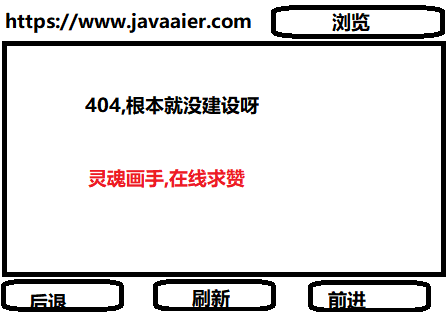
下面是代码
<?xml version="1.0" encoding="utf-8"?>

<DirectionalLayout

    xmlns:ohos="http://schemas.huawei.com/res/ohos"

    ohos:height="match_parent"

    ohos:width="match_parent"

    ohos:orientation="vertical">

    <DirectionalLayout

        ohos:height="30vp"

        ohos:width="match_parent"

        ohos:orientation="horizontal">

        <TextField

            ohos:id="$+id:text_webView_Url"

            ohos:height="match_content"

            ohos:width="match_parent"

            ohos:background_element="$graphic:background_ability_simple_web_view"

            ohos:focus_border_enable="true"

            ohos:hint="请输入网址"

            ohos:max_text_lines="1"

            ohos:multiple_lines="false"

            ohos:scrollable="true"

            ohos:text="www.harmonyos.com"

            ohos:text_size="50"

            ohos:weight="1"

            />

        <Button

            ohos:id="$+id:button_webview_surf"

            ohos:height="match_content"

            ohos:width="60vp"

            ohos:background_element="$graphic:button_element"

            ohos:text="跳转"

            ohos:text_size="50"/>

    </DirectionalLayout>

    <ProgressBar

        ohos:id="$+id:other_webView_progressBar"

        ohos:height="10vp"

        ohos:width="match_parent"

        ohos:visibility="hide">

    </ProgressBar>

    <ohos.agp.components.webengine.WebView

        ohos:id="$+id:webview_webview_webview"

        ohos:height="match_parent"

        ohos:width="match_parent"

        ohos:weight="1">

    </ohos.agp.components.webengine.WebView>

    <DirectionalLayout

        ohos:height="30vp"

        ohos:width="match_parent"

        ohos:orientation="horizontal">

        <DirectionalLayout

            ohos:height="match_content"

            ohos:width="match_parent"

            ohos:orientation="horizontal"

            ohos:weight="1">

            <Button

                ohos:id="$+id:button_webview_back"

                ohos:height="match_content"

                ohos:width="match_parent"

                ohos:background_element="$graphic:button_element"

                ohos:layout_alignment="horizontal_center"

                ohos:text="向后"

                ohos:text_size="50"

                >

            </Button>

        </DirectionalLayout>

        <DirectionalLayout

            ohos:height="match_content"

            ohos:width="match_parent"

            ohos:orientation="horizontal"

            ohos:weight="1">

            <Button

                ohos:id="$+id:button_webview_refresh"

                ohos:height="match_content"

                ohos:width="match_parent"

                ohos:background_element="$graphic:button_element"

                ohos:layout_alignment="horizontal_center"

                ohos:text="刷新"

                ohos:text_size="50">

            </Button>

        </DirectionalLayout>

        <DirectionalLayout

            ohos:height="match_content"

            ohos:width="match_parent"

            ohos:orientation="horizontal"

            ohos:weight="1">

            <Button

                ohos:id="$+id:button_webview_forward"

                ohos:height="match_content"

                ohos:width="match_parent"

                ohos:background_element="$graphic:button_element"

                ohos:layout_alignment="horizontal_center"

                ohos:text="向前"

                ohos:text_size="50">

            </Button>

        </DirectionalLayout>

    </DirectionalLayout>

</DirectionalLayout>
把基本的按钮事件弄好
序号 按钮 功能 1 跳转 把文本框中的网址打开 2 后退 在webview中点了新链接后,想回去看一看 3 刷新 以前的人在网络不好,美女图片出不来的时候用,现在一般是发了一篇帖子后,作者会没事点一下,看看有没有人点赞 4 前进 跟后退是关联用的,就是点了新链接,回去看了看后,还是觉得新链接更好看,就又要前进. 代码
    Component.ClickedListener clickedListener = new Component.ClickedListener() {

        @Override

        public void onClick(Component component) {

            int componentId = component.getId();

            switch (componentId) {

                case ResourceTable.Id_button_webview_surf: {

                    urlAddress = textWebViewUrl.getText();

                    if (urlAddress.isEmpty()) {

                        return;

                    }

                    if (!urlAddress.startsWith(FinalValue.URL_HTTPS)) {

                        urlAddress = FinalValue.URL_HTTPS + urlAddress;

                    }

                    webView.load(urlAddress);

                }

                break;

                case ResourceTable.Id_button_webview_back: {

                    if (webView.getNavigator().canGoBack()) {

                        webView.getNavigator().goBack();

                    }

                }

                break;

                case ResourceTable.Id_button_webview_refresh: {

                    webView.reload();

                }

                break;

                case ResourceTable.Id_button_webview_forward: {

                    if (webView.getNavigator().canGoForward()) {

                        webView.getNavigator().goForward();

                    }

                }

                break;

                default: {

                    System.out.println("没有选择任何的页面");

                }

                break;

            }

        }

    };


- config.json

   ``` json

   {

     "app": {

       "bundleName": "com.javaaier.family.huawei",

       "vendor": "javaaier",

       "version": {

         "code": 1,

         "name": "1.0"

       },

       "apiVersion": {

         "compatible": 5,

         "target": 5,

         "releaseType": "Beta1"

       }

     },

     "deviceConfig": {

     },

     "module": {

       "package": "com.javaaier.family.huawei",

       "name": ".MyApplication",

       "deviceType": [

         "phone"

       ],

       "distro": {

         "deliveryWithInstall": true,

         "moduleName": "entry",

         "moduleType": "entry"

       },

       "abilities": [

         {

           "skills": [

             {

               "entities": [

                 "entity.system.home"

               ],

               "actions": [

                 "action.system.home"

               ]

             }

           ],

           "orientation": "unspecified",

           "name": "com.javaaier.family.huawei.MainAbility",

           "icon": "$media:icon",

           "description": "$string:mainability_description",

           "label": "$string:app_name",

           "type": "page",

           "launchType": "standard"

         },

         {

           "orientation": "unspecified",

           "name": "com.javaaier.family.huawei.SimpleWebViewAbility",

           "icon": "$media:icon",

           "description": "$string:simplewebviewability_description",

           "label": "$string:app_name",

           "type": "page",

           "launchType": "standard"

         }

       ],

       "reqPermissions": [

         {

           "name": "ohos.permission.INTERNET"

         }

       ]

     }

   }
把WebView照文档上面的要求弄好
没啥好说的,就是规定.我加在了调用load方法打开网址那行代码后面,我还弄了一个跟进度条关联的功能
  //允许javascript交互

                    WebConfig webConfig = webView.getWebConfig();

                    webConfig.setDataAbilityPermit(true);

                    webConfig.setJavaScriptPermit(true);

                    webConfig.setLoadsImagesPermit(true);

                    webConfig.setMediaAutoReplay(true);

                    webConfig.setLocationPermit(true);

                    webConfig.setSecurityMode(WebConfig.SECURITY_SELF_ADAPTIVE);

                    webView.setWebAgent(new WebAgent() {

                        @Override

                        public void onLoadingPage(WebView webView, String url, PixelMap favicon) {

                            super.onLoadingPage(webView, url, favicon);

                            // 这儿我加了一个更新网址文本框中新页面url的功能

                            if (url != urlAddress) {

                               textWebViewUrl.setText(url);

                            }

                        }

                        @Override

                        public void onPageLoaded(WebView webView, String url) {

                            super.onPageLoaded(webView, url);

                            // 页面加载结束后自定义处理

                        }

                        @Override

                        public void onLoadingContent(WebView webView, String url) {

                            super.onLoadingContent(webView, url);

                            // 加载资源时自定义处理

                        }

                        @Override

                        public void onError(WebView webView, ResourceRequest request, ResourceError error) {

                            super.onError(webView, request, error);

                            // 发生错误时自定义处理

                        }

                    });

                    webView.setBrowserAgent(new BrowserAgent(SimpleWebViewAbilitySlice.this) {

                        @Override

                        public void onTitleUpdated(WebView webView, String title) {

                            super.onTitleUpdated(webView, title);

                            // 标题变更时自定义处理

                        }

                        @Override

                        public void onProgressUpdated(WebView webView, int newProgress) {

                            super.onProgressUpdated(webView, newProgress);

                            if (newProgress < FinalValue.PROGRESS_BAR_FINISHED) {

                                otherWebViewProgressBar.setVisibility(Component.VISIBLE);

                                otherWebViewProgressBar.setProgressValue(newProgress);

                            } else if (newProgress == FinalValue.PROGRESS_BAR_FINISHED) {

                                otherWebViewProgressBar.setVisibility(Component.HIDE);

                            }

                            // 加载进度变更时自定义处理

                        }

                    });
完事?or完了还有事?
从上面拷代码的话,估计完事了.但是,我是用的回忆,但是代码却没有回退,所以我还是有必要在这儿把步骤中的问题说一说,方便不拷代码的同学也能跑出一个界面.主要体现如下:
权限配置,不多说
 "reqPermissions": [

      {

        "name": "ohos.permission.INTERNET"

      }

    ]
xml中的WebView要带包名
  <ohos.agp.components.webengine.WebView

        ohos:id="$+id:webview_webview_webview"

        ohos:height="match_parent"

        ohos:width="match_parent"

        ohos:weight="1">

    </ohos.agp.components.webengine.WebView>
不按上面包名写的话:
- 真机运行后没有WebView的界面.哪怕weight=1,也不行
- 点击跳转按钮后,PageAbility会闪退,回到首屏(调用它的页面)
完整代码
布局
序号为2的步骤中贴全了
按钮背景
<?xml version="1.0" encoding="UTF-8" ?>

<shape xmlns:ohos="http://schemas.huawei.com/res/ohos"

       ohos:shape="rectangle">

    <corners

        ohos:radius="20"/>

    <solid

        ohos:color="#70dbdb"/>

</shape>
java代码
package com.javaaier.family.huawei.slice;

import com.javaaier.family.huawei.ResourceTable;

import com.javaaier.family.huawei.common.FinalValue;

import ohos.aafwk.ability.AbilitySlice;

import ohos.aafwk.content.Intent;

import ohos.agp.components.*;

import ohos.agp.components.webengine.*;

import ohos.media.image.PixelMap;

/**

 * @Author JavaAIer

 * @Description : webview控件例子1:用于简单的测试webview的用法 <br/>

 * 001 简单webview示例

 * @Date: 2021/4/16

 */

public class SimpleWebViewAbilitySlice extends AbilitySlice {

    String urlAddress;

    ProgressBar otherWebViewProgressBar;

    TextField textWebViewUrl;

    Button buttonWebViewSurf, buttonWebViewBack, buttonWebViewRefresh, buttonWebViewForward;

    WebView webView;

    Component.ClickedListener clickedListener = new Component.ClickedListener() {

        @Override

        public void onClick(Component component) {

            int componentId = component.getId();

            switch (componentId) {

                case ResourceTable.Id_button_webview_surf: {

                    urlAddress = textWebViewUrl.getText();

                    if (urlAddress.isEmpty()) {

                        return;

                    }

                    if (!urlAddress.startsWith(FinalValue.URL_HTTPS)) {

                        urlAddress = FinalValue.URL_HTTPS + urlAddress;

                    }

                    webView.load(urlAddress);

                    //允许javascript交互

                    WebConfig webConfig = webView.getWebConfig();

                    webConfig.setDataAbilityPermit(true);

                    webConfig.setJavaScriptPermit(true);

                    webConfig.setLoadsImagesPermit(true);

                    webConfig.setMediaAutoReplay(true);

                    webConfig.setLocationPermit(true);

                    webConfig.setSecurityMode(WebConfig.SECURITY_SELF_ADAPTIVE);

                    webView.setWebAgent(new WebAgent() {

                        @Override

                        public void onLoadingPage(WebView webView, String url, PixelMap favicon) {

                            super.onLoadingPage(webView, url, favicon);

                            // 页面开始加载时自定义处理

                            if (url != urlAddress) {

                               textWebViewUrl.setText(url);

                            }

                        }

                        @Override

                        public void onPageLoaded(WebView webView, String url) {

                            super.onPageLoaded(webView, url);

                            // 页面加载结束后自定义处理

                        }

                        @Override

                        public void onLoadingContent(WebView webView, String url) {

                            super.onLoadingContent(webView, url);

                            // 加载资源时自定义处理

                        }

                        @Override

                        public void onError(WebView webView, ResourceRequest request, ResourceError error) {

                            super.onError(webView, request, error);

                            // 发生错误时自定义处理

                        }

                    });

                    webView.setBrowserAgent(new BrowserAgent(SimpleWebViewAbilitySlice.this) {

                        @Override

                        public void onTitleUpdated(WebView webView, String title) {

                            super.onTitleUpdated(webView, title);

                            // 标题变更时自定义处理

                        }

                        @Override

                        public void onProgressUpdated(WebView webView, int newProgress) {

                            super.onProgressUpdated(webView, newProgress);

                            if (newProgress < FinalValue.PROGRESS_BAR_FINISHED) {

                                otherWebViewProgressBar.setVisibility(Component.VISIBLE);

                                otherWebViewProgressBar.setProgressValue(newProgress);

                            } else if (newProgress == FinalValue.PROGRESS_BAR_FINISHED) {

                                otherWebViewProgressBar.setVisibility(Component.HIDE);

                            }

                            // 加载进度变更时自定义处理

                        }

                    });

                }

                break;

                case ResourceTable.Id_button_webview_back: {

                    if (webView.getNavigator().canGoBack()) {

                        webView.getNavigator().goBack();

                    }

                }

                break;

                case ResourceTable.Id_button_webview_refresh: {

                    webView.reload();

                }

                break;

                case ResourceTable.Id_button_webview_forward: {

                    if (webView.getNavigator().canGoForward()) {

                        webView.getNavigator().goForward();

                    }

                }

                break;

                default: {

                    System.out.println("没有选择任何的页面");

                }

                break;

            }

        }

    };

    /**

     * @Author JavaAIer

     * @Description :

     * @Date: 2021/4/16 14:46

     * * @param intent

     */

    @Override

    public void onStart(Intent intent) {

        super.onStart(intent);

        super.setUIContent(ResourceTable.Layout_ability_simple_web_view);

        otherWebViewProgressBar = (ProgressBar) findComponentById(ResourceTable.Id_other_webView_progressBar);

        textWebViewUrl = (TextField) findComponentById(ResourceTable.Id_text_webView_Url);

        buttonWebViewSurf = (Button) findComponentById(ResourceTable.Id_button_webview_surf);

        buttonWebViewSurf.setClickedListener(clickedListener);

        buttonWebViewBack = (Button) findComponentById(ResourceTable.Id_button_webview_back);

        buttonWebViewBack.setClickedListener(clickedListener);

        buttonWebViewRefresh = (Button) findComponentById(ResourceTable.Id_button_webview_refresh);

        buttonWebViewRefresh.setClickedListener(clickedListener);

        buttonWebViewForward = (Button) findComponentById(ResourceTable.Id_button_webview_forward);

        buttonWebViewForward.setClickedListener(clickedListener);

        webView = (WebView) findComponentById(ResourceTable.Id_webview_webview_webview);

    }

    @Override

    public void onActive() {

        super.onActive();

    }

    @Override

    public void onForeground(Intent intent) {

        super.onForeground(intent);

    }

}

/*

* 这一截卡哇伊大喵在config.json用了,我发现用不用没啥区别啊

* https://blog.csdn.net/qq_33259323/article/details/115596296

*  "default": {

      "network": {

        "cleartextTraffic": true,

        "securityConfig": {

          "domainSettings": {

            "cleartextPermitted": true,

            "domains": [

              {

                "subdomains": true,

                "name": "www.harmonyos.com"

              }

            ]

          }

        }

      }

    }

*

* */
作者:人工智能姬
想了解更多内容,请访问51CTO和华为合作共建的鸿蒙社区:https://harmonyos.51cto.com
001 - 使用鸿蒙WebView创建简单浏览器 step 1的更多相关文章
- Web Service 的创建简单编码、发布和部署
最近,老大准备将已有的C/S架构项目中的通信部分做成通用,需要将其支持WebService为以后项目向着B/S架构升级做好铺垫,为此身为屌丝的我去各种百度WebService是个什么卵玩意,然后逐渐搭 ...
- 创建简单的响应式HTML5模版
创建简单的响应式HTML5模版 HTML5目前发展势头良好,已经逐渐得到大部分浏览器不同程度的支持.许多web开发者也已经学习到了不少关于HTML 5的基础知识并开始试图使用HTML 5制作网页.与此 ...
- django初探-创建简单的博客系统
django第一步 1. django安装 pip install django print(django.get_version()) 查看django版本 2. 创建项目 打开cmd,进入指定目录 ...
- simulink创建简单模型
创建简单模型 您可以使用 Simulink® 对系统建模,然后仿真该系统的动态行为.Simulink 允许您创建模块图,图中的各个连接模块代表系统的各个部分,信号代表这些模块之间的输入/输出关系.Si ...
- 基于Gecko内核的简单浏览器实现
分享一个基于Gecko内核的简单浏览器实现过程. 项目需要需要开发一个简单浏览器,由于被访问的网页中有大量Apng做的动画,使用IE内核的webbrowser不能播放,使用基于WebKit和Cefsh ...
- Intellij创建简单Springboot项目
Intellij创建简单Springboot项目 第一步:选择创建新项目——file-new-project 第二步:选择项目类型——Spring Initializr-next 第三步:输入项目信息 ...
- django初探-创建简单的博客系统(一)
django第一步 1. django安装 pip install django print(django.get_version()) 查看django版本 2. 创建项目 打开cmd,进入指定目录 ...
- mininet+floodlight搭建sdn环境并创建简单topo
第一步:安装git sudo apt-get update sudo apt-get install git 测试git是否安装成功: git 第二步:安装mininet 1.获取mininet最新源 ...
- python创建简单网站
前言 本方法基于web2py框架,使用web2py的完整网站数据包创建简单网站. web2py 是一个为Python语言提供的全功能Web应用框架,旨在敏捷快速的开发Web应用,具有快速.安全以及可移 ...
随机推荐
- django学习-11.开发一个简单的醉得意菜单和人均支付金额查询页面
1.前言 刚好最近跟技术部门的[产品人员+UI人员+测试人员],组成了一桌可以去公司楼下醉得意餐厅吃饭的小team. 所以为了实现这些主要点餐功能: 提高每天中午点餐效率,把点餐时间由20分钟优化为1 ...
- 12_MySQL如何对查询结果进行排序
本节所涉及的sql语句: -- 排序关键字 SELECT empno,ename,hiredate FROM t_emp ORDER BY hiredate DESC; -- 排序字段相同的情况 SE ...
- Angular的工作原理
来源:https://www.cnblogs.com/moriah/p/6096998.html <!doctype html> <html ng-app> <head& ...
- windows(wsl)下的trino编译和升级注意事项
最近在进行旧版本的prestosql和prestodb升级相关的操作,尝试自己编译了一下,这里记录一下过程和遇到问题的处理. 因为Trino不支持windows下的编译,如果使用windows最方便的 ...
- 2021-2-25:对于 Java MMAP,如何查看文件映射脏页,如何统计MMAP的内存大小?
我们写一个测试程序: public static void main(String[] args) throws Exception { RandomAccessFile randomAccessFi ...
- 运行maven遇到的坑,差点崩溃了。
参考链接1:https://blog.csdn.net/lch_cn/article/details/8225448/ 参考链接2:https://jingyan.baidu.com/article/ ...
- JavaScript 模拟 sleep
用 JS 实现沉睡几秒后再执行,有好几种方式,但都不完美,以下是我感觉比较好的一种方式 function sleep(time) { return new Promise((resolve) => ...
- 后端程序员之路 44、Redis结合protobuf
protobuf序列化速度不错,在往Redis里存对象时,用protobuf序列化可以节省内存,省去写序列化反序列化代码的工作. google protocol buffer 与 redis 结合使用 ...
- DS线段树优化最短路&&01bfs浅谈
1简介 为什么需要?原因很简单,当需要有大量的边去连时,用线段树优化可以直接用点连向区间,或从区间连向点,或从区间连向区间,如果普通连边,复杂度是不可比拟的.下面简单讲解一下线段树(ST)优化建图. ...
- 漏洞复现-CVE-2018-8715-Appweb
0x00 实验环境 攻击机:Win 10 0x01 影响版本 嵌入式HTTP Web服务器,<7.0.3版本 0x02 漏洞复现 (1)实验环境: 打开后出现此弹框登录界面: (2) ...