
Flutter学习笔记(20)--FloatingActionButton、PopupMenuButton、SimpleDialog、AlertDialog、SnackBar
如需转载,请注明出处:Flutter学习笔记(20)--FloatingActionButton、PopupMenuButton、SimpleDialog、AlertDialog、SnackBar
FloatingActionButton
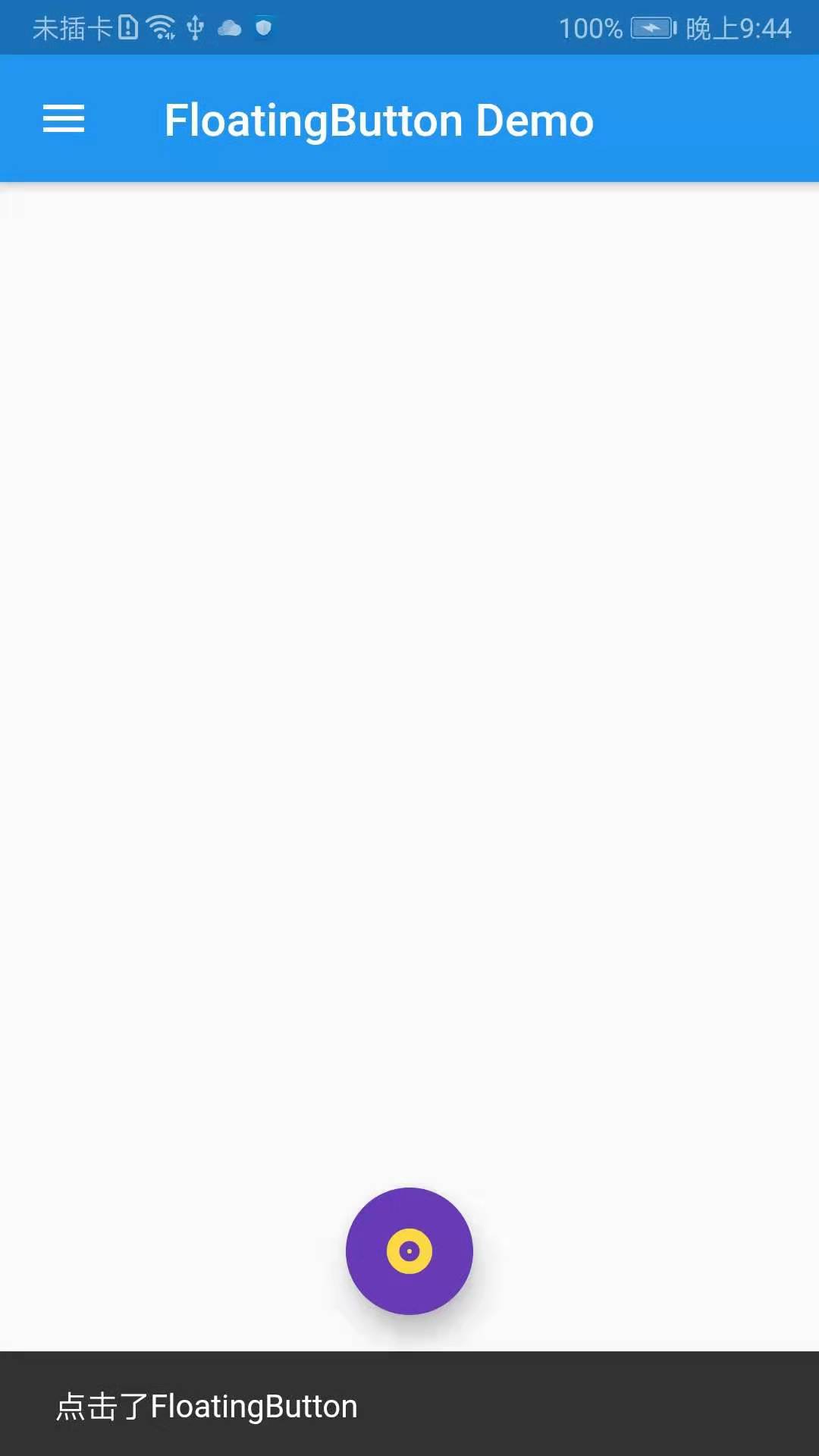
FloatingActionButton对应一个圆形图标按钮,悬停在内容之上,以展示对应程序中的主要动作,所以非常醒目,类似于iOS系统里的小白点按钮。
FloatingActionButton组件属性及描述如下:
- child:child一般为icon,不推荐使用文字
- tooltip:按钮提示文字
- foregroundColor:前景色
- backgroundColor:背景色
- elevation:未点击时阴影值,默认6.0
- hignlightElevation:点击时阴影值
- onPressed:点击事件回调
- shape:定义按钮的shape,设置shape时,默认的elevation将会失效,默认为CircleBorder
import 'package:flutter/material.dart';

import 'package:fluttertoast/fluttertoast.dart';

void main() => runApp(DemoApp());

class DemoApp extends StatelessWidget{

  @override

  Widget build(BuildContext context) {

    // TODO: implement build

    return new MaterialApp(

      title: 'FloatingButton Demo',

      debugShowCheckedModeBanner: false,

      home: new Scaffold(

        appBar: AppBar(

          title: new Text('FloatingButton Demo'),

        ),

        drawer: Drawer(

          child: ListView(

            children: <Widget>[

              UserAccountsDrawerHeader(

                  accountName: new Text('FloatingButton Demo'),

                  accountEmail: new Text('www.baidu.com'),

                  currentAccountPicture: new CircleAvatar(

                    backgroundImage: AssetImage('images/user.jpeg'),

                  ),

              ),

              ListTile(

                title: new Text('我是主标题'),

                leading: Icon(Icons.add_circle_outline),

                subtitle: new Text('我是副标题'),

              ),

              ListTile(

                title: new Text('我是主标题'),

                leading: Icon(Icons.add_circle_outline),

                subtitle: new Text('我是副标题'),

              ),

              ListTile(

                title: new Text('我是主标题'),

                leading: Icon(Icons.add_circle_outline),

                subtitle: new Text('我是副标题'),

              ),

              ListTile(

                title: new Text('我是主标题'),

                leading: Icon(Icons.add_circle_outline),

                subtitle: new Text('我是副标题'),

              )

            ],

          ),

        ),

        floatingActionButton: new Builder(builder: (BuildContext context){

          return new FloatingActionButton(

              child: Icon(Icons.album),

              foregroundColor: Colors.amberAccent,

              backgroundColor: Colors.deepPurple,

              elevation: 10.0,

              highlightElevation: 20.0,

              mini: false,

              onPressed: (){

                Scaffold.of(context).showSnackBar(new SnackBar(content: new Text('点击了FloatingButton')));

              }

          );

        }),

        floatingActionButtonLocation: FloatingActionButtonLocation.centerFloat,

      ),

    );

  }

}
PopupMenuButton
构造方法:
  const PopupMenuButton({

    Key key,

    @required this.itemBuilder,//item子项,可以为任意类型

    this.initialValue,//初始值

    this.onSelected,//选中其中一项时回调

    this.onCanceled,//点击空白处,不选择时回调

    this.tooltip,//提示

    this.elevation = 8.0,//阴影大小

    this.padding = const EdgeInsets.all(8.0),//padding

    this.child,

    this.icon,

    this.offset = Offset.zero,

  }) : assert(itemBuilder != null),

        assert(offset != null),

        assert(!(child != null && icon != null)), // fails if passed both parameters

        super(key: key);
demo示例:
import 'package:flutter/material.dart';

import 'package:fluttertoast/fluttertoast.dart';

void main() => runApp(DemoApp());

class DemoApp extends StatelessWidget{

  @override

  Widget build(BuildContext context) {

    // TODO: implement build

    return new MaterialApp(

      title: 'FloatingButton Demo',

      debugShowCheckedModeBanner: false,

      home: new Scaffold(

        body: new Center(

          child: _showPopupMenuButton(),

        ),

        appBar: AppBar(

          title: new Text('FloatingButton Demo'),

        ),

        drawer: Drawer(

          child: ListView(

            children: <Widget>[

              UserAccountsDrawerHeader(

                  accountName: new Text('FloatingButton Demo'),

                  accountEmail: new Text('www.baidu.com'),

                  currentAccountPicture: new CircleAvatar(

                    backgroundImage: AssetImage('images/user.jpeg'),

                  ),

              ),

              ListTile(

                title: new Text('我是主标题'),

                leading: Icon(Icons.add_circle_outline),

                subtitle: new Text('我是副标题'),

              ),

              ListTile(

                title: new Text('我是主标题'),

                leading: Icon(Icons.add_circle_outline),

                subtitle: new Text('我是副标题'),

              ),

              ListTile(

                title: new Text('我是主标题'),

                leading: Icon(Icons.add_circle_outline),

                subtitle: new Text('我是副标题'),

              ),

              ListTile(

                title: new Text('我是主标题'),

                leading: Icon(Icons.add_circle_outline),

                subtitle: new Text('我是副标题'),

              )

            ],

          ),

        ),

        floatingActionButton: new Builder(builder: (BuildContext context){

          return new FloatingActionButton(

              child: Icon(Icons.album),

              foregroundColor: Colors.amberAccent,

              backgroundColor: Colors.deepPurple,

              elevation: 10.0,

              highlightElevation: 20.0,

              mini: false,

              onPressed: (){

              },

          );

        }),

        floatingActionButtonLocation: FloatingActionButtonLocation.centerFloat,

      ),

    );

  }

  PopupMenuButton _showPopupMenuButton() {

    return PopupMenuButton(

      icon: Icon(Icons.menu),

        itemBuilder: (BuildContext context) => <PopupMenuEntry>[

          const PopupMenuItem(

            child: ListTile(

              leading: Icon(Icons.add_circle_outline),

              title: Text("popupMenuButton1"),

            ),

          ),

          const PopupMenuItem(

            child: ListTile(

              leading: Icon(Icons.add_circle_outline),

              title: Text("popupMenuButton2"),

            ),

          ),

          const PopupMenuItem(

            child: ListTile(

              leading: Icon(Icons.add_circle_outline),

              title: Text("popupMenuButton3"),

            ),

          ),

          const PopupMenuItem(

            child: ListTile(

              leading: Icon(Icons.add_circle_outline),

              title: Text("popupMenuButton4"),

            ),

          ),

        ]

    );

  }

}
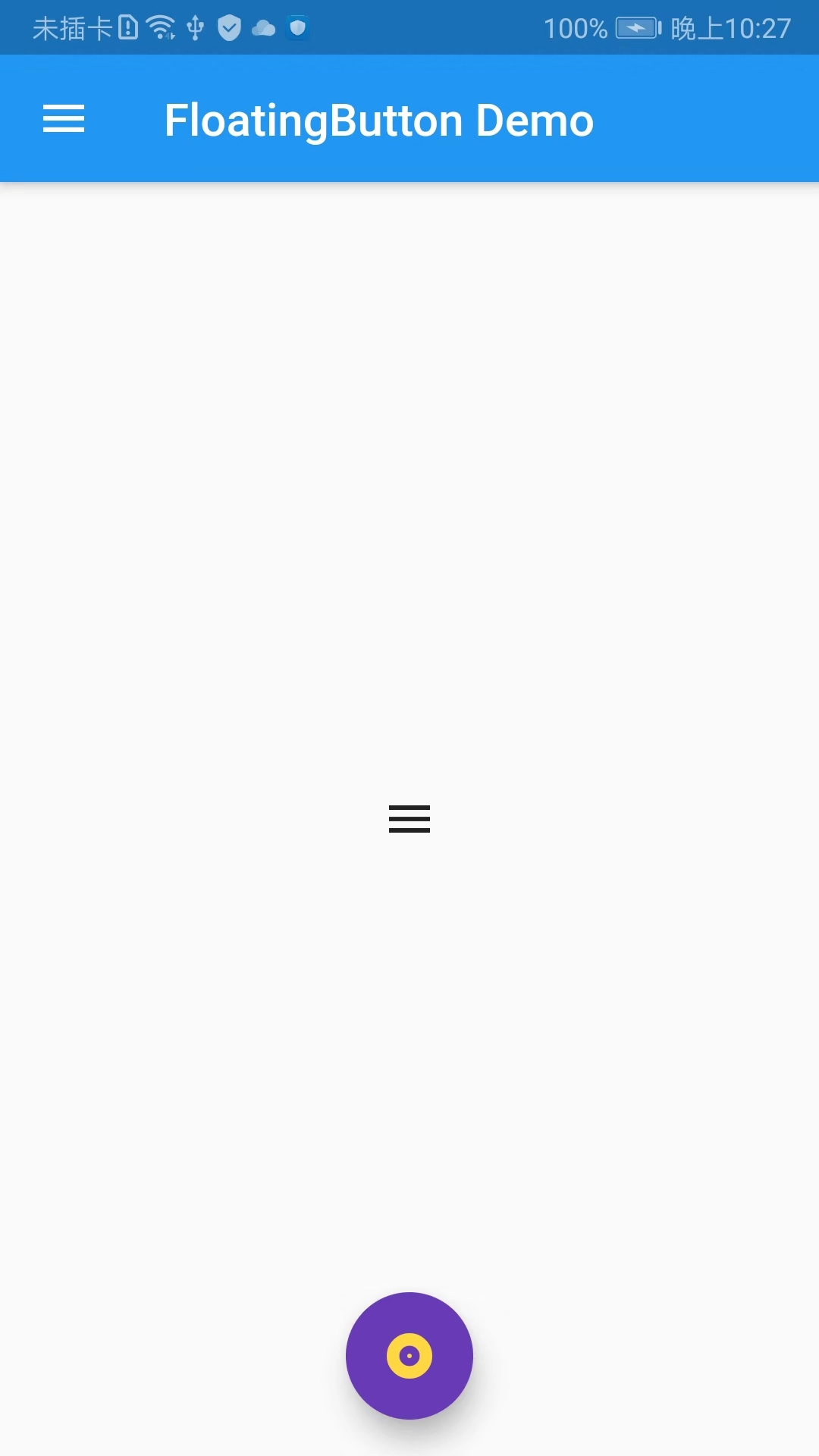
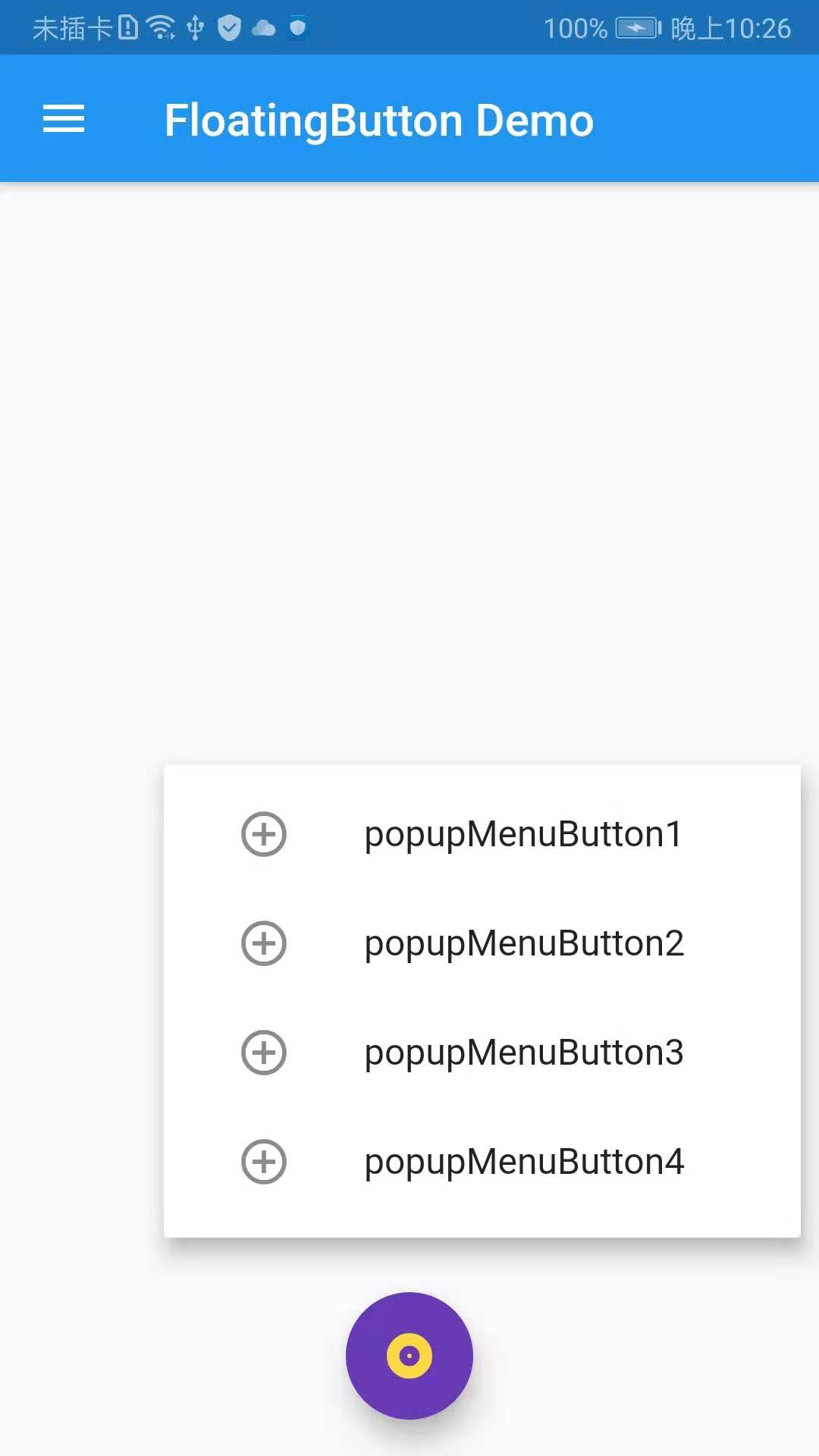
效果截图:
SimpleDialog
import 'package:flutter/material.dart';

import 'package:fluttertoast/fluttertoast.dart';

void main() => runApp(DemoApp());

class DemoApp extends StatelessWidget{

  @override

  Widget build(BuildContext context) {

    return new MaterialApp(

      title: 'FloatingButton Demo',

      debugShowCheckedModeBanner: false,

      home: mHomePage(),

    );

  }

}

class mHomePage extends StatefulWidget{

  @override

  State<StatefulWidget> createState() {

    // TODO: implement createState

    return _mHomePage();

  }

}

class _mHomePage extends State {

  @override

  Widget build(BuildContext context) {

    // TODO: implement build

    return new Scaffold(

      body: new Center(

        child: _showPopupMenuButton(),

      ),

      appBar: AppBar(

        title: new Text('FloatingButton Demo'),

      ),

      drawer: Drawer(

        child: ListView(

          children: <Widget>[

            UserAccountsDrawerHeader(

              accountName: new Text('FloatingButton Demo'),

              accountEmail: new Text('www.baidu.com'),

              currentAccountPicture: new CircleAvatar(

                backgroundImage: AssetImage('images/user.jpeg'),

              ),

            ),

            ListTile(

              title: new Text('我是主标题'),

              leading: Icon(Icons.add_circle_outline),

              subtitle: new Text('我是副标题'),

            ),

            ListTile(

              title: new Text('我是主标题'),

              leading: Icon(Icons.add_circle_outline),

              subtitle: new Text('我是副标题'),

            ),

            ListTile(

              title: new Text('我是主标题'),

              leading: Icon(Icons.add_circle_outline),

              subtitle: new Text('我是副标题'),

            ),

            ListTile(

              title: new Text('我是主标题'),

              leading: Icon(Icons.add_circle_outline),

              subtitle: new Text('我是副标题'),

            )

          ],

        ),

      ),

      floatingActionButton: new FloatingActionButton(

        child: Icon(Icons.album),

        foregroundColor: Colors.amberAccent,

        backgroundColor: Colors.deepPurple,

        elevation: 10.0,

        highlightElevation: 20.0,

        mini: false,

        onPressed: (){

            _showSimpleDialog(context);

        },

      ),

      floatingActionButtonLocation: FloatingActionButtonLocation.centerFloat,

    );

  }

  PopupMenuButton _showPopupMenuButton() {

    return PopupMenuButton(

        icon: Icon(Icons.menu),

        itemBuilder: (BuildContext context) => <PopupMenuEntry>[

          const PopupMenuItem(

            child: ListTile(

              leading: Icon(Icons.add_circle_outline),

              title: Text("popupMenuButton1"),

            ),

          ),

          const PopupMenuItem(

            child: ListTile(

              leading: Icon(Icons.add_circle_outline),

              title: Text("popupMenuButton2"),

            ),

          ),

          const PopupMenuItem(

            child: ListTile(

              leading: Icon(Icons.add_circle_outline),

              title: Text("popupMenuButton3"),

            ),

          ),

          const PopupMenuItem(

            child: ListTile(

              leading: Icon(Icons.add_circle_outline),

              title: Text("popupMenuButton4"),

            ),

          ),

        ]

    );

  }

  void _showSimpleDialog(BuildContext context) {

    showDialog(

        context: context,

        builder: (BuildContext context){

          return SimpleDialog(

            title: new Text('SimpleDialog Demo'),

            children: <Widget>[

              SimpleDialogOption(

                child: Text('选项1'),

              ),

              SimpleDialogOption(

                child: Text('选项2'),

                onPressed: (){

                  Navigator.pop(context);

                },

              ),

            ],

          );

        }

    );

  }

}
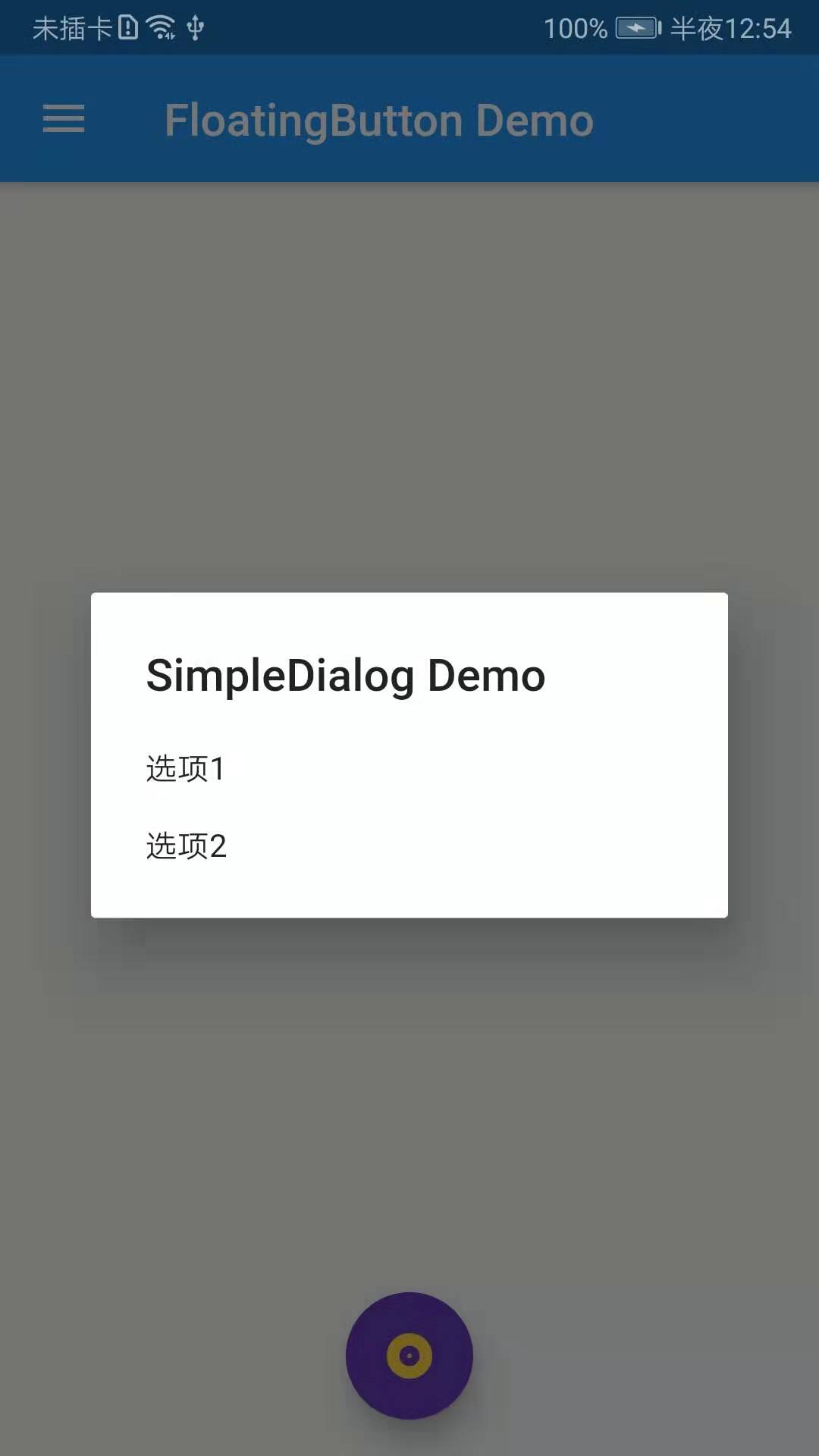
效果截图:
AlertDialog
AlertDialog常用属性:
  const AlertDialog({

    Key key,

    this.title,//对话框顶部提示文案

    this.titlePadding,

    this.titleTextStyle,//对话框顶部提示文案字体样式

    this.content,//内容部分,对话框的提示内容,通常为文字

    this.contentPadding = const EdgeInsets.fromLTRB(24.0, 20.0, 24.0, 24.0),

    this.contentTextStyle,//对话框提示内容的字体样式

    this.actions,//对话框底部操作按钮

    this.backgroundColor,//对话框背景色

    this.elevation,

    this.semanticLabel,

    this.shape,

  }) : assert(contentPadding != null),

       super(key: key);
import 'package:flutter/material.dart';

import 'package:fluttertoast/fluttertoast.dart';

void main() => runApp(DemoApp());

class DemoApp extends StatelessWidget{

  @override

  Widget build(BuildContext context) {

    return new MaterialApp(

      title: 'FloatingButton Demo',

      debugShowCheckedModeBanner: false,

      home: mHomePage(),

    );

  }

}

class mHomePage extends StatefulWidget{

  @override

  State<StatefulWidget> createState() {

    // TODO: implement createState

    return _mHomePage();

  }

}

class _mHomePage extends State {

  @override

  Widget build(BuildContext context) {

    // TODO: implement build

    return new Scaffold(

      body: new Center(

        child: _showPopupMenuButton(),

      ),

      appBar: AppBar(

        title: new Text('FloatingButton Demo'),

      ),

      drawer: Drawer(

        child: ListView(

          children: <Widget>[

            UserAccountsDrawerHeader(

              accountName: new Text('FloatingButton Demo'),

              accountEmail: new Text('www.baidu.com'),

              currentAccountPicture: new CircleAvatar(

                backgroundImage: AssetImage('images/user.jpeg'),

              ),

            ),

            ListTile(

              title: new Text('我是主标题'),

              leading: Icon(Icons.add_circle_outline),

              subtitle: new Text('我是副标题'),

            ),

            ListTile(

              title: new Text('我是主标题'),

              leading: Icon(Icons.add_circle_outline),

              subtitle: new Text('我是副标题'),

            ),

            ListTile(

              title: new Text('我是主标题'),

              leading: Icon(Icons.add_circle_outline),

              subtitle: new Text('我是副标题'),

            ),

            ListTile(

              title: new Text('我是主标题'),

              leading: Icon(Icons.add_circle_outline),

              subtitle: new Text('我是副标题'),

            )

          ],

        ),

      ),

      floatingActionButton: new FloatingActionButton(

        child: Icon(Icons.album),

        foregroundColor: Colors.amberAccent,

        backgroundColor: Colors.deepPurple,

        elevation: 10.0,

        highlightElevation: 20.0,

        mini: false,

        onPressed: (){

//            _showSimpleDialog(context);

          _showAlertDialog(context);

        },

      ),

      floatingActionButtonLocation: FloatingActionButtonLocation.centerFloat,

    );

  }

  PopupMenuButton _showPopupMenuButton() {

    return PopupMenuButton(

        icon: Icon(Icons.menu),

        itemBuilder: (BuildContext context) => <PopupMenuEntry>[

          const PopupMenuItem(

            child: ListTile(

              leading: Icon(Icons.add_circle_outline),

              title: Text("popupMenuButton1"),

            ),

          ),

          const PopupMenuItem(

            child: ListTile(

              leading: Icon(Icons.add_circle_outline),

              title: Text("popupMenuButton2"),

            ),

          ),

          const PopupMenuItem(

            child: ListTile(

              leading: Icon(Icons.add_circle_outline),

              title: Text("popupMenuButton3"),

            ),

          ),

          const PopupMenuItem(

            child: ListTile(

              leading: Icon(Icons.add_circle_outline),

              title: Text("popupMenuButton4"),

            ),

          ),

        ]

    );

  }

  void _showSimpleDialog(BuildContext context) {

    showDialog(

        context: context,

        builder: (BuildContext context){

          return SimpleDialog(

            title: new Text('SimpleDialog Demo'),

            children: <Widget>[

              SimpleDialogOption(

                child: Text('选项1'),

              ),

              SimpleDialogOption(

                child: Text('选项2'),

                onPressed: (){

                  Navigator.pop(context);

                },

              ),

            ],

          );

        }

    );

  }

  void _showAlertDialog(BuildContext context) {

    showDialog(

      context: context,

      builder: (BuildContext context){

        return AlertDialog(

          title: new Text('提示'),

          content: new Text('这是提示框的内容'),

          actions: <Widget>[

            FlatButton(onPressed: null, child: new Text('确定'),disabledTextColor: Colors.blueAccent,),

            FlatButton(onPressed: null, child: new Text('取消'),disabledColor: Colors.deepPurple,),

          ],

        );

      }

    );

  }

}
效果截图:
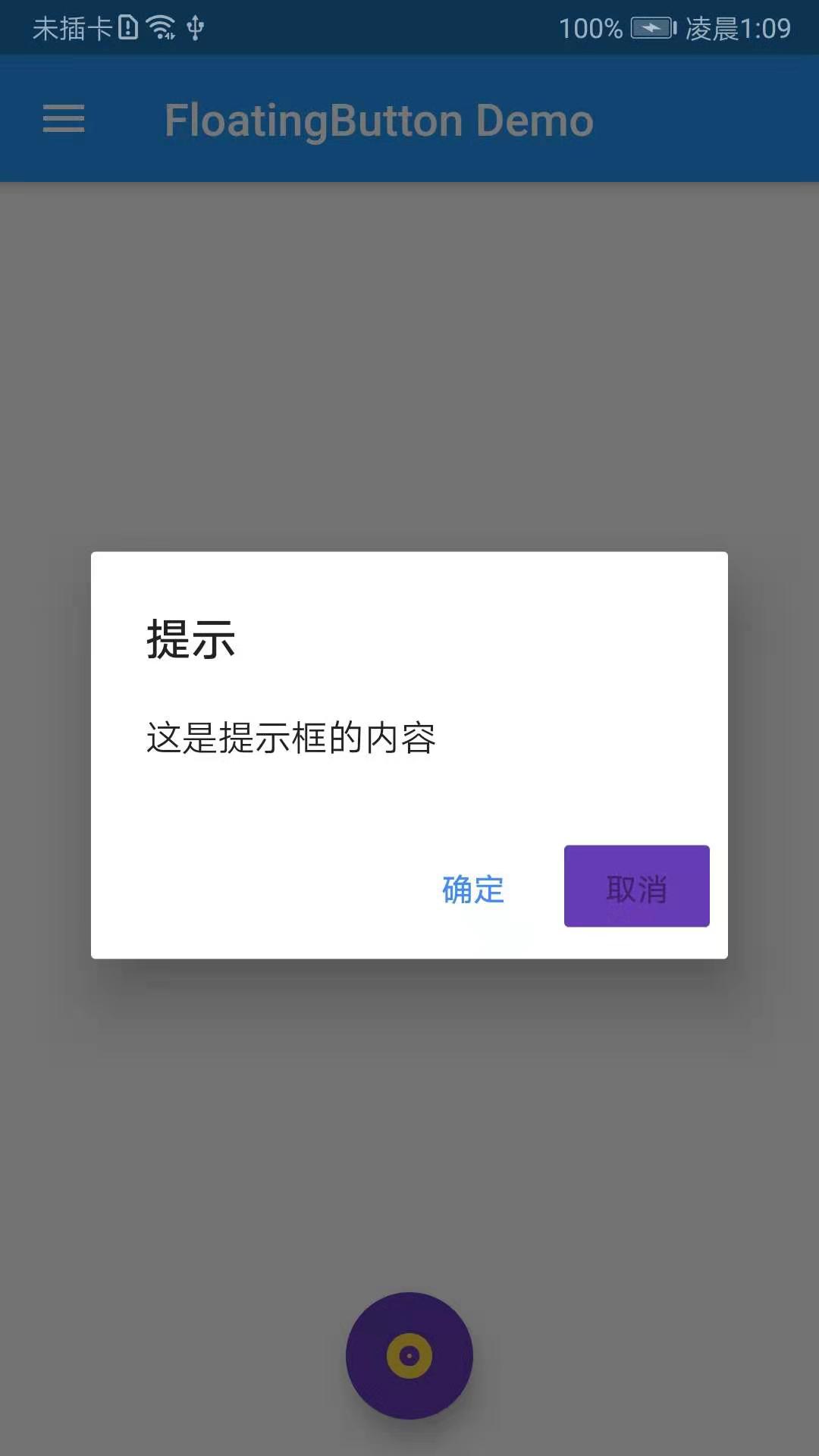
SnackBar
SnackBar是一个轻量级消息提示组件,在屏幕的底部显示,SnackBar常用属性如下:
  const SnackBar({

    Key key,

    @required this.content,//提示内容

    this.backgroundColor,//背景色

    this.action,

    this.duration = _kSnackBarDisplayDuration,//提示时常

    this.animation,//弹出动画

  }) : assert(content != null),

       assert(duration != null),

       super(key: key);
import 'package:flutter/material.dart';

import 'package:fluttertoast/fluttertoast.dart';

void main() => runApp(DemoApp());

class DemoApp extends StatelessWidget{

  @override

  Widget build(BuildContext context) {

    return new MaterialApp(

      title: 'FloatingButton Demo',

      debugShowCheckedModeBanner: false,

      home: mHomePage(),

    );

  }

}

class mHomePage extends StatefulWidget{

  @override

  State<StatefulWidget> createState() {

    // TODO: implement createState

    return _mHomePage();

  }

}

class _mHomePage extends State {

  @override

  Widget build(BuildContext context) {

    // TODO: implement build

    return new Scaffold(

      body: new Center(

        child: _showPopupMenuButton(),

      ),

      appBar: AppBar(

        title: new Text('FloatingButton Demo'),

        actions: <Widget>[

          IconButton(icon: Icon(Icons.search), onPressed: (){

            Scaffold.of(context).showSnackBar(new SnackBar(content: new Text('SnackBar')));

          })

        ],

      ),

      drawer: Drawer(

        child: ListView(

          children: <Widget>[

            UserAccountsDrawerHeader(

              accountName: new Text('FloatingButton Demo'),

              accountEmail: new Text('www.baidu.com'),

              currentAccountPicture: new CircleAvatar(

                backgroundImage: AssetImage('images/user.jpeg'),

              ),

            ),

            ListTile(

              title: new Text('我是主标题'),

              leading: Icon(Icons.add_circle_outline),

              subtitle: new Text('我是副标题'),

            ),

            ListTile(

              title: new Text('我是主标题'),

              leading: Icon(Icons.add_circle_outline),

              subtitle: new Text('我是副标题'),

            ),

            ListTile(

              title: new Text('我是主标题'),

              leading: Icon(Icons.add_circle_outline),

              subtitle: new Text('我是副标题'),

            ),

            ListTile(

              title: new Text('我是主标题'),

              leading: Icon(Icons.add_circle_outline),

              subtitle: new Text('我是副标题'),

            )

          ],

        ),

      ),

      floatingActionButton: new FloatingActionButton(

        child: Icon(Icons.album),

        foregroundColor: Colors.amberAccent,

        backgroundColor: Colors.deepPurple,

        elevation: 10.0,

        highlightElevation: 20.0,

        mini: false,

        onPressed: (){

//            _showSimpleDialog(context);

          _showAlertDialog(context);

        },

      ),

      floatingActionButtonLocation: FloatingActionButtonLocation.centerFloat,

    );

  }

  PopupMenuButton _showPopupMenuButton() {

    return PopupMenuButton(

        icon: Icon(Icons.menu),

        itemBuilder: (BuildContext context) => <PopupMenuEntry>[

          const PopupMenuItem(

            child: ListTile(

              leading: Icon(Icons.add_circle_outline),

              title: Text("popupMenuButton1"),

            ),

          ),

          const PopupMenuItem(

            child: ListTile(

              leading: Icon(Icons.add_circle_outline),

              title: Text("popupMenuButton2"),

            ),

          ),

          const PopupMenuItem(

            child: ListTile(

              leading: Icon(Icons.add_circle_outline),

              title: Text("popupMenuButton3"),

            ),

          ),

          const PopupMenuItem(

            child: ListTile(

              leading: Icon(Icons.add_circle_outline),

              title: Text("popupMenuButton4"),

            ),

          ),

        ]

    );

  }

  void _showSimpleDialog(BuildContext context) {

    showDialog(

        context: context,

        builder: (BuildContext context){

          return SimpleDialog(

            title: new Text('SimpleDialog Demo'),

            children: <Widget>[

              SimpleDialogOption(

                child: Text('选项1'),

              ),

              SimpleDialogOption(

                child: Text('选项2'),

                onPressed: (){

                  Navigator.pop(context);

                },

              ),

            ],

          );

        }

    );

  }

  void _showAlertDialog(BuildContext context) {

    showDialog(

      context: context,

      builder: (BuildContext context){

        return AlertDialog(

          title: new Text('提示'),

          content: new Text('这是提示框的内容'),

          actions: <Widget>[

            FlatButton(onPressed: null, child: new Text('确定'),disabledTextColor: Colors.blueAccent,),

            FlatButton(

              onPressed: (){

                Navigator.pop(context);

                Scaffold.of(context).showSnackBar(new SnackBar(content: new Text('SnackBar')));

              },

              child: new Text('取消'),disabledColor: Colors.deepPurple,),

          ],

          backgroundColor: Colors.amberAccent,

        );

      }

    );

  }

}
Flutter学习笔记(20)--FloatingActionButton、PopupMenuButton、SimpleDialog、AlertDialog、SnackBar的更多相关文章
- Flutter学习笔记(15)--MaterialApp应用组件及routes路由详解
如需转载,请注明出处:Flutter学习笔记(15)--MaterialApp应用组件及routes路由详解 最近一段时间生病了,整天往医院跑,也没状态学东西了,现在是好了不少了,也该继续学习啦!!! ...
- Flutter学习笔记(22)--单个子元素的布局Widget(Container、Padding、Center、Align、FittedBox、Offstage、LimitedBox、OverflowBox、SizedBox)
如需转载,请注明出处:Flutter学习笔记(22)--单个子元素的布局Widget(Container.Padding.Center.Align.FittedBox.Offstage.Limited ...
- Flutter学习笔记(8)--Dart面向对象
如需转载,请注明出处:Flutter学习笔记(7)--Dart异常处理 Dart作为高级语言,支持面向对象的很多特性,并且支持基于mixin的继承方式,基于mixin的继承方式是指:一个类可以继承自多 ...
- Flutter学习笔记(9)--组件Widget
如需转载,请注明出处:Flutter学习笔记(9)--组件Widget 在Flutter中,所有的显示都是Widget,Widget是一切的基础,我们可以通过修改数据,再用setState设置数据(调 ...
- Flutter学习笔记(11)--文本组件、图标及按钮组件
如需转载,请注明出处:Flutter学习笔记(10)--容器组件.图片组件 文本组件 文本组件(text)负责显示文本和定义显示样式,下表为text常见属性 Text组件属性及描述 属性名 类型 默认 ...
- Flutter学习笔记(14)--StatefulWidget简单使用
如需转载,请注明出处:Flutter学习笔记(14)--StatefulWidget简单使用 今天上班没那么忙,突然想起来我好像没StatefulWidget(有状态组件)的demo,闲来无事,写一个 ...
- Flutter学习笔记(16)--Scaffold脚手架、AppBar组件、BottomNavigationBar组件
如需转载,请注明出处:Flutter学习笔记(15)--MaterialApp应用组件及routes路由详解 今天的内容是Scaffold脚手架.AppBar组件.BottomNavigationBa ...
- Flutter学习笔记(21)--TextField文本框组件和Card卡片组件
如需转载,请注明出处:Flutter学习笔记(21)--TextField文本框组件和Card卡片组件 今天来学习下TextField文本框组件和Card卡片组件. 只要是应用程序就少不了交互,基本上 ...
- Flutter学习笔记(23)--多个子元素的布局Widget(Rwo、Column、Stack、IndexedStack、Table、Wrap)
如需转载,请注明出处:Flutter学习笔记(23)--多个子元素的布局Widget(Rwo.Column.Stack.IndexedStack.Table.Wrap) 上一篇梳理了拥有单个子元素布局 ...
随机推荐
- 从后端到前端之Vue(二)写个tab试试水
上一篇写了一下table,然后要写什么呢?当然是tab了.动态创建一个tab,里面放一个table,这样一个后台管理的基本功能(之一)就出来了. 好吧,这里其实只是试试水,感受一下vue的数据驱动可以 ...
- 【原创】一个shell脚本记录(实现rsync生产文件批量迁移功能)
#!/bin/bash #Date:2018-01-08 #Author:xxxxxx #Function:xxxxxx #Change:2018-01-17 # #设置忽略CTRL+C信号 trap ...
- 五分钟部署一套完整的Zabbix
Zabbix-安装与使用 安装NTP yum install -y ntp 配置ntp.conf cd /etc/ vim ntp.conf # 打开之后讲一下内容添加 server cn.ntp.o ...
- [HDU4135]CO Prime(容斥)
也许更好的阅读体验 \(\mathcal{Description}\) \(t\)组询问,每次询问\(l,r,k\),问\([l,r]\)内有多少数与\(k\)互质 \(0<l<=r< ...
- FFT中的一个常见小问题(递推式)
FFT中的一个常见小问题这里不细说FFT的内容,详细内容看这些就足以了解大概了小学生都能看懂的FFT!!!FFT详解补充——FFT中的二进制翻转问题主要是对学习过程中一个容易困扰的小问题进行解释,以便 ...
- C语言入门5-键盘的输入和屏幕输出
C程序中的键盘输入和屏幕输出都是通过 调用输入/输出函数 实现的. 一.数据的格式化 屏幕输出 函数printf()的一般格式 (有两种) (1)第一种: printf(格式控制字符串): ...
- 为什么一直玩A股的股民转战去玩港美股了?港美股系统搭建!
今天先聊一下,为什么买港美股?不买 A 股? 1.A 股散户太多,港股美股机构居多. A 股市场,散户占据了70%以上交易份额,散户太多有什么坏处?少量的机构和大户很容易坐庄操控股价.A 股几乎所有票 ...
- 常用socket函数详解
常用socket函数详解 关于socket函数,每个的意义和基本功能都知道,但每次使用都会去百度,参数到底是什么,返回值代表什么意义,就是说用的少,也记得不够精确.每次都查半天,经常烦恼于此.索性都弄 ...
- codemirror使用
JS使用 使用bower下载 bower i codemirror 引入样式文件 <link rel="stylesheet" type="text/css&quo ...
- GoLang fsnotify 实现目录中日志文件大小监控
需求: 需要监听一个目录中所有文件,当文件大小增加到一定阀值,则将文件清空. 需要引入第三方包:"github.com/howeyc/fsnotify" 代码如下: package ...