
马昕璐 201771010118《面向对象程序设计(java)》第十四周学习总结
第一部分:理论知识学习部分
一、Swing和MVC设计模式
1. MVC模式可应用于Java的GUI组件设计中
2.MVC模式GUI组件设计的唯一的模式,还有很多设计的模式
二、布局管理器
1. 布局管理器是一组类。
– 实现 java.awt.LayoutManager 接口
– 决定容器中组件的位置和大小
2.每个容器都有与之相关的默认布局管理器。
3. (1)FlowLayout: 流布局(Applet和Panel的默认布局管理器)
组件采用从左到右,从上到下逐行摆放
setLayout(new FlowLayout(int align,int hgap, int vgap))
(2)BorderLayout:边框布局( Window、Frame和Dialog的默认布局管理器)
(3)GridLayout: 网格布局
1、GridLayout():生成一个单行单列的网格布局
2、GridLayout(int rows,int cols):生成一个设定行数 和列数的网格布局
3、GridLayout(int rows,int columns,int hgap,int vgap): 可以设置组件之间的水平和垂直间隔
(4)GridBagLayout: 网格组布局
不需要组件的尺寸一致,容许组件扩展到多行、多列。
(5)CardLayout :卡片布局
通过setLayout( )方法为容器设置新的布局。
容器组件名.setLayout( 布局类对象名)
自学内容:文本输入 ;选择组件;菜单;复杂的布局管理;对话框;
二.实验部分
1、实验目的与要求
(1) 掌握GUI布局管理器用法;
(2) 掌握各类Java Swing组件用途及常用API;
2、实验内容和步骤
实验1: 导入第12章示例程序,测试程序并进行组内讨论。
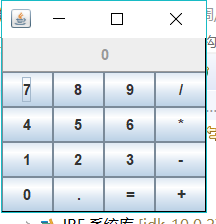
测试程序1
l 在elipse IDE中运行教材479页程序12-1,结合运行结果理解程序;
l 掌握各种布局管理器的用法;
l 理解GUI界面中事件处理技术的用途。
l 在布局管理应用代码处添加注释;
package calculator;

import java.awt.*;
import java.awt.event.*;
import javax.swing.*;

/**
 * A panel with calculator buttons and a result display.
 */
public class CalculatorPanel extends JPanel
{
   private JButton display;
   private JPanel panel;
   private double result;
   private String lastCommand;
   private boolean start;

   public CalculatorPanel()
   {
      setLayout(new BorderLayout());

      result = 0;
      lastCommand = "=";
      start = true;

      // add the display

      display = new JButton("0");
      display.setEnabled(false);
      add(display, BorderLayout.NORTH);

      ActionListener insert = new InsertAction();
      ActionListener command = new CommandAction();

      // add the buttons in a 4 x 4 grid

      panel = new JPanel();
      panel.setLayout(new GridLayout(4, 4));

      addButton("7", insert);
      addButton("8", insert);
      addButton("9", insert);
      addButton("/", command);

      addButton("4", insert);
      addButton("5", insert);
      addButton("6", insert);
      addButton("*", command);

      addButton("1", insert);
      addButton("2", insert);
      addButton("3", insert);
      addButton("-", command);

      addButton("0", insert);
      addButton(".", insert);
      addButton("=", command);
      addButton("+", command);

      add(panel, BorderLayout.CENTER);
   }

   /**
    * Adds a button to the center panel.
    * @param label the button label
    * @param listener the button listener
    */
   private void addButton(String label, ActionListener listener)
   {
      JButton button = new JButton(label);
      button.addActionListener(listener);
      panel.add(button);
   }

   /**
    * This action inserts the button action string to the end of the display text.
    */
   private class InsertAction implements ActionListener
   {
      public void actionPerformed(ActionEvent event)
      {
         String input = event.getActionCommand();
         if (start)
         {
            display.setText("");
            start = false;
         }
         display.setText(display.getText() + input);
      }
   }

   /**
    * This action executes the command that the button action string denotes.
    */
   private class CommandAction implements ActionListener
   {
      public void actionPerformed(ActionEvent event)
      {
         String command = event.getActionCommand();

         if (start)
         {
            if (command.equals("-"))
            {
               display.setText(command);
               start = false;
            }
            else lastCommand = command;
         }
         else
         {
            calculate(Double.parseDouble(display.getText()));
            lastCommand = command;
            start = true;
         }
      }
   }

   /**
    * Carries out the pending calculation.
    * @param x the value to be accumulated with the prior result.
    */
   public void calculate(double x)
   {
      if (lastCommand.equals("+")) result += x;
      else if (lastCommand.equals("-")) result -= x;
      else if (lastCommand.equals("*")) result *= x;
      else if (lastCommand.equals("/")) result /= x;
      else if (lastCommand.equals("=")) result = x;
      display.setText("" + result);
   }
}
package calculator;

import javax.swing.*;

/**
 * A frame with a calculator panel.
 */
public class CalculatorFrame extends JFrame
{
   public CalculatorFrame()
   {
      add(new CalculatorPanel());
      pack();
   }
}
package calculator;

import java.awt.*;
import javax.swing.*;

/**
 * @version 1.34 2015-06-12
 * @author Cay Horstmann
 */
public class Calculator
{
   public static void main(String[] args)
   {
      EventQueue.invokeLater(() -> {
         CalculatorFrame frame = new CalculatorFrame();
         frame.setTitle("Calculator");
         frame.setDefaultCloseOperation(JFrame.EXIT_ON_CLOSE);
         frame.setVisible(true);
      });
   }
}
测试程序2
l 在elipse IDE中调试运行教材486页程序12-2,结合运行结果理解程序;
l 掌握各种文本组件的用法;
l 记录示例代码阅读理解中存在的问题与疑惑。
package text;

import java.awt.*;
import javax.swing.*;

/**
 * @version 1.41 2015-06-12
 * @author Cay Horstmann
 */
public class TextComponentTest
{
   public static void main(String[] args)
   {
      EventQueue.invokeLater(() -> {
         JFrame frame = new TextComponentFrame();
         frame.setTitle("TextComponentTest");
         frame.setDefaultCloseOperation(JFrame.EXIT_ON_CLOSE);
         frame.setVisible(true);
      });
   }
}
package text;

import java.awt.BorderLayout;
import java.awt.GridLayout;

import javax.swing.JButton;
import javax.swing.JFrame;
import javax.swing.JLabel;
import javax.swing.JPanel;
import javax.swing.JPasswordField;
import javax.swing.JScrollPane;
import javax.swing.JTextArea;
import javax.swing.JTextField;
import javax.swing.SwingConstants;

/**
 * A frame with sample text components.
 */
public class TextComponentFrame extends JFrame
{
   public static final int TEXTAREA_ROWS = 8;
   public static final int TEXTAREA_COLUMNS = 20;

   public TextComponentFrame()
   {
      JTextField textField = new JTextField();
      JPasswordField passwordField = new JPasswordField();

      JPanel northPanel = new JPanel();
      northPanel.setLayout(new GridLayout(2, 2));
      northPanel.add(new JLabel("User name: ", SwingConstants.RIGHT));
      northPanel.add(textField);
      northPanel.add(new JLabel("Password: ", SwingConstants.RIGHT));
      northPanel.add(passwordField);

      add(northPanel, BorderLayout.NORTH);

      JTextArea textArea = new JTextArea(TEXTAREA_ROWS, TEXTAREA_COLUMNS);
      JScrollPane scrollPane = new JScrollPane(textArea);

      add(scrollPane, BorderLayout.CENTER);

      // add button to append text into the text area

      JPanel southPanel = new JPanel();

      JButton insertButton = new JButton("Insert");
      southPanel.add(insertButton);
      insertButton.addActionListener(event ->
         textArea.append("User name: " + textField.getText() + " Password: "
            + new String(passwordField.getPassword()) + "\n"));

      add(southPanel, BorderLayout.SOUTH);
      pack();
   }
}
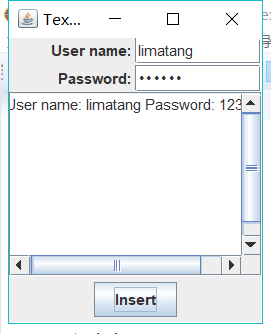
测试程序3
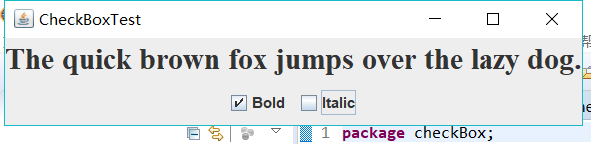
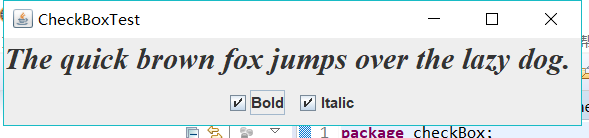
l 在elipse IDE中调试运行教材489页程序12-3,结合运行结果理解程序;
l 掌握复选框组件的用法;
l 记录示例代码阅读理解中存在的问题与疑惑。
package checkBox;

import java.awt.*;
import javax.swing.*;

/**
 * @version 1.34 2015-06-12
 * @author Cay Horstmann
 */
public class CheckBoxTest
{
   public static void main(String[] args)
   {
      EventQueue.invokeLater(() -> {
         JFrame frame = new CheckBoxFrame();
         frame.setTitle("CheckBoxTest");
         frame.setDefaultCloseOperation(JFrame.EXIT_ON_CLOSE);
         frame.setVisible(true);
      });
   }
}
package checkBox;

import java.awt.*;
import java.awt.event.*;
import javax.swing.*;

/**
 * A frame with a sample text label and check boxes for selecting font
 * attributes.
 */
public class CheckBoxFrame extends JFrame
{
   private JLabel label;
   private JCheckBox bold;
   private JCheckBox italic;
   private static final int FONTSIZE = 24;

   public CheckBoxFrame()
   {
      // add the sample text label

      label = new JLabel("The quick brown fox jumps over the lazy dog.");
      label.setFont(new Font("Serif", Font.BOLD, FONTSIZE));
      add(label, BorderLayout.CENTER);

      // this listener sets the font attribute of
      // the label to the check box state

      ActionListener listener = event -> {
         int mode = 0;
         if (bold.isSelected()) mode += Font.BOLD;
         if (italic.isSelected()) mode += Font.ITALIC;
         label.setFont(new Font("Serif", mode, FONTSIZE));
      };

      // add the check boxes

      JPanel buttonPanel = new JPanel();

      bold = new JCheckBox("Bold");
      bold.addActionListener(listener);
      bold.setSelected(true);
      buttonPanel.add(bold);

      italic = new JCheckBox("Italic");
      italic.addActionListener(listener);
      buttonPanel.add(italic);

      add(buttonPanel, BorderLayout.SOUTH);
      pack();
   }
}
测试程序4
l 在elipse IDE中调试运行教材491页程序12-4,运行结果理解程序;
l 掌握单选按钮组件的用法;
l 记录示例代码阅读理解中存在的问题与疑惑。
package radioButton;

import java.awt.*;
import javax.swing.*;

/**
 * @version 1.34 2015-06-12
 * @author Cay Horstmann
 */
public class RadioButtonTest
{
   public static void main(String[] args)
   {
      EventQueue.invokeLater(() -> {
         JFrame frame = new RadioButtonFrame();
         frame.setTitle("RadioButtonTest");
         frame.setDefaultCloseOperation(JFrame.EXIT_ON_CLOSE);
         frame.setVisible(true);
      });
   }
}
package radioButton;

import java.awt.*;
import java.awt.event.*;
import javax.swing.*;

/**
 * A frame with a sample text label and radio buttons for selecting font sizes.
 */
public class RadioButtonFrame extends JFrame
{
   private JPanel buttonPanel;
   private ButtonGroup group;
   private JLabel label;
   private static final int DEFAULT_SIZE = 36;

   public RadioButtonFrame()
   {
      // add the sample text label

      label = new JLabel("The quick brown fox jumps over the lazy dog.");
      label.setFont(new Font("Serif", Font.PLAIN, DEFAULT_SIZE));
      add(label, BorderLayout.CENTER);

      // add the radio buttons

      buttonPanel = new JPanel();
      group = new ButtonGroup();

      addRadioButton("Small", 8);
      addRadioButton("Medium", 12);
      addRadioButton("Large", 18);
      addRadioButton("Extra large", 36);

      add(buttonPanel, BorderLayout.SOUTH);
      pack();
   }

   /**
    * Adds a radio button that sets the font size of the sample text.
    * @param name the string to appear on the button
    * @param size the font size that this button sets
    */
   public void addRadioButton(String name, int size)
   {
      boolean selected = size == DEFAULT_SIZE;
      JRadioButton button = new JRadioButton(name, selected);
      group.add(button);
      buttonPanel.add(button);

      // this listener sets the label font size

      ActionListener listener = event -> label.setFont(new Font("Serif", Font.PLAIN, size));

      button.addActionListener(listener);
   }
}


测试程序5
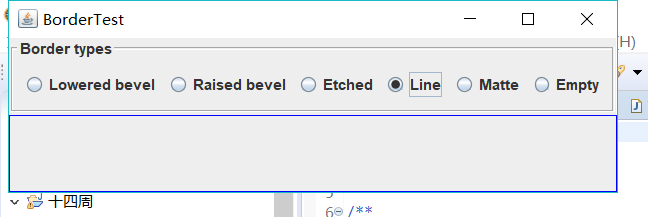
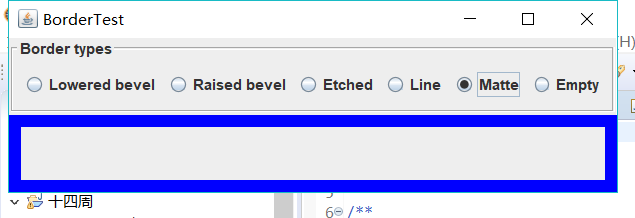
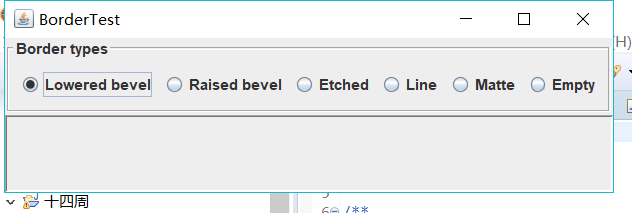
l 在elipse IDE中调试运行教材494页程序12-5,结合运行结果理解程序;
l 掌握边框的用法;
l 记录示例代码阅读理解中存在的问题与疑惑。
package border;

import java.awt.*;
import javax.swing.*;

/**
 * @version 1.34 2015-06-13
 * @author Cay Horstmann
 */
public class BorderTest
{
   public static void main(String[] args)
   {
      EventQueue.invokeLater(() -> {
         JFrame frame = new BorderFrame();
         frame.setTitle("BorderTest");
         frame.setDefaultCloseOperation(JFrame.EXIT_ON_CLOSE);
         frame.setVisible(true);
      });
   }
}
package border;

import java.awt.*;
import javax.swing.*;
import javax.swing.border.*;

/**
 * A frame with radio buttons to pick a border style.
 */
public class BorderFrame extends JFrame
{
   private JPanel demoPanel;
   private JPanel buttonPanel;
   private ButtonGroup group;

   public BorderFrame()
   {
      demoPanel = new JPanel();
      buttonPanel = new JPanel();
      group = new ButtonGroup();

      addRadioButton("Lowered bevel", BorderFactory.createLoweredBevelBorder());
      addRadioButton("Raised bevel", BorderFactory.createRaisedBevelBorder());
      addRadioButton("Etched", BorderFactory.createEtchedBorder());
      addRadioButton("Line", BorderFactory.createLineBorder(Color.BLUE));
      addRadioButton("Matte", BorderFactory.createMatteBorder(10, 10, 10, 10, Color.BLUE));
      addRadioButton("Empty", BorderFactory.createEmptyBorder());

      Border etched = BorderFactory.createEtchedBorder();
      Border titled = BorderFactory.createTitledBorder(etched, "Border types");
      buttonPanel.setBorder(titled);

      setLayout(new GridLayout(2, 1));
      add(buttonPanel);
      add(demoPanel);
      pack();
   }

   public void addRadioButton(String buttonName, Border b)
   {
      JRadioButton button = new JRadioButton(buttonName);
      button.addActionListener(event -> demoPanel.setBorder(b));
      group.add(button);
      buttonPanel.add(button);
   }
}
测试程序6
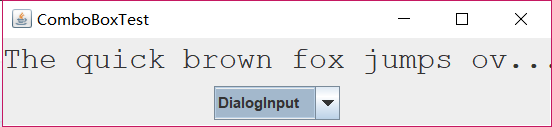
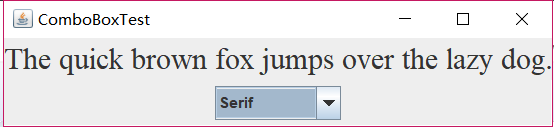
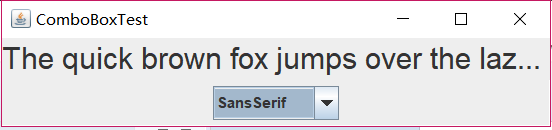
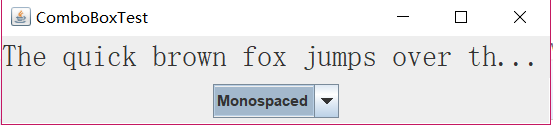
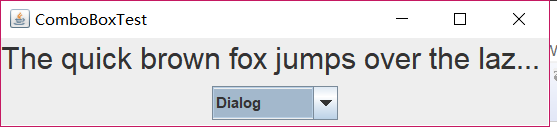
l 在elipse IDE中调试运行教材498页程序12-6,结合运行结果理解程序;
l 掌握组合框组件的用法;
l 记录示例代码阅读理解中存在的问题与疑惑。
package comboBox;

import java.awt.*;
import javax.swing.*;

/**
 * @version 1.35 2015-06-12
 * @author Cay Horstmann
 */
public class ComboBoxTest
{
   public static void main(String[] args)
   {
      EventQueue.invokeLater(() -> {
         JFrame frame = new ComboBoxFrame();
         frame.setTitle("ComboBoxTest");
         frame.setDefaultCloseOperation(JFrame.EXIT_ON_CLOSE);
         frame.setVisible(true);
      });
   }
}
package comboBox;

import java.awt.BorderLayout;
import java.awt.Font;

import javax.swing.JComboBox;
import javax.swing.JFrame;
import javax.swing.JLabel;
import javax.swing.JPanel;

/**
 * A frame with a sample text label and a combo box for selecting font faces.
 */
public class ComboBoxFrame extends JFrame
{
   private JComboBox<String> faceCombo;
   private JLabel label;
   private static final int DEFAULT_SIZE = 24;

   public ComboBoxFrame()
   {
      // add the sample text label

      label = new JLabel("The quick brown fox jumps over the lazy dog.");
      label.setFont(new Font("Serif", Font.PLAIN, DEFAULT_SIZE));
      add(label, BorderLayout.CENTER);

      // make a combo box and add face names

      faceCombo = new JComboBox<>();
      faceCombo.addItem("Serif");
      faceCombo.addItem("SansSerif");
      faceCombo.addItem("Monospaced");
      faceCombo.addItem("Dialog");
      faceCombo.addItem("DialogInput");

      // the combo box listener changes the label font to the selected face name

      faceCombo.addActionListener(event ->
         label.setFont(
            new Font(faceCombo.getItemAt(faceCombo.getSelectedIndex()),
               Font.PLAIN, DEFAULT_SIZE)));

      // add combo box to a panel at the frame's southern border

      JPanel comboPanel = new JPanel();
      comboPanel.add(faceCombo);
      add(comboPanel, BorderLayout.SOUTH);
      pack();
   }
}
测试程序7
l 在elipse IDE中调试运行教材501页程序12-7,结合运行结果理解程序;
l 掌握滑动条组件的用法;
l 记录示例代码阅读理解中存在的问题与疑惑。
package slider;

import java.awt.*;
import javax.swing.*;

/**
 * @version 1.15 2015-06-12
 * @author Cay Horstmann
 */
public class SliderTest
{
   public static void main(String[] args)
   {
      EventQueue.invokeLater(() -> {
         SliderFrame frame = new SliderFrame();
         frame.setTitle("SliderTest");
         frame.setDefaultCloseOperation(JFrame.EXIT_ON_CLOSE);
         frame.setVisible(true);
      });
   }
}
package slider;

import java.awt.*;
import java.util.*;
import javax.swing.*;
import javax.swing.event.*;

/**
 * A frame with many sliders and a text field to show slider values.
 */
public class SliderFrame extends JFrame
{
   private JPanel sliderPanel;
   private JTextField textField;
   private ChangeListener listener;

   public SliderFrame()
   {
      sliderPanel = new JPanel();
      sliderPanel.setLayout(new GridBagLayout());

      // common listener for all sliders
      listener = event -> {
         // update text field when the slider value changes
         JSlider source = (JSlider) event.getSource();
         textField.setText("" + source.getValue());
      };

      // add a plain slider

      JSlider slider = new JSlider();
      addSlider(slider, "Plain");

      // add a slider with major and minor ticks

      slider = new JSlider();
      slider.setPaintTicks(true);
      slider.setMajorTickSpacing(20);
      slider.setMinorTickSpacing(5);
      addSlider(slider, "Ticks");

      // add a slider that snaps to ticks

      slider = new JSlider();
      slider.setPaintTicks(true);
      slider.setSnapToTicks(true);
      slider.setMajorTickSpacing(20);
      slider.setMinorTickSpacing(5);
      addSlider(slider, "Snap to ticks");

      // add a slider with no track

      slider = new JSlider();
      slider.setPaintTicks(true);
      slider.setMajorTickSpacing(20);
      slider.setMinorTickSpacing(5);
      slider.setPaintTrack(false);
      addSlider(slider, "No track");

      // add an inverted slider

      slider = new JSlider();
      slider.setPaintTicks(true);
      slider.setMajorTickSpacing(20);
      slider.setMinorTickSpacing(5);
      slider.setInverted(true);
      addSlider(slider, "Inverted");

      // add a slider with numeric labels

      slider = new JSlider();
      slider.setPaintTicks(true);
      slider.setPaintLabels(true);
      slider.setMajorTickSpacing(20);
      slider.setMinorTickSpacing(5);
      addSlider(slider, "Labels");

      // add a slider with alphabetic labels

      slider = new JSlider();
      slider.setPaintLabels(true);
      slider.setPaintTicks(true);
      slider.setMajorTickSpacing(20);
      slider.setMinorTickSpacing(5);

      Dictionary<Integer, Component> labelTable = new Hashtable<>();
      labelTable.put(0, new JLabel("A"));
      labelTable.put(20, new JLabel("B"));
      labelTable.put(40, new JLabel("C"));
      labelTable.put(60, new JLabel("D"));
      labelTable.put(80, new JLabel("E"));
      labelTable.put(100, new JLabel("F"));

      slider.setLabelTable(labelTable);
      addSlider(slider, "Custom labels");

      // add a slider with icon labels

      slider = new JSlider();
      slider.setPaintTicks(true);
      slider.setPaintLabels(true);
      slider.setSnapToTicks(true);
      slider.setMajorTickSpacing(20);
      slider.setMinorTickSpacing(20);

      labelTable = new Hashtable<Integer, Component>();

      // add card images

      labelTable.put(0, new JLabel(new ImageIcon("nine.gif")));
      labelTable.put(20, new JLabel(new ImageIcon("ten.gif")));
      labelTable.put(40, new JLabel(new ImageIcon("jack.gif")));
      labelTable.put(60, new JLabel(new ImageIcon("queen.gif")));
      labelTable.put(80, new JLabel(new ImageIcon("king.gif")));
      labelTable.put(100, new JLabel(new ImageIcon("ace.gif")));

      slider.setLabelTable(labelTable);
      addSlider(slider, "Icon labels");

      // add the text field that displays the slider value

      textField = new JTextField();
      add(sliderPanel, BorderLayout.CENTER);
      add(textField, BorderLayout.SOUTH);
      pack();
   }

   /**
    * Adds a slider to the slider panel and hooks up the listener
    * @param s the slider
    * @param description the slider description
    */
   public void addSlider(JSlider s, String description)
   {
      s.addChangeListener(listener);
      JPanel panel = new JPanel();
      panel.add(s);
      panel.add(new JLabel(description));
      panel.setAlignmentX(Component.LEFT_ALIGNMENT);
      GridBagConstraints gbc = new GridBagConstraints();
      gbc.gridy = sliderPanel.getComponentCount();
      gbc.anchor = GridBagConstraints.WEST;
      sliderPanel.add(panel, gbc);
   }
}

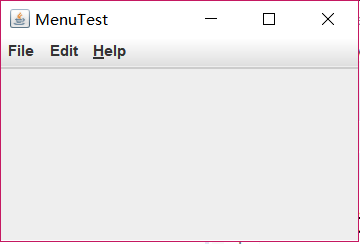
测试程序8
l 在elipse IDE中调试运行教材512页程序12-8,结合运行结果理解程序;
l 掌握菜单的创建、菜单事件监听器、复选框和单选按钮菜单项、弹出菜单以及快捷键和加速器的用法。
l 记录示例代码阅读理解中存在的问题与疑惑。
package menu;

import java.awt.*;
import javax.swing.*;

/**
 * @version 1.24 2012-06-12
 * @author Cay Horstmann
 */
public class MenuTest
{
   public static void main(String[] args)
   {
      EventQueue.invokeLater(() -> {
         JFrame frame = new MenuFrame();
         frame.setTitle("MenuTest");
         frame.setDefaultCloseOperation(JFrame.EXIT_ON_CLOSE);
         frame.setVisible(true);
      });
   }
}
package menu;

import java.awt.*;
import javax.swing.*;

/**
 * @version 1.24 2012-06-12
 * @author Cay Horstmann
 */
public class MenuTest
{
   public static void main(String[] args)
   {
      EventQueue.invokeLater(() -> {
         JFrame frame = new MenuFrame();
         frame.setTitle("MenuTest");
         frame.setDefaultCloseOperation(JFrame.EXIT_ON_CLOSE);
         frame.setVisible(true);
      });
   }
}
测试程序9
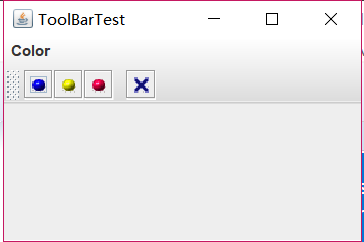
l 在elipse IDE中调试运行教材517页程序12-9,结合运行结果理解程序;
l 掌握工具栏和工具提示的用法;
l 记录示例代码阅读理解中存在的问题与疑惑。
package toolBar;

import java.awt.*;
import javax.swing.*;

/**
 * @version 1.14 2015-06-12
 * @author Cay Horstmann
 */
public class ToolBarTest
{
   public static void main(String[] args)
   {
      EventQueue.invokeLater(() -> {
         ToolBarFrame frame = new ToolBarFrame();
         frame.setTitle("ToolBarTest");
         frame.setDefaultCloseOperation(JFrame.EXIT_ON_CLOSE);
         frame.setVisible(true);
      });
   }
}
package toolBar;

import java.awt.*;
import java.awt.event.*;
import javax.swing.*;

/**
 * A frame with a toolbar and menu for color changes.
 */
public class ToolBarFrame extends JFrame
{
   private static final int DEFAULT_WIDTH = 300;
   private static final int DEFAULT_HEIGHT = 200;
   private JPanel panel;

   public ToolBarFrame()
   {
      setSize(DEFAULT_WIDTH, DEFAULT_HEIGHT);

      // add a panel for color change

      panel = new JPanel();
      add(panel, BorderLayout.CENTER);

      // set up actions

      Action blueAction = new ColorAction("Blue", new ImageIcon("blue-ball.gif"), Color.BLUE);
      Action yellowAction = new ColorAction("Yellow", new ImageIcon("yellow-ball.gif"),
            Color.YELLOW);
      Action redAction = new ColorAction("Red", new ImageIcon("red-ball.gif"), Color.RED);

      Action exitAction = new AbstractAction("Exit", new ImageIcon("exit.gif"))
         {
            public void actionPerformed(ActionEvent event)
            {
               System.exit(0);
            }
         };
      exitAction.putValue(Action.SHORT_DESCRIPTION, "Exit");

      // populate toolbar

      JToolBar bar = new JToolBar();
      bar.add(blueAction);
      bar.add(yellowAction);
      bar.add(redAction);
      bar.addSeparator();
      bar.add(exitAction);
      add(bar, BorderLayout.NORTH);

      // populate menu

      JMenu menu = new JMenu("Color");
      menu.add(yellowAction);
      menu.add(blueAction);
      menu.add(redAction);
      menu.add(exitAction);
      JMenuBar menuBar = new JMenuBar();
      menuBar.add(menu);
      setJMenuBar(menuBar);
   }

   /**
    * The color action sets the background of the frame to a given color.
    */
   class ColorAction extends AbstractAction
   {
      public ColorAction(String name, Icon icon, Color c)
      {
         putValue(Action.NAME, name);
         putValue(Action.SMALL_ICON, icon);
         putValue(Action.SHORT_DESCRIPTION, name + " background");
         putValue("Color", c);
      }

      public void actionPerformed(ActionEvent event)
      {
         Color c = (Color) getValue("Color");
         panel.setBackground(c);
      }
   }
}
测试程序10
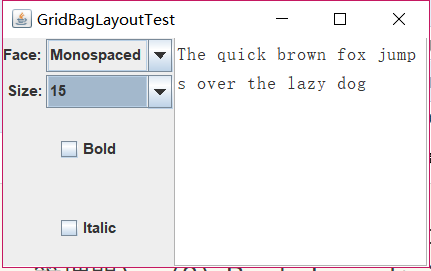
l 在elipse IDE中调试运行教材524页程序12-10、12-11,结合运行结果理解程序,了解GridbagLayout的用法。
l 在elipse IDE中调试运行教材533页程序12-12,结合程序运行结果理解程序,了解GroupLayout的用法。
l 记录示例代码阅读理解中存在的问题与疑惑。
package gridbag;

import java.awt.EventQueue;

import javax.swing.JFrame;

/**
 * @version 1.35 2015-06-12
 * @author Cay Horstmann
 */
public class GridBagLayoutTest
{
   public static void main(String[] args)
   {
      EventQueue.invokeLater(() ->           {
               JFrame frame = new FontFrame();
               frame.setTitle("GridBagLayoutTest");
               frame.setDefaultCloseOperation(JFrame.EXIT_ON_CLOSE);
               frame.setVisible(true);
         });
   }
}
package gridbag;

import java.awt.*;

/**
 * This class simplifies the use of the GridBagConstraints class.
 * @version 1.01 2004-05-06
 * @author Cay Horstmann
 */
public class GBC extends GridBagConstraints
{
   /**
    * Constructs a GBC with a given gridx and gridy position and all other grid
    * bag constraint values set to the default.
    * @param gridx the gridx position
    * @param gridy the gridy position
    */
   public GBC(int gridx, int gridy)//自定义类GBC,定义网格的位置值x,y
   {
      this.gridx = gridx;
      this.gridy = gridy;
   }

   /**
    * Constructs a GBC with given gridx, gridy, gridwidth, gridheight and all
    * other grid bag constraint values set to the default.
    * @param gridx the gridx position
    * @param gridy the gridy position
    * @param gridwidth the cell span in x-direction
    * @param gridheight the cell span in y-direction
    */

   //构造一个给定gridx、gridy、gridwidth、gridheight的GBC
   public GBC(int gridx, int gridy, int gridwidth, int gridheight)
   {
      this.gridx = gridx;
      this.gridy = gridy;
      this.gridwidth = gridwidth;
      this.gridheight = gridheight;
   }

   /**
    * Sets the anchor.
    * @param anchor the anchor value
    * @return this object for further modification
    */
   public GBC setAnchor(int anchor)//当组件小于其显示区域时使用此字段。它可以确定在显示区域中放置组件的位置。
   {
      this.anchor = anchor;
      return this;
   }

   /**
    * Sets the fill direction.
    * @param fill the fill direction
    * @return this object for further modification
    */

   /*设置填充方向,当组件的显示区域大于它所请求的显示区域的大小时使用此字段。
      它可以确定是否调整组件大小,以及在需要的时候如何进行调整。
      默认值为none,不调整组件大小
      */
   public GBC setFill(int fill)
   {
      this.fill = fill;
      return this;
   }

   /**
    * Sets the cell weights.
    * @param weightx the cell weight in x-direction
    * @param weighty the cell weight in y-direction
    * @return this object for further modification
    */

   //设置分布额外的空间。
   public GBC setWeight(double weightx, double weighty)
   {
      this.weightx = weightx;
      this.weighty = weighty;
      return this;
   }

   /**
    * Sets the insets of this cell.
    * @param distance the spacing to use in all directions
    * @return this object for further modification
    */

   //指定组件的外部填充,即组件与其显示区域边缘之间间距的最小量。
   public GBC setInsets(int distance)
   {
      this.insets = new Insets(distance, distance, distance, distance);//距离的间距使用在所有的方向
      return this;
   }

   /**
    * Sets the insets of this cell.
    * @param top the spacing to use on top
    * @param left the spacing to use to the left
    * @param bottom the spacing to use on the bottom
    * @param right the spacing to use to the right
    * @return this object for further modification
    */

   //设置单元格的insets。
   public GBC setInsets(int top, int left, int bottom, int right)
   {
      this.insets = new Insets(top, left, bottom, right);
      return this;
   }

   /**
    * Sets the internal padding
    * @param ipadx the internal padding in x-direction
    * @param ipady the internal padding in y-direction
    * @return this object for further modification
    */

   //设置内部填充
   public GBC setIpad(int ipadx, int ipady)
   {
      this.ipadx = ipadx;//x方向的内填充
      this.ipady = ipady;//y方向的内填充
      return this;
   }
}
package gridbag;

import java.awt.Font;
import java.awt.GridBagLayout;
import java.awt.event.ActionListener;

import javax.swing.BorderFactory;
import javax.swing.JCheckBox;
import javax.swing.JComboBox;
import javax.swing.JFrame;
import javax.swing.JLabel;
import javax.swing.JTextArea;

/**
 * A frame that uses a grid bag layout to arrange font selection components.
 */
public class FontFrame extends JFrame
{
   public static final int TEXT_ROWS = 10;
   public static final int TEXT_COLUMNS = 20;

   private JComboBox<String> face;
   private JComboBox<Integer> size;
   private JCheckBox bold;
   private JCheckBox italic;
   private JTextArea sample;//定义五个私有属性,分别为五个组件
 FontFrame()
   {
      GridBagLayout layout = new GridBagLayout();//建立一个网格布局管理器的对象,不需要指定网格的行数和列数,布局管理器会根据后面的信息猜测出来
      setLayout(layout);

      ActionListener listener = event -> updateSample();//监听器接口,在事件发生时调用

      // construct components

      JLabel faceLabel = new JLabel("Face: ");//创建具有指定文本的 JLabel 实例。该标签与其显示区的开始边对齐,并垂直居中。文本现实的文字为“Face”

      face = new JComboBox<>(new String[] { "Serif", "SansSerif", "Monospaced",
            "Dialog", "DialogInput" });//复选框中的其他选项所显示的名称

      face.addActionListener(listener);//在face该组件中添加监听器接口

      JLabel sizeLabel = new JLabel("Size: ");//创建一个新的Jlable对象,名字为Size

      size = new JComboBox<>(new Integer[] { 8, 10, 12, 15, 18, 24, 36, 48 });//该组件为一个复选框,及该复选框中的名字

      size.addActionListener(listener);

      bold = new JCheckBox("Bold");//创建一个带文本的、最初未被选定的复选框。
      bold.addActionListener(listener);

      italic = new JCheckBox("Italic");
      italic.addActionListener(listener);

      sample = new JTextArea(TEXT_ROWS, TEXT_COLUMNS);//构造具有指定行数和列数的新的空 TextArea。
      sample.setText("The quick brown fox jumps over the lazy dog");
      sample.setEditable(false);
      sample.setLineWrap(true);
      sample.setBorder(BorderFactory.createEtchedBorder());
//创建一个具有“浮雕化”外观效果的边框,将组件的当前背景色用于高亮显示和阴影显示
      // add components to grid, using GBC convenience class

      add(faceLabel, new GBC(0, 0).setAnchor(GBC.EAST));//将组件置于其显示区域的右部,并在垂直方向上居中。
      add(face, new GBC(1, 0).setFill(GBC.HORIZONTAL).setWeight(100, 0)
            .setInsets(1));
      add(sizeLabel, new GBC(0, 1).setAnchor(GBC.EAST));
      add(size, new GBC(1, 1).setFill(GBC.HORIZONTAL).setWeight(100, 0)//设置为在水平方向而不是垂直方向上调整组件大小
            .setInsets(1));
      add(bold, new GBC(0, 2, 2, 1).setAnchor(GBC.CENTER).setWeight(100, 100));
      add(italic, new GBC(0, 3, 2, 1).setAnchor(GBC.CENTER).setWeight(100, 100));
      add(sample, new GBC(2, 0, 1, 4).setFill(GBC.BOTH).setWeight(100, 100));//在水平方向和垂直方向上同时调整组件大小。
      pack();
      updateSample();//以上的add为添加组件的约束
   }

   public void updateSample()
   {
      String fontFace = (String) face.getSelectedItem();//返回当前所选项
      int fontStyle = (bold.isSelected() ? Font.BOLD : 0)//返回bold按钮的状态。如果选定了切换按钮,则返回 true,否则返回 false。
            + (italic.isSelected() ? Font.ITALIC : 0);//返回italic的状态为斜体样式常量
      int fontSize = size.getItemAt(size.getSelectedIndex());//返回指定索引处的列表项返回列表中与给定项匹配的第一个选项。
      Font font = new Font(fontFace, fontStyle, fontSize);//建立一个font对象,对字体进行设置
      sample.setFont(font);//设置当前字体。这将移除缓存的行高和列宽,以便新的字体能够反映出来,并且调用 revalidate()。
      sample.repaint();//重绘此组件
   }
}
package groupLayout;

import java.awt.Font;
import java.awt.event.ActionListener;

import javax.swing.BorderFactory;
import javax.swing.GroupLayout;
import javax.swing.JCheckBox;
import javax.swing.JComboBox;
import javax.swing.JFrame;
import javax.swing.JLabel;
import javax.swing.JScrollPane;
import javax.swing.JTextArea;
import javax.swing.LayoutStyle;
import javax.swing.SwingConstants;

/**
 * A frame that uses a group layout to arrange font selection components.
 */
public class FontFrame extends JFrame
{
    //定义右边文本框的长、宽
   public static final int TEXT_ROWS = 10;
   public static final int TEXT_COLUMNS = 20;
   //定义私有属性显示以及字体大小
   private JComboBox<String> face;
   private JComboBox<Integer> size;
   //定义私有属性字体款式单选框
   private JCheckBox bold;
   private JCheckBox italic;
   private JScrollPane pane;//JScrollPane 管理视口、可选的垂直和水平滚动条以及可选的行和列标题视口
   private JTextArea sample;//JTextArea 是一个显示纯文本的多行区域

   public FontFrame()
   {
      ActionListener listener = event -> updateSample();

      //构建组件
      //设置字体的显示
      JLabel faceLabel = new JLabel("Face: ");//文本的标签(即 Face)以开始边对齐边框

      face = new JComboBox<>(new String[] { "Serif", "SansSerif", "Monospaced", "Dialog",
            "DialogInput" });//在face后的滚动条内的选项

      face.addActionListener(listener);//添加动作监听器

      //设置字体大小
      JLabel sizeLabel = new JLabel("Size: ");
      //Integer类提供了多个方法,能在 int 类型和 String 类型之间互相转换
      size = new JComboBox<>(new Integer[] { 8, 10, 12, 15, 18, 24, 36, 48 });//size后的滚动条内选项

      size.addActionListener(listener);//添加动作监听器

      bold = new JCheckBox("Bold");//创建了一个带文本的、最初未被选定的复选框Bold
      bold.addActionListener(listener);

      italic = new JCheckBox("Italic");//创建了一个带文本的、最初未被选定的复选框Italic
      italic.addActionListener(listener);

      //示例文本
      sample = new JTextArea(TEXT_ROWS, TEXT_COLUMNS);//构造具有指定行数和列数的新的空 TextArea
      sample.setText("The quick brown fox jumps over the lazy dog");//示例文本内容
      sample.setEditable(false);//设置示例文本区内的文本不可编辑
      sample.setLineWrap(true);//设置文本区的换行策略。如果设置为 true,则当行的长度大于所分配的宽度时,将换行。
      sample.setBorder(BorderFactory.createEtchedBorder());//将组件的当前背景色用于高亮显示和阴影显示。(文本框内有一圈阴影线)

      pane = new JScrollPane(sample);//组件的内容超过视图大小就会显示水平和垂直滚动条。

          //布局管理
      GroupLayout layout = new GroupLayout(getContentPane());
      setLayout(layout);//重写layout方法,从而有条件的将调用转到contentpane
      layout.setHorizontalGroup(layout.createParallelGroup(GroupLayout.Alignment.LEADING)//控制水平容器
            .addGroup(
                  layout.createSequentialGroup().addContainerGap().addGroup(//创建一个组,用于顺序的布局子组件
                        layout.createParallelGroup(GroupLayout.Alignment.LEADING).addGroup(
                              GroupLayout.Alignment.TRAILING,//创建一个组,分别按默认值以及底端对齐方式并行的布局子组件
                              layout.createSequentialGroup().addGroup(
                                    layout.createParallelGroup(GroupLayout.Alignment.TRAILING)
                                          .addComponent(faceLabel).addComponent(sizeLabel))
                                    .addPreferredGap(LayoutStyle.ComponentPlacement.RELATED)//face和size两个组件在视觉上相关,并且被放置在同一个父容器中
                                    .addGroup(
                                          layout.createParallelGroup(
                                                GroupLayout.Alignment.LEADING, false)
                                                .addComponent(size).addComponent(face)))
                              .addComponent(italic).addComponent(bold)).addPreferredGap(
                        LayoutStyle.ComponentPlacement.RELATED).addComponent(pane)//italic和bold视觉相关并放在同一个父容器中
                        .addContainerGap()));//addContainerGap:添加一个表示容器边缘和触到容器边框的组件之间首选间隙的元素

      layout.linkSize(SwingConstants.HORIZONTAL, new java.awt.Component[] { face, size });//强制给定的size和face组件具有相同的尺寸

      layout.setVerticalGroup(layout.createParallelGroup(GroupLayout.Alignment.LEADING)//控制垂直容器
            .addGroup(
                  layout.createSequentialGroup().addContainerGap().addGroup(//为分隔组件和容器的边缘添加一个间隙
                        layout.createParallelGroup(GroupLayout.Alignment.LEADING).addComponent(
                              pane, GroupLayout.Alignment.TRAILING).addGroup(
                              layout.createSequentialGroup().addGroup(
                                    layout.createParallelGroup(GroupLayout.Alignment.BASELINE)//元素应该沿其基线对齐
                                          .addComponent(face).addComponent(faceLabel))
                                    .addPreferredGap(LayoutStyle.ComponentPlacement.RELATED)
                                    .addGroup(
                                          layout.createParallelGroup(
                                                GroupLayout.Alignment.BASELINE).addComponent(size)//元素应该沿其基线对齐
                                                .addComponent(sizeLabel)).addPreferredGap(
                                          LayoutStyle.ComponentPlacement.RELATED).addComponent(
                                          italic, GroupLayout.DEFAULT_SIZE,//指示组件或间隙的大小应该用于特定的范围值
                                          GroupLayout.DEFAULT_SIZE, Short.MAX_VALUE)//MAX_VALUE:保存 short 可取的最大值的常量
                                    .addPreferredGap(LayoutStyle.ComponentPlacement.RELATED)
                                    .addComponent(bold, GroupLayout.DEFAULT_SIZE,
                                          GroupLayout.DEFAULT_SIZE, Short.MAX_VALUE)))
                        .addContainerGap()));
      pack();//调整此窗口的大小,以适合其子组件的首选大小和布局
   }

   public void updateSample()
   {
      String fontFace = (String) face.getSelectedItem();//face组合框字体
      int fontStyle = (bold.isSelected() ? Font.BOLD : 0)
            + (italic.isSelected() ? Font.ITALIC : 0);//字体格式;设置bold 和italic初值为0;选择我们所需要的二者选项进行组合,如果选定了切换按钮,则返回 true
      int fontSize = size.getItemAt(size.getSelectedIndex());//字体大小;返回指定索引处的列表项。如果 index 超出范围(小于零或者大于等于列表大小),则返回 null
      Font font = new Font(fontFace, fontStyle, fontSize);//根据所选字体显示、字体风格、字体大小,创建一个新 Font。
      sample.setFont(font);//设置文本框内当前字体。这将移除缓存的行高和列宽,以便新的字体能够反映出来
      sample.repaint();//重绘组件
   }
}
测试程序11
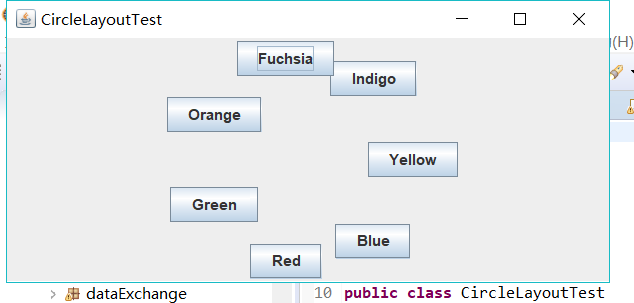
l 在elipse IDE中调试运行教材539页程序12-13、12-14,结合运行结果理解程序;
l 掌握定制布局管理器的用法。
l 记录示例代码阅读理解中存在的问题与疑惑。
package circleLayout;

import java.awt.*;
import javax.swing.*;

/**
 * @version 1.33 2015-06-12
 * @author Cay Horstmann
 */
public class CircleLayoutTest
{
   public static void main(String[] args)
   {
      EventQueue.invokeLater(() -> {
         JFrame frame = new CircleLayoutFrame();
         frame.setTitle("CircleLayoutTest");
         frame.setDefaultCloseOperation(JFrame.EXIT_ON_CLOSE);
         frame.setVisible(true);
      });
   }
}
package circleLayout;

import javax.swing.*;

/**
 * A frame that shows buttons arranged along a circle.
 */
public class CircleLayoutFrame extends JFrame
{
   public CircleLayoutFrame()
   {
      setLayout(new CircleLayout());
      add(new JButton("Yellow"));
      add(new JButton("Blue"));
      add(new JButton("Red"));
      add(new JButton("Green"));
      add(new JButton("Orange"));
      add(new JButton("Fuchsia"));
      add(new JButton("Indigo"));
      pack();
   }
}
package circleLayout;

import java.awt.*;

/**
 * A layout manager that lays out components along a circle.
 */
public class CircleLayout implements LayoutManager
{
   private int minWidth = 0;
   private int minHeight = 0;
   private int preferredWidth = 0;
   private int preferredHeight = 0;
   private boolean sizesSet = false;
   private int maxComponentWidth = 0;
   private int maxComponentHeight = 0;

   public void addLayoutComponent(String name, Component comp)
   {
   }

   public void removeLayoutComponent(Component comp)
   {
   }

   public void setSizes(Container parent)
   {
      if (sizesSet) return;
      int n = parent.getComponentCount();

      preferredWidth = 0;
      preferredHeight = 0;
      minWidth = 0;
      minHeight = 0;
      maxComponentWidth = 0;
      maxComponentHeight = 0;

      // compute the maximum component widths and heights
      // and set the preferred size to the sum of the component sizes.
      for (int i = 0; i < n; i++)
      {
         Component c = parent.getComponent(i);
         if (c.isVisible())
         {
            Dimension d = c.getPreferredSize();
            maxComponentWidth = Math.max(maxComponentWidth, d.width);
            maxComponentHeight = Math.max(maxComponentHeight, d.height);
            preferredWidth += d.width;
            preferredHeight += d.height;
         }
      }
      minWidth = preferredWidth / 2;
      minHeight = preferredHeight / 2;
      sizesSet = true;
   }

   public Dimension preferredLayoutSize(Container parent)
   {
      setSizes(parent);
      Insets insets = parent.getInsets();
      int width = preferredWidth + insets.left + insets.right;
      int height = preferredHeight + insets.top + insets.bottom;
      return new Dimension(width, height);
   }

   public Dimension minimumLayoutSize(Container parent)
   {
      setSizes(parent);
      Insets insets = parent.getInsets();
      int width = minWidth + insets.left + insets.right;
      int height = minHeight + insets.top + insets.bottom;
      return new Dimension(width, height);
   }

   public void layoutContainer(Container parent)
   {
      setSizes(parent);

      // compute center of the circle

      Insets insets = parent.getInsets();
      int containerWidth = parent.getSize().width - insets.left - insets.right;
      int containerHeight = parent.getSize().height - insets.top - insets.bottom;

      int xcenter = insets.left + containerWidth / 2;
      int ycenter = insets.top + containerHeight / 2;

      // compute radius of the circle

      int xradius = (containerWidth - maxComponentWidth) / 2;
      int yradius = (containerHeight - maxComponentHeight) / 2;
      int radius = Math.min(xradius, yradius);

      // lay out components along the circle

      int n = parent.getComponentCount();
      for (int i = 0; i < n; i++)
      {
         Component c = parent.getComponent(i);
         if (c.isVisible())
         {
            double angle = 2 * Math.PI * i / n;

            // center point of component
            int x = xcenter + (int) (Math.cos(angle) * radius);
            int y = ycenter + (int) (Math.sin(angle) * radius);

            // move component so that its center is (x, y)
            // and its size is its preferred size
            Dimension d = c.getPreferredSize();
            c.setBounds(x - d.width / 2, y - d.height / 2, d.width, d.height);
         }
      }
   }
}
测试程序12
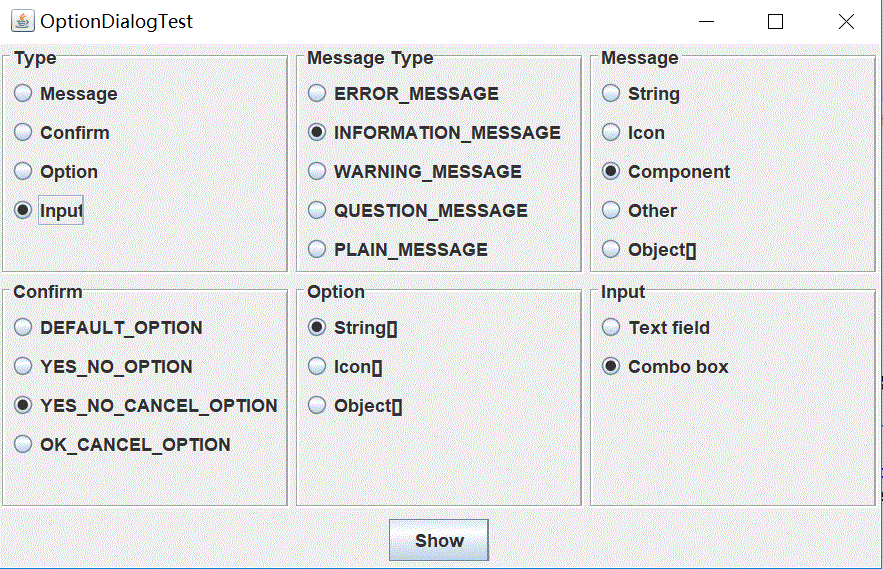
l 在elipse IDE中调试运行教材544页程序12-15、12-16,结合运行结果理解程序;
l 掌握选项对话框的用法。
l 记录示例代码阅读理解中存在的问题与疑惑。
package optionDialog;

import javax.swing.*;

/**
 * A panel with radio buttons inside a titled border.
 */
public class ButtonPanel extends JPanel
{
   private ButtonGroup group;

   /**
    * Constructs a button panel.
    * @param title the title shown in the border
    * @param options an array of radio button labels
    */
   public ButtonPanel(String title, String... options)
   {
      setBorder(BorderFactory.createTitledBorder(BorderFactory.createEtchedBorder(), title));
      setLayout(new BoxLayout(this, BoxLayout.Y_AXIS));
      group = new ButtonGroup();

      // make one radio button for each option
      for (String option : options)
      {
         JRadioButton b = new JRadioButton(option);
         b.setActionCommand(option);
         add(b);
         group.add(b);
         b.setSelected(option == options[0]);
      }
   }

   /**
    * Gets the currently selected option.
    * @return the label of the currently selected radio button.
    */
   public String getSelection()
   {
      return group.getSelection().getActionCommand();
   }
}
package optionDialog;

import java.awt.*;
import java.awt.event.*;
import java.awt.geom.*;
import java.util.*;
import javax.swing.*;

/**
 * A frame that contains settings for selecting various option dialogs.
 */
public class OptionDialogFrame extends JFrame
{
   private ButtonPanel typePanel;
   private ButtonPanel messagePanel;
   private ButtonPanel messageTypePanel;
   private ButtonPanel optionTypePanel;
   private ButtonPanel optionsPanel;
   private ButtonPanel inputPanel;
   private String messageString = "Message";
   private Icon messageIcon = new ImageIcon("blue-ball.gif");
   private Object messageObject = new Date();
   private Component messageComponent = new SampleComponent();

   public OptionDialogFrame()
   {
      JPanel gridPanel = new JPanel();
      gridPanel.setLayout(new GridLayout(2, 3));

      typePanel = new ButtonPanel("Type", "Message", "Confirm", "Option", "Input");
      messageTypePanel = new ButtonPanel("Message Type", "ERROR_MESSAGE", "INFORMATION_MESSAGE",
            "WARNING_MESSAGE", "QUESTION_MESSAGE", "PLAIN_MESSAGE");
      messagePanel = new ButtonPanel("Message", "String", "Icon", "Component", "Other",
            "Object[]");
      optionTypePanel = new ButtonPanel("Confirm", "DEFAULT_OPTION", "YES_NO_OPTION",
            "YES_NO_CANCEL_OPTION", "OK_CANCEL_OPTION");
      optionsPanel = new ButtonPanel("Option", "String[]", "Icon[]", "Object[]");
      inputPanel = new ButtonPanel("Input", "Text field", "Combo box");

      gridPanel.add(typePanel);
      gridPanel.add(messageTypePanel);
      gridPanel.add(messagePanel);
      gridPanel.add(optionTypePanel);
      gridPanel.add(optionsPanel);
      gridPanel.add(inputPanel);

      // add a panel with a Show button

      JPanel showPanel = new JPanel();
      JButton showButton = new JButton("Show");
      showButton.addActionListener(new ShowAction());
      showPanel.add(showButton);

      add(gridPanel, BorderLayout.CENTER);
      add(showPanel, BorderLayout.SOUTH);
      pack();
   }

   /**
    * Gets the currently selected message.
    * @return a string, icon, component, or object array, depending on the Message panel selection
    */
   public Object getMessage()
   {
      String s = messagePanel.getSelection();
      if (s.equals("String")) return messageString;
      else if (s.equals("Icon")) return messageIcon;
      else if (s.equals("Component")) return messageComponent;
      else if (s.equals("Object[]")) return new Object[] { messageString, messageIcon,
            messageComponent, messageObject };
      else if (s.equals("Other")) return messageObject;
      else return null;
   }

   /**
    * Gets the currently selected options.
    * @return an array of strings, icons, or objects, depending on the Option panel selection
    */
   public Object[] getOptions()
   {
      String s = optionsPanel.getSelection();
      if (s.equals("String[]")) return new String[] { "Yellow", "Blue", "Red" };
      else if (s.equals("Icon[]")) return new Icon[] { new ImageIcon("yellow-ball.gif"),
            new ImageIcon("blue-ball.gif"), new ImageIcon("red-ball.gif") };
      else if (s.equals("Object[]")) return new Object[] { messageString, messageIcon,
            messageComponent, messageObject };
      else return null;
   }

   /**
    * Gets the selected message or option type
    * @param panel the Message Type or Confirm panel
    * @return the selected XXX_MESSAGE or XXX_OPTION constant from the JOptionPane class
    */
   public int getType(ButtonPanel panel)
   {
      String s = panel.getSelection();
      try
      {
         return JOptionPane.class.getField(s).getInt(null);
      }
      catch (Exception e)
      {
         return -1;
      }
   }
 /**
    * The action listener for the Show button shows a Confirm, Input, Message, or Option dialog
    * depending on the Type panel selection.
    */
   private class ShowAction implements ActionListener
   {
      public void actionPerformed(ActionEvent event)
      {
         if (typePanel.getSelection().equals("Confirm")) JOptionPane.showConfirmDialog(
               OptionDialogFrame.this, getMessage(), "Title", getType(optionTypePanel),
               getType(messageTypePanel));
         else if (typePanel.getSelection().equals("Input"))
         {
            if (inputPanel.getSelection().equals("Text field")) JOptionPane.showInputDialog(
                  OptionDialogFrame.this, getMessage(), "Title", getType(messageTypePanel));
            else JOptionPane.showInputDialog(OptionDialogFrame.this, getMessage(), "Title",
                  getType(messageTypePanel), null, new String[] { "Yellow", "Blue", "Red" },
                  "Blue");
         }
         else if (typePanel.getSelection().equals("Message")) JOptionPane.showMessageDialog(
               OptionDialogFrame.this, getMessage(), "Title", getType(messageTypePanel));
         else if (typePanel.getSelection().equals("Option")) JOptionPane.showOptionDialog(
               OptionDialogFrame.this, getMessage(), "Title", getType(optionTypePanel),
               getType(messageTypePanel), null, getOptions(), getOptions()[0]);
      }
   }
}

/**
 * A component with a painted surface
 */

class SampleComponent extends JComponent
{
   public void paintComponent(Graphics g)
   {
      Graphics2D g2 = (Graphics2D) g;
      Rectangle2D rect = new Rectangle2D.Double(0, 0, getWidth() - 1, getHeight() - 1);
      g2.setPaint(Color.YELLOW);
      g2.fill(rect);
      g2.setPaint(Color.BLUE);
      g2.draw(rect);
   }

   public Dimension getPreferredSize()
   {
      return new Dimension(10, 10);
   }
}
package optionDialog;

import java.awt.*;
import javax.swing.*;

/**
 * @version 1.34 2015-06-12
 * @author Cay Horstmann
 */
public class OptionDialogTest
{
   public static void main(String[] args)
   {
      EventQueue.invokeLater(() -> {
         JFrame frame = new OptionDialogFrame();
         frame.setTitle("OptionDialogTest");
         frame.setDefaultCloseOperation(JFrame.EXIT_ON_CLOSE);
         frame.setVisible(true);
      });
   }
}
测试程序13
l 在elipse IDE中调试运行教材552页程序12-17、12-18,结合运行结果理解程序;
l 掌握对话框的创建方法;
l 记录示例代码阅读理解中存在的问题与疑惑。
package dialog;
import java.awt.*;
import javax.swing.*;
/**
* @version 1.34 2012-06-12
* @author Cay Horstmann
*/
public class DialogTest
{
public static void main(String[] args)
{
EventQueue.invokeLater(() -> {
JFrame frame = new DialogFrame();
frame.setTitle("DialogTest");
frame.setDefaultCloseOperation(JFrame.EXIT_ON_CLOSE);
frame.setVisible(true);
});
}
}
package dialog;

import javax.swing.JFrame;
import javax.swing.JMenu;
import javax.swing.JMenuBar;
import javax.swing.JMenuItem;

/**
 * A frame with a menu whose File->About action shows a dialog.
 */
public class DialogFrame extends JFrame
{
   private static final int DEFAULT_WIDTH = 300;
   private static final int DEFAULT_HEIGHT = 200;
   private AboutDialog dialog;

   public DialogFrame()
   {
      setSize(DEFAULT_WIDTH, DEFAULT_HEIGHT);

      // Construct a File menu.

      JMenuBar menuBar = new JMenuBar();
      setJMenuBar(menuBar);
      JMenu fileMenu = new JMenu("File");
      menuBar.add(fileMenu);

      // Add About and Exit menu items.

      // The About item shows the About dialog.

      JMenuItem aboutItem = new JMenuItem("About");
      aboutItem.addActionListener(event -> {
         if (dialog == null) // first time
            dialog = new AboutDialog(DialogFrame.this);
         dialog.setVisible(true); // pop up dialog
      });
      fileMenu.add(aboutItem);

      // The Exit item exits the program.

      JMenuItem exitItem = new JMenuItem("Exit");
      exitItem.addActionListener(event -> System.exit(0));
      fileMenu.add(exitItem);
   }
}
package dialog;

import java.awt.BorderLayout;

import javax.swing.JButton;
import javax.swing.JDialog;
import javax.swing.JFrame;
import javax.swing.JLabel;
import javax.swing.JPanel;

/**
 * A sample modal dialog that displays a message and waits for the user to click the OK button.
 */
public class AboutDialog extends JDialog
{
   public AboutDialog(JFrame owner)
   {
      super(owner, "About DialogTest", true);

      // add HTML label to center

      add(
            new JLabel(
                  "<html><h1><i>Core Java</i></h1><hr>By Cay Horstmann</html>"),
            BorderLayout.CENTER);

      // OK button closes the dialog

      JButton ok = new JButton("OK");
      ok.addActionListener(event -> setVisible(false));

      // add OK button to southern border

      JPanel panel = new JPanel();
      panel.add(ok);
      add(panel, BorderLayout.SOUTH);

      pack();
   }
}

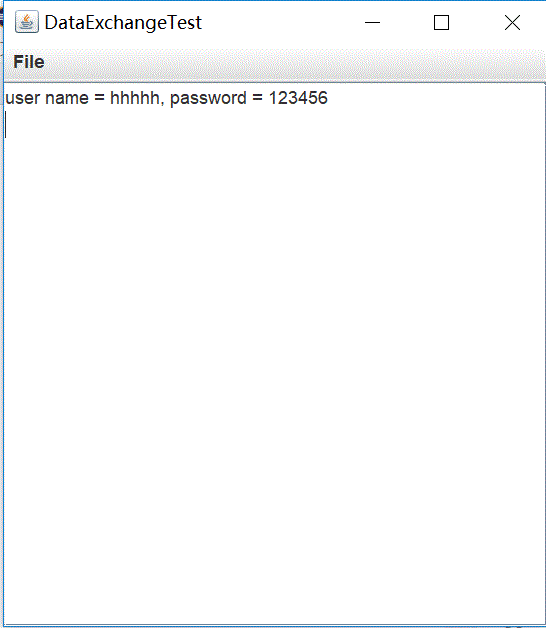
测试程序14
l 在elipse IDE中调试运行教材556页程序12-19、12-20,结合运行结果理解程序;
l 掌握对话框的数据交换用法;
l 记录示例代码阅读理解中存在的问题与疑惑。
package dataExchange;

import java.awt.*;
import javax.swing.*;

/**
 * @version 1.34 2015-06-12
 * @author Cay Horstmann
 */
public class DataExchangeTest
{
   public static void main(String[] args)
   {
      EventQueue.invokeLater(() -> {
         JFrame frame = new DataExchangeFrame();
         frame.setTitle("DataExchangeTest");
         frame.setDefaultCloseOperation(JFrame.EXIT_ON_CLOSE);
         frame.setVisible(true);
      });
   }
}
package dataExchange;

import java.awt.BorderLayout;
import java.awt.Component;
import java.awt.Frame;
import java.awt.GridLayout;

import javax.swing.JButton;
import javax.swing.JDialog;
import javax.swing.JLabel;
import javax.swing.JPanel;
import javax.swing.JPasswordField;
import javax.swing.JTextField;
import javax.swing.SwingUtilities;

/**
 * A password chooser that is shown inside a dialog
 */
public class PasswordChooser extends JPanel
{
   private JTextField username;
   private JPasswordField password;
   private JButton okButton;
   private boolean ok;
   private JDialog dialog;

   public PasswordChooser()
   {
      setLayout(new BorderLayout());

      // construct a panel with user name and password fields

      JPanel panel = new JPanel();
      panel.setLayout(new GridLayout(2, 2));
      panel.add(new JLabel("User name:"));
      panel.add(username = new JTextField(""));
      panel.add(new JLabel("Password:"));
      panel.add(password = new JPasswordField(""));
      add(panel, BorderLayout.CENTER);

      // create Ok and Cancel buttons that terminate the dialog

      okButton = new JButton("Ok");
      okButton.addActionListener(event -> {
         ok = true;
         dialog.setVisible(false);
      });

      JButton cancelButton = new JButton("Cancel");
      cancelButton.addActionListener(event -> dialog.setVisible(false));

      // add buttons to southern border

      JPanel buttonPanel = new JPanel();
      buttonPanel.add(okButton);
      buttonPanel.add(cancelButton);
      add(buttonPanel, BorderLayout.SOUTH);
   }

   /**
    * Sets the dialog defaults.
    * @param u the default user information
    */
   public void setUser(User u)
   {
      username.setText(u.getName());
   }

   /**
    * Gets the dialog entries.
    * @return a User object whose state represents the dialog entries
    */
   public User getUser()
   {
      return new User(username.getText(), password.getPassword());
   }

   /**
    * Show the chooser panel in a dialog
    * @param parent a component in the owner frame or null
    * @param title the dialog window title
    */
   public boolean showDialog(Component parent, String title)
   {
      ok = false;

      // locate the owner frame

      Frame owner = null;
      if (parent instanceof Frame)
         owner = (Frame) parent;
      else
         owner = (Frame) SwingUtilities.getAncestorOfClass(Frame.class, parent);

      // if first time, or if owner has changed, make new dialog

      if (dialog == null || dialog.getOwner() != owner)
      {
         dialog = new JDialog(owner, true);
         dialog.add(this);
         dialog.getRootPane().setDefaultButton(okButton);
         dialog.pack();
      }

      // set title and show dialog

      dialog.setTitle(title);
      dialog.setVisible(true);
      return ok;
   }
}
package dataExchange;

import java.awt.*;
import java.awt.event.*;
import javax.swing.*;

/**
 * A frame with a menu whose File->Connect action shows a password dialog.
 */
public class DataExchangeFrame extends JFrame
{
   public static final int TEXT_ROWS = 20;
   public static final int TEXT_COLUMNS = 40;
   private PasswordChooser dialog = null;
   private JTextArea textArea;

   public DataExchangeFrame()
   {
      // construct a File menu

      JMenuBar mbar = new JMenuBar();
      setJMenuBar(mbar);
      JMenu fileMenu = new JMenu("File");
      mbar.add(fileMenu);

      // add Connect and Exit menu items

      JMenuItem connectItem = new JMenuItem("Connect");
      connectItem.addActionListener(new ConnectAction());
      fileMenu.add(connectItem);

      // The Exit item exits the program

      JMenuItem exitItem = new JMenuItem("Exit");
      exitItem.addActionListener(event -> System.exit(0));
      fileMenu.add(exitItem);

      textArea = new JTextArea(TEXT_ROWS, TEXT_COLUMNS);
      add(new JScrollPane(textArea), BorderLayout.CENTER);
      pack();
   }

   /**
    * The Connect action pops up the password dialog.
    */
   private class ConnectAction implements ActionListener
   {
      public void actionPerformed(ActionEvent event)
      {
         // if first time, construct dialog

         if (dialog == null) dialog = new PasswordChooser();

         // set default values
         dialog.setUser(new User("yourname", null));

         // pop up dialog
         if (dialog.showDialog(DataExchangeFrame.this, "Connect"))
         {
            // if accepted, retrieve user input
            User u = dialog.getUser();
            textArea.append("user name = " + u.getName() + ", password = "
                  + (new String(u.getPassword())) + "\n");
         }
      }
   }
}
package dataExchange;

/**
 * A user has a name and password. For security reasons, the password is stored as a char[], not a
 * String.
 */
public class User
{
   private String name;
   private char[] password;

   public User(String aName, char[] aPassword)
   {
      name = aName;
      password = aPassword;
   }

   public String getName()
   {
      return name;
   }

   public char[] getPassword()
   {
      return password;
   }

   public void setName(String aName)
   {
      name = aName;
   }

   public void setPassword(char[] aPassword)
   {
      password = aPassword;
   }
}
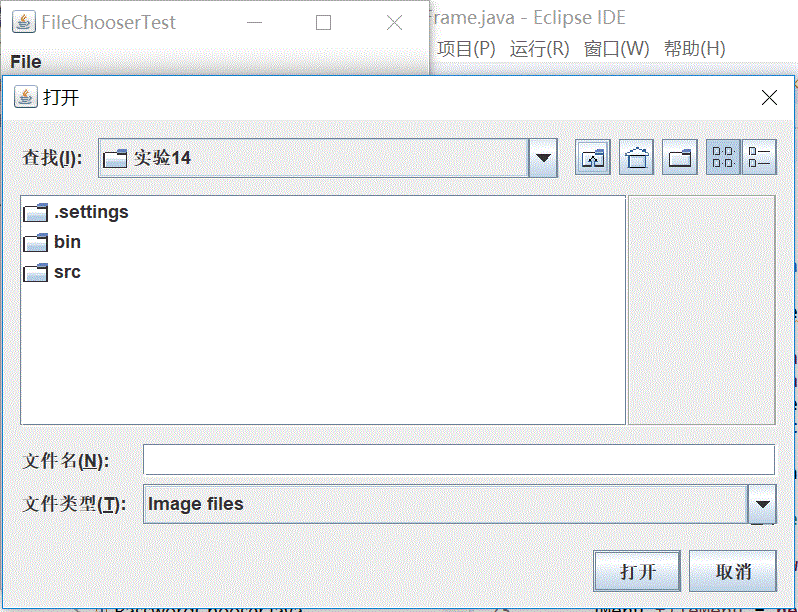
测试程序15
l 在elipse IDE中调试运行教材556页程序12-21、12-2212-23,结合程序运行结果理解程序;
l 掌握文件对话框的用法;
l 记录示例代码阅读理解中存在的问题与疑惑。
package fileChooser;

import java.awt.*;
import javax.swing.*;

/**
 * @version 1.25 2015-06-12
 * @author Cay Horstmann
 */
public class FileChooserTest
{
   public static void main(String[] args)
   {
      EventQueue.invokeLater(() -> {
         JFrame frame = new ImageViewerFrame();
         frame.setTitle("FileChooserTest");
         frame.setDefaultCloseOperation(JFrame.EXIT_ON_CLOSE);
         frame.setVisible(true);
      });
   }
}
package fileChooser;

import java.io.*;
import javax.swing.*;
import javax.swing.filechooser.*;
import javax.swing.filechooser.FileFilter;

/**
 * A file view that displays an icon for all files that match a file filter.
 */
public class FileIconView extends FileView
{
   private FileFilter filter;
   private Icon icon;

   /**
    * Constructs a FileIconView.
    * @param aFilter a file filter--all files that this filter accepts will be shown
    * with the icon.
    * @param anIcon--the icon shown with all accepted files.
    */
   public FileIconView(FileFilter aFilter, Icon anIcon)
   {
      filter = aFilter;
      icon = anIcon;
   }

   public Icon getIcon(File f)
   {
      if (!f.isDirectory() && filter.accept(f)) return icon;
      else return null;
   }
}
package fileChooser;

import java.awt.*;
import java.io.*;

import javax.swing.*;

/**
 * A file chooser accessory that previews images.
 */
public class ImagePreviewer extends JLabel
{
   /**
    * Constructs an ImagePreviewer.
    * @param chooser the file chooser whose property changes trigger an image
    *        change in this previewer
    */
   public ImagePreviewer(JFileChooser chooser)
   {
      setPreferredSize(new Dimension(100, 100));
      setBorder(BorderFactory.createEtchedBorder());

      chooser.addPropertyChangeListener(event -> {
         if (event.getPropertyName() == JFileChooser.SELECTED_FILE_CHANGED_PROPERTY)
         {
            // the user has selected a new file
            File f = (File) event.getNewValue();
            if (f == null)
            {
               setIcon(null);
               return;
            }

            // read the image into an icon
            ImageIcon icon = new ImageIcon(f.getPath());

            // if the icon is too large to fit, scale it
            if (icon.getIconWidth() > getWidth())
               icon = new ImageIcon(icon.getImage().getScaledInstance(
                     getWidth(), -1, Image.SCALE_DEFAULT));

            setIcon(icon);
         }
      });
   }
}
package fileChooser;

import java.io.*;

import javax.swing.*;
import javax.swing.filechooser.*;
import javax.swing.filechooser.FileFilter;

/**
 * A frame that has a menu for loading an image and a display area for the
 * loaded image.
 */
public class ImageViewerFrame extends JFrame
{
   private static final int DEFAULT_WIDTH = 300;
   private static final int DEFAULT_HEIGHT = 400;
   private JLabel label;
   private JFileChooser chooser;

   public ImageViewerFrame()
   {
      setSize(DEFAULT_WIDTH, DEFAULT_HEIGHT);

      // set up menu bar
      JMenuBar menuBar = new JMenuBar();
      setJMenuBar(menuBar);

      JMenu menu = new JMenu("File");
      menuBar.add(menu);

      JMenuItem openItem = new JMenuItem("Open");
      menu.add(openItem);
      openItem.addActionListener(event -> {
         chooser.setCurrentDirectory(new File("."));

         // show file chooser dialog
            int result = chooser.showOpenDialog(ImageViewerFrame.this);

            // if image file accepted, set it as icon of the label
            if (result == JFileChooser.APPROVE_OPTION)
            {
               String name = chooser.getSelectedFile().getPath();
               label.setIcon(new ImageIcon(name));
               pack();
            }
         });

      JMenuItem exitItem = new JMenuItem("Exit");
      menu.add(exitItem);
      exitItem.addActionListener(event -> System.exit(0));

      // use a label to display the images
      label = new JLabel();
      add(label);

      // set up file chooser
      chooser = new JFileChooser();

      // accept all image files ending with .jpg, .jpeg, .gif
      FileFilter filter = new FileNameExtensionFilter(
            "Image files", "jpg", "jpeg", "gif");
      chooser.setFileFilter(filter);

      chooser.setAccessory(new ImagePreviewer(chooser));

      chooser.setFileView(new FileIconView(filter, new ImageIcon("palette.gif")));
   }
}
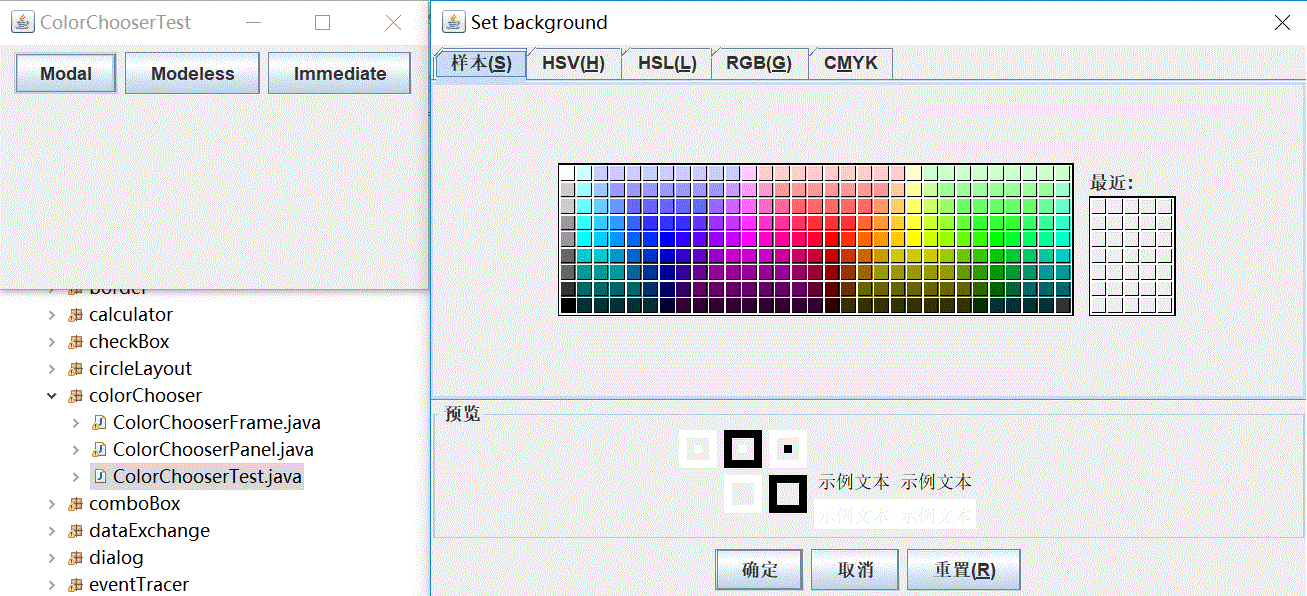
测试程序16
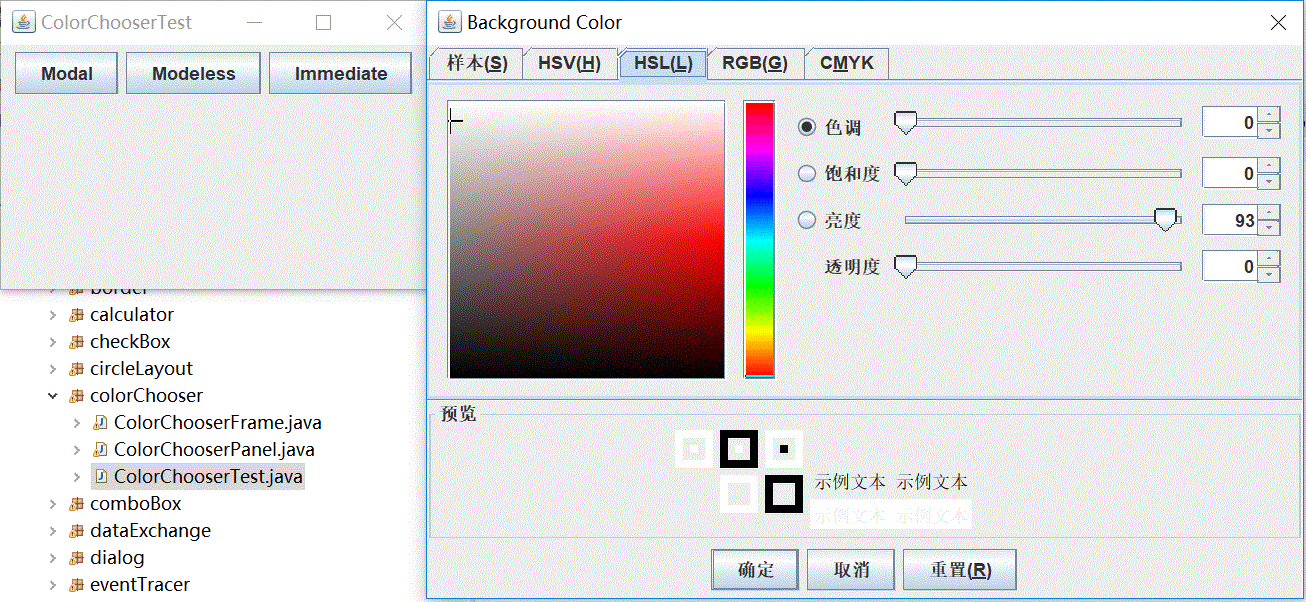
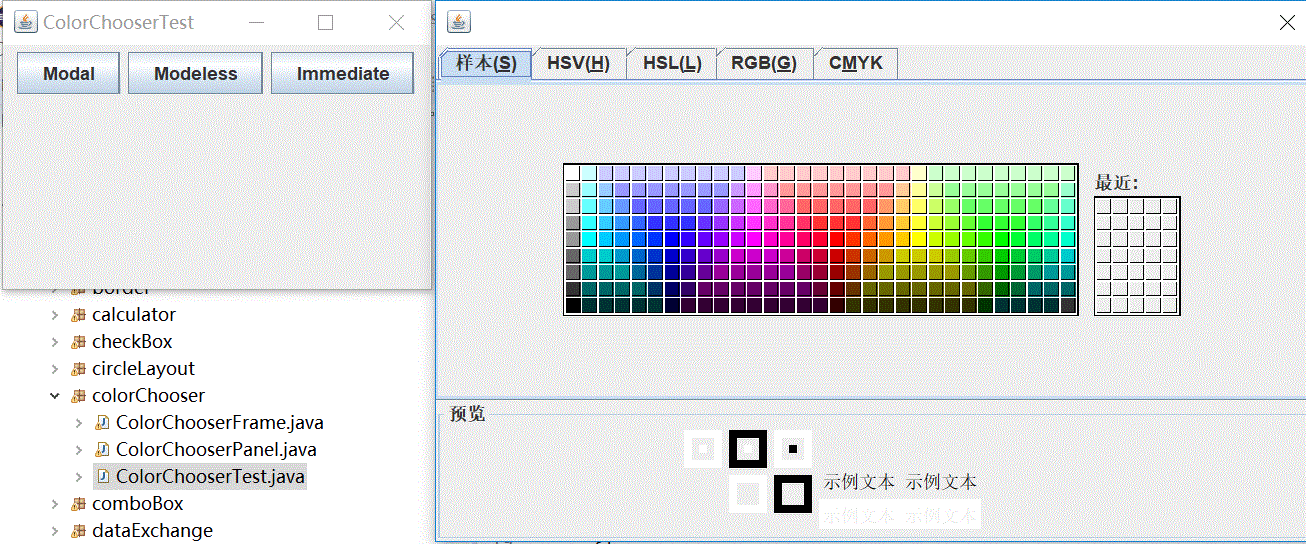
l 在elipse IDE中调试运行教材570页程序12-24,结合运行结果理解程序;
l 了解颜色选择器的用法。
l 记录示例代码阅读理解中存在的问题与疑惑。
package colorChooser;

import javax.swing.*;

/**
 * A frame with a color chooser panel
 */
public class ColorChooserFrame extends JFrame
{
   private static final int DEFAULT_WIDTH = 300;
   private static final int DEFAULT_HEIGHT = 200;

   public ColorChooserFrame()
   {
      setSize(DEFAULT_WIDTH, DEFAULT_HEIGHT);

      // add color chooser panel to frame

      ColorChooserPanel panel = new ColorChooserPanel();
      add(panel);
   }
}
package colorChooser;

import java.awt.Color;
import java.awt.Frame;
import java.awt.event.ActionEvent;
import java.awt.event.ActionListener;

import javax.swing.JButton;
import javax.swing.JColorChooser;
import javax.swing.JDialog;
import javax.swing.JPanel;

/**
 * A panel with buttons to pop up three types of color choosers
 */
public class ColorChooserPanel extends JPanel
{
   public ColorChooserPanel()
   {
      JButton modalButton = new JButton("Modal");
      modalButton.addActionListener(new ModalListener());
      add(modalButton);

      JButton modelessButton = new JButton("Modeless");
      modelessButton.addActionListener(new ModelessListener());
      add(modelessButton);

      JButton immediateButton = new JButton("Immediate");
      immediateButton.addActionListener(new ImmediateListener());
      add(immediateButton);
   }

   /**
    * This listener pops up a modal color chooser
    */
   private class ModalListener implements ActionListener
   {
      public void actionPerformed(ActionEvent event)
      {
         Color defaultColor = getBackground();
         Color selected = JColorChooser.showDialog(ColorChooserPanel.this, "Set background",
               defaultColor);
         if (selected != null) setBackground(selected);
      }
   }

   /**
    * This listener pops up a modeless color chooser. The panel color is changed when the user
    * clicks the OK button.
    */
   private class ModelessListener implements ActionListener
   {
      private JDialog dialog;
      private JColorChooser chooser;

      public ModelessListener()
      {
         chooser = new JColorChooser();
         dialog = JColorChooser.createDialog(ColorChooserPanel.this, "Background Color",
               false /* not modal */, chooser,
               event -> setBackground(chooser.getColor()),
               null /* no Cancel button listener */);
      }

      public void actionPerformed(ActionEvent event)
      {
         chooser.setColor(getBackground());
         dialog.setVisible(true);
      }
   }

   /**
    * This listener pops up a modeless color chooser. The panel color is changed immediately when
    * the user picks a new color.
    */
   private class ImmediateListener implements ActionListener
   {
      private JDialog dialog;
      private JColorChooser chooser;

      public ImmediateListener()
      {
         chooser = new JColorChooser();
         chooser.getSelectionModel().addChangeListener(
               event -> setBackground(chooser.getColor()));

         dialog = new JDialog((Frame) null, false /* not modal */);
         dialog.add(chooser);
         dialog.pack();
      }

      public void actionPerformed(ActionEvent event)
      {
         chooser.setColor(getBackground());
         dialog.setVisible(true);
      }
   }
}
package colorChooser;

import java.awt.*;
import javax.swing.*;

/**
 * @version 1.04 2015-06-12
 * @author Cay Horstmann
 */
public class ColorChooserTest
{
   public static void main(String[] args)
   {
      EventQueue.invokeLater(() -> {
         JFrame frame = new ColorChooserFrame();
         frame.setTitle("ColorChooserTest");
         frame.setDefaultCloseOperation(JFrame.EXIT_ON_CLOSE);
         frame.setVisible(true);
      });
   }
}
实验2:组内讨论反思本组负责程序,理解程序总体结构,梳理程序GUI设计中应用的相关组件,整理相关组件的API,对程序中组件应用的相关代码添加注释。
实验3:组间协同学习:在本班课程QQ群内,各位同学对实验1中存在的问题进行提问,提问时注明实验1中的测试程序编号,负责对应程序的小组需及时对群内提问进行回答。
实验总结:采用了小组协作学习模式,通过本周的小组学习,学习中也存在很多问题,知识容量过大,自主学习需花费较多时间。
马昕璐 201771010118《面向对象程序设计(java)》第十四周学习总结的更多相关文章
- 201771010118马昕璐《面向对象程序设计java》第八周学习总结
第一部分:理论知识学习部分 1.接口 在Java程序设计语言中,接口不是类,而是对类的一组需求描述,由常量和一组抽象方法组成.Java为了克服单继承的缺点,Java使用了接口,一个类可以实现一个或多个 ...
- 201771010118 马昕璐《面向对象程序设计java》第十二周学习总结
第一部分:理论知识学习部分 用户界面:用户与计算机系统(各种程序)交互的接口 图形用户界面:以图形方式呈现的用户界面 AET:Java 的抽象窗口工具箱包含在java.awt包中,它提供了许多用来设计 ...
- 201771010118 马昕璐《面向对象程序设计java》第十周学习总结
第一部分:理论知识学习部分 泛型:也称参数化类型(parameterized type)就是在定义类.接口和方法时,通过类型参数 指示将要处理的对象类型. 泛型程序设计(Generic program ...
- 201771010118 马昕璐 《面向对象程序设计(java)》第十三周学习总结
第一部分:理论知识学习部分 事件处理基础 1.事件源(event source):能够产生事件的对象都可以成为事件源.一个事件源是一个能够注册监听器并向监听器发送事件对象的对象. 2.事件监听器(ev ...
- 201771010118 马昕璐 《面向对象设计 java》第十七周实验总结
1.实验目的与要求 (1) 掌握线程同步的概念及实现技术: (2) 线程综合编程练习 2.实验内容和步骤 实验1:测试程序并进行代码注释. 测试程序1: l 在Elipse环境下调试教材651页程序1 ...
- 201521123061 《Java程序设计》第十四周学习总结
201521123061 <Java程序设计>第十四周学习总结 1. 本周学习总结 1.1 以你喜欢的方式(思维导图或其他)归纳总结多数据库相关内容. 2. 书面作业 1. MySQL数据 ...
- 201521123072《java程序设计》第十四周学习总结
201521123072<java程序设计>第十四周学习总结 1. 本周学习总结 1.1 以你喜欢的方式(思维导图或其他)归纳总结多数据库相关内容. 2. 书面作业 1. MySQL数据库 ...
- 201521123038 《Java程序设计》 第十四周学习总结
201521123038 <Java程序设计> 第十四周学习总结 1. 本周学习总结 1.1 以你喜欢的方式(思维导图或其他)归纳总结多数据库相关内容. 接口: DriverManager ...
- 201771010134杨其菊《面向对象程序设计java》第九周学习总结
第九周学习总结 第一部分:理论知识 异常.断言和调试.日志 1.捕获 ...
- 201521123122 《java程序设计》第十四周学习总结
## 201521123122 <java程序设计>第十四周实验总结 ## 1. 本周学习总结 1.1 以你喜欢的方式(思维导图或其他)归纳总结多数据库相关内容. 2. 书面作业 1. M ...
随机推荐
- MySQL插入中文数据出现?号
原文转载自:https://blog.csdn.net/LynneZoe/article/details/79174119 运行环境:win10 mysql版本:Mysql5.6 做一个项目的时候,向 ...
- Spring ES
elasticsearchTemplate 和 ElasticsearchRepository JPA中有个ElasticsearchRepository可以做Elasticsearch的相关增删改查 ...
- ImportError: Imageio Pillow plugin requires Pillow, not PIL!
问题: 解决: 首先确定是否安装了pillow,若没有输入以下命令安装: sudo pip3 install pillow 然后,再跑一边代码,看是否还会出现错误.若还有错误,更新pillow到最新版 ...
- java控制多线程同时写一个文件
最近出现一个需求,大体要做的就是控制多线程同时操作一个文件.当时第一个反应是不要用synchronized,太low了,然后我就使用了读写锁ReentrantReadWriteLock,然后写完静下来 ...
- DC综合简单总结(2)
DC综合简单总结(2) 建立时间和保持时间和数据输出延时时间 一.概念 建立时间和保持时间都是针对触发器的特性说的. 建立时间(Tsu:set up time) 是指在触发器的时钟信号上升沿到来以前, ...
- TypeScript 错误property does not exist on type Object
TypeScript 错误property does not exist on type Object 在TypeScript中如果按JS的方式去获取对象属性,有时会提示形如Property 'val ...
- 论文学习笔记--无缺陷样本产品表面缺陷检测 A Surface Defect Detection Method Based on Positive Samples
文章下载地址:A Surface Defect Detection Method Based on Positive Samples 第一部分 论文中文翻译 摘要:基于机器视觉的表面缺陷检测和分类可 ...
- 【interview】卡特兰数
涉及卡特兰数的题目列举,也是组合数学中一些例子: 详解链接 https://zh.wikipedia.org/wiki/%E5%8D%A1%E5%A1%94%E5%85%B0%E6%95%B0 1. ...
- python学习第30天
tcp协议的socket server 并发效果验证客户端的合法性socket模块还有一些其他的方法
- 常用的user32说明
函数名称 说明 ActiveKeyboardLayout 激活一个不同的键盘布局,该布局必须先由LoadKeyBoardLayout函数装载AdjustWindowRect 根据希望的用户矩形大小来计 ...