
iOS学习之UITableView中Cell的操作
接着iOS学习之Table View的简单使用 这篇,这里主要讲UITableView 中的Cell的操作,包括标记、移动、删除、插入。
要进行数据的操作了,把代码里的不可变数组改成可变的:
NSArray *list -》NSMutableArray *list
1、标记Cell。
效果如下:
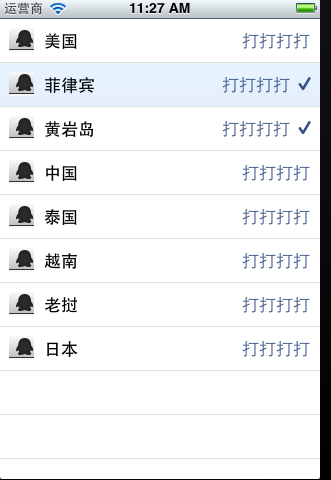
打开项目,
-(void)tableView:(UITableView *)tableView didSelectRowAtIndexPath:(NSIndexPath *)indexPath。
添加代码
- -(void)tableView:(UITableView *)tableView didSelectRowAtIndexPath:(NSIndexPath *)indexPath{
- // NSString *rowString = [self.list objectAtIndex:[indexPath row]];
- // UIAlertView * alter = [[UIAlertView alloc] initWithTitle:@"选中的行信息" message:rowString delegate:self cancelButtonTitle:@"确定" otherButtonTitles:nil, nil];
- // [alter show];
- UITableViewCell *cell = [tableView cellForRowAtIndexPath:indexPath];
- if (cell.accessoryType == UITableViewCellAccessoryNone) {
- cell.accessoryType = UITableViewCellAccessoryCheckmark;
- }else {
- cell.accessoryType = UITableViewCellAccessoryNone;
- }
- [tableView deselectRowAtIndexPath:indexPath animated:YES];
- }
标记分别有四种效果:
UITableViewCellAccessoryCheckmark
UITableViewCellAccessoryDetailDisclosureButton
UITableViewCellAccessoryDisclosureIndicator
UITableViewCellAccessoryNone
可以自己试试。
2、删除Cell
想要实现移动或者删除行这样的操作,需要启动表格的编辑模式。使用的是setEditing:animated:方法。
打开xib,生成Table的IBoutlet映射 tableView;
在viewDidload里添加
[self.tableViewsetEditing:YES];
这是启动运行程序,

打开可编辑模式,默认情况显示删除的图标的。
实现删除的代码:
- - (void)tableView:(UITableView *)tableView commitEditingStyle:
- (UITableViewCellEditingStyle)editingStyle forRowAtIndexPath:(NSIndexPath *)indexPath {
- NSUInteger row = [indexPath row];
- if (editingStyle == UITableViewCellEditingStyleDelete) {
- [self.list removeObjectAtIndex:row];
- [tableView deleteRowsAtIndexPaths:[NSArray arrayWithObject:indexPath]
- withRowAnimation:UITableViewRowAnimationAutomatic];
- }
- }
这个方法根据参数editingStyle是UITableViewCellEditingStyleDelete
在这删除行的方法又出现了一个常量:UITableViewRowAnimationAutomatic,它表示删除时的效果,类似的常量还有:
UITableViewRowAnimationAutomatic
UITableViewRowAnimationTop
UITableViewRowAnimationBottom
UITableViewRowAnimationLeft
UITableViewRowAnimationRight
UITableViewRowAnimationMiddle
UITableViewRowAnimationFade
UITableViewRowAnimationNone
从常量名称打开可以看出效果来。
这是运行,就可以删除其中的一个Cell行了。
3、移动Cell
添加代码如下:
3.1先把默认的删除的图标去掉
- - (UITableViewCellEditingStyle)tableView:(UITableView *)tableView
- editingStyleForRowAtIndexPath:(NSIndexPath *)indexPath {
- return UITableViewCellEditingStyleInsert;
- }
3.2返回当前Cell是否可以移动
- - (BOOL)tableView:(UITableView *)tableView canMoveRowAtIndexPath:(NSIndexPath *)indexPath {
- return YES;
- }
3.3执行移动操作
- - (void)tableView:(UITableView *)tableView moveRowAtIndexPath:(NSIndexPath *)
- sourceIndexPath toIndexPath:(NSIndexPath *)destinationIndexPath {
- NSUInteger fromRow = [sourceIndexPath row];
- NSUInteger toRow = [destinationIndexPath row];
- id object = [self.list objectAtIndex:fromRow];
- [self.list removeObjectAtIndex:fromRow];
- [self.list insertObject:object atIndex:toRow];
- }
运行程序:
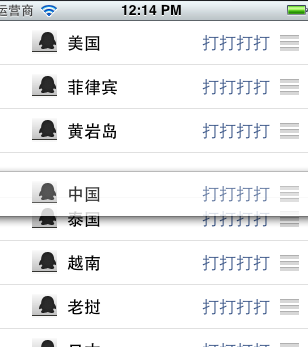
怎么移动呢?不要以为按住行的任何地方都能移动,要按住最左边的三道杠的图标才能拖动移动
4、插入cell:
4.1插入和删除差不多,在
- (void)tableView:(UITableView *)tableView commitEditingStyle:
(UITableViewCellEditingStyle)editingStyle forRowAtIndexPath:(NSIndexPath *)indexPath
添加UITableViewCellEditingStyleInsert判断
- - (void)tableView:(UITableView *)tableView commitEditingStyle:
- (UITableViewCellEditingStyle)editingStyle forRowAtIndexPath:(NSIndexPath *)indexPath {
- NSUInteger row = [indexPath row];
- if (editingStyle == UITableViewCellEditingStyleDelete) {
- [self.list removeObjectAtIndex:row];
- [tableView deleteRowsAtIndexPaths:[NSArray arrayWithObject:indexPath]
- withRowAnimation:UITableViewRowAnimationAutomatic];
- }else if(editingStyle == UITableViewCellEditingStyleInsert ){
- NSArray *insertIndexPaths = [NSArray arrayWithObjects:indexPath,nil];
- [self.list insertObject:@"inset new Cell" atIndex:row];
- [tableView insertRowsAtIndexPaths:insertIndexPaths withRowAnimation:UITableViewRowAnimationMiddle];
- }
- }
4.2 修改图标为插入样式。
- - (UITableViewCellEditingStyle)tableView:(UITableView *)tableView
- editingStyleForRowAtIndexPath:(NSIndexPath *)indexPath {
- return UITableViewCellEditingStyleInsert;
- }
运行,点加号图标,
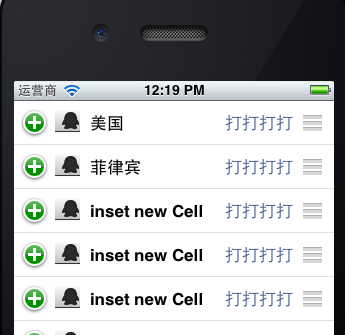
完成!
例子代码:http://download.csdn.net/detail/totogo2010/4398669
著作权声明:本文由http://blog.csdn.net/totogo2010/原创,欢迎转载分享。请尊重作者劳动,转载时保留该声明和作者博客链接,谢谢
iOS学习之UITableView中Cell的操作的更多相关文章
- UITableView中cell里的UITextField不被弹出键盘挡住
UITableView中cell里的UITextField不被弹出键盘挡住 本人视频教程系类 iOS中CALayer的使用 效果如下: 源码: EditCell.h 与 EditCell.m // ...
- UITableView中cell点击的绚丽动画效果
UITableView中cell点击的绚丽动画效果 本人视频教程系类 iOS中CALayer的使用 效果图: 源码: YouXianMingCell.h 与 YouXianMingCell.m / ...
- 如何获取UITableView中cell的frame值
如何获取UITableView中cell的frame值 这个可以用来处理UITableView弹出键盘的问题 本人视频教程系类 iOS中CALayer的使用 效果: 源码: // // ViewC ...
- 用适配器模式处理复杂的UITableView中cell的业务逻辑
用适配器模式处理复杂的UITableView中cell的业务逻辑 适配器是用来隔离数据源对cell布局影响而使用的,cell只接受适配器的数据,而不会与外部数据源进行交互. 源码: ModelCell ...
- iOS - UITableView中Cell重用机制导致Cell内容出错的解决办法
"UITableView" iOS开发中重量级的控件之一;在日常开发中我们大多数会选择自定Cell来满足自己开发中的需求, 但是有些时候Cell也是可以不自定义的(比如某一个简单的 ...
- ios UITableView中Cell重用机制导致内容重复解决方法
UITableView继承自UIScrollview,是苹果为我们封装好的一个基于scroll的控件.上面主要是一个个的 UITableViewCell,可以让UITableViewCell响应一些点 ...
- iOS学习之UITableView
一.UITableView的概念 UITabelView继承于UIScrollView,可以滚动. @interface UITableView : UIScrollView <NSCoding ...
- iOS开发之UITableView中计时器的几种实现方式(NSTimer、DispatchSource、CADisplayLink)
最近工作比较忙,但是还是出来更新博客了.今天博客中所涉及的内容并不复杂,都是一些平时常见的一些问题,通过这篇博客算是对UITableView中使用定时器的几种方式进行总结.本篇博客会给出在TableV ...
- iOS开发总结-UITableView 自定义cell和动态计算cell的高度
UITableView cell自定义头文件:shopCell.h#import <UIKit/UIKit.h>@interface shopCell : UITableViewCell@ ...
随机推荐
- LOJ2421 NOIP2015 信息传递 【tarjan求最小环】
LOJ2421 NOIP2015 信息传递 LINK 题目大意就是给你一个有向图,求最小环 有一个很奇妙的性质叫做每个点只有一条出边 然后我们考虑对每个强联通分量进行考虑 发现每个强联通分量内的边数一 ...
- BZOJ1486 HNOI2009 最小圈 【01分数规划】
BZOJ1486 HNOI2009 最小圈 Description 应该算是01分数规划的裸板题了吧..但是第一次写还是遇到了一些困难,vis数组不清零之类的 假设一个答案成立,那么一定可以找到一个环 ...
- Roslyn 语法树中的各种语法节点及每个节点的含义
使用 Roslyn 进行源码分析时,我们会对很多不同种类的语法节点进行分析.如果能够一次性了解到各种不同种类的语法节点,并明白其含义和结构,那么在源码分析的过程中将会更加得心应手. 本文将介绍 Ros ...
- copy, retain, assign , readonly , readwrite,strong,weak,nonatomic整理
copy:建立一个索引计数为1的对象,然后释放旧对象 对NSString对NSString 它指出,在赋值时使用传入值的一份拷贝.拷贝工作由copy方法执行,此属性只对那些实行了NSCopying协议 ...
- 剑指offer第六章
剑指offer第六章 1.数字在排序数组中出现的次数 统计一个数字在排序数组中出现的次数.例如输入排序数组{1,2,3,3,3,3,4,5}和数字3,由于3在数组中出现了4次,所以输出4 分析:思路1 ...
- For input string: "null"
java.lang.NumberFormatException: For input string: "null" 在开发中你是否遇到过这样的问题,不管请求到的值是什么都能进入不为 ...
- 使用distillery 构建专业的 phoenix 项目软件包
备注: 首先需要安装 elixir 环境 1. 基本项目说明 参考项目: https://github.com/rongfengliang/phoenix-rest-demo 2. 项目说 ...
- docker-tomcat
https://yq.aliyun.com/articles/6894 1,add命令源目录 只能从 ./ 当前目录开始,目标目录是容器的目录,不是服务器的目录 2,server.xml改的东西,里面 ...
- python高手的自修课
python高手的自修课 作者:相国大人 目录 0.第0课:前言与参考文献 目标读者: 具有一定python基础的编程爱好者. 本系列博文为了尽可能少说废话,凡是能够用代码表达的,都尽量直接用代码.读 ...
- Java上传下载excel、解析Excel、生成Excel
在软件开发过程中难免需要批量上传与下载,生成报表保存也是常有之事,最近集团门户开发用到了Excel模版下载,Excel生成,圆满完成,对这一知识点进行整理,资源共享,有不足之处还望批评指正,文章结尾提 ...