
Office文档WEB端在线浏览(转换成Html)
最近在做了一个项目,要求是对Office文档在线预览。下面给大家分享一下我的方法。
1.第一种方法(不建议使用)
我是在网上搜了一个利用COM组件对office文档进行转换,但是此方法必须要装Office办公软件,而且容易与电脑上的WPS冲突,还有一系列的版本问题。我电脑上装的是Office2010,没有装WPS,所以直接可以使用。具体方法如下:
Microsoft Office 14.0 Object Library
Microsoft Word 14.0 Object Library
Microsoft Excel 14.0 Object Library
Microsoft PowerPoint 14.0 Object Library
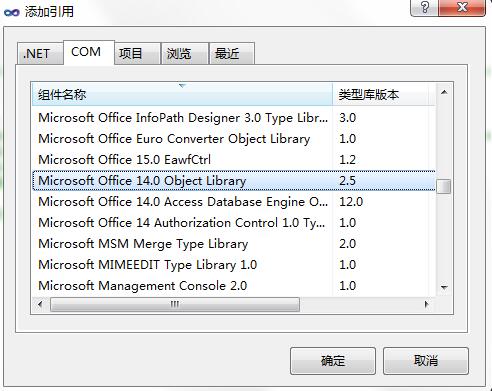
然后添加一个Office2HtmlHelper类,用于转换文件操作
using System;

using System.Collections.Generic;

using System.IO;

using System.Linq;

using System.Web;

using Microsoft.Office.Core;

using Word = Microsoft.Office.Interop.Word;

namespace OfficeToHtml.Utils

{

    public class Office2HtmlHelper

    {

        /// <summary>

        /// Word转成Html

        /// </summary>

        /// <param name="path">要转换的文档的路径</param>

        /// <param name="savePath">转换成html的保存路径</param>

        /// <param name="wordFileName">转换成html的文件名字</param>

        public static void Word2Html(string path, string savePath, string wordFileName)

        {

            Word.ApplicationClass word = new Word.ApplicationClass();

            Type wordType = word.GetType();

            Word.Documents docs = word.Documents;

            Type docsType = docs.GetType();

            Word.Document doc = (Word.Document)docsType.InvokeMember("Open", System.Reflection.BindingFlags.InvokeMethod, null, docs, new Object[] { (object)path, true, true });

            Type docType = doc.GetType();

            string strSaveFileName = savePath + wordFileName + ".html";

            object saveFileName = (object)strSaveFileName;

            docType.InvokeMember("SaveAs", System.Reflection.BindingFlags.InvokeMethod, null, doc, new object[] { saveFileName, Word.WdSaveFormat.wdFormatFilteredHTML });

            docType.InvokeMember("Close", System.Reflection.BindingFlags.InvokeMethod, null, doc, null);

            wordType.InvokeMember("Quit", System.Reflection.BindingFlags.InvokeMethod, null, word, null);

        }

        /// <summary>

        /// Excel转成Html

        /// </summary>

        /// <param name="path">要转换的文档的路径</param>

        /// <param name="savePath">转换成html的保存路径</param>

        /// <param name="wordFileName">转换成html的文件名字</param>

        public static void Excel2Html(string path, string savePath, string wordFileName)

        {

            string str = string.Empty;

            Microsoft.Office.Interop.Excel.Application repExcel = new Microsoft.Office.Interop.Excel.Application();

            Microsoft.Office.Interop.Excel.Workbook workbook = null;

            Microsoft.Office.Interop.Excel.Worksheet worksheet = null;

            workbook = repExcel.Application.Workbooks.Open(path, Type.Missing, Type.Missing, Type.Missing, Type.Missing, Type.Missing, Type.Missing, Type.Missing, Type.Missing, Type.Missing, Type.Missing, Type.Missing, Type.Missing, Type.Missing, Type.Missing);

            worksheet = (Microsoft.Office.Interop.Excel.Worksheet)workbook.Worksheets[];

            object htmlFile = savePath + wordFileName + ".html";

            object ofmt = Microsoft.Office.Interop.Excel.XlFileFormat.xlHtml;

            workbook.SaveAs(htmlFile, ofmt, Type.Missing, Type.Missing, Type.Missing, Type.Missing, Microsoft.Office.Interop.Excel.XlSaveAsAccessMode.xlNoChange, Type.Missing, Type.Missing, Type.Missing, Type.Missing, Type.Missing);

            object osave = false;

            workbook.Close(osave, Type.Missing, Type.Missing);

            repExcel.Quit();

        }

        /// <summary>

        /// ppt转成Html

        /// </summary>

        /// <param name="path">要转换的文档的路径</param>

        /// <param name="savePath">转换成html的保存路径</param>

        /// <param name="wordFileName">转换成html的文件名字</param>

        public static void PPT2Html(string path, string savePath, string wordFileName)

        {

            Microsoft.Office.Interop.PowerPoint.Application ppApp = new Microsoft.Office.Interop.PowerPoint.Application();

            string strSourceFile = path;

            string strDestinationFile = savePath + wordFileName + ".html";

            Microsoft.Office.Interop.PowerPoint.Presentation prsPres = ppApp.Presentations.Open(strSourceFile, Microsoft.Office.Core.MsoTriState.msoTrue, Microsoft.Office.Core.MsoTriState.msoFalse, Microsoft.Office.Core.MsoTriState.msoFalse);

            prsPres.SaveAs(strDestinationFile, Microsoft.Office.Interop.PowerPoint.PpSaveAsFileType.ppSaveAsHTML, MsoTriState.msoTrue);

            prsPres.Close();

            ppApp.Quit();

        }

    }

}
这样在上传文件的时候就可以使用Office2HtmlHelper类进行转换操作了,(控制器代码)
//创建文件夹

string rootFolder = System.Configuration.ConfigurationManager.AppSettings["UploadFileRootPath"];

string fileType = file.FileName.Split('.').Last();

string folderPath = rootFolder + "\\\\" + UPLOADS + "\\\\" + DateTime.Now.ToString("yyyy-MM-dd") + "\\\\";

//文件查看目录

string viewFolderPath = rootFolder + "\\\\" + HTMLUPLOADS + "\\\\" + DateTime.Now.ToString("yyyy-MM-dd") + "\\\\";

      if (!Directory.Exists(folderPath))

      {

           Directory.CreateDirectory(folderPath);

      }

      if (!Directory.Exists(viewFolderPath))

       {

           Directory.CreateDirectory(viewFolderPath);

       }

       string fileName = Guid.NewGuid().ToString();

       filePath = folderPath + fileName + "." + fileType;

       file.SaveAs(filePath);

       switch (fileType)

       {

            case "docx":

            case "doc":

                  Office2HtmlHelper.Word2Html(filePath, viewFolderPath, fileName);

                  viewPath = viewFolderPath + fileName + "." + "html";

                  break;

             case "xlsx":

             case "xls":

                   Office2HtmlHelper.Excel2Html(filePath, viewFolderPath, fileName);

                   viewPath = viewFolderPath + fileName + "." + "html";

                   break;

             case "ppt":

             case "pptx":

                   Office2HtmlHelper.PPT2Html(filePath, viewFolderPath, fileName);

                   viewPath = viewFolderPath + fileName + "." + "html";

                   break;

             default:

                   break;

         }
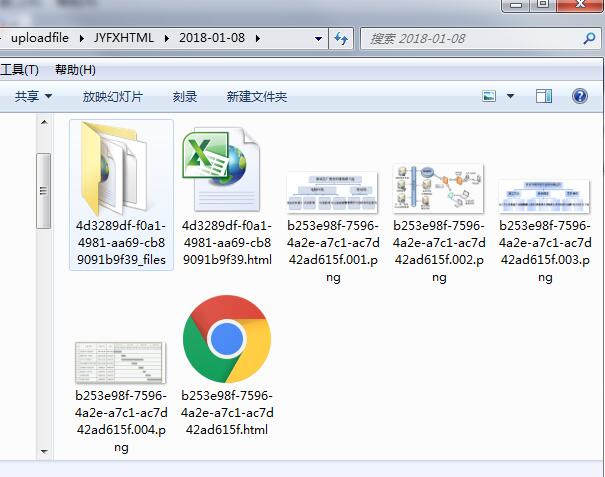
但是这样的话就必须要装Office软件才可以调用COM组件了。所以为了避免这种不友好的事情发生,最终选择了使用Aspose动态链接库
使用方法不变,只不过是转换方式变了,相比使用COM组件来说更加简便了一些:
using System;

using System.Collections.Generic;

using System.IO;

using System.Linq;

using System.Web;

//using Microsoft.Office.Core;

//using Word = Microsoft.Office.Interop.Word;

using Aspose.Cells;

using Aspose.Slides.Pptx;

namespace CqscSecurityApplication.Utils

{

    public class Office2HtmlHelper

    {

        /// <summary>

        /// Word转成Html

        /// </summary>

        /// <param name="path">要转换的文档的路径</param>

        /// <param name="savePath">转换成html的保存路径</param>

        /// <param name="wordFileName">转换成html的文件名字</param>

        public static void Word2Html(string path, string savePath, string wordFileName)

        {

            //Word.ApplicationClass word = new Word.ApplicationClass();

            //Type wordType = word.GetType();

            //Word.Documents docs = word.Documents;

            //Type docsType = docs.GetType();

            //Word.Document doc = (Word.Document)docsType.InvokeMember("Open", System.Reflection.BindingFlags.InvokeMethod, null, docs, new Object[] { (object)path, true, true });

            //Type docType = doc.GetType();

            //string strSaveFileName = savePath + wordFileName + ".html";

            //object saveFileName = (object)strSaveFileName;

            //docType.InvokeMember("SaveAs", System.Reflection.BindingFlags.InvokeMethod, null, doc, new object[] { saveFileName, Word.WdSaveFormat.wdFormatFilteredHTML });

            //docType.InvokeMember("Close", System.Reflection.BindingFlags.InvokeMethod, null, doc, null);

            //wordType.InvokeMember("Quit", System.Reflection.BindingFlags.InvokeMethod, null, word, null);

            Aspose.Words.Document doc = new Aspose.Words.Document(path);//通过path(文件原始源路径)获取文档内容

            wordFileName = wordFileName + ".html";

            string savePathss = Path.Combine(savePath, wordFileName);//合并转换后html文件路径

            doc.Save(savePathss,Aspose.Words.SaveFormat.Html);//转换为html格式

        }

        /// <summary>

        /// Excel转成Html

        /// </summary>

        /// <param name="path">要转换的文档的路径</param>

        /// <param name="savePath">转换成html的保存路径</param>

        /// <param name="wordFileName">转换成html的文件名字</param>

        public static void Excel2Html(string path, string savePath, string wordFileName)

        {

            //string str = string.Empty;

            //Microsoft.Office.Interop.Excel.Application repExcel = new Microsoft.Office.Interop.Excel.Application();

            //Microsoft.Office.Interop.Excel.Workbook workbook = null;

            //Microsoft.Office.Interop.Excel.Worksheet worksheet = null;

            //workbook = repExcel.Application.Workbooks.Open(path, Type.Missing, Type.Missing, Type.Missing, Type.Missing, Type.Missing, Type.Missing, Type.Missing, Type.Missing, Type.Missing, Type.Missing, Type.Missing, Type.Missing, Type.Missing, Type.Missing);

            //worksheet = (Microsoft.Office.Interop.Excel.Worksheet)workbook.Worksheets[1];

            //object htmlFile = savePath + wordFileName + ".html";

            //object ofmt = Microsoft.Office.Interop.Excel.XlFileFormat.xlHtml;

            //workbook.SaveAs(htmlFile, ofmt, Type.Missing, Type.Missing, Type.Missing, Type.Missing, Microsoft.Office.Interop.Excel.XlSaveAsAccessMode.xlNoChange, Type.Missing, Type.Missing, Type.Missing, Type.Missing, Type.Missing);

            //object osave = false;

            //workbook.Close(osave, Type.Missing, Type.Missing);

            //repExcel.Quit();

            Workbook workbook=new Workbook(path);

            wordFileName = wordFileName + ".html";

            string savePathss = Path.Combine(savePath, wordFileName);

            workbook.Save(savePathss, SaveFormat.Html);

        }

        /// <summary>

        /// ppt转成Html

        /// </summary>

        /// <param name="path">要转换的文档的路径</param>

        /// <param name="savePath">转换成html的保存路径</param>

        /// <param name="wordFileName">转换成html的文件名字</param>

        public static void PPT2Html(string path, string savePath, string wordFileName)

        {

            //Microsoft.Office.Interop.PowerPoint.Application ppApp = new Microsoft.Office.Interop.PowerPoint.Application();

            //string strSourceFile = path;

            //string strDestinationFile = savePath + wordFileName + ".html";

            //Microsoft.Office.Interop.PowerPoint.Presentation prsPres = ppApp.Presentations.Open(strSourceFile, Microsoft.Office.Core.MsoTriState.msoTrue, Microsoft.Office.Core.MsoTriState.msoFalse, Microsoft.Office.Core.MsoTriState.msoFalse);

            //prsPres.SaveAs(strDestinationFile, Microsoft.Office.Interop.PowerPoint.PpSaveAsFileType.ppSaveAsHTML, MsoTriState.msoTrue);

            //prsPres.Close();

            //ppApp.Quit();

            PresentationEx pres=new PresentationEx(path);

            wordFileName = wordFileName + ".html";

            string savePathss = Path.Combine(savePath, wordFileName);

            pres.Save(savePathss, Aspose.Slides.Export.SaveFormat.Html);

        }

    }

}
总之使用很简单,有遇到同样问题的同学,欢迎交流;
Office文档WEB端在线浏览(转换成Html)的更多相关文章
- OFFICE 文档转换为html在线预览
OFFICE 文档在线预览方案很多: 服务器先转换为PDF,再转换为SWF,最后通过网页加载Flash预览,比如flexpaper Office文档直接转换为SWF,通过网页加载Flash预览 微软的 ...
- java将office文档pdf文档转换成swf文件在线预览
第一步,安装openoffice.org openoffice.org是一套sun的开源office办公套件,能在widows,linux,solaris等操作系统上执行. 主要模块有writer(文 ...
- Java实现web在线预览office文档与pdf文档实例
https://yq.aliyun.com/ziliao/1768?spm=5176.8246799.blogcont.24.1PxYoX 摘要: 本文讲的是Java实现web在线预览office文档 ...
- 在禅道中实现WORD等OFFICE文档转换为PDF进行在线浏览
条件: 安装好禅道的服务器 能直接浏览PDF的浏览器(或通过 安装插件实现 ) 文档转换服务程序(建议部署在另一台服务器上) 实现 原理: 修改禅道的文件预览功能(OFFICE文档其使用的是下 ...
- [Office Web Apps]实现在线office文档预览
摘要 在使用office web apps实现office文档在线预览的时候,需要注意的地方. web api web api作为owa在线预览服务回调的接口,这里面核心代码片段如下: using H ...
- 基于MVC4+EasyUI的Web开发框架经验总结(8)--实现Office文档的预览
在博客园很多文章里面,曾经有一些介绍Office文档预览查看操作的,有些通过转为PDF进行查看,有些通过把它转换为Flash进行查看,但是过程都是曲线救国,真正能够简洁方便的实现Office文档的预览 ...
- [转载]基于MVC4+EasyUI的Web开发框架经验总结(8)--实现Office文档的预览
在博客园很多文章里面,曾经有一些介绍Office文档预览查看操作的,有些通过转为PDF进行查看,有些通过把它转换为Flash进行查看,但是过程都是曲线救国,真正能够简洁方便的实现Office文档的预览 ...
- Java版office文档在线预览
java将office文档pdf文档转换成swf文件在线预览 第一步,安装openoffice.org openoffice.org是一套sun的开源office办公套件,能在widows,linux ...
- (转)基于MVC4+EasyUI的Web开发框架经验总结(8)--实现Office文档的预览
http://www.cnblogs.com/wuhuacong/p/3871991.html 基于MVC4+EasyUI的Web开发框架经验总结(8)--实现Office文档的预览 在博客园很多文章 ...
随机推荐
- 修改element-ui里table中悬浮框中三角号的颜色及透明度设置
.el-tooltip__popper,.el-tooltip__popper.is-dark{background:rgba(0,0,0,0.6) !important;} .el-tooltip_ ...
- 微软于 snapcraft 上发布 Visual Studio Code 的 Snap 打包版本
微软在 snapcraft 上发布了 Visual Studio Code 的 Snap 打包版本 .Snap 是 Canonical 主导开发的应用打包格式,与 Flatpak 和 AppImage ...
- MVC MVP MVVM 简述
MVC 通过代理或者通知传递数据. MVP 通过P绑定model和view解耦. MVVM 通过V绑定VM(监听VM属性的变化.方法传递(改变自身被监听属性)) VM绑定model设置自身属性.
- FreeImage库的学习和使用
1.FreeImage_SetPixelColor x横轴方向 y纵轴方向 左下角是(0, 0)
- 安装swoole redis异步 hiredis swoole扩展加载失败 或者不显示问题 解决办法
当前办法仅供参考 贴上报错 找了好久 根据网上办法也试了 没解决 最后 仔细读问题 觉得可能是 hiredis路径问题 终于解决了 解决办法: 进入你的安装包目录然后执行下面 mkdir /usr/l ...
- Android群英传知识点回顾——第四章:ListView常用优化技巧
4.1 ListView常用优化技巧 4.1.1 使用ViewHolder模式提高效率 4.1.2 设置项目间分割线 4.1.3 隐藏ListView的滚动条 4.1.4 取消ListView的Ite ...
- 浅谈无参数RCE
0x00 前言 这几天做了几道无参数RCE的题目,这里来总结一下,以后忘了也方便再捡起来. 首先先来解释一下什么是无参数RCE: 形式: if(';' === preg_replace('/[^\W] ...
- [SUCTF 2019]EasyWeb
0x00 知识点 本题知识量巨大,把我给看傻了..盯着网上师傅们的博客看了好久.. 知识点1 构造不包含数字和字母的webshell 思路来自p牛 参考链接: https://www.leaveson ...
- DOM,windows 对象
DOM:文档对象模型 --树模型文档:标签文档,对象:文档中每个元素对象,模型:抽象化的东西 windows 对象:浏览器窗口信息document对象:浏览器显示的页面文件 一:window: win ...
- 深入理解 Java —— GC 机制
1. 基础知识 1.1 什么是垃圾回收? 程序的运行必然需要申请内存资源,无效的对象资源如果不及时处理就会一直占有内存资源,最终将导致内存溢出,所以对内存资源的管理非常重要. 垃圾回收就是对这些无效资 ...