
颜色下拉菜单(combox)
using System;

using System.Drawing;

using System.Collections;

using System.ComponentModel;

using System.Windows.Forms;

using System.Data;

namespace Combox

{

    /// <summary>

    /// Form1 的摘要说明。

    /// </summary>

    public class Form1 : System.Windows.Forms.Form

    {

        private System.Windows.Forms.ComboBox comboBox1;

        private System.Windows.Forms.Label label1;

        private System.Windows.Forms.Panel panel1;

        /// <summary>

        /// 必需的设计器变量。

        /// </summary>

        private System.ComponentModel.Container components = null;

        public Form1()

        {

            //

            // Windows 窗体设计器支持所必需的

            //

            InitializeComponent();

            //

            // TODO: 在 InitializeComponent 调用后添加任何构造函数代码

            //

        }

        /// <summary>

        /// 清理所有正在使用的资源。

        /// </summary>

        protected override void Dispose( bool disposing )

        {

            if( disposing )

            {

                if (components != null)

                {

                    components.Dispose();

                }

            }

            base.Dispose( disposing );

        }

        #region Windows 窗体设计器生成的代码

        /// <summary>

        /// 设计器支持所需的方法 - 不要使用代码编辑器修改

        /// 此方法的内容。

        /// </summary>

        private void InitializeComponent()

        {

            this.comboBox1 = new System.Windows.Forms.ComboBox();

            this.label1 = new System.Windows.Forms.Label();

            this.panel1 = new System.Windows.Forms.Panel();

            this.SuspendLayout();

            //

            // comboBox1

            //

            this.comboBox1.DrawMode = System.Windows.Forms.DrawMode.OwnerDrawFixed;

            this.comboBox1.DropDownStyle = System.Windows.Forms.ComboBoxStyle.DropDownList;

            this.comboBox1.Location = new System.Drawing.Point(, );

            this.comboBox1.Name = "comboBox1";

            this.comboBox1.Size = new System.Drawing.Size(, );

            this.comboBox1.TabIndex = ;

            this.comboBox1.SelectedIndexChanged  = new System.EventHandler(this.comboBox1_SelectedIndexChanged);

            this.comboBox1.MeasureItem  = new System.Windows.Forms.MeasureItemEventHandler(this.comboBox1_MeasureItem);

            this.comboBox1.DrawItem  = new System.Windows.Forms.DrawItemEventHandler(this.comboBox1_DrawItem);

            //

            // label1

            //

            this.label1.Location = new System.Drawing.Point(, );

            this.label1.Name = "label1";

            this.label1.Size = new System.Drawing.Size(, );

            this.label1.TabIndex = ;

            this.label1.Text = "请在组合框中选择颜色值:";

            //

            // panel1

            //

            this.panel1.BorderStyle = System.Windows.Forms.BorderStyle.Fixed3D;

            this.panel1.Location = new System.Drawing.Point(, );

            this.panel1.Name = "panel1";

            this.panel1.Size = new System.Drawing.Size(, );

            this.panel1.TabIndex = ;

            //

            // Form1

            //

            this.AutoScaleBaseSize = new System.Drawing.Size(, );

            this.ClientSize = new System.Drawing.Size(, );

            this.Controls.Add(this.panel1);

            this.Controls.Add(this.label1);

            this.Controls.Add(this.comboBox1);

            this.MaximizeBox = false;

            this.Name = "Form1";

            this.StartPosition = System.Windows.Forms.FormStartPosition.CenterScreen;

            this.Text = "演示制作带图形的组合框";

            this.Load  = new System.EventHandler(this.Form1_Load);

            this.ResumeLayout(false);

        }

        #endregion

        /// <summary>

        /// 应用程序的主入口点。

        /// </summary>

        [STAThread]

        static void Main()

        {

            Application.Run(new Form1());

        }

        private void Form1_Load(object sender, System.EventArgs e)

        {

        //  this.comboBox1.DisplayMember="Color";

            this.comboBox1.Items.Add(Brushes.Cyan);

            this.comboBox1.Items.Add(Brushes.DarkSalmon);

            this.comboBox1.Items.Add(Brushes.Gray);

            this.comboBox1.Items.Add(Brushes.Green);

            this.comboBox1.Items.Add(Brushes.AliceBlue);

            this.comboBox1.Items.Add(Brushes.Black);

            this.comboBox1.Items.Add(Brushes.Blue);

            this.comboBox1.Items.Add(Brushes.Chocolate);

            this.comboBox1.Items.Add(Brushes.Pink);

            this.comboBox1.Items.Add(Brushes.Red);

            this.comboBox1.Items.Add(Brushes.LightBlue);

            this.comboBox1.Items.Add(Brushes.Brown);

            this.comboBox1.Items.Add(Brushes.DodgerBlue);

            this.comboBox1.Items.Add(Brushes.MediumPurple);

            this.comboBox1.Items.Add(Brushes.White);

            this.comboBox1.Items.Add(Brushes.Yellow);

        }

        private void comboBox1_MeasureItem(object sender, System.Windows.Forms.MeasureItemEventArgs e)

        {//设置列表项宽

            e.ItemHeight=this.comboBox1.ItemHeight-;

        }

        private void comboBox1_DrawItem(object sender, System.Windows.Forms.DrawItemEventArgs e)

        {//绘制列表项

            ComboBox MyCombox=(ComboBox)sender;

            if(e.Index==-)

                return;

            if(sender==null)

                return;

            SolidBrush MyBrush=(SolidBrush)MyCombox.Items[e.Index];

            Graphics g=e.Graphics;

            //如果已经进行选择,则绘制正确的背景颜色和聚集框

            e.DrawBackground();

            e.DrawFocusRectangle();

            //绘制颜色的预览框

            Rectangle MyRect=e.Bounds;

            MyRect.Offset(,);

            MyRect.Width=;

            MyRect.Height-=;

            g.DrawRectangle(new Pen(e.ForeColor),MyRect);

            //获取选定颜色的相应画刷对象,并填充预览框

            MyRect.Offset(,);

            MyRect.Width-=;

            MyRect.Height-=;

            g.FillRectangle(MyBrush,MyRect);

            //绘制选定颜色的名称

            g.DrawString(MyBrush.Color.Name.ToString(),Font,new SolidBrush(e.ForeColor),e.Bounds.X ,e.Bounds.Y );

        }

        private void comboBox1_SelectedIndexChanged(object sender, System.EventArgs e)

        {//显示选择的颜色

            if(this.comboBox1.SelectedIndex>=)

            {

                SolidBrush MyBrush=(SolidBrush)(this.comboBox1.SelectedItem);

                this.panel1.BackColor=MyBrush.Color;

            }

        }

    }

}
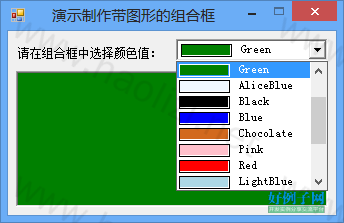
颜色下拉菜单(combox)的更多相关文章
- jQuery 小特效【文本框折叠隐藏,展开显示】【下拉菜单】【颜色渐变】【弹窗+遮罩】
<%@ Page Language="C#" AutoEventWireup="true" CodeFile="Default.aspx.cs& ...
- vue实现隔行换色,下拉菜单控制隔行换色的颜色
<!DOCTYPE html> <html lang="en"> <head> <meta charset="UTF-8&quo ...
- IOS第二天-新浪微博 - 添加搜索框,弹出下拉菜单 ,代理的使用 ,HWTabBar.h(自定义TabBar)
********HWDiscoverViewController.m(发现) - (void)viewDidLoad { [super viewDidLoad]; // 创建搜索框对象 HWSearc ...
- Bootstrap之样式风格与下拉菜单
背景颜色 bg-primary 字体颜色 text-primary 文字居中 text-center 按钮 btn btn-primary btn-default默认 btn-link链接 按钮大小 ...
- SJPullDownMenu下拉菜单框架使用
SJPullDownMenu 快速集成类似淘宝筛选下拉菜单 如果页面显示不全等问题请转至:http://www.jianshu.com/p/d07c6393830c 查看使用 Getting Star ...
- Bootstrap框架(基础篇)之按钮,网格,导航栏,下拉菜单
一,按钮 注意:虽然在Bootstrap框架中使用任何标签元素都可以实现按钮风格,但个人并不建议这样使用,为了避免浏览器兼容性问题,个人强烈建议使用button或a标签来制作按钮. 框架中提供了基础按 ...
- Dwz下拉菜单的二级联动
在DWZ文档中对组合框combox的是这样描述的: 在传统的select 用class 定义:class=”combox”, html 扩展:保留原有属性name, 增加了属性:ref. ref 属 ...
- 形行色色的下拉菜单(HTML/CSS JS方法 jQuery方法实现)
HTML/CSS方法实现下拉菜单来源:慕课网<!DOCTYPE html PUBLIC "-//W3C//DTD XHTML 1.0 Transitional//EN" &q ...
- excel设置下拉菜单,并且不同值会显示不同颜色
工作中常常要用的excel,每次都会有新的需求,然后不会,然后百度,然后过段时间可能就又忘了,于是就想说,自己记录下来~~~因为自己用的都是2010,其实哪个版本都差不多,都是应该可以找到相应的按钮滴 ...
随机推荐
- 数据结构-循环队列(Python实现)
今天我们来到了循环队列这一节,之前的文章中,我介绍过了用python自带的列表来实现队列,这是最简单的实现方法. 但是,我们都知道,在列表中删除第一个元素和删除最后一个元素花费的时间代价是不一样的,删 ...
- ESXI好好研究
之前几周在公司要搭建一个平台,因为服务器不够用,所以需要要一台服务器上装虚拟机.有人说用ESXI装虚拟机,并且不用装操作系统,我当时还纳闷儿了,不装操作系统,直接装虚机?这里我有点孤陋寡闻了,其实ES ...
- numpy表示图片详解
我自己的一个体会,在学习机器学习和深度学习的过程里,包括阅读模型源码的过程里,一个比较大的阻碍是对numpy掌握的不熟,有的时候对矩阵的维度,矩阵中每个元素值的含义晕乎乎的. 本文就以一个2 x 2 ...
- NOIP2018普及T1暨洛谷P5015 标题统计 题解
题目链接:https://www.luogu.org/problemnew/show/P5015 分析: 这道题大概是给个签到分吧.很显然的字符串操作.本篇题解主要帮助初学者,请大佬略过. 首先给大家 ...
- 前端三剑客之HTML
目录 what is html html基本格式 html常用标签及其属性 @() what is html (hypertext marked language)超文本标记语言,负责页面文本.图片内 ...
- Ubuntu安装Sublime Text 3
终端命令行安装: Install the GPG key: wget -qO - https://download.sublimetext.com/sublimehq-pub.gpg | sudo a ...
- ForkJoinPool分支/合并框架工程使用的工作窃取
ForkJoinPool分支/合并框架 在必要的情况下,讲一个大任务,进行拆分(fork)成若干个小任务(拆到不可拆为止),再将一个个小的任务运算的结果进行join汇总. 工作窃取的背景 分支/合并框 ...
- Android 设置ImageView全屏
Android 设置ImageView全屏代码如下: <ImageView android:id="@+id/iv_image" android:scaleType=&quo ...
- 校园表白墙、微信表白墙、校园墙 微信小程序 JAVA 开发记录与分享
目录 最新版表白墙博客地址 1.微信小程序前台展示 2.功能介绍 3.后台管理 4.后端语言采用 JAVA 开发 5.体验此微信小程序 扫描下方二维码 6.如何联系我或需要源码进行联系 最新版表白墙博 ...
- Apache和Spring提供的StopWatch执行时间监视器
相关阅读 [小家java]java5新特性(简述十大新特性) 重要一跃 [小家java]java6新特性(简述十大新特性) 鸡肋升级 [小家java]java7新特性(简述八大新特性) 不温不火 [小 ...