
UniMelb Comp30022 IT Project (Capstone) - 1.Android入门
1. Android入门
Android系统架构
Android系统:四层架构、五块区域
1. Linux内核层 Linux Kernel:为Android设备的硬件提供了底层驱动
2. 系统运行库层 Libraries:为Android系统提供特性支持,如 (SQLite) 数据库支持、(OpenGL|ES) 3D绘图支持、(Webkit) 浏览器内核支持等;也包括了Android运行时库,提供了一些核心库允许开发者使用Java编写应用。也包含了Dalvik虚拟机,使得每一个Android应用都能运行在独立的进程当中。相对于JVM而言,Dalvik针对手机内存、CPU等做了优化。
3. 应用框架层 Application Framework:提供了构建应用程序时可能用到的API
4. 应用层 Application:安装在手机上的应用程序
Android系统的发展:https://developer.android.com/about/dashboards/index.html
Android应用开发特色:
四大组件:
活动 (activity):在应用中看得到的东西
服务 (Service):后台运行(退出应用仍可继续运行)
广播接收器 (Broadcast Receiver):接收来自其他应用的广播消息(如电话、短信等)、或发出广播消息
内容提供器 (Content Provider):应用程序之间共享数据(如读取电话簿中的联系人等)
系统控件:易于开发者编写界面
SQLite数据库:嵌入式关系型数据库(提供API)
地理位置定位:LBS
多媒体:可在应用程序中控制音乐、视频、录音、拍照、闹铃等
传感器:加速度传感器、方向传感器等
开发环境搭建 + Hello World:
https://developer.android.com/training/basics/firstapp/creating-project.html
1. download and install Android Studio;
https://classroom.udacity.com/courses/ud808/lessons/4216368924/concepts/43072785890923
2. Start a new Android Studio project:name, company domain;
3. Empty Activity
4. Open the project window (view -> tool windows -> project) and select Android View
5. In the project window
app > java > com.example.myfirstapp > MainActivity.java: This is the main activity (the entry point for your app). When you build and run the app, the system launches an instance of this Activity and loads its layout.
app > res: 在项目中使用的所有资源:drawable目录:图片;layout目录:布局;values目录:字符串
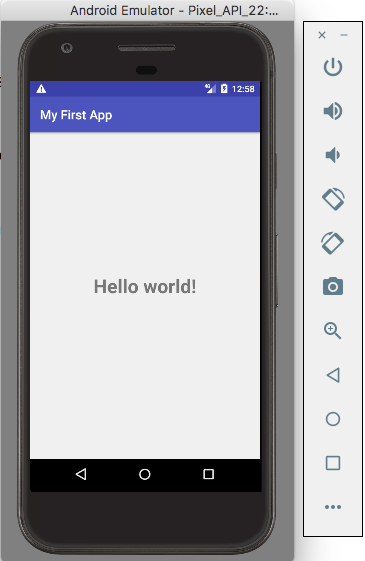
app > res > layout > activity_main.xml: This XML file defines the layout for the activity's UI. It contains a TextView element with the text "Hello world!".
app > manifests > AndroidManifest.xml: The manifest file describes the fundamental characteristics of the app and defines each of its components. 是整个Android项目的配置文件,所有四大组件都需要在这注册。还有应用的权限、兼容版本等设置。
Gradle Scripts > build.gradle: You'll see two files with this name: one for the project and one for the "app" module. Each module has its own build.gradle file, but this project currently has just one module. You'll mostly work with the module's build.gradle file to configure how the Gradle tools compile and build your app. For more information about this file, see Configure Your Build.
Error Occurs:
Error:(1, 1) A problem occurred evaluating project ':app'.
> java.lang.UnsupportedClassVersionError: com/android/build/gradle/AppPlugin : Unsupported major.minor version 52.0
查询:https://stackoverflow.com/questions/37466744/android-studio-continues-to-get-a-unsupported-major-minor-version-52-0
尝试1:File -> Invalidate caches and restart;无用
尝试2:File -> Project Structure -> SDK Location -> use embedded JDK/ set the right path 解决
6. Run on the emulator
Create an Android Virtual Device (AVD) definition. -- specifies the characteristics of the emulation device
Launch AVD: tools -> Android -> AVD Manager
Create Virtual Device -> Select Hardware (Pixel chosen here) -> System Image (Lollipop here)-> Finish
Select the device created, launch AVD in the emulator.
Close the AVD Manager window, in the Project window -> app module -> Run -> Select Deployment Target
源码分析:
AndroidManifest.xml
<?xml version="1.0" encoding="utf-8"?>

<manifest xmlns:android="http://schemas.android.com/apk/res/android"

    package="com.example.shenglin.myfirstapp">

    <application

        android:allowBackup="true"

        android:icon="@mipmap/ic_launcher"

        android:label="@string/app_name"

        android:supportsRtl="true"

        android:theme="@style/AppTheme">

        <activity android:name=".HelloWorldActivity">

            <intent-filter>

                <action android:name="android.intent.action.MAIN" />

                <category android:name="android.intent.category.LAUNCHER" />

            </intent-filter>

        </activity>

    </application>

</manifest>
android:icon="@mipmap/ic_launcher"定义了app的icon
<activity>...</activity>为对HelloWorldActivity活动的注册。
intent-filter中的<action android:name="android.intent.action.MAIN" />和<category android:name="android.intent.category.LAUNCHER" />表示是该程序的主活动(点击应用图标首先启动的活动)
HelloWorldActivity.java
public class HelloWorldActivity extends AppCompatActivity {

    @Override

    protected void onCreate(Bundle savedInstanceState) {

        super.onCreate(savedInstanceState);

        setContentView(R.layout.activity_main);

    }

}
extends AppCompatActivity
onCreate():活动被创建时必定要执行的方法。
但是,helloword字样在哪里呢?
逻辑和视图分离:在布局文件中编写界面,在活动中引入
setContentView(R.layout.activity_main); :给当前活动引入activity_main的布局
activity_main.xml
<?xml version="1.0" encoding="utf-8"?>

<android.support.constraint.ConstraintLayout xmlns:android="http://schemas.android.com/apk/res/android"

    xmlns:app="http://schemas.android.com/apk/res-auto"

    xmlns:tools="http://schemas.android.com/tools"

    android:layout_width="match_parent"

    android:layout_height="match_parent"

    tools:context="com.example.shenglin.myfirstapp.HelloWorldActivity">

    <TextView

        android:layout_width="228dp"

        android:layout_height="72dp"

        android:text="Hello world!"

        android:textAlignment="center"

        android:textSize="30sp"

        android:textStyle="bold"

        app:layout_constraintBottom_toBottomOf="parent"

        app:layout_constraintHorizontal_bias="0.5"

        app:layout_constraintLeft_toLeftOf="parent"

        app:layout_constraintRight_toRightOf="parent"

        app:layout_constraintTop_toTopOf="parent"

        app:layout_constraintVertical_bias="0.5"

        tools:layout_editor_absoluteX="72dp" />

</android.support.constraint.ConstraintLayout>
TextView:系统提供的一个控件,用于在布局中显示文字
values/strings.xml
<resources>

    <string name="app_name">My First App</string>

</resources>
Android不推荐在程序中对字符串进行硬编码,推荐将字符串定义在res/values/string.xml中,然后在布局文件或代码中引用
引用格式:在xml中:"@string/var_name";在代码中:R.string.var_name(string could also be drawable or layout)
这里的"app_name"即为string_name; 值"My First App"即为string_value(在AndroidManifest.xml被引用)
User Interface:
Using Android Studio Layout Editor: create a layout, including a text box and a button.
The user interface is built using a hierachy of layouts (ViewGroup objects: invisible containers) and widgets (View objects: UI components).
Component Tree window on the botton-left side shows the hierachy of layout.
Start the implementation:
Preparation:
Open the layout editor: app/res/layout/activity_main.xml
Turn on Show Constraints (by clicking the eye button)
Turn off Autoconnect (next to the eye button)
Click Default Margins (8 at the moment) and change it to 16
Choose Device in Editor (the mobile shape button) and select the one you choose.
Clear the layout (delete TextView in the Component Tree window)
Add a text box:
Drag and drop a text->plain text into the design editor
For the plain text widget, it has squares for resizing and circles for setting constraints
Add constraints: 16dp from the both the top and the left of the layout
Add a button:
Drag and drop a widgets->button into the desing editor
Add a constraint to the right side of the plain text box
Click the button, click the Baseline Constraint (appears below the selected widget), constraint it to the text box baseline
Change displayed text:
app/res/values/strings.xml
click Open Editor -> opens the Translations Editor (easy to use)
add two key-value pairs: edit_message: "Enter a message"; button_send:"Send"
Now go back to activity_main.xml
choose the widgets, set the hint property as (Pick a Resource) @string/edit_message; and delete the value for the text property.
so does the button.

Start Another Activity
Create an method to response to the button:
HelloWorldActivity.java
add a method called sendMessage(View view); (the method must be public void with a single View as the parameter)
an error pops out -- opt+enter=quick fix -- import class
activity_main.xml
select button, Properties -> onClick property -> sendMessage[HelloWorldActivity]
--> now when the buttons is tapped, the system calls the sendMessage().
Intent:
An object that provides runtime binding between separate components, such as two activities.
In this case, the intent starts another activity
HelloWorldActivity.java
add a constant
public static final String EXTRA_MESSAGE = "com.example.matt.myfirstapp.MESSAGE";
write sentMessage()
Intent intent = new Intent(this, DisplayMessageActivity.class);

EditText editText = (EditText) findViewById(R.id.editText);

String message = editText.getText().toString();

intent.putExtra(EXTRA_MESSAGE, message);

startActivity(intent);
the intent constructor takes two activities as the parameters
intent.putExtra() adds the message (message = editText.getText().toString()) to the intent.
the intent carrys data types as key-value pairs called extras (key is the public constant EXTRA_MESSAGE, note: using your app's package name as a prefix is a good way to ensure the keys are unique, in case your app interacts with other apps.
startActivity() starts an instance of the DisplayMessageActivity specified in the constructor of intent.
Create DisplayMessageActivity
New->Activity->Empty Activity...
auto-finished: create DisplayMessageActivity.java; create activity_display_message.xml; add <activity> in AndroidManifest.xml
Add a text view: activity_display_message.xml
turn on auto-connect
drag and drop a TextView
add a constraint to the top of the layout
and property -> textAppearance blahblahblah
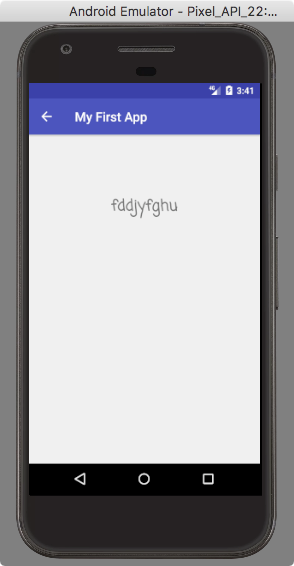
Display the message on the text view:
DisplayMessageActivity.java
@Override

protected void onCreate(Bundle savedInstanceState) {

    super.onCreate(savedInstanceState);

    setContentView(R.layout.activity_display_message);

    // Get the intent that started this activity and extract the string

    Intent intent = getIntent();

    String message = intent.getStringExtra(HelloWorldActivity.EXTRA_MESSAGE);

    // capture the layout's TextView and set the string as its text

    TextView textView = (TextView) findViewById(R.id.textView);

    textView.setText(message);

}
it works now, but one more thing...
Add up navigation:
when the activity is not the main activity, it should provide the navigation so the user can tap the up button in the app bar to return to its logical parent screen.
AndroidManifest.xml
add android:parentActivityName=".HelloWorldActivity"; and the meta-data.
    <activity android:name=".DisplayMessageActivity"

        android:parentActivityName=".HelloWorldActivity">

        <meta-data

            android:name="android.support.PARENT_ACTIVITY"

            android:value=".HelloWorldActivity" />

    </activity>

</application>
UniMelb Comp30022 IT Project (Capstone) - 1.Android入门的更多相关文章
- UniMelb Comp30022 IT Project (Capstone) - 2.Vuforia in Unity
2 Vuforia in Unity Tutorial: https://www.youtube.com/watch?v=X6djed8e4n0&t=213s Preparation: Dow ...
- Android入门之环境搭建
欢迎访问我的新博客:http://www.milkcu.com/blog/ 原文地址:http://www.milkcu.com/blog/archives/1376935560.html 原创:An ...
- Android入门(一) IDEA上创建Android应用之helloworld
Android入门(一) IDEA上创建Android应用之helloworld 首先看运行结果: 一.准备工作 下载安装IntelliJ IDEA :我这里用的是2018.2.7 下载安装Genym ...
- 【详细】Android入门到放弃篇-YES OR NO-》各种UI组件,布局管理器,单元Activity
问:达叔,你放弃了吗? 答:不,放弃是不可能的,丢了Android,你会心疼吗?如果别人把你丢掉,你是痛苦呢?还是痛苦呢?~ 引导语 有人说,爱上一个人是痛苦的,有人说,喜欢一个人是幸福的. 人与人之 ...
- zxing学习笔记 android入门
对于刚开始学习android开发的童鞋们来说,若有一个简单而又全面的android工程能来剖析,那就是再好不过了,zxing就是不错得例子. zxing的源码可以到google code上下载, ...
- Android入门教程(四)
关注我,每天都有优质技术文章推送,工作,学习累了的时候放松一下自己. 本篇文章同步微信公众号 欢迎大家关注我的微信公众号:「醉翁猫咪」 学习Android要掌握Android程序结构,和通信技术,和如 ...
- Android入门(十二)SQLite事务、升级数据库
原文链接:http://www.orlion.ga/610/ 一.事务 SQLite支持事务,看一下Android如何使用事务:比如 Book表中的数据都已经很老了,现在准备全部废弃掉替换成新数据,可 ...
- 【转】Xamarin.Android 入门之:Xamarin+vs2015 环境搭建
Xamarin.Android 入门之:Xamarin+vs2015 环境搭建 一.前言 此篇博客主要写了如何使用搭建xamarin开发的环境,防止我自己万一哪天电脑重装系统了,可以直接看这篇博客 ...
- android 入门 006(sqlite增删改查)
android 入门 006(sqlite增删改查) package cn.rfvip.feb_14_2_sqlite; import android.content.Context; import ...
随机推荐
- supervisord的安装
作用: 用Supervisor管理的进程,当一个进程意外被杀死,supervisort监听到进程死后,会自动将它重新拉起,很方便的做到进程自动恢复的功能,不再需要自己写shell脚本来控制. 安装流程 ...
- HDU4825 Xor Sum
题意 给定一个集合后, 求一组查询中每个数和集合中任一元素异或的最大值. 题解 异或的规律是这样的 1 ^ 1 = 0, 0 ^ 0 = 0, 1 ^ 0 = 1, 0 ^ 1 = 1, 而最大值即是 ...
- 【转载】iPhone屏幕尺寸、分辨率及适配
iPhone屏幕尺寸.分辨率及适配 转载http://m.blog.csdn.net/article/details?id=42174937 1.iPhone尺寸规格 iPhone 整机宽度Width ...
- idea中查看类层级class hierarchy
idea中,我当前设置的是eclipse的快捷键(从eclipse转过来的) 一般情况下,查看类的子类Ctrl+T 如何以树的形式查看完整继承关系,快捷键:F4 效果如下: 尤其从根节点查看的时候,完 ...
- NodeJs——入门
关于NPM: npm 是 nodejs 的包管理和分发工具.它可以让 javascript 开发者能够更加轻松的共享代码和共用代码片段,并且通过 npm 管理你分享的代码也很方便快捷和简单. 一 No ...
- 记录一次没有收集直方图优化器选择全表扫描导致CPU耗尽
场景:数据库升级第二天,操作系统CPU使用率接近100%. 查看ash报告: 再看TOP SQL 具体SQL: select count(1) as chipinCount, sum(bets) as ...
- django, CentOS7+nginx(apache)+mod_wsgi+Python+Django
Django是一个开放源代码的Web应用框架,由Python写成.采用了MVC的框架模式,即模型M,视图V和控制器C.它最初是被开发来用于管理劳伦斯出版集团旗下的一些以新闻内容为主的网站的,即是CMS ...
- Java之变量
Java变量分为类变量.实例变量.局部变量: 类变量包括静态变量: 局部变量:就是本地变量,使用范围:方法,构造器(构造方法),块:销毁:程序执行完或退出立即销毁:局部变量没有默认值,声明的同时必须赋 ...
- 『ACM C++』HDU杭电OJ | 1418 - 抱歉 (拓扑学:多面体欧拉定理引申)
呕,大一下学期的第一周结束啦,一周过的挺快也挺多出乎意料的事情的~ 随之而来各种各样的任务也来了,嘛毕竟是大学嘛,有点上进心的人多多少少都会接到不少任务的,忙也正常啦~端正心态 开心面对就好啦~ 今天 ...
- PHP中级程序员常见面试题
1).写一个函数,从一个标准url里取出文件的扩展名,需要取出php或.php <?php $a="http://www.test.com.cn:88/abc/de/fg.php?id ...