
Docker的部署安装(CentOS)
环境准备
操作系统需求
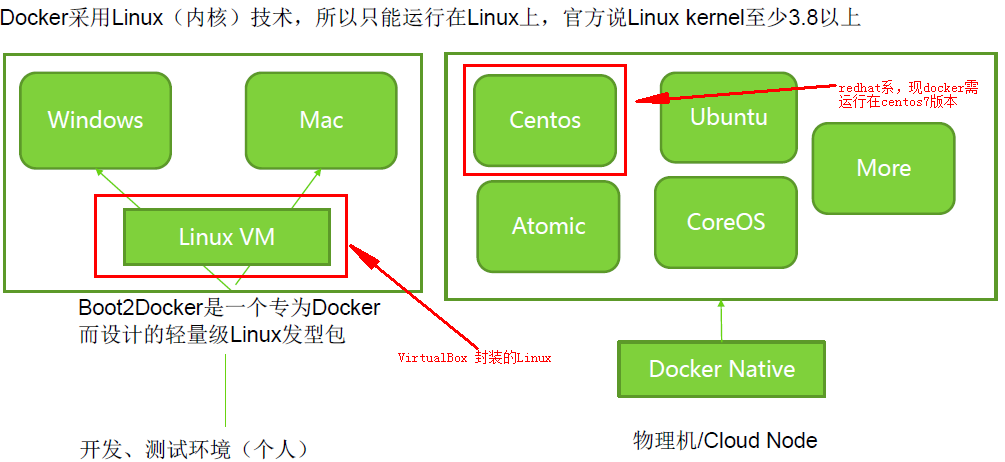
为兼容企业级应用,学习选用Centos7做为部署安装Docker的系统平台
# 通过以下命令可查看系统版本和内核版本等信息

cat /etc/redhat-release

#-----------------------------------

CentOS Linux release 7.4. (Core)

#-----------------------------------

uname -a

#---------------------------------------------------------------------------------------------------------

Linux docker01 3.10.-.el7.x86_64 # SMP Tue Aug  :: UTC  x86_64 x86_64 x86_64 GNU/Linux

#---------------------------------------------------------------------------------------------------------

cat /etc/os-release

#------------------------------------------

NAME="CentOS Linux"

VERSION="7 (Core)"

ID="centos"

ID_LIKE="rhel fedora"

VERSION_ID=""

PRETTY_NAME="CentOS Linux 7 (Core)"

ANSI_COLOR="0;31"

CPE_NAME="cpe:/o:centos:centos:7"

HOME_URL="https://www.centos.org/"

BUG_REPORT_URL="https://bugs.centos.org/"

CENTOS_MANTISBT_PROJECT="CentOS-7"

CENTOS_MANTISBT_PROJECT_VERSION=""

REDHAT_SUPPORT_PRODUCT="centos"

REDHAT_SUPPORT_PRODUCT_VERSION=""

#------------------------------------------
更换默认的yum源
Centos默认的yun源在国外,速度很慢有时间也无法访问
yum repolist

#------------------------------------------------------------------------------------------------------------------------------

Loaded plugins: fastestmirror

Could not retrieve mirrorlist http://mirrorlist.centos.org/?release=7&arch=x86_64&repo=os&infra=stock error was

: curl# - "Could not resolve host: mirrorlist.centos.org; Unknown error"

Could not retrieve mirrorlist http://mirrorlist.centos.org/?release=7&arch=x86_64&repo=extras&infra=stock error was

: curl# - "Could not resolve host: mirrorlist.centos.org; Unknown error"

Could not retrieve mirrorlist http://mirrorlist.centos.org/?release=7&arch=x86_64&repo=updates&infra=stock error was

: curl# - "Could not resolve host: mirrorlist.centos.org; Unknown error"

repo id                                                         repo name                                                          status

base//x86_64                                                   CentOS- - Base

extras//x86_64                                                 CentOS- - Extras

updates//x86_64                                                CentOS- - Updates

repolist:

#------------------------------------------------------------------------------------------------------------------------------

# 公司内服务器域名解析总有问题,时好时不好,很烦,这里直接用hosts做解析

vi /etc/hosts

#-------------------------------------

221.206.129.236  mirrors.aliyun.com

#-------------------------------------

# 更换成aliyun yum源

cp /etc/yum.repos.d/CentOS-Base.repo /etc/yum.repos.d/CentOS-Base.repo.bak

curl -o /etc/yum.repos.d/CentOS-Base.repo http://mirrors.aliyun.com/repo/Centos-7.repo

# 编译CentOS-Base.repo,把带mirrors.aliyuncs.com的行都删除

vi /etc/yum.repos.d/CentOS-Base.repo

# 运行以下命令生成缓存

yum clean all

yum makecache

# 查看已启用的repo,确保centos-extras repository是启用了,安装docker时需要

yum repolist

#--------------------------------------------------------------------------

Loaded plugins: fastestmirror

Loading mirror speeds from cached hostfile

 * base: mirrors.aliyun.com

 * extras: mirrors.aliyun.com

 * updates: mirrors.aliyun.com

repo id                                  repo name                                                        status

base//x86_64                            CentOS- - Base - mirrors.aliyun.com                             ,

extras//x86_64                          CentOS- - Extras - mirrors.aliyun.com

updates//x86_64                         CentOS- - Updates - mirrors.aliyun.com                          ,

repolist: ,

#--------------------------------------------------------------------------
更新系统(可选)
yum update
删除docker旧版本
# 有旧版本的docker话,可以用下面命令删除

yum remove docker docker-common docker-selinux docker-engine
安装 Docker CE
yum install -y yum-utils device-mapper-persistent-data lvm2

# yum-config-manager --add-repo https://download.docker.com/linux/centos/docker-ce.repo

yum-config-manager --add-repo http://mirrors.aliyun.com/docker-ce/linux/centos/docker-ce.repo

yum install -y docker-ce

#--------------------------------------------------------------------------

.......

Installed:

  docker-ce.x86_64 :17.09..ce-.el7.centos

Dependency Installed:

  audit-libs-python.x86_64 :2.7.-.el7

  checkpolicy.x86_64 :2.5-.el7

  container-selinux.noarch :2.28-.git85ce147.el7

  libcgroup.x86_64 :0.41-.el7

  libseccomp.x86_64 :2.3.-.el7

  libsemanage-python.x86_64 :2.5-.el7

  policycoreutils-python.x86_64 :2.5-17.1.el7

  python-IPy.noarch :0.75-.el7

  setools-libs.x86_64 :3.3.-1.1.el7

......

#--------------------------------------------------------------------------
若需要安装指定的版本时,可参照以下命令
# 根据需要选择是否开启edge和test repositories

yum-config-manager --enable docker-ce-edge

yum-config-manager --enable docker-ce-test

## 禁用命令

yum-config-manager --disable docker-ce-edge

## 安装指定的版本

yum list docker-ce --showduplicates | sort -r

#--------------------------------------------------------------------------

Loading mirror speeds from cached hostfile

Loaded plugins: fastestmirror

Installed Packages

docker-ce.x86_64            17.09..ce-.el7.centos            docker-ce-stable

docker-ce.x86_64            17.09..ce-.el7.centos            @docker-ce-stable

docker-ce.x86_64            17.09..ce-.el7.centos            docker-ce-stable

docker-ce.x86_64            17.06..ce-.el7.centos            docker-ce-stable

docker-ce.x86_64            17.06..ce-.el7.centos            docker-ce-stable

docker-ce.x86_64            17.06..ce-.el7.centos            docker-ce-stable

docker-ce.x86_64            17.03..ce-.el7.centos            docker-ce-stable

docker-ce.x86_64            17.03..ce-.el7.centos            docker-ce-stable

docker-ce.x86_64            17.03..ce-.el7.centos            docker-ce-stable

Available Packages

#--------------------------------------------------------------------------

yum install docker-ce-17.06..ce
启动docker
systemctl start docker

# 查看docker的版本信息

docker version

#--------------------------------------------------------------------------

Client:

 Version:      17.09.-ce       # 客户端版本

 API version:  1.32

 Go version:   go1.8.3

 Git commit:   19e2cf6

 Built:        Thu Dec   ::

 OS/Arch:      linux/amd64

Server:

 Version:      17.09.-ce       # 服务端版本

 API version:  1.32 (minimum version 1.12)

 Go version:   go1.8.3

 Git commit:   19e2cf6

 Built:        Thu Dec   ::

 OS/Arch:      linux/amd64

 Experimental: false

#--------------------------------------------------------------------------

# 查看网络信息

ip addr

#--------------------------------------------------------------------------

: lo: <LOOPBACK,UP,LOWER_UP> mtu  qdisc noqueue state UNKNOWN qlen

    link/loopback ::::: brd :::::

    inet 127.0.0.1/ scope host lo

       valid_lft forever preferred_lft forever

    inet6 ::/ scope host

       valid_lft forever preferred_lft forever

: ens160: <BROADCAST,MULTICAST,UP,LOWER_UP> mtu  qdisc mq state UP qlen

    link/ether :::ab:4c: brd ff:ff:ff:ff:ff:ff

    inet 10.240.4.185/ brd 10.240.4.255 scope global ens160

       valid_lft forever preferred_lft forever

    inet6 fe80:::56ff:feab:4c50/ scope link

       valid_lft forever preferred_lft forever

: docker0: <NO-CARRIER,BROADCAST,MULTICAST,UP> mtu  qdisc noqueue state DOWN  # docker0 虚拟网桥

    link/ether :::ac::bf brd ff:ff:ff:ff:ff:ff

    inet 172.17.0.1/ scope global docker0

       valid_lft forever preferred_lft forever

    inet6 fe80:::72ff:feac:5bf/ scope link

       valid_lft forever preferred_lft forever

#--------------------------------------------------------------------------

systemctl list-unit-files | grep docker

#--------------------------------------------------------------------------

docker.service                                disabled

#--------------------------------------------------------------------------

# 设置成自启服务

systemctl enable docker.service

# 查看状态

systemctl status docker

#--------------------------------------------------------------------------

● docker.service - Docker Application Container Engine

   Loaded: loaded (/usr/lib/systemd/system/docker.service; enabled; vendor preset: disabled)

   Active: active (running) since Tue -- :: CST; 13min ago

     Docs: https://docs.docker.com

 Main PID:  (dockerd)

   CGroup: /system.slice/docker.service

           ├─ /usr/bin/dockerd

           └─ docker-containerd -l unix:///var/run/docker/libcontainerd/docker-containerd.sock --metrics-interval=0 --start-timeout 2m --state-dir /var/run/docker/libco...

Dec  :: docker01 dockerd[]: time="2017-12-12T17:24:29.594209004+08:00" level=info msg="libcontainerd: new containerd process, pid: 23490"

Dec  :: docker01 dockerd[]: time="2017-12-12T17:24:30.596093094+08:00" level=warning msg="failed to rename /var/lib/docker/tmp for background deletio...chronously"

Dec  :: docker01 dockerd[]: time="2017-12-12T17:24:30.654014669+08:00" level=info msg="Graph migration to content-addressability took 0.00 seconds"

Dec  :: docker01 dockerd[]: time="2017-12-12T17:24:30.654714697+08:00" level=info msg="Loading containers: start."

Dec  :: docker01 dockerd[]: time="2017-12-12T17:24:30.852920366+08:00" level=info msg="Default bridge (docker0) is assigned with an IP address 172.17...IP address"

Dec  :: docker01 dockerd[]: time="2017-12-12T17:24:30.996504508+08:00" level=info msg="Loading containers: done."

Dec  :: docker01 dockerd[]: time="2017-12-12T17:24:31.004149257+08:00" level=info msg="Docker daemon" commit=19e2cf6 graphdriver(s)=overlay version=17.09.-ce

Dec  :: docker01 dockerd[]: time="2017-12-12T17:24:31.004282017+08:00" level=info msg="Daemon has completed initialization"

Dec  :: docker01 dockerd[]: time="2017-12-12T17:24:31.015479108+08:00" level=info msg="API listen on /var/run/docker.sock"

Dec  :: docker01 systemd[]: Started Docker Application Container Engine.

Hint: Some lines were ellipsized, use -l to show in full.

#--------------------------------------------------------------------------
运行hello-world image验证docker安装是否成功
docker run hello-world

#--------------------------------------------------------------------------

Unable to find image 'hello-world:latest' locally

latest: Pulling from library/hello-world

ca4f61b1923c: Pull complete

Digest: sha256:be0cd392e45be79ffeffa6b05338b98ebb16c87b255f48e297ec7f98e123905c

Status: Downloaded newer image for hello-world:latest

Hello from Docker!

This message shows that your installation appears to be working correctly.

To generate this message, Docker took the following steps:

 . The Docker client contacted the Docker daemon.

 . The Docker daemon pulled the "hello-world" image from the Docker Hub.

    (amd64)

 . The Docker daemon created a new container from that image which runs the

    executable that produces the output you are currently reading.

 . The Docker daemon streamed that output to the Docker client, which sent it

    to your terminal.

To try something more ambitious, you can run an Ubuntu container with:

 $ docker run -it ubuntu bash

Share images, automate workflows, and more with a free Docker ID:

 https://cloud.docker.com/

For more examples and ideas, visit:

 https://docs.docker.com/engine/userguide/

#--------------------------------------------------------------------------
升级和卸载docker
# 升级

yum -y upgrade docker-ce

# 卸载

yum remove docker-ce

# 删除Images, containers, volumes, or customized configuration files

rm -rf /var/lib/docker
使用阿里镜像加速器
使用阿里云专属加速器加快获取Docker官方镜像,否则在国内速度会慢到你无法忍受哒。步骤如下:
- 免费注册一个阿里云账号 www.aliyun.com
- 进入加速器页面 https://cr.console.aliyun.com/#/accelerator
- 选择
镜像加速器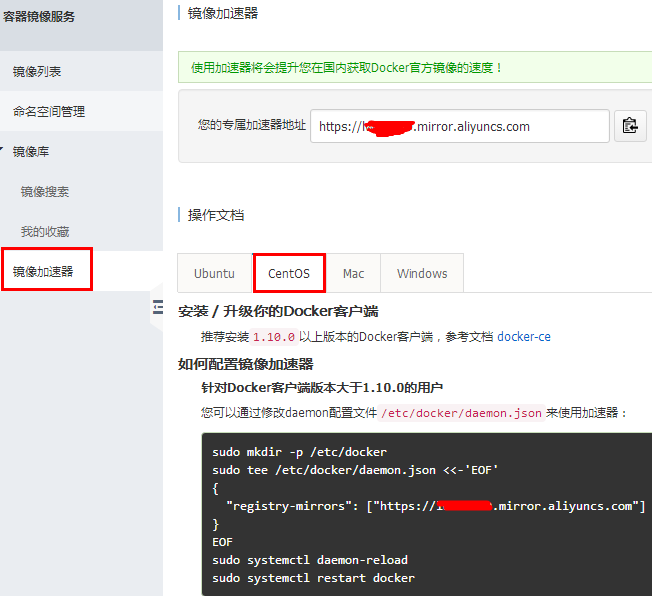
按图中进行相关配置
# 下面的xxxxx要替换成你的专属加速器的地址哦

tee /etc/docker/daemon.json <<-'EOF'

{

  "registry-mirrors": ["https://xxxxxxx.mirror.aliyuncs.com"]

}

EOF

systemctl daemon-reload

systemctl restart docker
Docker的部署安装(CentOS)的更多相关文章
- Docker的部署安装(CentOS)-by paymob
环境准备 通过命令查看系统版本和内核版本等信息 [gmuser@--- ~]$ cat /etc/redhat-release CentOS Linux release (Core) [gmuser@ ...
- Devops实战(一)Docker的部署安装以及Docker-Compose的使用
Docker的部署安装以及Docker-Compose的使用 1.docker和docker-Compose简介 Docker是一组平台即服务(PaaS)产品,它们使用操作系统级虚拟化以称为容器的软件 ...
- docker运行环境安装-centos(一)
在这里我们使用的是docker的社区版Docker CE,针对的是未安装docker的新的主机,如果安装过docker的早期版本,先卸载它们及关联的依赖资源,安装的版本为docker 18.03. 1 ...
- (二)docker的部署安装,配置,基础命令
一.docker 的安装部署 这里不过多介绍,下面这两个linux发型版 安装可以参考 ubuntu的 docker-ce安装 centos7的 docker-ce安装 二.docker配置文件 重要 ...
- docker之windows安装¢OS安装
按这个安装 没什么毛病 https://blog.csdn.net/vitaair/article/details/80894890 https://www.runoob.com/docker/ce ...
- 【Docker学习之二】Docker部署安装
环境 docker-ce-19.03.1-3.el7.x86_64 一.Docker的部署安装 Docker采用Linux(内核)技术,所以只能运行在Linux上,官方说Linux kernel至少3 ...
- Docker学习笔记_04 Rancher的部署安装(编排选用K8S)
原文地址:http://dbase.cc/2018/01/12/docker/04_rancher的部署安装/ 为什么要使用Rancher Rancher是一个开源的企业级容器管理平台.通过Ranch ...
- Rancher的部署安装(编排选用K8S)
为什么要使用Rancher Rancher是一个开源的企业级容器管理平台.通过Rancher,企业再也不必自己使用一系列的开源软件去从头搭建容器服务平台.Rancher提供了在生产环境中使用的管理Do ...
- 【docker部署】基于linux的centos操作系统部署安装docker容器
一.docker介绍 容器是轻量级的,包含应用运行所需所有东西(代码.库.运行时环境.系统设置,以及依赖关系)的独立的包.每个容器都部署于它自己的 CPU.内存.块 I/O,以及网络资源上,所有这些都 ...
随机推荐
- 基于libcurl的POST(http)
#include <stdio.h> #include <curl/curl.h> int main (void) { char *url="http://www.n ...
- Python—使用列表构造栈数据结构
class Stack(object): """ 使用列表实现栈 """ def __init__(self): self.stack = ...
- Python模块——json
简介 json全名是JavaScript Object Notation(即:Javascript对象标记).它是JavaScript的子集,JSON是轻量级的文本数据交换格式.前端和后端进行数据交互 ...
- AtCoder Beginner Contest 129
ABCD 签到(A.B.C过水已隐藏) #include<bits/stdc++.h> using namespace std; ; int n,m,ans,f1[N][N],f2[N][ ...
- LAMP环境搭建,防火墙开启,数据库挂载在逻辑卷
具体要求: 1. 源码部署 LAMP 环境, 和生产保持一致 2. 静态资源文件同步生产环境 3. 需要同时部署 2 个 web 网站 步骤: 一. 需要的安装包. 提前准备好. apr-util-1 ...
- java第三方工具包
--搜集于网络 1.Apache POI 处理office文档用到的2. IText PDF操作类库 3.Java Base64 Base64编码类库 4.Commons-lang 对应java sd ...
- 对于 C语言的扩展和JAVA的重载理解
哎,又被学长看成笨蛋了 ,先前学习java,自己真是什么都要忘了,弄得自己连java最重要的概念--重载,都不知道是啥,还厚着脸皮和学长说 是函数名字一样 ,但是就是函数里面的参数和参数类型不一 ...
- 树莓派切换到root用户
1:如何修改pi账号密码 passwd pi 2:开启root账户 树莓派使用的linux是debian系统,所以树莓派启用root和debian是相同的 debian里root账户默认没有密码,但账 ...
- ElasticSearch 本机可以访问,外网无法访问----问题解决
问题:本机可以访问,外网无法访问 config/elasticsearch.yml network.host: 0.0.0.0 使用普通用户zuoys,重启es,报错如下: [1]: max file ...
- Spring Boot 默认的指标数据从哪来的?
了解有关 Spring Boot 默认指标及其来源的更多信息. 您是否注意到 Spring Boot 和 Micrometer 为您的应用生成的所有默认指标?如果没有 - 您可以将 actuator ...