
H5自定义video功能与样式处理
H5的video非常简单,方便,有时我们可能需要自己来设置样式来自定义的video,自定义的话我们需要对功能进行一些处理,这里常用的功能几乎是都用到了,第一次练习代码很累赘,之后会慢慢改进。
常用的一些 video API
"视频播放":video.play();
"视频暂停播放":video.pause();
"视频地址":video.currentSrc;
"视频总时长":video.duration;
"视频播放速率":video.playbackRate;
"是否暂停":video.paused;
"是否结束":video.ended;
"是否静音":video.muted;
"当前播放时间": video.currentTime;
"当前缓冲量":video.buffered.end(0);
"当前音量":video.volume
api使用方法
video.onloadedmetadata=function(){

                console.log("视频地址"+video.currentSrc);

                console.log("视频总时长"+video.duration);

                console.log("视频播放速率"+video.playbackRate);

                console.log("是否暂停"+video.paused);

                console.log("是否结束"+video.ended);

                console.log("是否静音"+video.muted);

            }

            //当前时间

            video.ontimeupdate=function(){

                console.log("当前播放时间"+video.currentTime);

                console.log("当前缓冲量"+video.buffered.end(0));

            }

            //当前音量

            video.onvolumechange=function(){

                console.log("当前音量"+video.volume);

            }

            //播放

            btnPlay.onclick=function (){

                video.play();

            }

            //停止

            btnStop.onclick=function (){

                video.pause();

            }
demo全部代码(代码里面的图片请替换成本地图片,不让无法看到此demo的完整效果,播放按钮在进度条左边)
<!DOCTYPE html>
<html> <head>
<meta charset="UTF-8"> <title>自定义播放器音量拖动</title>
<style>
.video-warp {
width: 800px;
margin: auto;
text-align: center;
}
video {
width: 100%;
}
.controls {
width: 100%;
background: #ccc;
height: 20px;
line-height: 20px;
text-align: left;
box-sizing: border-box;
padding-left: 5px;
position: relative;
}
.controls i {
display: inline-block;
width: 20px;
height: 20px;
background: url(img/play.png) no-repeat;
background-size: 100%;
}
.controls i:nth-of-type(2) {
display: none;
background: url(img/pause.png) no-repeat;
background-size: 100%;
}
.controls i:nth-of-type(3) {
background: url(img/sound.png) no-repeat;
background-size: 100%;
}
.controls i:nth-of-type(4) {
display: none;
background: url(img/mute.png) no-repeat;
background-size: 100%;
}
.progress {
display: inline-block;
width: 62%;
height: 10px;
line-height: 10px;
background: #e5e9ef;
border-radius: 5px;
vertical-align: super;
overflow: hidden;
}
.video-timer {
display: inline-block;
vertical-align: top;
}
.timrBar {
display: inline-block;
height: 11px;
background: #8adced;
}
#playSpeed {
color: #fb0606;
cursor: pointer;
float: right;
margin-right: -32px; }
/*yinliang*/
.video-sound {
position: absolute;
width: 100px;
height: 10px;
background: #e5e9ef;
bottom: 5px;
right:48px;
border-radius: 5px;
overflow: hidden;
}
.soundBar {
height: 100%;
background: #00a1d6;
}
/*全屏*/
#screen{
float: right;
margin-right: 25px;
margin-top: 5px;
width: 10px;
height: 10px;
background: url(img/full-screen.png);
background-size:contain ;
}
</style>
</head> <body>
<div class="video-warp" id="video-warp">
<video id="video" poster="img/preview.jpg"
<source src="http://www.w3school.com.cn/i/movie.ogg" type="video/ogg"></source>
当前浏览器不支持 video直接播放,点击这里下载视频:
<a href="myvideo.webm">下载视频</a>
</video>
<div class="controls" id="controls">
<i id="play"></i>
<i id="pause" class="hide"></i>
<!--进度条-->
<div class="progress">
<div class="timrBar"></div>
</div>
<!--时长-->
<div class="video-timer">
<span id="currentTime">00:00</span><em>/</em>
<span id="duration">00:00</span>
</div>
<i id="sound" class="sound"></i>
<i id="muteSound" class="sound"></i>
<div class="video-sound">
<div class="soundBar"></div>
</div>
<i id="screen"></i>
<span id="playSpeed">*3</span>
</div>
</div>
<script>
var v = {
video: document.getElementById("video"),//容器框
play: document.getElementById("play"),//播放按钮
pause: document.getElementById("pause"),//暂停按钮
duration: document.getElementById("duration"),//总时长
currentTime: document.getElementById("currentTime"),//当前播放时间
progress: document.getElementsByClassName("progress")[0],//进度条容器
timrBar: document.getElementsByClassName("timrBar")[0], //进度条 sound: document.getElementsByClassName("video-sound")[0], //音量容器
soundBar: document.getElementsByClassName("soundBar")[0],//音量
playSpeed: document.getElementById("playSpeed"),//播放速率
warp: document.getElementById("video-warp"), //视频区域距离左边距离
soundPercent:0 ,//音量百分比
fullScreen:document.getElementById("screen")/*全屏按钮*/
}; v.video.onloadedmetadata = function() {
//播放
v.play.onclick = function() {
if(v.video.paused || v.video.ended) {
v.video.play();
this.style.display = "none";
v.pause.style.display = "inline-block";
}
}
//暂停
v.pause.onclick = function() {
if(!v.video.paused || !v.video.ended) {
v.video.pause();
v.pause.style.display = "none";
v.play.style.display = "inline-block";
}
}
//获取时长
v.duration.innerHTML = timer(v.video.duration);
v.currentTime.innerHTML = timer(v.video.currentTime);
//进度条跟随
v.video.ontimeupdate = function() {
var currentTime = v.video.currentTime;
var duration = v.video.duration;
var percent = currentTime / duration * 100;
v.timrBar.style.width = percent + "%";
v.currentTime.innerHTML = timer(v.video.currentTime);
}
//进度条获取坐标调用 拖拽实现方法
var enableProgressDrag = function(e) {
var progressDrag = false;
v.progress.onmousedown = function(e) {
progressDrag = true;
updateprogress(e.pageX - v.warp.offsetLeft);
}
document.onmouseup = function(e) {
if(progressDrag) {
progressDrag = false;
updateprogress(e.pageX - v.warp.offsetLeft);
} }
v.progress.onmousemove = function(e) {
if(progressDrag) {
updateprogress(e.pageX - v.warp.offsetLeft);
}
}
}; enableProgressDrag();
//播放速率
v.playSpeed.onclick = function() {
v.video.playbackRate = 3;
} //音量获取坐标调用 拖拽实现方法
var enableSoundDrag = function(e) {
var soundDrag = false;
v.sound.onmousedown = function(e) {
soundDrag = true;
updatesound(e.pageX - v.warp.offsetLeft);
}
v.sound.onmouseup = function(e) {
if(soundDrag) {
soundDrag = false;
updatesound(e.pageX - v.warp.offsetLeft);
} }
v.sound.onmousemove = function(e) {
if(soundDrag) {
updatesound(e.pageX - v.warp.offsetLeft);
}
}
};
enableSoundDrag();
updatesound(null, 35); //初始化音量
/*全屏*/
var isScreen=false;
v.fullScreen.addEventListener("click",function(){
if(isScreen==false){
requestFullscreen(v.video);
isScreen=true;
}else{
exitFullscreen(v.video);
isScreen=false;
}
})
}
//进度条可拖拽实现
function updateprogress(x) {
var percent = 100 * (x - v.progress.offsetLeft) / v.progress.offsetWidth;
if(percent > 100) {
percent = 100;
}
if(percent < 0) {
percent = 0;
}
v.timrBar.style.width = percent + "%";
v.video.currentTime = v.video.duration * percent / 100; }
//音量可拖拽实现
function updatesound(x, n) {
sounding();
if(n) {
soundPercent = n;
} else {
soundPercent = 100 * (x - v.sound.offsetLeft) / v.sound.offsetWidth;
}
if(soundPercent > 100) {
persoundPercentcent = 100;
}
if(soundPercent < 0) {
soundPercent = 0;
}
v.soundBar.style.width = soundPercent + "%";
v.video.volume = soundPercent / 100;
}
//时间格式化
function timer(seconds) {
var minute = Math.floor(seconds / 60);
if(minute < 10) {
minute = "0" + minute;
} var second = Math.floor(seconds % 60);
if(second < 10) {
second = "0" + second;
}
return minute + ":" + second;
}
//是否静音
var sound = document.querySelector("#sound");
var muteSound = document.querySelector("#muteSound");
function sounding() {
if(v.video.volume == 0 ) {
sound.style.display = "none";
muteSound.style.display = "inline-block";
} else {
sound.style.display = "inline-block";
muteSound.style.display = "none";
}
}
//切换静音
sound.onclick=function(){
showHide(sound,muteSound);
v.video.volume =0;
v.soundBar.style.width=0;
}
//去除静音 音量回到之前选定区域
muteSound.onclick=function(){
showHide(muteSound,sound);
v.soundBar.style.width = soundPercent + "%";
v.video.volume = soundPercent / 100;
}
//显示与隐藏
function showHide(a,b){
a.style.display = "none";
b.style.display = "inline-block";
} /*全屏*/
// 全屏
// ele:全屏的对象
function requestFullscreen(ele) {
// 全屏兼容代码
if (ele.requestFullscreen) {
ele.requestFullscreen();
} else if (ele.webkitRequestFullscreen) {
ele.webkitRequestFullscreen();
} else if (ele.mozRequestFullScreen) {
ele.mozRequestFullScreen();
} else if (ele.msRequestFullscreen) {
ele.msRequestFullscreen();
}
}
// 取消全屏
function exitFullscreen() {
if (document.exitFullscreen) {
document.exitFullscreen();
} else if (document.webkitExitFullscreen) {
document.webkitExitFullscreen();
} else if (document.msExitFullscreen) {
document.msExitFullscreen();
} else if (document.mozCancelFullScreen) {
document.mozCancelFullScreen();
}
}
</script>
</body> </html>
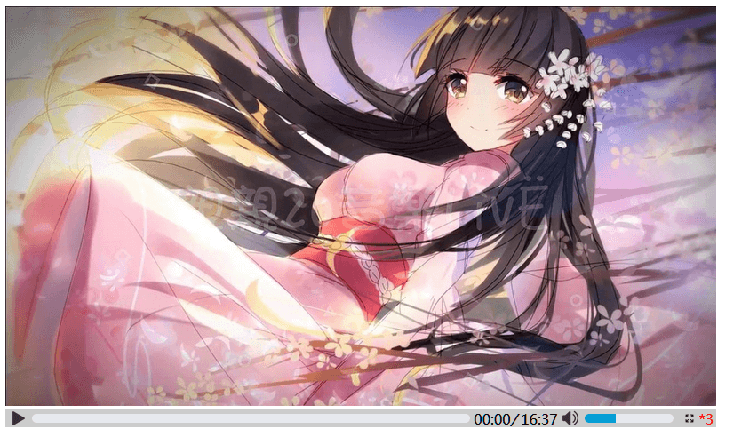
效果:
H5自定义video功能与样式处理的更多相关文章
- 富文本编辑器UEditor自定义工具栏(三、自定义工具栏功能按钮图标及工具栏样式简单修改)
导读 富文本编辑器UEditor提供丰富了定制配置项,如果想设置个性化的工具栏按钮图标有无办法呢?答案是肯定的!前两篇博文简要介绍了通过将原工具栏隐藏,在自定义的外部按钮上,调用UEditor各命令实 ...
- jquery和css自定义video播放控件
下面介绍一下通过jquery和css自定义video播放控件. Html5 Video是现在html5最流行的功能之一,得到了大多数最新版本的浏览器支持.包括IE9,也是如此.不同的浏览器提供了不同的 ...
- 自定义浏览器滚动条的样式,打造属于你的滚动条风格——兼容IE和webkit(ff不支持)
前段时间,到网上找素材时,看到了一个很个性的滚动条式,打开Chrome的调试工具看了一下,发现不是用JavaScript来模拟实现的,觉得 有必要折腾一下.于是在各大浏览器中对比了一下,发现只用Chr ...
- jQ效果:jQuery和css自定义video播放控件
下面介绍一下通过jquery和css自定义video播放控件. Html5 Video是现在html5最流行的功能之一,得到了大多数最新版本的浏览器支持.包括IE9,也是如此.不同的浏览器提供了不同的 ...
- WPF编程,使用WindowChrome实现自定义窗口功能的一种方法。
原文:WPF编程,使用WindowChrome实现自定义窗口功能的一种方法. 版权声明:我不生产代码,我只是代码的搬运工. https://blog.csdn.net/qq_43307934/arti ...
- c#微信开发,使用JS-SDK自定义分享功能,分享朋友圈,分享给朋友等
如果一个后端开发掌握了微信开发,甚至有微信开发上线项目,这在换工作的时候 还是有竞争力的. 微信开发的资料很多,但是用asp.net c#进行微信开发好像比较少,或者资料不够完整. 使用JS-SDK自 ...
- h5 的video视频控件
h5 的video视频控件 由于html5的流行,其中的video视频的使用很流行,使得可恨的IE9也能与时俱进了. video所支持的格式有mp4.ogg和wav三种. 例: HTML5 Video ...
- arcgis api for js共享干货系列之二自定义Navigation控件样式风格
arcgis api for js默认的Navigation控件样式风格如下图: 这样的风格不能说不好,各有各的爱好,审美观,这里也不是重点,这里的重点是如何自定义一套自己喜欢的样式风格呢:自己自定义 ...
- jquery美化select,自定义下拉框样式
select默认的样式比较丑,有些应用需要美化select,在网上找到一个很好的美化样式效果,本人很喜欢,在这里分享一下. <!DOCTYPE html PUBLIC "-//W3C/ ...
随机推荐
- centos 7 源码安装 mysql 5.6
下载 mysql 安装包 $ wget https://cdn.mysql.com//Downloads/MySQL-5.6/mysql-5.6.44.tar.gz # or $ curl -O ht ...
- Python 入门 之 类的约束以及super()剖析
Python 入门 之 类的约束以及super()剖析 1.类的约束 第一版: class WechatPay: def pay(self): print("微信支付") clas ...
- Hive 教程(八)-hiveserver2
hive 的另外一种启动方式是 hiveserver2,它是提供了一种服务,使得我们可以远程操作 hive,就像操作 mysql 一样 hiveserver1 既然有 hiveserver2,肯定有 ...
- Tomcat Connector(BIO, NIO, APR)三种运行模式(转)
Tomcat支持三种接收请求的处理方式:BIO.NIO.APR . BIO 阻塞式I/O操作即使用的是传统 I/O操作,Tomcat7以下版本默认情况下是以BIO模式运行的,由于每个请求都要创建一个线 ...
- @babel/traverse 使用方法小记
@babel/traverse 官网: https://babeljs.io/docs/en/babel-traverse github:https://github.com/babel/babel/ ...
- vue-router实现原理
vue-router实现原理 近期面试,遇到关于vue-router实现原理的问题,在查阅了相关资料后,根据自己理解,来记录下.我们知道vue-router是vue的核心插件,而当前vue项目一般都是 ...
- mysql prompt的用法详解
prompt命令可以在mysql提示符中显示当前用户.数据库.时间等信息 代码如下: mysql -uroot -p --prompt="\\u@\\h:\\d \\r:\\m:\\s> ...
- centso 7 Keepalived 配置脚本
#!/bin/bash #This is keepalived bashshell. #MASTER/BACKUP yum install -y openssl openssl-devel keepa ...
- linux 用户及文件权限管理
Linux 是一个可以实现多用户登陆的操作系统,比如“李雷”和“韩梅梅”都可以同时登陆同一台主机,他们共享一些主机的资源,但他们也分别有自己的用户空间,用于存放各自的文件.但实际上他们的文件都是放在同 ...
- 模拟赛小结:The 2019 China Collegiate Programming Contest Harbin Site
比赛链接:传送门 上半场5题,下半场疯狂挂机,然后又是差一题金,万年银首也太难受了. (每次银首都会想起前队友的灵魂拷问:你们队练习的时候进金区的次数多不多啊?) Problem J. Justify ...