
PyQt5多个GUI界面设计
版权声明:本文为博主原创文章,转载 请注明出处:https://blog.csdn.net/sc2079/article/details/90454379
- 写在前面
本科毕业设计终于告一段落了。特写博客记录做毕业设计(路面裂纹识别)期间的踩过的坑和收获。希望对你有用。
目前有:
1.Tensorflow&CNN:裂纹分类
2.Tensorflow&CNN:验证集预测与模型评价
3.PyQt5多个GUI界面设计
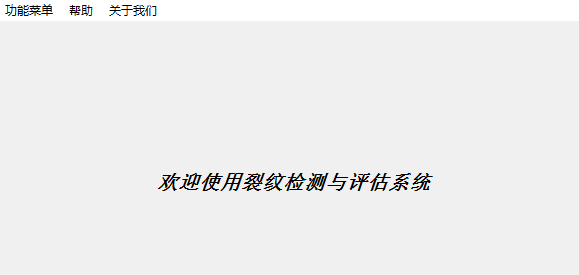
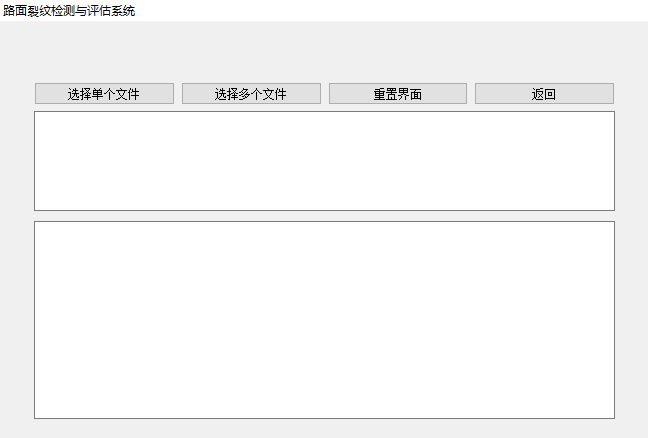
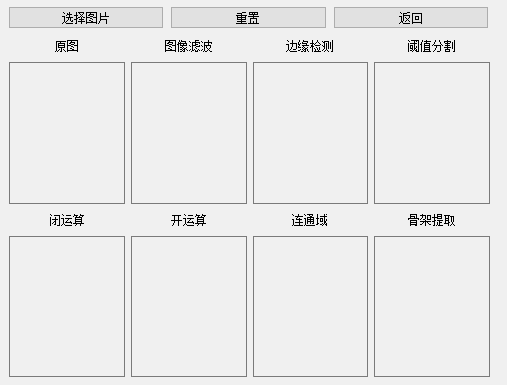
本篇讲GUI界面的设计。设计目标:实现用户对路面裂纹快速检测与识别,有三个界面:主界面、裂纹快速识别界面、图像处理测试界面。
- 环境配置安装
运行环境:Python3.6、Spyder、Qt Designer
依赖的模块:PyQt5、mysql等
值得注意的是:我安装PyQt5模块时,按照网上方法,如下:
pip install PyQt5

pip install PyQt5-tools
却发现找到Qt Designer的应用程序,(其实是有的,在C盘的某个角落,可以用everything小工具可以找到)。
于是乎,我就直接使用了PyQt5运行环境合集,内含Qt Designer(主要用来设计界面以及UI文件转换成PY)。
下载地址如下:
- 开始工作
1. 界面设计
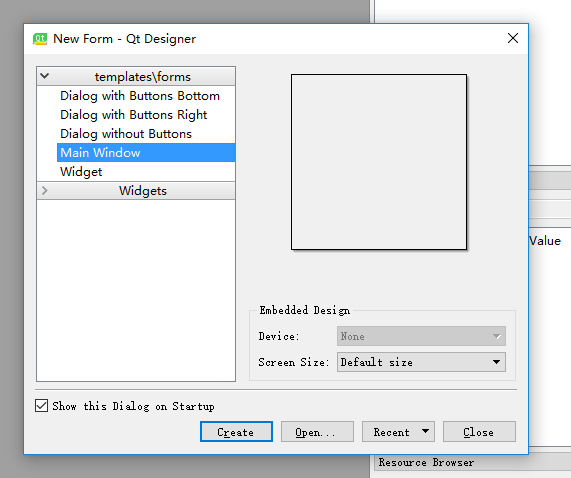
打开Qt Designer:
可以参照网上或书籍上关于Qt Designer的资料,简单设计三个界面,如下:
Qt Designer设计的文件后缀为.ui,需要将其转换为.py文件。打开刚才下载的PyQt5合集中的WinPython Command Prompt,输入:
pyuic5 -o D:\WinPyQt5.9-32bit-3.5.3.1\test\XX.py D:\WinPyQt5.9-32bit-3.5.3.1\test\XX.ui
即可得到界面的Python文件。
2. 界面功能实现
2.1 主界面
主界面功能比较简单,主要是用户对功能的选择以及对该系统的了解。
from PyQt5.QtWidgets import QMainWindow,QMessageBox,QApplication

from main_gui import Ui_MainWindow

import sys

import time

from PyQt5.QtGui import QPixmap

class MainWindow(QMainWindow):

    def __init__(self,parent = None):

        super(MainWindow,self).__init__(parent=parent)#调用父类的init

        global ui

        ui = Ui_MainWindow()

        ui.setupUi(self)

    def about_us(self):

        msgBox = QMessageBox(QMessageBox.NoIcon, '关于','XX的本科毕业设计')

        msgBox.setIconPixmap(QPixmap(".//icon//me3.jpg"))

        msgBox.exec()

    def function_exp(self):

        msgBox = QMessageBox(QMessageBox.NoIcon, '功能说明','')

        msgBox.exec()

    def operate_exp(self):

        msgBox = QMessageBox(QMessageBox.NoIcon, '操作说明','')

        msgBox.exec()

    def jump_to_1(self):

        pass

    def jump_to_2(self):

        pass

    def closeEvent(self, event):

        reply = QMessageBox.question(self, '提醒',

            "确定退出?", QMessageBox.Yes |

            QMessageBox.No, QMessageBox.No)

        if reply == QMessageBox.Yes:

            event.accept()

        else:

            event.ignore()

if __name__ == '__main__':

    app = 0

    app = QApplication(sys.argv)

    myMainWindow = MainWindow()#自定义的类例化

    myMainWindow.show()

    time.sleep(10)

    sys.exit(app.exec_())
而对于转换的主界面的py代码(注意:本文将转换成的.py文件命名为xx_gui.py,而其对应的.py文件命名为xx_win.py),找到如下语句:
        self.retranslateUi(MainWindow)

        QtCore.QMetaObject.connectSlotsByName(MainWindow)
修改为:
        self.retranslateUi(MainWindow)

        self.crack_info.triggered.connect(MainWindow.jump_to_1)

        self.img_processing.triggered.connect(MainWindow.jump_to_2)

        self.function_exp.triggered.connect(MainWindow.function_exp)

        self.operate_exp.triggered.connect(MainWindow.operate_exp)

        self.about_us.triggered.connect(MainWindow.about_us)

        QtCore.QMetaObject.connectSlotsByName(MainWindow)
这样,主界面功能就实现了。
2.2 裂纹快速识别界面
现已经利用CNN以及图像处理技术实现了对裂纹的识别与检测。这里主要是怎么将结果显示在界面上。这里参照了博客使用PyQt5创建带文件对话框和文本对话框的ui窗口程序。
from PyQt5.QtWidgets import (QMainWindow,QApplication,QFileDialog)

from PyQt5 import QtCore

from crack_detect_gui import Ui_MainWindow2

from prediction import prediction

import sys

import threading

import time

from img_processing import img_processing

import numpy as np

from mysql_save import save_mysql

class MainWindow2(QMainWindow):

    _signal=QtCore.pyqtSignal(str)#自定义信号

    def __init__(self,parent = None):

        super(MainWindow2,self).__init__(parent=parent)#调用父类的init

        self.img_opened = False

        self.imgs_opened = False

        global ui

        ui = Ui_MainWindow2()

        ui.setupUi(self)

        self.mainWindow2=ui.MainWindow2

        ui.output_info.clear()

        ui.file_name.clear()

        self._signal.connect(self.print_info)

    def back(self):

        pass

    def reset(self,parent = None):

        pass

    def open_file(self):

        self.img_name = QFileDialog.getOpenFileName(self,"打开","","图片(*.jpg;*.png)")

        ui.file_name.setPlainText(self.img_name[0])

        self.img_opened = True

    def open_files(self):

        self.imgs_name = QFileDialog.getOpenFileNames(self,"打开","","多个图片(*.jpg;*.png)")

        imgs_name=''

        for img_name in self.imgs_name[0]:

            imgs_name=imgs_name+img_name+'\n'

        ui.file_name.setPlainText(imgs_name)

        self.imgs_opened = True

    def print_info(self,pri_str):

        ui.output_info.appendPlainText(pri_str)

        ui.output_info.show()

def output_info_thread(myMainWindow):

    t1=time.time()

    Opened = False

    while(True):

        if myMainWindow.img_opened==True:

            imgs_path = myMainWindow.img_name[0].replace("/","//")

            break

        elif myMainWindow.imgs_opened==True:

            imgs_path=[]

            for path in myMainWindow.imgs_name[0]:

                imgs_path.append(path.replace("/","//"))

            break

    Opened = True

    myMainWindow._signal.emit("当前线程:%s" %threading.current_thread().name)

    timeArray = time.localtime(t1)

    now=time.strftime("%Y_%m_%d", timeArray)

    try:

        if(Opened):

            s1 = "正在进行裂纹识别评估"

            myMainWindow._signal.emit(s1)

            kinds=prediction(imgs_path)

            s2='裂纹图片   裂纹类型   裂纹长度    裂纹面积    裂纹最大宽度    裂纹最小宽度   裂纹平均宽度'

            myMainWindow._signal.emit(s2)

            data= np.empty(shape=[0, 8])

            for i in range(len(kinds)):

                if len(kinds)==1:

                    name=imgs_path[::-1].split('//', 1)[0][::-1]

                else:

                    name=imgs_path[i][::-1].split('//', 1)[0][::-1]

                if kinds[i]=='无裂纹':

                    crack_info=[imgs_path[i],kinds[i],'','','','']

                elif len(kinds)==1:

                    crack_info=img_processing(imgs_path,kinds[i])

                else:

                    crack_info=img_processing(imgs_path[i],kinds[i])

                s=name+'   '+crack_info[0]+' '*5+crack_info[1]+' '*7+crack_info[2]+\

                ' '*11+crack_info[3]+' '*12+crack_info[4]+' '*12+crack_info[5]

                myMainWindow._signal.emit(s)

                new_crack_info=[name,crack_info[0],crack_info[1],crack_info[2],

                                crack_info[3],crack_info[4],crack_info[5],now]

                data=np.append(data, [new_crack_info], axis = 0)

            t2=time.time()

            database='crack_info'

            try:

                save_mysql(database,data)

                myMainWindow._signal.emit('数据已存入'+database+'数据库中')

            except:

                myMainWindow._signal.emit('数据存储失败,请检查数据库是否打开!')

            time_comsume=round(t2-t1,2)

            myMainWindow._signal.emit('共耗时: '+str(time_comsume)+' s')

            myMainWindow._signal.emit("****************处理完毕****************")

    except BaseException as e1:

        print(e1)

    except EnvironmentError as e2:

        print(e2)

    except (OSError,WindowsError,

            MemoryError,NameError,

            UnboundLocalError,ReferenceError,

            RuntimeError,NotImplementedError,

            UnicodeDecodeError,UnicodeEncodeError,

            UnicodeError,UnicodeTranslateError,

            RuntimeWarning,UserWarning) as e3:

        print(e3)

if __name__ == '__main__':

    app = 0

    if not QApplication.instance():

        app = QApplication(sys.argv)

    else:

        app = QApplication.instance()

    myMainWindow = MainWindow2()#自定义的类例化

    myMainWindow.show()

    t1 = threading.Thread(target = output_info_thread, args = (myMainWindow,))

    t1.start()

    time.sleep(10)

    sys.exit(app.exec_())
同理,将该界面的XX_gui.py修改为:
        self.retranslateUi(MainWindow2)

        self.pushButton.clicked.connect(MainWindow2.open_file)

        self.pushButton_2.clicked.connect(MainWindow2.open_files)

        self.pushButton_3.clicked.connect(MainWindow2.reset)

        self.pushButton_4.clicked.connect(MainWindow2.back)

        QtCore.QMetaObject.connectSlotsByName(MainWindow2)

        self.MainWindow2=MainWindow2

        mainWindow2=self.MainWindow2
2.3 图像处理测试界面
import sys

from PyQt5 import QtGui

from PyQt5 import QtWidgets

from PyQt5.QtWidgets import QFileDialog,QWidget

#from img_pro_gui_code import Ui_Dialog

from img_pro_gui import Ui_Dialog

from img_processing_plot import img_processing

#from main_win import MainWindow

class Picture(QWidget):

    def __init__(self):

        super(Picture,self).__init__()#调用父类的init

        global ui

        ui = Ui_Dialog()

        ui.setupUi(self)

        self.imgs_data=ui.imgs_data

        self.dialog=ui.dialog

    def reset(self):

        pass

    def back(self):

        pass

    def open_file(self):

        imgName, imgType = QFileDialog.getOpenFileName(self, "打开图片", "", "*.jpg;;*.png;;All Files(*)")

        self.path=imgName

        img_path=self.path.replace("/","//")

        imgs=img_processing(img_path)

        for i in range(len(imgs)):

            jpg = QtGui.QPixmap(imgs[i]).scaled(self.imgs_data[i].width(),

                                self.imgs_data[i].height())

            self.imgs_data[i].setPixmap(jpg)

if __name__ == "__main__":

    app=0

    app = QtWidgets.QApplication(sys.argv)

    my = Picture()

    my.show()

    sys.exit(app.exec_())
值得一提的是,这里的多图片显示功能,我是先将图像处理测试程序中产生的图片保存到本地再使用QPixmap方法导入并显示。
同理,该界面所对应的XX_gui.py文件中改写为:
        self.retranslateUi(Dialog)

        self.choose.clicked.connect(Dialog.open_file)

        self.clear.clicked.connect(Dialog.reset)

        self.back.clicked.connect(Dialog.back)

        QtCore.QMetaObject.connectSlotsByName(Dialog)

        self.imgs_data=[self.img_source,self.img_blur,self.img_canny,self.img_cut,

               self.img_close,self.img_open,self.img_domain,self.img_skeleton]

        imgs_data=self.imgs_data

        self.dialog=Dialog

        dialog=self.dialog
3. 界面跳转与重置
3.1主界面与裂纹快速识别界面
主界面跳转界面1修改为:
    def jump_to_1(self):

        #myMainWindow.hide()   #如果没有这一句,关闭子界面后就会关闭程序

        self.ui_1=MainWindow2()

        self.ui_1.show()

        crack_detect(self.ui_1)
裂纹快速识别界面上返回功能是直接关闭当前界面,重置功能是将界面数据清零并再次启动多线程。
    def back(self):

        self.mainWindow2.close()

    def reset(self,parent = None):

        self.img_opened = False

        self.imgs_opened = False

        ui.output_info.clear()

        ui.file_name.clear()

        t1 = threading.Thread(target = output_info_thread, args = (myMainWindow,))

        t1.start()
3.2主界面与图像处理测试界面
主界面跳转界面2修改为:
    def jump_to_2(self):

        #myMainWindow.hide()   #如果没有这一句,关闭子界面后就会关闭程序

        self.ui_2=Picture()

        self.ui_2.show()
图像处理测试界面上返回功能的实现同上,重置功能是将界面数据清零。
    def reset(self):

        for label in self.imgs_data:

            label.clear()

    def back(self):

        self.dialog.close()
- 结果展示
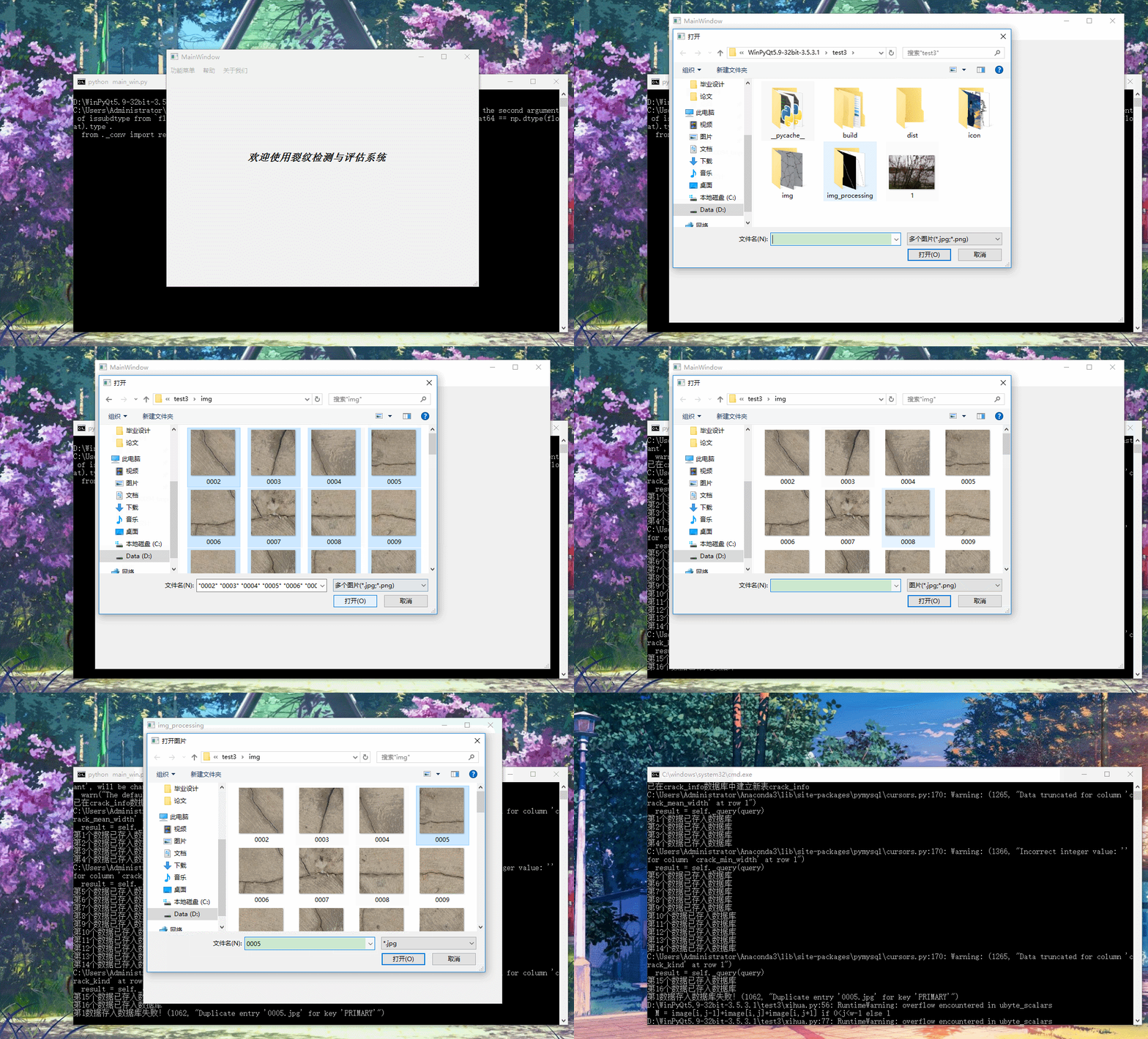
在命令行运行主界面程序,结果如下(以Gif展示):
- 写在最后
由于时间有限且初次设计GUI界面(经验不足),界面比较丑,请见谅。若有问题,欢迎留言。
PyQt5多个GUI界面设计的更多相关文章
- MATLAB(3)——GUI界面设计入门
作者:桂. 时间:2017-03-01 18:43:35 链接:http://www.cnblogs.com/xingshansi/articles/6485688.html 声明:转载请注明出处, ...
- matlab gui界面设计记录
我们要进行的程序是彩色图像处理试验示例,用这个程序来练习我们的gui前台设计. 程序功能介绍:具有彩色图像处理及保存和音乐播放功能效果如下图 2 在MATLAB的命令窗口中输入guide命令,打开gu ...
- 【PyQt5-Qt Designer】PyQt5+pyecharts 实现GUI界面的数据可视化展示
先用纯Python代码写一个简单的小案例: from PyQt5.QtCore import QUrl from PyQt5.QtWidgets import QApplication,QWidget ...
- python3下GUI界面设计之控件精确定位
#codeing:utf-8import tkinterimport tkinter.messageboxfrom tkinter import filedialogfrom tkinter impo ...
- MATLAB GUI界面设计------“轴”组件配置
1> Fontsize 10 %字体大小 2> FontUnits normalized %采用相对度量单位,缩放时保持 ...
- GUI界面资源
30个真棒的(免费iPhone,iPad IOS)的GUI 界面设计元素模板 做iphone开发的福音 创造力是指任何一种演示设计i的能力.无论是一个标志,旗帜,广告或一个完整的设计,能够注入的创 ...
- 用Python语言设计GUI界面
我们大家都编写过程序,但是如果能够设计一个GUI界面,会使程序增添一个很大的亮点!今天就让我们来用目前十分流行的python语言写出一个最基本的GUI,为日后设计更加漂亮的GUI打下基础. 工具/原料 ...
- Java 图形化界面设计(GUI)实战练习(代码)
关于Java图形化界面设计,基础知识网上可搜,下面简单介绍一下重点概念,然后就由浅入深代码实例. 程序是为了方便用户使用的,Java引入图形化界面编程. 1.JFrame 是容器类 2.AWT 是抽象 ...
- OpenCV-Python入门教程7-PyQt编写GUI界面
前面一直都是使用命令行运行代码,不够人性化.这篇用Python编写一个GUI界面,使用PyQt5编写图像处理程序.包括:打开.关闭摄像头,捕获图片,读取本地图片,灰度化和Otsu自动阈值分割的功能. ...
随机推荐
- RobotFramework:发现一个大坑,当post接口入参为json时,千万不能用sojson转化后的json串(ride解析会有异常,非sojson工具问题),直接用浏览器粘过来的就行
问题背景: 和以往一样愉快的进行着自动化测试,突然就不停的提示我,“程序异常”,查看log发现data中的json变为了数组?????? 那算了,我不先组装入参数据直接data=json入参吧,wha ...
- Win 10环境下6sV2.1模型编译心得
最新版本6sV2.1模型是通过FORTRAN95编写的,2017年11月代码编写完成,2018年11月发布在模型官网上.通常我们在使用过程中都是调用模型的.exe可执行文件,而下载下来的是FORTRA ...
- vue报错:Component template should contain exactly one root element. If you are using v-if on multiple elements, use v-else-if to chain them instead.
在.vue文件中引入了 element-ui 的 table 和 pagination 组件后,报错:Component template should contain exactly one roo ...
- MySQL主从复制与读写分离实践
MySQL主从复制(Master-Slave)与读写分离(MySQL-Proxy)实践 目录: 介绍 MySQL的安装与配置 MySQL主从复制 MySQL读写分离 编译安装lua 安装配置MySQ ...
- Unicode 编码 范围
目录 所有字符 文字部分 ( U+0000 – U+007F) 基本拉丁字符 ( U+0080 – U+00FF) 增补拉丁字符集 1 ( U+0100 – U+017F) 拉丁字符扩展集 A ( U ...
- 基于Task的多线程
/// <summary> /// 基于Task的多线程 /// </summary> public class Tasks { public static void Task ...
- 涛哥:Qt安卓-5.12环境搭建
简介 Qt for android 环境搭建,以Windows平台 Qt5.12为基准. 因为有不少人问相关问题,所以写篇文章汇总一下. 安装Qt 需要先安装Android版的Qt. 一般在Qt的安装 ...
- Linux通用小技能
Linux通用小技能 前言 无论你用ubuntu还是centos,通通没问题,运维这东西,踩坑写文档就是了. 小技能 新磁盘挂载 不管是阿里云还是腾讯云,还是自己的机器,请记住这条命令. mkfs.e ...
- (十)easyUI之折叠面板+选项卡+树完成系统布局
一.效果 二 .编码 数据库设计 数据库函数设计,该函数根据父节点id 查询出所有字节点(包括孙子节点) BEGIN #声明两个临时变量 ); ); '; SET tempChd=CAST(rootI ...
- C#一些面试知识题
1.简述 private. protected. public.internal 修饰符的访问权限答:private:私有成员, 在类的内部才可以访问(只能从其声明上下文中进行访问). protect ...