
python写入excel(xlswriter)--生成图表
一、折线图:
# -*- coding:utf-8 -*-

import xlsxwriter

# 创建一个excel

workbook = xlsxwriter.Workbook("chart_line.xlsx")

# 创建一个sheet

worksheet = workbook.add_worksheet()

# worksheet = workbook.add_worksheet("bug_analysis")

# 自定义样式,加粗

bold = workbook.add_format({'bold': 1})

# --------1、准备数据并写入excel---------------

# 向excel中写入数据,建立图标时要用到

headings = ['Number', 'testA', 'testB']

data = [

    ['2017-9-1', '2017-9-2', '2017-9-3', '2017-9-4', '2017-9-5', '2017-9-6'],

    [10, 40, 50, 20, 10, 50],

    [30, 60, 70, 50, 40, 30],

]

# 写入表头

worksheet.write_row('A1', headings, bold)

# 写入数据

worksheet.write_column('A2', data[0])

worksheet.write_column('B2', data[1])

worksheet.write_column('C2', data[2])

# --------2、生成图表并插入到excel---------------

# 创建一个柱状图(line chart)

chart_col = workbook.add_chart({'type': 'line'})

# 配置第一个系列数据

chart_col.add_series({

    # 这里的sheet1是默认的值,因为我们在新建sheet时没有指定sheet名

    # 如果我们新建sheet时设置了sheet名,这里就要设置成相应的值

    'name': '=Sheet1!$B$1',

    'categories': '=Sheet1!$A$2:$A$7',

    'values':   '=Sheet1!$B$2:$B$7',

    'line': {'color': 'red'},

})

# 配置第二个系列数据

chart_col.add_series({

    'name': '=Sheet1!$C$1',

    'categories':  '=Sheet1!$A$2:$A$7',

    'values':   '=Sheet1!$C$2:$C$7',

    'line': {'color': 'yellow'},

})

# 配置第二个系列数据(用了另一种语法)

# chart_col.add_series({

#     'name': ['Sheet1', 0, 2],

#     'categories': ['Sheet1', 1, 0, 6, 0],

#     'values': ['Sheet1', 1, 2, 6, 2],

#     'line': {'color': 'yellow'},

# })

# 设置图表的title 和 x,y轴信息

chart_col.set_title({'name': 'The xxx site Bug Analysis'})

chart_col.set_x_axis({'name': 'Test number'})

chart_col.set_y_axis({'name':  'Sample length (mm)'})

# 设置图表的风格

chart_col.set_style(1)

# 把图表插入到worksheet并设置偏移

worksheet.insert_chart('A10', chart_col, {'x_offset': 25, 'y_offset': 10})

workbook.close()
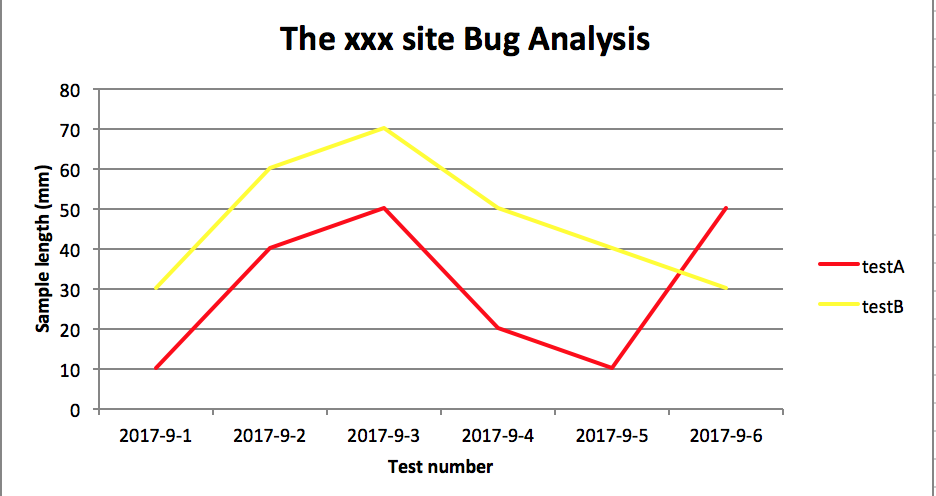
效果图:
二、柱状图:
# -*- coding:utf-8 -*-

import xlsxwriter

# 创建一个excel

workbook = xlsxwriter.Workbook("chart_column.xlsx")

# 创建一个sheet

worksheet = workbook.add_worksheet()

# worksheet = workbook.add_worksheet("bug_analysis")

# 自定义样式,加粗

bold = workbook.add_format({'bold': 1})

# --------1、准备数据并写入excel---------------

# 向excel中写入数据,建立图标时要用到

headings = ['Number', 'testA', 'testB']

data = [

    ['2017-9-1', '2017-9-2', '2017-9-3', '2017-9-4', '2017-9-5', '2017-9-6'],

    [10, 40, 50, 20, 10, 50],

    [30, 60, 70, 50, 40, 30],

]

# 写入表头

worksheet.write_row('A1', headings, bold)

# 写入数据

worksheet.write_column('A2', data[0])

worksheet.write_column('B2', data[1])

worksheet.write_column('C2', data[2])

# --------2、生成图表并插入到excel---------------

# 创建一个柱状图(column chart)

chart_col = workbook.add_chart({'type': 'column'})

# 配置第一个系列数据

chart_col.add_series({

    # 这里的sheet1是默认的值,因为我们在新建sheet时没有指定sheet名

    # 如果我们新建sheet时设置了sheet名,这里就要设置成相应的值

    'name': '=Sheet1!$B$1',

    'categories': '=Sheet1!$A$2:$A$7',

    'values':   '=Sheet1!$B$2:$B$7',

    'line': {'color': 'red'},

})

# 配置第二个系列数据(用了另一种语法)

chart_col.add_series({

    'name': '=Sheet1!$C$1',

    'categories':  '=Sheet1!$A$2:$A$7',

    'values':   '=Sheet1!$C$2:$C$7',

    'line': {'color': 'yellow'},

})

# 配置第二个系列数据(用了另一种语法)

# chart_col.add_series({

#     'name': ['Sheet1', 0, 2],

#     'categories': ['Sheet1', 1, 0, 6, 0],

#     'values': ['Sheet1', 1, 2, 6, 2],

#     'line': {'color': 'yellow'},

# })

# 设置图表的title 和 x,y轴信息

chart_col.set_title({'name': 'The xxx site Bug Analysis'})

chart_col.set_x_axis({'name': 'Test number'})

chart_col.set_y_axis({'name':  'Sample length (mm)'})

# 设置图表的风格

chart_col.set_style(1)

# 把图表插入到worksheet以及偏移

worksheet.insert_chart('A10', chart_col, {'x_offset': 25, 'y_offset': 10})

workbook.close()
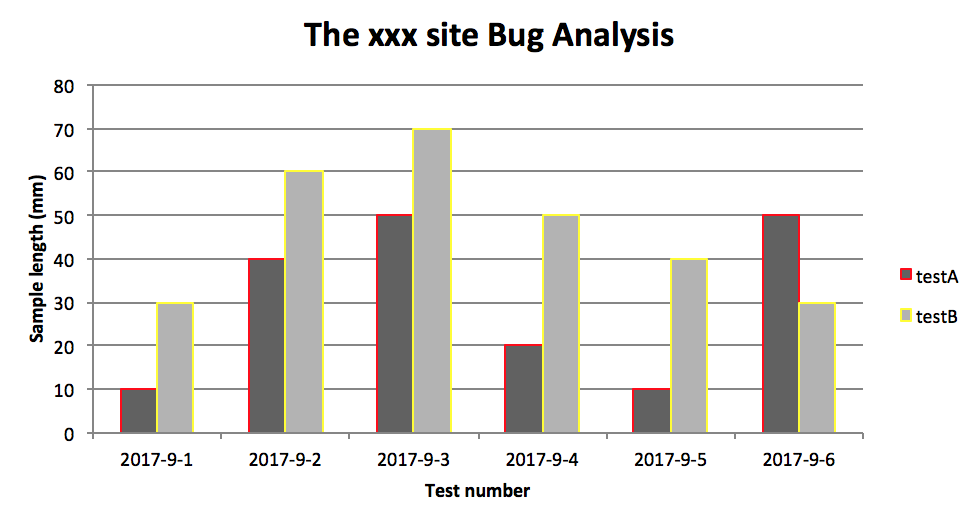
效果图:
PS:
其实前面两个图只变动一点:把 line 个性为 column
chart_col = workbook.add_chart({'type': 'column'})
三、饼图:
# -*- coding:utf-8 -*-

import xlsxwriter

# 创建一个excel

workbook = xlsxwriter.Workbook("chart_pie.xlsx")

# 创建一个sheet

worksheet = workbook.add_worksheet()

# 自定义样式,加粗

bold = workbook.add_format({'bold': 1})

# --------1、准备数据并写入excel---------------

# 向excel中写入数据,建立图标时要用到

data = [

    ['closed', 'active', 'reopen', 'NT'],

    [1012, 109, 123, 131],

]

# 写入数据

worksheet.write_row('A1', data[0], bold)

worksheet.write_row('A2', data[1])

# --------2、生成图表并插入到excel---------------

# 创建一个柱状图(pie chart)

chart_col = workbook.add_chart({'type': 'pie'})

# 配置第一个系列数据

chart_col.add_series({

    'name': 'Bug Analysis',

    'categories': '=Sheet1!$A$1:$D$1',

    'values': '=Sheet1!$A$2:$D$2',

    'points': [

        {'fill': {'color': '#00CD00'}},

        {'fill': {'color': 'red'}},

        {'fill': {'color': 'yellow'}},

        {'fill': {'color': 'gray'}},

    ],

})

# 设置图表的title 和 x,y轴信息

chart_col.set_title({'name': 'Bug Analysis'})

# 设置图表的风格

chart_col.set_style(10)

# 把图表插入到worksheet以及偏移

worksheet.insert_chart('B10', chart_col, {'x_offset': 25, 'y_offset': 10})

workbook.close()
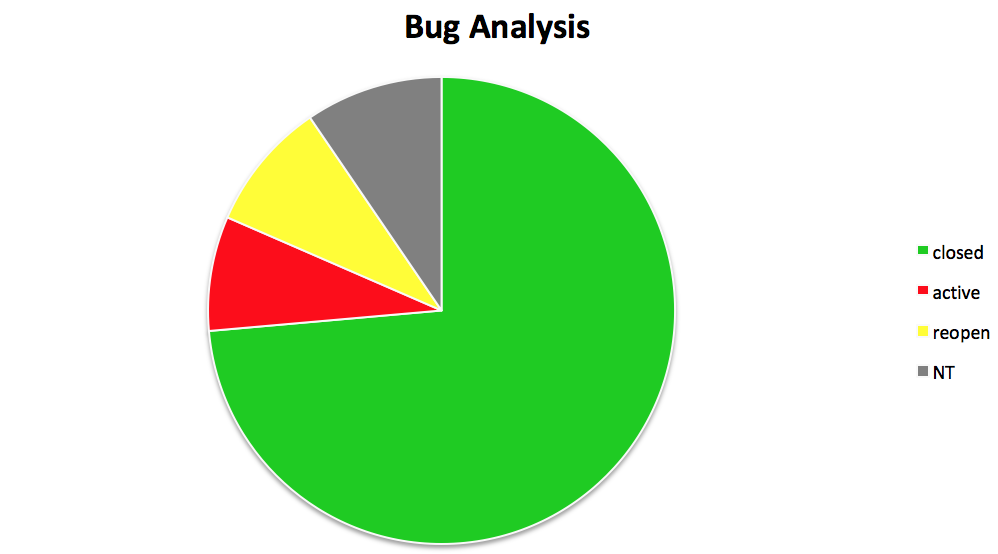
效果图:
参考资料:
http://xlsxwriter.readthedocs.io/chart_examples.html
http://xlsxwriter.readthedocs.io/chart.html
python写入excel(xlswriter)--生成图表的更多相关文章
- python 写入Excel
一.安装xlrd模块: 1.mac下打开终端输入命令: pip install XlsxWriter 2.验证安装是否成功: 在mac终端输入 python 进入python环境 然后输入 imp ...
- 【python】使用plotly生成图表数据
安装 在 ubuntu 环境下,安装 plotly 很简单 python 版本2.7+ pip install plotly 绘图 在 plotly 网站注册后,可以直接将生成的图片保存到网站上,便于 ...
- python写入Excel
一.dataframe存入Excel中: 注意:openpyxl打开的文件需是xlsx的后缀,因为比较新的. from openpyxl import load_workbook import pan ...
- python读取excel表格生成sql语句 第一版
由于单位设计数据库表·,都用sql.不知道什么原因不用 powerdesign或者ermaster工具,建表很痛苦 作为程序猿当然要想办法解决,用Python写一个程序解决 需要用到 xlrd li ...
- python 写入excel数据而不改变excel原有样式
目标:python写数据到excel,不改变原有样式 解决:在打开excel时,加入该参数formatting_info=True
- python写入excel(方式1)
import xlsxwriter li=["张三","李四","王五","周六","王琪",&qu ...
- python写入excel(方式二待完善)
import xlsxwriter #创建一个工作簿并添加一张工作表,当然工作表是可以命名的# workbook = xlsxwriter.Workbook('Expenses01.xlsx')# w ...
- Python 写入excel时的字体格式设置
转自:https://blog.csdn.net/kuangzhi9124/article/details/81940919 下面代码设置了单元格的字体.位置居中.框线,可以将格式调成自己需要的 im ...
- Python操作excel,及图表展示
学习:http://www.cnblogs.com/Lands-ljk/p/5444619.html
随机推荐
- js面向对象实例
JSON方式来编写对象简单 不适合多个对象 var json={a:12, show:function (){ alert(this); }};json.show(); //理所当然弹出的是objec ...
- TF:Tensorflow定义变量+常量,实现输出计数功能—Jason niu
#TF:Tensorflow定义变量+常量,实现输出计数功能 import tensorflow as tf state = tf.Variable(0, name='Parameter_name_c ...
- Hessian的使用以及理解
官网 http://hessian.caucho.com/ Hessian的使用以及理解Hessian版本:3.1.5将包括如下的内容: Hessian的基本使用Hessian的原理Hessian和S ...
- antd + node.js + mongoose小总结
最近开发太忙,都没时间更新博客,想通过这篇博客总结一下相关经验,以备后续能用到: 一.antd 1.onChange of undefined问题:可能是页面中表单取了相同的名称,也可能是在遍历时表单 ...
- 使用shiro安全管理
之前介绍了springboot使用security进行权限管理,这篇文件介绍一下springboot使用shiro进行安全管理. 简述本文的场景,本文使用springboot1.5.9+mysql+j ...
- Spark 常见问题集合
一.Spark 为什么比 MapReduce 要高效? 举一个例子: select a.state,count(*),AVERAGE(c.price) from a join b on (a.id=b ...
- H5图片压缩上传
1.所用到技术 HTML5 API:filereader.canvas 以及 formdata 目前来说,HTML5的各种新API都在移动端的webkit上得到了较好的实现.本次使用到的FileRea ...
- SPOJ.TLE - Time Limit Exceeded(DP 高维前缀和)
题目链接 \(Description\) 给定长为\(n\)的数组\(c_i\)和\(m\),求长为\(n\)的序列\(a_i\)个数,满足:\(c_i\not\mid a_i,\quad a_i\& ...
- 树形动态规划(树形DP)入门问题—初探 & 训练
树形DP入门 poj 2342 Anniversary party 先来个题入门一下~ 题意: 某公司要举办一次晚会,但是为了使得晚会的气氛更加活跃,每个参加晚会的人都不希望在晚会中见到他的直接上 ...
- Conscription [POJ3723] [最小生成树]
Description: Windy有一个国家,他想建立一个军队来保护他的国家. 他召集了N个女孩和M男孩,想把他们雇佣成为他的士兵. 要无偿雇佣士兵,必须支付10000元. 女孩和男孩之间有一些关系 ...