
WPF系列
一、ListView绑定数据源XML
 //前端代码
 1 <Window x:Class="ListView读取XML数据.MainWindow" xmlns="http://schemas.microsoft.com/winfx/2006/xaml/presentation"

 xmlns:x="http://schemas.microsoft.com/winfx/2006/xaml" Title="MainWindow"

 Height="350" Width="525">

     <Window.Resources>

         <XmlDataProvider x:Key="Student" Source="Book.xml">

         </XmlDataProvider>

     </Window.Resources>

     <Grid>

         <ListView ItemsSource="{Binding Source={StaticResource Student},XPath=/Person/Information}">

         </ListView>

     </Grid>

 </Window>
 //XML文件
 1 <?xml version="1.0" encoding="utf-8" ?>

 <Person>

     <Information>

       <Name>张三</Name>

       <Age>22</Age>

       <Sex>男</Sex>

     </Information>

     <Information>

       <Name>李四</Name>

       <Age>25</Age>

       <Sex>男</Sex>

     </Information>

 </Person>
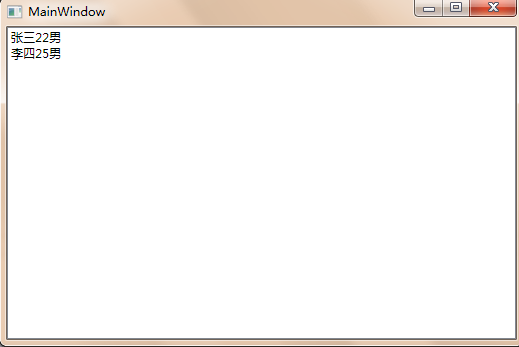
//效果截图
二、保存数据到XML
             XmlDocument xml = new XmlDocument();

             string str_path = @"J:\WPF\test\XMLData.xml";

             XmlNode root = null;

             if (File.Exists(str_path))

             {

                 xml.Load(str_path);

                 root = xml.SelectSingleNode("Person");

             }

             XmlNodeList nodelist = xml.SelectNodes("/Person/Student/Infor");

             XmlElement inf,adr, stu, info, UN, IP, DB;

             bool bl_exist = true;

             foreach (XmlNode node in nodelist)

             {

                 if (node.ChildNodes[].InnerText == (ServerName.Text + ".").ToString() &&

                     node.ChildNodes[].InnerText == (UserName.Text + ".").ToString() &&

                     node.ChildNodes[].InnerText ==DataName.Text)

                 {

                     bl_exist = false;

                     break;

                 }

             }

             if (bl_exist)

             {

                 stu = xml.CreateElement("Student"); //创建元素

                 info = xml.CreateElement("Infor");

                 UN = xml.CreateElement("UserName");

                 IP = xml.CreateElement("IP");

                 DB = xml.CreateElement("DataBaseName");

                 inf = xml.CreateElement("Information");

                 adr = xml.CreateElement("Address");

                 adr.InnerText = (UserName.Text + "." + ServerName.Text + "." + DataName.Text).ToString();

                 root.AppendChild(inf);

                 inf.AppendChild(adr);

                 UN.InnerText = (UserName.Text + ".").ToString();

                 IP.InnerText = (ServerName.Text + ".").ToString();

                 DB.InnerText = DataName.Text;

                 stu.AppendChild(info);

                 info.AppendChild(UN);

                 info.AppendChild(IP);

                 info.AppendChild(DB);

                 root.AppendChild(stu);

                 MessageBox.Show("数据保存成功");

             }

             xml.Save(str_path);
三、页面切换出现淡入淡出效果和图表控件页面重新加载动画
1、把Window窗口改为NavigationWindow导航切换窗口,添加源文件Market.xaml

<NavigationWindow x:Class="MainWindow"

        xmlns="http://schemas.microsoft.com/winfx/2006/xaml/presentation"

        xmlns:x="http://schemas.microsoft.com/winfx/2006/xaml"

        Title="MainWindow" Height="1080" Width="3840" WindowState="Maximized"  Source="Market.xaml" WindowStyle="None" ShowsNavigationUI="False" ResizeMode="NoResize" Navigating="NavigationWindow_Navigating"

        MouseLeftButtonDown="NavigationWindow_MouseLeftButtonDown">

</NavigationWindow>

2、下一个页面切换的时候用以下代码就可实现:

NavigationService.Navigate(new Uri("Power.xaml", UriKind.Relative));

3、淡入淡出效果
        private void NavigationWindow_Navigating(object sender, NavigatingCancelEventArgs e)

        {

            if (Content != null && !_allowDirectNavigation)

            {

                e.Cancel = true;

                _navArgs = e;

                this.IsHitTestVisible = false;

                DoubleAnimation da = new DoubleAnimation(0.3d, new Duration(TimeSpan.FromMilliseconds()));

                da.Completed += FadeOutCompleted;

                this.BeginAnimation(OpacityProperty, da);

            }

            _allowDirectNavigation = false;

        }

        private void FadeOutCompleted(object sender, EventArgs e)

        {

            (sender as AnimationClock).Completed -= FadeOutCompleted;

            this.IsHitTestVisible = true;

            _allowDirectNavigation = true;

            switch (_navArgs.NavigationMode)

            {

                case NavigationMode.New:

                    if (_navArgs.Uri == null)

                    {

                        NavigationService.Navigate(_navArgs.Content);

                    }

                    else

                    {

                        NavigationService.Navigate(_navArgs.Uri);

                    }

                    break;

                case NavigationMode.Back:

                    NavigationService.GoBack();

                    break;

                case NavigationMode.Forward:

                    NavigationService.GoForward();

                    break;

                case NavigationMode.Refresh:

                    NavigationService.Refresh();

                    break;

            }

            Dispatcher.BeginInvoke(DispatcherPriority.Loaded,

                (ThreadStart)delegate()

                {

                    DoubleAnimation da = new DoubleAnimation(1.0d, new Duration(TimeSpan.FromMilliseconds()));

                    this.BeginAnimation(OpacityProperty, da);

                });

        }

        private bool _allowDirectNavigation = false;

        private  NavigatingCancelEventArgs _navArgs = null;
WPF系列的更多相关文章
- [WPF系列]-数据邦定之DataTemplate 对分层数据的支持
到目前为止,我们仅讨论如何绑定和显示单个集合. 某些时候,您要绑定的集合包含其他集合. HierarchicalDataTemplate 类专用于 HeaderedItemsControl 类型以显示 ...
- [WPF系列]-数据邦定之DataTemplate 根据对象属性切换模板
引言 书接上回[WPF系列-数据邦定之DataTemplate],本篇介绍如何根据属性切换模板(DataTemplate) 切换模板的两种方式: 使用DataTemplateSelecto ...
- [WPF系列]-TreeView的常用事项
引言 项目经常会用Treeview来组织一些具有层级结构的数据,本节就将项目使用Treeview常见的问题作一个总结. DataBinding数据绑定 DataTemplate自定义 <Hier ...
- [WPF系列]从基础起步学习系列计划
引言 WPF技术已经算不什么新技术,一搜一大把关于WPF基础甚至高级的内容.之前工作中一直使用winform所以一直没有深入学习WPF,这次因项目中使用了WPF技术来实现比较酷的展示界面.我在这里只是 ...
- WPF系列教程——(三)使用Win10 Edge浏览器内核 - 简书
原文:WPF系列教程--(三)使用Win10 Edge浏览器内核 - 简书 在需要显示一些 H5网站的时候自带的WebBrowser总是显示不了,WebBrowser使用的是IE内核,许多H5新特性都 ...
- WPF系列教程——(一)仿TIM QQ界面 - 简书
原文:WPF系列教程--(一)仿TIM QQ界面 - 简书 TIM QQ 我们先来看一下TIM QQ长什么样,整体可以将界面分为三个部分 TIM QQ 1. 准备 阅读本文假设你已经有XAML布局的基 ...
- WPF系列教程——(二)使用Prism实现MVVM设计模式 - 简书
原文:WPF系列教程--(二)使用Prism实现MVVM设计模式 - 简书 本文假设你已经知道MVVM设计模式是什么,所以直接进入正题,今天我们就用Prism来实现WPF的MVVM设计模式,百度上关于 ...
- WPF系列 —— 控件添加依赖属性(转)
WPF系列 —— 控件添加依赖属性 依赖属性的概念,用途 ,如何新建与使用.本文用做一个自定义TimePicker控件来演示WPF的依赖属性的简单应用. 先上TimePicker的一个效果图. 概念 ...
- 深入浅出WPF-02.WPF系列目录
WPF系列目录 2. XAML认识 3. XAML语法 4. x名称空间详解 5. 控件与布局 6. 绑定Binding-01 6. 绑定Binding-02 6. 绑定Binding-03 7. 属 ...
- WPF系列:样式
一般简单的样式我们可以直接写在控件中 <Button Canvas.Left="20" Canvas.Top="30" Width="100&q ...
随机推荐
- CentOS(一)--CentOS6.4环境搭建
一.前言 作为一个想从事j2ee后台开发的程序猿,linux系统怎能不学呢?所以,这几天自己准备学习一下linux操作系统.废话不多说,直奔主题. 要学linux开发,首先得要安装linux系统吧,这 ...
- Linux基本命令之逻辑测试二
1.首先介绍一个与test一样的测试方式[ expression ](千万注意expression的前后都有空格,没有空格的话会报错) 这个测试方式经常作为if的条件. /home/www这个文件名存 ...
- centos6.4搭建lnmp服务(转载)
1.配置防火墙,开启80端口.3306端口vi /etc/sysconfig/iptables-A INPUT -m state --state NEW -m tcp -p tcp --dport 8 ...
- Servlet & JSP - getParameter 与 request.getAttribute 的区别
getParameter 方法获取的是表单或 URL 的请求参数.参数是从 Web 客户端传递至 Web 服务端.例如有如下的 servlet: @WebServlet(name = "he ...
- Android PullToRefresh下拉刷新控件的简单使用
PullToRefresh这个开源库早就听说了,不过一直没用过.作为一个经典的的开源库,我觉得还是有必要认识一下. 打开github上的网址:https://github.com/chrisbanes ...
- Insert data from excel to database
USE ESPA Truncate table dbo.Interface_Customer --Delete the table data but retain the structure exec ...
- 重叠I/O之可等待的重叠I/O【系列一】
一 什么是异步I/O 同步I/O和异步I/O的关键不同就是在发出I/O请求后,线程是否会阻塞.当线程发出一个设备I/O请求的时候,线程会被挂起来,直到设备完成I/O请求为止,这称之为同步I/O.而对于 ...
- struts2的知识
result的类型 转向 <result type="dispatcher"> <param name="location" > ... ...
- Java+FlexPaper+swfTools 文档在线预览demo
1.概述 主要原理 1.通过第三方工具openoffice,将word.excel.ppt.txt等文件转换为pdf文件 2.通过swfTools将pdf文件转换成swf格式的文件 3.通过FlexP ...
- Codevs 1158 尼克的任务
1158 尼克的任务 时间限制: 1 s 空间限制: 128000 KB 题目等级 : 黄金 Gold 题目描述 Description 尼克每天上班之前都连接上英特网,接收他的上司发来的邮件,这些邮 ...