
【读书笔记《Android游戏编程之从零开始》】4.Android 游戏开发常用的系统控件(EditText、CheckBox、Radiobutton)
3.4 EditText
EditText类官方文档地址:http://developer.android.com/reference/android/widget/EditText.html
EditText继承TextView,所以EditText具有TextView的属性特点,下面主要介绍一些EditText的特有的输入法的属性特点
android:layout_gravity="center_vertical":设置控件显示的位置:默认top,这里居中显示,还有bottom
android:hin:Text为空时显示的文字提示信息,可通过textColorHint设置提示信息的颜色。
android:singleLine:设置单行输入,一旦设置为true,则文字不会自动换行。
android:gray="top" :多行中指针在第一行第一位置et.setSelection(et.length());:调整光标到最后一行
android:autoText :自动拼写帮助。这里单独设置是没有效果的,可能需要其他输入法辅助才行
android:capitalize :设置英文字母大写类型。设置如下值:sentences仅第一个字母大写;words每一个单词首字母大小,用空格区分单词;characters每一个英文字母都大写。
android:digits :设置允许输入哪些字符。如“1234567890.+-*/%\n()”
android:singleLine :是否单行或者多行,回车是离开文本框还是文本框增加新行android:numeric :如果被设置,该TextView接收数字输入。有如下值设置:integer正整数、signed带符号整数、decimal带小数点浮点数。
android:inputType:设置文本的类型
android:password :密码,以小点”.”显示文本
android:phoneNumber :设置为电话号码的输入方式。
android:editable :设置是否可编辑。仍然可以获取光标,但是无法输入。
android:autoLink=”all” :设置文本超链接样式当点击网址时,跳向该网址
android:textColor = "#ff8c00":字体颜色
android:textStyle="bold":字体,bold, italic, bolditalic
android:textAlign="center":EditText没有这个属性,但TextView有
android:textColorHighlight="#cccccc":被选中文字的底色,默认为蓝色
android:textColorHint="#ffff00":设置提示信息文字的颜色,默认为灰色
android:textScaleX="1.5":控制字与字之间的间距
android:typeface="monospace":字型,normal, sans, serif, monospace
android:background="@null":空间背景,这里没有,指透明
android:layout_weight="1":权重在控制控件显示的大小时蛮有用的。
android:textAppearance="?android:attr/textAppearanceLargeInverse":文字外观,这里引用的是系统自带的一个外观,?表示系统是否有这种外观,否则使用默认的外观。
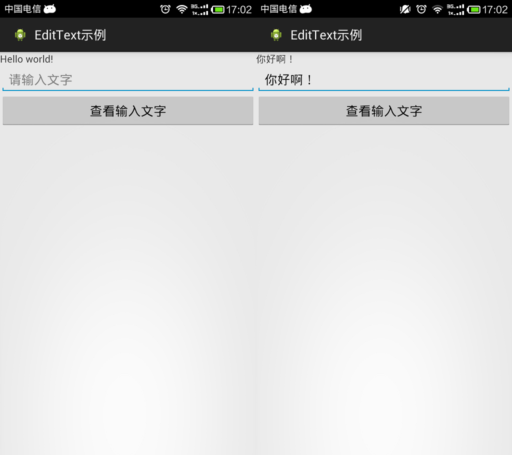
<?xml version="1.0" encoding="utf-8"?>

<LinearLayout xmlns:android="http://schemas.android.com/apk/res/android"

    android:layout_width="match_parent"

    android:layout_height="match_parent"

    android:orientation="vertical" >

    <TextView

        android:id="@+id/tv"

        android:layout_width="match_parent"

        android:layout_height="wrap_content"

        android:text="@string/hello_world" />

    <EditText

        android:id="@+id/et"

        android:layout_width="match_parent"

        android:layout_height="wrap_content"

        android:hint="@string/txt_hint" />

    <Button

        android:id="@+id/btn"

        android:layout_width="match_parent"

        android:layout_height="wrap_content"

        android:text="@string/btn_GetEditTextStr" />

</LinearLayout>
public class MainActivity extends Activity {

    private EditText et; // 创建一个文本编辑器对象

    private Button btn;

    private TextView tv;

    @Override

    protected void onCreate(Bundle savedInstanceState) {

        // TODO Auto-generated method stub

        super.onCreate(savedInstanceState);

        setContentView(R.layout.activity_main);

        et = (EditText) findViewById(R.id.et);

        btn = (Button) findViewById(R.id.btn);

        tv = (TextView) findViewById(R.id.tv);

        btn.setOnClickListener(new OnClickListener() {

            @Override

            public void onClick(View v) {

                // TODO Auto-generated method stub

                // 获取EditText中的文本内容

                String str = et.getText().toString();

                // 让TextView将获取到的EditText内容str显示出来

                tv.setText(str);

            }

        });

    }

}
3.5 CheckBox
CheckBox类官方文档地址:http://developer.android.com/reference/android/widget/CheckBox.html
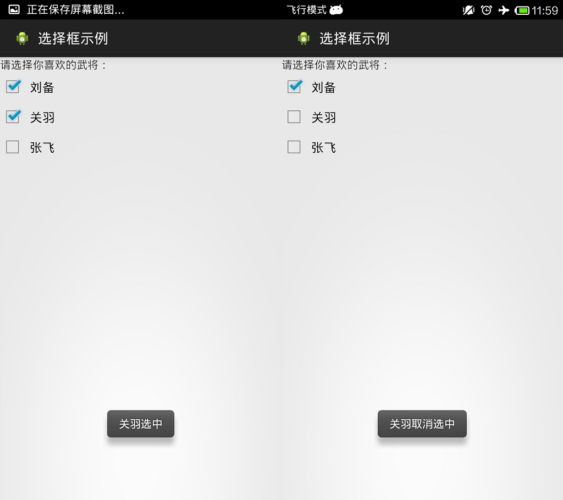
<?xml version="1.0" encoding="utf-8"?>

<LinearLayout xmlns:android="http://schemas.android.com/apk/res/android"

    android:layout_width="match_parent"

    android:layout_height="match_parent"

    android:orientation="vertical" >

    <TextView

        android:layout_width="match_parent"

        android:layout_height="wrap_content"

        android:text="@string/hello_world" />

    <CheckBox

        android:id="@+id/cb1"

        android:layout_width="match_parent"

        android:layout_height="wrap_content"

        android:button="@drawable/checkboxstyle"

        android:text="@string/checkbox1" />

    <CheckBox

        android:id="@+id/cb2"

        android:layout_width="match_parent"

        android:layout_height="wrap_content"

        android:button="@drawable/checkboxstyle"

        android:text="@string/checkbox2" />

    <CheckBox

        android:id="@+id/cb3"

        android:layout_width="match_parent"

        android:layout_height="wrap_content"

        android:button="@drawable/checkboxstyle"

        android:text="@string/checkbox3" />

</LinearLayout>
import android.app.Activity;

import android.os.Bundle;

import android.widget.CheckBox;

import android.widget.CompoundButton;

import android.widget.CompoundButton.OnCheckedChangeListener;

import android.widget.Toast;

public class MainActivity extends Activity implements OnCheckedChangeListener {

    private CheckBox cb1, cb2, cb3;

    @Override

    protected void onCreate(Bundle savedInstanceState) {

        // TODO Auto-generated method stub

        super.onCreate(savedInstanceState);

        setContentView(R.layout.activity_main);

        // 实例化3个CheckBox

        cb1 = (CheckBox) findViewById(R.id.cb1);

        cb2 = (CheckBox) findViewById(R.id.cb2);

        cb3 = (CheckBox) findViewById(R.id.cb3);

        cb1.setOnCheckedChangeListener(this);

        cb2.setOnCheckedChangeListener(this);

        cb3.setOnCheckedChangeListener(this);

    }

    // 重写监听器的抽象函数

    /*

     * onCheckedChanged(CompoundButton buttonView, boolean isChecked)

     * 第一个参数确定哪一个CheckBox状态发生改变 第二个参数确定改变的CheckBox的具体状态值,true为勾选,false为未勾选。

     */

    @Override

    public void onCheckedChanged(CompoundButton buttonView, boolean isChecked) {

        // buttonView 选中状态发生改变的那个按钮

        // isChecked 表示按钮新的状态(true/false)

        if (cb1 == buttonView || cb2 == buttonView || cb3 == buttonView) {

            if (isChecked) {

                // 显示一个提示消息

                toastDisplay(buttonView.getText() + "选中");

            } else {

                toastDisplay(buttonView.getText() + "取消选中");

            }

        }

    }

    private void toastDisplay(String str) {

        /*

         * Toast.makeText(Context context, CharSequence text,int duration);

         * 第一个参数是上下文对象 第二个参数是显示的文本内容

         * 第三个参数是显示提示消息的持续时间;其值有2个参数LENGTH_SHORT(短暂持续)和LENGTH_LONG(略长持续):

         * 最后,使用Toast对象调用show()方法即可

         */

        Toast.makeText(this, str, Toast.LENGTH_SHORT).show();

    }

}
CheckBox样式修改:

在res/drawable中添加checkbox自定义样式的xml文件。
<?xml version="1.0" encoding="utf-8"?>

<selector xmlns:android="http://schemas.android.com/apk/res/android">

<!-- 选中状态样式 -->

    <item android:drawable="@drawable/checkbox_checked" android:state_checked="true"></item>

    <!-- 未选中状态样式 -->

    <item android:drawable="@drawable/checkbox_normol" android:state_checked="false"></item>

</selector>
然后在布局文件中引用就可以了。
<CheckBox

        android:id="@+id/cb1"

        android:layout_width="match_parent"

        android:layout_height="wrap_content"

        android:button="@drawable/checkboxstyle"

        android:text="@string/checkbox1" />
3.6 Radiobutton
Radiobutton类官方文档地址:http://developer.android.com/reference/android/widget/RadioButton.html
RadioButton与CheckBox监听步骤类似,但RadioButton监听需要注意三点:
1.RadioButton与CheckBox使用的监听器不同。
2.RadioButton绑定监听的时候,不是每个RadioButton都去绑定,因为所有的RadioButton都被放在了RadioGroup单选组中,所以只需要将RadioGroup绑定上监听器即可。
3.重写监听器函数onCheckedChanged(RadioGroup group, int checkedId),这个函数的第一个参数是单选组,注意第二个参数,这里的checkedId不是RadioGroup单选组中的每个RadioButton的下标,而是发生状态改变的RadioButton的内存ID。所以在进行判断哪个RadioButton发生状态改变的时候,可以利用RadioButton.getID来与checkedId进行对比
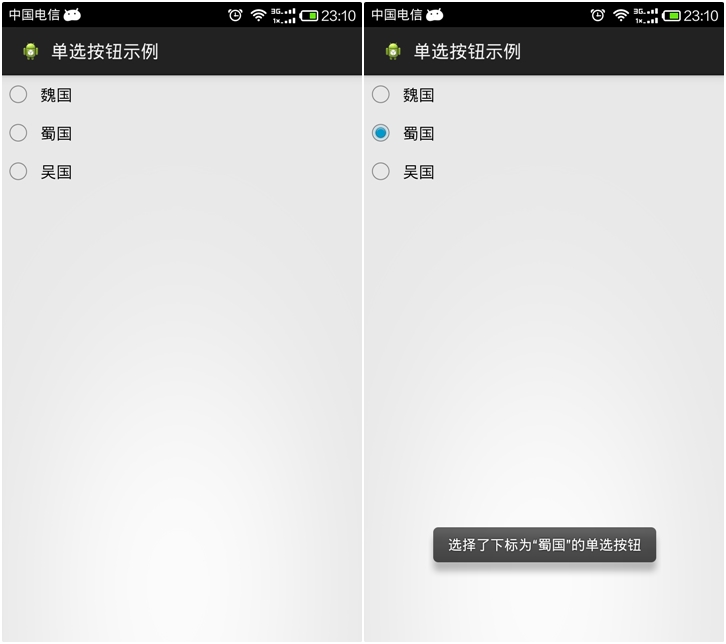
<?xml version="1.0" encoding="utf-8"?>

<LinearLayout xmlns:android="http://schemas.android.com/apk/res/android"

    android:layout_width="match_parent"

    android:layout_height="match_parent"

    android:orientation="vertical" >

    <RadioGroup

        android:id="@+id/radGrp"

        android:layout_width="wrap_content"

        android:layout_height="wrap_content" >

        <RadioButton

            android:id="@+id/rb1"

            android:layout_width="match_parent"

            android:layout_height="wrap_content"

            android:text="@string/rb1" />

        <RadioButton

            android:id="@+id/rb2"

            android:layout_width="match_parent"

            android:layout_height="wrap_content"

            android:text="@string/rb2" />

        <RadioButton

            android:id="@+id/rb3"

            android:layout_width="match_parent"

            android:layout_height="wrap_content"

            android:text="@string/rb3" />

    </RadioGroup>

</LinearLayout>
import android.app.Activity;

import android.os.Bundle;

import android.widget.RadioButton;

import android.widget.RadioGroup;

import android.widget.RadioGroup.OnCheckedChangeListener;

import android.widget.Toast;

public class MainActivity extends Activity implements OnCheckedChangeListener {

    private RadioButton rb1, rb2, rb3;

    private RadioGroup rg;

    @Override

    protected void onCreate(Bundle savedInstanceState) {

        super.onCreate(savedInstanceState);

        setContentView(R.layout.activity_main);

        rb1 = (RadioButton) findViewById(R.id.rb1);

        rb2 = (RadioButton) findViewById(R.id.rb2);

        rb3 = (RadioButton) findViewById(R.id.rb3);

        rg = (RadioGroup) findViewById(R.id.radGrp);

        rg.setOnCheckedChangeListener(this);// 将单选组绑定监听器

    }

    // 重写监听器函数

    /*

     * onCheckedChanged(RadioGroup group, int checkedId) 第一个参数是单选组

     * 第二个参数这里的checkedId发生改变的RadioButton的内存ID。

     * 在进行判断哪个RadioButton发生状态改变的时候,可以利用RadioButton.getID来与checkedId进行对比

     */

    @Override

    public void onCheckedChanged(RadioGroup group, int checkedId) {

        if (group == rg)

        {

            String rbName = null;

            if (checkedId == rb1.getId()) {

                rbName = rb1.getText().toString();

            } else if (checkedId == rb2.getId()) {

                rbName = rb2.getText().toString();

            } else if (checkedId == rb3.getId()) {

                rbName = rb3.getText().toString();

            }

            Toast.makeText(this, "选择了下标为“" + rbName + "”的单选按钮",

                    Toast.LENGTH_SHORT).show();

        }

    }

}
【读书笔记《Android游戏编程之从零开始》】4.Android 游戏开发常用的系统控件(EditText、CheckBox、Radiobutton)的更多相关文章
- 【读书笔记《Android游戏编程之从零开始》】6.Android 游戏开发常用的系统控件(TabHost、ListView)
3.9 TabSpec与TabHost TabHost类官方文档地址:http://developer.android.com/reference/android/widget/TabHost.htm ...
- 【读书笔记《Android游戏编程之从零开始》】5.Android 游戏开发常用的系统控件(ProgressBar、Seekbar)
3.7 ProgressBar ProgressBar类官方文档地址:http://developer.android.com/reference/android/widget/ProgressBar ...
- 【读书笔记《Android游戏编程之从零开始》】3.Android 游戏开发常用的系统控件(Button、Layout、ImageButton)
3.1 Button Button这控件不用多说,就是一个按钮,主要是点击后进行相应事件的响应. 给组件添加ID属性:定义格式为 android:id="@+id/name",这里 ...
- 【读书笔记《Android游戏编程之从零开始》】8.Android 游戏开发常用的系统控件(系统控件常见问题)
Android 中常用的计量单位Android有时候需要一些计量单位,比如在布局Layout文件中可能需要指定具体单位等.常用的计量单位有:px.dip(dp).sp,以及一些不常用的pt.in.mm ...
- 【读书笔记《Android游戏编程之从零开始》】7.Android 游戏开发常用的系统控件(Dialog)
在Android应用开发中,Dialog(对话框)创建简单且易于管理因而经常用到,对话框默认样式类似创建样式的Activity.首先介绍android.app.AlertDialog下的Builder ...
- Windows游戏编程之从零开始d
Windows游戏编程之从零开始d I'm back~~恩,几个月不见,大家还好吗? 这段时间真的好多童鞋在博客里留言说或者发邮件说浅墨你回来继续更新博客吧. woxiangnifrr童鞋说每天都在来 ...
- Java并发编程的艺术读书笔记(2)-并发编程模型
title: Java并发编程的艺术读书笔记(2)-并发编程模型 date: 2017-05-05 23:37:20 tags: ['多线程','并发'] categories: 读书笔记 --- 1 ...
- Java并发编程的艺术读书笔记(1)-并发编程的挑战
title: Java并发编程的艺术读书笔记(1)-并发编程的挑战 date: 2017-05-03 23:28:45 tags: ['多线程','并发'] categories: 读书笔记 --- ...
- 《Essential C++》读书笔记 之 C++编程基础
<Essential C++>读书笔记 之 C++编程基础 2014-07-03 1.1 如何撰写C++程序 头文件 命名空间 1.2 对象的定义与初始化 1.3 撰写表达式 运算符的优先 ...
随机推荐
- csharp: 百度语音合成
public string API_id = "3333"; //你的ID public string API_record = null; public string API_r ...
- sql 两列相加存到另一列
假设表table1有a.b两个列,想生成另一个列为a列值+b列值计算列添加语句如下ALTER TABLE table1ADD c AS a+b
- Unity3D脚本语言UnityScript初探
译者注: Unity3D中支持三种语言:JavaScript.C#.Boo,很多人不知道如何选择,通过这篇译文,我们可以搞清楚这三者语言的来龙去脉,对选择主语言有一定的借鉴意义. 首先,Unity是基 ...
- Java、Hibernate(JPA)注解大全
1.@Entity(name=”EntityName”) 必须,name为可选,对应数据库中一的个表 2.@Table(name=””,catalog=””,schema=””) 可选,通常和@Ent ...
- js得到屏幕宽高、页面宽高 (window.screen.availHeight)等--笔记
window.screen.availWidth 返回当前屏幕宽度(空白空间) window.screen.availHeight 返回当前屏幕高度(空白空间) window.screen.width ...
- js中this的理解
平常用this很多,对this的理解就是this是对应执行环境,然而很多时候效果并不是想要的,最近看了一些谈到this的笔记和书籍,总结下. 对this的误解: this是指向函数本身 先上个demo ...
- SAP中给当前指定的活动用户发系统信息的函数
函数名:TH_POPUP 输入集团.当前在线用户.Message即可
- 配置windows失败,还原更新,请勿关机
同事叫我帮忙弄一下电脑,开机,出现"配置Windows Update失败,还原更改,请勿关闭计算机",我从来不更新Windows Update,更新都为成功,第一次遇到失败了,不知 ...
- 详解Paint的setMaskFilter(MaskFilter maskfilter)
一.setMaskFilter(MaskFilter maskfilter) setMaskFilter(MaskFilter maskfilter)是paint中的方法,它可以用来对图像进行一定的处 ...
- iOS之小功能模块--彩虹动画进度条学习和自主封装改进
前言: 首先展示一下这个iOS小示例的彩色进度条动画效果: 阅读本文先说说好处:对于基础不好的读者,可以直接阅读文末尾的"如何使用彩虹动画进度条"章节,然后将我封装好的这个功能模块 ...