
Install VMware Workstation as a Service
Currently, VMware Workstation does not support the ability to run virtual machines as a service. As soon as you log off your computer, the running virtual machines are shut down or powered off. If you can install virtual machines as a service, you can perform the following:
- Enable your host system to logon to a virtual domain controller.
- Save time booting your virtual machines.
Here is how you can install VMware Workstation as a service.
Requirements
In order to run virtual machines as a service, you must have the following Windows Resource Kit Tools:
- Instsrv.exe
- Srvany.exe
Download the Windows 2003 Resource Kit tools (rktools.exe) and install them. After you install the tools, copy the instsrv.exe and srvany.exe to the windows\system32 directory. It is then recommended that you reboot your computer.
Configuring VMware Workstation as a service
The first step to configuring VMware Workstation as a service is to locate the VMware Workstation executable. The default location of the VMware Workstation executable is c:\program files\vmware\vmware workstation\vmware.exe.
Once you have located VMware.exe, the crucial step in the process is to locate the path of the configuration file of the virtual machine that you want to turn into a service. In a virtual machine the .vmx file is the file that stores the configuration for a virtual machine. In order for VMware Workstation to run as a service, you have to be able to locate the path to the .vmx file.
For example, if your virtual machines are all saved to D: the path would be as follows: D:\My Virtual Machines\Workstation\winXPPRO.vmx. Once you have the path to the executable and the path to the configuration file, you are ready to create the service.
Creating the service
First it is recommended that you create a name standard for all of your virtual machines. For example, if you are creating a domain controller to run as a service, you might call it vmware_dc. Once you have the standard, click Start | Programs| Accessories | Command Prompt and type the command shown in Figure A.
Figure A
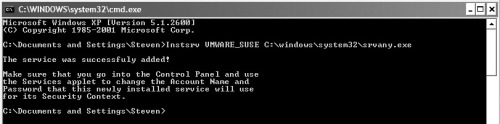
This will create a service that will automatically run the SuSE 9.1 operating system.
Next, open the registry by clicking Start | Run |. Then type regedit and expand
HKEY_LOCAL_MACHINE\SYSTEM\CurrentControlSet\Services\"name of your VMware Service subkey".
In this example, the name of the service is VMWARE_SUSE. Right-click on the VMWARE_SUSE name key and choose New | Key and call the subkey parameters as shown inFigure B.
Figure B
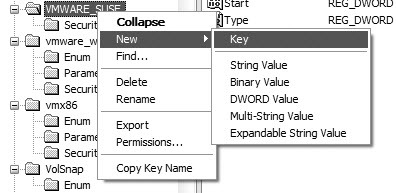
Subkey parameters
Next, right-click on the Parameters subkey and choose New | String Value and call the key Application, as shown in Figure C. Double-click the Application key value and enter the path to the vmware.exe and the virtual machine's .vmx file as shown in Figure D.
Figure C
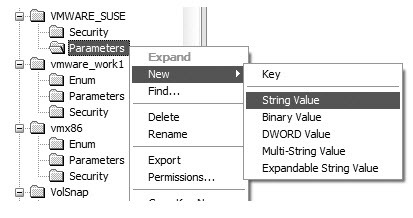
Create the Application key
Figure D
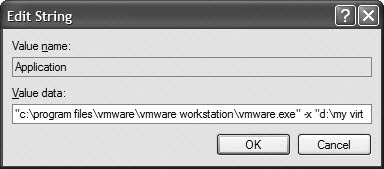
Enter the path to the vmware.exe virtual machine's .vmx file
The default path is C:\program files\vmware\VMware Workstation\VMware.exe followed by the path to the virtual machine's .vmx file. Remember to put this path in double quotation marks.
"c:program filesvmwarevmware workstationvmware.exe" -x "d:my virtual machinesvmsuse linux 9.1suse.vmx"
Now that you have added the path, you need to set the start-up options for the newly created service. Click Start | Run | and type services.msc and browse to the service you just created for your VMware Workstation virtual machine (see Figure E).
Figure E

Set the start-up options for the newly created service
Double-click on the service and select the Log On tab. On the General tab choose Automatic as the startup type and then select the Log On tab and select the Local System account to run the service (see Figure F). Additionally, you also need to select Allow service to interact with the desktop. Next, test the service by starting it and watching your virtual machine start. You might be prompted to create a new unique identifier as shown in Figure G. The final test is to reboot your machine to make sure the virtual machine starts as well. You can repeat these steps for as many virtual machines as your system can handle.
Figure F

Select the Local System account
Figure G
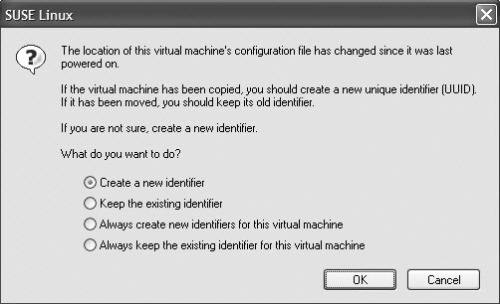
Create a unique identifier
When running virtual machines as a service, make sure all floppy drives, CD-ROM, and other devices are disconnected. It is also recommended that you disable VMware Hints by adding the following line (Figure H) to your *.vmx file:
Hints.hideall="TRUE."
Figure H
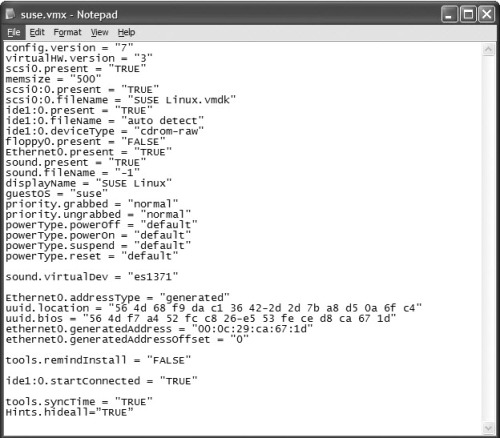
Add this line to your .vmx file to disable VMware Hints
-------------------------------
The instructions in here look a little complicated compared to the way I did this.
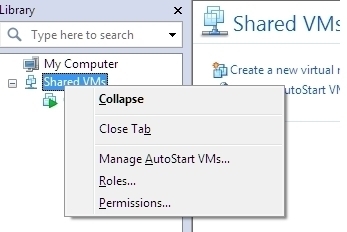
VMware Workstation 8 and 9 have the ability to do this through the GUI. The easiest way is to simply shut down the VM and from the main application window, press F9 to display your library if not already visible. Drag the VM down to Shared VMs, then right click 'Shared VMs' and choose 'Manage AutoStart VMs' -- then set it up however you prefer. I think the standard action for an auto-started VM is to simply suspend during reboots of the host.
If you've got Workstation 9 and Windows 8, there is a bug that may require you to uninstall/reinstall Workstation in order to get the VMware service to activate the first time.
There is a drawback to this method: It's considered remote and won't get 3D acceleration or access to the host's clipboard.
The upside: You don't have to log into Windows, your Shared VMs will fire up just like any other service.
To deal with the downsides, I just right click the VM while it's off and 'Stop Sharing'. At that point, it's a 'local' VM again which will allow for 3d and clipboard support. Then when I'm done working on it, just put it back to Shared and it'll go back to it's previous settings.
Install VMware Workstation as a Service的更多相关文章
- [转]Install Windows Server 2012 in VMware Workstation
本文转自:http://kb4you.wordpress.com/2012/06/28/install-windows-server-2012-in-vmware-workstation-2/ Thi ...
- VMware Workstation 无法连接到虚拟机。请确保您有权运行该程序、访问该程序使用的所有目录以及访问所有临时文件目录。 VMware Authorization Service 当前未运行
VMware Workstation 无法连接到虚拟机.请确保您有权运行该程序.访问该程序使用的所有目录以及访问所有临时文件目录. VMware Authorization Service 当前未运行 ...
- vmware workstation 10.0.1 install mac os mavericks
由于项目当中有ios app开发,第一感觉就是mac开发环境会比较适合开发与调试(虽然linux.windows都有相应的oc开发环境). 由于我是用windows7搞.net开发的,所以其他系统接触 ...
- centos7 + VMware Workstation Pro
centos7 + VMware Workstation Pro安装 centos 7 镜像文件 下载地址https://www.centos.org/download/ 笔者是使用的DVD ISO, ...
- 安装,卸载或重装Vmware Workstation时失败的官方解决方案
最近VMware Workstation又放出更新,遂更新之.安装时提示先卸载旧版本.控制面板和其他软件管理器都不能正常卸载,提示" The MSI '' failed",索性直接 ...
- Oracle 12cR1 RAC 在VMware Workstation上安装(上)—OS环境配置
Oracle 12cR1 RAC 在VMware Workstation上安装(上)-OS环境配置 1.1 整体规划部分 1.1.1 所需软件介绍 Oracle RAC不支持异构平台.在同一个集群 ...
- VMware workstation批量创建虚拟机和自动化安装操作系统(二)
一. 简述 在上一篇<VMware workstation批量创建虚拟机和自动化安装操作系统(一)>中,主要介绍了VMware workstation自定义创建虚拟机的过程,和一些其他的有 ...
- 通过secureCRT连接虚拟机VMware workstation问题记录
很急没有使用虚拟机了,今天再登录的时候,发现用secureCRT连接不上VMware workstation 1.连接步骤: 1)打开secureCRT,点击+ 新建一个连接 2)按照流程一步一步配置 ...
- Vmware Workstation实现CentOS6.10_x64 下ORACLE RAC 11.2.0.4的搭建
想必大家在学习ORACLE 11g时,都想搭建一个RAC的实验环境.在搭建RAC实验环境时,会碰到诸如IP怎么规划.虚拟机环境下怎么共享磁盘.ASM磁盘创建,以及安装过程中会遇到这样那样的问题.搭建一 ...
随机推荐
- 怎么解决JSP中出现乱码的问题
首先我们先了解一下问题的原因.一般情况在在每个JSP页的头部都有这样一条语句: 这条语句决定了此页面使用GB2312编码形式,而在数据库中一般用的是iso-8859-1字符集存储数据. 而Java程序 ...
- R语言比较运算符和逻辑运算符
比较运算:>,<,>=,<=,==,!=.(大于,小于,大于等于,小于等于,等于,不等于.) 逻辑运算:&,|,!.(与,或,非.)
- MapReduce 图解流程超详细解答(1)-【map阶段】
转自:http://www.open-open.com/lib/view/open1453097241308.html 在MapReduce中,一个YARN 应用被称作一个job, MapReduc ...
- Union和Union All的区别[转]
来源:http://blog.csdn.net/wanghai__/article/details/4712555/ 假设我们有一个表Student,包括以下字段与数据: drop table stu ...
- python 按照自然数排序遍历文件 python os.listdir sort by natural sorting
import os import re def sorted_aphanumeric(data): convert = lambda text: int(text) if text.isdigit() ...
- 杂乱所得之RPC【待整理】
在计算机的世界里,不仅有程序内部的通信,还需要程序之间的通信,这又包含两大类:同一台主机的程序之间的通信.不同主机的程序之间的通信. 同一台主机的程序之间的通信就是IPC,IPC(Inter-proc ...
- 第三百三十七节,web爬虫讲解2—PhantomJS虚拟浏览器+selenium模块操作PhantomJS
第三百三十七节,web爬虫讲解2—PhantomJS虚拟浏览器+selenium模块操作PhantomJS PhantomJS虚拟浏览器 phantomjs 是一个基于js的webkit内核无头浏览器 ...
- php生成二维码的几种方式[转]
二维码是二维条形码的一种,可以将网址.文字.照片等信息通过相应的编码算法编译成为一个方块形条码图案,手机用户可以通过摄像头和解码软件将相关信息重新解码并查看内容.PHP可以使用php QR Cod ...
- POI写docx文件table中的单元格水平、垂直对齐
核心示例代码 垂直对齐 XWPFTableCell cell = table.getRow(i).getCell(j); cell.setVerticalAlignment(XWPFTableCell ...
- tophat-fusion 鉴定融合基因
tophat-fusion 是一款利用RNA_seq 数据鉴定融合基因的工具,官网链接如下: http://ccb.jhu.edu/software/tophat/fusion_index.shtml ...