
python selenium-4自动化测试模型
1.线性测试
特点:每一个脚本都是完整且独立的,可以单独执行。
缺点:用例的开发与维护成本很高

2.模块化驱动测试
特点:把重复的操作独立成公共模块,提高测试用例的可维护性
示例:将搜索封装到func中,其他文件直接导入使用即可
func.py
class Func():

    def search(self,driver):

        driver.find_element_by_xpath("//input[@id='kw' and @class='s_ipt']").send_keys("hello")

        driver.find_element_by_xpath("//input[@value='百度一下' and @id='su']").click()

        result_text = driver.find_element_by_xpath("//span[@class='nums_text']").text

        assert "百度为您找到相关结果约" in result_text
action.py
import sys

from selenium import webdriver;

from time import sleep

from testcase import func

path = sys.path[0].replace("testcase", "") + "driver/geckodriver"

driver = webdriver.Firefox(executable_path=path)

driver.implicitly_wait(5)

driver.get("http://www.baidu.com")

print("打开百度")

func.Func().search(driver)

#等同于

#s=func.Func()

#s.search(driver)

sleep(3)

driver.quit()

print("退出")
3.数据驱动测试
3.1参数化搜索关键字
func.py
from time import sleep

class Func():

    def search(self,driver,word):

        driver.find_element_by_xpath("//input[@id='kw' and @class='s_ipt']").clear()

        driver.find_element_by_xpath("//input[@id='kw' and @class='s_ipt']").send_keys(word)

        driver.find_element_by_xpath("//input[@value='百度一下' and @id='su']").click()

        result_text = driver.find_element_by_xpath("//span[@class='nums_text']").text

        assert "百度为您找到相关结果约" in result_text

        sleep(1)
action.py
import sys

from selenium import webdriver;

from testcase import func

path = sys.path[0].replace("testcase", "") + "driver/geckodriver"

driver = webdriver.Firefox(executable_path=path)

driver.implicitly_wait(5)

driver.get("http://www.baidu.com")

print("打开百度")

func.Func().search(driver,"hello")

func.Func().search(driver,"world")

driver.quit()

print("退出")
3.2读取txt文件
read():读取整个文件
readline():读取一行数据
readlins():读取所有行的数据
word.txt
java,廖雪峰

pyhton,菜鸟

selenium,阮一峰
action.py
import sys

from selenium import webdriver;

from testcase import func

path = sys.path[0].replace("testcase", "") + "driver/geckodriver"

driver = webdriver.Firefox(executable_path=path)

driver.implicitly_wait(5)

driver.get("http://www.baidu.com")

print("打开百度")

file = open("word.txt","r")

lines = file.readlines()

file.close()

for i in lines:

    searchWord = i.split(',')[0]

    func.Func().search(driver,searchWord)

driver.quit()

print("退出")
3.3读取csv文件
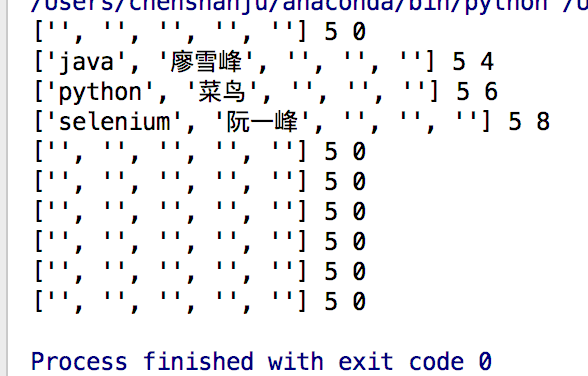
word.csv
#读取csv文件

import csv

data = csv.reader(open("word.csv","r"))

for user in data:

    print(user,len(user),len(user[0]))
aciton.py
```#python
import csv
import sys
from selenium import webdriver;
from testcase import func
path = sys.path[0].replace("testcase", "") + "driver/geckodriver"
driver = webdriver.Firefox(executable_path=path)
driver.implicitly_wait(5)
driver.get("http://www.baidu.com")
print("打开百度")
data = csv.reader(open("word.csv",'r'))
for row in data:
if len(row[0])==0:
pass
else:
func.Func().search(driver,row[0])
func.Func().search(driver,row[1])
driver.quit()
print("退出")
##    3.4读取Excel文件

<img src="https://img2018.cnblogs.com/blog/1418970/201811/1418970-20181120151340811-1621898753.png" width="400" />

```#python

import xlrd

#打开表格

file = xlrd.open_workbook("word.xlsx")

#获取所有sheet,sheet_names()表名

print(file.sheet_names())

#根据sheet索引或名称获取shell内容

sheet1=file.sheet_by_index(0)

sheet2=file.sheet_by_name("工作表 1 - word")

#获取sheet表格的行数和列数

sheet2_row= sheet2.nrows

sheet2_col= sheet2.ncols

print(sheet2.name,sheet2_row,sheet2_col)

#获取每一行的数据

for i in range(sheet2_row):

    print("",sheet2.row_values(i))

#获取每一列的数据

for i in range(sheet2_col):

    print(sheet2.col_values(i))

# #获取单元格的数据

print(sheet2.cell(2,1).value,sheet2.cell(2,0).value)

#循环打印非空值

for i in range(sheet2_row):

    for j in range(sheet2_col):

        if len(sheet2.cell(i,j).value) != 0:

            print(sheet2.cell(i,j).value)
import xlrd

import sys

from selenium import webdriver;

from testcase import func

path = sys.path[0].replace("testcase", "") + "driver/geckodriver"

driver = webdriver.Firefox(executable_path=path)

driver.implicitly_wait(5)

driver.get("http://www.baidu.com")

print("打开百度")

data = xlrd.open_workbook("word.xlsx")

sheet2_data=data.sheet_by_index(1)

sheet2_rows=sheet2_data.nrows

sheet2_col=sheet2_data.ncols

for i in range(sheet2_rows):

    for j in range(sheet2_col):

        if i > 0:

            text=sheet2_data.cell(i,j).value

            if len(text) > 0:

                func.Func().search(driver,text)

driver.quit()

print("退出")
3.5读取xml文件
<?xml version="1.0" encoding="UTF-8"?>

<!--注意:第一行如果直接键入会报错。输入<?xml,然后直接使用tab键生成第一行,删除多余内容即可-->

<info>

	<base>

		<platform>Windows</platform>

		<browser>Firefox</browser>

		<url>http://www.baidu.com</url>

			<login username="admin" password="123456" />

			<login username="guest" password="654321" />

	</base>

	<test>

		<province>北京</province>

		<province>广东</province>

			<city>深圳</city>

			<city>珠海</city>

		<province>浙江</province>

			<city>杭州</city>

	</test>

</info>
http://www.w3school.com.cn/xmldom/dom_nodes.asp
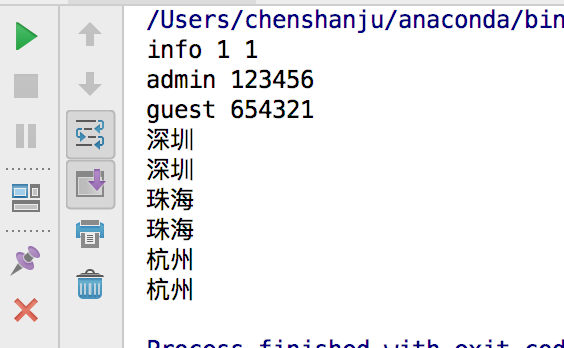
from xml.dom import minidom

dom = minidom.parse('info.xml')

root = dom.documentElement

print(root.nodeName,root.nodeType,root.ELEMENT_NODE)

pros = dom.getElementsByTagName("login")

for pro in pros:

    print(pro.getAttribute("username"),pro.getAttribute("password"))

pros = dom.getElementsByTagName("city")

for pro in pros:

    print(pro.childNodes[0].data)

    #等价于

    print(pro.firstChild.data)
4.关键字驱动测试
python selenium-4自动化测试模型的更多相关文章
- Python+Selenium学习--自动化测试模型
前言 一个自动化测试框架就是一个集成体系,在这一体系中包含测试功能的函数库.测试数据源.测试对象识别标准,以及种可重用的模块.自动化测试框架在发展的过程中经历了几个阶段,模块驱动测试.数据驱动测试.对 ...
- Python+Selenium UI自动化测试环境搭建及使用
一什么是Selenium ? Selenium 是一个浏览器自动化测试框架,它主要用于web应用程序的自动化测试,其主要特点如下:开源.免费:多平台.浏览器.多语言支持:对web页面有良好的支持:AP ...
- 配置Python+selenium+firefox自动化测试
1.安装python.默认安装 2.安装pip.下载pip-1.5.4包,解压pip-1.5.4,放在C盘,进入pip目录-->键入命令:python setup.py install 再进入 ...
- python selenium web自动化测试完整项目实例
问题: 好多想不到的地方,中间经历了一次重构,好蛋疼: xpath定位使用的不够熟练,好多定位问题,只能靠强制等待解决: 存在功能重复的方法,因为xpath定位不同,只能分开写,有时间可以继续优化: ...
- python selenium+phantomJS自动化测试环境
0x00配置phantomJS 1. 在windows平台下 此种方法是弹浏览器进行自动化测试的. 1.下载谷歌的驱动 https://chromedriver.storage.googleapis. ...
- Python&selenium&tesseract自动化测试随机码、验证码(Captcha)的OCR识别解决方案参考
在自动化测试或者安全渗透测试中,Captcha验证码的问题经常困扰我们,还好现在OCR和AI逐渐发展起来,在这块解决上越来越支撑到位. 我推荐的几种方式,一种是对于简单的验证码,用开源的一些OCR图片 ...
- python + selenium webdriver 自动化测试 之 环境异常处理 (持续更新)
1.webdriver版本与浏览器版本不匹配,在执行的时候会抛出如下错误提示 selenium.common.exceptions.WebDriverException: Message: unkno ...
- python + selenium + unittest 自动化测试框架 -- 入门篇
. 预置条件: 1. python已安装 2. pycharm已安装 3. selenium已安装 4. chrome.driver 驱动已下载 二.工程建立 1. New Project:建立自己的 ...
- Python+Selenium - Web自动化测试(一):环境搭建
清单列表: Python 3x Selenium Chrome Pycharm 一.Python的安装: Python官网下载地址:https://www.python.org/ 1. 进入官网地址 ...
- Python+Selenium - Web自动化测试(二):元素定位
前言 前面已经把环境搭建好了,现在开始使用 Selenium 中的 Webdriver 框架编写自动化代码脚本,我们常见的在浏览器中的操作都会有相对应的类方法,这些方法需要定位才能操作元素,不同网页的 ...
随机推荐
- JS实现点击按钮,下载文件
PS:本文说的,并非如何用js创建流.创建文件.实现下载功能. 而是说的:你已知一个下载文件的后端接口,前端如何请求该接口,实现点击按钮.下载文件到本地.(可以是zip啦.excel啦都是一样) 有两 ...
- SWIFT模糊效果
首先创建一个模糊效果 let blurEffect = UIBlurEffect(style: UIBlurEffectStyle.Light) 接着创建一个承载模糊效果的视图let blurView ...
- ZOJ 2965 Accurately Say "CocaCola"!
Time Limit: 2 Seconds Memory Limit: 65536 KB In a party held by CocaCola company, several stude ...
- SVN使用出现的问题及解决方案
SVN使用出现的问题及解决方案 一.问题描述: 使用TortoiseSVN-1.9.5进行CheckOut时,出现报错信息如下: Unable to connect to a repository ...
- Unity 3D编辑器扩展介绍、教程(二) —— 创建窗口
Unity编辑器扩展教程(二) 本文提供全流程,中文翻译.Chinar坚持将简单的生活方式,带给世人!(拥有更好的阅读体验 -- 高分辨率用户请根据需求调整网页缩放比例) 一 Brief Introd ...
- Lua基本语法-书写规范以及自带常用函数
Lua基本语法-书写规范和常用函数 本文提供全流程,中文翻译.Chinar坚持将简单的生活方式,带给世人!(拥有更好的阅读体验 -- 高分辨率用户请根据需求调整网页缩放比例) 1 String Ope ...
- Codeforces gym101955 A【树形dp】
LINK 有n个大号和m个小号 然后需要对这些号进行匹配,一个大号最多匹配2个小号 匹配条件是大号和小号构成了前缀关系 字符串长度不超过10 问方案数 思路 因为要构成前缀关系 所以就考虑在trie树 ...
- Windows下同一台机器上elasticsearch集群的配置以及elasticsearch-head插件的使用
ElasticSearch是一个基于Lucene的开源搜索服务器,现已经被越来越多的企业运用于项目当中,笔者为了学习es在自己机器上简单的搭建了一个es集群,此文权当记录. 1.我用到的压缩包 下载地 ...
- LG3898 [湖南集训]大新闻
题意 题目描述 **记者弄了个大新闻,这个新闻是一个在 [0,n) 内等概率随机选择的整数,记其为 x.为了尽可能消除这个大新闻对公众造成的不良印象,我们需要在 [0,n)内找到某一个整数 y,使得 ...
- test20180919 递归问题
题意 定义 \[ f(n)=\left\{ \begin{array}{} 1 & n=1\\ f(n-f(f(n-1)))+1 & n>1 \end{array} \right ...