
安卓开发:UI组件-RadioButton和复选框CheckBox
2.5RadioButton
为用户提供由两个及以上互斥的选项组成的选项集。
2.5.1精简代码
在按钮变多之后,多次重复书写点击事件有些繁琐,我们在这里创建一个事件OnClick,每次点击时调用该事件即可。
打开MainActivity:
private class OnClick implements View.OnClickListener{

        @Override

        public void onClick(View v) {

            Intent intent = null; //初始化

            switch(v.getId()){

                case R.id.btn_textview:

                    //跳转到TextView演示页面

                    intent = new Intent(MainActivity.this,TextViewActivity.class);

                    break;

            }

            startActivity(intent); //启用

        }

    }
编写事件OnClick,在其中使用switch结构,通过case跳转至不同页面。
设置监听位置:
private void setListeners(){

        OnClick onClick = new OnClick();

        mBtnTextView.setOnClickListener(onClick);

        mBtnButton.setOnClickListener(onClick);

        mBtnEditText.setOnClickListener(onClick);

        mBtnRadioButton.setOnClickListener(onClick);

    }
再新建RadioButton的按钮,最后精简完整代码如下(MainActivity):
package com.example.a73536.identitycard;

import android.content.Intent;

import android.support.v7.app.AppCompatActivity;

import android.os.Bundle;

import android.view.View;

import android.widget.Button;

public class MainActivity extends AppCompatActivity {

    private Button mBtnTextView; //声明组件

    private Button mBtnButton;

    private Button mBtnEditText;

    private Button mBtnRadioButton;

    @Override

    protected void onCreate(Bundle savedInstanceState) {

        super.onCreate(savedInstanceState);

        setContentView(R.layout.activity_main);

        mBtnTextView = findViewById(R.id.btn_textview); //连接视图

        mBtnButton = findViewById(R.id.btn_button);

        mBtnEditText = findViewById(R.id.btn_edittext);

        mBtnRadioButton = findViewById(R.id.btn_radiobutton);

        setListeners(); //调用

    }

    private void setListeners(){

        OnClick onClick = new OnClick();

        mBtnTextView.setOnClickListener(onClick);

        mBtnButton.setOnClickListener(onClick);

        mBtnEditText.setOnClickListener(onClick);

        mBtnRadioButton.setOnClickListener(onClick);

    }

    private class OnClick implements View.OnClickListener{

        @Override

        public void onClick(View v) {

            Intent intent = null; //初始化

            switch(v.getId()){

                case R.id.btn_textview:

                    //跳转到TextView演示页面

                    intent = new Intent(MainActivity.this,TextViewActivity.class);

                    break;

                case R.id.btn_button:

                    //跳转到Button演示页面

                    intent = new Intent(MainActivity.this,ButtonActivity.class);

                    break;

                case R.id.btn_edittext:

                    //跳转到EditText演示页面

                    intent = new Intent(MainActivity.this,EditTextActivity.class);

                    break;

                case R.id.btn_radiobutton:

                    //跳转到RadioButton演示页面

                    intent = new Intent(MainActivity.this,RadioButtonActivity.class);

                    break;

            }

            startActivity(intent); //启用

        }

    }

}
2.5.2使用RadioButton
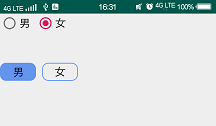
在activity_radio_button的xml页面完成内容的编写。主要是通过RadioGroup和RadioButton的配合实现的。两个横排单选框,第一个为默认样式,第二个有所修改。
效果图:
代码如下:
<?xml version="1.0" encoding="utf-8"?>

<RelativeLayout xmlns:android="http://schemas.android.com/apk/res/android"

    android:layout_width="match_parent"

    android:layout_height="match_parent">

    <RadioGroup

        android:id="@+id/rg_1"

        android:layout_width="wrap_content"

        android:layout_height="wrap_content"

        android:orientation="horizontal">

            <RadioButton

                android:id="@+id/rb_1"

                android:layout_width="wrap_content"

                android:layout_height="wrap_content"

                android:text="男"

                android:checked="true" //默认为此选项

                android:textSize="18sp"

                android:textColor="#000"

                android:layout_marginRight="10dp"/> //边距

            <RadioButton

                android:id="@+id/rb_2"

                android:layout_width="wrap_content"

                android:layout_height="wrap_content"

                android:text="女"

                android:textSize="18sp"

                android:textColor="#000"/>

    </RadioGroup>

    <RadioGroup

        android:id="@+id/rg_2"

        android:layout_width="wrap_content"

        android:layout_height="wrap_content"

        android:orientation="horizontal"

        android:layout_below="@id/rg_1"

        android:paddingTop="50dp">

        <RadioButton

            android:id="@+id/rb_3"

            android:layout_width="60dp"

            android:layout_height="30dp"

            android:gravity="center"

            android:text="男"

            android:button="@null" //取消默认样式

            android:background="@drawable/bg_btn3" //使用自定义样式

            android:checked="true" //默认勾选此选项

            android:textSize="18sp"

            android:textColor="#000"

            android:layout_marginRight="10dp"/>

        <RadioButton

            android:id="@+id/rb_4"

            android:layout_width="60dp"

            android:layout_height="30dp"

            android:gravity="center"

            android:text="女"

            android:button="@null"

            android:background="@drawable/bg_btn3"

            android:textSize="18sp"

            android:textColor="#000"/>

    </RadioGroup>

</RelativeLayout>
bg_btn3.xml代码:
<?xml version="1.0" encoding="utf-8"?>

<selector xmlns:android="http://schemas.android.com/apk/res/android">

    <item android:state_checked="true"> //注意此处使用的是state_checked,表示判断有没有被选中

        <shape>

            <solid android:color="#6495ED"/>

            <corners android:radius="10dp"/>

        </shape>

    </item>

    <item android:state_checked="false">

        <shape>

            <stroke android:width="1dp" //没有被选择的时候使用线框。

                android:color="#6495ED"/>

            <corners android:radius="10dp"/>

        </shape>

    </item>

</selector>
同样,为第一组添加一个点击事件:
private RadioGroup mRg1;
mRg1 = findViewById(R.id.rg_1);

        mRg1.setOnCheckedChangeListener(new RadioGroup.OnCheckedChangeListener() {

            @Override

            public void onCheckedChanged(RadioGroup group, int checkedId) {

                RadioButton radioButton = group.findViewById(checkedId);

                Toast.makeText(RadioButtonActivity.this,radioButton.getText(),Toast.LENGTH_SHORT).show();

            }

        });
2.6复选框CheckBox
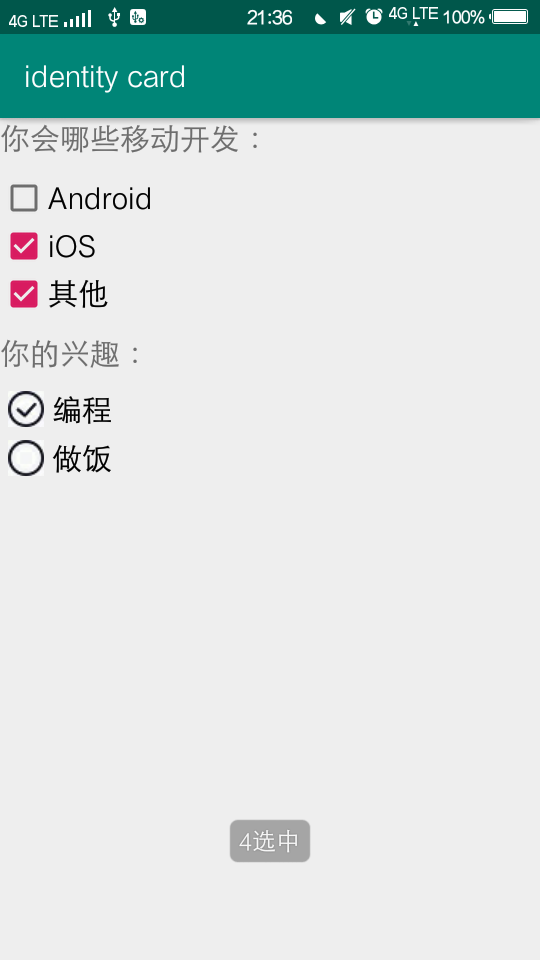
在主页添加新按钮CheckBox,链接新页面。CheckBox是一个复选框,可以同时选择多个选项。
效果图:
xml文件:
<?xml version="1.0" encoding="utf-8"?>

<RelativeLayout xmlns:android="http://schemas.android.com/apk/res/android"

    android:layout_width="match_parent"

    android:layout_height="match_parent">

    <TextView

        android:id="@+id/tv_title"

        android:layout_width="wrap_content"

        android:layout_height="wrap_content"

        android:text="你会哪些移动开发:"

        android:textSize="20sp"

        android:layout_marginBottom="10dp"/>

    <CheckBox

        android:id="@+id/cb_1"

        android:layout_width="wrap_content"

        android:layout_height="wrap_content"

        android:text="Android"

        android:textSize="20sp"

        android:layout_below="@+id/tv_title"/>

    <CheckBox

        android:id="@+id/cb_2"

        android:layout_width="wrap_content"

        android:layout_height="wrap_content"

        android:text="iOS"

        android:textSize="20sp"

        android:layout_below="@+id/cb_1"/>

    <CheckBox

        android:id="@+id/cb_3"

        android:layout_width="wrap_content"

        android:layout_height="wrap_content"

        android:text="其他"

        android:textSize="20sp"

        android:layout_below="@+id/cb_2"/>

    <LinearLayout //也可以通过LinearLayout布局

        android:layout_width="match_parent"

        android:layout_height="wrap_content"

        android:orientation="vertical"

        android:layout_below="@id/cb_3">

        <TextView

            android:layout_width="wrap_content"

            android:layout_height="wrap_content"

            android:text="你的兴趣:"

            android:textSize="20sp"

            android:layout_marginTop="10dp"

            android:layout_marginBottom="10dp"/>

        <CheckBox

            android:id="@+id/cb_4"

            android:layout_width="wrap_content"

            android:layout_height="wrap_content"

            android:text="编程"

            android:paddingLeft="5dp"

            android:button="@drawable/bg_checkbox" //使用一个新的选中图标,新建drawable文件

            android:textSize="20sp"

            android:layout_marginLeft="5dp"

            android:layout_marginBottom="5dp"/> //设置边距

        <CheckBox

            android:id="@+id/cb_5"

            android:layout_width="wrap_content"

            android:layout_height="wrap_content"

            android:text="做饭"

            android:paddingLeft="5dp"

            android:button="@drawable/bg_checkbox"

            android:textSize="20sp"

            android:layout_below="@+id/cb_4"

            android:layout_marginLeft="5dp"/>

    </LinearLayout>

</RelativeLayout>
drawable文件bg_checkbox:
<?xml version="1.0" encoding="utf-8"?>

<selector xmlns:android="http://schemas.android.com/apk/res/android">

    <item android:state_checked="true" android:drawable="@drawable/check"/> //根据选中和未选中各对应了不同图片

    <item android:state_checked="false" android:drawable="@drawable/uncheck"/>

</selector>
为复选框4和5添加点击事件:
package com.example.a73536.identitycard;

import android.support.v7.app.AppCompatActivity;

import android.os.Bundle;

import android.widget.CheckBox;

import android.widget.CompoundButton;

import android.widget.Toast;

public class CheckBoxActivity extends AppCompatActivity {

    private CheckBox mCb4,mCb5;

    @Override

    protected void onCreate(Bundle savedInstanceState) {

        super.onCreate(savedInstanceState);

        setContentView(R.layout.activity_check_box);

        mCb4 = findViewById(R.id.cb_4);

        mCb5 = findViewById(R.id.cb_5);

        mCb4.setOnCheckedChangeListener(new CompoundButton.OnCheckedChangeListener() {

            @Override

            public void onCheckedChanged(CompoundButton buttonView, boolean isChecked) {

                Toast.makeText(CheckBoxActivity.this,isChecked?"4选中":"4未选中", Toast.LENGTH_SHORT).show();

            }

        });

        mCb5.setOnCheckedChangeListener(new CompoundButton.OnCheckedChangeListener() {

            @Override

            public void onCheckedChanged(CompoundButton buttonView, boolean isChecked) {

                Toast.makeText(CheckBoxActivity.this,isChecked?"5选中":"5未选中", Toast.LENGTH_SHORT).show();

            }

        });

    }

}
完成!
Button还有其他衍生控件ToggleButton、Switch,不作详细举例。
安卓开发:UI组件-RadioButton和复选框CheckBox的更多相关文章
- Android 单选按钮(RadioButton)和复选框(CheckBox)的使用
1.RadioButton (1)介绍 (2)单选按钮点击事件的用法 (3)RadioButton与RadioGroup配合使用实现单选题功能 (4)xml布局及使用 <?xml version ...
- 可分组的选择框控件(MVVM下)(Toggle样式 仿造单选框RadioButton,复选框CheckBox功能)
原地址: http://www.cnblogs.com/yk250/p/5660340.html 效果图如下:支持分组的单选框,复选框样式和MVVM下功能的实现.这是项目中一个快捷键功能的扩展. 1, ...
- [原创]纯JS实现网页中多选复选框checkbox和单选radio的美化效果
图片素材: 最终效果图: <html><title> 纯JS实现网页中多选复选框checkbox和单选radio的美化效果</title><head>& ...
- 3.Android之单选按钮RadioGroup和复选框Checkbox学习
单选按钮和复选框在实际中经常看到,今天就简单梳理下. 首先,我们在工具中拖进单选按钮RadioGroup和复选框Checkbox,如图: xml对应的源码: <?xml version=&quo ...
- 关于bootstrap--表单(下拉<select>、输入框<input>、文本域<textare>复选框<checkbox>和单选按钮<radio>)
html 里面的 role 本质上是增强语义性,当现有的HTML标签不能充分表达语义性的时候,就可以借助role来说明.通常这种情况出现在一些自定义的组件上,这样可增强组件的可访问性.可用性和可交互性 ...
- 吾八哥学Selenium(三):操作复选框checkbox/单选框radio的方法
复选框checkbox和单选框radio是web网站里经常会使用到的两个控件,那么在web自动化测试的时候如何利用Selenium来操作这俩控件呢?今天我们就来简单入门练习一下! html测试页面代码 ...
- jQuery操作复选框checkbox技巧总结 ---- 设置选中、取消选中、获取被选中的值、判断是否选中等
转载:https://blog.csdn.net/chenchunlin526/article/details/77448168 jQuery操作复选框checkbox技巧总结 --- 设置选中.取消 ...
- css3美化复选框checkbox
两种美化效果如下图: 代码(html) <div id="main"> <h2 class="top_title">使用CSS3美化复 ...
- 复选框(checkbox)、单选框(radiobox)的使用
复选框(checkbox).单选框(radiobox)的使用 复选框: HTML: // 复选框 <input type="checkbox" name="chec ...
随机推荐
- 请求ajax失败的原因(进入到error)
原因: dataType 定义类型和返回类型不一致,我定义的json格式数据. {data:[],num:0} 这种是不规则的字符串,不是严格的json格式 应该改成{"data" ...
- [Swift]LeetCode993. 二叉树的堂兄弟节点 | Cousins in Binary Tree
In a binary tree, the root node is at depth 0, and children of each depth k node are at depth k+1. T ...
- BBS论坛(十四)
14.1注册完成跳到上一个页面 (1)front/form.py # front/forms.py __author__ = 'derek' from ..forms import BaseForm ...
- 死磕 java集合之TreeMap源码分析(四)-内含彩蛋
欢迎关注我的公众号"彤哥读源码",查看更多源码系列文章, 与彤哥一起畅游源码的海洋. 二叉树的遍历 我们知道二叉查找树的遍历有前序遍历.中序遍历.后序遍历. (1)前序遍历,先遍历 ...
- 『扩展欧几里得算法 Extended Euclid』
Euclid算法(gcd) 在学习扩展欧几里得算法之前,当然要复习一下欧几里得算法啦. 众所周知,欧几里得算法又称gcd算法,辗转相除法,可以在\(O(log_2b)\)时间内求解\((a,b)\)( ...
- Zuul介绍
1. Zuul是什么 Zuul是所有从设备和web站点到Netflix流媒体应用程序后端请求的前门.作为一个边缘服务应用程序,Zuul被构建来支持动态路由.监视.弹性和安全性.它还可以根据需要将请求 ...
- ES 04 - 安装Kibana插件(6.6.0版本)
目录 1 Kibana是什么 2 安装并启动Kibana 2.1 准备安装包 2.2 修改配置文件 2.3 启动Kibana并验证 2.4 关闭Kibana服务 3 Kibana功能测试 3.1 关于 ...
- 从0打卡leetcode之day 3 -- 最大子序列和
前言 就有要把leetcode的题刷完,每天一道题,每天进步一点点 从零打卡leetcode之day 3 题目描述: 给定一个int类型的数组,求最大子序列的和. 也就是说,从这个数组中截取一个子数组 ...
- C语言实现循环队列的初始化&进队&出队&读取队头元素&判空-2
/*顺序表实现队列的一系列操作(设置flag标志不损失数组空间)*/ #include<stdio.h> #include<stdlib.h> #define Queue_Si ...
- msf登陆Windows 1
前言:刚做完这个测试,于是,写下自己的测试过程以及测试中遇到的问题解决办法 1. Windows版本适合类型(Win 7 // XP...............) 2. 以XP为靶机,借助工具get ...