
WPF基础学习第二天(高级控件)
1.Menu菜单控件
Exp1:

Code:
<Window x:Class="菜单Menu.MainWindow"

        xmlns="http://schemas.microsoft.com/winfx/2006/xaml/presentation"

        xmlns:x="http://schemas.microsoft.com/winfx/2006/xaml"

        Title="MainWindow" Height="350" Width="525">

    <Grid>

        <StackPanel>

            <Menu HorizontalAlignment="Left" Height="19" VerticalAlignment="Top" Width="167"><!--Menu控件下,每个子菜单都为MenuItem,Header可以设置显示的内容-->

                <MenuItem Header="文件">

                    <MenuItem Header="打开">

                        <MenuItem Header="1.txt"></MenuItem>

                        <MenuItem Header="2.txt"></MenuItem>

                        <MenuItem Header="3.txt"></MenuItem>

                    </MenuItem>

                    <MenuItem Header="退出"></MenuItem>

                </MenuItem>

                <MenuItem Header="编辑">

                    <MenuItem Header="复制"></MenuItem>

                    <MenuItem Header="粘贴"></MenuItem>

                </MenuItem>

            </Menu>

        </StackPanel>

    </Grid>

</Window>
Exp2:

Code:
<Window x:Class="Menu菜单.MainWindow"

        xmlns="http://schemas.microsoft.com/winfx/2006/xaml/presentation"

        xmlns:x="http://schemas.microsoft.com/winfx/2006/xaml"

        Title="MainWindow" Height="350" Width="525">

    <Grid>

        <DockPanel><!--使用DockPanel布局,可使控件向上、下、左或右靠-->

            <Menu DockPanel.Dock="Top"><!--使Menu向上靠-->

                <MenuItem Header="文件">

                    <MenuItem Name="menuItemFirst" Header="1.txt" Click="menuItemFirst_Click"></MenuItem><!--向子菜单添加一个单击事件-->

                    <MenuItem Header="2.txt"></MenuItem>

                    <MenuItem Header="3.txt"></MenuItem>

                </MenuItem>

                <MenuItem Header="编辑">

                    <MenuItem Header="复制"></MenuItem>

                    <MenuItem Header="粘贴"></MenuItem>

                </MenuItem>

            </Menu>

            <!--<TextBox TextWrapping="Wrap" DockPanel.Dock="Bottom"></TextBox>--><!--使TextBox向下靠-->

            <RichTextBox DockPanel.Dock="Bottom"></RichTextBox><!--使RichTextBox向下靠-->

        </DockPanel>

    </Grid>

</Window>
private void menuItemFirst_Click(object sender, RoutedEventArgs e)

 {

        MessageBox.Show("1.txt被点击了");

}
知识点:
1)Menu默认会有一个Margin属性值,如果想要按自己的方式显示,最好重新设置,或删除
2)Menu下的每个项都是MenuItem,其中,MenuItem下又可以设置MenuItem项,每个MenuItem项中,指定显示的文本,应该可用Header属性来设置
3)DockPanel布局(我自己解析为靠边布局,Dock为码头的意思)可以使控件向上(Top)、下(Bottom)、左(Lfet)或右(Right)四个方向之一靠,例如设置方式是:DockPanel.Dock = "Top"向上靠
3)可为Menu或MenuItem指定名字,设置属性为Name
2.ToolBar控件
Exp:

Code:
<Window x:Class="ToolBar控件.MainWindow"

        xmlns="http://schemas.microsoft.com/winfx/2006/xaml/presentation"

        xmlns:x="http://schemas.microsoft.com/winfx/2006/xaml"

        Title="MainWindow" Height="350" Width="525">

    <Grid>

        <DockPanel>

            <Menu DockPanel.Dock="Top"><!--Menu也是靠上靠,但如果大家都是往同一方向靠的话,就按顺序来定了-->

                <MenuItem Header="文件"></MenuItem>

                <MenuItem Header="编辑"></MenuItem>

            </Menu>

            <ToolBar DockPanel.Dock="Top"><!--工具条控件,一般把常用的都放到工具条上面,而且上面可以放置很多的其他控件,不过,有些控件放进去之后,样子会发生一些变化-->

                <!--<Button Content="保存"></Button>-->

                <!--可以通过设置Button的Content属性显示图片,这样工具条就不会显得单调了-->

                <Button Height="30"><!--设置Button的content属性有些特殊,可以不用Button.Content来设置,直接在Button标签下设置,但其他控件 ,就都要指定哪一个属性-->

                    <Image Source="images/2052.ico"></Image>

                </Button>

                <!--<Button Content="新建"></Button>-->

                <Button Height="30">

                    <Button.Content>

                        <Image Source="images/2063.ico"></Image>

                    </Button.Content>

                </Button>

                <CheckBox>自动保存</CheckBox>

            </ToolBar>

            <RichTextBox DockPanel.Dock="Bottom"></RichTextBox>

        </DockPanel>

    </Grid>

</Window>
知识点:
1)ToolBar控件中可以放置很多其他常用操作的控件,但有些控件放置到ToolBar里面后,样子可能会有些改变
2)使用DockPanel靠边布局的时候,如果出现有相同设置方向的情况时,就按控件添加的顺序来显示
3)Button控件的属性Content比较特殊,可以再不指明的情况下,直接设置Content属性的内容,而无需标明Button.Content,例如:
<Button>
<Image Source = ... />
<Button>
与
<Button>
<Button.Content>
<Image Source = ... />
</Button.Content>
<Button>
是一样的,不过对于其他控件,就要标明哪一个属性了
3.设置多窗口
Exp:
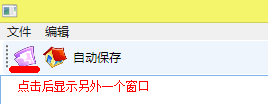

Main.XAML
<Window x:Class="ToolBar控件.MainWindow"

        xmlns="http://schemas.microsoft.com/winfx/2006/xaml/presentation"

        xmlns:x="http://schemas.microsoft.com/winfx/2006/xaml"

        WindowState="Maximized"

        Title="主窗口" Height="350" Width="525">

    <Grid>

        <DockPanel>

            <Menu DockPanel.Dock="Top"><!--Menu也是靠上靠,但如果大家都是往同一方向靠的话,就按顺序来定了-->

                <MenuItem Header="文件"></MenuItem>

                <MenuItem Header="编辑"></MenuItem>

            </Menu>

            <ToolBar DockPanel.Dock="Top"><!--工具条控件,一般把常用的都放到工具条上面,而且上面可以放置很多的其他控件,不过,有些控件放进去之后,样子会发生一些变化-->

                <!--<Button Content="保存"></Button>-->

                <!--可以通过设置Button的Content属性显示图片,这样工具条就不会显得单调了-->

                <Button Height="30" Click="Button_Click"><!--设置Button的content属性有些特殊,可以不用Button.Content来设置,直接在Button标签下设置,但其他控件 ,就都要指定哪一个属性-->

                    <Image Source="images/2052.ico"></Image>

                </Button>

                <!--<Button Content="新建"></Button>-->

                <Button Height="30">

                    <Button.Content>

                        <Image Source="images/2063.ico"></Image>

                    </Button.Content>

                </Button>

                <CheckBox>自动保存</CheckBox>

            </ToolBar>

            <!--<RichTextBox Name="richTextBox" DockPanel.Dock="Bottom"></RichTextBox>-->

            <TextBox Name="textBox" TextWrapping="Wrap" AcceptsReturn="True" DockPanel.Dock="Bottom"></TextBox>

            <!--AcceptsReturn设置可以支持回车换行,默认为false-->

        </DockPanel>

    </Grid>

</Window>
Main.XAML.cs
using System;

using System.Collections.Generic;

using System.Linq;

using System.Text;

using System.Windows;

using System.Windows.Controls;

using System.Windows.Data;

using System.Windows.Documents;

using System.Windows.Input;

using System.Windows.Media;

using System.Windows.Media.Imaging;

using System.Windows.Navigation;

using System.Windows.Shapes;

namespace ToolBar控件

{

    /// <summary>

    /// MainWindow.xaml 的交互逻辑

    /// </summary>

    public partial class MainWindow : Window

    {

        public MainWindow()

        {

            InitializeComponent();

        }

        private void Button_Click(object sender, RoutedEventArgs e)

        {

            AboutWindow aboutWindow = new AboutWindow();

            //aboutWindow.Txt = System.Windows.Markup.XamlWriter.Save(richTextBox.Document);

            //string s = System.Windows.Markup.XamlWriter.Save(richTextBox.Document).ToString();

            aboutWindow.Txt = textBox.Text;

            aboutWindow.ShowDialog();//打开窗口

        }

    }

}
About.XAML
<Window x:Class="ToolBar控件.AboutWindow"

        xmlns="http://schemas.microsoft.com/winfx/2006/xaml/presentation"

        xmlns:x="http://schemas.microsoft.com/winfx/2006/xaml"

        Title="关于" Height="300" Width="300" ResizeMode="NoResize" WindowStartupLocation="CenterScreen" Loaded="Window_Loaded"><!--Title修改窗口的标题为‘关于’,ResizeMode修改窗口的最小化、最大化,WindowStartupLocation窗口显示的初始位置-->

    <Grid>

        <TextBlock Name="textBlock" Text="第一个新建的子窗口"></TextBlock>

    </Grid>

</Window>
About.XAML.cs
using System;

using System.Collections.Generic;

using System.Linq;

using System.Text;

using System.Windows;

using System.Windows.Controls;

using System.Windows.Data;

using System.Windows.Documents;

using System.Windows.Input;

using System.Windows.Media;

using System.Windows.Media.Imaging;

using System.Windows.Shapes;

namespace ToolBar控件

{

    /// <summary>

    /// AboutWindow.xaml 的交互逻辑

    /// </summary>

    public partial class AboutWindow : Window

    {

        public string Txt { get; set; }

        public AboutWindow()

        {

            InitializeComponent();

        }

        private void Window_Loaded(object sender, RoutedEventArgs e)

        {

            textBlock.Text = Txt;

        }

    }

}
知识点:
1)WindowState设置窗体的初始状态(最大化,最小化)
Titile设置窗体的显示标题
ResizeMode设置窗体初始时的是否显示最大化、最小化(是否显示最大化、是否显示最小化)
WindowStartupLocation窗体初始时的显示位置(窗体居中,默认)


2.aboutWindow.ShowDialog() 打开窗口

3.如果把一个窗口A中的值传到另外一个窗口B,可以在B中设置属性,然后在A中定义B的对象后,直接调用即可
(无论是把主窗体的值传递给子窗体,还是把子窗体的值传递给主窗体,都可以运用设置属性的方法)


4.通过修改App.xaml文件,指定程序启动时哪一个窗体最先打开
...
StartupUri="MainWindow.xaml"
...

5.TextBox中通过设置属性AcceptsReturn,设置是否支持回车换行,默认是false

4.窗口间传值
1. 窗口键传值,可以通过设置属性来实现
2.如果窗口使用ShowDialog打开的,则给DialogResult赋值会自动关闭窗口,并且把DialogResult属性的通过ShowDialog方法的返回值返回


Code:
Main.XAML
<Window x:Class="窗口间传值.MainWindow"

        xmlns="http://schemas.microsoft.com/winfx/2006/xaml/presentation"

        xmlns:x="http://schemas.microsoft.com/winfx/2006/xaml"

        Title="主窗口" Height="350" Width="525">

    <Grid>

        <Button Name="btnTest" Content="窗口间传值" HorizontalAlignment="Left" Margin="100,65,0,0" VerticalAlignment="Top" Width="139" Click="btnTest_Click"/>

    </Grid>

</Window>
Main.XALM.cs
using System;

using System.Collections.Generic;

using System.Linq;

using System.Text;

using System.Windows;

using System.Windows.Controls;

using System.Windows.Data;

using System.Windows.Documents;

using System.Windows.Input;

using System.Windows.Media;

using System.Windows.Media.Imaging;

using System.Windows.Navigation;

using System.Windows.Shapes;

namespace 窗口间传值

{

    /// <summary>

    /// MainWindow.xaml 的交互逻辑

    /// </summary>

    public partial class MainWindow : Window

    {

        public MainWindow()

        {

            InitializeComponent();

        }

        private void btnTest_Click(object sender, RoutedEventArgs e)

        {

            InputWindow inputWindow = new InputWindow();

            bool? b = inputWindow.ShowDialog();

            if (b == null)

            {

                MessageBox.Show("没有输入值!");

            }

            else if (b == true)

            {

                MessageBox.Show("确定:" + inputWindow.InputValues);

            }

            else

            {

                MessageBox.Show("取消");

            }

        }

    }

}
InpoutWindow.XAML
<Window x:Class="窗口间传值.InputWindow"

        xmlns="http://schemas.microsoft.com/winfx/2006/xaml/presentation"

        xmlns:x="http://schemas.microsoft.com/winfx/2006/xaml"

        WindowStartupLocation="CenterScreen"

        ResizeMode="NoResize"

        Title="输入窗体" Height="150" Width="300">

    <Grid>

        <Grid>

            <Grid.RowDefinitions>

                <RowDefinition></RowDefinition>

                <RowDefinition></RowDefinition>

            </Grid.RowDefinitions>

            <Grid.ColumnDefinitions>

                <ColumnDefinition></ColumnDefinition>

                <ColumnDefinition></ColumnDefinition>

            </Grid.ColumnDefinitions>

            <TextBox Name="txtInput" Grid.ColumnSpan="2"></TextBox>

            <Button Name="btnOK" Content="确定" Grid.Row="1" Margin="10" Click="btnOK_Click"></Button>

            <Button Name="btnCancel" Content="取消" Grid.Row="1" Grid.Column="1" Margin="10" Click="btnCancel_Click"></Button>

        </Grid>

    </Grid>

</Window>
InputWindow.XAML.cs
using System;

using System.Collections.Generic;

using System.Linq;

using System.Text;

using System.Windows;

using System.Windows.Controls;

using System.Windows.Data;

using System.Windows.Documents;

using System.Windows.Input;

using System.Windows.Media;

using System.Windows.Media.Imaging;

using System.Windows.Shapes;

namespace 窗口间传值

{

    /// <summary>

    /// InputWindow.xaml 的交互逻辑

    /// </summary>

    public partial class InputWindow : Window

    {

        public string InputValues { get; set; }

        public InputWindow()

        {

            InitializeComponent();

        }

        private void btnOK_Click(object sender, RoutedEventArgs e)

        {

            InputValues = txtInput.Text;

            DialogResult = true;//如果窗口使用ShowDialog打开的,则给DialogResult赋值会自动关闭窗口,

                                //并且把DialogResult属性的通过ShowDialog方法的返回值返回

        }

        private void btnCancel_Click(object sender, RoutedEventArgs e)

        {

            DialogResult = false;

        }

    }

}
5.OpenFileDialog打开文件对话框
Code:
 private void Button_Click(object sender, RoutedEventArgs e)

        {

            //打开文件对话框

            OpenFileDialog ofd = new OpenFileDialog();//打开文件对话框

            //ofd.InitialDirectory设置默认打开的文件目录

            ofd.Filter = "文本文件|*.txt|图片文件|*.jpg;*.png;*.JPEG|所有文件|*.*";//设置过滤器,前两个为一组,以“|”问分割线,前一个是要显示的内容,后一个是文件的类型,如果文件的类型有多个时,可用“;”分隔

            //注意:Fileter属性的设置,应该是在ShowDialog()方法执行前才进行设置

            if (ofd.ShowDialog() == true)

            {

                string s = ofd.FileName;//打开的文件名

                MessageBox.Show("打开文件:" + s);

            }

            else

            {

                MessageBox.Show("取消");

            }

        }
知识点:
1)需引用命名空间:Microsoft.Win32;
2)ShowDialog()方法打开对话框
3)InitialDirectory属性设置默认打开的文件目录
4)Filter属性设置过滤器。设置过滤器时,前两个为一组,以“|”问分割线,前一个是要显示的内容,后一个是文件的类型,如果文件的类型有多个时,可用“;”分隔
注意:Fileter属性的设置,应该是在ShowDialog()方法执行前才进行设置
5)FileName为打开的文件名
6.SaveFileDialog保存文件对话框
Code:
  private void btnSaveFile_Click(object sender, RoutedEventArgs e)

        {

            //保存文件对话框

            SaveFileDialog sfd = new SaveFileDialog();

            sfd.Filter = "文本文件|*.txt|图片文件|*.jpg;*.png;*.JPEG|所有文件|*.*";

            if (sfd.ShowDialog() == true)

            {

                MessageBox.Show("保存文件" + sfd.SafeFileName);

            }

        }
private void btnShowImage_Click(object sender, RoutedEventArgs e)

        {

            OpenFileDialog ofd = new OpenFileDialog();

            ofd.Filter = "图片|*.jpg;*.png;*.JPEG";

            if (ofd.ShowDialog() == true)

            {

                string fileName = ofd.FileName;

                imageControl.Source = new BitmapImage(new Uri(fileName));//用代码设置Image控件的Source属性

            }

        }
知识点:
1)ShowDialog()方法显示保存文件对话框
2)Filter 属性设置过滤器
3)SafeFileName属性为保存文件名
4)用代码设置Image控件的Source属性: imageControl.Source = new BitmapImage(new Uri(fileName))
WPF基础学习第二天(高级控件)的更多相关文章
- iOS学习笔记——iOS高级控件
UITableView UITableView的样式有两种,一种是Grouped(左图),另一种是Plain(右图),如下图,它的属性是style,类型为UITableViewStyle,枚举值分别是 ...
- Android 高级控件(七)——RecyclerView的方方面面
Android 高级控件(七)--RecyclerView的方方面面 RecyclerView出来很长时间了,相信大家都已经比较了解了,这里我把知识梳理一下,其实你把他看成一个升级版的ListView ...
- Android高级控件(二)——SurfaceView实现GIF动画架包,播放GIF动画,自己实现功能的初体现
Android高级控件(二)--SurfaceView实现GIF动画架包,播放GIF动画,自己实现功能的初体现 写这个的原因呢,也是因为项目中用到了gif动画,虽然网上有很多的架包可以实现,不过我们还 ...
- UGUI核心元素、基本控件、复合控件和高级控件
UGUI的核心元素: Anchor(锚点):每个控件都有一个Anchor属性,控件的4个顶点,分别与Anchor的4个点保持不变的距离,不受屏幕分辨率变化的影响. 系统默认设置控件的Anchor位置在 ...
- Android高级控件--AdapterView与Adapter
在J2EE中提供过一种非常好的框架--MVC框架,实现原理:数据模型M(Model)存放数据,利用控制器C(Controller)将数据显示在视图V(View)上.在Android中有这样一种高级控件 ...
- Android高级控件(六)——自定义ListView高仿一个QQ可拖拽列表的实现
Android高级控件(六)--自定义ListView高仿一个QQ可拖拽列表的实现 我们做一些好友列表或者商品列表的时候,居多的需求可能就是需要列表拖拽了,而我们选择了ListView,也是因为使用L ...
- Android高级控件(五)——如何打造一个企业级应用对话列表,以QQ,微信为例
Android高级控件(五)--如何打造一个企业级应用对话列表,以QQ,微信为例 看标题这么高大上,实际上,还是运用我么拿到listview去扩展,我们讲什么呢,就是研究一下QQ,微信的这种对话列表, ...
- Android高级控件(四)——VideoView 实现引导页播放视频欢迎效果,超级简单却十分的炫酷
Android高级控件(四)--VideoView 实现引导页播放视频欢迎效果,超级简单却十分的炫酷 是不是感觉QQ空间什么的每次新版本更新那炫炫的引导页就特别的激动,哈哈,其实他实现起来真的很简单很 ...
- Android高级控件(三)—— 使用Google ZXing实现二维码的扫描和生成相关功能体系
Android高级控件(三)-- 使用Google ZXing实现二维码的扫描和生成相关功能体系 摘要 现在的二维码可谓是烂大街了,到处都是二维码,什么都是二维码,扫一扫似乎已经流行到习以为常了,今天 ...
随机推荐
- kdump failed
kdump 是一种先进的基于 kexec 的内核崩溃转储机制.当系统崩溃时,kdump 使用 kexec 启动到第二个内核. 第二个内核通常叫做捕获内核,以很小内存启动以捕获转储镜像.第一个内核保留 ...
- oracle增删改查
=======================批量删除,只留前十条数据. delete from THIRD_PARTY_MERCHANT a where a.rowid in ( select ro ...
- jenkins+jmeter+ant搭建接口测试平台
接口测试的重点是检查数据的交换,传递和控制管理过程以及系统间的相互逻辑依赖关系. 接口测试的流程 项目启动后,测试人员要尽早拿到接口测试文档. 开始编写接口测试用例 将接口测试用例部署到持续集成的测试 ...
- rotate array 旋转数组
class Solution {public: void rotate(vector<int>& nums, int k) { int n=nums.size(); int i=0 ...
- AJAX 数据库实例
AJAX 用于创建动态性更强的应用程序. AJAX ASP 实例 下面的例子将演示当用户在输入框中键入字符时,网页如何与服务器进行通信: 实例 请在下面的输入框中键入字母(A - Z): 姓名: 建议 ...
- PHP String 函数
[http://www.w3school.com.cn/php/php_ref_string.asp ] PHP String 简介 String 字符串函数允许您对字符串进行操作. 安装 Strin ...
- Linux C socket 编程之TCP
推荐:http://www.cnblogs.com/tianshuai11/archive/2011/11/30/2477224.html
- dbms_job.submit 单次执行
DBMS_JOB.SUBMIT用于定时任务,基本用法如下: DBMS_JOB.SUBMIT(:jobno,//job号 'yo ...
- 鼠标放上去,div高度随文字增加,并显示剩余的文字。
/*这里是鼠标放上去显示全名 */ .kb2wText{display:block; height:20px; width:150px; line-height:20px; color:#0 ...
- java文件写入和读出的序列化
文件的写入入与读出都有它们自己的格式,不便于读入和取出,implement Serializable接口,实现任何个事文件的写入和读取取: